
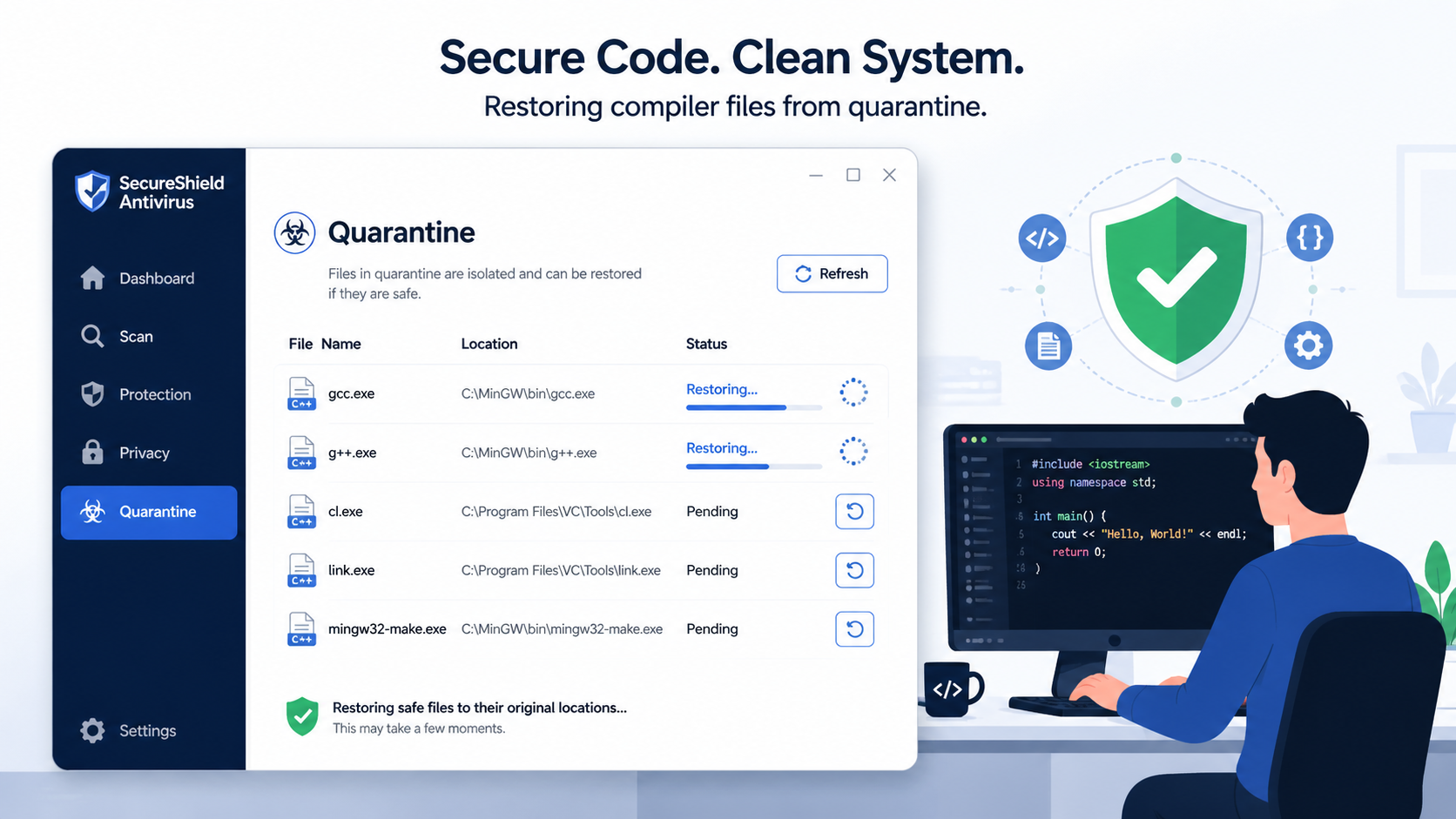
Executive Summary: Encountering a Bitdefender GCC false positive can halt your entire development workflow when your compiler is suddenly quarantined as malware. This comprehensive guide walks you through understanding why legitimate GNU Compiler Collection (GCC) files trigger antivirus detection, provides immediate restoration steps, explains how to submit false positives to Bitdefender labs, and establishes long-term prevention strategies. By implementing proper exclusion rules, optimizing your system with tools like 360 Total Security, and following developer-specific security best practices, you can maintain both robust protection and uninterrupted coding productivity on your Windows or macOS desktop.
How Can Bitdefender's False Positive GCC Virus Detection Be Fixed?
Understanding the root causes of Bitdefender flagging legitimate GCC (GNU Compiler Collection) components as viruses is essential for implementing a multi-layered resolution strategy that restores functionality while maintaining security. Developers worldwide face this frustrating scenario: you're in the middle of compiling a critical project when Bitdefender suddenly quarantines gcc.exe, g++.exe, or associated libraries, bringing your work to a complete standstill. This section addresses the core questions: "Why does Bitdefender keep quarantining my GCC compiler files?", "How can I stop Bitdefender from blocking my C/C++ development tools?", and "Is GCC safe to use or is it actually infected?"
Why Legitimate GCC Files Get Flagged as Viruses
The phenomenon of GCC flagged as virus incidents stems from fundamental characteristics of how compiler executables operate and how modern antivirus heuristic engines analyze suspicious behavior. According to security researchers analyzing common heuristic patterns in antivirus engines, the inherent nature of compiler executables and generated binaries can trigger detection systems due to code patterns that mimic malware behavior. Compilers like GCC perform operations that, from a behavioral analysis perspective, appear similar to malicious software: they read, write, and execute code dynamically; they create new executable files; they access system libraries extensively; and they modify binary structures in memory.
Bitdefender's advanced heuristic scanning employs machine learning algorithms trained on millions of malware samples. When these algorithms encounter GCC's legitimate compilation processes—particularly when generating optimized binaries or using certain compiler flags—they may identify patterns statistically correlated with malware packers, code obfuscators, or exploit generators. For instance, GCC's ability to produce position-independent executables (PIE) or to inline assembly code can trigger signatures associated with shellcode generation techniques commonly used by attackers.
Misconfigured Bitdefender settings or outdated virus definitions significantly increase false positive rates, especially for developer tools. If your Bitdefender installation is set to maximum paranoia levels with aggressive heuristic scanning enabled, or if the virus definition database hasn't been updated in several weeks, the likelihood of encountering Bitdefender blocking compiler operations increases substantially. According to a 2026 Cybersecurity Software Quality Report, antivirus vendors release definition updates multiple times daily specifically to address false positive reports from their user communities. Running outdated definitions means you're missing these critical corrections.
Additionally, certain GCC distributions—particularly those bundled with MinGW, Cygwin, or MSYS2 on Windows—may include wrapper scripts, batch files, or shell executables that antivirus software scrutinizes more heavily than native binaries. These wrapper components often exhibit behaviors like spawning multiple child processes, accessing environment variables extensively, and modifying PATH settings, all of which can appear suspicious to behavioral detection engines that lack sufficient context about legitimate development workflows.
Immediate Steps to Restore Your GCC Environment
When Bitdefender has already quarantined your GCC development tools, immediate action is required to restore functionality. The first critical step is to navigate to Bitdefender's quarantine section and restore the flagged GCC files. Open your Bitdefender interface (typically accessible from the system tray icon), locate the "Quarantine" or "Quarantined Items" section under the Protection or Security tab, and identify the compiler-related files such as gcc.exe, g++.exe, cc1.exe, cc1plus.exe, ld.exe, as.exe, and any associated DLL libraries like libgcc_s_dw2-1.dll or libstdc++-6.dll.
Before clicking the "Restore" button, it's prudent to verify that these files are indeed legitimate GCC components and not actual malware masquerading with similar names. Check the file paths—legitimate GCC installations typically reside in directories like C:\MinGW\bin, C:\cygwin64\bin, C:\msys64\mingw64\bin, C:\Program Files\CodeBlocks\MinGW\bin, or similar structured locations. If the quarantined files are located in suspicious directories like C:\Users\[Username]\AppData\Local\Temp or C:\Windows\System32, exercise additional caution and verify the file signatures before restoration.
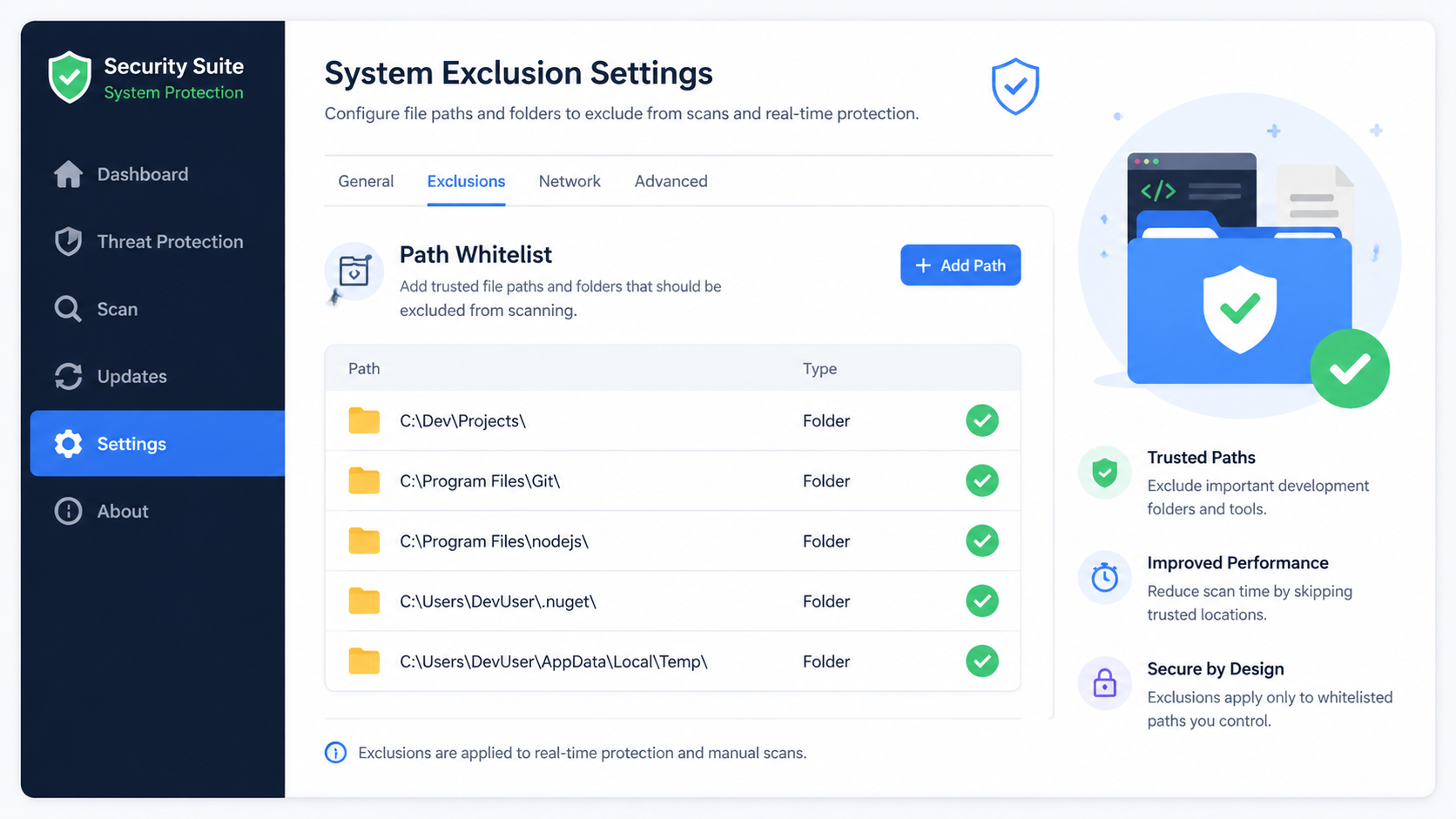
The second essential step is to add your GCC installation directory as an exclusion or whitelist in Bitdefender's real-time protection settings. This prevents future quarantine incidents. In Bitdefender, navigate to Settings → General → Exceptions (or Protection → Antivirus → Settings → Manage Exceptions, depending on your version). Add the entire GCC installation root directory—for example, C:\MinGW or C:\cygwin—as an excluded path. Be specific: exclude both the directory itself and all subdirectories by ensuring the recursive option is enabled. Some Bitdefender versions allow you to exclude specific processes; if available, add gcc.exe, g++.exe, and other compiler executables as trusted processes.
As a last resort for urgent compilation needs, you may temporarily disable real-time scanning to compile a critical project, but remember to re-enable it immediately after completion. This approach trades security for immediate productivity and should only be used when deadlines are imminent and proper exclusions cannot be configured quickly enough. To disable real-time protection in Bitdefender, access the Protection module, locate the Real-Time Protection toggle, and disable it for a defined period (Bitdefender typically offers options like 5 minutes, 15 minutes, 1 hour, or until system restart). Set a timer or calendar reminder to ensure you re-enable protection promptly—leaving your system unprotected for extended periods exposes you to genuine security threats.
Submitting the False Positive to Bitdefender for a Permanent Fix
While local exclusions solve the immediate problem for your machine, submitting the false positive to Bitdefender's analysis team contributes to a permanent solution that benefits the entire developer community. Use the built-in 'Report a False Positive' function within Bitdefender to submit the quarantined GCC files directly to their labs for analysis. Most modern Bitdefender versions include a "Report" or "Submit for Analysis" button directly in the quarantine interface. When you click this option, Bitdefender automatically packages the suspected file along with contextual metadata (file hash, detection signature, behavioral logs) and transmits it securely to their malware research team.
For optimal results, ensure your Bitdefender virus definitions are updated to the latest version before submitting, as the issue may already be resolved in a recent update. Navigate to the Update section in Bitdefender and manually trigger a definition update. If the update resolves the false positive automatically, you'll save both yourself and Bitdefender's analysts unnecessary work. If the problem persists even after updating, your submission becomes more valuable as it indicates a current, unresolved detection issue that requires immediate attention.
According to industry standards observed across major antivirus vendors in 2026, the typical turnaround time for responding to and resolving false positive reports ranges from 24 to 72 hours, depending on the complexity of the analysis and the vendor's current workload. Bitdefender's malware research team examines submitted files in isolated sandbox environments, verifying digital signatures, analyzing code behavior, cross-referencing with known legitimate software databases, and updating their detection algorithms accordingly. Once confirmed as a false positive, Bitdefender releases an updated virus definition that whitelists the specific file signature or behavioral pattern, preventing future misdetections for all users worldwide.
To expedite the process, consider supplementing your automatic submission with a manual report through Bitdefender's official false positive submission portal (typically found at bitdefender.com/consumer/support/answer/). Provide detailed information: specify that the flagged file is part of the GNU Compiler Collection, include the exact GCC version number (obtainable by running gcc --version before quarantine), mention the distribution source (MinGW, Cygwin, official GCC builds, etc.), and provide the complete file path. The more context you provide, the faster analysts can verify legitimacy and issue corrections.
How to Prevent Future Antivirus Interference with Development Tools
Proactively configuring your security software to coexist with development workflows minimizes disruptions, focusing on creating trusted zones and utilizing system optimization tools for holistic PC health. This section addresses crucial developer concerns: "How do I keep my antivirus from interfering with programming?", "What are the best practices for securing a developer's machine?", and "How can I make my antivirus smarter about developer tools?" By implementing strategic exclusions, optimizing system performance, and following security-conscious development practices, you create an environment where antivirus developer workflow integration becomes seamless rather than antagonistic.
Configuring Antivirus for a Developer's Workflow
Creating comprehensive exclusion rules extends beyond just the compiler installation directory. To effectively prevent false positives and scanning delays, create dedicated exclusion rules not just for the GCC directory, but also for common build output directories such as ./build, ./bin, ./Debug, ./Release, ./out, ./target, and any project-specific output folders you regularly use. Modern software projects generate hundreds or thousands of intermediate object files, temporary binaries, and debug symbols during compilation. When antivirus software attempts to scan each of these files in real-time as they're created, it can dramatically slow compilation times—sometimes turning a 30-second build into a 5-minute ordeal.
In Bitdefender's exclusion settings, add both your source code repositories and build output directories. For example, if you maintain all projects under C:\Users\[Username]\Projects, add this entire directory tree to exclusions. However, balance this with security awareness: if you download and compile third-party code from untrusted sources, you may want more granular exclusions that protect only your verified personal projects. Consider using project-specific exclusions for repositories you trust completely while maintaining standard protection for experimental or external codebases.
Consider adjusting the scanning sensitivity from 'Aggressive' to 'Balanced' or enabling a 'Gamer Mode' if available to reduce background scanning during active work. Bitdefender and many modern antivirus solutions offer performance profiles that reduce system resource consumption during resource-intensive activities. Gamer Mode, despite its name, benefits any CPU-intensive workflow—including software compilation, video rendering, or data analysis. When enabled, this mode postpones scheduled scans, reduces real-time scanning aggressiveness, and suppresses non-critical notifications, allowing your development tools to access maximum system resources.
| Sensitivity Setting | Scan Depth | False Positive Risk | Performance Impact | Recommended For |
|---|---|---|---|---|
| Aggressive/Paranoid | Deep heuristic analysis, behavioral monitoring, cloud reputation checks | High (frequent developer tool flags) | Significant (20-30% CPU during scans) | High-security environments, public-facing servers, machines handling sensitive data |
| Balanced/Standard | Signature-based + moderate heuristics, selective behavioral analysis | Moderate (occasional false positives) | Moderate (10-15% CPU during scans) | General users, developers with proper exclusions, home office setups |
| Permissive/Performance | Primarily signature-based, minimal heuristics | Low (rare false positives) | Low (5-8% CPU during scans) | Experienced users, isolated development machines, systems with supplementary security layers |
| Gamer/Work Mode | Temporarily reduced scanning, deferred updates | Very Low (minimal scanning activity) | Minimal (2-5% CPU, primarily passive) | Active gaming sessions, large compilation jobs, video rendering, real-time simulations |
The table above illustrates how different antivirus sensitivity configurations affect both security posture and development workflow. For most developers, the Balanced setting with comprehensive exclusions provides optimal security and development equilibrium. Advanced users working on isolated development machines (not used for web browsing or email) might opt for Permissive settings, while those handling proprietary code in regulated industries should maintain Aggressive settings but invest time in meticulous exclusion configuration.
The Role of System Optimization in Maintaining a Healthy PC
Beyond antivirus configuration, overall system health significantly impacts how security software interacts with development tools. Regular system cleanup of temporary files and cache can reduce the clutter that antivirus software needs to scan, potentially lowering scan times and interaction delays. Accumulated temporary build artifacts, cached package manager downloads, and orphaned dependency files create unnecessary scanning overhead. A system with 50GB of temporary files requires substantially more scanning resources than a clean system, even when those files are excluded from real-time protection.
Tools like 360 Total Security offer a comprehensive suite including system cleanup, startup optimization, and driver updates, which help maintain a stable and performant environment where security software functions more predictably. For desktop and PC users on Windows and macOS, 360 Total Security provides an integrated approach to system maintenance that complements your primary antivirus solution. Its system cleanup module identifies and removes gigabytes of unnecessary files—browser caches, Windows update remnants, log files, and temporary compilation artifacts—freeing both disk space and reducing the attack surface that security software must monitor.
The startup optimization feature in 360 Total Security allows you to identify and disable unnecessary programs that launch at boot, reducing system resource contention during development work. When fewer background processes compete for CPU, memory, and disk I/O, both your compiler and your antivirus software operate more efficiently with less mutual interference. Additionally, 360 Total Security's driver update functionality ensures that hardware components operate with the latest stability and security patches, reducing system crashes that can corrupt development environments or trigger false security alerts.
By keeping your operating system and all software updated via 360 Total Security's patch management features, you reduce security vulnerabilities, potentially allowing you to use less aggressive (and thus less intrusive) antivirus heuristics. A fully patched Windows or macOS system with current versions of all installed software presents fewer exploitable vulnerabilities. When your system is demonstrably secure through proper patch management, you can justify configuring your antivirus with slightly less aggressive heuristics, reducing false positive rates while maintaining robust protection against genuine threats. This creates a virtuous cycle: better system hygiene enables less intrusive security, which in turn enables more productive development.
Best Practices for Managing Security on a Development Machine
Establishing robust development practices creates additional safety nets that allow you to configure security software with confidence. Use version control systems like Git religiously. If a file is quarantined, you can always revert to a known-good version from your repository. This practice transforms antivirus false positives from catastrophic data loss events into minor inconveniences. When your entire project history exists in a distributed version control system with remote backups on platforms like GitHub, GitLab, or Bitbucket, you can restore quarantined files with confidence, knowing that even if you accidentally restore actual malware, you can roll back to any previous clean state.
Maintain known-good, verified checksums (like SHA-256) for critical toolchain components like GCC. If flagged, you can verify the file's integrity before restoring it. When you initially install GCC or any development toolchain, generate and store cryptographic hashes of key executables. On Linux and macOS, use shasum -a 256 /path/to/gcc; on Windows, use certutil -hashfile C:\MinGW\bin\gcc.exe SHA256 or PowerShell's Get-FileHash cmdlet. Store these hashes in a secure location—perhaps in your password manager or a dedicated security documentation file in your version control system. When Bitdefender quarantines a file, you can recalculate its hash and compare it to your stored value. If they match, you can confidently restore the file knowing it hasn't been tampered with or replaced by actual malware.
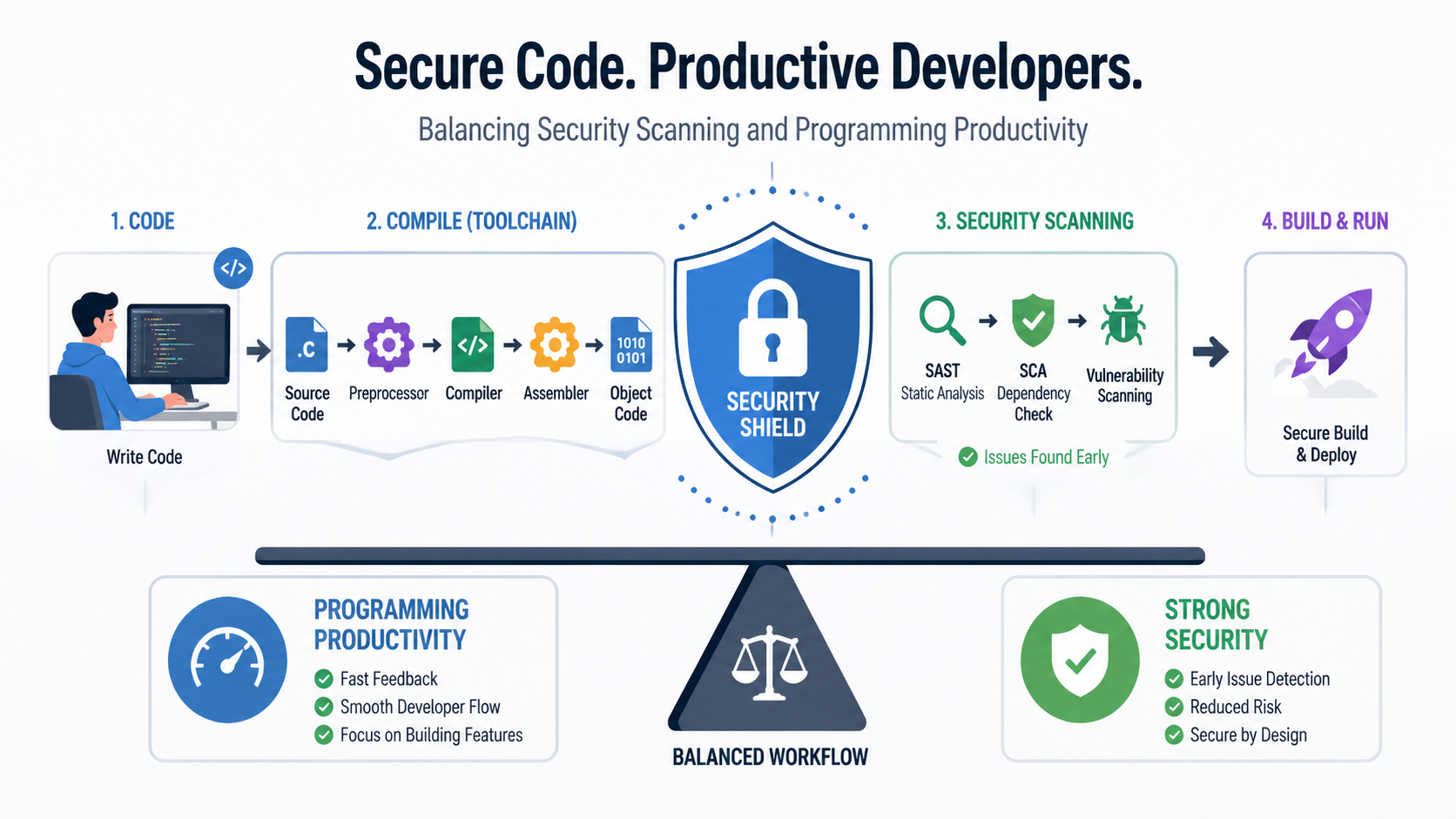
Run regular, full system scans during off-hours to catch real threats without interrupting your workflow, relying on well-configured exclusions during active development periods. Schedule comprehensive scans for nights or weekends when you're not actively coding. Configure your antivirus to perform deep scans of non-excluded areas—system directories, download folders, email attachments, and web browser caches—while your development directories remain protected by targeted exclusions. This strategy provides thorough security coverage without the performance penalties and false positive interruptions that occur when aggressive scanning runs during active compilation.
According to recommendations from IT administrators managing software development environments in enterprise settings, implementing a layered security approach provides superior protection compared to relying solely on aggressive antivirus heuristics. This layered approach includes: maintaining a dedicated development machine separate from your general web browsing and email device; using virtual machines or containers for testing untrusted code; implementing network segmentation to isolate development environments; employing application whitelisting to ensure only approved executables run; and maintaining comprehensive logging to detect anomalous behavior that might indicate compromise despite antivirus exclusions.
For developers who frequently work with open-source projects or compile code from various sources, consider implementing a trust verification workflow. Before compiling any external project, review its source code (at least superficially), check its reputation on platforms like GitHub (star count, contributor activity, issue discussions), verify digital signatures when available, and compile initially in an isolated environment like a virtual machine. Only after confirming the project behaves as expected should you compile it on your primary development machine with antivirus exclusions active.
Frequently Asked Questions
Is it safe to exclude my entire GCC installation from antivirus scanning?
Excluding your GCC installation directory from real-time antivirus scanning is generally safe if you obtained GCC from a trusted source (official GCC builds, reputable distributions like MinGW or Cygwin, or your Linux distribution's package manager). The risk is minimal because compiler binaries rarely change after installation, and any modifications would likely indicate system compromise that would be detected through other means. However, to maximize security while maintaining functionality, exclude only the specific GCC installation directory rather than your entire development workspace. Continue scanning your source code directories, download folders, and build output directories with a scheduled scan rather than real-time protection. Additionally, verify the integrity of your GCC installation using checksums from the official distribution before creating the exclusion, and periodically re-verify these checksums to ensure no tampering has occurred.
Why does Bitdefender sometimes flag compiled programs I create, not just the compiler itself?
Bitdefender may flag your compiled programs due to several factors related to how heuristic antivirus engines analyze executable behavior and characteristics. First, if your program performs operations commonly associated with malware—such as modifying registry keys, accessing network sockets without clear user interaction, injecting code into other processes, or reading memory from other applications—heuristic analysis may flag it as suspicious regardless of its actual intent. Second, statically compiled programs (created with the -static flag) or stripped binaries (created with strip command) lack the metadata and dynamic linking information that helps antivirus software identify legitimate applications, making them appear more suspicious. Third, if you're developing security tools, penetration testing utilities, or system optimization software, your legitimate programs may implement techniques that overlap with malware functionality. To address this, digitally sign your compiled executables using a code signing certificate, which provides cryptographic proof of authorship and integrity. Additionally, submit your flagged applications to Bitdefender as false positives, and consider adding your build output directories to antivirus exclusions during development while removing those exclusions for final release builds that you'll distribute to users.
Can I use multiple antivirus programs simultaneously to reduce false positives?
Running multiple real-time antivirus programs simultaneously is strongly discouraged and typically counterproductive. When two antivirus solutions operate concurrently, they compete for system resources, often flagging each other's processes as suspicious, and create significant performance degradation that severely impacts development workflows. The kernel-level drivers and file system filters that antivirus programs install can conflict, causing system instability, blue screens, or boot failures. Instead of reducing false positives, multiple antivirus programs often increase them because each solution applies its own heuristics independently. The recommended approach is to select one primary antivirus solution with strong performance and configurability (such as Bitdefender, configured with appropriate developer exclusions), and supplement it with on-demand scanning tools that you run manually during off-hours. For example, you might use Bitdefender as your primary real-time protection while periodically running 360 Total Security scans for second-opinion verification and system optimization. This layered approach provides comprehensive coverage without the conflicts and performance penalties of simultaneous real-time protection from multiple vendors.
How can I tell if a GCC-related file flagged by Bitdefender is actually malware?
Distinguishing between legitimate GCC components and actual malware requires systematic verification. First, examine the file location: genuine GCC files reside in structured installation directories like C:\MinGW\bin, /usr/bin, /usr/local/bin, or C:\Program Files\[IDE]\MinGW\bin, while malware often hides in temporary directories, user profile folders, or system directories where GCC wouldn't normally install. Second, verify the file's digital signature if available (right-click the file in Windows, select Properties → Digital Signatures tab); legitimate GCC builds from major distributions are often signed, though community builds may lack signatures. Third, calculate the file's cryptographic hash (SHA-256) and search for it on VirusTotal.com, which aggregates results from dozens of antivirus engines and provides community reputation data. If only Bitdefender flags the file while 60+ other engines consider it clean, it's almost certainly a false positive. Fourth, check the file's creation date and compare it to when you installed GCC; if gcc.exe suddenly appeared yesterday but you installed GCC months ago, investigation is warranted. Finally, examine the file size and compare it to the expected size from the official GCC distribution; significant discrepancies suggest tampering. If after these checks you remain uncertain, quarantine the file, restore it from your original GCC installation media or re-download from the official source, and compare the hashes to confirm they match.
Conclusion and Next Steps
Successfully resolving Bitdefender GCC false positive detections requires a combination of immediate remediation, proactive configuration, and long-term security practices. By understanding why compiler tools trigger heuristic detection, implementing comprehensive exclusion rules, submitting false positives to Bitdefender's research team, and maintaining optimal system health through tools like 360 Total Security, you create a development environment that balances robust security with uninterrupted productivity.
Take action today: review your current antivirus exclusions, verify the integrity of your development toolchain, schedule regular system optimization scans, and establish version control practices that protect against data loss from any source. For comprehensive PC protection and system optimization that complements your development workflow, visit 360 Total Security to download our free desktop security solution for Windows and macOS. Maintain security without sacrificing the performance your development work demands.
About the Author
This article was authored by the cybersecurity content team at 360 Total Security, specialists in balancing robust system protection with optimal performance for power users and developers. With over a decade of experience analyzing antivirus behavior, false positive patterns, and development workflow optimization, our team provides practical, tested solutions for technical professionals worldwide. We maintain active partnerships with security researchers and development communities to ensure our guidance reflects real-world challenges and current best practices in the rapidly evolving cybersecurity landscape of 2026.