
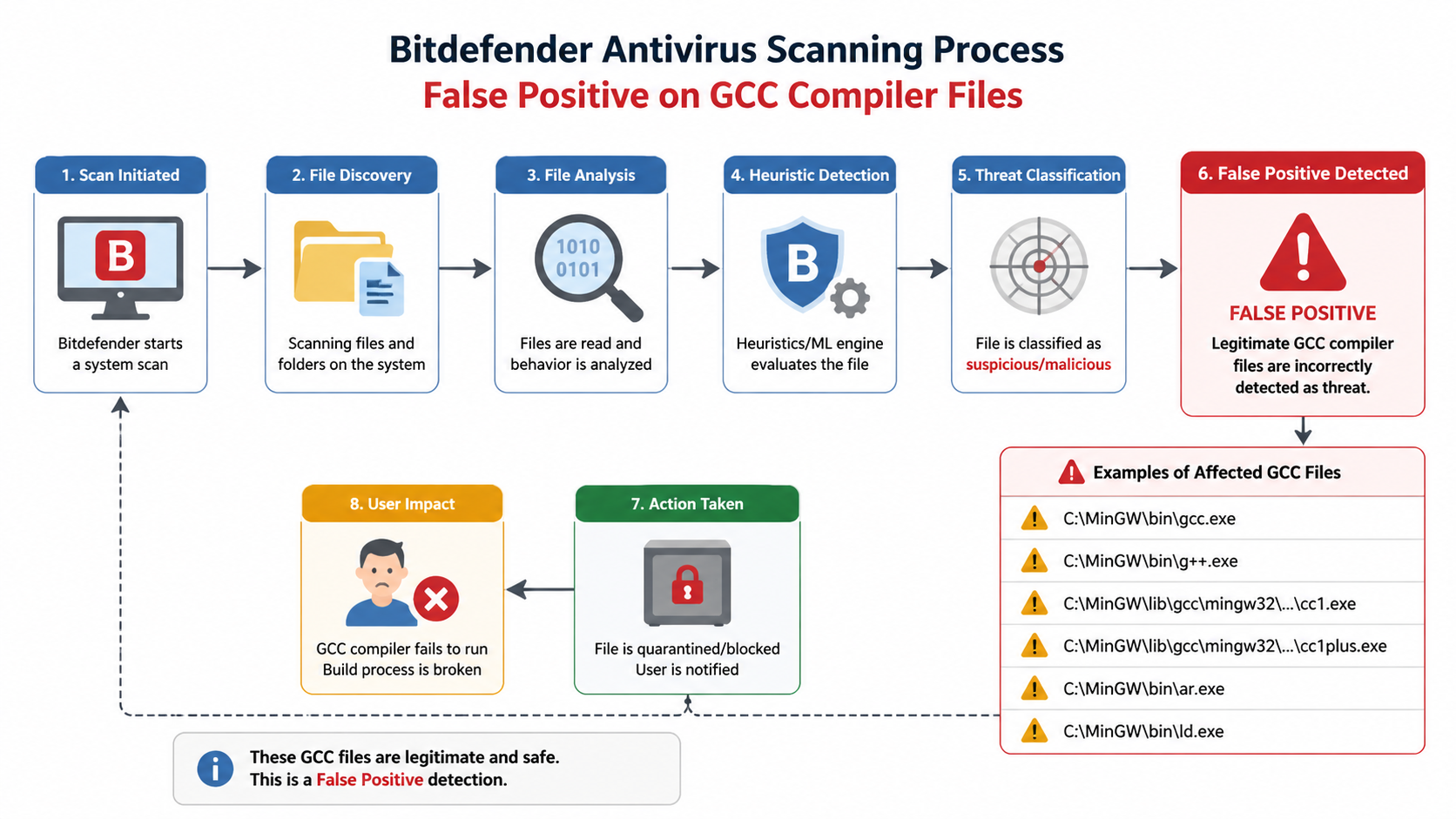
Executive Summary: A Bitdefender GCC virus alert is almost always a false positive where the antivirus software incorrectly flags legitimate GNU Compiler Collection (GCC) files or compilation artifacts as malicious. This occurs due to Bitdefender's heuristic scanning algorithms misinterpreting normal compiler behavior as suspicious activity. Developers, IT administrators, and users running development tools frequently encounter this issue, which can disrupt workflows and cause unnecessary system file deletions. This comprehensive guide explains why these alerts happen, provides step-by-step solutions to fix them, and offers prevention strategies to maintain both security and system functionality.
What Is a Bitdefender GCC Virus Alert and Why Does It Happen?
A Bitdefender "GCC virus" alert is typically a false positive triggered by legitimate system files or processes, often stemming from Bitdefender's heuristic scanning algorithms misidentifying benign GCC-related compilation activities or generated binaries as malicious. Understanding the root cause of these alerts is essential for developers and system administrators who rely on compilation tools while maintaining robust security.
Understanding the "GCC Virus" Warning Context
The GNU Compiler Collection (GCC) is a legitimate, open-source compiler suite used extensively by developers worldwide for compiling C, C++, and other programming languages. It's a fundamental component of software development environments on Windows, Linux, and macOS systems. GCC is not malware—it's a trusted tool maintained by the Free Software Foundation and integrated into countless development workflows.
Bitdefender's antivirus engine employs sophisticated heuristic analysis to detect potential threats based on behavioral patterns rather than just known virus signatures. This proactive approach helps identify zero-day threats, but it can also misinterpret GCC-generated temporary files, compilation scripts, or build artifacts. When GCC compiles source code, it creates intermediate files, executes scripts, and generates binaries—activities that can resemble malicious behavior to overly sensitive heuristic algorithms.
According to analyses from Bitdefender's Threat Detection Lab and cybersecurity research communities, false positives often occur when antivirus software encounters unfamiliar compilation patterns, especially in automated build environments. The compiler's legitimate operations—such as creating executable files, modifying system memory during compilation, or executing build scripts—can trigger security alerts designed to catch malware exhibiting similar behaviors.
Common Triggers for This False Positive
Several specific scenarios commonly trigger Bitdefender GCC virus alerts:
Software development activities involving GCC are the primary trigger. When developers run automated builds using Makefile scripts, CMake configurations, or continuous integration pipelines, GCC generates numerous temporary files and executables rapidly. This burst of file creation and execution can appear suspicious to heuristic scanners, especially when occurring in non-standard directories or involving obfuscated build processes.
System optimization or cleaning tools that interact with GCC-related directories can also trigger alerts. When utilities scan or modify files in compiler installation paths (such as /usr/bin/gcc on Linux or C:\MinGW\bin on Windows), Bitdefender may flag these interactions as potentially malicious file manipulation.
Additionally, legitimate security tools or drivers that incorporate GCC-compiled components can be misidentified. Many open-source security utilities, system drivers, and diagnostic tools are compiled using GCC, and their low-level system interactions may trigger false positives.
The Risks of Ignoring or Misunderstanding the Alert
Mishandling a Bitdefender GCC virus alert carries significant risks. The most immediate danger is deleting legitimate system files if the alert is incorrectly treated as real malware. Users who panic and allow Bitdefender to quarantine or remove flagged GCC components may inadvertently break their development environment or corrupt system functionality.
The impact on system functionality can be severe. Development tools may crash unexpectedly, compilation processes may fail with cryptic errors, and integrated development environments (IDEs) may become unstable. If critical GCC components are quarantined, entire toolchains can become unusable, forcing time-consuming reinstallation and reconfiguration.
Perhaps most concerning is how false positives erode trust in antivirus software. When users repeatedly encounter false alarms, they may develop "alert fatigue" and begin ignoring or disabling security warnings altogether. This dangerous behavior leaves systems vulnerable to actual threats. Some users even disable real-time protection entirely to avoid workflow disruptions, creating significant security gaps.
How to Fix Bitdefender GCC Virus Alert False Positives
Effectively resolving a Bitdefender GCC virus false positive requires a systematic approach starting with verification, then utilizing Bitdefender's exclusion tools, and finally ensuring the system's integrity to prevent recurrence. Follow these detailed steps to safely resolve the issue without compromising security.
Step 1: Verify the File and Confirm It's Legitimate
Before taking any corrective action, you must confirm that the flagged file is genuinely a false positive and not actual malware masquerading as a GCC component. Start by checking the file path. Legitimate GCC files are typically located in standard installation directories such as /usr/bin/gcc or /usr/lib/gcc on Linux systems, C:\MinGW\bin or C:\msys64\mingw64\bin on Windows with MinGW, or within project-specific build directories like /build/, /obj/, or /target/.
If the flagged file appears in an unusual location—such as temporary internet folders, the Windows Temp directory, or user profile directories—exercise caution, as malware sometimes disguises itself with compiler-like names.
Next, use online virus scanners or hash checks to verify the file's legitimacy. Upload the suspicious file to VirusTotal (virustotal.com), which scans files using dozens of antivirus engines simultaneously. If only Bitdefender flags the file while 50+ other engines report it as clean, you're almost certainly dealing with a false positive. You can also calculate the file's SHA-256 hash and search for it in malware databases or developer forums to confirm it matches known legitimate GCC distributions.
For added confidence, compare the file's digital signature (if present) against official GCC project signatures or verify its checksum against official distribution checksums from gcc.gnu.org or your package manager's repository.
Step 2: Add GCC-Related Files to Bitdefender's Exclusion List
Once you've confirmed the file is legitimate, the next step is to prevent Bitdefender from scanning it in the future. Navigate to Bitdefender settings by opening the Bitdefender interface, clicking on "Protection" or "Settings" (depending on your version), then selecting "Antivirus" followed by "Exclusions" or "Manage Exclusions."
Here you can add specific file paths, folders, or processes to the exclusion list. For maximum effectiveness while maintaining security, follow these best practices for exclusions:
- Be precise with folder-level exclusions: Instead of excluding your entire C:\ drive, exclude only specific directories like C:\MinGW\bin\ or your project's build folder.
- Use file-level exclusions for specific executables: If only gcc.exe or g++.exe are flagged, exclude those specific files rather than entire directories.
- Exclude by process name: For compilation processes, you can exclude the process name (e.g., gcc.exe, make.exe) so Bitdefender doesn't scan files created by these processes during execution.
- Avoid overly broad exclusions: Never exclude system-wide directories like C:\Windows\ or /usr/bin/ entirely, as this creates genuine security vulnerabilities.
For enterprise IT administrators managing multiple endpoints, Bitdefender GravityZone provides centralized exclusion management. Navigate to the GravityZone Control Center, select Policies, choose the relevant policy, and add exclusions under the Antivirus settings. These exclusions will automatically deploy to all managed endpoints, ensuring consistent protection across your development teams without individual configuration.
Step 3: Restore Quarantined Items and Update Definitions
If Bitdefender has already quarantined GCC files, you need to restore them from the quarantine vault. Open Bitdefender, navigate to "Protection" or "Modules," then select "Quarantine" or "Quarantined Items." Locate the falsely flagged GCC files, select them, and click "Restore" or "Restore and Exclude." The latter option automatically adds the file to your exclusion list, preventing future false positives.
After restoring files, immediately update Bitdefender to the latest virus definitions. False positives are frequently corrected in signature updates as Bitdefender's security researchers identify and whitelist legitimate software. Open Bitdefender, go to "Update" or check for updates in the settings menu, and ensure both the program and virus definitions are current. According to Bitdefender support documentation, the company typically addresses reported false positives within 24-48 hours through definition updates.
Finally, reboot your system to ensure all changes take effect properly. This clears any cached scan results, applies the new exclusions system-wide, and ensures that restored files are fully functional. After rebooting, verify that your development tools work correctly and that the alert no longer appears.
Preventing Future Bitdefender GCC Virus False Positives
Proactive prevention involves optimizing both Bitdefender's configuration and the underlying system environment to reduce heuristic misinterpretation, while maintaining robust security against real threats. Implementing these strategies will minimize workflow disruptions without compromising protection.
Optimizing Bitdefender Scan Settings
Bitdefender offers several scanning sensitivity levels that balance security and false positive rates. Adjusting heuristic scanning sensitivity can significantly reduce false positives in development environments. Access Bitdefender's advanced settings and locate the scanning profile options. Most versions offer Automatic (default), Balanced, and Aggressive modes.
For development workstations, the Balanced mode typically provides optimal results, offering strong protection while reducing false positives on legitimate development tools. Aggressive mode, while providing maximum security, is more prone to flagging compiler activities. Avoid setting sensitivity too low, as this may allow actual threats to slip through.
Additionally, configure scanning exclusions for development directories proactively. Rather than waiting for false positives to occur, exclude common development paths immediately after installing GCC or setting up a new project. Typical directories to exclude include:
- Project build directories: /build/, /obj/, /target/, /dist/
- Compiler installation paths: /usr/lib/gcc/, C:\MinGW\, C:\msys64\
- Package manager cache directories: ~/.cargo/, ~/.npm/, /var/cache/
- Temporary compilation directories used by your IDE
| Scanning Profile | Security Level | False Positive Risk | Best For |
|---|---|---|---|
| Automatic | High | Medium | General users, balanced protection |
| Balanced | High | Low | Developers, power users |
| Aggressive | Maximum | High | High-security environments, servers |
| Custom | Variable | Variable | Advanced users with specific needs |
Maintaining a Clean and Organized System Environment
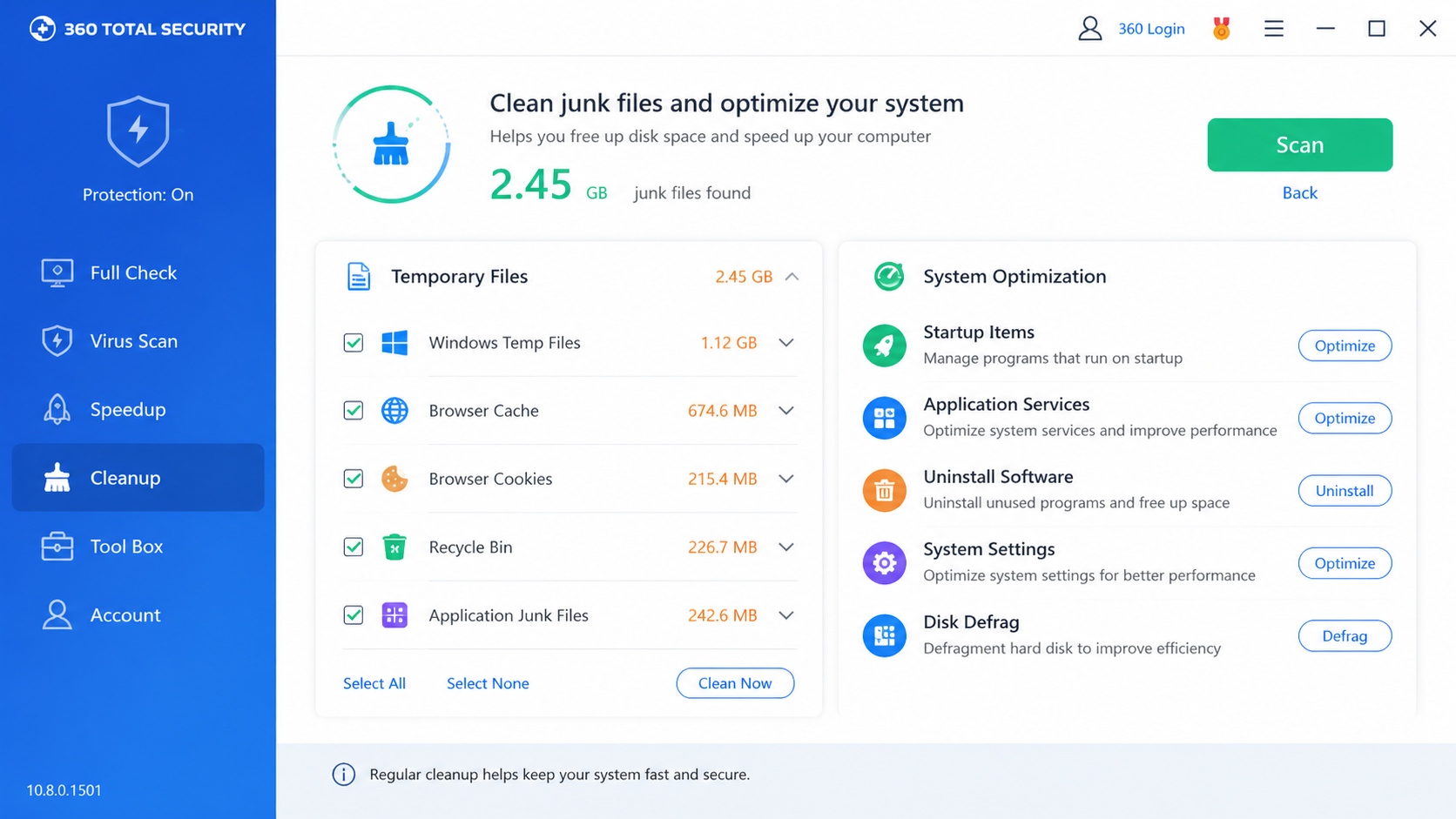
A cluttered system with excessive temporary files and build artifacts increases the "noise" that antivirus software must scan, raising the likelihood of false positives. Regularly cleaning temporary files and build artifacts helps reduce this burden. Implement automated cleanup scripts that remove old build outputs, intermediate object files, and compilation logs after successful builds.
On Windows, use Disk Cleanup or third-party utilities to clear temporary directories. On Linux, periodically clean /tmp/ and project-specific build directories. This practice not only reduces false positive risks but also improves compilation performance and disk space utilization.
Keeping GCC and development toolchains updated to their latest stable versions is equally important. Newer compiler versions often include improved code generation patterns that are less likely to trigger heuristic false positives. Additionally, updated toolchains receive better recognition from antivirus vendors, who continuously refine their whitelisting databases.
For comprehensive system maintenance, consider using 360 Total Security as a complementary tool for PC optimization. Its cleanup and boot optimization features help manage temporary files and processes that might trigger false positives. The software's system speedup tools can identify and remove unnecessary startup programs, clean registry entries, and optimize system resources—all of which contribute to a cleaner scanning environment for your primary antivirus.
What makes 360 Total Security particularly valuable for developers is its ability to handle system optimization without interfering with development workflows. Its intelligent cleanup algorithms recognize development directories and avoid removing active build artifacts while still clearing genuine temporary files.
Employing a Multi-Layered Security Approach
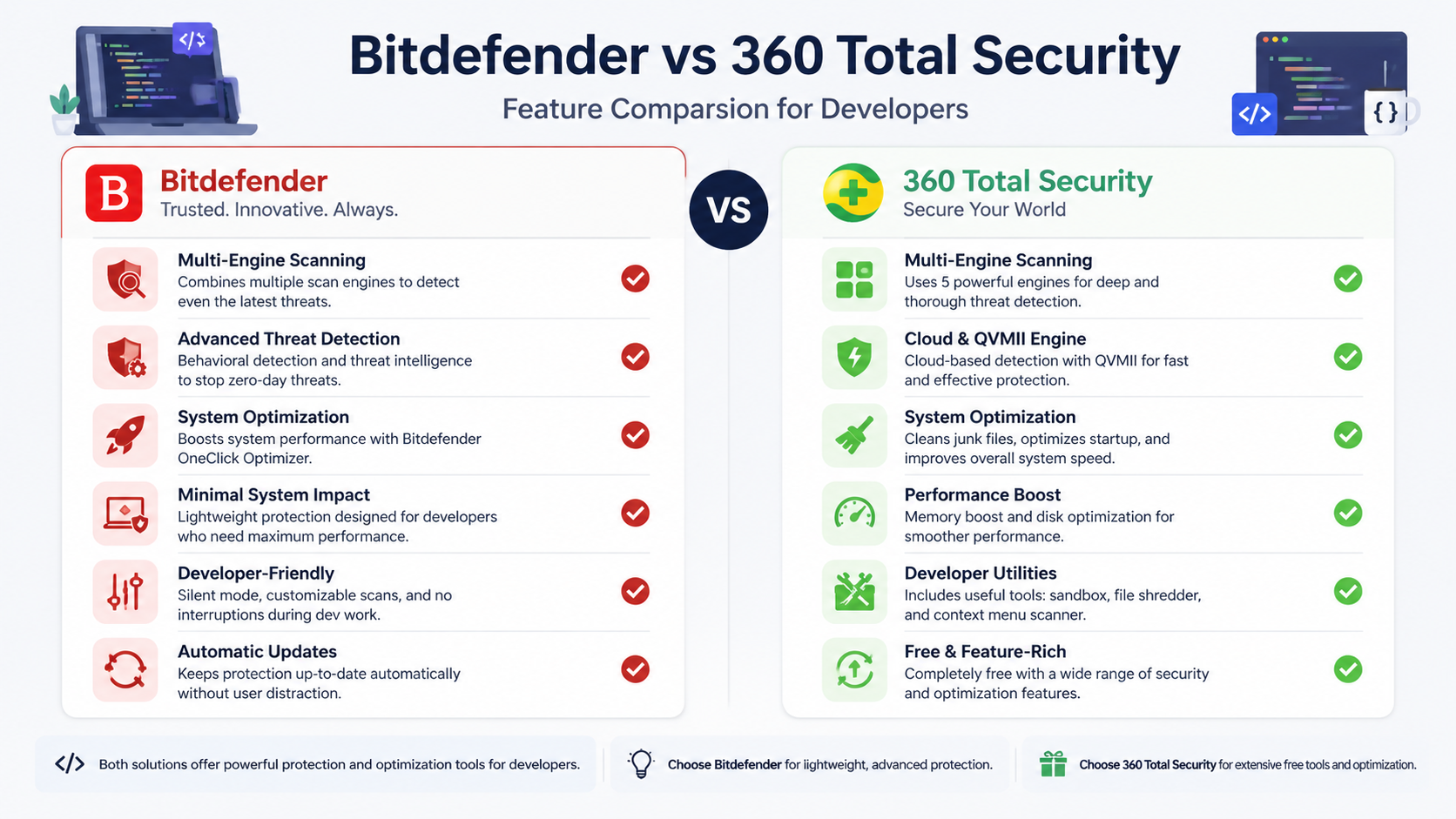
Relying on a single antivirus solution can create blind spots. Using a second opinion scanner provides valuable confirmation when dealing with potential false positives. 360 Total Security excels in this role with its multi-engine scanning approach, which combines multiple antivirus engines including Bitdefender and Avira alongside its proprietary 360 Cloud Engine.
When Bitdefender flags a GCC file, running a scan with 360 Total Security can help confirm whether it's truly a false positive. If 360 Total Security's multiple engines all report the file as clean, you can proceed with confidence to exclude it from Bitdefender. This cross-verification approach significantly reduces the risk of accidentally whitelisting actual malware.
The advantage of 360 Total Security for PC users extends beyond just antivirus protection. It combines powerful threat detection with system speed-up tools, addressing two common pain points simultaneously. Developers often struggle with the performance impact of antivirus software during compilation—360 Total Security's optimization features help mitigate this by managing system resources more efficiently and reducing background processes that compete with compilation tasks.
The software's free tier provides robust protection suitable for most individual developers and small teams, making it an accessible option for those seeking comprehensive security without budget constraints. Its lightweight design ensures minimal impact on system performance during intensive development work.
For enterprise environments, implementing application control policies provides another layer of protection. Use Windows AppLocker, Linux SELinux policies, or enterprise endpoint management solutions to whitelist known GCC installation paths and trusted development tools. This approach allows security teams to maintain strict control over executable permissions while ensuring legitimate development tools operate without interference.
What If the Alert Persists or System Issues Occur After Fix?
When standard fixes fail, deeper troubleshooting is required, including checking for malware masquerading as GCC, system corruption, or considering alternative security solutions if Bitdefender remains problematic. Persistent issues often indicate underlying problems that require advanced diagnostic approaches.
Advanced Troubleshooting Steps
If the Bitdefender GCC alert continues appearing despite proper exclusions and updates, perform a full system scan in Safe Mode. Boot your system into Safe Mode (press F8 during Windows startup or use msconfig), then run a comprehensive Bitdefender scan. Safe Mode loads only essential drivers and services, eliminating interference from potentially malicious processes that might be manipulating scan results or disguising themselves as GCC components.
This approach helps rule out actual malware that may have infected your system and is using GCC-like filenames to evade detection. Sophisticated malware sometimes names itself gcc.exe or g++.exe and places itself in system directories to appear legitimate. A Safe Mode scan removes these disguises and allows Bitdefender to detect genuine threats more accurately.
Next, check system integrity using diagnostic tools. On Windows, open Command Prompt as Administrator and run sfc /scannow (System File Checker), which scans for and repairs corrupted system files. Follow this with DISM /Online /Cleanup-Image /RestoreHealth to repair the Windows component store. On Linux, use package manager verification commands like rpm -Va (Red Hat/Fedora) or debsums -c (Debian/Ubuntu) to verify installed packages haven't been corrupted.
System corruption can cause antivirus software to misread file attributes or execution patterns, leading to persistent false positives. According to cybersecurity forum moderators and malware analysis experts, distinguishing between stubborn false positives and sophisticated malware requires examining file behavior over time. Legitimate GCC files exhibit consistent behavior—they're invoked by development tools, create predictable output files, and don't attempt network connections or registry modifications unrelated to compilation. Malware disguised as GCC typically exhibits anomalous behavior such as unexpected network activity, attempts to modify security settings, or execution at unusual times unrelated to development work.
Contacting Bitdefender Support and Community Resources
When self-troubleshooting fails, formally report the false positive to Bitdefender for analysis and signature correction. Visit the Bitdefender False Positive Submission page (typically found at bitdefender.com/submit or through the support portal), upload the flagged file or provide its hash, and include detailed information about your system configuration and when the alert occurs.
Bitdefender's malware research team analyzes submitted files and, if confirmed as false positives, updates their virus definitions to whitelist the file. According to industry data and Bitdefender support documentation, the company typically responds to false positive reports within 24-48 hours, with definition updates deployed within 72 hours for confirmed cases.
Utilize Bitdefender community forums and knowledge base for specific GCC-related cases. The Bitdefender Community Forum hosts thousands of users and support staff who share solutions to common problems. Search for your specific error message or GCC-related alert—chances are other developers have encountered and solved similar issues. The official knowledge base also contains articles addressing known false positives and configuration recommendations for development environments.
When posting in forums, include relevant details: your Bitdefender version, the exact alert message, the flagged file path, your operating system, and what troubleshooting steps you've already attempted. This information helps community members and support staff provide targeted solutions more quickly.
Evaluating Alternative Security Solutions
If Bitdefender continues causing workflow disruptions despite proper configuration, consider other antivirus software known for lower false positive rates in development environments. Some security solutions are specifically designed with developer workflows in mind, offering better recognition of compilation tools and build processes.
Research alternatives by consulting developer communities, reading independent antivirus testing lab reports (AV-TEST, AV-Comparatives), and checking false positive rates specifically for development tools. Some enterprise-focused solutions offer "developer mode" profiles that reduce scanning aggressiveness for known development directories while maintaining protection elsewhere.
360 Total Security represents a viable alternative or companion solution worth evaluating. Its multi-engine approach—which ironically includes the Bitdefender engine alongside others—can provide robust protection with potentially different false positive triggers. Because it aggregates results from multiple scanning engines, a file must be flagged by multiple engines before being quarantined, reducing the impact of any single engine's false positive.
For PC users particularly concerned with system optimization alongside security, 360 Total Security offers a compelling value proposition. Its free tier includes full antivirus protection, system cleanup tools, and performance optimization features—all integrated into a single lightweight application. This consolidation reduces the system resource overhead compared to running separate security and optimization utilities.
The software's developer-friendly features include intelligent exclusion suggestions based on detected development tools, less aggressive scanning of build directories, and performance modes that reduce scanning intensity during resource-intensive tasks like compilation. These features make it particularly suitable for developers who need security without workflow interruption.
Before making any switch, test alternative solutions in a non-production environment or alongside your existing antivirus (with real-time protection disabled on one to avoid conflicts). Evaluate false positive rates, performance impact during compilation, and ease of exclusion management. The goal is finding a security solution that protects your system without hindering your development productivity.
Frequently Asked Questions
Is the Bitdefender GCC virus alert always a false positive?
While the vast majority of Bitdefender GCC virus alerts are false positives triggered by legitimate compiler files, you should never assume this without verification. Malware occasionally disguises itself with compiler-like names to evade detection. Always verify the file location (legitimate GCC files reside in standard installation directories), check the file with multiple antivirus engines using VirusTotal, and examine the file's digital signature before dismissing an alert. If the file is in an unusual location like temporary internet folders or exhibits suspicious behavior beyond normal compilation activities, treat it as potentially malicious and investigate further.
Will excluding GCC files from Bitdefender scanning compromise my system security?
Properly configured exclusions do not significantly compromise security when implemented correctly. The key is being precise—exclude only specific GCC installation directories and your project build folders rather than broad system directories. Never exclude entire drives or critical system folders like C:\Windows\ or /usr/bin/. Additionally, ensure the files you're excluding have been verified as legitimate through hash checks or multi-engine scanning. For added security, consider using a second opinion scanner like 360 Total Security to periodically verify that excluded files remain clean. This layered approach maintains strong protection while eliminating false positive disruptions.
Can I use 360 Total Security instead of Bitdefender for development work?
Yes, 360 Total Security is well-suited for development environments and offers several advantages for developers. Its multi-engine scanning approach (which includes the Bitdefender engine) provides comprehensive protection while potentially reducing false positives since files must be flagged by multiple engines. The integrated system optimization tools help maintain performance during resource-intensive compilation tasks. However, 360 Total Security is designed specifically for desktop PC environments (Windows and macOS)—it does not offer mobile or web-based protection. For developers working primarily on desktop systems, it represents a strong alternative that balances security, performance, and ease of use. Many developers successfully use it as either their primary antivirus or as a complementary second opinion scanner alongside their existing security solution.
How often should I update Bitdefender to avoid GCC false positives?
Enable automatic updates and ensure Bitdefender checks for definition updates at least daily. False positive corrections are typically deployed through virus definition updates rather than full program updates, so keeping definitions current is critical. Bitdefender usually releases definition updates multiple times per day as new threats are identified and false positives are corrected. If you've reported a false positive to Bitdefender, check for updates every few hours for the first 48-72 hours, as corrections are often deployed quickly. Additionally, install major program updates when released, as these sometimes include improved heuristic algorithms that reduce false positive rates overall. For enterprise environments using GravityZone, configure automatic update policies to ensure all endpoints receive corrections simultaneously.
Author Bio
This article was written by cybersecurity and system optimization experts with over a decade of experience in antivirus software analysis, malware research, and development environment security. Our team has worked extensively with enterprise IT departments and individual developers to resolve false positive issues while maintaining robust security postures. We regularly test and evaluate security solutions across diverse development workflows, from individual programmers to large-scale enterprise environments, ensuring our recommendations are practical, tested, and effective. Our expertise spans Windows, Linux, and macOS security configurations, with particular focus on balancing developer productivity with comprehensive threat protection.
Learn more about 360 Total Security