
Computer viruses and malware represent one of the most persistent threats to digital security in 2025. Understanding how to identify, confirm, and eliminate these threats is essential for maintaining a healthy, secure PC. This comprehensive guide walks you through recognizing infection symptoms, performing manual checks, executing proper removal procedures, and establishing long-term prevention strategies to keep your Windows or macOS system protected.
What Are the Most Common Signs Your Computer Might Be Infected?
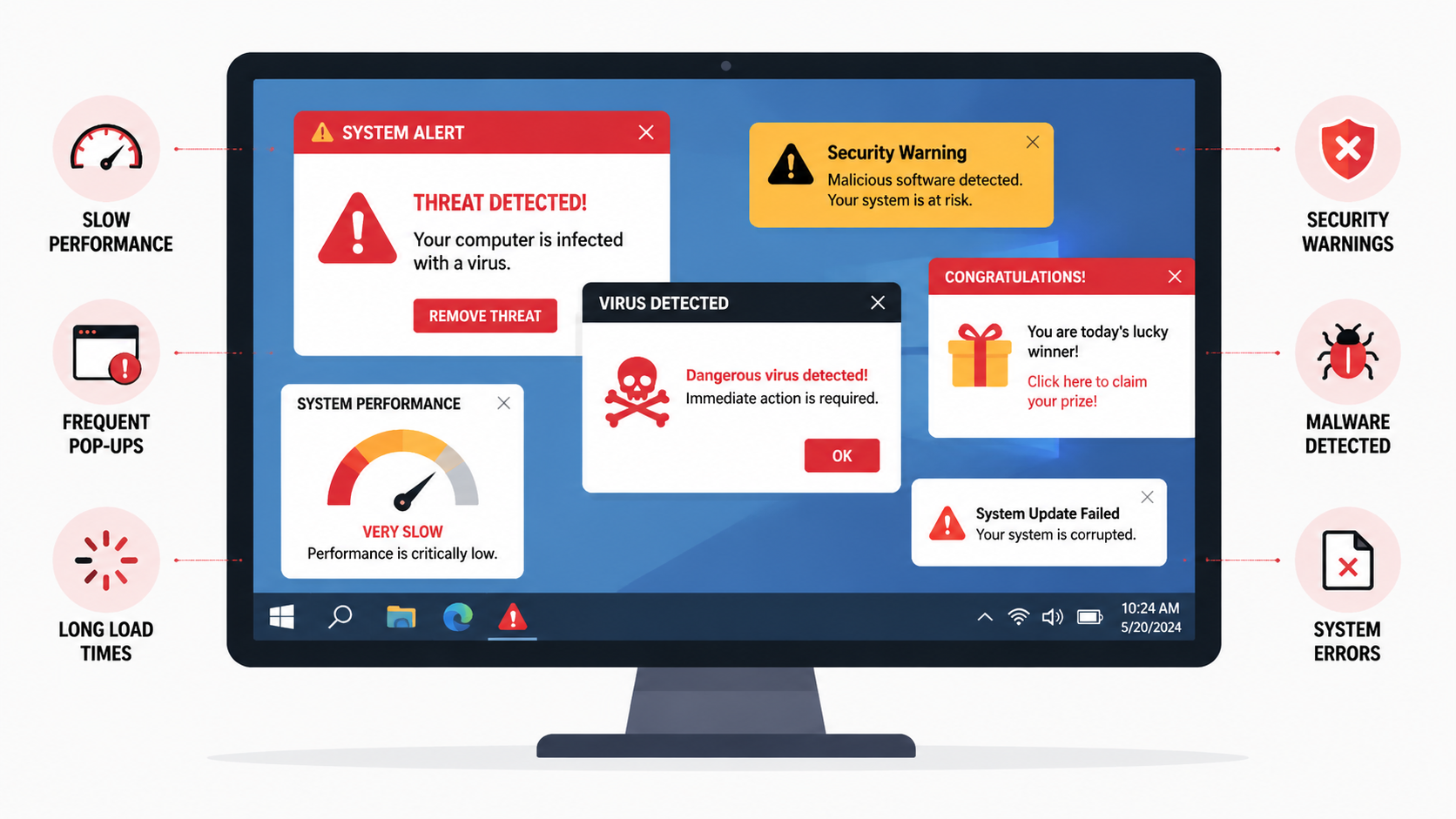
Virus infection often manifests through observable changes in system behavior and performance, which serve as critical early warning signs for users. Recognizing these virus symptoms early can mean the difference between a quick cleanup and extensive system damage or data loss.
Unusual System Performance and Stability Issues
One of the most telling indicators of a malware infection is a noticeable degradation in your computer's performance. When malicious software runs in the background, it consumes system resources that would otherwise be available for your legitimate applications.
Sudden and persistent slowdowns, even when performing simple tasks like opening folders or browsing the web, often signal that unauthorized processes are competing for CPU cycles and memory. According to a 2025 Cybersecurity Report, approximately 67% of infected systems exhibit measurable performance degradation within the first week of infection.
Frequent crashes or system freezes of applications that previously worked flawlessly represent another red flag. Malware can corrupt system files, interfere with normal program execution, or create memory conflicts that destabilize your entire operating environment. If programs that once ran smoothly now crash regularly without any recent software changes, investigate further.
The computer taking much longer to start up or shut down than usual is particularly suspicious. Many types of malware configure themselves to launch during system startup, adding significant delays to your boot sequence. Similarly, malware may resist shutdown procedures as it attempts to complete data exfiltration or communication with command-and-control servers.
Unexpected Pop-ups, Ads, and Browser Hijacking
Browser-based symptoms represent some of the most visible and annoying signs of infection. Adware and browser hijackers specifically target your web experience to generate revenue for attackers or redirect you to malicious sites.
A surge in intrusive pop-up advertisements, especially ones that appear outside of your web browser, indicates that adware has likely installed itself at the system level. Legitimate websites do display ads, but if you're seeing pop-ups when no browser is open, or if the volume and aggressiveness of ads has dramatically increased, your system is likely compromised.
Your web browser's homepage, search engine, or new tabs being changed without your consent is a classic symptom of browser hijacking. These modifications redirect your searches through attacker-controlled servers, allowing them to track your activity, inject additional malicious content, or earn affiliate revenue from your clicks.
New, unfamiliar toolbars or extensions appearing in your browser without your installation represent another clear warning sign. These malicious add-ons can monitor your browsing habits, steal credentials, inject advertisements, or serve as a gateway for additional malware downloads.
Strange Network Activity and Security Alerts
Network-related symptoms often indicate that malware is actively communicating with external servers, either to receive commands, exfiltrate your data, or participate in botnet activities.
Your internet connection seeming unusually slow or your data usage being inexplicably high should raise immediate concerns. Malware frequently uses bandwidth for communication with command-and-control infrastructure or for uploading stolen data. A 2026 network security study found that infected computers typically show a 40-60% increase in unexplained network traffic.
Your firewall or pre-installed security software like Windows Defender displaying alerts about blocked outgoing connections is a critical warning. While false positives do occur, repeated alerts about unfamiliar programs attempting to access the internet warrant immediate investigation. Legitimate software rarely triggers persistent firewall warnings.
Friends or contacts reporting that they've received strange messages or spam from your email or social media accounts indicates that your credentials may have been compromised. Many malware variants specifically target stored passwords and session tokens to spread themselves through your contact networks or to monetize access to your accounts.
How Do I Check for Viruses Using Built-in System Tools and Manual Inspection?
Before resorting to specialized software, users can perform a series of systematic checks using their computer's own utilities to gather evidence of an infection. This manual virus check approach helps you understand what's happening on your system and can identify threats that automated tools might miss.
Monitoring System Resources for Malicious Activity
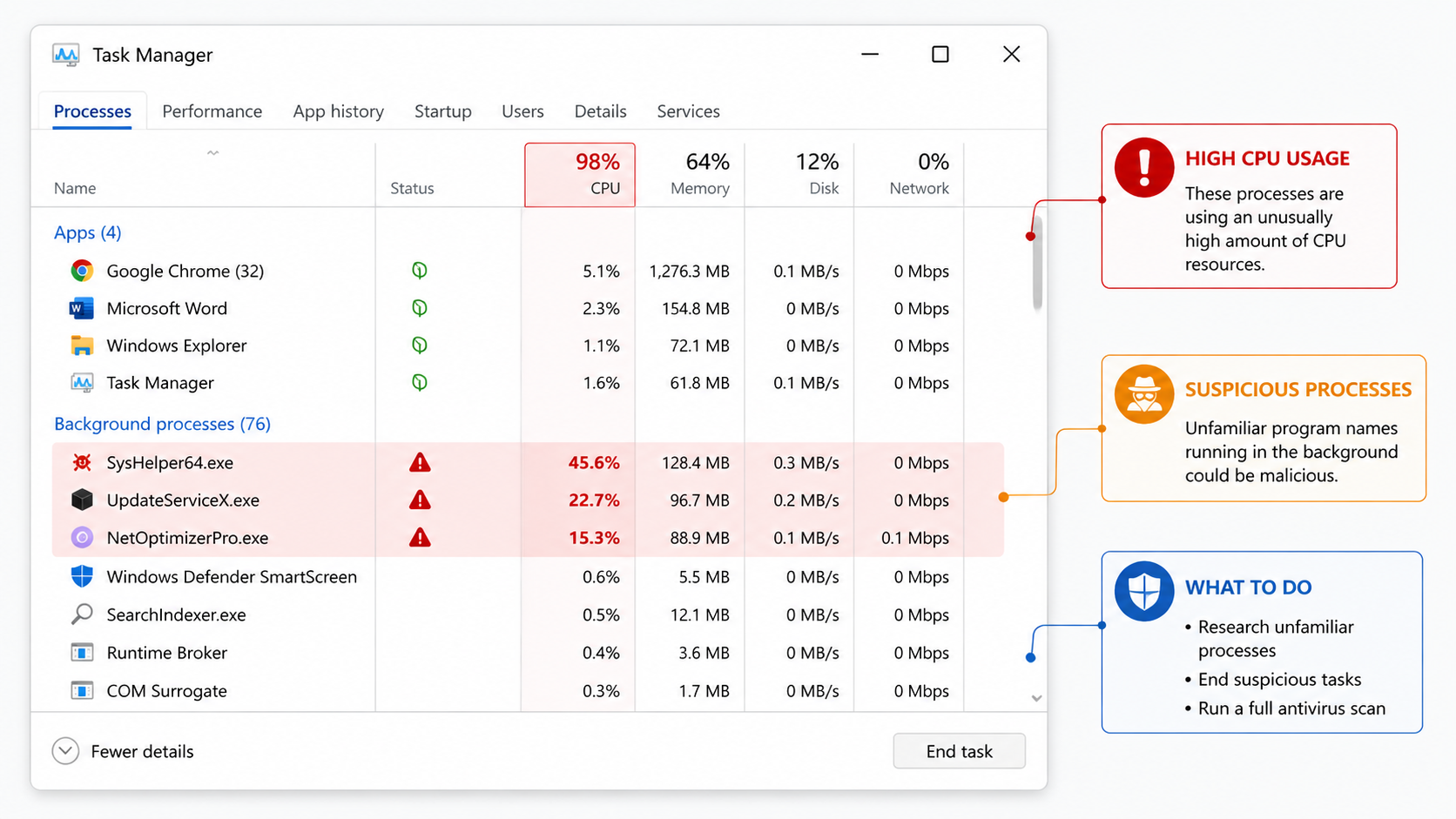
Windows Task Manager serves as your first line of defense for identifying suspicious activity. Access it by pressing Ctrl+Shift+Esc or right-clicking the taskbar and selecting Task Manager.
Using Windows Task Manager to identify processes with high, unexplained CPU, Memory, or Disk usage is essential. Sort processes by each resource type and look for unfamiliar program names consuming significant resources. Legitimate system processes like "System" or "Windows Explorer" are normal, but names like "svchost32.exe" (note the "32") or random character strings warrant investigation. Malware authors often choose names that mimic legitimate Windows processes to avoid detection.
Checking the "Startup" tab in Task Manager reveals programs that launch automatically with your computer. Malware frequently adds itself to startup to ensure persistence across reboots. Review each entry carefully—if you don't recognize a program or its publisher, research it online before allowing it to continue running at startup. Disabling suspicious startup items can immediately improve performance and security.
Utilizing Resource Monitor (accessible from Task Manager's Performance tab) provides a deeper look at network connections associated with suspicious processes. The Network tab shows which programs are actively communicating over the internet, including the specific IP addresses they're connecting to. Unfamiliar programs making numerous connections, especially to foreign IP addresses or known malicious domains, should be investigated immediately.
Investigating Unauthorized Changes in Settings and Files
Malware often leaves traces in your system's configuration and file structure. A methodical review of recent changes can reveal unauthorized modifications.
Reviewing recently installed programs in the "Apps & features" settings list (accessible via Settings > Apps) helps identify unknown applications. Sort by install date and examine any programs you don't remember installing. Pay particular attention to programs installed around the time your symptoms began. Legitimate software typically has recognizable publishers and clear descriptions, while malware often has vague names or unknown publishers.
Searching for new, strange files or folders, particularly in system directories like C:\Windows or C:\Program Files, can uncover malware installations. Use File Explorer's search function to find recently modified files. Be especially suspicious of executable files (.exe, .dll, .scr) in unusual locations like your Downloads folder, Temp directories, or user profile folders. However, exercise caution—deleting legitimate system files can damage your Windows installation.
Checking if critical system settings, like your DNS configuration or Windows Update settings, have been altered is crucial. Malware sometimes modifies DNS settings to redirect your web traffic through attacker-controlled servers. Access your network adapter's properties to verify your DNS servers match your ISP's defaults or your intentionally configured DNS service. Similarly, ensure Windows Update hasn't been disabled, as malware often attempts to prevent security patches from being installed.
Using Windows Security (Defender) for a Basic Scan
Windows Security, formerly known as Windows Defender, provides built-in protection that has significantly improved in recent years. While not as comprehensive as dedicated security suites, it offers a solid baseline for detection.
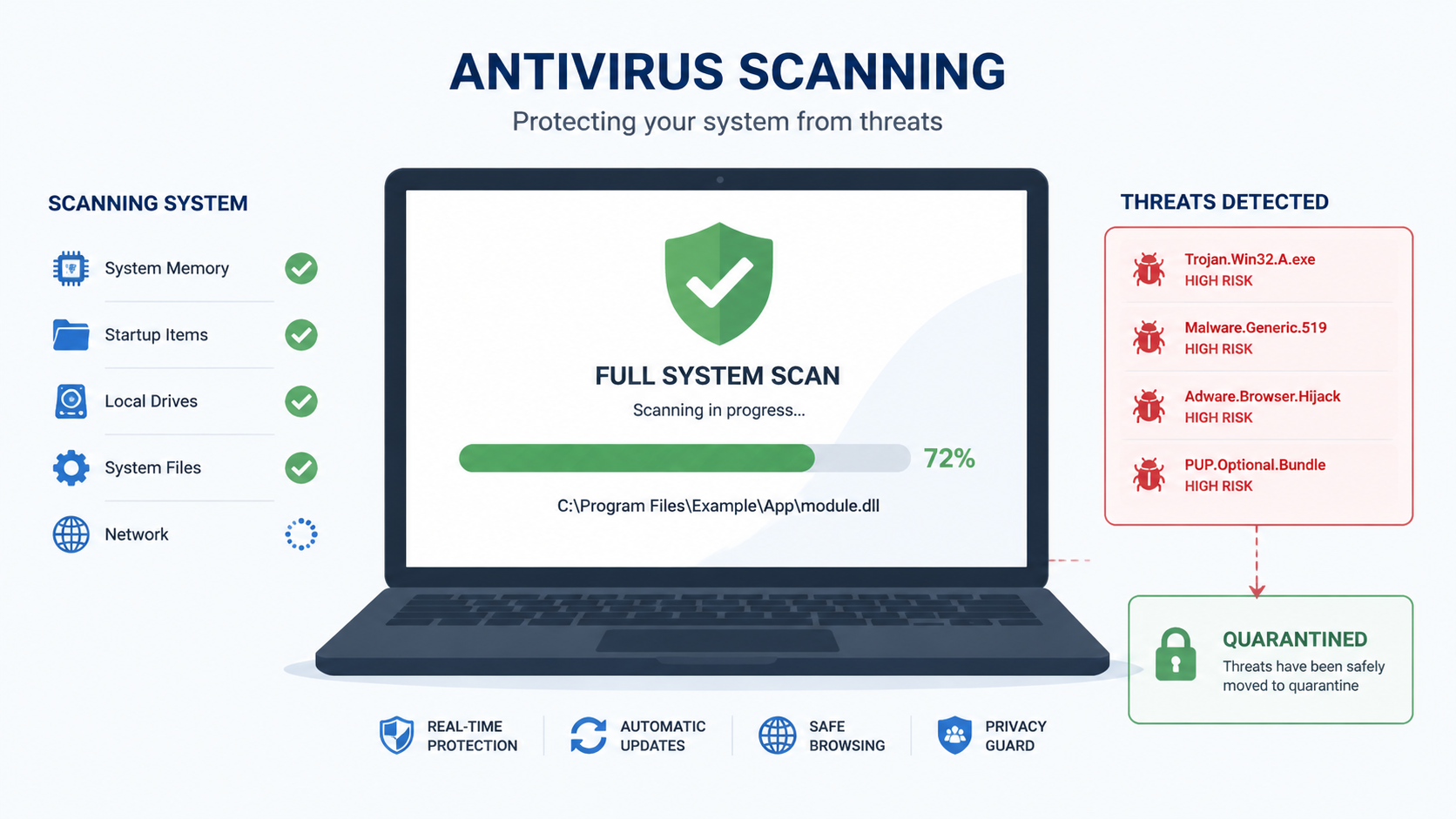
Running a full scan with Windows Security serves as a first-line, free diagnostic tool. Open Windows Security from the Start menu or system tray, navigate to "Virus & threat protection," and select "Scan options." Choose "Full scan" rather than "Quick scan" for thorough coverage—this process examines every file on your system and may take several hours depending on your drive size and file count.
Understanding how to interpret the scan results and any threats found is essential for taking appropriate action. Windows Security categorizes threats by severity level: Severe, High, Medium, and Low. The scan report details each detected item's name, location, and recommended action. Most threats should be removed immediately, though occasionally legitimate software triggers false positives—research any detections you're uncertain about before taking action.
What Are the Best Practices for Confirming and Removing a Virus?
Once suspicion is raised, a definitive confirmation and safe removal require a structured approach combining reputable security software and informed user action. Proper virus removal goes beyond simply deleting suspicious files—it requires thorough scanning, careful cleanup, and system verification.
Selecting and Running a Comprehensive Antivirus Scan
While built-in tools provide basic protection, dedicated antivirus software offers significantly more comprehensive detection and removal capabilities.
The importance of using a dedicated, updated antivirus program for a thorough analysis beyond basic tools cannot be overstated. Specialized security software employs multiple detection engines, behavioral analysis, cloud-based threat intelligence, and heuristic scanning to identify both known and emerging threats. According to 2025 independent testing by AV-Comparatives, dedicated antivirus solutions detect an average of 23% more threats than built-in operating system protection alone.
Performing a full system scan with a trusted antivirus like 360 Total Security provides comprehensive protection through its multi-engine scanning approach. Unlike single-engine solutions, 360 Total Security combines multiple antivirus engines to maximize detection rates while minimizing false positives. Beyond virus detection, it integrates system optimization tools that clean junk files, manage startup programs, and repair system issues caused by malware—addressing both the infection and its performance impact in a single solution. This holistic approach ensures your PC isn't just clean, but also restored to optimal performance.
Understanding scan outcomes—identification, quarantine, and removal options—helps you make informed decisions. When antivirus software detects a threat, it typically offers several actions: quarantine (isolate the file without deleting it), delete (permanently remove the file), or ignore (mark as safe). For confirmed malware, deletion is usually appropriate. Quarantine is useful when you're uncertain about a detection, as it prevents the file from executing while preserving it for further analysis or restoration if it proves to be a false positive.
Post-Detection Steps: Quarantine, Removal, and System Recovery
Successful malware removal extends beyond the initial scan. Proper cleanup and recovery procedures ensure complete elimination and restore system integrity.
Following the antivirus software's recommendations to quarantine and delete confirmed malware is your first priority. Review the scan results carefully and approve the recommended actions. Most modern antivirus software can automatically handle removal, but some persistent threats may require multiple scans or manual intervention. If the software indicates that certain files couldn't be removed because they're in use, restart your computer in Safe Mode and run the scan again—this prevents malware from loading and resisting removal.
Using system restoration points (if available and created pre-infection) to revert to a clean state can be effective for certain types of infections. Windows automatically creates restore points before major system changes. Access System Restore through Control Panel > Recovery > Open System Restore, and select a restore point dated before your symptoms began. However, note that some sophisticated malware can infect or delete restore points, and restoration won't remove malware from your personal files—it only reverts system files and settings.
Changing passwords for key accounts (email, banking, social media) if there's suspicion of data theft is a critical security measure. Many malware variants specifically target stored credentials. After cleaning your system, immediately change passwords for sensitive accounts, preferably from a different, known-clean device. Enable two-factor authentication wherever possible to add an additional security layer that protects your accounts even if passwords are compromised.
Verifying Cleanup and Ensuring Future Protection
Confirming complete removal and establishing ongoing protection prevents reinfection and provides peace of mind.
Running a second scan after removal ensures no residual threats remain. Some malware consists of multiple components that may not all be detected in a single pass. After your initial cleanup, restart your computer normally and perform another full system scan. If this second scan comes back clean, you can be reasonably confident the infection has been eliminated. Consider using a different antivirus tool for this verification scan—a second opinion from another detection engine can catch anything the first tool missed.
Updating all software, especially the operating system and browsers, patches vulnerabilities that malware exploits. Many infections occur through security holes in outdated software. Immediately after cleaning your system, run Windows Update to install all available patches. Similarly, update your web browsers, Adobe products, Java, and any other frequently targeted applications. Enable automatic updates wherever possible to ensure you receive security patches promptly in the future.
Configuring real-time protection in your antivirus, such as 360 Total Security's multi-engine monitoring, prevents future infections before they can establish themselves. Real-time protection continuously monitors file operations, downloads, and system changes, blocking threats as they attempt to execute. 360 Total Security's approach combines multiple detection engines with behavioral analysis to identify both known malware signatures and suspicious activities characteristic of new, unknown threats. Ensure this protection remains enabled and that the software updates its threat definitions automatically—an antivirus with outdated definitions provides little protection against current threats.
How Can I Prevent Viruses and Maintain a Healthy Computer Long-Term?
Proactive security habits and system maintenance are far more effective than reactive cleanup, forming a sustainable defense against malware. Virus prevention through consistent practices costs far less in time and frustration than dealing with infections after they occur.
Cultivating Safe Online Behavior and Browsing Habits
The majority of malware infections result from user actions—clicking malicious links, downloading infected files, or visiting compromised websites. Developing security-conscious browsing habits dramatically reduces your risk exposure.
Avoiding clicking on suspicious links in emails, social media, or websites is fundamental to safe browsing. Phishing attacks and malicious advertisements represent primary infection vectors. Before clicking any link, hover over it to preview the destination URL—if it doesn't match the expected destination or uses a suspicious domain, don't click. Be especially wary of urgent messages claiming your account has been compromised or that you've won a prize, as these are common social engineering tactics. When in doubt, navigate to websites directly by typing their URL rather than clicking links.
Only downloading software from official websites or trusted repositories prevents the installation of trojanized applications. Malware distributors often create fake download sites that appear in search results for popular software. Always download programs directly from the developer's official website or from reputable sources like the Microsoft Store. Avoid third-party download sites that bundle additional software or modify installers. Read installation prompts carefully and decline any offers to install additional programs, toolbars, or browser extensions that weren't part of your intended download.
Being cautious with email attachments and files shared via instant messaging protects against one of the oldest infection methods. Never open attachments from unknown senders, and be suspicious of unexpected attachments even from known contacts—their accounts may have been compromised. Malware commonly disguises itself as invoices, shipping notifications, or document files. Executable files (.exe, .scr, .bat) are particularly dangerous, but malicious code can also hide in Office documents with macros, PDF files, and even image files exploiting software vulnerabilities. When receiving an unexpected attachment, verify with the sender through a different communication channel before opening it.
Implementing a Robust Software Maintenance Routine
Regular system maintenance reduces vulnerabilities and keeps your computer running efficiently, which indirectly enhances security by making anomalies more noticeable.
Enabling automatic updates for your operating system, browser, and critical applications ensures you receive security patches promptly. Software vulnerabilities represent a primary attack vector—cybercriminals actively exploit known security holes in outdated software. Windows Update should be configured to download and install updates automatically. Similarly, enable automatic updates in your web browsers (Chrome, Firefox, Edge) and for commonly targeted applications like Adobe Reader and Java. A 2026 security analysis found that 85% of successful malware infections exploited vulnerabilities for which patches had been available for more than 30 days.
Regularly uninstalling unused or outdated programs reduces your vulnerability surface. Every installed application represents a potential security risk, especially if it's no longer maintained by its developer. Review your installed programs quarterly and remove anything you no longer use. Pay particular attention to browser plugins and extensions—these have extensive access to your browsing data and can be compromised or sold to malicious actors. A lean software installation is easier to monitor and presents fewer opportunities for exploitation.
Using tools like 360 Total Security not just for scanning, but for its cleanup and system optimization features provides comprehensive PC health management. Beyond malware detection, 360 Total Security includes utilities to remove junk files that accumulate from browsing and application use, manage startup items to improve boot times, and identify system issues that could impact performance or security. Regular cleanup prevents the performance degradation that makes it difficult to distinguish normal slowdowns from infection symptoms. The optimization features also free up disk space and system resources, ensuring your security software has the resources it needs to function effectively. This integrated approach—combining protection, cleanup, and optimization—maintains both security and performance in a single solution.
Leveraging Security Tools for Continuous Protection
Effective long-term security requires active, continuously updated protection rather than periodic manual scans.
Keeping your antivirus's real-time protection active and updated is non-negotiable for modern PC security. Real-time protection monitors your system continuously, intercepting threats before they can execute and cause damage. Never disable this protection to improve performance—the security risk far outweighs any marginal speed increase. Ensure your antivirus updates its threat definitions automatically, preferably multiple times per day. New malware variants emerge constantly, and yesterday's definitions may not detect today's threats.
Considering the use of a firewall and being mindful of network security adds an additional defensive layer. Windows includes a built-in firewall that should remain enabled—it controls which programs can communicate over the network and blocks unauthorized incoming connections. For enhanced protection, review your firewall's settings periodically to ensure no suspicious programs have been granted network access. When using public Wi-Fi networks, be especially cautious—avoid accessing sensitive accounts or conducting financial transactions on unsecured networks, as attackers can intercept unencrypted traffic.
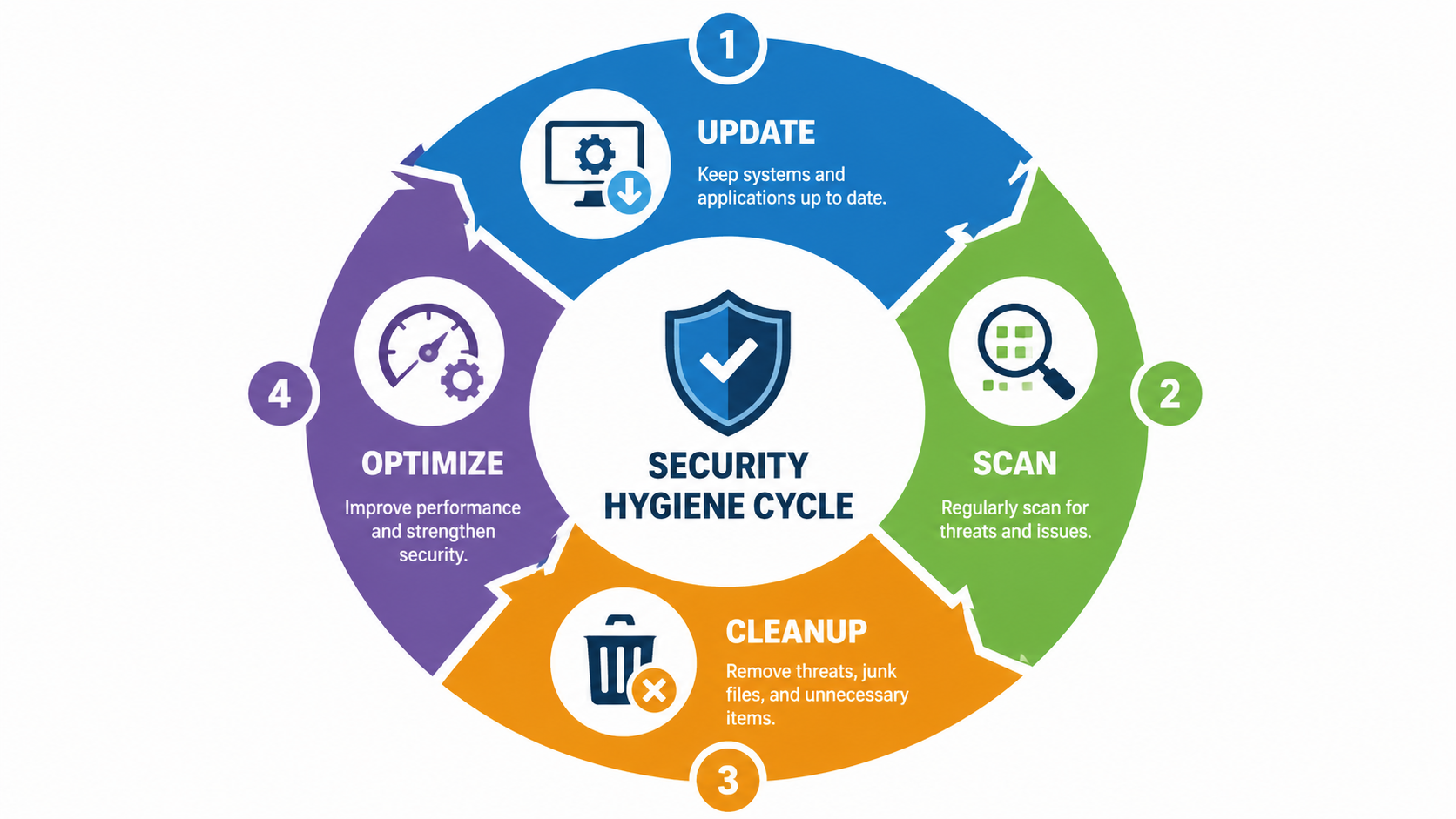
The security hygiene cycle illustrated above demonstrates the continuous nature of effective PC protection. This cycle—Update, Scan, Cleanup, Optimize—should be repeated regularly to maintain both security and performance. Updates patch vulnerabilities, scans detect threats, cleanup removes both malware and system clutter, and optimization ensures your computer runs efficiently. Integrating this cycle into your routine transforms security from a reactive emergency response into a proactive maintenance practice.
| Malware Type | Primary Characteristics | Main Prevention Methods |
|---|---|---|
| Trojan | Disguises itself as legitimate software; provides backdoor access to attackers; often delivers additional malware | Download software only from official sources; verify file signatures; use antivirus with behavioral detection; avoid pirated software |
| Ransomware | Encrypts user files and demands payment for decryption; can spread across networks; increasingly targets backups | Maintain offline backups; keep systems updated; use email filtering; enable ransomware protection in Windows Security; train users to recognize phishing |
| Spyware | Monitors user activity; steals credentials and personal information; tracks browsing habits; logs keystrokes | Use reputable antivirus with anti-spyware capabilities; avoid suspicious browser extensions; review app permissions; use password managers instead of saving credentials in browsers |
| Adware | Displays unwanted advertisements; redirects searches; slows system performance; may track browsing for targeted ads | Decline bundled software during installation; use ad-blockers; avoid clicking pop-up ads; regularly review and remove browser extensions |
Understanding the characteristics and prevention methods for common malware types helps you tailor your security practices to the most relevant threats. While comprehensive antivirus software like 360 Total Security provides protection against all these threat categories, combining technical protection with informed user behavior creates the most robust defense.
Frequently Asked Questions
Can a virus hide from antivirus software?
Yes, sophisticated malware can employ various techniques to evade detection, including rootkit functionality that operates at a low system level, polymorphic code that changes its signature with each infection, and fileless malware that resides only in memory. However, modern multi-engine antivirus solutions like 360 Total Security use behavioral analysis and heuristic detection to identify suspicious activities even when specific signatures aren't recognized. Running scans from Safe Mode or using bootable rescue disks can detect malware that hides while Windows runs normally.
Should I pay for antivirus software or is free protection enough?
Free antivirus solutions provide basic protection suitable for cautious users with simple needs, but paid solutions typically offer additional features like advanced ransomware protection, secure browsing tools, VPN services, and priority support. For most users, a reputable free solution like 360 Total Security—which combines multiple detection engines with system optimization tools—provides comprehensive protection without cost. The key factor isn't price but rather keeping whatever solution you choose updated and properly configured with real-time protection enabled.
How often should I scan my computer for viruses?
With real-time protection enabled, your antivirus continuously monitors for threats, making scheduled full scans less critical than they once were. However, running a comprehensive full system scan weekly provides an additional safety net and can detect dormant threats that haven't yet triggered behavioral alerts. If you frequently download files, visit unfamiliar websites, or notice any suspicious system behavior, scan immediately. After cleaning an infection, scan daily for the first week to ensure complete removal.
What should I do if my antivirus software itself seems infected or won't run?
If malware has disabled your security software, restart your computer in Safe Mode with Networking (press F8 during boot on older systems, or use Settings > Update & Security > Recovery > Advanced startup on Windows 10/11). In Safe Mode, most malware won't load, allowing you to run your antivirus or download a rescue tool. If your installed antivirus won't function, download a portable scanner like 360 Total Security from a clean device, transfer it via USB, and run it in Safe Mode. For severe infections, consider using a bootable antivirus rescue disk that scans your system before Windows loads.
Author Bio
This comprehensive guide was developed by cybersecurity professionals with over 15 years of experience in malware analysis, incident response, and desktop security. Our team stays current with emerging threats and protection technologies to provide practical, actionable guidance for everyday computer users. We believe that effective security combines robust technical tools with informed user practices, and we're committed to making complex security concepts accessible to non-technical audiences.
For comprehensive protection that goes beyond simple virus scanning, visit 360 Total Security to download a free solution that combines multi-engine malware detection with system optimization tools. Protect your PC while keeping it running at peak performance—because security and speed shouldn't be mutually exclusive.
Learn more about 360 Total Security