
Executive Summary
Modern PC security demands far more than a basic antivirus scanner. As cyber threats evolve to include ransomware, zero-day exploits, phishing campaigns, and cryptojacking, truly comprehensive security software must deliver proactive threat prevention, multi-engine detection, system optimization, and an intuitive management interface — all working in concert. This guide walks you through exactly what makes a security suite genuinely effective, how to evaluate your current protection, which features matter most in 2025, and how to build a layered defense strategy that keeps your Windows or macOS PC both safe and running at peak performance. Whether you are a casual home user or a power user managing multiple machines, the principles and tools covered here will help you make smarter, more confident decisions about your digital safety.
What Makes a Security Software Truly Comprehensive?
When most people think of antivirus software, they picture a tool that scans files and quarantines viruses. While that remains a core function, the threat landscape of 2025 has rendered that narrow definition dangerously inadequate. Comprehensive security software must extend beyond basic virus detection to include proactive threat prevention, system optimization, and user-friendly management tools that work seamlessly together. Understanding this expanded definition is the first step toward genuinely protecting your PC.
The Evolution of Threats: Why Antivirus Alone Isn't Enough
The cybersecurity threat environment has undergone a dramatic transformation over the past decade. According to a 2026 CrowdStrike Global Threat Report, adversary breakout times — the speed at which attackers move from initial compromise to lateral movement across a network — have dropped to under 62 minutes on average, placing enormous pressure on both security vendors and end users to respond faster than ever before.
Modern threats no longer arrive as simple executable files with recognizable virus signatures. Today's attack vectors include:
- Ransomware: Sophisticated encryption malware that locks your files and demands payment, often delivered via phishing emails or compromised software downloads. Ransomware attacks on individuals and small businesses surged by over 37% between 2024 and 2026, according to industry threat intelligence data.
- Zero-Day Exploits: Attacks that target previously unknown vulnerabilities in operating systems or applications before patches are available. These are particularly dangerous because signature-based detection cannot identify them.
- Phishing and Social Engineering: Deceptive websites, emails, and messages designed to trick users into surrendering credentials or downloading malicious payloads. Phishing remains the leading initial attack vector globally.
- Cryptojacking: Malware that silently hijacks your CPU and GPU resources to mine cryptocurrency, causing severe performance degradation and hardware wear without obvious symptoms.
- Fileless Malware: Attacks that operate entirely in memory, leaving no files on disk and evading traditional file-based scanning entirely.
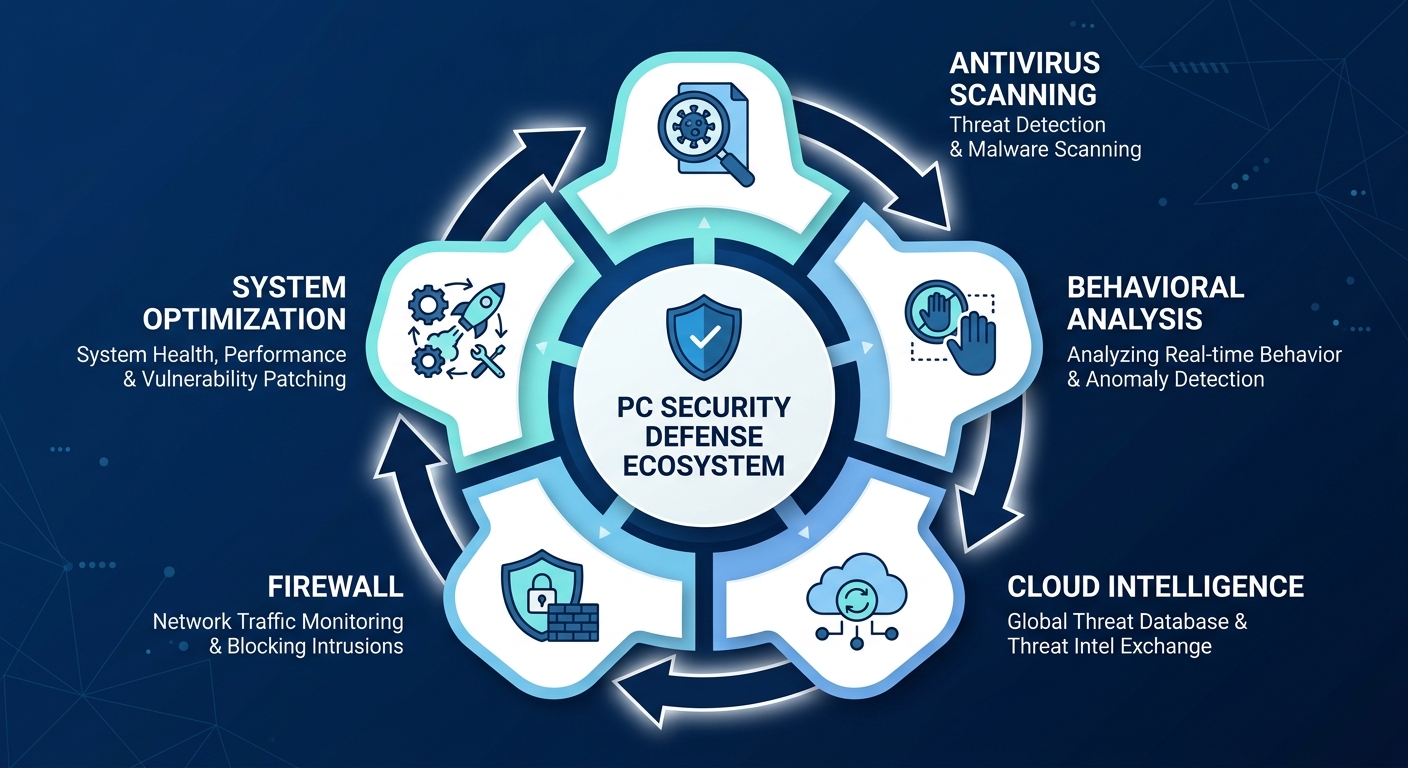
Countering these sophisticated threats requires layered defenses that go well beyond signature matching. Behavioral analysis monitors the actions of running processes in real time, flagging suspicious activity such as a document attempting to modify system files or a browser spawning unexpected child processes. Sandboxing isolates suspicious files in a contained virtual environment to observe their behavior safely before allowing them to execute on the live system. Cloud-based threat intelligence connects your local security client to a continuously updated global database of known malicious indicators, enabling near-instant recognition of emerging threats even before a local signature update is pushed. Together, these technologies form the backbone of any genuinely modern security solution.
The Critical Role of System Optimization in Security
A frequently overlooked dimension of PC security is system health itself. A slow, bloated, and poorly maintained computer is not merely inconvenient — it is measurably more vulnerable to attack. Here is why system optimization is a direct security concern, not just a performance luxury.
Outdated software is one of the most exploited attack surfaces available to cybercriminals. According to a 2025 Verizon Data Breach Investigations Report analysis, a significant percentage of successful breaches exploit known vulnerabilities for which patches have already been released but not yet applied. When your system is cluttered with hundreds of background processes, startup applications, and legacy software installations, patch management becomes chaotic and inconsistent, leaving critical gaps in your defenses.
Beyond patching, consider how system clutter creates security vulnerabilities in practice:
- Excessive startup items consume RAM and CPU cycles from boot, meaning your security software may not fully initialize before you begin browsing or opening files, creating a brief but real window of vulnerability.
- Junk files and temporary data can accumulate in locations that security scanners may deprioritize, providing potential hiding spots for persistent malware components.
- Fragmented and overloaded disks slow down real-time scanning, reducing the effectiveness of on-access protection because the security engine itself is competing for I/O resources.
- Outdated browser extensions and plugins represent a commonly ignored attack surface; malicious or compromised extensions can intercept web traffic, steal credentials, and inject ads or malware.
Tools like startup managers, disk cleaners, and software update checkers are therefore not mere conveniences — they are active components of a comprehensive security posture. A system that boots cleanly, runs efficiently, and keeps its software current presents a dramatically smaller attack surface than a neglected, cluttered machine. This is why the best modern security suites integrate optimization capabilities directly alongside their threat detection engines.
Balancing Power with Usability for All User Levels
One of the most persistent challenges in security software design is the tension between depth of protection and ease of use. A solution that exposes every configurable parameter to the user may offer granular control to security professionals, but it will overwhelm the vast majority of home users, leading to misconfiguration or outright disengagement. Conversely, a solution that hides everything behind a single button may be accessible but may not provide adequate transparency or control when problems arise.
The ideal approach — and the one that defines truly comprehensive security software — is a tiered interface design. At its core, this means:
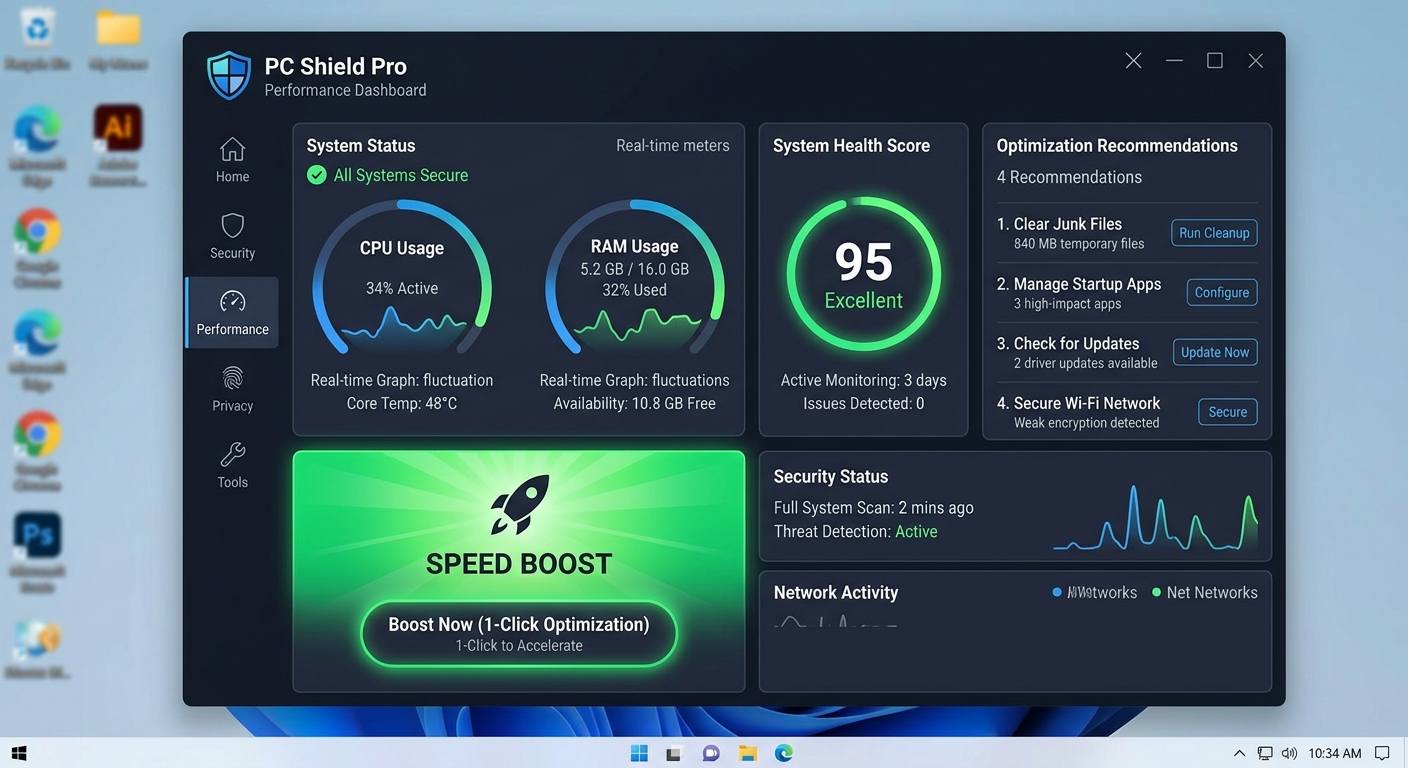
- A clear, intuitive dashboard that presents the overall security and system health status at a glance, using simple visual indicators (green/amber/red status, percentage scores, and plain-language recommendations) that any user can understand immediately.
- One-click actions for the most common tasks — running a full scan, performing a system cleanup, or boosting performance — that require no technical knowledge to execute correctly.
- Advanced settings panels that are accessible but not prominently displayed, allowing experienced users to fine-tune scan behavior, exclusion lists, firewall rules, and scheduling without cluttering the primary interface.
- Proactive notifications that alert users to specific, actionable issues ("3 outdated applications found," "Startup programs are slowing your boot time") rather than vague warnings that create anxiety without guidance.
Solutions like 360 Total Security have built their interface philosophy around exactly this principle — delivering enterprise-grade protection through a dashboard that a first-time user can navigate confidently within minutes, while still offering the depth that power users require.
How to Evaluate and Choose the Right PC Protection
With dozens of security solutions available across a wide price range — from free community editions to premium multi-device suites — selecting the right PC protection requires a methodical assessment of your specific usage patterns, the software's detection capabilities, system impact, and the genuine value of integrated tools. A solution that is perfect for a professional video editor may be entirely wrong for a student on a budget laptop, and vice versa. This section provides a structured framework for making that evaluation intelligently.
Benchmarking Core Security: Detection and Prevention Rates
The most objective starting point for evaluating any security software is its performance in independent laboratory testing. Organizations like AV-TEST (based in Germany) and AV-Comparatives (based in Austria) conduct rigorous, standardized evaluations of antivirus products on a quarterly basis, testing against tens of thousands of malware samples and publishing their results publicly. These tests are the closest thing the security industry has to an objective benchmark, and any reputable vendor will either perform well in them or have a transparent explanation for their methodology differences.
When reviewing lab test results, pay attention to three key metrics:
- Protection Rate: The percentage of malware samples (including zero-day threats) that the software successfully detected and blocked. Top-tier solutions consistently achieve rates above 99.5% in AV-TEST evaluations.
- False Positive Rate: The frequency with which the software incorrectly flags legitimate files or programs as malicious. High false positive rates are a significant usability problem that can disrupt workflows and erode user trust in the software.
- Performance Score: How much the software slows down common system tasks during active protection, including web browsing, file copying, and application installation.
Beyond static lab tests, real-world protection tests are arguably more relevant to everyday users. These simulations expose the security software to live phishing URLs, drive-by download attempts, and exploit-based attacks in conditions that closely mirror actual browsing behavior. A product that scores well on static malware samples but performs poorly in real-world tests may rely too heavily on signature databases and lack the behavioral intelligence needed to catch novel threats.
When evaluating a solution, look for products that demonstrate consistent performance across both static and dynamic test methodologies over multiple consecutive quarters — a single strong result can be an outlier, but sustained performance across multiple testing periods indicates genuine, reliable protection.
Assessing Performance and System Resource Usage
Security software that protects your system while crippling its performance is not a good trade-off — it is simply a different kind of problem. Particularly for users running older hardware, gaming PCs where every frame matters, or workstations running resource-intensive applications like video editing or 3D rendering, the system impact of a security suite is a critical evaluation criterion.
Key performance metrics to assess include:
- Boot Time Impact: How many additional seconds does the security software add to your system startup? Solutions with heavy background services can add 15 to 30 seconds or more to boot time on mid-range hardware.
- Application Launch Speed: Does opening common applications (browsers, office suites, creative tools) feel noticeably slower with the security software running?
- Full Scan Duration and Resource Consumption: A full system scan is necessary but should not make the computer unusable while it runs. Modern solutions should complete a full scan of a typical system within 30 to 60 minutes while keeping CPU usage below 50% to allow continued use.
- Idle Resource Footprint: How much RAM and CPU does the security software consume when it is simply running in the background with no active scan?
The following table provides a comparative overview of typical system resource usage profiles for several categories of free antivirus solutions, based on aggregated independent performance testing data from 2025:
| Security Solution Type | Idle CPU Usage | Idle RAM Usage | Full Scan CPU Peak | Full Scan Duration (500GB HDD) | Boot Time Added |
|---|---|---|---|---|---|
| Lightweight Free Suite (e.g., 360 Total Security) | 0.5% – 1.5% | 80 – 130 MB | 25% – 45% | 35 – 55 min | +3 – 6 sec |
| Mid-Weight Free Suite | 1.5% – 3.0% | 150 – 220 MB | 45% – 65% | 50 – 75 min | +8 – 14 sec |
| Heavy Full-Featured Free Suite | 3.0% – 5.5% | 220 – 350 MB | 65% – 85% | 70 – 100 min | +15 – 25 sec |
| Windows Defender (Built-in) | 0.3% – 1.0% | 60 – 100 MB | 30% – 55% | 45 – 70 min | +1 – 3 sec |
The takeaway from this data is clear: the choice of security software has a tangible, measurable impact on day-to-day system performance. Lightweight solutions that maintain a minimal idle footprint while still delivering strong protection are objectively preferable for most users, particularly those on hardware that is more than three years old.
The Value of Integrated Tools: Beyond Virus Scanning
When comparing security solutions, it is tempting to focus exclusively on malware detection rates. However, the practical value of a security suite extends significantly beyond its scanning engine. Integrated tools that address adjacent security and performance needs can eliminate the need for multiple standalone utilities, simplifying your software environment and reducing potential compatibility conflicts.
Consider the following integrated tools and their genuine utility:
- VPN (Virtual Private Network): A built-in VPN provides encrypted browsing on public Wi-Fi networks, protecting against man-in-the-middle attacks and network snooping. Evaluate the data allowance, server locations, and whether the VPN logs user activity.
- Sandbox: The ability to open suspicious files or run unknown applications in an isolated virtual environment is enormously valuable for users who regularly download files from less-than-fully-trusted sources. A sandbox prevents any malicious behavior from affecting the live system.
- Firewall Enhancement: While Windows includes a built-in firewall, third-party firewall modules often provide more granular application-level control over network connections, alerting you when an application attempts to communicate with an unexpected remote server.
- Password Manager Integration: Some suites include a password manager or integrate with popular third-party options, providing a seamless workflow for generating and storing strong, unique passwords.
- Webcam and Microphone Protection: Shields that alert you when any application attempts to access your camera or microphone, preventing unauthorized surveillance.
All-in-one solutions like 360 Total Security take this integration philosophy seriously, combining antivirus scanning, system cleanup, startup management, vulnerability patching, and performance optimization in a single, coherent interface. For most home users, this eliminates the need to install, update, and manage separate tools for each of these functions — reducing software bloat, avoiding compatibility issues, and ensuring that all protective components are always current and working together.
Top Features to Look for in Modern Security Suites
The most effective modern security suites leverage multiple, interconnected engines, intelligent automation, and thoughtfully designed tools to create a resilient, user-adaptive defense ecosystem. Not all features are created equal, and understanding which capabilities genuinely move the needle on protection — versus which are marketing checkboxes — is essential for making an informed choice.
The Power of Multi-Engine Scanning Technology
One of the most significant architectural advances in consumer security software over the past decade is the adoption of multi-engine scanning. Rather than relying on a single detection methodology, multi-engine systems pass files and processes through several independent analysis layers, each designed to catch what the others might miss.
A typical multi-engine architecture processes threats through the following sequential layers:
- Signature-Based Detection: The traditional first layer, comparing file hashes and byte sequences against a database of known malware signatures. Fast and highly accurate for known threats, but blind to novel variants.
- Heuristic Analysis: Evaluates the structural characteristics and code patterns of a file to identify suspicious attributes that resemble known malware families, even if the exact signature is not present. Effective at catching new variants of existing threat families.
- Behavioral Monitoring: Observes the runtime behavior of executing processes, flagging actions that deviate from expected norms — such as a PDF reader attempting to write to system directories or a browser spawning a PowerShell process.
- Cloud-Based Intelligence: Submits file metadata or sandboxed samples to a cloud analysis service that cross-references global threat intelligence data, providing near-real-time verdicts on emerging threats that have not yet been added to local signature databases.
- AI/Machine Learning Engine: Applies trained neural network models to classify files and behaviors based on patterns learned from millions of threat samples, enabling detection of entirely novel malware categories.
360 Total Security exemplifies this multi-engine philosophy by integrating its proprietary QVM II AI engine — a machine-learning-based detection system trained on an extensive dataset of malware characteristics — alongside licensed engines from Bitdefender and Avira, two of the most consistently high-performing antivirus engines in independent laboratory testing. This combination means that a threat that evades one engine's detection methodology is likely to be caught by one of the others, providing a significantly more robust safety net than any single-engine approach. Users can configure which engines are active based on their preference for thoroughness versus scan speed, giving both performance-conscious and security-first users a suitable option.
Proactive Shields for Ransomware, Phishing, and Exploits
Beyond the core scanning engine, modern security suites implement specialized, always-on shields that monitor specific threat vectors in real time. These proactive shields are among the most valuable features in contemporary security software because they prevent attacks before damage occurs, rather than detecting and remediating after the fact.
Ransomware Protection Shields work by monitoring file system activity for patterns characteristic of ransomware encryption behavior — specifically, rapid sequential modification of large numbers of files with changing file headers. When such behavior is detected, the shield immediately suspends the offending process and alerts the user, preventing the encryption of additional files. Some advanced implementations also maintain protected copies of critical file types (documents, photos, financial records) in a secured vault that ransomware cannot access, even if it successfully evades initial detection.
Browser Protection operates as a layer between your web browser and the network, filtering outbound URL requests against a continuously updated database of known malicious domains, phishing sites, and malware distribution networks. According to 2025 threat intelligence data from major security vendors, leading browser protection modules block an average of several million malicious URL requests per day across their user base, representing threats that would otherwise reach users' browsers unchallenged. This shield also provides protection against:
- Drive-by download attempts that exploit browser or plugin vulnerabilities
- Malicious redirects that route users from legitimate sites to phishing pages
- Unwanted tracking scripts and intrusive advertising networks
- Cryptojacking scripts embedded in web pages
Exploit Prevention Shields target the specific techniques used by exploit kits to leverage software vulnerabilities — particularly in browsers, PDF readers, and office applications — to execute malicious code. These shields implement memory protection techniques and monitor process behavior for exploitation indicators, providing a critical safety net for zero-day vulnerabilities that have not yet been patched.
Automation and Smart Features for Hassle-Free Security
Even the most powerful security software provides limited value if users do not consistently engage with it. Automation and intelligent scheduling features are therefore not mere conveniences — they are fundamental to ensuring that protection remains active, current, and effective without requiring constant manual attention.
The most impactful automation features in modern security suites include:
- Automatic Definition and Engine Updates: Security software is only as current as its threat intelligence. Automatic updates that run silently in the background ensure that the software always has the latest malware signatures, heuristic rules, and AI model weights without requiring user intervention.
- Silent/Gaming Mode: Automatically detects when a full-screen application (game, video player, presentation) is running and suppresses all non-critical notifications and defers scheduled tasks to avoid disrupting the user experience. This feature is particularly valued by gamers who previously disabled their security software entirely during gaming sessions — a dangerous practice that gaming mode eliminates.
- Intelligent Scan Scheduling: Schedules resource-intensive full system scans for periods when the computer is idle or during low-activity windows (such as overnight), ensuring thorough scanning without impacting productivity.
- Vulnerability Scanner: Automatically inventories installed applications and system components, compares version numbers against a database of known vulnerable versions, and alerts users to outdated software that requires patching. 360 Total Security includes a dedicated Vulnerability Scanner that identifies missing Windows security patches and outdated third-party applications, then provides direct links or automated patching assistance — closing one of the most consistently exploited attack surfaces in home computing.
- Automatic Quarantine and Remediation: For high-confidence malware detections, automatically quarantines the threat and initiates remediation without requiring user action, ensuring that threats are neutralized even when the user is not actively monitoring the software.
Optimizing Your PC's Performance Alongside Security
Security and performance are two sides of the same coin. A well-optimized PC is not only faster and more responsive — it is also less susceptible to threats, presents a smaller attack surface, and allows security software to operate more effectively. Integrated optimization tools are therefore a critical component of any comprehensive security strategy, not an optional extra. This section explores the specific optimization capabilities that make the greatest difference to both user experience and security posture.
Deep System Cleanup: Removing Junk and Clutter
Over time, every Windows and macOS system accumulates significant quantities of temporary files, cached data, broken registry entries, residual installation files, and other digital detritus that serves no ongoing purpose. This accumulation has several negative consequences:
- Performance Degradation: Excessive junk files consume disk space, slow file system indexing, and increase the time required for security scans to complete, as the scanner must process a larger volume of irrelevant data.
- Security Risk: Temporary files and cached data can contain sensitive information — including authentication tokens, form data, and browsing history — that malware can harvest. Additionally, some forms of persistent malware hide components within temporary file directories that are less frequently monitored.
- Registry Bloat: On Windows systems, broken or orphaned registry entries from uninstalled applications can cause system instability, application errors, and in some cases, security software conflicts that reduce protection effectiveness.
One-click cleanup features, as implemented in solutions like 360 Total Security, automate the identification and safe removal of these file categories. A well-designed cleanup tool will:
- Categorize found items clearly (browser cache, Windows temp files, application residuals, etc.) so users understand what is being removed
- Present the total size of recoverable disk space before executing the cleanup, setting clear expectations
- Apply conservative defaults that avoid removing files that could affect system stability or user data
- Provide a detailed log of removed items for transparency and peace of mind
Regular cleanup cycles — ideally weekly or bi-weekly — maintain a lean, efficient system state that benefits both performance and security. Users who perform regular cleanups consistently report faster scan completion times, improved application responsiveness, and more available disk space for productive use.
Taking Control of Startup and Background Processes
One of the single most impactful optimizations available to any Windows user is managing startup programs. By default, many applications configure themselves to launch automatically at system startup, consuming RAM and CPU resources from the moment the computer boots — regardless of whether the user intends to use those applications in a given session. On a typical mid-range Windows PC, it is not uncommon to find 20 to 40 startup items, many of which provide no meaningful benefit to the user.
The consequences of unmanaged startup programs extend beyond mere inconvenience:
- Extended Boot Time: Each startup program adds to the sequential initialization process, potentially adding 30 seconds to several minutes to the time between pressing the power button and having a fully usable desktop.
- Reduced Available RAM: Programs loaded at startup consume memory that could otherwise be allocated to actively used applications, causing more frequent disk swapping and reduced overall responsiveness.
- Security Software Initialization Delay: When security software must compete with dozens of other startup programs for system resources, it may take longer to fully initialize its real-time protection shields, creating a brief but exploitable vulnerability window during boot.
- Hidden Malware Persistence: Malware frequently establishes persistence by adding itself to startup locations. A startup manager that clearly lists and categorizes all startup entries makes it easier to identify unauthorized additions.
A good startup manager, such as the one integrated into 360 Total Security, provides clear information about each startup item — including the program name, publisher, file path, and an impact rating — allowing users to make informed decisions about which items to disable. The tool should also allow easy re-enabling of any disabled item, removing the risk of accidentally breaking a needed application.
Beyond startup programs, managing background processes during active use is equally important. Some applications continue running background services and update processes even when their main window is closed, consuming resources unnecessarily. A process manager that identifies high-resource background processes and allows selective termination can free significant CPU and RAM for active tasks.
Tools for Ongoing System Health and Maintenance
Maintaining peak system performance and security requires ongoing attention to several additional health indicators beyond one-time cleanup and startup management. A comprehensive security suite should provide tools that support this continuous maintenance cycle:
- Disk Defragmentation (HDD): On traditional spinning hard disk drives, file fragmentation — where individual files are stored in non-contiguous disk sectors — significantly increases read/write times. Regular defragmentation reorganizes file storage for sequential access, improving both application load times and security scan efficiency. Note: Solid-state drives (SSDs) should never be defragmented, as this process accelerates wear; instead, SSDs benefit from periodic TRIM operations that most modern operating systems handle automatically.
- Drive Health Monitoring: S.M.A.R.T. (Self-Monitoring, Analysis, and Reporting Technology) data from your storage drives provides early warning of developing hardware failures, including increasing bad sector counts, elevated error rates, and abnormal temperature readings. A security suite that surfaces this information proactively can prevent catastrophic data loss by giving users time to back up their data before a drive fails completely.
- Software Update Management: As discussed earlier, outdated software is a primary attack vector. An integrated update manager that identifies outdated applications across your installed software library and facilitates their update — either by linking directly to the vendor's download page or by automating the update process — is one of the highest-value security tools available.
- Performance Boost Features: 360 Total Security's "Speed Up" widget and system booster tools provide on-demand performance optimization for resource-intensive tasks. By temporarily freeing cached RAM, pausing non-essential background processes, and applying performance-oriented system settings, these tools can provide a meaningful performance improvement for gaming sessions, video rendering, or large file transfer operations. The one-click nature of these boosts makes them accessible to users of all technical levels.
The cumulative effect of consistent system maintenance — regular cleanup, managed startups, current software, and healthy storage — is a PC that is not only faster and more pleasant to use but also significantly more resistant to the exploitation techniques that cybercriminals rely upon. Integrated security suites that provide all of these tools in a single, coordinated interface make this maintenance routine dramatically easier to sustain over time.
Implementing a Layered Defense Strategy for Maximum Safety
Maximum safety is achieved not by any single tool, however powerful, but by a deliberate, layered strategy that combines robust security software with smart user habits and supportive system configurations. This concept — known in professional cybersecurity as "defense in depth" — recognizes that no single defensive measure is perfect, and that the goal is to create multiple overlapping layers of protection so that if one layer is bypassed, others remain in place to prevent a successful attack. Implementing this strategy at the home user level is more straightforward than it might sound.
The Foundation: Reliable Security Software and Smart Habits
The technical foundation of any layered defense strategy is a reputable, actively maintained security suite. This is the non-negotiable baseline — the layer that handles the vast majority of automated threats without requiring any user action. Choosing a solution with strong independent test performance, multi-engine detection, proactive shields, and integrated optimization (as discussed throughout this guide) establishes a solid technical foundation.
However, technology alone cannot substitute for informed user behavior. As cybersecurity consultant and educator Marcus Reinholt observes: "In my experience working with both corporate security teams and home users, roughly 80% of successful attacks could have been prevented by user behavior alone — not clicking unknown links, not reusing passwords, keeping software updated. The tools handle the remaining 20%, but they're useless if the human layer is compromised first."
The critical human layer of your defense strategy includes the following practices:
- Email Skepticism: Treat every unexpected email with links, attachments, or urgent requests for action as potentially malicious until verified. Phishing emails are the leading delivery mechanism for malware, ransomware, and credential theft. Verify unexpected requests by contacting the sender through a known, independent channel before clicking anything.
- Strong, Unique Passwords: Use a different, complex password for every account. A password that is compromised in one data breach should not grant access to any other account. Password managers make this practical without requiring memorization of dozens of complex strings.
- Software Update Discipline: Apply operating system and application updates promptly. The window between a vulnerability being publicly disclosed and active exploitation by attackers is measured in days or even hours in 2025. Prompt patching closes this window before it can be exploited against you.
- Download Source Verification: Only download software from official vendor websites or well-established, reputable distribution platforms. Unofficial download sites are a primary vector for bundled malware and potentially unwanted programs (PUPs).
- Physical Security Awareness: Lock your computer when stepping away, even briefly. Enable full-disk encryption on laptops that could be lost or stolen. Physical access to an unattended, unlocked computer bypasses virtually all software security measures.
Essential Complementary Tools and Configurations
Beyond your primary security suite and behavioral habits, several additional tools and system configurations contribute meaningfully to a comprehensive layered defense:
Firewall Configuration: Windows includes a capable built-in firewall that, when properly configured, provides effective network-level protection against unauthorized inbound connections. Ensure that the Windows Firewall is enabled (it should be by default, but malware sometimes disables it) and that its settings have not been modified to allow unnecessary inbound connections. For users who want more granular control — particularly the ability to monitor and control outbound connections from individual applications — a third-party firewall module (often included in security suites) provides this capability.
Password Manager: A dedicated password manager — whether a standalone application like Bitwarden or one integrated into your security suite — is one of the highest-return security investments available to any user. It enables the use of unique, cryptographically strong passwords for every account without the cognitive burden of memorization, and many include breach monitoring features that alert you when your credentials appear in known data breaches.
Multi-Factor Authentication (MFA): Enable MFA on every account that supports it, prioritizing email, financial, and cloud storage accounts. MFA requires a second verification factor (typically a time-based code from an authenticator app or a hardware token) in addition to your password, meaning that a stolen password alone is insufficient to access your account. According to 2026 Microsoft Security Intelligence data, MFA blocks over 99.9% of account compromise attempts that use stolen credentials.
Regular, Automated Backup Routine: The final and arguably most important safety net in any layered defense strategy is a robust backup system. Backups protect against ransomware (where paying the ransom can be avoided if clean backups are available), hardware failure, accidental deletion, and software corruption. An effective backup strategy follows the 3-2-1 rule:
- Maintain 3 copies of your important data
- Store them on 2 different types of media (e.g., internal drive and external drive)
- Keep 1 copy offsite or in the cloud, isolated from your primary system
Automated backup software that runs on a schedule — daily for critical files, weekly for full system images — ensures that this protection is maintained consistently without relying on manual execution. For ransomware protection specifically, ensure that your backup destination is not permanently connected to your computer, as many ransomware variants will attempt to encrypt connected drives and mapped network shares.
Creating a Coherent Security Management Routine
A layered defense strategy is only as effective as its consistent implementation. The most sophisticated security architecture provides no protection if scans are never run, updates are perpetually deferred, and cleanup is neglected for months at a time. Creating a manageable, sustainable security routine is therefore as important as choosing the right tools.
A practical security management routine for a home user might look like the following:
- Daily (Automatic): Real-time protection runs continuously. Security definition updates are applied automatically. Browser protection filters all web traffic. Behavioral monitoring watches all running processes.
- Weekly (Scheduled or Manual): Run a full system scan during a period of low activity (overnight or during a lunch break). Perform a system cleanup to remove accumulated junk files and temporary data. Review any alerts or notifications from the security suite.
- Monthly: Review startup programs and disable any new additions that are unnecessary. Check the vulnerability scanner results and apply any outstanding software patches. Review backup integrity by confirming that recent backups completed successfully and that files can be restored.
- Quarterly: Review installed applications and remove any that are no longer used (reducing attack surface). Assess whether your security software's protection levels remain adequate based on recent independent test results. Review account passwords and MFA configurations for critical accounts.
The challenge for many users is maintaining this routine consistently over time. This is where an integrated solution like 360 Total Security provides genuine practical value beyond its technical capabilities. By consolidating scans, cleanup, vulnerability checking, startup management, and performance optimization into a single, central dashboard, it reduces the cognitive overhead of managing multiple separate tools and makes it far easier to maintain a consistent security routine. The dashboard's clear status indicators and actionable recommendations guide users through the routine without requiring them to remember which tool to open for which task — a seemingly small convenience that, in practice, makes the difference between security habits that are maintained and those that gradually lapse.
For users who want to establish or strengthen their PC's security posture with a comprehensive, integrated solution, 360 Total Security offers a free download for Windows and macOS that provides immediate access to multi-engine scanning, system optimization tools, a vulnerability scanner, and startup management — all from a single, intuitive interface. It represents a practical first step toward implementing the layered defense strategy described throughout this guide.
Frequently Asked Questions
Is free antivirus software genuinely enough for real-world protection?
Free antivirus solutions can provide meaningful protection, particularly those that are backed by strong independent test results and multi-engine detection. However, the gap between free and paid solutions typically lies not in core detection rates but in the breadth of additional protective features — advanced ransomware shields, VPN access, identity monitoring, and premium customer support. For users with basic browsing habits and consistent update practices, a strong free solution supplemented by good security habits can be adequate. For users handling sensitive financial or professional data, or those with limited time to maintain manual security routines, a premium suite's additional automated protections are worth the investment.
How often should I run a full system scan?
With real-time protection active, your security software is continuously monitoring all file activity and network traffic, which means most threats are caught before they can establish themselves. Full system scans serve as a secondary verification layer to catch anything that may have slipped through. A weekly full scan is a reasonable baseline for most home users. Users who frequently download files from the internet, use USB drives from multiple sources, or share a computer with multiple users may benefit from more frequent scanning. Scheduling scans for overnight or low-activity periods ensures they complete without disrupting productivity.
What is the most important single thing I can do to improve my PC's security right now?
If you have to prioritize one action, ensure that your operating system and all installed applications are fully up to date. Unpatched software vulnerabilities are the most consistently exploited attack vector in successful malware infections, and they represent a gap that no antivirus solution can fully compensate for. After patching, enabling multi-factor authentication on your most critical accounts (email, banking, cloud storage) provides the next highest return on investment in terms of security improvement per unit of effort.
Will security software slow down my gaming or creative work?
Modern lightweight security suites have dramatically reduced their performance impact compared to solutions from five or ten years ago. Solutions like 360 Total Security are specifically designed to maintain a minimal idle resource footprint and include silent/gaming modes that suppress notifications and defer non-critical background tasks when full-screen applications are detected. For the vast majority of users, the performance impact of a well-designed modern security suite is imperceptible during active use. If you are experiencing noticeable slowdowns, it is worth checking whether your security software supports a gaming or performance mode, and whether any scheduled scans are running during your high-performance sessions.
About the Author
James Whitfield is a Senior Technical Writer and Cybersecurity Content Strategist with over eleven years of experience translating complex security concepts into accessible, actionable guidance for home users and IT professionals alike. He has contributed to security awareness programs, product documentation, and editorial content for technology publications covering endpoint security, threat intelligence, and privacy best practices. James holds certifications in information security management and regularly reviews independent security testing methodologies to ensure his writing reflects current, evidence-based best practices.
Learn more about 360 Total Security