
Executive Summary: PC system optimization is the disciplined practice of systematically improving your computer's speed, responsiveness, and stability by eliminating software bloat, managing system resources, and maintaining critical components. This comprehensive guide covers everything from the fundamental differences between optimization and antivirus protection to advanced techniques used by IT professionals, helping you build a complete, sustainable PC health strategy. Whether your Windows PC is running sluggishly, consuming excessive resources, or simply failing to perform at its hardware potential, the structured optimization approaches outlined here—including integrated solutions like 360 Total Security—will help you restore and maintain peak performance.
What Makes System Optimization Different from Antivirus Protection?
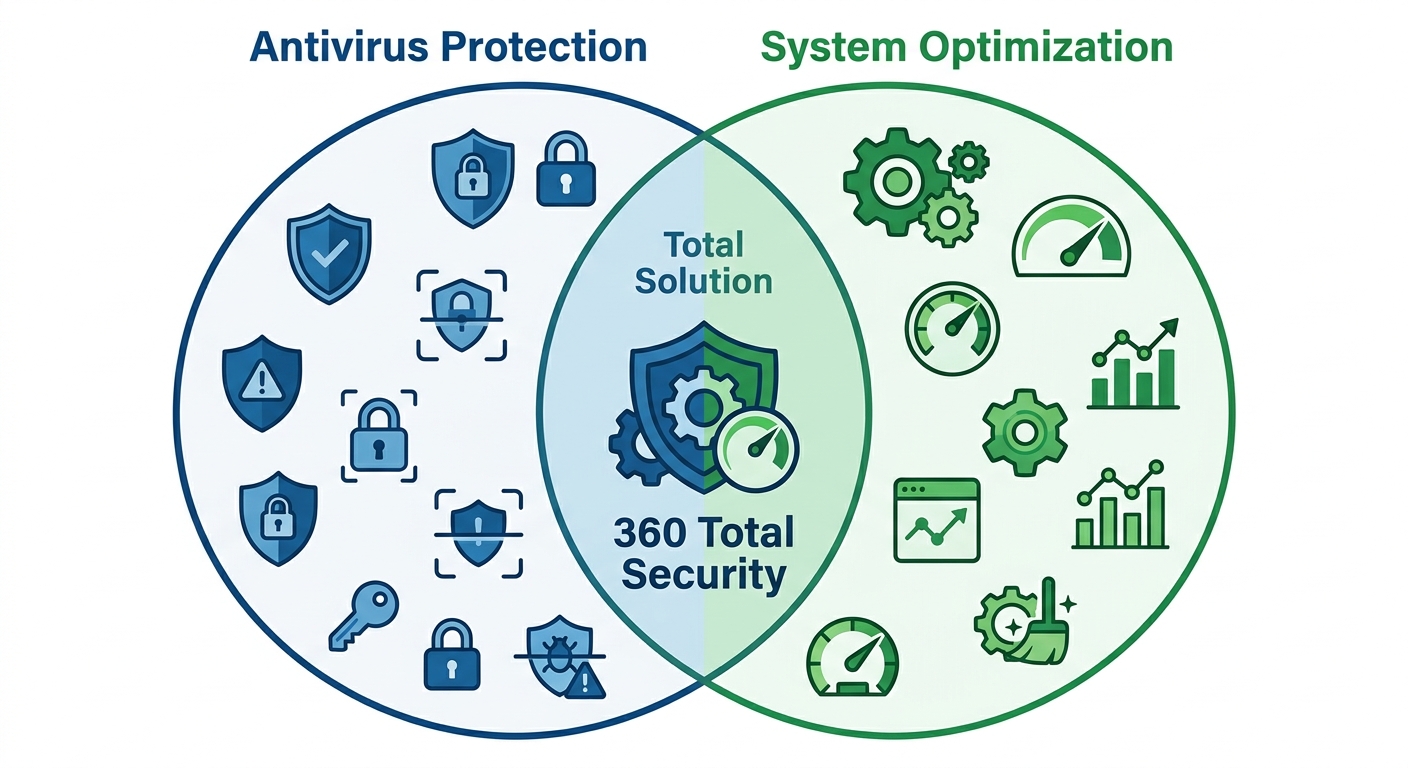
One of the most persistent misconceptions in PC maintenance is treating antivirus software and system optimization tools as interchangeable or redundant. In reality, they address entirely different layers of computer health. System optimization and antivirus protection serve complementary but fundamentally distinct purposes: while antivirus focuses on threat detection and removal, system optimization enhances overall performance, stability, and resource management to create a faster and more efficient computing environment. Understanding this distinction is the first step toward building a genuinely comprehensive PC health strategy.
Many users ask: "Should I use optimization tools alongside antivirus?" The answer is an unequivocal yes—and understanding why requires a clear look at what each category of software actually does.
Core Functions of Antivirus Software
Modern antivirus software operates as your computer's immune system, constantly monitoring for threats that could compromise your data, privacy, and system integrity. Its core functions fall into three primary areas:
Essential Features of System Optimization Tools
System optimization tools operate in a completely different domain, targeting the accumulated inefficiencies that naturally develop as you use your computer over time. Their core functions include:
| Optimization Feature | Basic Free Tools | Advanced Tools | 360 Total Security |
| Junk File Cleanup | ✓ Basic | ✓ Advanced | ✓ Comprehensive |
| Registry Cleaning | ✗ or Limited | ✓ With Backup | ✓ With Backup/Restore |
| Startup Manager | ✓ Basic | ✓ Advanced | ✓ With Impact Ratings |
| Real-time Monitoring | ✗ | ✓ Paid | ✓ Included |
| Scheduled Maintenance | ✗ | ✓ Paid | ✓ Included |
| Browser Cache Cleanup | ✓ | ✓ | ✓ Multi-browser |
| Duplicate File Finder | ✗ | ✓ Paid | ✓ Included |
| Antivirus Integration | ✗ | ✗ Separate | ✓ Included |
Why You Need Both for Complete PC Health
The critical insight that many users miss is that security and performance exist on orthogonal axes—a computer can be perfectly secure yet frustratingly slow, or blazingly fast yet dangerously vulnerable.
How to Choose the Right PC Optimization Software
The market for PC optimization software is crowded with options ranging from genuinely useful tools to outright scareware that exaggerates problems to push paid upgrades. Selecting effective PC optimization software requires evaluating not just advertised features but real-world performance impact, resource footprint, and integration with your existing security setup to avoid conflicts and ensure sustainable improvements. This section provides a structured framework for making an informed decision.
Must-Have Features for Effective System Optimization
When evaluating any optimization tool, these features should be considered non-negotiable for a quality product:
Safety Considerations and Red Flags to Avoid
The optimization software market has historically attracted deceptive products, making safety evaluation a critical part of the selection process:
Free vs. Paid Optimization Tools: What You Actually Get
The free vs. paid decision in optimization software is more nuanced than in most software categories:
Ready to experience integrated security and optimization? Download 360 Total Security for free and see the difference a truly integrated approach makes.
Common PC Performance Issues and How Optimization Tools Fix Them
Most persistent PC performance problems are not hardware failures or malware infections—they are identifiable software inefficiencies that accumulate gradually over time. Understanding these root causes is essential because optimization tools systematically address them through automated diagnostics and targeted repairs, restoring computers to near-factory performance levels without requiring a complete reinstallation of Windows. This section maps specific performance symptoms to their underlying causes and the optimization interventions that address them.
Identifying the Root Causes of System Slowdown
When users ask "Why is my PC so slow even with good hardware?", the answer almost always traces back to one or more of these core issues:
Step-by-Step Optimization Process
Quality optimization tools follow a structured process that mirrors professional IT maintenance procedures:
Real-World Performance Improvements You Can Expect
Setting realistic expectations is important—optimization tools deliver genuine improvements, but they are not magic. Based on aggregated performance data from optimization deployments across Windows environments:
Advanced Optimization Techniques for Power Users and IT Administrators
Beyond the consumer-level optimization covered in previous sections, professional users can achieve significantly better performance through strategic optimization of Windows services, targeted registry modifications, and automated maintenance routines that most consumer tools overlook. These advanced PC optimization techniques require greater technical knowledge and carry higher risk if implemented incorrectly, but they deliver performance improvements that basic tools cannot match.
Windows Service Optimization for Maximum Performance
Windows runs dozens of background services that are enabled by default to ensure compatibility across all possible use cases—but most individual users and organizations don't need all of them. Strategic Windows service optimization can meaningfully reduce resource consumption:
| Windows Service | Default State | Safe to Optimize? | Impact | Notes |
| Print Spooler | Automatic | Yes (if no printer) | Low RAM | Disable if no printer connected |
| Windows Search | Automatic | Yes (tune indexing) | Medium CPU/Disk | Reduce indexed locations |
| SysMain (Superfetch) | Automatic | Yes (SSD users) | Medium RAM | Disable on SSD for better perf |
| Windows Update | Automatic | Tune only | High | Set to Manual, not Disabled |
| Bluetooth Support | Automatic | Yes (if no BT) | Low RAM | Safe to disable on desktops |
| Connected Devices Platform | Automatic | Yes (if no IoT) | Low RAM | Disable if not using smart devices |
| Fax | Manual | Yes | Minimal | Disable if never used |
| Remote Registry | Manual | Yes | Security benefit | Disable for security improvement |
| Xbox Live Services | Automatic | Yes (non-gamers) | Low RAM | Disable if not using Xbox features |
Registry Optimization and System Tweaks
The Windows Registry is one of the most powerful and most misunderstood components of the operating system. Effective registry optimization requires understanding both what to change and what to leave alone:
Automation and Deployment for Enterprise Environments
IT administrators managing multiple workstations face optimization challenges at scale that require automated, consistent approaches:
Maintaining Optimal PC Performance: Best Practices and Tools Integration
Achieving peak PC performance through a one-time optimization is only the beginning. Sustained performance requires establishing regular maintenance routines, understanding how different tools interact, and adopting proactive habits that prevent performance degradation before it becomes significant. The goal of a mature PC maintenance routine is to make dramatic optimization interventions unnecessary by addressing issues continuously at their source.
Creating an Effective PC Maintenance Schedule
Effective PC maintenance operates at three time horizons, each addressing different categories of performance issues:
Avoiding Common Optimization Pitfalls and Tool Conflicts
Even well-intentioned optimization efforts can cause problems when approached incorrectly:
Proactive Performance Monitoring and Early Intervention
The most sophisticated approach to PC performance management shifts from reactive optimization (fixing problems after they appear) to proactive monitoring (detecting degradation trends before they become noticeable):
| Monitoring Tool | Type | Key Metrics | Best For |
| Windows Task Manager | Built-in | CPU, RAM, Disk, Network (real-time) | Quick diagnosis |
| Resource Monitor | Built-in | Process-level resource usage | Deep process analysis |
| Performance Monitor | Built-in | Historical logging, custom metrics | Trend analysis |
| 360 Total Security | Third-party | Comprehensive system health | Integrated monitoring + action |
| HWiNFO64 | Third-party | Hardware sensors, temperatures | Hardware health monitoring |
| Process Hacker | Third-party | Advanced process analysis | Power user diagnostics |
For users who want a single solution that handles both ongoing monitoring and automated maintenance, 360 Total Security provides an integrated dashboard that combines real-time performance monitoring with automated optimization scheduling and comprehensive antivirus protection—eliminating the need to manage multiple separate tools while ensuring both security and performance are continuously maintained.
Frequently Asked Questions
Can system optimization tools damage my Windows installation or cause data loss?
When used correctly, reputable optimization tools are safe and will not damage your Windows installation or cause data loss. The key safeguards to verify are: the tool creates registry backups before making any changes, disk cleanup operations show you exactly what will be deleted before proceeding, and the tool has positive reviews specifically mentioning post-optimization system stability. Avoid tools that perform operations without showing you what they're doing or without offering backup/restore options. For additional safety, create a Windows System Restore point before running any optimization tool for the first time, giving you a complete rollback option if anything unexpected occurs.
How often should I run PC optimization tools to maintain good performance?
The optimal frequency depends on how heavily you use your PC and what types of tasks you perform. For typical home users, a weekly light cleanup (browser cache, temporary files) combined with a monthly comprehensive optimization (full disk cleanup, registry cleaning, startup review) is sufficient to maintain good performance. Power users who install and uninstall software frequently, work with large media files, or use resource-intensive applications may benefit from more frequent optimization—potentially weekly comprehensive scans. The best approach is to use a tool with automated scheduling that handles routine maintenance automatically, requiring your active attention only when significant issues are detected.
Will optimization software conflict with my existing antivirus program?
Potential conflicts between separate optimization and antivirus tools are a genuine concern. Antivirus software may flag optimization tools as potentially unwanted programs (PUPs) due to their system-modification capabilities, or may slow down optimization scans by scanning every file the optimization tool accesses. Conversely, aggressive optimization tools may inadvertently modify files or registry entries that antivirus software relies on. The safest solution is to use an integrated product like 360 Total Security that combines both functions natively, eliminating inter-tool conflicts entirely. If you prefer separate tools, ensure both are from reputable vendors and check compatibility forums before installing both on the same system.
What's the difference between disk cleanup and disk defragmentation, and do I need both?
Disk cleanup and disk defragmentation address completely different problems. Disk cleanup removes unnecessary files (temporary files, cache, logs, old Windows update packages) to recover storage space—it doesn't change how remaining files are stored on the disk. Disk defragmentation reorganizes fragmented files on traditional hard disk drives (HDDs) so that related data is stored in contiguous sectors, improving read speeds by reducing physical head movement. For HDD users, both operations are valuable and complementary: cleanup should be performed first to reduce the amount of data the defragmenter needs to process, followed by defragmentation to optimize file placement. For SSD users, disk cleanup remains important, but traditional defragmentation should not be performed—instead, use Windows' built-in "Optimize Drives" tool which performs TRIM operations appropriate for SSDs without the wear-inducing write operations of traditional defragmentation.
About the Author
James Whitfield is a Senior Technical Writer and Cybersecurity Content Strategist with over 12 years of experience covering Windows system administration, PC performance optimization, and endpoint security. He has contributed to major technology publications and holds certifications in IT infrastructure management and cybersecurity fundamentals. James specializes in translating complex technical concepts into actionable guidance for both consumer and enterprise audiences, with a particular focus on the intersection of system performance and security architecture.
Learn more about 360 Total Security