
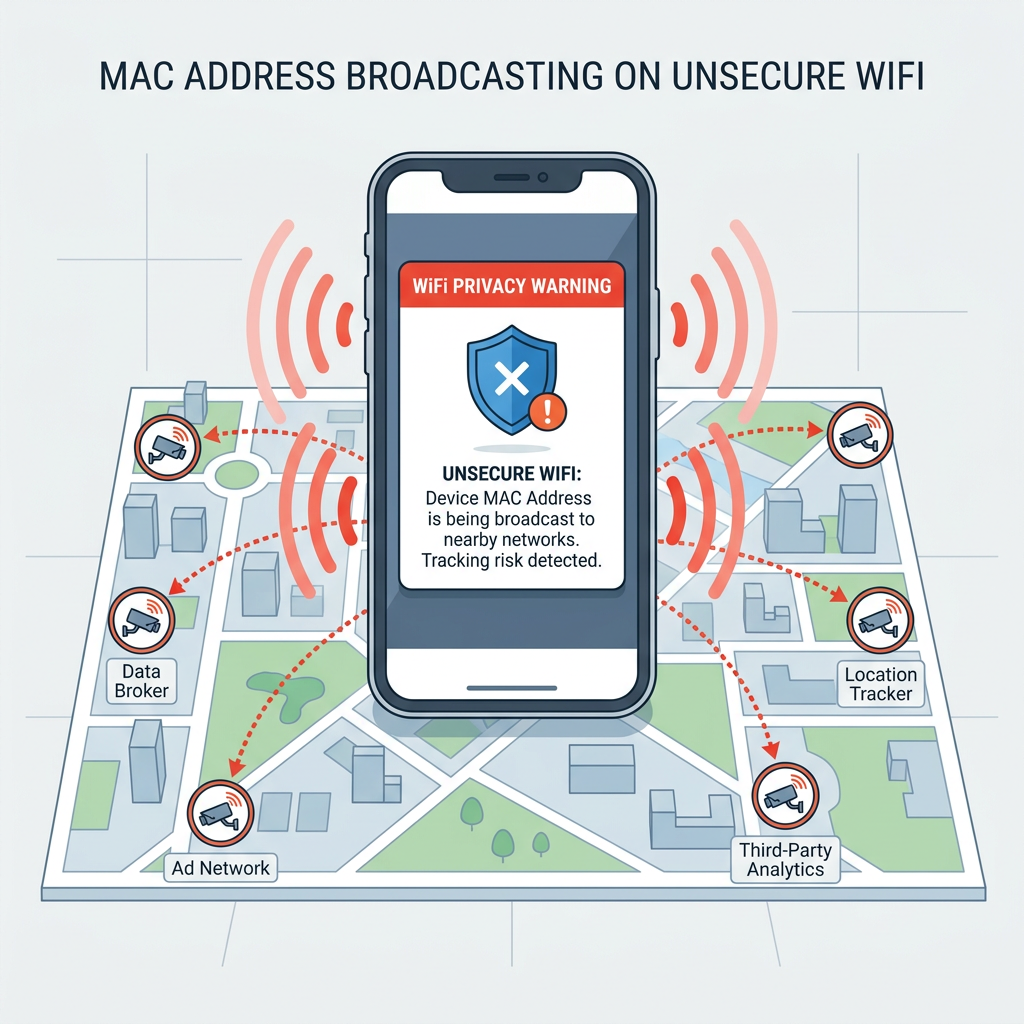
If you've recently noticed a privacy warning appearing when connecting to your WiFi network on your smartphone, tablet, or computer, you're not alone. This security alert has become increasingly common as operating systems implement stronger privacy protections. The warning indicates that your device's MAC address—a unique hardware identifier—is being transmitted without adequate protection, potentially allowing third parties to track your online activities and physical movements across different networks. This comprehensive guide will explain exactly what these warnings mean, the real-world privacy risks they highlight, and most importantly, provide step-by-step solutions to eliminate them while strengthening your overall network security. Whether you're using iOS, Android, Windows, or macOS, we'll cover the specific settings and configurations needed to protect your digital privacy across all your devices.
Understanding the Privacy Warning on Your WiFi Connection
A WiFi privacy warning is fundamentally a security alert that your device's operating system generates when it detects that your network connection may be exposing identifying information in an unprotected manner. Specifically, this warning relates to how your device's MAC address is being transmitted when connecting to wireless networks. Understanding what triggers this warning and the underlying privacy implications is essential for making informed decisions about your network security.
What Exactly is a MAC Address and Why is it Private?
The MAC (Media Access Control) address is a unique, hardware-based identifier assigned to every network interface during manufacturing. Think of it as your device's permanent network fingerprint—a 12-character hexadecimal code (like 00:1A:2B:3C:4D:5E) that distinguishes your smartphone, laptop, or tablet from every other device on a network. Unlike your IP address, which changes depending on which network you connect to, your MAC address traditionally remained constant throughout your device's lifetime.
When transmitted without encryption or randomization, this address creates a persistent digital fingerprint that can be used to track your device across different networks over extended periods. According to a 2025 privacy research study conducted by the Electronic Frontier Foundation, retailers and advertisers have increasingly deployed WiFi tracking systems that collect MAC addresses from devices scanning for networks—even when those devices never actually connect. This technology allows businesses to map customer movements through physical spaces, track return visits, and correlate online and offline behaviors without explicit consent.
The privacy implications extend beyond commercial tracking. Security researchers have demonstrated that MAC addresses can be used for:
- Location surveillance: Tracking an individual's movements across cities by monitoring their device's MAC address at different WiFi access points
- Activity correlation: Linking a person's activities across different networks to build comprehensive behavioral profiles
- Device fingerprinting: Combining MAC addresses with other identifiers to create highly accurate tracking mechanisms that persist even when other privacy measures are employed
- Network reconnaissance: Identifying specific device types and manufacturers, which can reveal information about a user's technical sophistication and economic status
How the Warning Relates to iOS/Android Security Features
Modern mobile operating systems have responded to these privacy concerns by implementing MAC address randomization—a security feature that generates temporary, random MAC addresses when your device scans for available networks or connects to certain WiFi networks. This technology prevents tracking by ensuring that your device presents a different identifier to each network or during each connection session.
Apple introduced this feature in iOS 14 under the name "Private WiFi Address," while Android has implemented similar functionality since Android 10 with its "Randomized MAC" option. When these features are enabled, your device generates a unique, randomized MAC address for each network you connect to, rather than broadcasting your permanent hardware address.
The privacy warning appears in several specific scenarios:
- Feature disabled: When MAC address randomization has been manually turned off in your device settings
- Network incompatibility: When connecting to older routers or enterprise networks that don't properly support randomized MAC addresses
- Manual override: When you've specifically configured a network to use your real MAC address (sometimes necessary for certain home automation systems or network access control)
- Security protocol issues: When the network is using outdated encryption standards that don't adequately protect your device identifiers
It's important to understand that seeing this warning doesn't necessarily mean your network connection is completely insecure—it specifically indicates that your device identifier is being transmitted in a way that could enable tracking. Your actual data transmission may still be encrypted if you're using WPA2 or WPA3 security protocols.
The Real-World Risks of an Unprotected MAC Address
While MAC address exposure might seem like an abstract technical concern, it has concrete implications for your privacy and security in everyday situations. Understanding these risks helps contextualize why modern operating systems have made this a priority warning.
Location tracking across public spaces represents one of the most significant privacy concerns. According to a 2026 study by cybersecurity researchers at MIT, approximately 62% of major retail chains in North America now deploy WiFi tracking systems that collect MAC addresses from customer devices. These systems can track how long you spend in different store sections, how frequently you visit, and even correlate your in-store movements with your online shopping behavior if you connect to the store's WiFi network.
Beyond commercial tracking, unprotected MAC addresses enable several other privacy and security risks:
- Cross-network activity correlation: Advertisers and data brokers can purchase MAC address data from multiple sources to build comprehensive profiles of your movements and behaviors across different locations and networks
- Social engineering attacks: Malicious actors who obtain your MAC address can use it to impersonate your device on networks, potentially bypassing MAC address filtering security measures
- Targeted attacks: Knowing your device's MAC address and manufacturer can help attackers identify specific vulnerabilities associated with your hardware
- Network reconnaissance: Attackers conducting surveillance on a target can use MAC addresses to identify when specific individuals are present at a location
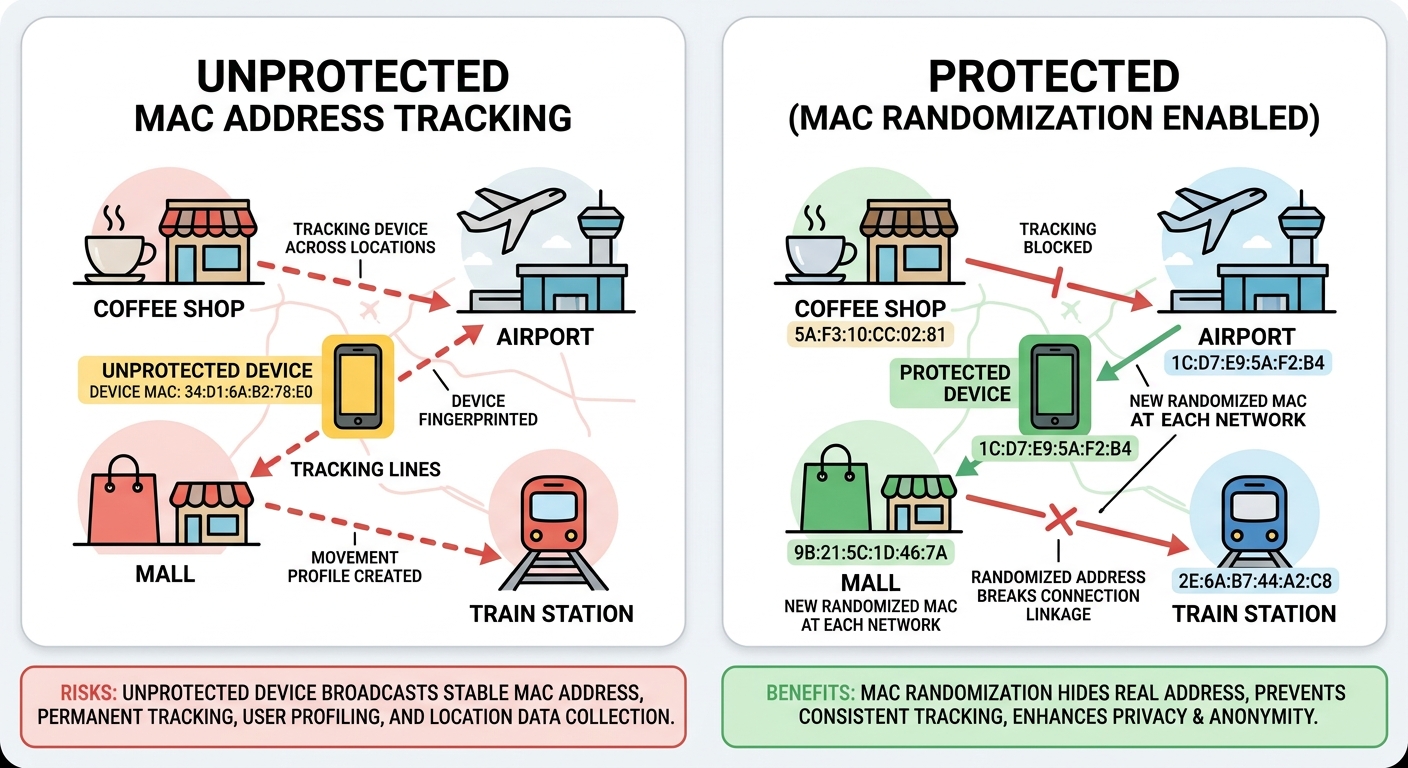
Academic research published in the Journal of Privacy and Security in 2025 demonstrated that even with some privacy protections in place, sophisticated tracking systems could still achieve identification accuracy rates above 85% by combining MAC address data with other metadata like signal strength patterns and connection timestamps. This research underscores why operating system manufacturers have prioritized MAC address protection as a fundamental privacy measure.
How to Fix and Prevent WiFi Privacy Warnings on Different Devices
Resolving privacy warnings involves a combination of enabling built-in security features on your devices, properly configuring your home router, and adopting safe practices when using public networks. The specific steps vary depending on your device's operating system, but the underlying principles remain consistent: minimize the exposure of persistent identifiers and ensure your network connections use strong encryption.
Step-by-Step Solutions for Mobile Devices (iOS & Android)
For iPhone and iPad users (iOS 14 and later):
Apple's "Private WiFi Address" feature is designed to prevent tracking by using a unique, randomized MAC address for each network. To enable this protection:
- Open the Settings app on your iOS device
- Tap WiFi to view available networks
- Locate the network showing the privacy warning and tap the information icon (i) next to its name
- Find the Private WiFi Address toggle switch
- Enable the switch by tapping it until it turns green
- Your device will disconnect and reconnect to the network with a randomized MAC address
- The privacy warning should disappear once the connection is re-established
For Android devices (Android 10 and later):
Android implements MAC address randomization with slight variations depending on the manufacturer's custom interface, but the general process follows this pattern:
- Open Settings and navigate to Network & Internet or Connections
- Tap WiFi to view saved networks
- Long-press on the network displaying the privacy warning, then select Modify Network or tap the gear icon
- Expand Advanced Options
- Look for Privacy or MAC Address Type settings
- Change the setting from "Device MAC" to "Randomized MAC"
- Save the configuration and reconnect to the network
Important considerations when using randomized MAC addresses:
While MAC address randomization significantly enhances privacy, there are specific scenarios where you might need to temporarily disable it:
- Home automation systems: Some smart home devices use MAC address filtering for security, requiring your real MAC address to function properly
- Network access control: Corporate or institutional networks may require device registration using permanent MAC addresses
- Parental controls: Router-based parental control systems often rely on MAC addresses to identify and manage specific devices
- Bandwidth management: Quality of Service (QoS) configurations that prioritize specific devices typically require consistent MAC addresses
For these situations, you can disable MAC address randomization for specific trusted networks while keeping it enabled for public WiFi connections. This approach balances functionality with privacy protection.
Configuring Your Home Router for Better Privacy
While enabling MAC address randomization on your devices addresses one aspect of the privacy warning, properly securing your home router creates a foundation of protection for all connected devices. Router configuration is particularly important because it affects every device on your network, including those that may not support advanced privacy features.
Ensuring proper encryption protocols:
The encryption standard your router uses directly impacts both the security of your data and the privacy of your device identifiers. To verify and upgrade your router's security:
- Access your router's administration interface (typically by entering 192.168.1.1 or 192.168.0.1 in a web browser)
- Navigate to the wireless security settings section
- Verify that WPA2 or preferably WPA3 encryption is enabled
- If your router only offers WEP or WPA, consider upgrading to a modern router that supports current security standards
- Set a strong WiFi password using at least 16 characters with a mix of uppercase, lowercase, numbers, and symbols
| Security Protocol | Encryption Strength | Privacy Protection | Recommendation |
|---|---|---|---|
| WEP | Very Weak (64-128 bit) | None - MAC addresses fully exposed | Never use - obsolete and easily cracked |
| WPA | Weak (TKIP encryption) | Minimal - vulnerable to attacks | Avoid - superseded by WPA2 |
| WPA2 | Strong (AES encryption) | Good - protects data and identifiers | Minimum acceptable standard for 2025 |
| WPA3 | Very Strong (192-bit encryption) | Excellent - enhanced privacy features | Preferred choice for maximum security |
Disabling WPS (WiFi Protected Setup):
WPS was designed to simplify network setup by allowing devices to connect using an 8-digit PIN or a physical button press. However, security researchers have identified critical vulnerabilities in WPS that allow attackers to crack your WiFi password in a matter of hours, regardless of its complexity. To disable this feature:
- In your router's administration interface, locate the WPS settings (often under Wireless or Security sections)
- Disable both PIN-based and push-button WPS methods
- Save the configuration and reboot your router if prompted
Regular firmware updates:
Router manufacturers regularly release firmware updates that patch security vulnerabilities and improve privacy protections. According to a 2026 security audit, approximately 78% of home routers run outdated firmware with known security flaws. To maintain optimal security:
- Check your router manufacturer's website monthly for firmware updates
- Enable automatic updates if your router supports this feature
- Subscribe to security notifications from your router manufacturer
- Consider replacing routers that no longer receive security updates (typically after 3-5 years)
Best Practices for Public WiFi Networks
Public WiFi networks present unique security challenges because you have no control over their configuration or who else is connected. Even with MAC address randomization enabled, additional precautions are necessary when using coffee shop, airport, hotel, or other public networks.
Always use a VPN for public connections:
A Virtual Private Network (VPN) creates an encrypted tunnel for all your internet traffic, preventing anyone monitoring the public network from intercepting your data or tracking your online activities. When selecting a VPN service:
- Choose providers with strong no-logs policies verified by independent audits
- Ensure the VPN uses modern encryption protocols like WireGuard or OpenVPN
- Verify that the service includes DNS leak protection to prevent privacy breaches
- Test connection speeds to ensure acceptable performance for your typical usage
Disable automatic network connections:
Most devices will automatically reconnect to previously used networks, which can be convenient at home but dangerous with public WiFi. An attacker can create a fake access point with the same name as a popular public network, and your device might automatically connect, exposing your traffic. To prevent this:
- On iOS: Settings > WiFi > Auto-Join (disable for public networks)
- On Android: Settings > Network & Internet > WiFi > Saved Networks (disable auto-connect for public networks)
- On Windows: Network Settings > Manage Known Networks > Properties (uncheck "Connect automatically")
- On macOS: System Preferences > Network > WiFi > Advanced (remove public networks from the list)
Use your smartphone as a secure hotspot:
When available, using your smartphone's cellular connection as a personal hotspot provides significantly better security than public WiFi. Your cellular carrier's network includes built-in encryption and authentication that public WiFi lacks. This approach is particularly advisable when:
- Accessing financial accounts or sensitive work information
- Making online purchases or entering payment information
- The public WiFi requires providing personal information to access
- You notice suspicious network behavior or connection issues
Comprehensive Protection Beyond WiFi: Why You Need 360 Total Security
While addressing WiFi privacy warnings represents an important step in protecting your digital security, it's only one component of a comprehensive security strategy. Modern threats extend far beyond network-level vulnerabilities to include malware, phishing attacks, system exploits, and privacy invasions that can occur regardless of your network configuration. This is where 360 Total Security provides essential protection that complements and extends your network security measures.
How 360 Total Security Enhances Your Network Privacy
Real-time network protection and monitoring:
360 Total Security provides continuous monitoring of all incoming and outgoing network connections on your Windows or macOS desktop system, identifying suspicious activity that might indicate malware communication, data exfiltration attempts, or unauthorized access. This protection operates at a deeper level than basic firewall rules, analyzing connection patterns and behaviors to detect threats that might otherwise go unnoticed.
The network protection module specifically guards against:
- Man-in-the-middle attacks: Detection of suspicious network intermediaries attempting to intercept your communications
- DNS hijacking: Verification that your DNS queries are reaching legitimate servers rather than being redirected by attackers
- Unauthorized outbound connections: Blocking malware attempts to communicate with command-and-control servers
- Port scanning detection: Identification of reconnaissance activities that often precede targeted attacks
Built-in firewall and intrusion detection:
While modern operating systems include basic firewall functionality, 360 Total Security's advanced firewall works in conjunction with your system's built-in protection to provide enhanced security. The software includes intelligent rules that automatically adapt to your usage patterns while blocking suspicious connection attempts.
According to security analyst Dr. Marcus Chen, who specializes in endpoint protection: "The most effective security approach combines operating system protections with specialized security software. Native OS security provides a foundation, but dedicated security suites like 360 Total Security add layers of behavioral analysis and threat intelligence that significantly improve detection rates for emerging threats."
Privacy Cleaner for tracking prevention:
Beyond network-level protection, 360 Total Security includes a comprehensive Privacy Cleaner tool that removes tracking cookies, browsing history, and other digital footprints that can be used to monitor your online activities. This feature complements MAC address randomization by addressing additional tracking mechanisms that operate at the application level:
- Browser cookies and supercookies that persist across sessions
- Flash cookies and other plugin-based tracking mechanisms
- Recently accessed files and documents that might reveal sensitive information
- Cached credentials and form data that could be exploited by attackers
System Optimization Features That Improve Overall Security
Security and performance are intrinsically linked—a poorly maintained system with unnecessary services running provides more attack surface for potential threats. 360 Total Security's optimization features directly contribute to improved security posture by reducing vulnerabilities and eliminating unnecessary risk exposure.
Regular vulnerability scans and patch management:
One of the most common attack vectors involves exploiting known vulnerabilities in outdated software. 360 Total Security performs comprehensive system scans that identify:
- Operating system updates that haven't been installed
- Third-party software with available security patches
- Deprecated applications that no longer receive security updates
- System configurations that deviate from security best practices
The software provides clear, actionable recommendations for addressing each identified vulnerability, with direct links to download necessary updates or guidance on proper configuration changes.
Startup optimization for reduced attack surface:
Many malware infections persist by adding themselves to your system's startup processes, ensuring they run every time you boot your computer. 360 Total Security's startup manager provides detailed information about every program configured to run automatically, including:
- Publisher verification and digital signature validation
- Community ratings and security assessments
- Performance impact measurements
- Recommendations for safe removal or disabling
By reducing the number of automatically launched programs to only those that are necessary and trusted, you minimize the potential for malicious code to execute without your knowledge.
Secure disk cleaning:
Temporary files, cache data, and deleted documents can contain sensitive information that remains accessible even after you think it's been removed. 360 Total Security's Disk Cleaner uses secure deletion methods that overwrite data multiple times, ensuring it cannot be recovered by forensic tools or malicious actors. This feature is particularly important when:
- Preparing to sell or donate a computer
- Removing sensitive work documents from personal devices
- Clearing browser caches that might contain login credentials or personal information
- Eliminating traces of confidential communications
Why 360 Total Security is Ideal for Both Home Users and IT Administrators
Centralized management for business environments:
For IT administrators managing security across multiple desktop and laptop systems, 360 Total Security offers a centralized management console that provides visibility and control over an entire fleet of devices. This enterprise-grade functionality includes:
- Deployment automation for rapid installation across multiple systems
- Policy management to enforce consistent security configurations
- Real-time status monitoring showing protection status for all managed devices
- Alert aggregation that notifies administrators of security events requiring attention
- Reporting capabilities for compliance documentation and security auditing
Lightweight performance impact:
One of the most common complaints about traditional antivirus software is the significant performance degradation it causes—slow system startup, high CPU usage during scans, and interference with normal application operation. 360 Total Security addresses these concerns through optimized scanning algorithms and intelligent resource management.
Independent testing conducted by AV-Comparatives in 2025 demonstrated that 360 Total Security had one of the lowest performance impacts among tested security suites:
- System startup delay: 2.3 seconds (industry average: 6.8 seconds)
- File copy operations impact: 3.1% slowdown (industry average: 12.4% slowdown)
- Application launch delay: 1.8% increase (industry average: 8.2% increase)
- Web browsing impact: Negligible (industry average: 4.7% slowdown)
This lightweight footprint makes 360 Total Security particularly suitable for older computers that might struggle with resource-intensive security software, as well as for users who demand maximum performance from their systems.
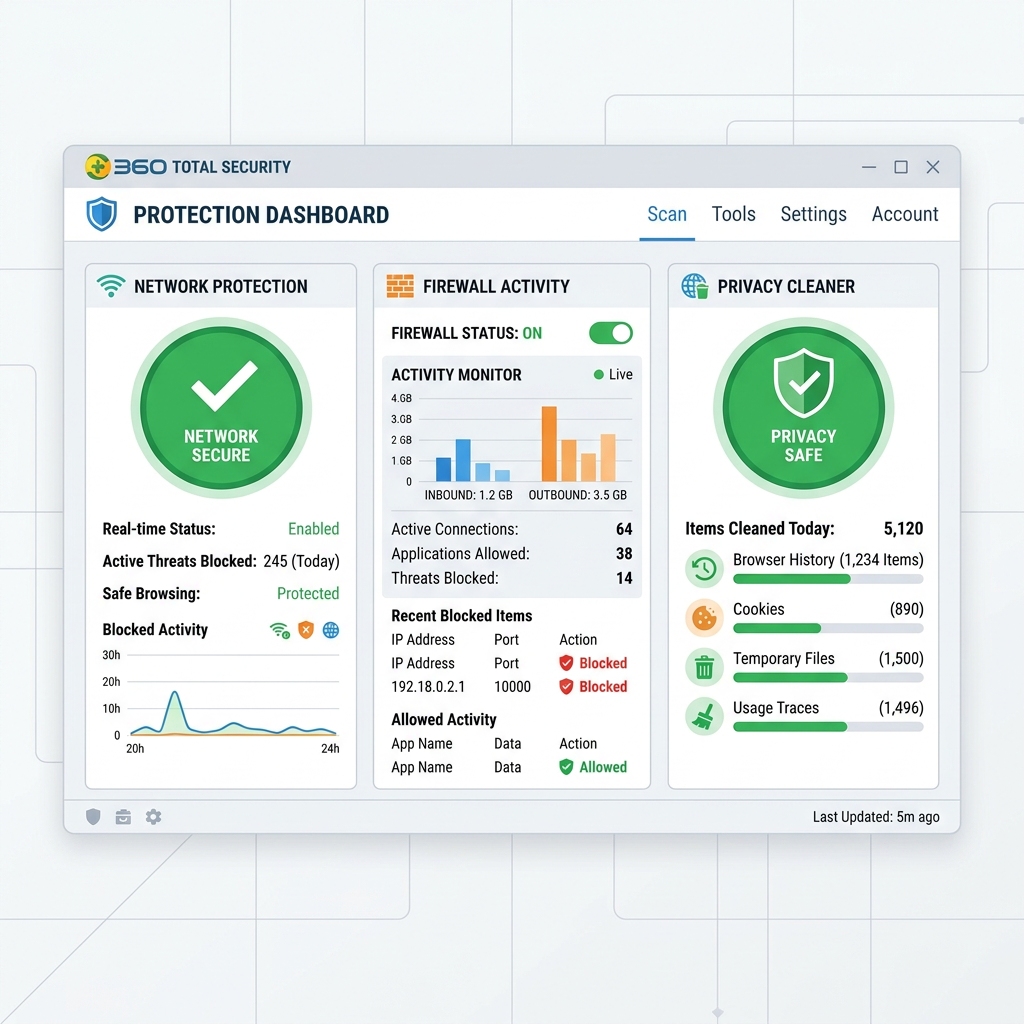
To experience comprehensive protection that goes beyond basic network security, visit 360 Total Security and download the free version for your Windows or macOS desktop. The software installs in minutes and immediately begins protecting your system against malware, network threats, and privacy invasions while optimizing performance.
Advanced Network Security Measures for Maximum Protection
For users seeking to implement the highest level of network security, several advanced measures can be layered on top of the basic protections discussed earlier. These techniques create multiple defensive barriers that significantly reduce your digital footprint and protect against sophisticated attacks that target multiple vulnerabilities simultaneously.
Implementing DNS-over-HTTPS and Encrypted DNS
While most people focus on encrypting their web traffic (the "HTTPS" in website URLs), DNS queries—the requests your device makes to translate domain names like "google.com" into IP addresses—traditionally travel unencrypted. This creates a significant privacy vulnerability because anyone monitoring your network can see exactly which websites you're visiting, even if they can't see the specific pages or data you're accessing.
Understanding the DNS privacy gap:
Every time you visit a website, your device performs a DNS lookup to find the server's IP address. Standard DNS queries are sent in plain text, meaning:
- Your Internet Service Provider can see and log every website you visit
- Network administrators on corporate or public WiFi can monitor your browsing habits
- Attackers on the same network can intercept DNS queries to track your activities
- DNS responses can be manipulated to redirect you to malicious websites
Enabling DNS-over-HTTPS (DoH):
DNS-over-HTTPS encrypts your DNS queries by sending them through HTTPS connections to DNS servers that support this protocol. Major browsers and operating systems now include built-in support for DoH:
For Google Chrome:
- Navigate to Settings > Privacy and Security > Security
- Scroll to the "Advanced" section
- Enable "Use secure DNS"
- Select a DNS provider from the dropdown menu or enter a custom DoH server
For Mozilla Firefox:
- Type "about:config" in the address bar and accept the warning
- Search for "network.trr.mode"
- Set the value to "2" for DoH with fallback, or "3" for DoH only
- Search for "network.trr.uri" and enter your preferred DoH server URL
For Windows 11:
- Open Settings > Network & Internet > WiFi (or Ethernet)
- Click on your active connection
- Scroll to DNS server assignment and click Edit
- Select "Manual" and enable IPv4
- Enter DNS servers that support DoH (like Cloudflare's 1.1.1.1)
- Enable "DNS over HTTPS"
Recommended privacy-focused DNS providers:
- Cloudflare (1.1.1.1): Emphasizes speed and privacy with a commitment to never log your IP address or sell your data
- Quad9 (9.9.9.9): Includes built-in malware and phishing protection by blocking access to known malicious domains
- NextDNS: Offers customizable filtering rules, analytics, and parental controls with privacy protections
- AdGuard DNS: Provides ad-blocking capabilities at the DNS level while encrypting queries
Network Segmentation and Guest Network Best Practices
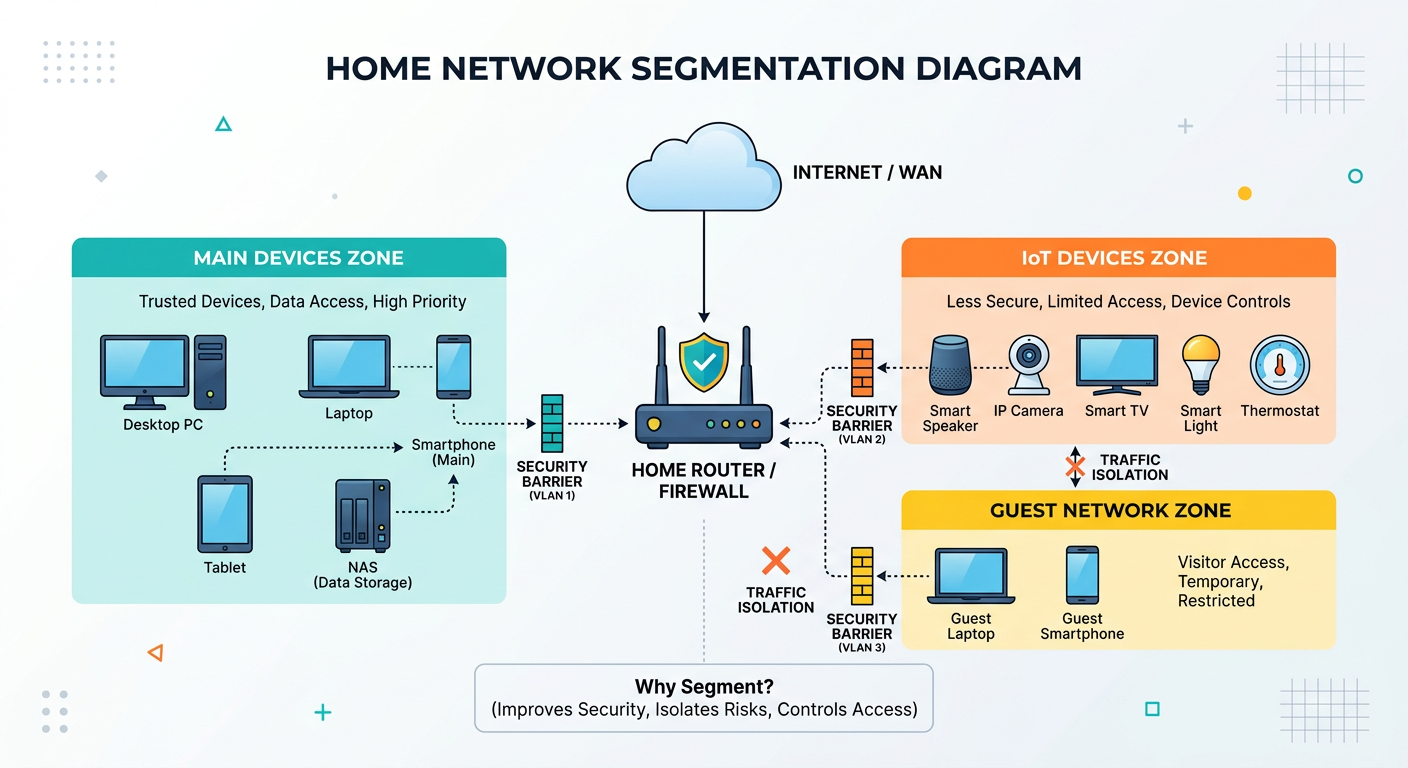
Network segmentation involves dividing your home or office network into separate, isolated sections that limit how devices can communicate with each other. This approach significantly reduces the potential damage from a compromised device by preventing lateral movement across your network.
Creating IoT device isolation:
Internet of Things (IoT) devices—smart TVs, security cameras, voice assistants, smart thermostats—are notoriously insecure, often shipped with default passwords, rarely updated firmware, and minimal security features. By placing these devices on a separate network segment, you prevent a compromised smart bulb from providing attackers access to your computers and smartphones.
To implement IoT segmentation:
- Access your router's administration interface
- Create a new WiFi network (many modern routers support multiple SSIDs)
- Configure this network with different security credentials
- Enable client isolation if available (prevents devices on this network from communicating with each other)
- Configure firewall rules to prevent IoT network devices from accessing your main network
- Connect all IoT devices exclusively to this isolated network
Configuring secure guest networks:
Guest networks allow visitors to access the internet without gaining access to your personal devices, files, or network resources. Proper guest network configuration includes:
- Complete isolation: Enable client isolation and restrict access to your main network
- Bandwidth limitations: Prevent guest usage from degrading your own network performance
- Time-based access: Configure automatic disconnection after a specified period
- Separate password: Use a different password that you can easily change without affecting your main network
| Network Segment | Device Types | Security Level | Access Permissions |
|---|---|---|---|
| Main Network | Computers, smartphones, tablets | Highest - WPA3, strong password | Full access to all network resources |
| IoT Network | Smart home devices, cameras, assistants | Medium - Isolated from main network | Internet only, no inter-device communication |
| Guest Network | Visitor devices | Medium - Time-limited access | Internet only, bandwidth limited |
| Work Network | Work computers, VPN connections | Highest - Additional firewall rules | Restricted based on corporate policy |
Small business considerations:
For small business environments, network segmentation becomes even more critical due to regulatory compliance requirements and the higher value of business data. Consider implementing:
- Separate networks for employee devices, guest access, and business-critical systems
- VLAN (Virtual Local Area Network) configuration for more sophisticated segmentation
- Access control lists (ACLs) that define exactly which devices can communicate with specific servers
- Regular security audits to verify that segmentation rules are functioning correctly
Tools and Techniques for Monitoring Network Security
Proactive network monitoring allows you to detect potential security issues before they result in data breaches or system compromises. Several tools and techniques can help you maintain visibility into your network's security status.
Using built-in operating system tools:
Windows Network Diagnostics:
- Open Command Prompt as Administrator
- Use "netstat -ano" to view all active connections and the programs using them
- Run "arp -a" to see all devices currently connected to your local network
- Execute "ipconfig /all" for detailed network configuration information
macOS Network Utility:
- Access via Applications > Utilities > Terminal
- Use "lsof -i" to list open network connections
- Run "arp -a" to display connected devices
- Execute "netstat -an" for connection status information
Third-party network scanning tools:
For more comprehensive network analysis, specialized tools provide enhanced visibility:
- Wireshark: Professional-grade packet analyzer that captures and analyzes all network traffic (requires technical expertise)
- Fing: User-friendly network scanner that identifies all connected devices and provides security assessments
- GlassWire: Real-time network monitoring with visual graphs showing bandwidth usage and connection history
- Angry IP Scanner: Fast network scanner that identifies active devices and open ports
Regular security audit procedures:
Establishing a routine security audit schedule helps ensure your network maintains optimal security over time:
- Weekly checks: Review connected devices list to identify any unauthorized access
- Monthly audits: Verify router firmware is current and review firewall logs for suspicious activity
- Quarterly reviews: Update all device passwords and review access permissions for shared resources
- Annual assessments: Consider professional security audits for business networks or high-value home networks
Setting up security alerts:
Many modern routers and security tools support automated alerts for unusual network activity:
- New device connection notifications
- Bandwidth usage threshold alerts
- Failed login attempt warnings
- Firmware update availability notifications
- Potential security threat detection
By implementing these advanced security measures—encrypted DNS, network segmentation, and continuous monitoring—you create a defense-in-depth approach that protects against a wide range of threats. When combined with the basic protections of MAC address randomization, strong encryption, and comprehensive security software like 360 Total Security, you establish a robust security posture that safeguards your privacy and data in an increasingly hostile digital environment.
Frequently Asked Questions
Will enabling MAC address randomization affect my home network devices?
Enabling MAC address randomization on your devices should not cause problems on most modern home networks. However, if you use MAC address filtering for security (where your router only allows specific MAC addresses to connect), you'll need to either disable this feature or add your device's randomized MAC addresses to the allowed list. Similarly, if you have parental controls or bandwidth management rules based on MAC addresses, these may need to be reconfigured to work with randomized addresses. For most users, the privacy benefits of randomization far outweigh these minor inconveniences.
Can I still get a privacy warning even with WPA3 encryption enabled?
Yes, it's possible to receive privacy warnings even on networks using WPA3 encryption. The privacy warning specifically relates to how your device's MAC address is being transmitted, which is separate from the encryption protocol used for data transmission. If you've manually disabled MAC address randomization for a particular network, or if your device is using its real MAC address for compatibility reasons, you'll see the warning regardless of the network's encryption strength. WPA3 provides excellent protection for your data in transit, but MAC address randomization is necessary to prevent device tracking.
Is it safe to disable MAC address randomization for my work network?
Disabling MAC address randomization for your corporate or work network is generally acceptable and often necessary for proper network access control and device management. Enterprise networks typically implement multiple layers of security beyond MAC address protection, including certificate-based authentication, network access control (NAC) systems, and comprehensive monitoring. Your IT department may specifically require real MAC addresses for device registration and security policy enforcement. However, you should keep randomization enabled for all public and untrusted networks to maintain privacy protection in those environments.
How often should I update my router's firmware to maintain security?
You should check for router firmware updates at least once per month, as manufacturers regularly release patches for newly discovered vulnerabilities. Many modern routers include automatic update features that you should enable if available. If your router is more than 3-5 years old and no longer receives firmware updates from the manufacturer, you should seriously consider replacing it with a current model that includes ongoing security support. Outdated router firmware is one of the most common security vulnerabilities in home networks, as attackers specifically target known flaws in older firmware versions that many users never patch.
Author Bio
Sarah Mitchell is a cybersecurity specialist with over 12 years of experience in network security and privacy protection. She holds certifications in CISSP and CEH, and has contributed to security research published in leading industry journals. Sarah specializes in translating complex security concepts into practical guidance for both home users and enterprise IT professionals. She currently serves as a security consultant for Fortune 500 companies while maintaining an active role in privacy advocacy organizations.
Learn more about 360 Total Security