
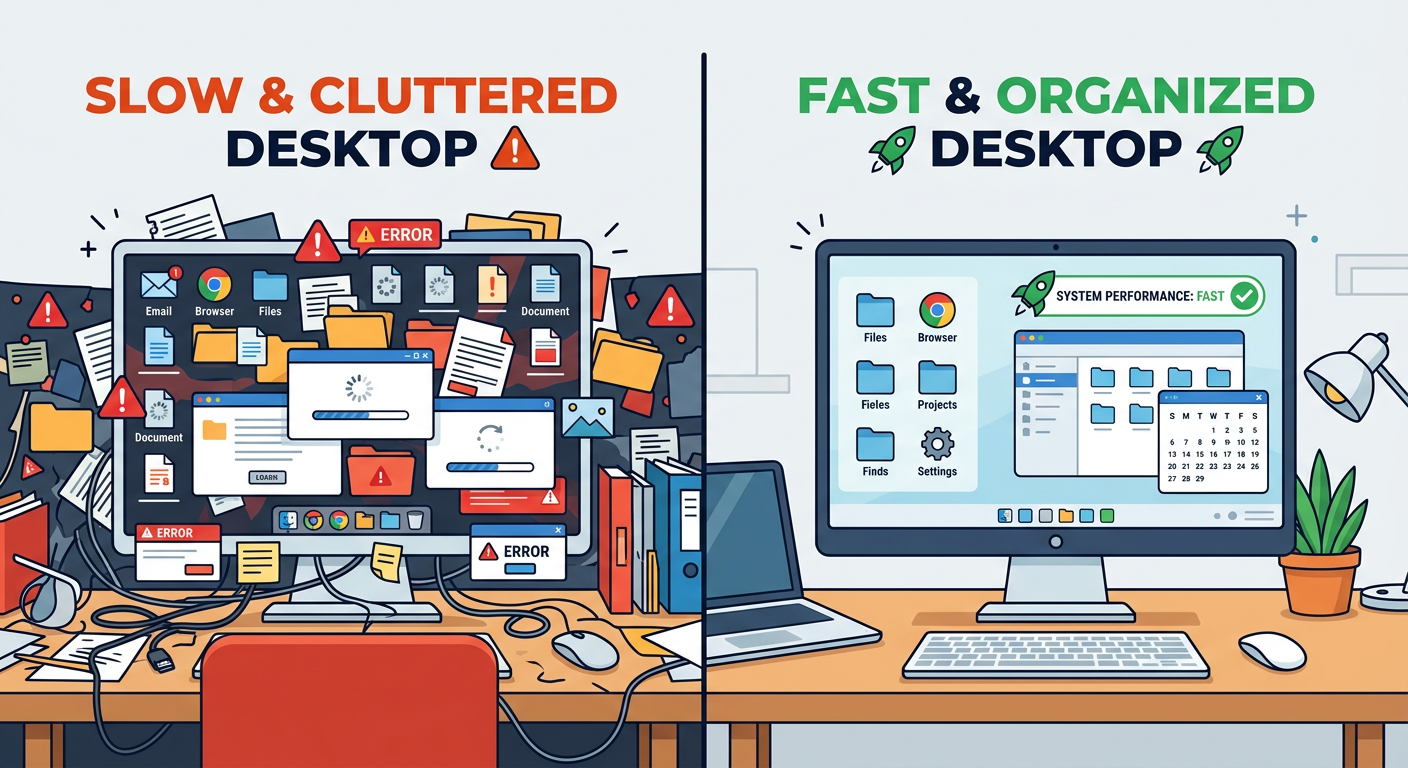
Is your once-speedy computer now crawling through basic tasks? A slow PC is a universal frustration, often stemming from a hidden combination of malware infections, system resource bloat from unnecessary programs, and fragmented or overloaded storage. The good news is that these performance killers can be systematically diagnosed and resolved. This guide will walk you through identifying the root causes of lag—from resource-hogging processes and startup bloat to critical security threats—and provide a clear action plan to restore your computer's speed and security. We'll also explore how integrated security and optimization software, like 360 Total Security, can streamline this process, offering comprehensive protection and cleanup in one package.
Why Is My PC Running So Slow and How Can I Fix It?
Performance degradation rarely has a single culprit. More often, it's the cumulative effect of several factors straining your system's resources. Understanding the interplay between malware, software bloat, and hardware limitations is the first step toward an effective fix.
Identifying Malware and Resource-Hogging Processes
Malware is a primary suspect for sudden, unexplained slowdowns. Threats like cryptominers, adware, and trojans operate silently in the background, consuming significant amounts of your CPU, memory, and disk resources for malicious purposes. This theft of system power directly translates into laggy performance for your legitimate tasks.
Your first diagnostic tool is the built-in Task Manager. Press Ctrl+Shift+Esc to open it and click on the "Processes" tab. Sort the columns by CPU, Memory, and Disk to identify any processes using an abnormally high percentage (consistently above 20-30% when idle is a red flag). Look for unfamiliar names or processes you don't recognize running.
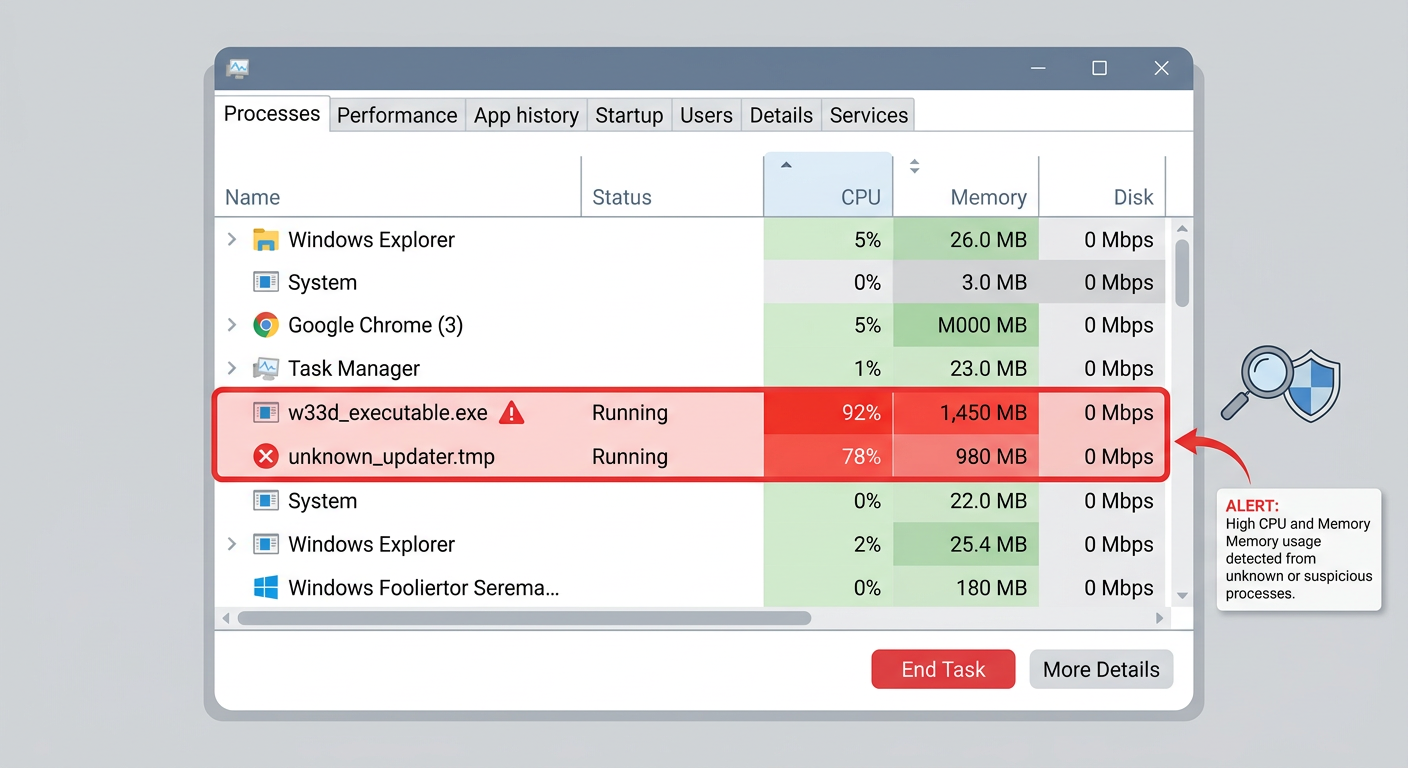
According to common cybersecurity advisories on malware behavior, a sudden, dramatic drop in performance is a classic symptom of an infection. If you spot a suspicious process, you can right-click and select "End task," but a proper removal requires a full system scan with a reputable antivirus program.
The Impact of Startup Bloat and Background Services
Over time, numerous applications configure themselves to launch automatically when Windows starts. This startup bloat significantly delays your boot time and consumes valuable RAM in the background, even if you never use the programs. Each of these background services chips away at the resources available for your active work, browsing, or gaming.
Managing these items is straightforward. In Windows 10 and 11, open the Task Manager and navigate to the "Startup" tab. Here, you'll see a list of all programs that launch at boot, along with their impact on startup speed. Disable any non-essential applications (e.g., cloud storage clients you don't need running constantly, media helper programs, or outdated utilities). This simple step can dramatically improve both boot time and overall system responsiveness.
Disk Fragmentation and Low Storage Space
Your storage drive's health is critical for performance. A hard drive (HDD) that is nearly full forces the operating system to work much harder to find space for temporary files and system operations, causing slowdowns across the board. For optimal performance, it's recommended to keep at least 15-20% of your drive free.
Furthermore, on traditional Hard Disk Drives (HDDs), files can become fragmented—saved in non-contiguous pieces across the disk platter. This increases the read/write head's movement, slowing down data retrieval. While this issue is negligible for Solid State Drives (SSDs), regular disk cleanup and defragmentation (for HDDs) remain essential maintenance tasks. You can use Windows' built-in "Disk Cleanup" tool to remove temporary files and the "Defragment and Optimize Drives" utility to reorganize data on HDDs.
What Are the Most Common Security Threats to Home and Office PCs Today?
Modern PC security extends far beyond traditional viruses. Today's landscape is a multi-front battle against sophisticated, evolving threats designed to steal data, hijack systems, or extort money. A robust defense requires understanding these dangers and implementing layered protections.
Ransomware: The Data-Hijacking Menace
Ransomware represents one of the most disruptive threats. This malware encrypts your personal files—documents, photos, databases—rendering them inaccessible, and then demands a ransom payment in cryptocurrency for the decryption key. The results can be catastrophic data loss for individuals and businesses alike.
It often spreads through phishing emails with malicious attachments, compromised software downloads, or by exploiting network vulnerabilities. Once inside one system on a network, it can quickly spread to others. According to a 2026 Cybersecurity Report projection, ransomware attacks continue to evolve, increasingly targeting backups and using sophisticated extortion tactics. Prevention, through reliable security software and maintained backups, is paramount.
Phishing and Social Engineering Attacks
Phishing attacks are the most common initial vector for infections. These attacks use deception—posing as a trusted entity via email, text message, or fake website—to trick users into revealing passwords, credit card numbers, or downloading malware. They target human psychology, exploiting trust, urgency, or fear.
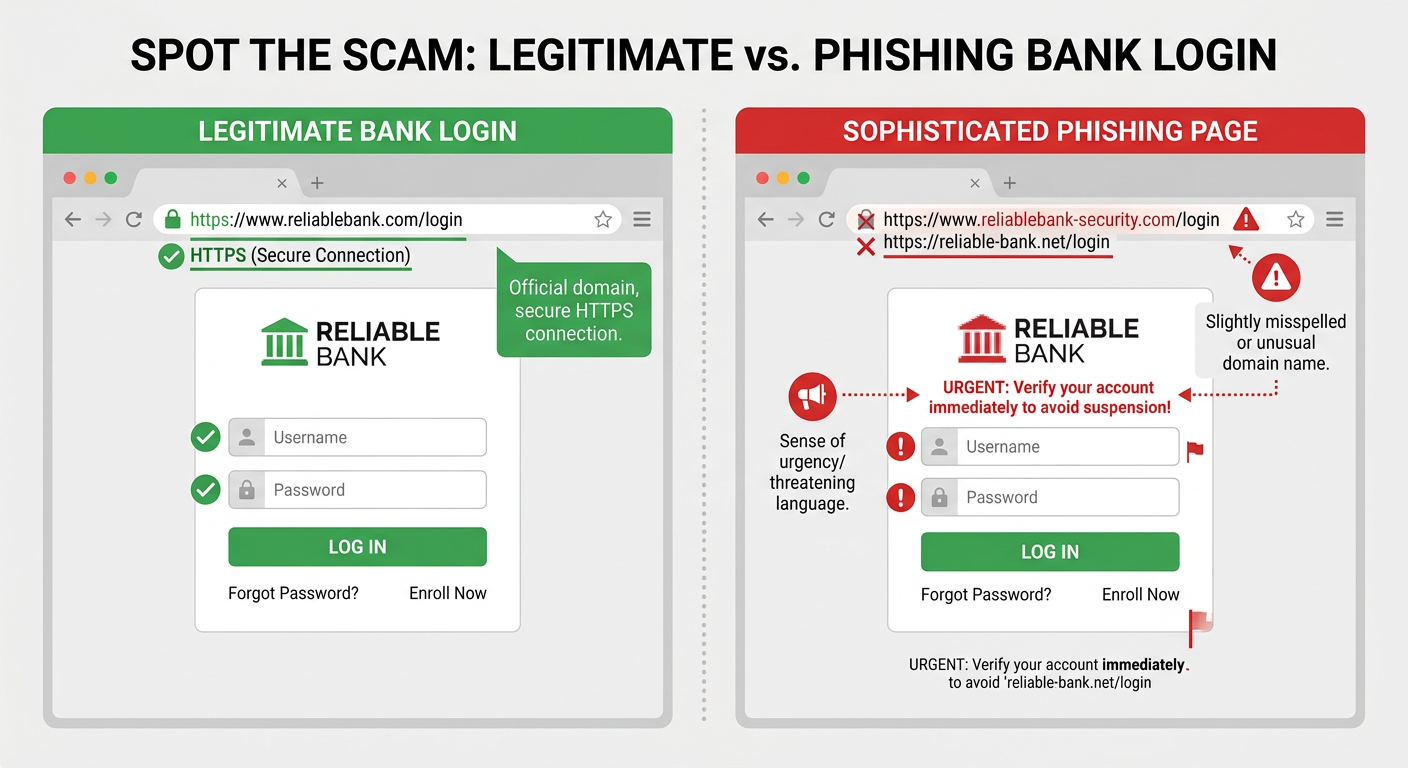
A sophisticated phishing page can look nearly identical to a real login page for a bank, email service, or social network. The key differences are often in the website address (URL) or subtle design flaws. Vigilance is the best defense: never click on links in unsolicited messages, and always verify the URL before entering credentials.
Unpatched Software and Driver Vulnerabilities
Hackers actively search for and exploit known security holes in software. Outdated operating systems, web browsers, PDF readers, and other applications contain these vulnerabilities, which can allow malware to install itself silently—a so-called "drive-by download"—without any user interaction beyond visiting a compromised website.
Automated patch management is a critical, yet often overlooked, component of a strong security posture. A comprehensive security solution should include a vulnerability fixer that scans for missing security updates in Windows and common applications, helping you close these doors before attackers can walk through them.
How to Choose the Right Security and Optimization Software for Your PC
With myriad options available, selecting the right software suite is crucial. An effective solution should provide robust, real-time threat blocking, a comprehensive set of system optimization tools, and do all this with a minimal performance footprint. The choice should also align with your technical comfort level.
Essential Security Features You Cannot Skip
When evaluating software, ensure it includes these non-negotiable security layers:
- Real-time Antivirus/Anti-malware Engine: Continuously monitors your system, files, and downloads to detect and block known threats instantly.
- Firewall: Monitors and controls incoming and outgoing network traffic, acting as a barrier between your PC and potential network-based attacks.
- Proactive Behavioral Analysis: Uses heuristic and behavioral detection to identify and stop never-before-seen threats (zero-day attacks) based on their suspicious actions, not just known virus signatures.
Must-Have System Optimization and Cleanup Tools
True PC health requires more than just security. Look for integrated optimization tools that address the performance issues discussed earlier:
- Startup Manager: Allows easy disabling of resource-hogging programs that launch at boot.
- Disk Cleaner: Safely removes gigabytes of junk files—temporary files, system caches, outdated logs—to reclaim valuable storage space.
- Additional Tools: Features like a registry cleaner, privacy sweeper for browser traces, and a driver updater can further enhance system stability and performance.
| Optimization Feature | Primary Benefit | Commonly Found In |
|---|---|---|
| Junk File Cleaner | Frees up disk space, can improve system speed | Security Suites, Standalone Optimizers |
| Startup Manager | Reduces boot time, frees up RAM | Security Suites, Windows Task Manager |
| Registry Cleaner | May fix system errors, remove invalid entries | Advanced Optimization Suites |
| Driver Updater | Ensures hardware compatibility and security | Some Security Suites, Dedicated Tools |
Evaluating Performance Impact and Ease of Use
The best security is useless if it slows your PC to a halt. Quality software is engineered for a lightweight footprint, meaning minimal impact on system boot time, application launch speed, and gaming performance. Independent lab tests often measure this "system slowdown" factor.
Finally, consider the user interface. A cluttered, confusing dashboard can deter regular use. Look for a solution with a clear, intuitive layout that allows you to run scans, access optimization tools, and check your security status without a manual. An integrated dashboard that combines security and optimization into a single, cohesive view streamlines maintenance and empowers users of all skill levels.
A Deep Dive into 360 Total Security: Comprehensive Protection and Optimization
360 Total Security exemplifies the modern approach to PC wellness by integrating a multi-engine defense system with a powerful suite of optimization tools. It aims to provide enterprise-grade protection in a user-friendly, free package, addressing both the security and performance concerns outlined above.
Multi-Engine Defense: Combining the Best Detection Methods
At its core, 360 Total Security employs a multi-engine strategy to maximize threat detection. It combines its proprietary 360 Cloud Engine with renowned third-party engines like Bitdefender and Avira. This layered approach means a threat missed by one engine is often caught by another, resulting in exceptionally high detection rates for both known and emerging malware.
Furthermore, its "Collective Intelligence" cloud system anonymously shares threat data from its global user base. This allows the software to identify and respond to new malware campaigns faster, turning every protected PC into a sensor that benefits the entire community. As noted in summaries from independent lab tests, "multi-engine solutions like 360 Total Security consistently demonstrate superior detection capabilities, offering a robust first line of defense."
Proactive Protection Layers: Sandbox and Vulnerability Fixer
Beyond traditional scanning, 360 Total Security includes proactive features that block threats before they can cause harm. Its Sandbox feature is a critical tool for dealing with uncertainty. It allows you to run suspicious programs, files, or even browse the web in an isolated, virtual environment. Any changes or malware activity is contained within the sandbox, leaving your real system completely untouched.
Its Vulnerability Fixer automates a crucial security habit. It automatically scans for unpatched security holes in the Windows operating system and common applications (like browsers, Java, and Adobe products) and helps you apply the necessary updates with one click, effectively closing doors that ransomware and other exploits often use to enter.
Integrated System Optimization Toolkit
True to its "Total Security" name, the suite includes a comprehensive set of optimization tools accessible from its main dashboard. The "Clean Up" feature performs a one-click removal of junk files, browser traces, and registry errors to reclaim disk space and improve system stability. The "Startup Optimizer" provides a clear interface to manage boot-up programs, while tools like the "Network Manager" help monitor and control connections.
A standout feature for users experiencing slowdowns is the "Speed Up" function. With one click, it intelligently frees up RAM by temporarily suspending non-critical background processes. This is particularly useful before launching resource-intensive tasks like gaming, video editing, or running complex software, providing an immediate performance boost.
Putting It All Together: Your Action Plan for a Fast and Secure PC
Achieving optimal PC health is not a one-time event but an ongoing process. By combining robust security software, regular system maintenance, and safe computing habits, you can create a sustainable environment for speed, stability, and security.
Step-by-Step Initial Setup and Scan
- Step 1: Install and Scan. Download and install a comprehensive security and optimization suite like 360 Total Security. Immediately run a full system scan to identify and remove any existing malware, rootkits, or PUPs (Potentially Unwanted Programs) that may be slowing you down.
- Step 2: Optimize and Clean. Use the built-in optimization tools. Run the disk cleaner to remove gigabytes of temporary files. Then, open the startup manager and disable all non-essential applications. This combination will free up resources and lead to a noticeably faster boot and more responsive system.
- Step 3: Fortify Defenses. Ensure the real-time protection shields and firewall are activated. Run the Vulnerability Fixer to patch any security holes in your system. This establishes a strong, proactive defense against future infections.
Building a Sustainable Maintenance Routine
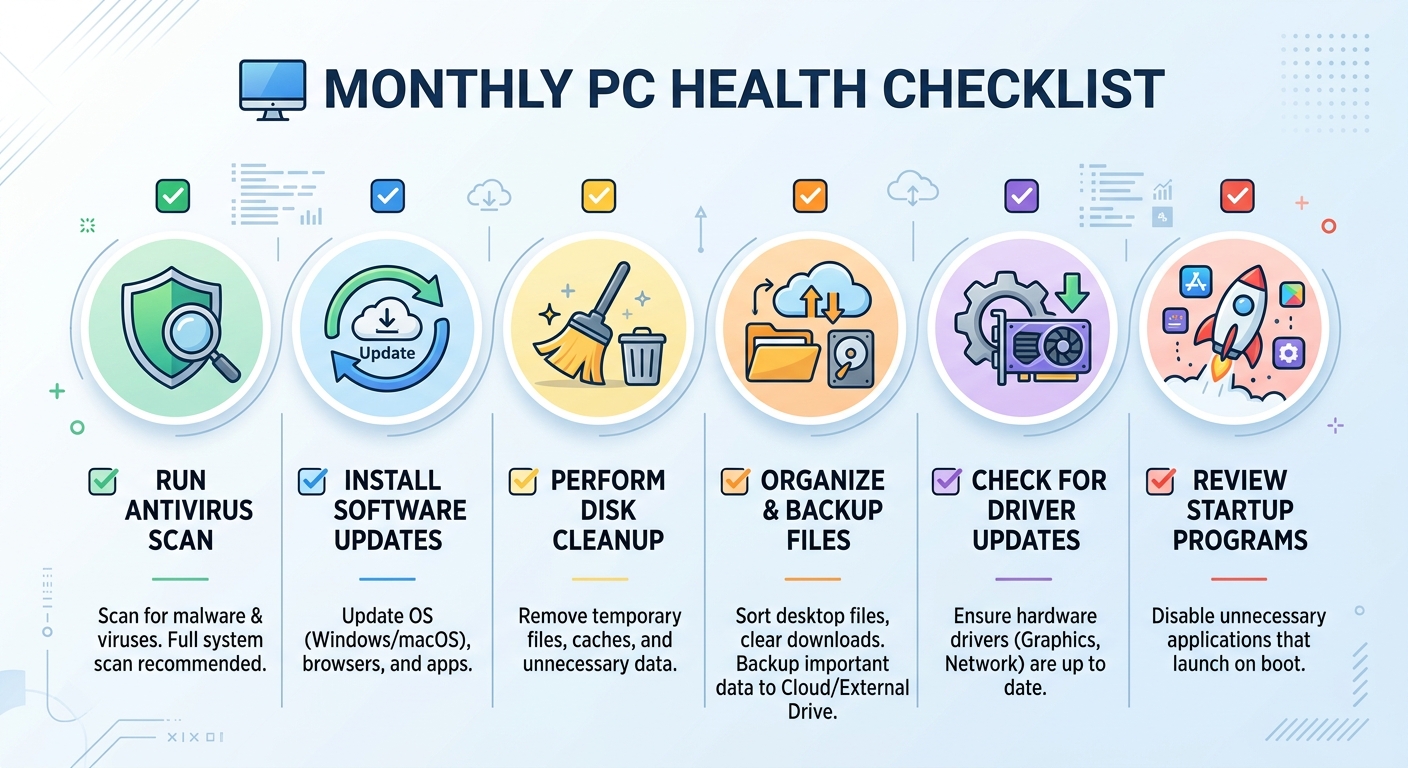
Consistency is key to long-term health. Establish a simple routine:
- Weekly: Perform a quick scan with your security software.
- Monthly: Run a full system scan and use the disk cleanup tool.
- Quarterly: Review your startup programs list and update any software manually if your security suite doesn't automate it.
Essential Safe Computing Habits
Technology can only do so much; informed user behavior is the final layer of defense.
- Be Email Smart: Treat unsolicited emails and links with extreme skepticism. Never download or open attachments from unknown senders.
- Update Relentlessly: Enable automatic updates for your operating system, web browser, and other critical software to ensure you have the latest security patches.
- Backup Religiously: Maintain regular backups of your irreplaceable files (documents, photos) to an external drive or a reputable cloud service. This is your ultimate safety net against ransomware or hardware failure.
By following this action plan and leveraging a unified solution like 360 Total Security, you can transform a slow, vulnerable PC into a fast, secure, and reliable machine. For a comprehensive desktop security solution that combines powerful antivirus protection with essential optimization tools, visit the official 360 Total Security website to learn more and download the software.
Frequently Asked Questions (FAQ)
Q: What is the first thing I should do if my PC suddenly becomes very slow?
A: Immediately open Task Manager (Ctrl+Shift+Esc) to check for processes using high CPU, memory, or disk. If you see an unknown process consuming resources, it could be malware. Run a full system scan with your antivirus software as your next step.
Q: Is free antivirus software good enough for protection?
A: Many free antivirus programs, including 360 Total Security, offer robust real-time protection against viruses and malware. However, they are a foundational layer. For comprehensive security against modern threats like ransomware and phishing, ensure your chosen free software includes proactive features like behavioral analysis, a firewall, and a vulnerability scanner, and always practice safe browsing habits.
Q: How often should I clean temporary files from my PC?
A: Performing a disk cleanup to remove temporary files, browser cache, and system junk is recommended at least once a month. This prevents the accumulation of gigabytes of unnecessary data that can slow down your system and waste storage space.
Q: Can too many startup programs cause problems even if I'm not using them?
A: Absolutely. Programs that launch at startup run background processes that consume RAM (memory) and can slow down your boot time. Even if you don't open the program's window, these background services use system resources. Disabling non-essential startup items is one of the fastest ways to improve performance.
About the Author: Alex Carter is a senior technical writer and cybersecurity analyst with over a decade of experience evaluating endpoint protection software and system optimization strategies. His work focuses on making complex security concepts accessible to home users and small businesses, empowering them to build robust digital defenses.
Learn more about 360 Total Security