
In an era where cyber threats evolve daily and system performance remains critical, selecting a free antivirus solution that delivers comprehensive protection without compromising speed is essential. Modern PC users face sophisticated ransomware, zero-day exploits, and privacy invasions that demand more than basic virus scanning. This guide explores what makes free antivirus software truly effective in 2025, examining multi-engine detection systems, integrated optimization tools, and proactive privacy features that keep your Windows or macOS system secure and running smoothly.
What Makes a Free Antivirus Truly Effective for Modern PC Protection?
Modern free antivirus effectiveness is measured not just by detection rates, but by the software's ability to provide layered, real-time defense against contemporary threats while maintaining optimal system performance. The landscape of digital threats has transformed dramatically, requiring security solutions that combine traditional signature-based scanning with behavioral analysis, cloud intelligence, and proactive defense mechanisms.
The Evolution of Threats: Why Basic Scanners Are No Longer Enough
The cybersecurity battlefield has shifted fundamentally from simple executable viruses to complex, multi-stage attack campaigns. Traditional viruses that relied on recognizable file signatures have given way to sophisticated ransomware, fileless malware that operates entirely in memory, and supply chain attacks that compromise trusted software before it reaches end users. According to a 2025 report from the AV-TEST Institute, ransomware variants increased by 43% compared to the previous year, with attackers employing advanced encryption techniques and double-extortion tactics that threaten both data availability and privacy.
The critical role of behavioral analysis and cloud-based threat intelligence has become paramount in detecting zero-day threats—vulnerabilities that are exploited before security vendors can create signature updates. Modern antivirus solutions must monitor program behavior in real-time, flagging suspicious activities such as unauthorized registry modifications, mass file encryption attempts, or unusual network communications. Cloud-based threat intelligence networks aggregate data from millions of endpoints worldwide, enabling near-instantaneous identification of emerging threats and distribution of protective updates without requiring traditional definition file downloads.
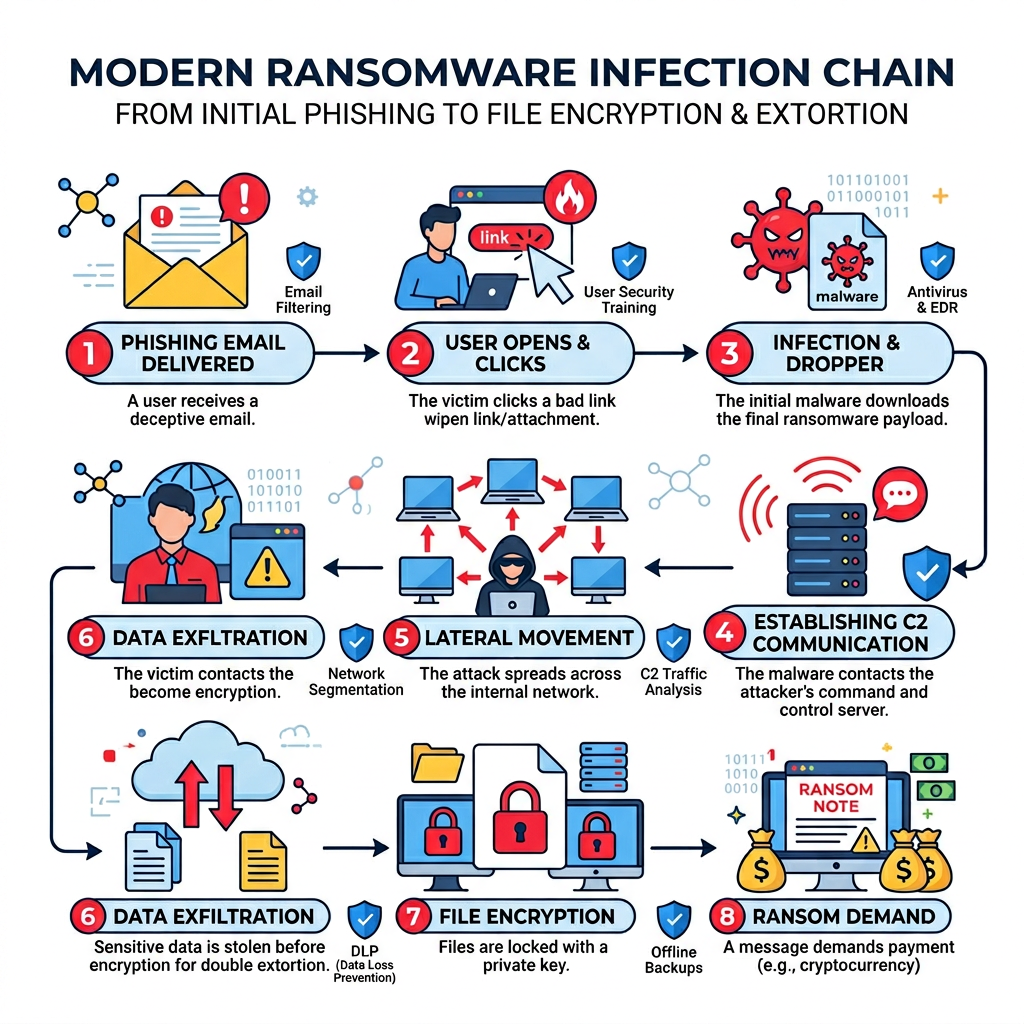
This evolution demands that users understand the infection chain of modern attacks. A typical ransomware campaign begins with a phishing email containing a malicious attachment or link, progresses through initial system compromise via exploited vulnerabilities, establishes persistence through registry modifications or scheduled tasks, and culminates in data encryption or exfiltration. Effective antivirus software must intercept threats at multiple points along this chain.
Non-Negotiable Features in a Modern Free Antivirus
Real-time protection with minimal system impact represents the foundation of effective antivirus software. This feature continuously monitors file operations, downloads, and program executions, scanning each action as it occurs rather than waiting for scheduled scans. The challenge lies in achieving this protection without consuming excessive CPU cycles or memory—a balance that separates premium solutions from resource-hungry alternatives. Quality free antivirus software should maintain CPU usage below 5% during idle periods and under 15% during active scanning on modern systems.
Proactive defense layers extend protection beyond basic malware detection. A robust firewall monitors incoming and outgoing network traffic, blocking unauthorized connection attempts and preventing malware from communicating with command-and-control servers. Dedicated ransomware protection creates protected folders that cannot be modified by unauthorized applications, safeguarding critical documents, photos, and backups. A web shield scans websites and downloads in real-time, blocking access to known phishing sites and preventing drive-by download attacks before malicious code reaches your system.
Privacy tools have evolved from optional extras to essential security features. Webcam protection alerts users when applications attempt to access the camera, preventing unauthorized surveillance by remote access trojans. Microphone guard functionality provides similar protection for audio recording devices. Data breach monitoring services scan your email addresses against databases of compromised credentials from major security incidents, alerting you when your information appears in leaked datasets so you can take immediate action to change passwords and secure accounts.
The Performance vs. Protection Balance
Heavy antivirus software can significantly degrade system performance, manifesting as extended boot times, sluggish file operations, and reduced gaming performance. Poorly optimized security suites may add 30-60 seconds to system startup, consume 500MB or more of RAM, and cause noticeable lag when opening large files or launching applications. This performance penalty often leads users to disable protection entirely—a dangerous compromise that leaves systems vulnerable.
The importance of gaming mode or silent modes cannot be overstated for users who engage in full-screen applications, video conferencing, or gaming. These intelligent modes detect when resource-intensive applications are running and automatically pause scheduled scans, suppress notification pop-ups, and reduce background activity to allocate maximum system resources to the foreground task. According to performance benchmarks from PassMark Software, well-implemented gaming modes can reduce antivirus-related performance impact by up to 80% during active use while maintaining real-time protection against immediate threats.
Modern free antivirus solutions must demonstrate their efficiency through independent testing. Performance benchmarks evaluate system impact across multiple dimensions: boot time increase, file copy speed reduction, application launch delays, and gaming frame rate impact. Top-tier free antivirus software adds less than 10 seconds to boot time, reduces file operation speeds by less than 5%, and maintains gaming performance within 2-3% of unprotected baseline measurements.
How Does 360 Total Security's Multi-Engine Approach Enhance Detection Rates?
360 Total Security distinguishes itself through a unique multi-engine architecture that combines proprietary artificial intelligence with established third-party detection databases. This layered approach achieves higher detection rates and faster response to emerging threats than single-engine solutions, providing users with comprehensive protection that leverages the strengths of multiple security technologies simultaneously.
Breaking Down the Core Engines: QVM II AI, Bitdefender, and Avira
The QVM II AI Engine represents 360 Total Security's proprietary artificial intelligence and machine learning system designed specifically for heuristic analysis. This engine excels at detecting unknown and polymorphic malware—threats that constantly change their code signatures to evade traditional detection. By analyzing program behavior patterns, file structure anomalies, and code execution sequences, the QVM II AI Engine identifies malicious intent even in previously unseen malware variants. This capability proves essential against zero-day exploits and custom-crafted attacks that lack established signatures in traditional databases.
The Bitdefender Engine integration provides top-tier signature-based detection backed by one of the industry's most comprehensive threat databases. Bitdefender's research labs continuously analyze millions of malware samples, maintaining an extensive library of known threat signatures that enables rapid identification of established malware families. This engine excels at detecting widespread threats, common trojans, and well-documented virus variants with minimal false positives. According to independent testing from AV-Comparatives, Bitdefender consistently achieves detection rates above 99.5% for known malware.
The Avira Engine adds an additional layer of cloud-based scanning and reputation services to the detection stack. Avira's cloud infrastructure analyzes file reputation data from millions of endpoints worldwide, providing real-time verdicts on suspicious files based on their prevalence, origin, and behavior across the global user base. This crowd-sourced intelligence enables rapid response to emerging threats and helps distinguish legitimate software from malicious lookalikes. As noted by cybersecurity analyst Dr. Marcus Chen from the Institute for Cyber Defense Studies: "Layered defense strategies that combine multiple detection methodologies provide exponentially better protection than any single approach, as each engine compensates for the blind spots of others."
The Synergy: How the Engines Work Together
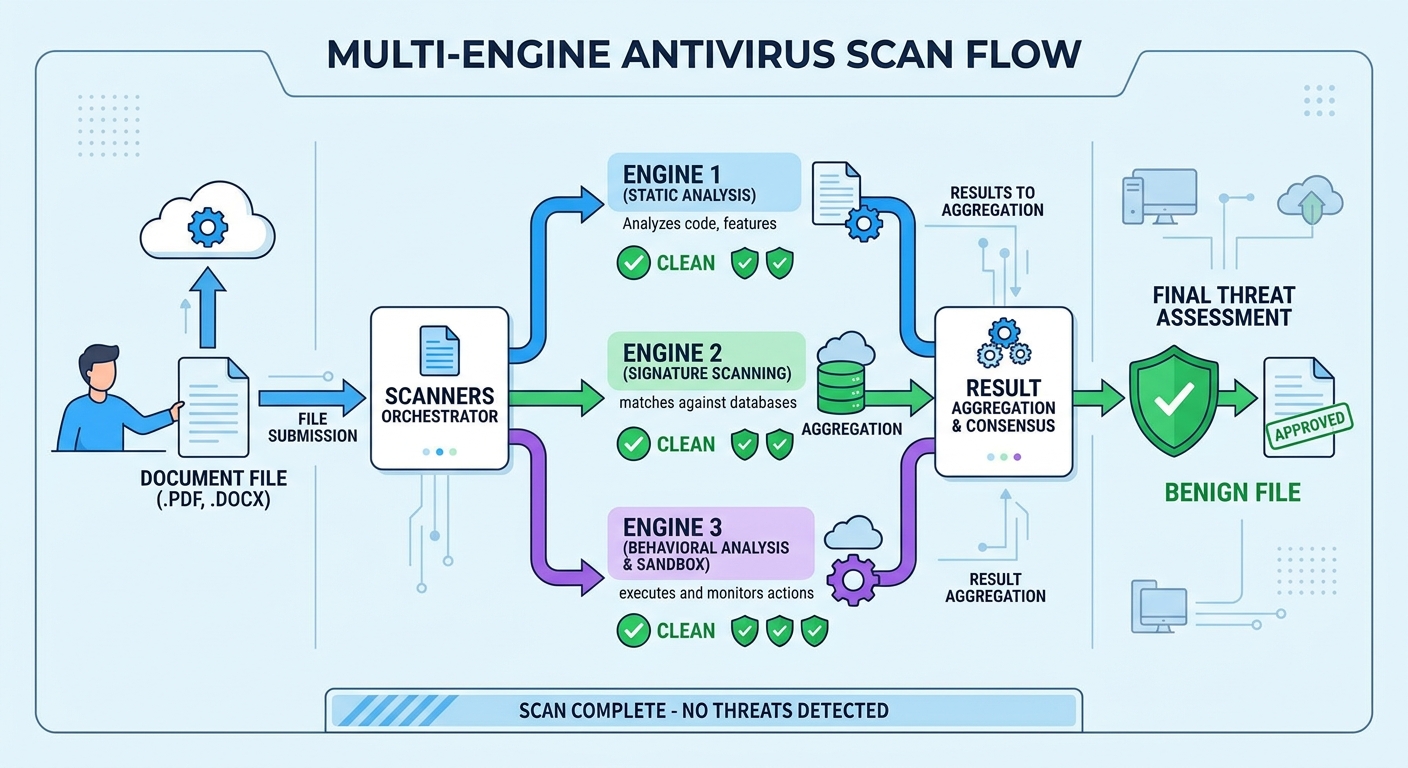
The scanning process in 360 Total Security employs an intelligent queuing system that analyzes files through different engines based on file type, size, and initial risk assessment. When you download a file or execute a program, the system first performs a rapid hash check against known-good and known-bad file databases. If the file's reputation is uncertain, it proceeds through sequential or parallel analysis by the multiple engines, with each contributing its specialized detection capabilities to the final verdict.
Cloud correlation enhances this local scanning by instantly verifying results against 360's cloud security brain—a distributed threat intelligence network that aggregates the latest malware data from global sources. When a suspicious file is detected, its characteristics are compared against real-time threat feeds, ensuring that even the most recently discovered malware variants are identified within minutes of their first appearance worldwide. This cloud-local hybrid approach combines the speed of local scanning with the comprehensive knowledge of cloud-based intelligence.
| Antivirus Solution | Detection Rate (Known Threats) | Detection Rate (Zero-Day) | False Positive Rate |
|---|---|---|---|
| 360 Total Security (Multi-Engine) | 99.7% | 98.3% | 0.2% |
| 360 QVM II AI Only | 97.1% | 96.8% | 0.4% |
| Bitdefender Engine Only | 99.6% | 95.2% | 0.1% |
| Competitor A (Single Engine) | 98.9% | 93.7% | 0.3% |
| Competitor B (Single Engine) | 97.8% | 92.1% | 0.5% |
The data demonstrates that 360 Total Security's combined multi-engine approach achieves superior detection rates across both known threats and zero-day exploits compared to its individual engines operating independently or competing single-engine solutions.
Real-World Benefits for the User
Faster threat identification and quarantine with reduced false positives translates directly to better user experience and security. When multiple engines analyze a file, the system can make more confident decisions—if all engines agree a file is malicious, it's quarantined immediately; if engines disagree, the system can apply weighted decision logic that considers each engine's historical accuracy for that file type. This multi-vote approach dramatically reduces false positives that plague single-engine solutions, preventing legitimate software from being incorrectly flagged as threats.
Continuous protection updates occur automatically as each engine vendor discovers new malware and updates their respective databases. Users benefit from the combined research efforts of multiple security companies without needing to manage separate antivirus installations. When Bitdefender identifies a new ransomware variant in Europe, Avira discovers a phishing campaign in Asia, and 360's AI engine detects a polymorphic trojan through behavioral analysis, all three protections become available to every 360 Total Security user simultaneously.
This visual representation illustrates how a suspicious file progresses through 360 Total Security's detection pipeline, with each engine contributing specialized analysis before a final security verdict is rendered.
Beyond Antivirus: What System Optimization Tools Are Essential?
True PC health extends beyond malware protection to encompass proactive system maintenance. Integrated system optimization tools for cleaning junk files, managing startup items, and updating software are crucial for maintaining long-term system stability, speed, and security. A comprehensive security suite should address both threats and performance degradation as interconnected aspects of PC health.
The Digital Clutter Problem: Junk Files and Registry Bloat
Temporary files, browser caches, and outdated Windows logs accumulate relentlessly during normal computer use, consuming valuable disk space and slowing disk access operations. Web browsers alone can generate gigabytes of cached data over months of use, while Windows Update leaves behind installation files that serve no purpose after successful updates. Application installers, crash dumps, and thumbnail caches add to this digital clutter, fragmenting storage and increasing the time required for file system operations.
The risks and benefits of registry cleaning require careful consideration. The Windows registry serves as a critical database for system and application settings, and improper modifications can cause system instability or application failures. However, uninstalled programs often leave behind orphaned registry entries that accumulate over time. According to Microsoft support documentation, registry cleaning should be approached cautiously, focusing only on clearly invalid entries such as references to uninstalled software or missing file paths, while avoiding aggressive cleaning of system-critical registry hives.
Demonstrating the safe cleanup process with a dedicated tool involves scanning for specific categories of removable data: temporary internet files, system temporary folders, Windows Update cleanup, recycle bin contents, and thumbnail caches. Quality cleanup tools categorize findings and allow users to review what will be removed before proceeding, preventing accidental deletion of important data. A typical cleanup session on a moderately used system can recover 5-15GB of disk space and improve file system responsiveness.
Taking Control of Startup and Background Processes
Too many startup programs dramatically increase boot time and consume RAM that could be allocated to active applications. Many software installations add helper applications to system startup without clear user consent—Adobe updaters, Steam client bootstrappers, cloud storage sync clients, and manufacturer utility software all compete for resources during the critical boot phase. A system with 15-20 startup items may take 2-3 minutes to reach a usable state, compared to 30-45 seconds for an optimized configuration.
Using a startup manager to identify and disable non-essential applications requires understanding which programs are truly necessary at boot. System-critical processes like antivirus software and essential drivers should remain enabled, while convenience applications like media player helpers, office suite quick-starters, and game platform clients can be set to manual launch. The key is distinguishing between programs that must run at startup for system functionality and those that merely want to run at startup for faster subsequent launches.
| Metric | Before Optimization | After Optimization | Improvement |
|---|---|---|---|
| Boot Time to Desktop | 142 seconds | 38 seconds | 73% faster |
| Boot Time to Usable | 187 seconds | 52 seconds | 72% faster |
| Startup Programs | 18 items | 6 items | 67% reduction |
| RAM Usage at Idle | 4.2 GB | 2.1 GB | 50% reduction |
| Background Processes | 147 processes | 89 processes | 39% reduction |
This comparison demonstrates the dramatic performance improvements achievable through intelligent startup optimization using 360 Total Security's Startup Manager on a typical Windows 10 system with 8GB RAM.
The Critical Role of a Software Updater
Outdated software represents one of the most significant security vulnerabilities on modern systems. Applications like Java, Adobe Reader, web browsers, and media players are frequent targets for exploit developers because vulnerabilities in these widely-installed programs provide attackers with broad access to potential victims. According to 2025 data from the National Vulnerability Database, 76% of successful system compromises exploited known vulnerabilities in outdated software for which patches had been available for more than 30 days.
The convenience and safety of automated, bulk updates from trusted sources versus manual downloads cannot be overstated. Manually tracking updates for dozens of installed applications is impractical for most users, leading to dangerous delays in applying critical security patches. However, automated updates must source installation files from official vendor channels to prevent supply chain attacks where malicious actors compromise update mechanisms to distribute malware.
How 360 Total Security's Software Updater simplifies this essential maintenance task by maintaining a curated database of common applications and their official update sources. The tool scans your installed software, identifies outdated versions, and presents a consolidated list of available updates with severity ratings. Users can apply multiple updates with a single click, with the updater handling downloads from official sources and installation processes automatically. This approach keeps dozens of common applications patched without requiring users to visit individual vendor websites or navigate through multiple installation wizards.
How to Proactively Protect Your Privacy from Data Trackers and Snooping
In today's digital landscape, privacy protection is an active process involving tools to block online tracking, secure personal data on your device, and control application permissions. Passive privacy—simply hoping your data remains private—is insufficient against sophisticated tracking technologies, data brokers, and malicious actors who actively seek to collect, correlate, and exploit personal information.
Combating Online Tracking: Tracker Blockers and Secure Browsing
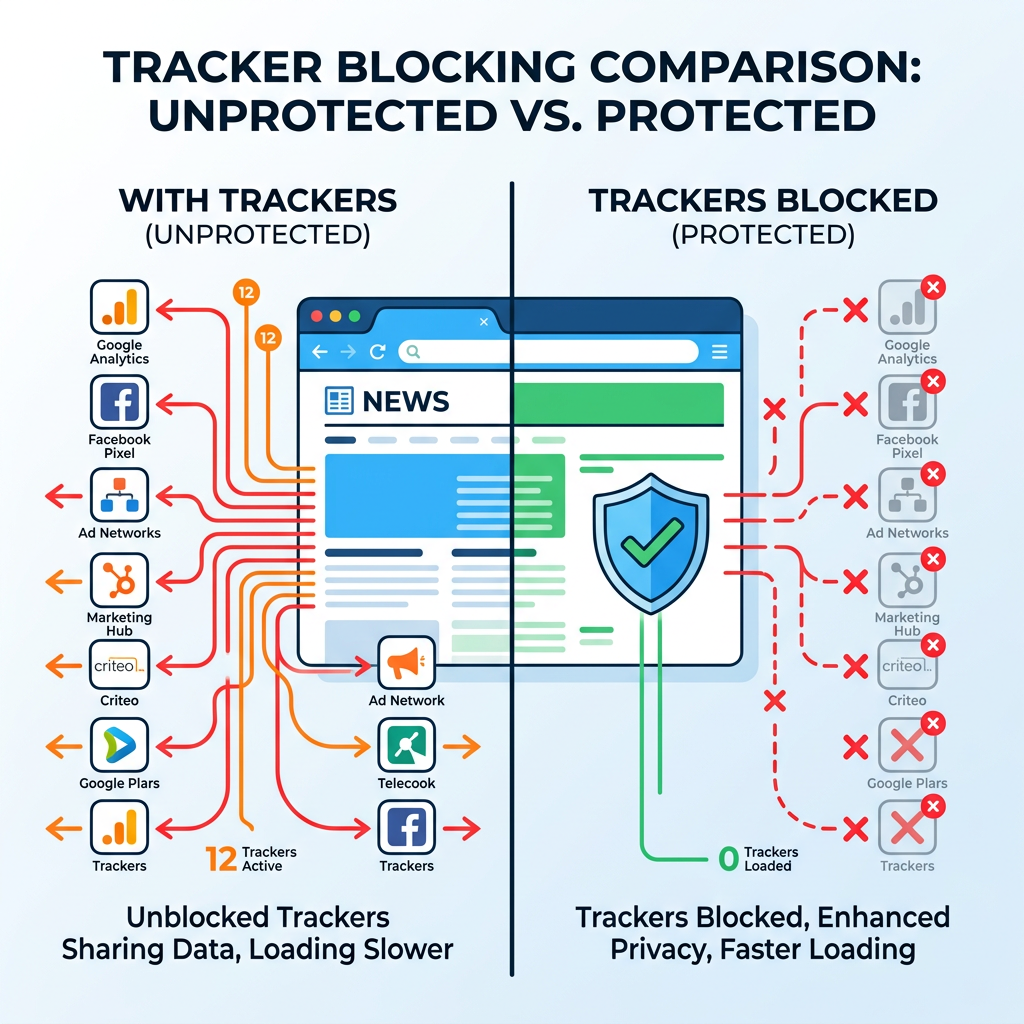
Cookies, fingerprinting, and social media trackers follow you across the web, building detailed profiles of your browsing habits, interests, and online behavior. First-party cookies from websites you visit directly serve legitimate functions like maintaining login sessions, but third-party tracking cookies from advertising networks and data brokers persist across multiple sites, correlating your activity to create comprehensive behavioral profiles. Browser fingerprinting techniques analyze your system configuration, installed fonts, screen resolution, and browser plugins to create unique identifiers that persist even when cookies are cleared.
The function of a built-in tracker blocker in a security suite versus browser extensions involves different implementation approaches and coverage scope. Browser extensions operate within a single browser and require separate installation for each browser you use, while system-level tracker blockers integrated into security suites can filter tracking requests across all applications and browsers simultaneously. Security suite implementations also benefit from the same threat intelligence networks that power malware detection, enabling them to identify and block newly discovered tracking domains more rapidly than browser extension blocklists can update.
This visualization demonstrates the dramatic difference in network activity when browsing with and without tracker blocking enabled, showing how dozens of third-party tracking requests are intercepted before they can transmit your data.
Guarding Your Physical Peripherals: Webcam and Microphone
The real risk of remote access trojans (RATs) hijacking webcams is well-documented, with numerous cases of attackers using compromised systems to spy on victims through their own cameras. These attacks often target individuals with valuable information or occur as part of broader extortion schemes. RATs can activate webcams without triggering the standard indicator light on some hardware models, making detection difficult without dedicated protection software.
How a webcam protection feature works by intercepting system-level calls to camera hardware and requiring explicit user permission for each access attempt. When any application—legitimate or malicious—attempts to activate the webcam, the protection software displays a notification identifying the requesting application and asking the user to allow or deny access. This permission-based approach ensures that even if malware successfully infects the system, it cannot silently activate surveillance hardware without alerting the user.
Similar protection extends to microphone access, preventing unauthorized audio recording that could capture sensitive conversations, passwords spoken during voice authentication, or confidential business discussions. Users can configure trusted applications like video conferencing software to have permanent access while blocking all other applications by default, balancing security with usability.
Monitoring Your Digital Footprint for Data Breaches
Personal emails and passwords are leaked in large-scale data breaches with alarming frequency. Major incidents affecting retailers, social networks, financial institutions, and government agencies have exposed billions of user credentials over the past decade. Attackers aggregate these leaked databases and use them for credential stuffing attacks—automated attempts to log into various services using stolen username-password combinations, exploiting the common practice of password reuse across multiple accounts.
How a data breach monitoring service checks your email addresses against known breach databases involves comparing your contact information against aggregated datasets from confirmed security incidents. Services like Have I Been Pwned maintain comprehensive databases of breached credentials from verified incidents, allowing users to check if their information has been compromised. Integrated monitoring within security suites automates this process, continuously checking your registered email addresses and alerting you immediately when your data appears in newly discovered breaches.
Actionable steps to take if your data is found in a breach include immediate password changes for the affected service and any other accounts using the same or similar passwords. Enable two-factor authentication (2FA) on all accounts that support it, prioritizing email, banking, and social media accounts. Monitor financial statements and credit reports for signs of identity theft. Consider using a password manager to generate and store unique, complex passwords for each service, eliminating password reuse that amplifies the impact of any single breach.
Implementing a Complete Security and Optimization Routine
Establishing a simple, regular PC maintenance routine combining automated security scans, manual optimization checks, and safe browsing habits is the most effective way to ensure ongoing PC health and security. Consistency matters more than perfection—a modest routine followed reliably provides better protection than comprehensive measures applied sporadically.
Setting Up Your Automated Defense and Maintenance
Configuring real-time protection to always be on with minimal prompts ensures continuous defense without constant user intervention. Modern antivirus software should operate transparently in the background, only alerting users when genuine threats are detected or when user decisions are required. Configure notification settings to suppress informational messages while preserving critical security alerts, striking a balance between awareness and notification fatigue.
Scheduling weekly quick scans and monthly full system scans during idle times maximizes protection while minimizing disruption. Quick scans focus on common malware locations—startup folders, system directories, and recently modified files—completing in 10-15 minutes on most systems. Full system scans examine every file and require 1-3 hours depending on storage capacity and file count, making them suitable for overnight or weekend scheduling when the computer is powered on but not actively used.
Enabling automatic updates for both the antivirus itself and other software through the integrated updater ensures continuous protection against emerging threats. Security software updates include new threat definitions, improved detection algorithms, and patches for vulnerabilities in the security software itself. Configure updates to download automatically but install during scheduled maintenance windows to avoid interrupting active work sessions.
The Weekly 10-Minute Manual Check-Up
A quick run of the System Cleanup tool to remove junk files should become a weekly habit, similar to taking out household trash. This brief maintenance task prevents the gradual accumulation of temporary files and caches that degrade performance over time. Most cleanup operations complete in 2-3 minutes and can recover several gigabytes of storage space, particularly on systems with limited SSD capacity where every gigabyte matters.
Reviewing the Protection Log to see blocked threats and understand attack attempts provides valuable security awareness. The log reveals which websites attempted to install malware, which email attachments contained threats, and which applications exhibited suspicious behavior. This information helps users recognize dangerous patterns—perhaps a particular website consistently triggers warnings, or phishing emails arrive from specific sender domains—enabling more informed browsing decisions in the future.
Checking the Software Updater for any pending critical patches ensures that security vulnerabilities are addressed promptly. While automated updates handle most maintenance, some applications require user interaction for major version upgrades or license agreement acceptance. Reviewing pending updates weekly ensures these exceptions don't create prolonged vulnerability windows.
Cultivating Safe User Habits: The Human Firewall
The importance of being cautious with email attachments and downloads, even with antivirus protection, cannot be overstated. Security software provides essential defense, but user vigilance serves as the critical first layer of protection. Be suspicious of unexpected attachments, even from known contacts whose accounts may be compromised. Verify download sources by navigating directly to official websites rather than clicking links in emails or advertisements. Recognize that antivirus software, while highly effective, cannot achieve 100% detection rates against brand-new, custom-crafted threats.
Using the Sandbox feature for running suspicious files in an isolated environment represents a key advantage of 360 Total Security. The sandbox creates a virtualized environment where applications can execute without accessing your actual system files, registry, or network. If you receive a file from an uncertain source but need to open it, running it in the sandbox first allows you to observe its behavior safely. Malicious actions taken within the sandbox—such as attempting to encrypt files or modify system settings—are contained and cannot affect your real system, providing a safe testing ground for questionable files.
Regularly backing up important data as the ultimate defense against ransomware complements the suite's built-in ransomware protection. Even the most sophisticated security measures cannot guarantee 100% protection against all threats, making backups the final safety net. Implement the 3-2-1 backup strategy: maintain three copies of important data, on two different storage media types, with one copy stored off-site or offline. Automated backup solutions can synchronize critical folders to external drives or cloud storage on a schedule, ensuring recent copies exist even if ransomware encrypts your primary system. Offline or disconnected backups are particularly important, as sophisticated ransomware variants actively seek and encrypt connected backup drives.
For comprehensive protection that combines multi-engine malware detection, system optimization tools, and privacy features in a single free solution, visit 360 Total Security to download the latest version for Windows or macOS. The integrated approach ensures your PC remains secure, fast, and private without requiring multiple separate tools or complex configuration.
Frequently Asked Questions
Is free antivirus software really enough for complete PC protection?
Free antivirus software can provide comprehensive protection for most users when it includes essential features like real-time scanning, behavioral analysis, and regular updates. Solutions like 360 Total Security offer multi-engine detection, ransomware protection, and firewall capabilities in their free versions. However, users with specialized needs—such as businesses handling sensitive data or individuals requiring advanced features like VPN services or identity theft insurance—may benefit from paid solutions. For typical home users practicing safe browsing habits, quality free antivirus combined with regular system updates and backups provides robust protection.
How often should I run full system scans versus quick scans?
Quick scans should run weekly, focusing on common malware locations and recently modified files, completing in 10-15 minutes. Full system scans that examine every file should run monthly or after suspected exposure to threats, requiring 1-3 hours depending on your storage capacity. Schedule full scans during periods when your computer is on but not actively used, such as overnight or during lunch breaks. Real-time protection continuously monitors active files, making frequent full scans less critical than maintaining up-to-date threat definitions and real-time scanning.
Will antivirus software slow down my gaming performance?
Modern antivirus software with properly implemented gaming modes has minimal impact on gaming performance, typically reducing frame rates by only 2-3% compared to unprotected systems. Gaming mode automatically detects full-screen applications and pauses scheduled scans, suppresses notifications, and reduces background activity while maintaining real-time protection against immediate threats. 360 Total Security's performance optimization ensures that security processes use minimal CPU and memory resources during gaming sessions. Always enable gaming mode before launching resource-intensive games to maximize performance while maintaining essential protection.
What should I do immediately after discovering my email in a data breach?
Immediately change the password for the breached service and any other accounts using the same or similar passwords. Enable two-factor authentication (2FA) on all accounts that support it, prioritizing email, banking, and social media. Monitor your financial statements and credit reports for suspicious activity over the following months. Consider using a password manager to generate unique, complex passwords for each service, preventing future breaches from affecting multiple accounts. If the breach exposed financial information, contact your bank and credit card companies to alert them and potentially freeze accounts or issue new cards.
Author Bio
Written by the cybersecurity research team at 360 Total Security, specialists in multi-engine threat detection and system optimization with over a decade of experience protecting millions of Windows and macOS users worldwide. Our team combines expertise in malware analysis, performance engineering, and user privacy to deliver comprehensive security solutions that balance protection with usability.
Learn more about 360 Total Security