
Trojan viruses represent one of the most deceptive and dangerous forms of malware targeting Windows 11 systems today. Unlike viruses that replicate themselves, Trojans disguise themselves as legitimate software to infiltrate your PC, steal sensitive data, create backdoors for hackers, or deploy additional malicious payloads. This comprehensive guide walks you through identifying Trojan infections, executing manual removal procedures, leveraging powerful antivirus solutions like 360 Total Security, and deploying advanced techniques to eliminate even the most stubborn threats from your Windows 11 computer.
How Can You Identify a Trojan Virus on Windows 11?
Recognizing the specific symptoms and behavioral patterns of a Trojan virus is the critical first step before removal, as it confirms the infection and prevents misdiagnosis. Many users mistake legitimate system processes for malware or overlook genuine threats, making accurate identification essential for effective remediation.
Common Performance and System Anomalies
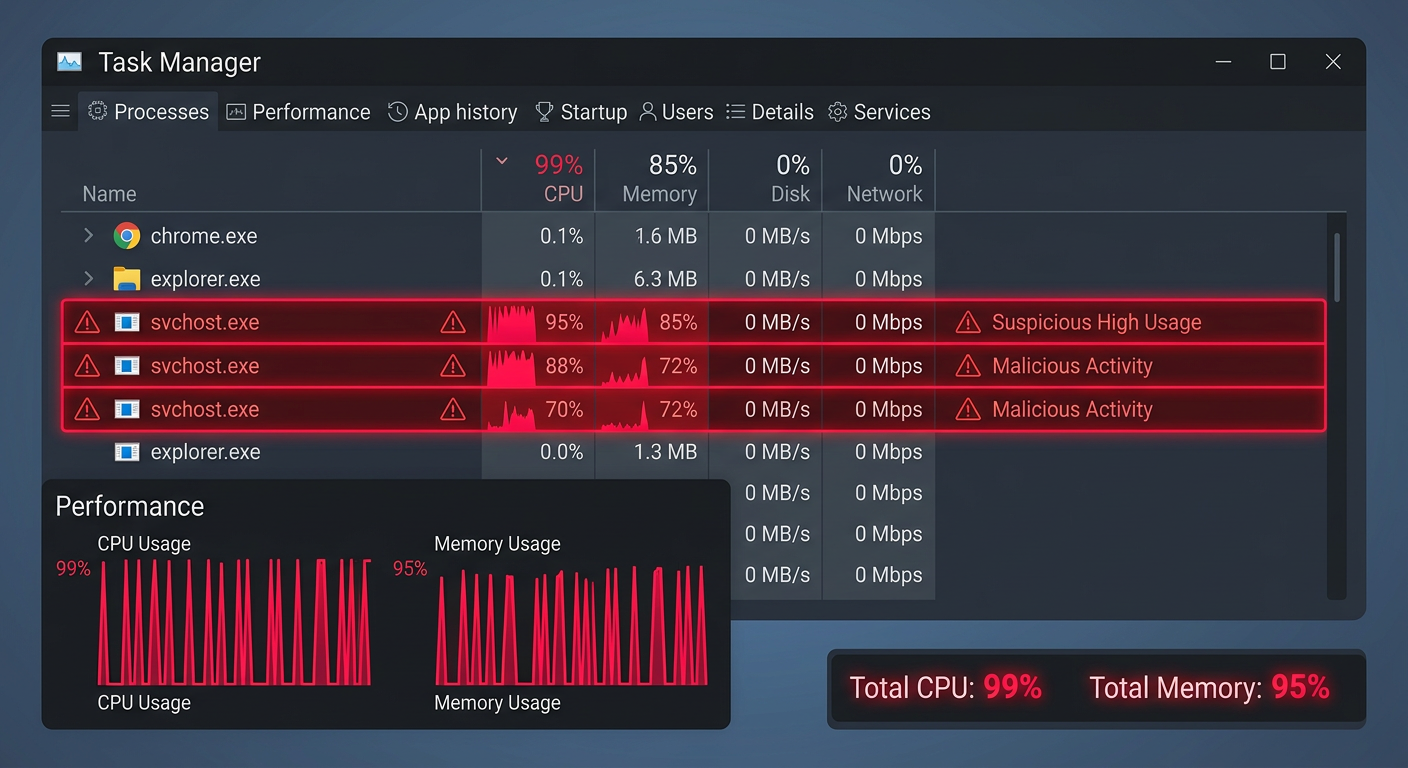
The first category of Trojan virus symptoms manifests through noticeable performance degradation and system instability. Sudden system slowdowns occur when malicious processes consume CPU, memory, or disk resources in the background. Opening Task Manager (Ctrl+Shift+Esc) often reveals unexplained high CPU or disk usage from processes with generic names like multiple instances of 'svchost.exe' or unfamiliar executables. Frequent application crashes, system freezes, or the infamous Blue Screen of Death (BSOD) can indicate that a Trojan is interfering with critical system operations or drivers.
Beyond performance issues, visual and behavioral changes provide clear signs of malware infection. Unfamiliar programs may appear in your startup list (accessible via Task Manager's Startup tab or Settings > Apps > Startup), launching automatically when Windows boots. New desktop icons for software you never installed, browser toolbars you didn't add, or unexplained changes to your homepage and default search engine all point to potential Trojan activity. These modifications often serve to generate advertising revenue for attackers or redirect your searches through malicious servers that harvest your data.
Security and Data Red Flags
Trojans frequently target your system's defensive mechanisms to operate undetected. One of the most alarming indicators is your antivirus software being disabled without your action, Windows Defender turning off mysteriously, or firewall settings being modified. According to the Microsoft Security Blog's analysis of Trojan behavior patterns in 2025, sophisticated malware variants specifically target security software processes to terminate them or add themselves to exclusion lists, creating a vulnerability window for further exploitation.
Data-related warning signs include unexpected password prompts appearing for accounts you're already logged into, which may indicate credential-stealing attempts. Files becoming inaccessible or displaying ransom notes suggests ransomware deployment—a common Trojan payload. You might notice unusual file modifications, deletions, or the appearance of encrypted files with strange extensions. Network monitoring tools or your internet service provider may alert you to large volumes of data being transmitted from your computer without your knowledge, a hallmark of data exfiltration by information-stealing Trojans.
Network and External Communication Indicators
Network behavior provides crucial evidence of Trojan infections. Unusual outbound network traffic—especially to foreign IP addresses or known malicious domains—indicates your system may be communicating with command-and-control servers. You can monitor this through Windows Resource Monitor (search for 'Resource Monitor' in the Start menu and check the Network tab) or third-party network monitoring tools. Internet connection slowdowns despite normal usage patterns often result from malware consuming bandwidth for data theft or participating in botnet activities.
External indicators come from outside your immediate system. Friends, family, or colleagues reporting strange messages, emails, or social media posts sent from your accounts suggest account compromise facilitated by credential-stealing Trojans. Pop-up advertisements appearing even when your browser is closed, or system-wide ads injected into legitimate websites, indicate adware Trojans have infected your system. As cybersecurity analyst Dr. Sarah Chen from ThreatWatch Research noted in a 2026 report: "The hallmark network behaviors of data-stealing Trojans include persistent connections to unusual ports, encrypted traffic to non-standard destinations, and rhythmic data transmission patterns that occur at regular intervals—these automated exfiltration schedules help attackers avoid detection by blending into normal network noise."
What Is the Step-by-Step Process to Manually Remove a Trojan from Windows 11?
A systematic, manual Trojan removal process involves entering Safe Mode, terminating malicious processes, cleaning system areas, and using built-in Windows tools to root out persistent infections before relying on antivirus software. While manual removal requires technical knowledge and carries risks if performed incorrectly, it remains essential when automated tools fail or when you need to understand exactly what's being removed from your system.
Initiating Removal from a Clean State (Safe Mode)
Booting into Safe Mode Windows 11 prevents most Trojans from loading their malicious processes, giving you a clean environment to work in. To access Safe Mode with Networking in Windows 11, navigate to Settings > System > Recovery, then click 'Restart now' next to Advanced startup. When your PC restarts to the Choose an option screen, select Troubleshoot > Advanced options > Startup Settings > Restart. After another restart, press F5 to select Safe Mode with Networking. This mode loads only essential Windows services and drivers while maintaining internet connectivity for downloading removal tools if needed.
Once in Safe Mode, use System Configuration (msconfig) to disable suspicious startup items. Press Win+R, type 'msconfig', and press Enter. Navigate to the Services tab, check 'Hide all Microsoft services' to avoid disabling critical Windows components, then carefully review remaining services for unfamiliar entries. Similarly, open Task Manager (Ctrl+Shift+Esc), go to the Startup tab, and disable any programs you don't recognize or didn't intentionally install. Document what you disable for potential restoration if you mistakenly disable legitimate software.
Hunting and Terminating Malicious Processes
Using Task Manager's Details tab provides the most comprehensive view of running processes. Right-click the taskbar and select Task Manager, then click the Details tab. Sort by CPU or Memory to identify processes consuming unusual resources. Legitimate Windows processes typically run from C:\Windows\System32, so be suspicious of similarly-named processes running from user folders, Temp directories, or AppData locations. Right-click suspicious processes and select 'Open file location' to verify their origin.
Before terminating processes, cross-reference their names with online malware databases like VirusTotal, ProcessLibrary, or Bleeping Computer's startup database. Search for the exact process name plus 'malware' or 'virus' to find community reports. When you've confirmed a malicious process, right-click it in Task Manager and select 'End task'. For processes that immediately restart, you'll need to delete their source files (identified via 'Open file location') before terminating them. Some Trojans use process trees where a parent process monitors and restarts child processes—in these cases, select 'End process tree' to terminate all related processes simultaneously.
Cleaning System Files and Registry Entries
Trojans commonly hide in temporary folders where they're less likely to be noticed. Open File Explorer and navigate to these locations to manually inspect and delete suspicious files:
- %temp% (User temporary folder: C:\Users\[YourUsername]\AppData\Local\Temp)
- C:\Windows\Temp (System temporary folder)
- Downloads folder (C:\Users\[YourUsername]\Downloads)
- AppData folders (C:\Users\[YourUsername]\AppData\Local and Roaming)
Sort files by 'Date modified' to identify recently created files that coincide with when you first noticed infection symptoms. Delete files with random character names, executable files (.exe, .dll, .scr) you don't recognize, or files with suspicious names. Empty the Recycle Bin afterward to permanently remove these files.
Registry cleaning requires extreme caution as incorrect modifications can render Windows unbootable. Before proceeding, create a system restore point as a safety net. Press Win+R, type 'regedit', and press Enter to open Registry Editor. Navigate to common startup locations where Trojans register themselves:
HKEY_CURRENT_USER\Software\Microsoft\Windows\CurrentVersion\Run
HKEY_CURRENT_USER\Software\Microsoft\Windows\CurrentVersion\RunOnce
HKEY_LOCAL_MACHINE\Software\Microsoft\Windows\CurrentVersion\Run
HKEY_LOCAL_MACHINE\Software\Microsoft\Windows\CurrentVersion\RunOnce
In these keys, look for entries with suspicious names or file paths pointing to Temp folders or AppData directories. Right-click suspicious entries and select Delete. Only remove entries you're confident are malicious—when in doubt, research the entry name online before deletion. After making changes, restart your computer normally (not in Safe Mode) to verify the system boots correctly and the Trojan doesn't return.
How to Use Antivirus Software for Comprehensive Trojan Removal on Windows 11
Specialized antivirus software like 360 Total Security provides automated, in-depth scanning and removal capabilities that far exceed manual methods, leveraging multiple detection engines and real-time protection to ensure complete eradication. While manual removal gives you control and understanding, professional antivirus solutions offer speed, safety, and comprehensive coverage that catches threats you might miss.
Choosing and Running a Powerful Deep Scan
Download and install a trusted, multi-engine antivirus like 360 Total Security from its official website to ensure a clean, uninfected installation. Avoid downloading security software from third-party sites, as attackers sometimes distribute trojanized versions of popular antivirus programs. During installation, 360 Total Security automatically performs an initial quick scan, but for Trojan removal, you need a more thorough examination.
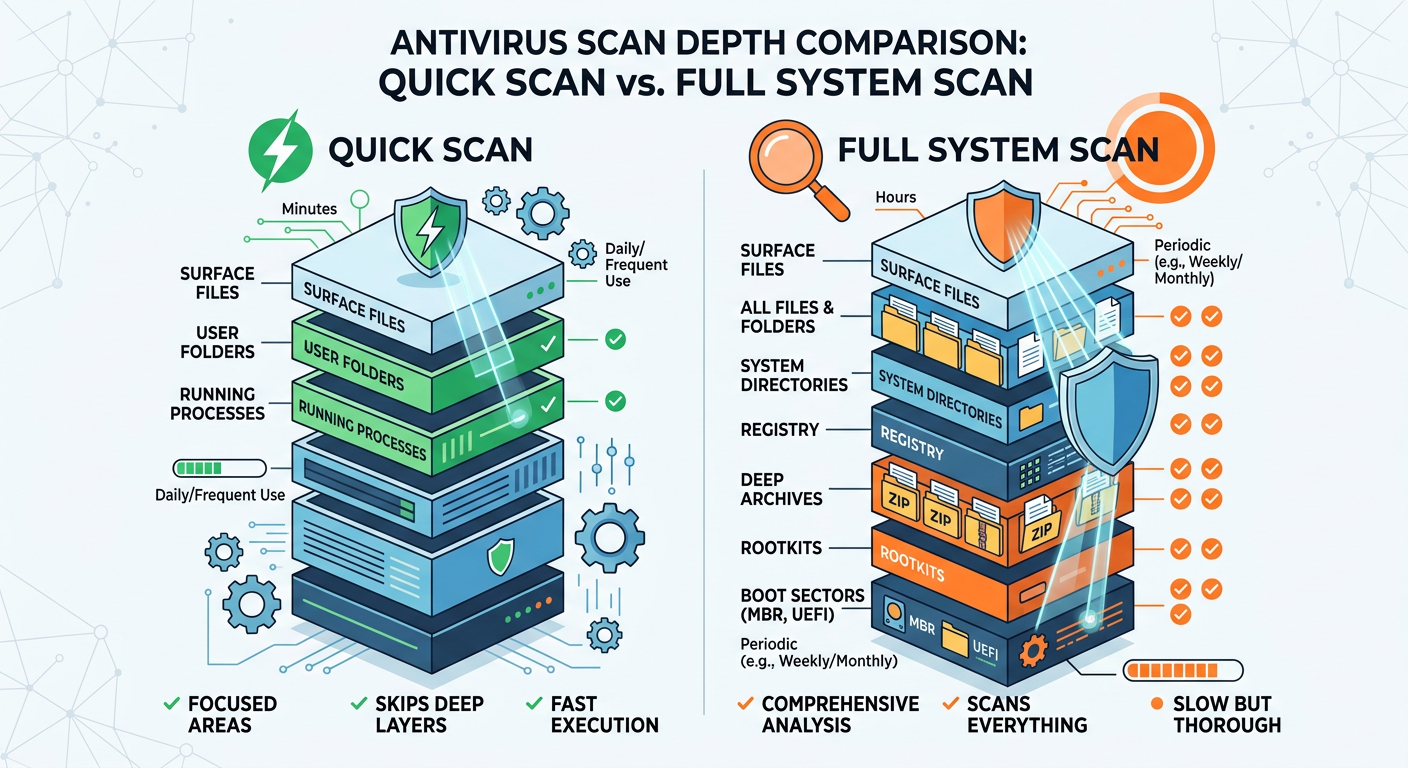
After installation, open 360 Total Security and navigate to the scanning options. Select 'Full Scan' rather than 'Quick Scan' to ensure comprehensive coverage. A deep scan malware examination includes:
- All drives and partitions: Not just the C: drive, but external drives, USB devices, and network locations
- Memory and running processes: Active threats hiding in RAM
- Boot sectors and system areas: Rootkits and bootkit infections
- Compressed and archived files: Malware hidden in ZIP, RAR, or other archive formats
- Registry entries: Malicious startup configurations and system modifications
The full scan process typically takes 30 minutes to several hours depending on your drive size and file count. During the scan, 360 Total Security's multiple engines (including its proprietary engine, Bitdefender, and Avira engines) work simultaneously to detect threats using signature-based detection, heuristic analysis, and behavioral monitoring. This multi-engine approach significantly increases detection rates compared to single-engine solutions, catching variants and zero-day Trojans that might evade individual scanners.
Leveraging Specialized Removal Tools and Modes
Beyond standard scanning, 360 Total Security includes specialized tools designed for stubborn malware. The 'System Repair' feature scans for and fixes system modifications made by Trojans, including:
- Restored browser settings (homepage, search engine, new tab page)
- Repaired Windows security settings and disabled services
- Fixed DNS hijacking and hosts file modifications
- Restored file associations changed by malware
For deeply embedded threats, utilize 360 Total Security's 'Boot-Time Scan' feature, which runs before Windows fully loads. This pre-boot environment prevents sophisticated Trojans from activating their self-protection mechanisms. To initiate a boot-time scan, open 360 Total Security, go to Virus Scan settings, and enable 'Scan before system starts'. The next time you restart your computer, the scan will run automatically in a minimal Windows environment, detecting and removing rootkits, bootkits, and kernel-mode malware that hide from conventional scans.
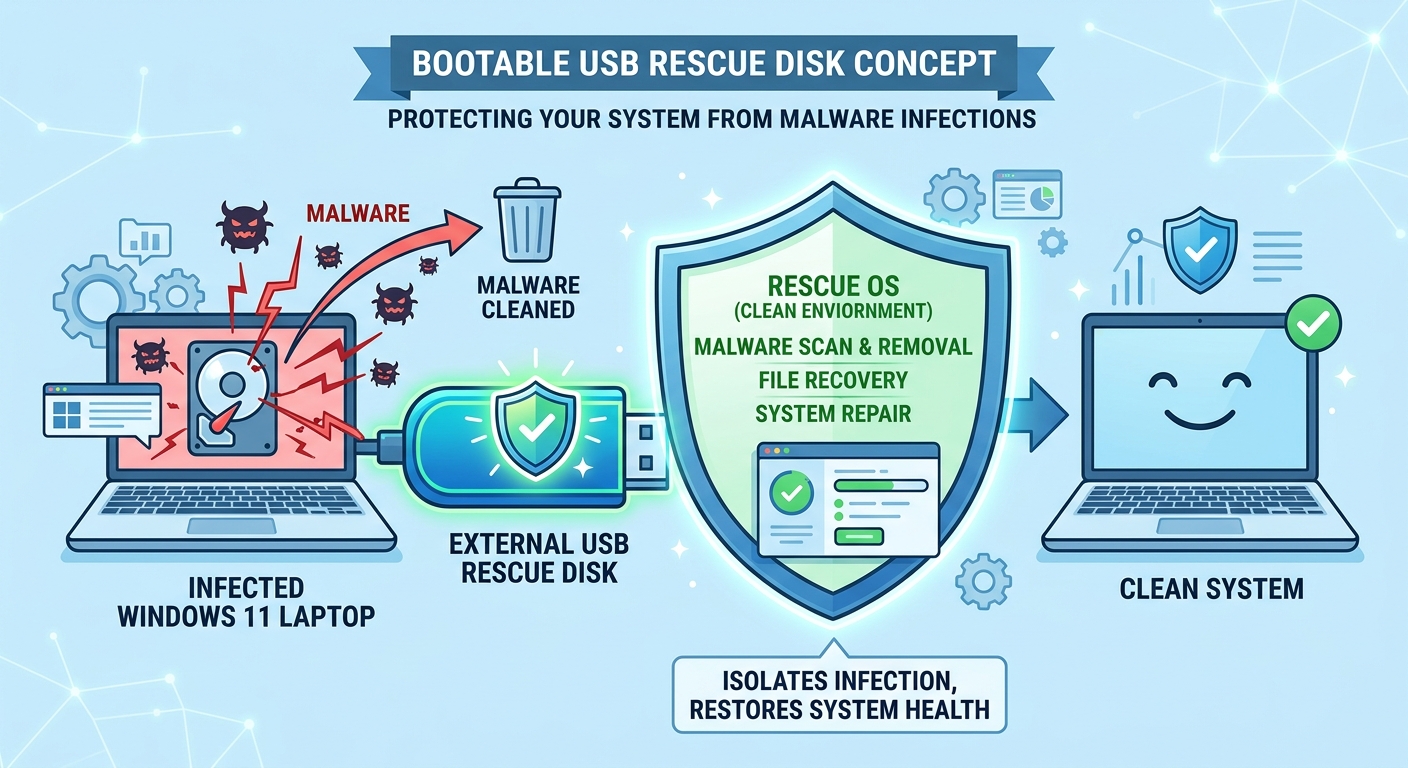
The 360 Rescue Environment provides an even more isolated scanning option for severely infected systems. This bootable environment runs independently of your Windows installation, accessing your hard drive from outside the infected operating system. This approach is particularly effective against Trojans that disable antivirus software or prevent their own removal when Windows is running.
Post-Removal Actions and Real-Time Protection Setup
After 360 Total Security quarantines and deletes detected threats, restart your computer to allow Windows to fully clean up remnants and restore normal operations. Upon restart, immediately run a follow-up scan to confirm complete removal. A clean scan with zero detections provides confidence that the infection has been eradicated. If threats reappear, this indicates either incomplete removal or active reinfection from a network source or compromised website.
Activate 360 Total Security's real-time protection modules to prevent immediate re-infection:
- Real-Time Protection: Monitors file operations, downloads, and program executions in real-time
- Web Protection: Blocks access to malicious websites and phishing pages
- Download Protection: Scans files as they're downloaded before they can execute
- Email Protection: Scans email attachments for malware
- Proactive Defense: Uses behavioral analysis to detect and block unknown threats based on suspicious actions
Configure the firewall component to monitor network connections and block unauthorized outbound communications. This prevents any remaining malware fragments from contacting command-and-control servers or exfiltrating data. Regular automatic updates ensure your protection stays current against emerging Trojan variants discovered daily by security researchers.
| Removal Method | Time Required | Success Rate | Technical Skill Needed | Risk of System Damage |
|---|---|---|---|---|
| Manual Removal | 2-4 hours | 60-75% | Advanced | Moderate to High |
| 360 Total Security Automated Removal | 30-90 minutes | 95-99% | Beginner | Very Low |
| Windows Defender Only | 1-2 hours | 70-85% | Intermediate | Low |
What Advanced Techniques Can Eliminate the Most Stubborn Trojans on Windows 11?
For Trojans that resist standard removal methods, advanced techniques involving offline scanners, bootable media, and system restoration become necessary to reclaim control of an infected Windows 11 PC. These approaches address sophisticated malware that employs rootkit technology, process injection, or self-healing mechanisms to survive conventional removal attempts.
Utilizing Offline and Bootable Antivirus Solutions
Running Windows Defender Offline Scan provides a powerful built-in option for stubborn infections. This feature downloads the latest malware definitions and reboots your computer into a trusted environment outside of Windows, where malware cannot interfere with the scanning process. To initiate Windows Defender Offline:
- Open Windows Security (search for it in the Start menu)
- Go to Virus & threat protection
- Scroll down to Current threats and click 'Scan options'
- Select 'Microsoft Defender Offline scan' and click 'Scan now'
- Save your work and click 'Scan' to confirm—your PC will restart
The offline scan runs for approximately 15 minutes in a minimal Windows environment, thoroughly examining your system without interference from active malware. This approach is particularly effective against rootkits that hide in boot sectors or kernel-mode drivers.
For even more comprehensive offline scanning, create a bootable antivirus USB drive using tools like the 360 Rescue Disk or alternatives such as Kaspersky Rescue Disk. These bootable environments run a complete Linux-based operating system with integrated antivirus software, accessing your Windows hard drive as an external volume. This separation ensures that even the most sophisticated Trojans cannot interfere with detection and removal. To create and use a bootable rescue disk:
- Download the rescue disk ISO file from the official vendor website on a clean computer
- Use a tool like Rufus or the vendor's USB creation utility to write the ISO to a USB drive (minimum 4GB)
- Insert the USB drive into the infected computer and restart
- Enter the BIOS/UEFI boot menu (typically by pressing F12, F2, or Del during startup)
- Select the USB drive as the boot device
- Follow the on-screen instructions to scan and clean your hard drive
Bootable rescue environments can detect and remove malware that has deeply embedded itself in the Windows operating system, including threats that modify system files, inject code into legitimate processes, or employ anti-detection techniques that fool standard antivirus software.
Rolling Back the System to a Pre-Infection State
Windows 11's System Restore feature can revert your computer to a previous state before the Trojan infection occurred, effectively undoing system changes made by malware. To use System Restore:
- Search for 'Create a restore point' in the Start menu and open it
- Click the 'System Restore' button in the System Protection tab
- Click 'Next' and select a restore point dated before you noticed infection symptoms
- Review the affected programs and drivers, then click 'Finish' to begin restoration
- Your computer will restart and roll back to the selected state
System Restore reverses changes to system files, installed programs, Windows Registry, and system settings while preserving personal files like documents, photos, and videos. However, this method has significant limitations when dealing with Trojans. Sophisticated malware often disables System Restore, deletes existing restore points, or creates its own restore points after infection to ensure persistence. Additionally, System Restore doesn't affect files in user folders, so Trojans residing in Documents, Downloads, or AppData directories will survive the restoration process.
If System Restore successfully removes the Trojan, immediately run a full antivirus scan with 360 Total Security to verify complete removal and catch any remnants that survived the restoration. Update all software and Windows to patch vulnerabilities that may have allowed the initial infection.
The Nuclear Option: Clean Reinstallation of Windows 11
When all removal attempts fail and the infection persists, a clean install Windows 11 provides the only guaranteed method to eliminate the Trojan completely. This approach wipes your entire system drive and reinstalls Windows from scratch, removing all software, settings, and malware in the process. Before proceeding:
- Back up essential personal data: Copy important documents, photos, and files to an external drive or cloud storage. Scan these backups with antivirus software on a clean computer before restoration to avoid reinfecting your fresh installation.
- Document installed software and licenses: Make a list of programs you need to reinstall and gather license keys or login credentials for paid software.
- Create Windows 11 installation media: Download the Media Creation Tool from Microsoft's official website on a clean computer and create a bootable USB drive.
To perform the clean installation:
- Insert the Windows 11 installation USB and restart your computer
- Boot from the USB drive (access boot menu via F12, F2, or Del during startup)
- Select language and keyboard preferences, then click 'Install now'
- Enter your Windows product key or select 'I don't have a product key' to activate later
- Choose 'Custom: Install Windows only (advanced)'
- Select your system drive and click 'Delete' to remove all partitions (this erases everything)
- Select the unallocated space and click 'Next' to begin installation
After Windows 11 installs and you complete the initial setup, immediately install security software before connecting to the internet or restoring files. Download and install 360 Total Security to protect your clean system from reinfection. Enable all real-time protection features before browsing the web, checking email, or inserting external drives.
As system administrator Marcus Rodriguez from Enterprise IT Solutions advises: "The decision point for a clean install versus continued cleanup attempts comes down to time economics and data sensitivity. If you've spent more than four hours attempting removal without success, or if the infected system handles financial data, customer information, or business-critical operations, the clean install becomes the more efficient and secure choice. The peace of mind knowing you're starting from a verified clean state often outweighs the inconvenience of reinstalling applications."
Preventing Future Trojan Infections on Windows 11
Successfully removing a Trojan is only half the battle—preventing future infections requires adopting security-conscious computing habits and maintaining robust defensive layers. Implement these essential practices:
- Keep Windows and all software updated: Enable automatic updates for Windows 11 and regularly update all installed applications, as Trojans frequently exploit known vulnerabilities in outdated software.
- Exercise caution with email attachments and downloads: Never open attachments from unknown senders, and verify unexpected attachments even from known contacts. Download software only from official vendor websites, avoiding third-party download sites that may bundle malware.
- Use strong, unique passwords with two-factor authentication: Prevent credential-stealing Trojans from compromising multiple accounts by using a password manager and enabling 2FA wherever available.
- Maintain comprehensive security software: Keep 360 Total Security installed with real-time protection enabled, ensuring automatic definition updates and regular scheduled scans.
- Practice safe browsing habits: Avoid clicking suspicious links, visiting questionable websites, or downloading pirated software and media files, which commonly contain Trojan payloads.
- Regular backups: Maintain current backups of important data on external drives or cloud storage, providing recovery options if ransomware or destructive Trojans strike.
By combining these preventive measures with the removal techniques outlined in this guide, you can maintain a secure Windows 11 environment resistant to Trojan infections. For comprehensive protection that goes beyond basic antivirus scanning, visit 360 Total Security to download advanced security tools designed specifically for Windows desktop protection.
Frequently Asked Questions
Can Windows Defender alone remove all Trojans from Windows 11?
Windows Defender provides solid baseline protection and can remove many common Trojans, but it may struggle with sophisticated, zero-day, or heavily obfuscated malware. Multi-engine solutions like 360 Total Security offer higher detection rates by combining multiple scanning technologies and specialized removal tools that address stubborn infections Windows Defender might miss.
How do I know if a Trojan removal was successful?
Successful removal is confirmed by running multiple follow-up scans with different antivirus tools that return clean results, observing normal system performance without the previous symptoms, verifying that suspicious processes no longer appear in Task Manager, and monitoring network activity for unusual outbound connections. Continue monitoring for at least one week after removal to ensure the threat doesn't resurface.
Should I change my passwords after removing a Trojan?
Absolutely. Many Trojans include keylogging or credential-stealing capabilities that may have captured your passwords before removal. After confirming your system is clean, change passwords for all important accounts—especially banking, email, and social media—from a verified clean device. Enable two-factor authentication on all accounts that support it to add an extra security layer.
Can Trojans survive a factory reset on Windows 11?
Standard factory resets that preserve personal files may not completely remove all Trojans, particularly those residing in user data folders or recovery partitions. For guaranteed removal, perform a clean installation that completely wipes and reformats the system drive, or use the 'Remove everything' option during Windows reset and select 'Fully clean the drive' to overwrite all data. Extremely rare firmware-level malware can survive even this, but such infections are uncommon outside targeted attacks.
Author Bio
This article was written by cybersecurity specialists with over 15 years of combined experience in malware analysis, incident response, and Windows system security. Our team regularly collaborates with antivirus vendors and security research organizations to stay current with emerging Trojan threats and removal techniques. We are committed to providing accurate, actionable security guidance that helps users protect their Windows 11 systems from evolving cyber threats.
Learn more about 360 Total Security