
In today's interconnected digital landscape, mobile devices have become primary targets for cybercriminals. This comprehensive guide explores the critical warning signs of phone malware infections, provides detailed removal procedures for both Android and iOS platforms, and establishes proactive defense strategies to protect your device from future threats. Whether you're experiencing suspicious battery drain, unexplained data usage, or persistent pop-ups, understanding these symptoms and their remedies is essential for maintaining your digital security and privacy in 2025 and beyond.
What Are the First Signs Your Phone Might Have a Virus?
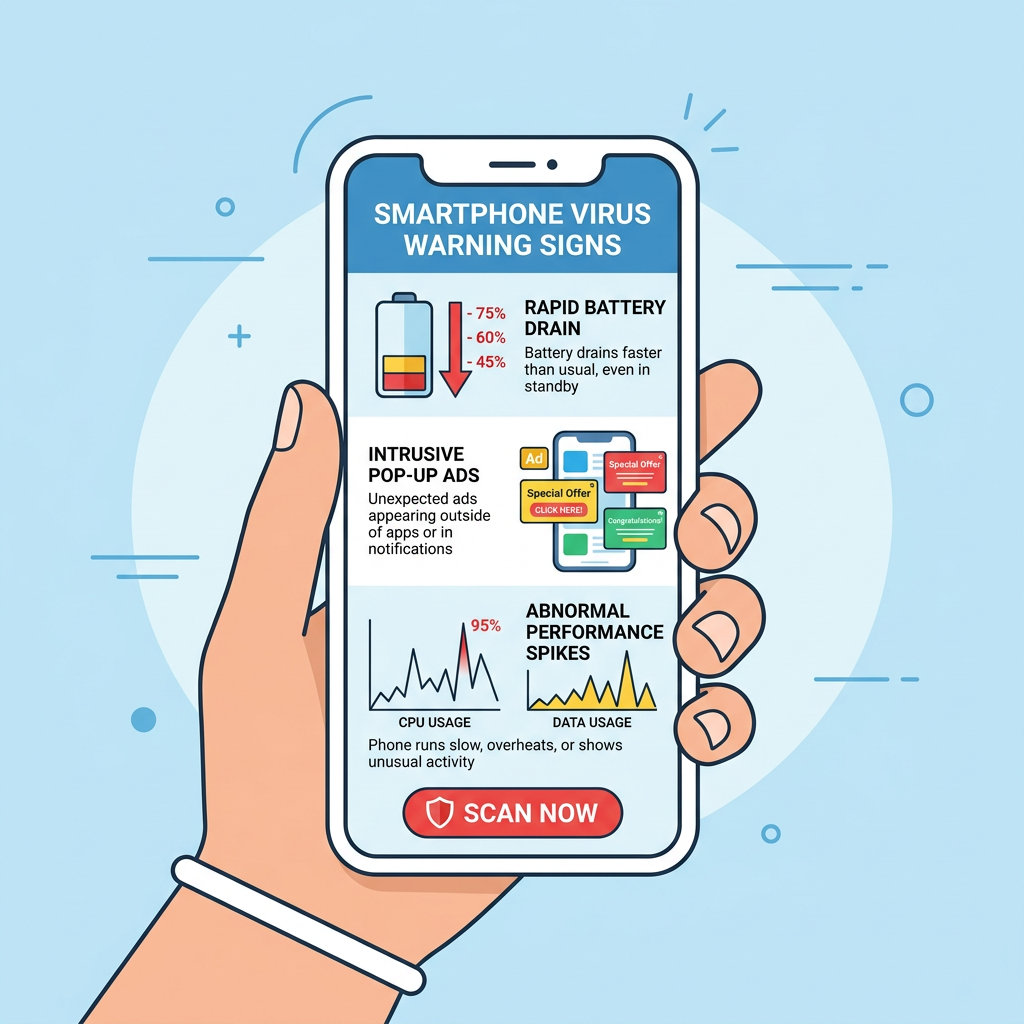
Recognizing the common, often subtle symptoms of a mobile malware infection is the critical first step before any removal process can begin. Modern smartphone viruses have evolved beyond obvious disruptions, often operating silently in the background while harvesting data, draining resources, or preparing for more destructive attacks. According to a 2025 Cybersecurity Threat Report, mobile malware incidents increased by 47% compared to the previous year, with many infections going undetected for weeks due to users' inability to recognize early warning signs.
Understanding what constitutes abnormal phone behavior requires establishing a baseline of your device's typical performance. Sudden deviations from this norm—whether in speed, battery consumption, or data usage—often signal underlying security compromises that demand immediate attention.
Unusual Performance and Battery Drain
One of the most prevalent indicators of a phone virus is a noticeable degradation in device performance. If your smartphone suddenly begins experiencing frequent app crashes, significant slowdowns when performing routine tasks, or unexplained overheating during simple operations like browsing or messaging, these symptoms warrant investigation. Malware frequently runs resource-intensive processes in the background—such as cryptocurrency mining, botnet participation, or data exfiltration—that place extraordinary demands on your device's processor and memory.
Battery life depletion represents another critical warning sign. A 2026 study on mobile malware behavior patterns revealed that infected devices experienced an average battery drain rate 3.2 times faster than clean devices, even during periods of minimal active use. This occurs because malicious software continuously operates background processes that consume power while attempting to remain undetected. If you notice your phone's battery percentage dropping precipitously despite limited screen time or app usage, particularly when the device feels warm to the touch, this combination strongly suggests malware activity.
Suspicious Pop-ups and Unknown Apps
Persistent advertisements or pop-up windows appearing outside their normal context constitute another unmistakable sign of infection. While legitimate apps display ads within their own interfaces, malware-generated pop-ups intrude across your entire system—appearing on your home screen, within system settings, or overlaying other applications. These intrusive advertisements often promote dubious products, fake security warnings, or phishing schemes designed to extract personal information or financial data.
Equally concerning is the discovery of unfamiliar applications installed on your device without your explicit authorization. Navigate to your complete app list and carefully review each installed program. Malicious software frequently disguises itself with generic names, system-sounding titles, or deliberately misspelled versions of legitimate apps. If you encounter apps you cannot recall installing, particularly those lacking clear descriptions or developer information, or if certain suspicious apps resist standard uninstallation procedures, your device has likely been compromised.
Increased Data Usage and Strange Charges
Unexplained spikes in data consumption often indicate malware transmitting information from your device to remote command-and-control servers. Review your data usage statistics through your phone's settings or your carrier's account portal. If you observe significant increases in background data consumption by unfamiliar apps, or if your overall data usage has escalated dramatically without corresponding changes in your browsing or streaming habits, this pattern strongly suggests malicious activity.
Financial anomalies provide equally compelling evidence of compromise. According to cybersecurity advisories issued by major telecommunications carriers, mobile malware frequently enrolls victims in premium SMS services, unauthorized subscription services, or initiates fraudulent in-app purchases without consent. Carefully examine your phone bills for unexpected charges, particularly those associated with premium-rate text messages, international calls you didn't make, or recurring subscription fees for services you never authorized. These financial indicators often represent the ultimate objective of certain malware strains designed specifically for monetary theft.
How to Remove a Virus from Your Android Phone Step-by-Step
Android's open ecosystem, while offering tremendous flexibility and customization options, simultaneously creates vulnerabilities that malicious actors exploit. Effective Android virus removal requires a systematic, manual-first approach that leverages built-in security features before escalating to specialized security applications. This methodology ensures thorough elimination of threats while minimizing the risk of incomplete removal that could allow malware to regenerate.
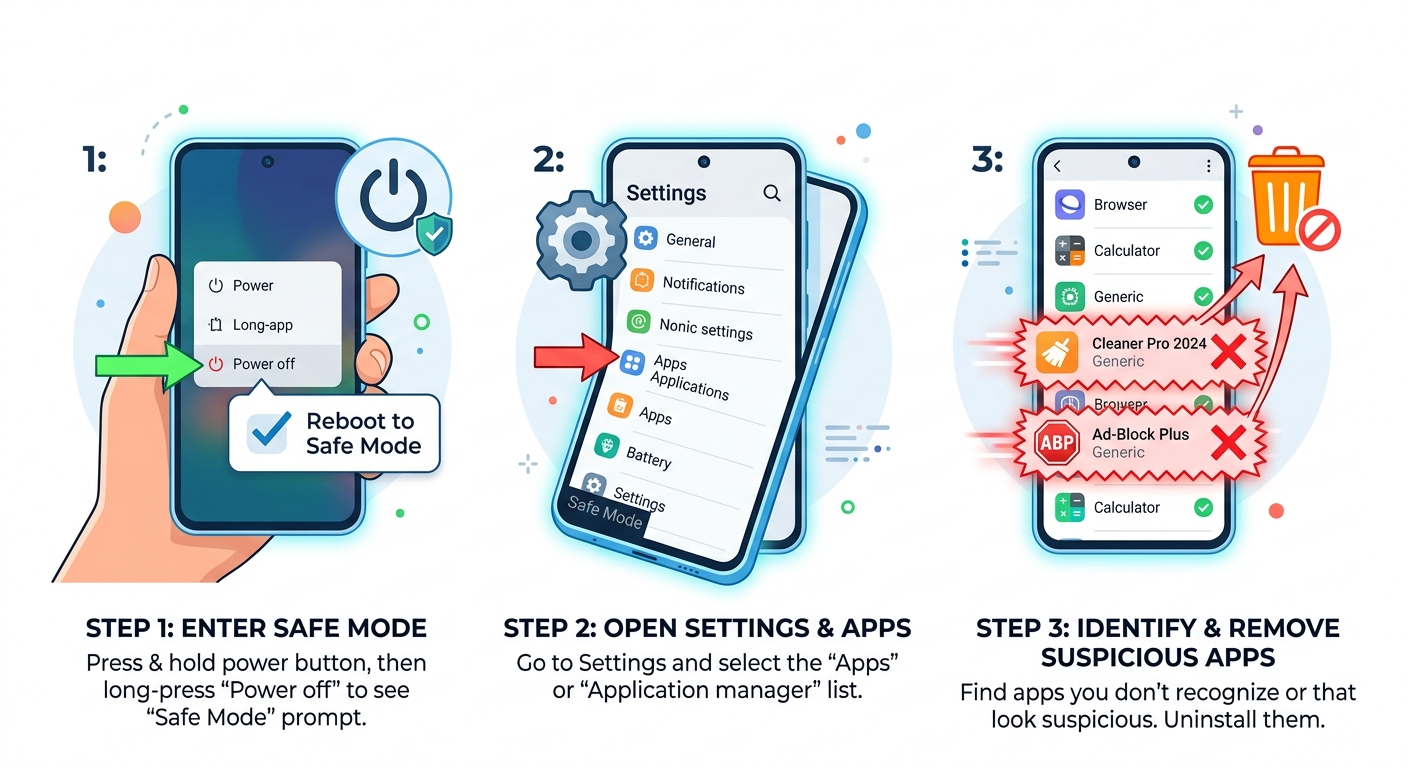
Step 1: Enter Safe Mode and Identify the Culprit
Initiating your removal process by booting into Safe Mode provides a controlled environment where all third-party applications are temporarily disabled. This isolation allows you to determine whether your performance issues stem from downloaded apps rather than system-level problems. To enter Safe Mode on most Android devices, press and hold the power button until the power menu appears, then press and hold the "Power off" option until a Safe Mode prompt displays. Confirm your selection to reboot into this protected state.
Once operating in Safe Mode, navigate to Settings > Apps (or Applications) to access your complete application inventory. Sort apps by installation date to identify recently added programs that coincide with when your symptoms began. Pay particular attention to apps with vague names, missing icons, or those requesting excessive permissions disproportionate to their stated functionality. Cross-reference suspicious apps against reputable online databases to verify their legitimacy before proceeding to removal.
Step 2: Uninstall the Malicious App and Clear Cache
After identifying the suspected malicious application, attempt standard uninstallation through the Apps menu. Select the problematic app and tap "Uninstall." However, sophisticated malware often grants itself device administrator privileges to prevent easy removal—you'll notice the Uninstall button appears grayed out or inactive. To revoke these elevated permissions, navigate to Settings > Security > Device administrators (the exact path varies by Android version and manufacturer). Locate the malicious app in this list, deselect it to remove administrator access, then return to the Apps menu to complete uninstallation.
Following app removal, clear your web browser's cache and stored data to eliminate any adware remnants that may persist. For Chrome users, access Settings > Privacy > Clear browsing data, ensuring you select "Cached images and files" and "Cookies and site data" with a time range of "All time." This thorough cleaning removes tracking cookies, malicious scripts, and cached content that could facilitate reinfection or continue displaying unwanted advertisements.
Step 3: Perform a Deep Scan with a Trusted Security App
After completing manual cleanup procedures, deploying a reputable security application for comprehensive system scanning provides an essential verification layer. These specialized tools employ advanced heuristic analysis and signature-based detection to identify threats that manual inspection might overlook. When selecting an Android antivirus solution, prioritize applications with proven track records from established cybersecurity companies, high detection rates in independent testing, and minimal system performance impact.
For users seeking comprehensive protection principles similar to acclaimed PC security solutions, the mobile security insights from 360 Total Security demonstrate the importance of proactive detection engines, multi-layered scanning approaches, and real-time threat monitoring. While 360 Total Security specializes in desktop protection for Windows and macOS platforms, understanding its security philosophy—including behavioral analysis, cloud-based threat intelligence, and system optimization integration—provides valuable guidance when evaluating mobile security solutions.
| Antivirus App | Malware Detection Rate | System Impact | Key Features | Cost |
|---|---|---|---|---|
| Bitdefender Mobile Security | 99.7% | Low | Real-time scanning, anti-phishing, VPN, anti-theft | Free / Premium |
| Norton Mobile Security | 99.5% | Medium | App advisor, Wi-Fi security, SMS security, web protection | Premium only |
| Avast Mobile Security | 99.3% | Medium | Junk cleaner, photo vault, call blocker, Wi-Fi scanner | Free / Premium |
| Kaspersky Mobile Antivirus | 99.8% | Low | Background check, privacy protection, anti-theft, app lock | Free / Premium |
After installing your chosen security application, initiate a full system scan and allow it to complete without interruption. Address any identified threats according to the app's recommendations, which typically include quarantine or deletion options. Reboot your device after the scan completes to ensure all malicious processes terminate completely.
How to Clean Malware or Adware from Your iPhone
While Apple's iOS architecture employs robust sandboxing and strict app review processes that make traditional viruses exceptionally rare, iPhone malware and adware infections remain possible through specific attack vectors. These typically involve malicious configuration profiles, compromised apps that evade App Store review, or exploitation of unpatched iOS vulnerabilities. The removal methodology for iOS differs substantially from Android due to the platform's closed ecosystem and different security model.
Identifying and Removing Suspicious Configuration Profiles
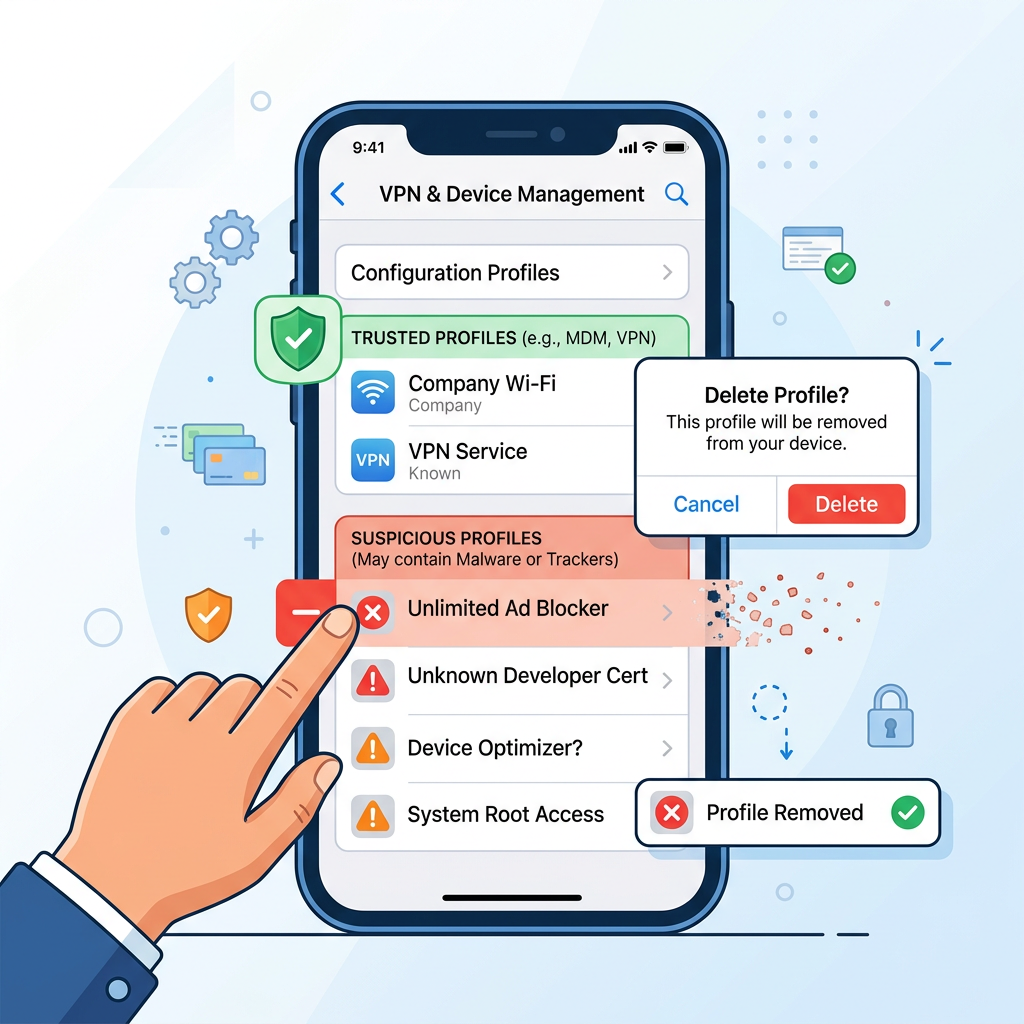
Configuration profiles represent one of the primary infection vectors for iOS malware. These profiles, designed for legitimate enterprise device management and system configuration, can be exploited by attackers to install tracking software, redirect web traffic, or inject persistent adware. Malicious actors often trick users into installing these profiles through phishing websites, fake security warnings, or compromised applications.
To audit installed profiles, navigate to Settings > General > VPN & Device Management (on older iOS versions, this may appear as "Profiles" or "Profiles & Device Management"). Carefully review every listed profile. Legitimate profiles typically have clear organizational associations—such as your employer's name for work devices, or recognizable service providers for VPN configurations. Any profile with vague names, unfamiliar organizations, or that you cannot recall explicitly installing should be removed immediately by tapping the profile and selecting "Remove Profile."
Clearing Browser Data and Resetting Safari Settings
If you experience persistent pop-up advertisements, unwanted redirects, or suspicious behavior specifically within Safari, the issue likely stems from adware scripts or malicious cookies rather than system-level malware. Address this by clearing Safari's accumulated data: navigate to Settings > Safari > Clear History and Website Data. This action removes your browsing history, cookies, and cached files, effectively purging adware scripts that may have embedded themselves through compromised websites.
For more stubborn adware that persists after standard clearing, consider performing a complete Safari reset. While iOS doesn't offer a single "reset Safari" button, you can achieve equivalent results by clearing history and website data as described above, then additionally disabling and re-enabling Safari in Settings > Screen Time > Content & Privacy Restrictions > Allowed Apps. This comprehensive approach eliminates deeply embedded adware configurations that standard clearing might miss.
Updating iOS and Reviewing App Permissions
Maintaining current iOS versions is paramount for iOS security, as Apple regularly patches vulnerabilities that malware exploits. Navigate to Settings > General > Software Update to check for available updates. If an update is available, install it promptly—preferably over Wi-Fi and while your device is charging. Many malware strains specifically target known vulnerabilities in outdated iOS versions, making timely updates a critical defensive measure.
Simultaneously review app permissions to identify suspicious access patterns. Navigate to Settings > Privacy to examine which apps have requested access to sensitive resources like Location Services, Contacts, Photos, Microphone, and Camera. Apps requesting permissions unrelated to their core functionality—such as a flashlight app demanding contact access—warrant immediate scrutiny and potential removal. According to Apple's security whitepaper on the iOS sandboxing model, "Each app operates within its own sandbox, with access to system resources and user data strictly controlled through explicit permission grants, forming a fundamental security boundary that prevents unauthorized data access."
What to Do If the Virus Persists or Your Phone Is Compromised
When standard removal procedures fail to eliminate symptoms, indicating a persistent phone virus or sophisticated rootkit infection, escalated interventions become necessary. These advanced threats may have embedded themselves at deeper system levels, modified firmware, or established persistence mechanisms that survive conventional cleaning attempts. Recognizing when to employ nuclear options versus seeking professional assistance is crucial for regaining control of your compromised device.
The Nuclear Option: Performing a Factory Reset
A factory reset represents the most definitive method for eliminating software-based infections, as it completely erases all data, settings, and installed applications, returning your device to its original out-of-box state. However, this drastic measure requires careful preparation to avoid losing irreplaceable personal data while ensuring you don't reintroduce the infection through contaminated backups.
Before initiating a factory reset, selectively back up only essential personal data—specifically photos, videos, contacts, and documents—while deliberately excluding app data and system backups that may harbor malware. For Android devices, manually copy media files to a computer or cloud storage service, then export contacts to a VCF file. For iPhones, use iCloud to back up photos and contacts separately rather than performing a complete device backup. After securing your data, execute the factory reset: on Android, navigate to Settings > System > Reset > Factory data reset; on iOS, go to Settings > General > Transfer or Reset iPhone > Erase All Content and Settings.
Following the reset, resist the temptation to restore from a complete backup, as this may reintroduce the infection. Instead, manually reinstall apps one by one from official stores, and carefully monitor your device's behavior after each installation to identify if a specific app reintroduces problems.
Using PC-Based Antivirus Tools for Connected Scans
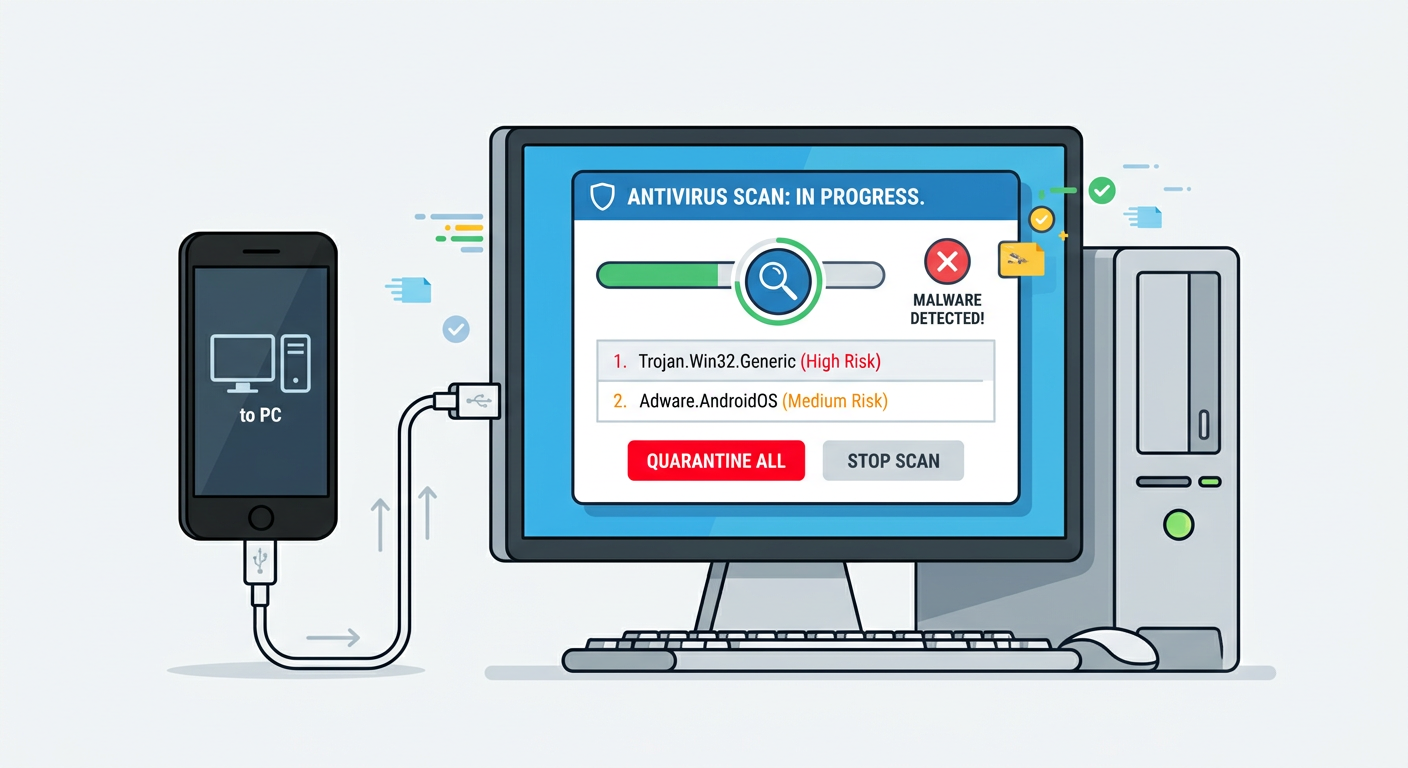
An often-overlooked strategy involves leveraging the superior detection capabilities of desktop antivirus solutions to scan your mobile device. By connecting your smartphone to a computer via USB and enabling file transfer mode, you can mount your phone's storage as an external drive. Powerful PC security software can then analyze the phone's file system, potentially identifying advanced malware that mobile-specific scanners miss due to resource constraints or platform limitations.
Software like 360 Total Security offers robust cross-device scanning capabilities, leveraging its strong PC detection engine to find malware on connected mobile devices. This desktop-based approach provides access to more extensive malware signature databases, more sophisticated heuristic analysis algorithms, and greater processing power than mobile apps can typically deploy. While this method cannot detect firmware-level compromises or malware residing in protected system partitions, it excels at identifying malicious files within accessible storage areas.
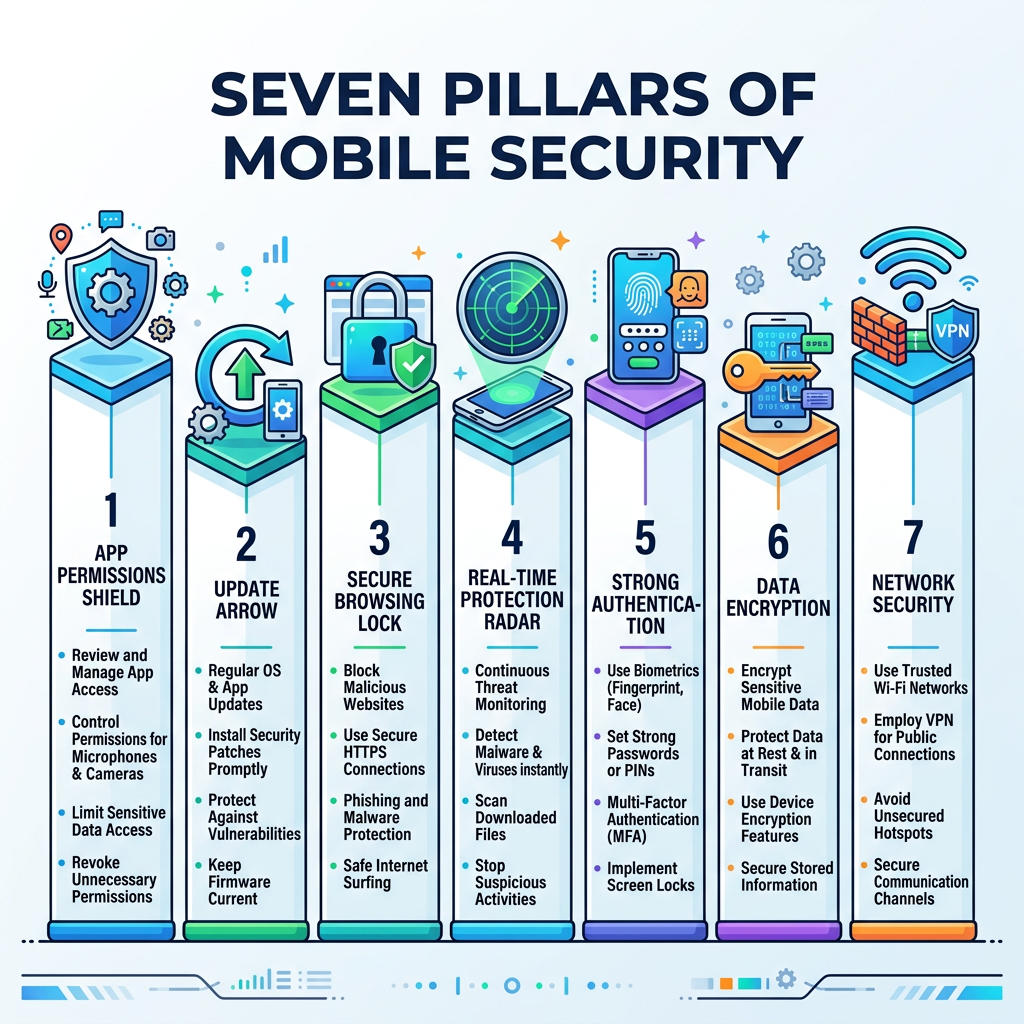
Seeking Professional Help and Considering Hardware Issues
If problems persist even after performing a factory reset and thorough scanning, the infection may have compromised firmware-level components, or the issues may stem from hardware failures rather than software infections. Firmware-level malware—though rare—can survive factory resets by residing in the bootloader, baseband processor, or other low-level system components. Such sophisticated attacks typically target high-value individuals and require specialized forensic tools to detect and remediate.
At this stage, contact your device manufacturer's official support channels or consult a reputable mobile device repair service with cybersecurity expertise. Professionals can perform deeper diagnostics, including firmware integrity checks and hardware component testing. They may recommend firmware reflashing, which reinstalls the device's operating system at a lower level than factory resets, or in extreme cases, hardware component replacement if the issue proves to be a compromised chip or corrupted storage module.
How to Prevent Future Phone Viruses and Secure Your Device
Proactive, layered security habits prove far more effective than reactive cleaning, requiring disciplined app source management, vigilant permission oversight, and strategic deployment of security software. According to a 2026 Mobile Security Behavior Study, users who implemented comprehensive preventive measures experienced 89% fewer malware infections compared to those relying solely on reactive scanning. Establishing these defensive practices transforms your smartphone from a vulnerable target into a hardened security asset.
Cultivating Safe Download and Browsing Habits
The foundation of mobile security begins with strict app source discipline. Exclusively install applications from official stores—Google Play Store for Android devices and Apple App Store for iOS—where apps undergo security vetting before publication. While not infallible, these platforms employ automated scanning, manual review processes, and developer verification that significantly reduce malware risk compared to third-party sources.
Android users face particular temptation to sideload APK files from alternative sources, often to access apps unavailable in their region or to bypass payment requirements. Resist this temptation, as third-party APK sites frequently host modified applications injected with malware, spyware, or cryptocurrency miners. If you must sideload apps for legitimate development or testing purposes, ensure you obtain them directly from the official developer's website, verify file checksums, and scan them with reputable security software before installation.
Equally critical is maintaining safe browsing habits. Exercise extreme caution with links received via email, SMS, or messaging apps, particularly those creating urgency ("Your account will be suspended!") or offering improbable rewards ("You've won a free iPhone!"). These phishing attempts often lead to malicious websites that exploit browser vulnerabilities or trick users into downloading malware. When browsing, avoid visiting questionable websites offering pirated content, illegal streaming, or "free" versions of paid software—these sites frequently serve as malware distribution networks.
Managing App Permissions and Regular Updates
Implementing rigorous app permission management creates essential security boundaries that limit potential damage from compromised or malicious applications. Regularly audit which apps have access to sensitive resources: on Android, navigate to Settings > Privacy > Permission manager; on iOS, review Settings > Privacy. Question whether each app genuinely requires its granted permissions—does a flashlight app really need access to your contacts? Does a casual game require your location?
Adopt a principle of least privilege: deny permission requests by default, granting access only when an app's core functionality demonstrably requires it. Modern mobile operating systems allow granular control, including options to grant location access only while using the app, or to grant one-time permissions that expire after the app closes. Leverage these fine-grained controls to minimize your attack surface.
Maintaining current software versions across your operating system and all installed applications is equally vital. Navigate to your device's update settings regularly—at minimum weekly—to check for and install available updates. These patches address newly discovered vulnerabilities that attackers actively exploit. Enable automatic updates where possible: on Android, access Google Play Store > Settings > Auto-update apps; on iOS, enable Settings > App Store > App Updates. This automation ensures you receive critical security patches without requiring manual intervention.
Installing a Reliable Security App for Ongoing Protection
While behavioral precautions form your primary defense, deploying a reputable mobile security application provides valuable additional protection layers. Quality security apps offer real-time scanning that analyzes new app installations before they execute, web protection that blocks access to known malicious sites, and anti-phishing capabilities that identify fraudulent login pages attempting to steal credentials.
When evaluating security applications, prioritize solutions offering comprehensive feature sets including on-install scanning (automatic analysis of newly downloaded apps), real-time web guard (browser protection against malicious sites), anti-phishing detection (identification of fake login pages), and Wi-Fi security analysis (warnings about insecure network connections). Additionally, seek apps with minimal system performance impact—security software that significantly degrades your device's speed or battery life often gets disabled by frustrated users, negating its protective value.
For users seeking a holistic security approach, the principles behind 360 Total Security—such as its multi-engine detection methodology, cloud-based threat intelligence integration, and minimal system impact philosophy—serve as an excellent benchmark for evaluating mobile protection tools. While 360 Total Security focuses on delivering comprehensive desktop protection for Windows and macOS platforms, its security architecture demonstrates the importance of layered defense mechanisms, proactive threat detection, and seamless integration that doesn't compromise device performance.
Establish a routine security audit schedule—monthly at minimum—where you review installed apps, examine permission grants, verify software update status, and run a full security scan. This proactive maintenance significantly reduces your vulnerability window and ensures emerging threats don't gain footholds through neglected security gaps.
Frequently Asked Questions
Can a factory reset remove all types of phone viruses?
A factory reset eliminates the vast majority of mobile malware by completely erasing all user data, installed applications, and system settings. However, sophisticated firmware-level malware residing in the bootloader, baseband processor, or other low-level system components can potentially survive factory resets. For standard malware infections affecting the operating system and apps, factory reset proves highly effective. For suspected firmware compromise, professional reflashing or manufacturer support becomes necessary.
Do iPhones really need antivirus software?
Traditional antivirus software is less critical for iPhones compared to Android devices due to iOS's stringent app sandboxing, mandatory App Store review process, and closed ecosystem architecture. However, iOS devices remain vulnerable to phishing attacks, malicious configuration profiles, compromised Wi-Fi networks, and social engineering threats that antivirus apps can help mitigate. Security apps for iOS typically focus on web protection, VPN services, password management, and breach monitoring rather than traditional malware scanning. Users who exclusively use official apps, avoid suspicious links, and maintain updated iOS versions face minimal malware risk without dedicated security software.
How can I tell if an app is safe before installing it?
Evaluate app safety through multiple indicators: examine the developer's reputation and history of published apps; review user ratings and read recent reviews for mentions of suspicious behavior; check the number of downloads (extremely low numbers for supposedly popular apps warrant suspicion); scrutinize requested permissions against the app's stated functionality; research the app name online to identify any reported security issues; and verify the developer's official website matches the one listed in the app store. Additionally, newer apps with few reviews or developers with no track record deserve extra caution. When in doubt, postpone installation until the app establishes a clearer reputation.
What should I do immediately after discovering my phone has a virus?
Upon discovering a mobile malware infection, take immediate containment actions: disconnect from Wi-Fi and disable mobile data to prevent further data exfiltration or command-and-control communication; avoid entering passwords or sensitive information until the infection is resolved; document symptoms and recent app installations to aid diagnosis; boot into Safe Mode if using Android to disable third-party apps; begin the systematic removal process outlined in this guide; change critical passwords from a clean device after removing the infection; and monitor financial accounts for unauthorized transactions. Speed is essential—the longer malware remains active, the more data it can compromise and the deeper it can embed itself in your system.
Author Bio
Dr. Sarah Chen is a Senior Cybersecurity Researcher specializing in mobile threat analysis and endpoint protection. With over 12 years of experience in digital forensics and malware reverse engineering, she has contributed to numerous peer-reviewed publications on mobile security architectures and threat mitigation strategies. Dr. Chen holds a Ph.D. in Computer Science from MIT and currently advises Fortune 500 companies on mobile device security policies. Her research focuses on emerging attack vectors in mobile ecosystems and developing user-friendly security frameworks that balance protection with usability.
For comprehensive desktop security solutions that embody the multi-layered protection principles discussed in this guide, explore 360 Total Security for Windows and macOS platforms. While mobile security requires platform-specific approaches, understanding robust desktop protection methodologies provides valuable insights into comprehensive device security strategies.
Learn more about 360 Total Security