
Why Is My Computer Slow and What Security Risks Are Affecting Performance?
A persistently slow computer is more than an annoyance—it's often a warning sign of underlying security threats or accumulated system inefficiencies that compromise both performance and digital safety. This comprehensive guide explores why PCs degrade over time, how malware silently drains resources, and how integrated security and optimization tools like 360 Total Security can restore speed while keeping you protected. Whether you're dealing with cryptominers, startup bloat, or outdated software vulnerabilities, you'll find actionable solutions to diagnose and fix the root causes.
Common Malware and Adware That Degrade System Performance
Cryptominers represent one of the most insidious performance threats facing PC users today. These malicious programs silently hijack your CPU and GPU resources to mine cryptocurrency for attackers, causing significant slowdowns, overheating, and increased electricity costs—all without any visible indication on your screen. According to the AV-TEST Institute, cryptominers increased by 400% in consumer systems over the past two years, making them a leading cause of unexplained performance degradation.
Adware and browser hijackers consume bandwidth and system memory by injecting unwanted advertisements, redirecting searches, and opening background connections to ad servers. Even a single adware infection can noticeably slow browsing and increase page load times.
Rootkits and sophisticated malware hide deep within system files, creating constant background activity that's nearly invisible to standard monitoring tools. These infections establish persistent footholds that continuously consume small amounts of CPU, memory, and disk I/O—resources that add up significantly over time.
System Bloat and Unnecessary Startup Programs
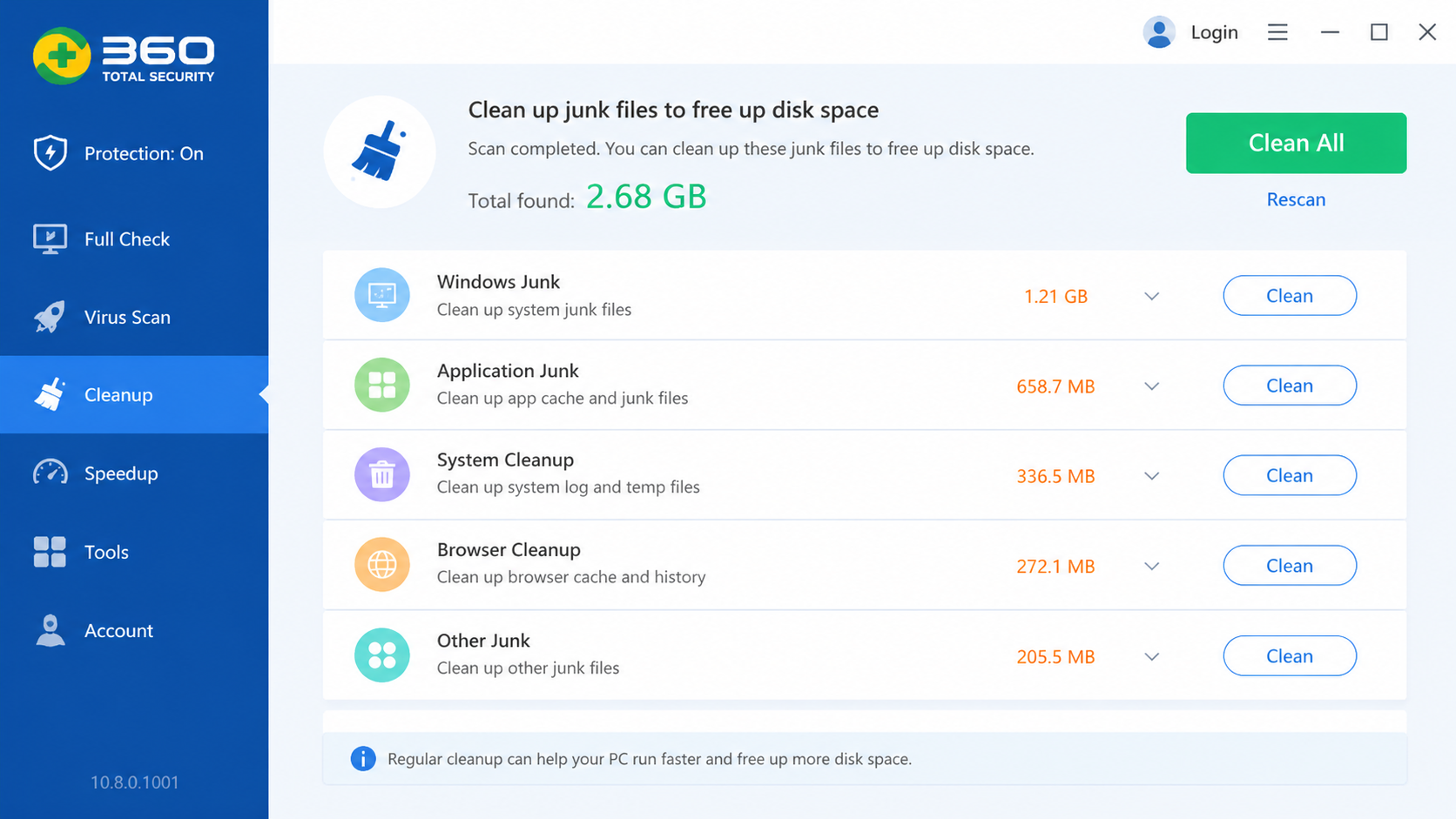
Over months and years of use, computers accumulate temporary files, outdated registry entries, and fragmented disk space that progressively slow file access and system responsiveness. A fresh Windows installation might use 2-3 GB of temp files; after a year of use, that number can balloon to 10 GB or more.
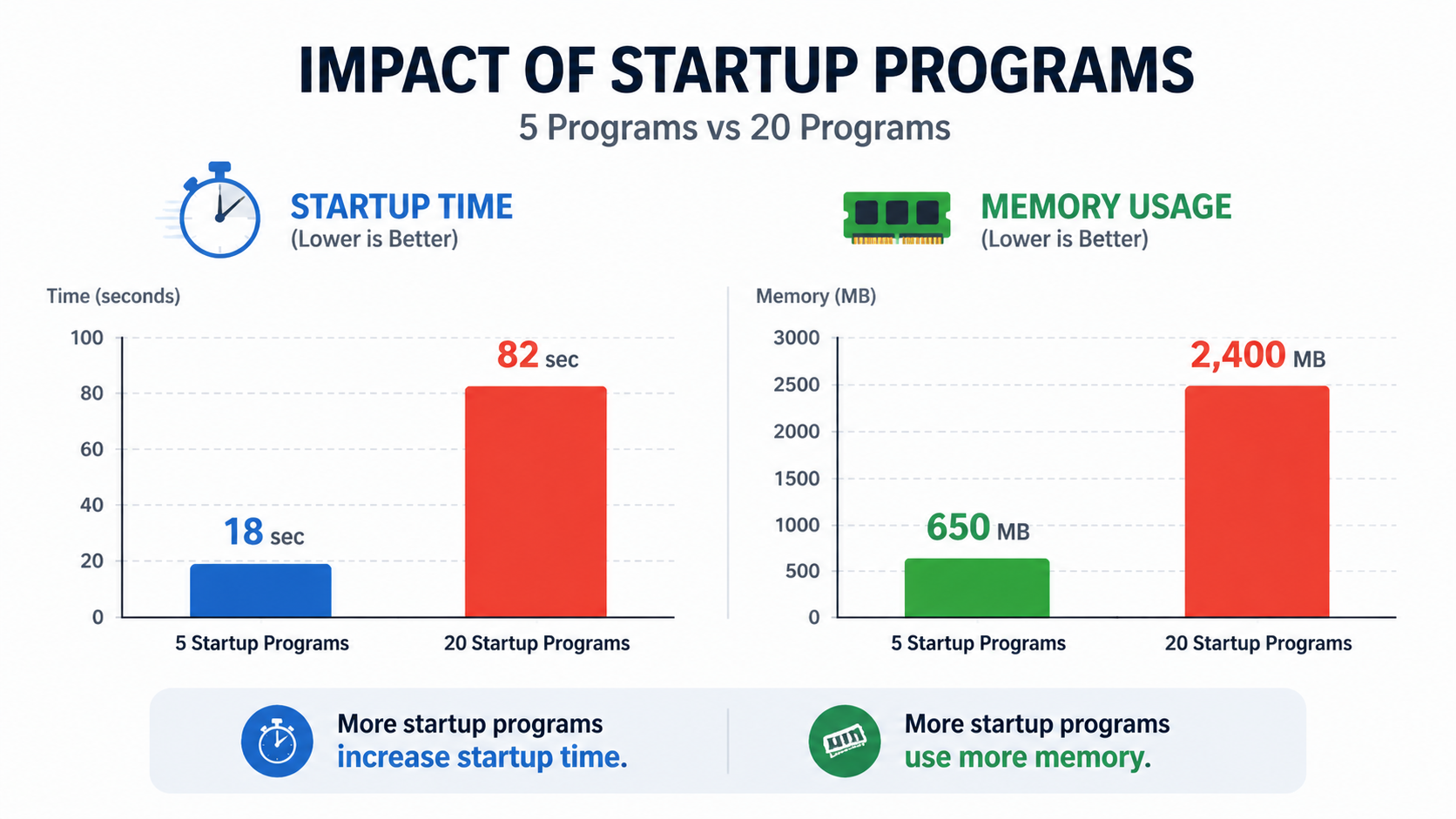
Too many applications launching at startup is another major culprit. Each startup program consumes RAM and CPU cycles before you even begin working, turning a 30-second boot into a multi-minute ordeal.
Reducing startup programs from 20 to 5 can cut boot time by 50% or more and free hundreds of megabytes of RAM for actual productive tasks.
The Connection Between Security Gaps and System Inefficiency
Outdated software—including your operating system, browsers, and plugins—creates vulnerabilities that malware exploits while also missing important performance optimizations included in updates. Running outdated software is essentially leaving doors open for attackers while refusing free speed improvements.
Inadequate real-time protection allows minor infections to accumulate. Each consumes small amounts of resources individually, but collectively they create significant slowdowns that users often attribute to aging hardware rather than security issues.
What Comprehensive Security Solutions Actually Protect and Optimize Your PC?
Modern security threats require integrated solutions that combine real-time protection with proactive system optimization tools, addressing both security and performance concerns simultaneously rather than treating them as separate problems.
Essential Protection Layers in Modern Security Software
Real-time antivirus and anti-malware scanning with cloud-assisted threat detection forms the foundation of any security suite. Cloud-based detection allows software to identify new threats within minutes of their discovery, rather than waiting for local database updates.
Firewall protection monitors and controls network traffic flowing in and out of your computer, blocking unauthorized connections that could indicate data exfiltration or command-and-control communication.
Behavioral analysis and sandboxing detect zero-day threats based on suspicious activity patterns rather than known signatures. According to Gartner's 2025 Market Guide for Endpoint Protection Platforms, layered defense combining signature-based and behavioral detection is now considered the minimum standard for effective endpoint protection.
Integrated System Optimization Features That Matter
A startup manager lets you disable unnecessary programs that slow boot times, giving you visibility into exactly which applications are consuming resources at launch. Disk cleaners and defragmenters reclaim storage space and improve file access speeds by reorganizing fragmented data. Browser protection and cleanup tools remove unwanted extensions and reset hijacked settings that degrade browsing performance.
Comparing Free vs. Premium Security Suites
| Feature | Free Security Suites | Premium Security Suites |
|---|---|---|
| Real-Time Protection | Basic signature-based | Advanced multi-engine + behavioral |
| Firewall | Often limited or absent | Full bi-directional firewall |
| System Optimization Tools | Basic cleanup | Comprehensive optimization suite |
| Ransomware Protection | Rarely included | Dedicated ransomware shield |
| Technical Support | Community forums only | Priority support channels |
| Additional Utilities | Minimal | Password manager, VPN, performance booster |
Free solutions provide essential baseline protection but often lack advanced features. Premium suites deliver comprehensive coverage plus utilities that enhance overall system performance.
How Does 360 Total Security Provide Complete Protection and Optimization?
360 Total Security combines multiple antivirus engines with comprehensive system optimization tools in a single, free desktop package that addresses both security threats and performance issues effectively.
Multi-Engine Antivirus Protection for Maximum Detection
360 Total Security integrates Bitdefender and Avira engines alongside 360's proprietary QVM II AI engine, delivering comprehensive threat detection that catches what single-engine solutions miss. This multi-engine approach significantly increases detection rates, especially for new and sophisticated threats, according to cybersecurity analysts evaluating endpoint protection in 2025.
Built-in sandbox technology allows you to safely open suspicious files and websites in an isolated environment, preventing potential infections from reaching your actual system. Real-time protection continuously monitors file activities, downloads, and system changes.
Comprehensive System Optimization Toolkit
The startup optimizer displays the boot impact of each program and allows one-click disabling of unnecessary items, immediately improving startup times. The disk cleaner removes temporary files, system logs, browser caches, and other unnecessary data that accumulates during normal use.
These optimization tools work alongside the security features, ensuring that cleaning up your system also removes potentially harmful residual files left by uninstalled or malicious software.
Additional Protective Features Beyond Traditional Antivirus
360 Total Security includes browser protection that blocks malicious websites and prevents homepage hijacking—a common source of both security risks and performance degradation. System repair tools fix common Windows problems and vulnerabilities, while network protection features include Wi-Fi security checks and network speed optimization for your desktop environment.
What Are the Best Practices for Maintaining a Fast and Secure Computer?
Consistent maintenance habits combined with the right security tools create a sustainable environment for optimal performance and robust protection against evolving threats.
Daily and Weekly Maintenance Routines
Run daily quick scans with security software like 360 Total Security to catch new threats early before they establish persistence. Perform weekly disk cleanup to remove temporary files and browser caches. Regularly audit browser extensions and remove anything unfamiliar or unnecessary.
Proactive Security Habits for Prevention
Always keep software updated—operating systems, browsers, and plugins are common attack vectors. Use strong, unique passwords and enable two-factor authentication where available. According to the FBI's 2025 Internet Crime Report, email attachments remain a primary malware delivery method, so exercise caution even with messages from seemingly trusted sources.
Monitoring System Health and Performance
Regularly review startup programs and disable those not essential for daily operation. Monitor disk space and maintain at least 15-20% free for optimal performance and system updates. Tools like 360 Total Security's dashboard provide an at-a-glance view of system health, making it easy to identify and resolve issues quickly.
How to Choose and Implement the Right Security and Optimization Strategy
Selecting the right approach requires assessing individual needs and implementing a balanced strategy that doesn't sacrifice usability for security.
Assessing Your Specific Security and Performance Needs
Evaluate your online habits: frequent downloads, online banking, and email patterns all influence your risk profile. Consider your computer's specifications—older systems benefit from lighter security solutions. Identify your technical comfort level to determine whether automated or manual-control solutions suit you best.
Creating a Balanced Security and Optimization Setup
Implement a layered approach: real-time protection plus regular manual scans plus system optimization tools. Schedule automated tasks like weekly scans and monthly deep cleanups during off-hours. Configure notifications to show critical alerts while minimizing unnecessary interruptions.
Final Recommendations Based on User Profiles
| User Type | Recommended Solution | Key Features to Prioritize |
|---|---|---|
| Casual Home Users | Free comprehensive suite like 360 Total Security | Auto-scan, startup optimizer, disk cleanup |
| Power Users & Gamers | Suite with gaming/performance modes | Resource management, silent mode, GPU monitoring |
| Small Business Users | Premium suite with management features | Ransomware protection, centralized management, priority support |
For most home users, 360 Total Security delivers the ideal balance of robust multi-engine protection and practical optimization tools—all without cost. Visit the official website to download and start improving your PC's security and performance today.
Frequently Asked Questions
Can malware really make my computer slow?
Yes. Malware like cryptominers, adware, and rootkits consume CPU, memory, and bandwidth in the background. Even minor infections accumulate over time, causing noticeable performance degradation that many users mistakenly attribute to aging hardware.
Is 360 Total Security really free?
Yes. 360 Total Security offers a fully functional free version for Windows and macOS desktops that includes multi-engine antivirus protection, real-time scanning, and a complete system optimization toolkit including startup management and disk cleanup.
How often should I run security scans and system cleanups?
Run a quick security scan daily and perform a full system scan weekly. Disk cleanup should be done weekly for active users, and a deep system optimization monthly. Scheduling these tasks during off-hours ensures they don't interrupt your workflow.
Do I need both antivirus software and system optimization tools?
Ideally, yes—but integrated solutions like 360 Total Security combine both in one package. Security threats directly impact performance, and system bloat can create vulnerabilities, so addressing both simultaneously is the most effective approach.
About the Author: This article was written by a senior cybersecurity and IT systems analyst with over 10 years of experience in endpoint protection, system optimization, and digital threat assessment. Their work focuses on helping everyday users understand and implement practical security strategies for personal and professional computing environments.
Learn more about 360 Total Security