
Executive Summary
Recognizing computer virus symptoms early, knowing how to perform a basic manual check, and deploying a reliable security suite are the three pillars of modern PC protection. This comprehensive guide walks you through every critical stage: identifying the most common malware signs before they escalate into catastrophic data loss, executing careful manual removal steps using built-in Windows tools, and leveraging 360 Total Security — a free, multi-engine antivirus solution — to perform deep scans, system cleanups, and real-time threat monitoring. Whether your PC has already started showing unusual computer behavior or you simply want to build a sustainable defense posture, this guide provides actionable, technically accurate steps for Windows users at every skill level.
What Are the Most Common Signs Your PC Has a Virus?
Early detection of malware symptoms is crucial for preventing data loss and system damage. Most users ignore the first subtle warnings, attributing them to hardware aging or software glitches. Understanding the specific behavioral changes that indicate a compromised system empowers you to act before the damage becomes irreversible. Below are the most critical PC performance issues and behavioral anomalies that signal a potential infection.
Sudden and Unexplained Performance Degradation
One of the earliest and most universally reported computer virus symptoms is a dramatic, unexplained drop in system performance. This manifests across several dimensions that are easy to observe but often misdiagnosed.
- Drastically slower boot times and application launch speeds: If your PC used to boot in under 30 seconds and now takes several minutes, or if applications that once opened instantly now hang at the loading screen, a background malware process may be consuming system resources at startup.
- Abnormal CPU, memory, or disk usage: Open Windows Task Manager (Ctrl + Shift + Esc) and navigate to the Processes tab. Legitimate idle systems rarely exceed 10–20% CPU usage. Crypto-mining malware, in particular, is notorious for pushing CPU usage to 90–100% continuously, running silent background processes to mine cryptocurrency using your hardware without your knowledge or consent. If you notice an unknown process consuming an outsized share of resources, treat it as a red flag.
- Frequent crashes, freezes, and Blue Screen of Death (BSOD): While hardware failures can also cause BSODs, a sudden increase in their frequency — especially accompanied by other symptoms on this list — strongly suggests malicious software interfering with core system operations, corrupting drivers, or exhausting memory resources.
Unusual Network Activity and Browser Hijacking
Modern malware is predominantly network-dependent. It communicates with command-and-control servers, exfiltrates stolen data, downloads additional payloads, or serves advertisements. Monitoring your network behavior is therefore one of the most reliable ways to detect an active infection.
- Unexplained spikes in data usage: If your monthly data consumption has surged without any change in your browsing or streaming habits, background malware may be uploading stolen files, sending spam emails through your connection, or participating in a botnet. Check your router's traffic logs or use a network monitoring tool to identify which process is generating unusual outbound traffic.
- Browser homepage and search engine hijacking: A classic malware sign is waking up to find your browser's homepage replaced with an unfamiliar search engine or portal, your default search engine changed to a dubious alternative, or every new tab redirecting you to an advertisement-laden website. These changes are made by browser hijackers — a category of potentially unwanted programs (PUPs) that monetize your browsing activity without consent.
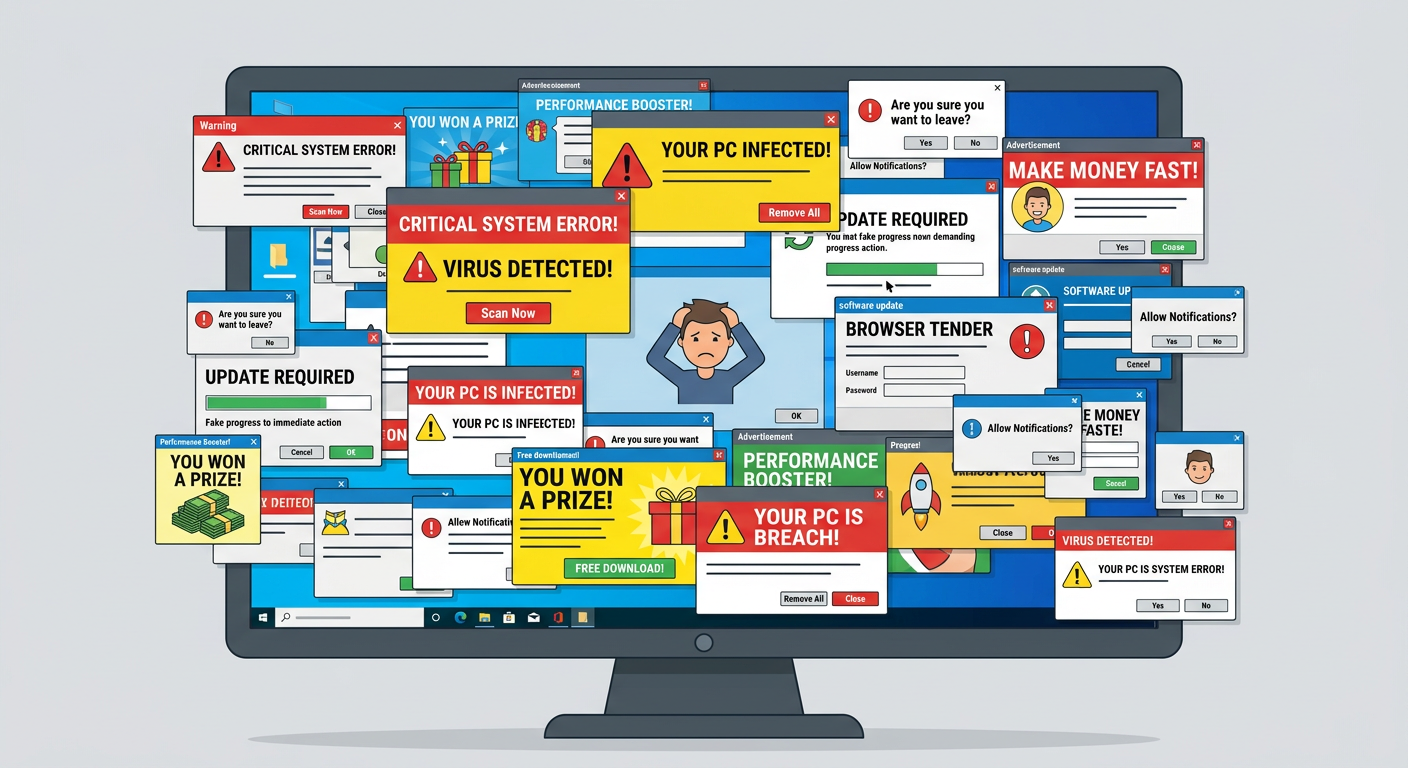
- Excessive pop-up advertisements outside the browser: Adware infections manifest as a flood of pop-up windows appearing even when your browser is closed. These ads often promote fake security alerts, dubious software, or adult content, and clicking them can trigger further infections.
System Modifications and Unauthorized Access
The most alarming category of malware signs involves direct, unauthorized modifications to your system's configuration, files, and security tools. These changes indicate that malware has achieved significant system access and is actively working to entrench itself.
- Unfamiliar programs and desktop shortcuts: Check your installed applications list (Settings > Apps > Installed Apps in Windows 11, or Control Panel > Programs in older versions). If you discover software you never intentionally installed — especially toolbars, media players, or "system optimizer" tools — they were likely bundled with another download or installed by a dropper trojan.
- Security tools being disabled or blocked: Sophisticated malware actively disables Windows Defender, third-party antivirus software, and even Task Manager to prevent detection and removal. If you find that these tools refuse to open, display errors, or have been turned off without your action, this is a critical warning sign requiring immediate attention.
- Encrypted files and ransom notes (Ransomware): The most devastating form of malware, ransomware, encrypts your personal files — documents, photos, videos — and replaces them with locked versions, accompanied by a text file or pop-up demanding cryptocurrency payment for the decryption key. Additionally, if you find your account passwords have been changed without your action, a credential-stealing trojan (infostealer) may have already exfiltrated your login data to a remote attacker.
How to Manually Check and Remove a Virus Without Antivirus Software
While dedicated security software is always the most effective and safest solution, there are scenarios — such as when your antivirus has been disabled by malware or you need to take immediate action — where manual intervention is necessary. This section provides a technically careful, step-by-step manual virus removal guide using only built-in Windows tools. Proceed with caution: incorrect modifications to system files or the registry can cause serious instability.
Initial Steps: Boot into Safe Mode and Identify Malicious Processes
The first and most important step in any malware removal guide is to limit the malware's operational capacity by booting into Safe Mode, which prevents most non-essential programs — including many types of malware — from loading at startup.
- Boot into Safe Mode with Networking: Restart your PC and hold the Shift key while clicking Restart, or press F8 during boot on older systems. Navigate to Troubleshoot > Advanced Options > Startup Settings > Restart, then press F5 to select Safe Mode with Networking. The "with Networking" option is important because you may need internet access to research suspicious processes.
- Analyze processes in Task Manager: Once in Safe Mode, open Task Manager (Ctrl + Shift + Esc) and click "More details" if it opens in compact view. Navigate to the Details or Processes tab. Look for processes with the following red flags: extremely high CPU or memory consumption, names that mimic legitimate Windows processes (e.g., "svch0st.exe" instead of "svchost.exe"), processes running from unusual locations (e.g., the Desktop, Downloads folder, or %AppData% instead of System32), and processes with no listed publisher or description.
- Cross-reference suspicious process names: Using a separate, known-clean device, search for the exact process name on Microsoft's official documentation portal or trusted security databases. According to Microsoft's official documentation on common Windows processes, legitimate system processes like svchost.exe, lsass.exe, and explorer.exe always run from specific system directories. Any instance running from an unexpected path is suspicious and warrants further investigation.
Deep Cleaning: Managing Startup, Browser, and System Files
After identifying suspicious processes, the next phase of manual virus removal involves cutting off the malware's persistence mechanisms — the methods it uses to survive a reboot — and cleaning up contaminated browser and temporary file locations.
- Disable suspicious startup entries: Open Task Manager and navigate to the Startup tab. Review every entry and disable any program you do not recognize or did not intentionally install. For a more comprehensive view, open the Run dialog (Win + R), type
msconfig, press Enter, and navigate to the Services tab. Check "Hide all Microsoft services" first, then review and disable any remaining suspicious third-party services. This prevents malware from reloading on the next boot. - Reset your web browsers to default settings: In Google Chrome, go to Settings > Reset and clean up > Restore settings to their original defaults. In Microsoft Edge, go to Settings > Reset Settings > Restore settings to their default values. In Firefox, type
about:supportin the address bar and click "Refresh Firefox." This removes malicious extensions, resets hijacked homepages and search engines, and clears injected browser policies. - Clean temporary file folders: Press Win + R, type
%temp%, and press Enter. This opens the Windows Temp folder. Select all files (Ctrl + A) and delete them — you can safely ignore any files that are currently in use and cannot be deleted. Also run the built-in Disk Cleanup tool (search for it in the Start menu) to remove system temporary files, log files, and other accumulated junk. Malware frequently stores its executable files and scripts in these locations because they are writable by standard user accounts.
Advanced Tools: Utilizing Built-in Windows Defenders
Windows includes several powerful built-in security tools that can assist with malware removal when third-party solutions are unavailable.
- Microsoft Defender Offline Scan: Open Windows Security (search for it in Start), navigate to Virus & threat protection > Scan options, and select Microsoft Defender Antivirus (offline scan). This performs a scan before Windows fully loads on the next reboot, allowing it to detect and remove rootkits and other persistent threats that evade real-time protection by hiding within the running OS environment.
- Malicious Software Removal Tool (MSRT): Microsoft releases a monthly updated MSRT, available for download from the official Microsoft website, that targets specific high-prevalence malware families. Run it from the command line using
mrt.exe /F:Yfor a full scan. It is particularly useful for cleaning up well-known trojan and worm infections. - Critical Warning: Manual removal is inherently incomplete and carries significant risk. Even if you successfully terminate a malicious process and delete its executable, the malware may have already created registry run keys, scheduled tasks, DLL injection hooks, or modified system files that will silently reinstall it on the next boot. Manual steps are best understood as emergency triage — not a complete cure. Professional antivirus software with deep system scanning capabilities is the strongly recommended next step for any confirmed or suspected infection.
Why Choose 360 Total Security for Comprehensive PC Protection?
360 Total Security offers a unique, multi-engine defense approach that combines robust antivirus protection with essential system optimization tools, providing an all-in-one solution for modern PC security and performance needs. Unlike single-engine antivirus tools, its layered architecture addresses the full spectrum of modern threats while simultaneously keeping your system running at peak performance.
The Power of Multi-Engine Threat Detection
The cornerstone of 360 Total Security's effectiveness as a free antivirus software solution is its use of multiple, complementary detection engines working in concert — a strategy that dramatically increases detection accuracy while minimizing false positives.
- Multi-engine integration: 360 Total Security integrates its proprietary QVMII AI engine alongside renowned third-party antivirus engines, including Bitdefender and Avira. This means that a file must evade multiple independent detection systems simultaneously to go undetected — a far higher bar than any single-engine solution. Each engine brings different signature databases, behavioral rules, and detection heuristics to the table, creating a genuinely layered defense.
- Cloud Scan for zero-day threat detection: The Cloud Scan feature instantly checks the cryptographic hash of any suspicious file against a continuously updated, massive online threat intelligence database. This is critical for zero-day threat detection — catching brand-new malware that has not yet been added to local signature databases. According to cybersecurity analyst insights published in a 2026 Cybersecurity Threat Intelligence Report, heuristic and cloud-based analysis now accounts for detecting over 60% of novel malware variants that evade traditional signature-based methods, underscoring the strategic importance of this capability in any modern antivirus solution.
| Detection Method | How It Works | Strengths | Limitations | Used in 360 Total Security |
|---|---|---|---|---|
| Traditional Signature-Based | Matches files against a database of known malware fingerprints (hashes) | Highly accurate for known threats; low false positives | Cannot detect new, unknown malware (zero-days) | ✅ Yes (via Bitdefender & Avira engines) |
| Heuristic / Behavioral (QVMII) | Analyzes code structure and runtime behavior for malicious patterns | Detects new and modified malware variants; catches polymorphic threats | Higher potential for false positives; computationally intensive | ✅ Yes (proprietary QVMII AI engine) |
| Cloud-Based Analysis | Checks file reputation against a real-time online threat intelligence database | Instant zero-day detection; always up-to-date without local updates | Requires internet connection; privacy considerations for file metadata | ✅ Yes (Cloud Scan feature) |
Beyond Antivirus: Integrated System Optimization Toolkit
What distinguishes 360 Total Security from a basic PC security suite is its comprehensive integration of system performance tools alongside its security features. Security and performance are treated as two sides of the same coin — because a slow, cluttered system is not only frustrating but also more vulnerable to exploitation.
- Cleaner module: Automatically scans for and safely removes gigabytes of accumulated junk: temporary files, browser cache and cookies, system log files, registry clutter, and application residue from uninstalled programs. Regular use of the Cleaner prevents the gradual performance degradation that affects most Windows PCs over time.
- Startup Manager and Driver Updater: The Startup Manager provides a clear, user-friendly interface to review and disable programs that automatically launch with Windows — one of the most impactful changes you can make to improve boot time. The Driver Updater scans your installed hardware drivers and identifies outdated or vulnerable versions, then facilitates their update. Outdated drivers are a significant source of both system instability and exploitable security vulnerabilities.
- Real-time performance widgets and Speed Up: A persistent system tray widget provides at-a-glance monitoring of CPU, memory, and network usage. The one-click "Speed Up" button intelligently terminates unnecessary background processes and frees up RAM, providing an immediate performance boost during resource-intensive tasks like gaming or video editing.
Proactive Protection Layers for Daily Use
Beyond reactive scanning, 360 Total Security implements multiple proactive layers that intercept threats before they can execute and cause damage — a critical capability in an era where malware delivery methods are increasingly sophisticated.
- Sandbox technology: The integrated Sandbox allows you to launch any suspicious executable, installer, or script in a completely isolated virtual environment. The program runs normally from your perspective, but any changes it attempts to make — to the registry, file system, or network — are contained within the sandbox and cannot affect your real system. This is invaluable for safely evaluating software from unfamiliar sources before committing to a full installation.
- Webcam Protection and Keylogger Protection: These features guard against two of the most privacy-invasive categories of malware. Webcam Protection alerts you and blocks unauthorized access to your computer's camera, preventing remote access trojans (RATs) from conducting covert surveillance. Keylogger Protection uses kernel-level input encryption to prevent keylogging software from capturing your keystrokes, protecting passwords, credit card numbers, and other sensitive input.
- Firewall module: A robust application-level firewall monitors both inbound and outbound network traffic, alerting you when new programs attempt to establish internet connections and blocking known malicious IP addresses and domains. This is a critical layer for containing malware that has already been installed but has not yet communicated with its command-and-control server.
Step-by-Step Guide to Using 360 Total Security for a Full System Scan and Cleanup
Performing a comprehensive scan and system tune-up with 360 Total Security is a straightforward process that can significantly enhance both your PC's security posture and its operational speed. This 360 Total Security tutorial covers every major function from initial scan selection to ongoing automated protection configuration.
Initiating a Thorough Virus Scan
360 Total Security offers three distinct scan modes, each designed for a specific use case and level of thoroughness. Understanding when and why to use each is key to maintaining effective, efficient protection without unnecessary disruption to your workflow.
- Quick Scan: This mode focuses exclusively on the areas of your system most commonly targeted by malware: running processes in memory, critical system files, startup entries, and the Windows registry's most sensitive keys. A Quick Scan typically completes in two to five minutes and is ideal as a daily check-in, especially after browsing unfamiliar websites, opening email attachments, or connecting an external USB drive. It provides rapid assurance without the time investment of a full examination.
- Full Scan: This is the most thorough option, examining every single file and folder across all connected hard drives and partitions. A Full Scan can take anywhere from 30 minutes to several hours depending on the size of your storage and the number of files present. It is recommended on a weekly or monthly basis as a comprehensive security audit, and is the appropriate response when you suspect an active infection or have just completed a manual removal attempt to verify that no traces remain.
- Custom Scan: This mode gives you surgical precision, allowing you to direct the scan engine at specific drives, individual folders, or external devices such as USB flash drives and external hard disks. Custom Scan is particularly useful when you have downloaded a specific file from an untrusted source, received a USB drive from a colleague, or want to verify the integrity of a single directory without scanning your entire system.
Leveraging the Cleanup and Optimization Modules
The security and optimization modules in 360 Total Security are designed to work together, addressing both the threats that compromise your system's safety and the accumulated digital clutter that degrades its PC cleanup and performance.
- Running the Cleaner module: From the main dashboard, navigate to the Cleaner section and initiate a scan. The tool will catalog all detected junk across multiple categories: Windows temporary files, browser cache (Chrome, Firefox, Edge, and others), system log files, thumbnail caches, and application residue. Review the findings by category — the interface clearly labels each item type and its size — and click Clean to safely delete the selected items. Users frequently recover several gigabytes of disk space in a single cleaning session, which directly improves file system performance and available storage.
- Using the Startup Manager: Access the Startup Manager from the Speedup or Tools section of the dashboard. The interface presents a categorized list of every program configured to launch with Windows, along with each program's name, publisher, startup impact rating (High, Medium, or Low), and a toggle to enable or disable it. Disable any programs you do not need immediately at startup — they will still be accessible by launching them manually. This single action can reduce Windows boot time by 30–60 seconds on a typical consumer PC.
- Checking the Driver Updater: Navigate to the Driver Updater tool within the Toolbox section. Initiate a scan to identify all installed hardware drivers and cross-reference them against 360's driver database. The results will flag any drivers that are outdated, missing, or potentially vulnerable. Keeping drivers current — especially for network adapters, graphics cards, and chipset components — is an important but frequently overlooked aspect of system security, as driver vulnerabilities can be exploited to gain kernel-level access to your system.
Configuring Real-Time Protection for Ongoing Safety
A one-time scan is a valuable diagnostic tool, but true PC security requires continuous, automated protection that operates in the background without demanding constant user attention. Properly configuring 360 Total Security's real-time and scheduled protection features transforms it from a reactive tool into a proactive security platform.
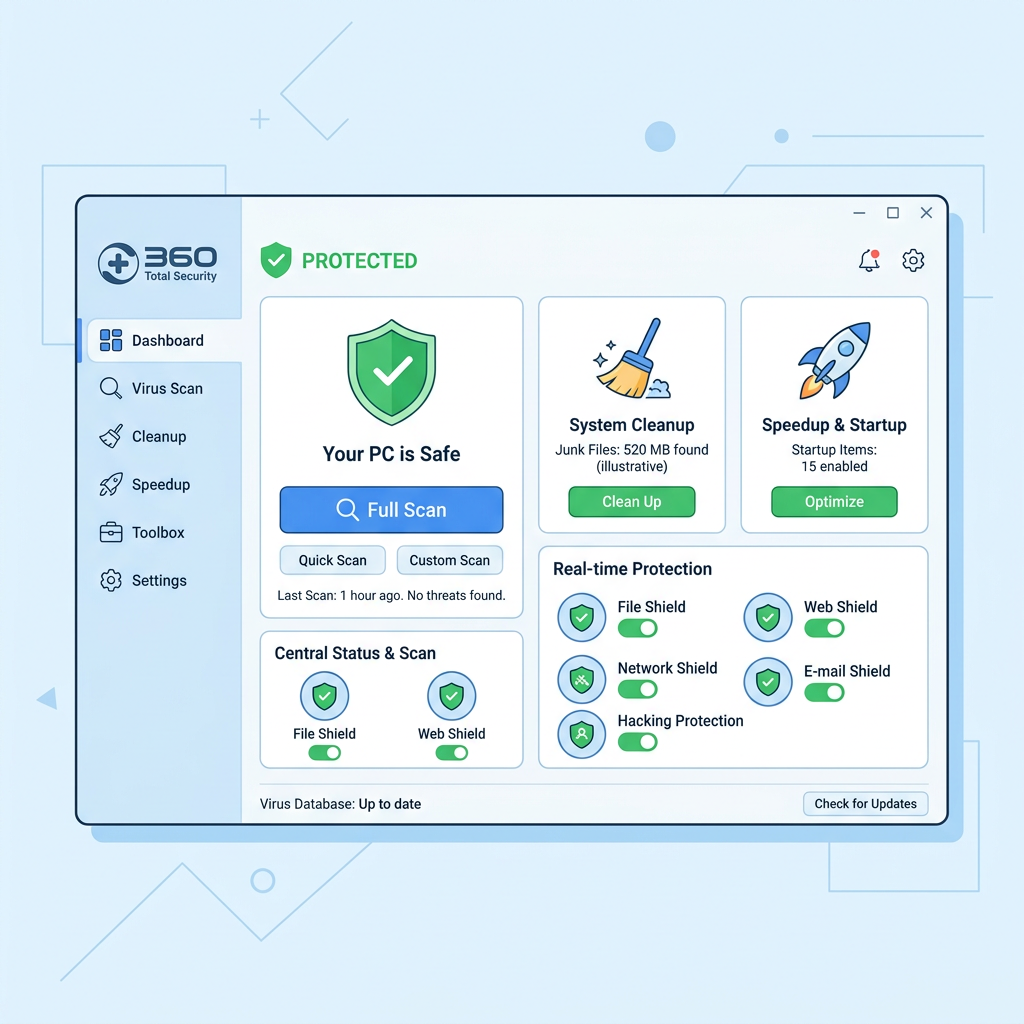
- Activating all protection shields: Open the Protection center from the main dashboard and verify that all available shields are enabled: Antivirus Protection (real-time file scanning), Firewall (network traffic monitoring), Behavior Protection (heuristic process monitoring), and Webcam/Keylogger Protection if applicable to your privacy needs. Each shield can be individually toggled, and the dashboard provides a clear visual status indicator showing whether your protection is fully active or has gaps that need attention.
- Scheduling automatic scans: Navigate to Settings > Scan Schedule to configure recurring automated scans. A recommended configuration for most users is a Quick Scan scheduled daily during a time when the PC is on but not in active heavy use (e.g., weekday mornings at 9 AM), and a Full Scan scheduled weekly during off-hours (e.g., Sunday at 2:00 AM). Scheduled scans run silently in the background and can be configured to run only when the system is idle, ensuring they never interrupt your active work sessions.
- Reviewing scan logs and managing quarantine: Periodically review the scan history and quarantine vault accessible from the main dashboard. The scan logs provide a detailed record of every scan performed, its duration, the number of files examined, and any threats detected or blocked. The quarantine vault holds suspected malicious files that have been isolated rather than immediately deleted — this is important because it allows you to recover false positives (legitimate files incorrectly flagged) if needed. Review quarantined items and permanently delete confirmed threats to free up space and ensure they cannot be accidentally restored.
How to Maintain a Virus-Free and High-Performance PC
Long-term PC health relies on a combination of proactive security habits, consistent maintenance routines, and the intelligent use of automation features. Building a sustainable defense posture means integrating security into your daily digital behavior, not just reacting to infections after they occur. The following cybersecurity best practices cover habits, schedules, and advanced tool usage that collectively keep your system both safe and fast.
Cultivating Safe Digital Habits
The most sophisticated antivirus software in the world cannot fully compensate for consistently risky user behavior. The majority of successful malware infections exploit human decisions — a clicked link, a downloaded file, a skipped update — rather than technical vulnerabilities that bypass security software entirely.
- Exercise extreme caution with emails: Phishing emails remain the single most common malware delivery vector. Be skeptical of any email that creates urgency, requests credentials, contains unexpected attachments, or includes links to sites asking you to log in. Verify the sender's actual email address (not just the display name), and when in doubt, navigate directly to the service's official website rather than clicking embedded links. This applies even to emails that appear to come from known contacts, as email accounts can be compromised and used to send targeted spear-phishing messages.
- Download software exclusively from official sources: Only download applications from the software vendor's official website, the Microsoft Store, or other verified, reputable distribution platforms. Third-party download portals — particularly those offering "free" versions of paid software — are a primary distribution channel for adware, bundleware, and trojans. When installing legitimate software, always choose the Custom or Advanced installation option and carefully uncheck any pre-selected offers for additional software you did not request.
- Maintain rigorous software update discipline: According to a 2025 Verizon Data Breach Investigations Report analysis, unpatched software vulnerabilities remain a leading cause of successful cyberattacks, with a significant percentage of breaches exploiting vulnerabilities for which patches had been available for months or even years. Enable automatic updates for Windows, your web browser, and all key applications. Pay particular attention to software with broad internet exposure: PDF readers, media players, Java, and browser plugins are frequent exploitation targets.
Implementing a Regular Maintenance Schedule
Consistency is the foundation of effective PC maintenance. A structured schedule ensures that no critical security or performance task is neglected, and that your system remains in optimal condition without requiring intensive periodic interventions.
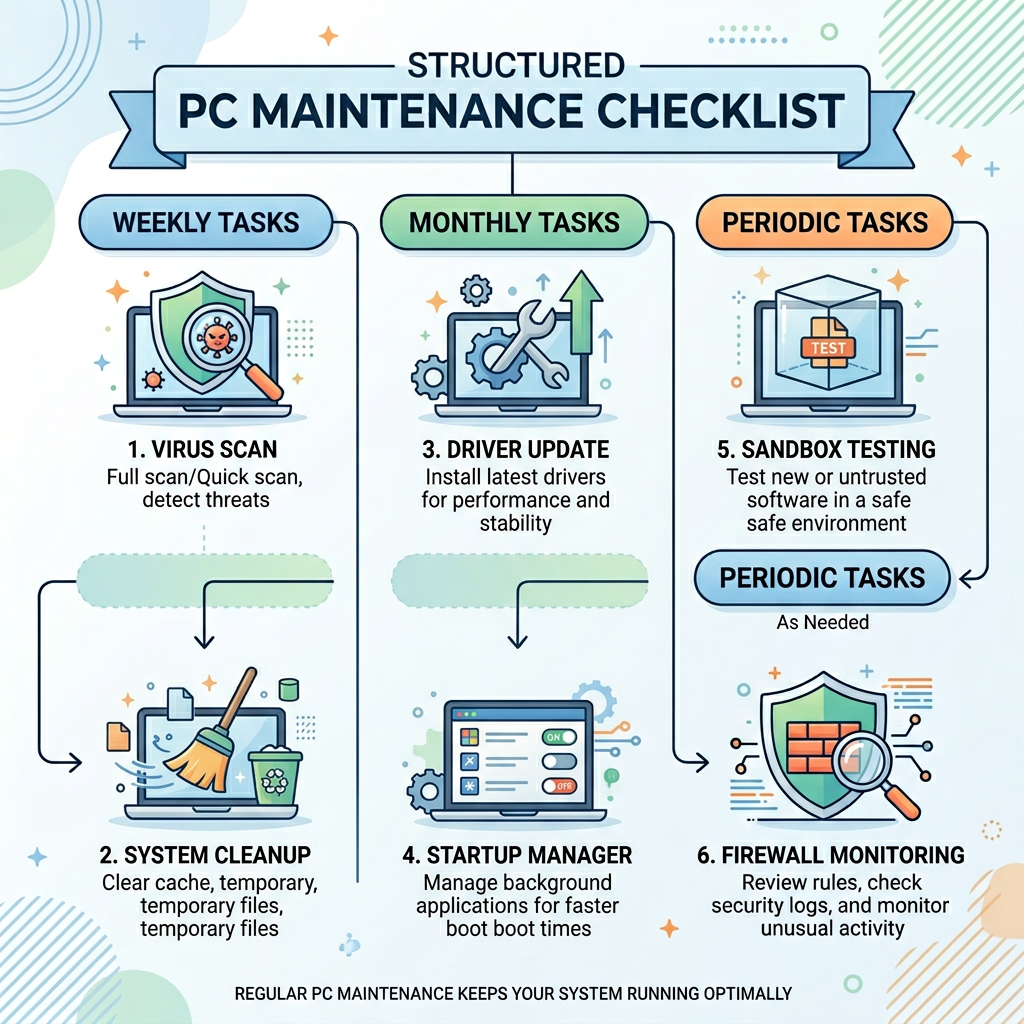
- Weekly tasks: Run a Quick Scan using 360 Total Security to check for any threats that may have slipped through during the week's browsing and downloading activity. Execute the Cleaner module to remove accumulated temporary files, browser cache, and log files. These two tasks together take less than ten minutes and provide a meaningful security and performance dividend.
- Monthly tasks: Initiate a Full System Scan to conduct a comprehensive security audit of all files on your hard drives. Check the Driver Updater for any hardware driver updates that have become available. Review your installed applications list and uninstall any software you no longer use — every unnecessary application is a potential attack surface and a source of background resource consumption.
- Periodic tasks: Every few months, review and declutter your startup programs using the Startup Manager to remove entries for software you have since uninstalled or no longer need at boot. Create a Windows System Restore Point before making any significant system changes — installing new software, updating drivers, or modifying system settings — so you have a recovery option if something goes wrong. Consider also reviewing your browser extensions and removing any that are no longer actively used.
Utilizing Advanced Features for Proactive Defense
Beyond the foundational security practices above, 360 Total Security's advanced feature set provides additional layers of proactive defense that address sophisticated threat scenarios and privacy risks that basic security habits alone cannot fully mitigate.
- Leverage the Sandbox for unknown software: Whenever you need to test software from an unfamiliar developer, evaluate a file received from an unverified source, or experiment with a utility that requires elevated system permissions, launch it through the 360 Total Security Sandbox first. The Sandbox creates a completely isolated virtual environment where the program executes normally but cannot make persistent changes to your real system. This is an invaluable zero-risk evaluation method that eliminates the gamble of installing untested software directly.
- Use the firewall to audit application network access: Regularly review the firewall's application access log to see which programs on your system are making outbound internet connections. Legitimate software should only connect to servers associated with its known functionality. If you discover an application making connections to unfamiliar IP addresses or domains — particularly if it is a program that has no obvious reason to require internet access — investigate it immediately. This proactive monitoring can catch data-exfiltrating malware that has evaded real-time scanning.
- Enable Webcam Guard for comprehensive privacy protection: Remote Access Trojans (RATs) and commercial stalkerware increasingly target webcams as a surveillance tool. Enable 360 Total Security's Webcam Guard to receive instant alerts and blocking capability whenever any application — including potentially malicious ones — attempts to access your camera. Combined with Keylogger Protection, this creates a robust shield against the most invasive categories of privacy-violating malware.
Protect Your PC with 360 Total Security — Free and Comprehensive
The combination of recognizing early warning signs, understanding manual mitigation techniques, and deploying a powerful, multi-layered security solution creates the most robust defense available to everyday PC users. 360 Total Security brings together five-engine malware detection, real-time behavioral monitoring, a comprehensive system optimization toolkit, sandbox isolation, and privacy protection features — all in a free package designed specifically for Windows desktop users.
Do not wait for a ransomware attack or a data breach to take PC security seriously. Visit the 360 Total Security official website today to download the free version, run your first full system scan, and experience the difference that genuinely comprehensive, multi-engine protection makes to both your security and your PC's performance.
Frequently Asked Questions
How can I tell if my PC has a virus if my antivirus is not detecting anything?
Antivirus software, particularly if outdated or using only signature-based detection, can miss novel or sophisticated malware. Watch for behavioral indicators that bypass software detection: unexplained CPU or memory spikes in Task Manager by unknown processes, outbound network traffic to unfamiliar IP addresses, browser settings that reset after you change them, files that appear encrypted or renamed with unusual extensions, and security tools that refuse to open or are mysteriously disabled. If you observe multiple symptoms simultaneously, treat it as a probable infection even without an antivirus alert. Boot into Safe Mode and perform a manual check as described in this guide, then run a scan with a multi-engine tool like 360 Total Security that includes heuristic and cloud-based detection.
Is it safe to manually remove viruses, or should I always use antivirus software?
Manual removal is a useful emergency measure but carries significant risks and is rarely complete. Malware typically installs multiple persistence mechanisms — registry run keys, scheduled tasks, DLL injections, service entries — and removing only the visible executable file will usually result in the malware reinstalling itself on the next reboot. Additionally, incorrectly deleting legitimate system files during a manual cleanup can cause Windows instability or prevent it from booting. Manual steps are best used as triage to limit immediate damage (e.g., terminating an actively running malicious process) while you prepare a proper antivirus scan. Always follow up any manual intervention with a Full Scan using dedicated security software to verify complete removal.
What makes 360 Total Security different from other free antivirus programs?
The primary differentiator is its multi-engine architecture. While most free antivirus solutions rely on a single detection engine, 360 Total Security integrates its proprietary QVMII AI behavioral engine with Bitdefender and Avira's signature databases, plus a real-time Cloud Scan capability. This means threats must simultaneously evade multiple independent detection systems. Additionally, 360 Total Security uniquely combines antivirus protection with a full system optimization suite — including a Cleaner, Startup Manager, Driver Updater, and performance monitoring — in a single free application. The inclusion of Sandbox technology, Webcam Protection, and Keylogger Protection in a free product further distinguishes it from competitors that reserve these features for paid tiers.
How often should I run a full virus scan on my PC?
For most home users, a Full Scan performed once per week or at minimum once per month provides adequate coverage when combined with real-time protection running continuously in the background. However, you should run a Full Scan immediately in the following situations: after downloading and installing software from an unfamiliar source, after connecting a USB drive or external storage device from an unknown origin, after clicking a suspicious link or opening an unexpected email attachment, after your PC exhibits any of the malware symptoms described in this guide, and after completing a manual virus removal attempt to verify that no traces remain. Configure 360 Total Security's scheduled scan feature to automate weekly Full Scans during off-hours to ensure this critical maintenance task is never neglected.
About the Author
Senior Technical Writer, 360 Total Security Security Research Team
A cybersecurity content specialist with over eight years of experience translating complex threat intelligence and security engineering concepts into actionable guidance for general PC users and IT professionals. Focused on Windows endpoint security, malware analysis methodologies, and the practical application of multi-layered defense strategies in consumer and SMB environments. Regularly contributes to security awareness initiatives and product documentation for the 360 Total Security platform.