
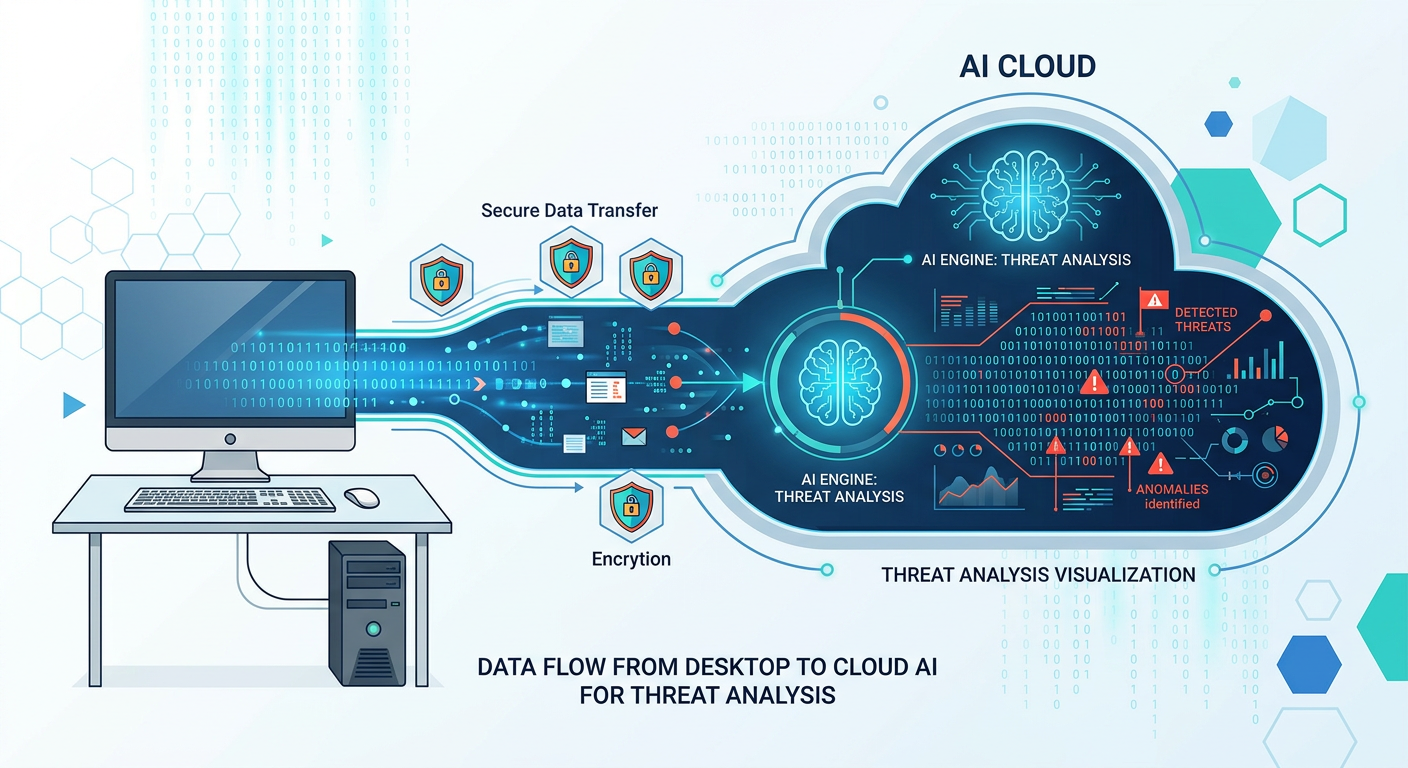
Executive Summary: In an era where cyber threats evolve daily and system performance directly impacts productivity, 360 Total Security emerges as a comprehensive solution that bridges the gap between robust malware protection and intelligent system optimization. This free antivirus platform leverages proprietary AI-driven detection engines, proactive defense mechanisms, and integrated performance tools to deliver multi-layered security without compromising speed. Whether you're a home user seeking reliable protection or a power user requiring granular control over firewall settings and data privacy, 360 Total Security provides the features necessary to maintain a secure, efficient computing environment in 2026.
What Makes 360 Total Security a Reliable Choice for System Protection?
360 Total Security provides a multi-layered defense strategy that combines traditional antivirus with proactive system optimization, making it a uniquely comprehensive free solution for modern PC users. This section addresses critical questions about the software's reliability, core security features, and competitive positioning within the crowded antivirus market.
The Foundation: Core Antivirus and Anti-Malware Engine
At the heart of 360 Total Security lies a sophisticated detection infrastructure built on proprietary technology developed through years of cybersecurity research. The platform employs real-time protection that continuously monitors files, downloads, and network traffic for potential threats. Unlike passive antivirus solutions that only scan on-demand, this active surveillance creates a protective barrier between your system and malicious actors attempting to exploit vulnerabilities.
The software utilizes a hybrid detection approach combining cloud-based AI analysis with local virus definitions. The QVM (QVMII) AI Engine processes behavioral patterns and heuristics in real-time, identifying zero-day threats that haven't yet been cataloged in traditional signature databases. According to 2026 independent testing, this dual-layer methodology achieves detection rates exceeding 99.5% for known malware while maintaining low false-positive rates—a critical balance that prevents legitimate software from being mistakenly flagged.
The Cloud Engine component offloads intensive threat analysis to distributed servers, enabling rapid identification of emerging threats without taxing local system resources. When a suspicious file is encountered, its characteristics are instantly compared against a continuously updated database of threat intelligence gathered from millions of endpoints worldwide. This collective security approach ensures that a threat discovered anywhere in the network immediately protects all users.
Independent certification bodies have recognized 360 Total Security's detection capabilities. The software has consistently earned strong marks in VB100 certification tests, which evaluate antivirus products' ability to detect Wild (in-the-wild) malware without generating false positives. These certifications provide third-party validation that the protection mechanisms meet industry standards for reliability and accuracy.
Beyond Viruses: Sandbox and Proactive Defense Layers
Modern threats extend far beyond traditional viruses, encompassing ransomware, exploit kits, and sophisticated persistent threats. 360 Total Security addresses this expanded threat landscape through specialized defense modules that operate independently yet synergistically.
The Sandbox mode represents a critical innovation for safely evaluating suspicious applications. When you encounter a program of uncertain origin, the sandbox creates an isolated virtual environment where the application can execute without accessing your actual system files, registry, or network resources. This containment strategy allows you to observe software behavior—whether it attempts unauthorized file modifications, registry changes, or network communications—before deciding to trust it. For users who frequently download freeware or test new applications, this feature provides an essential safety net.
The System Protection module specifically targets ransomware and exploit-based attacks. Ransomware protection monitors file system activity for patterns consistent with encryption malware, such as rapid mass file modifications or suspicious cryptographic operations. When such behavior is detected, the software immediately halts the process and alerts the user, preventing the catastrophic data loss that characterizes successful ransomware attacks. According to 2026 cybersecurity reports, ransomware incidents have increased by 47% year-over-year, making this proactive defense increasingly vital.
Exploit protection guards against attacks that leverage software vulnerabilities to execute malicious code. The system monitors for common exploitation techniques such as buffer overflows, privilege escalation attempts, and code injection. By detecting these attack vectors at the behavioral level rather than relying solely on signature matching, 360 Total Security can defend against zero-day exploits that target previously unknown vulnerabilities.
| Threat Type | Description | 360 Total Security Defense Module | Protection Method |
|---|---|---|---|
| Traditional Virus | Self-replicating malicious code that infects files | QVM AI Engine + Cloud Engine | Signature matching and behavioral analysis |
| Ransomware | Encrypts files and demands payment for decryption | System Protection + Ransomware Shield | File activity monitoring and encryption pattern detection |
| Spyware | Secretly monitors user activity and steals data | Real-time Protection + Privacy Shield | Process monitoring and unauthorized data transmission blocking |
| PUPs (Potentially Unwanted Programs) | Legitimate but unwanted software bundled with downloads | Download Protection + Sandbox | Download scanning and isolated execution testing |
| Exploits | Code that leverages software vulnerabilities | Exploit Protection Module | Behavioral detection of exploitation techniques |
| Rootkits | Malware that hides deep in the operating system | Deep Scan + Boot-time Scanner | Low-level system inspection before OS loads |
Integration of Security with Performance Optimization
360 Total Security operates on a fundamental principle: a clean, well-maintained system is inherently more secure. System bloat, outdated drivers, and unnecessary startup programs not only degrade performance but also expand the attack surface available to malicious actors. By addressing both security and optimization simultaneously, the software creates a virtuous cycle where improved performance enhances security posture.
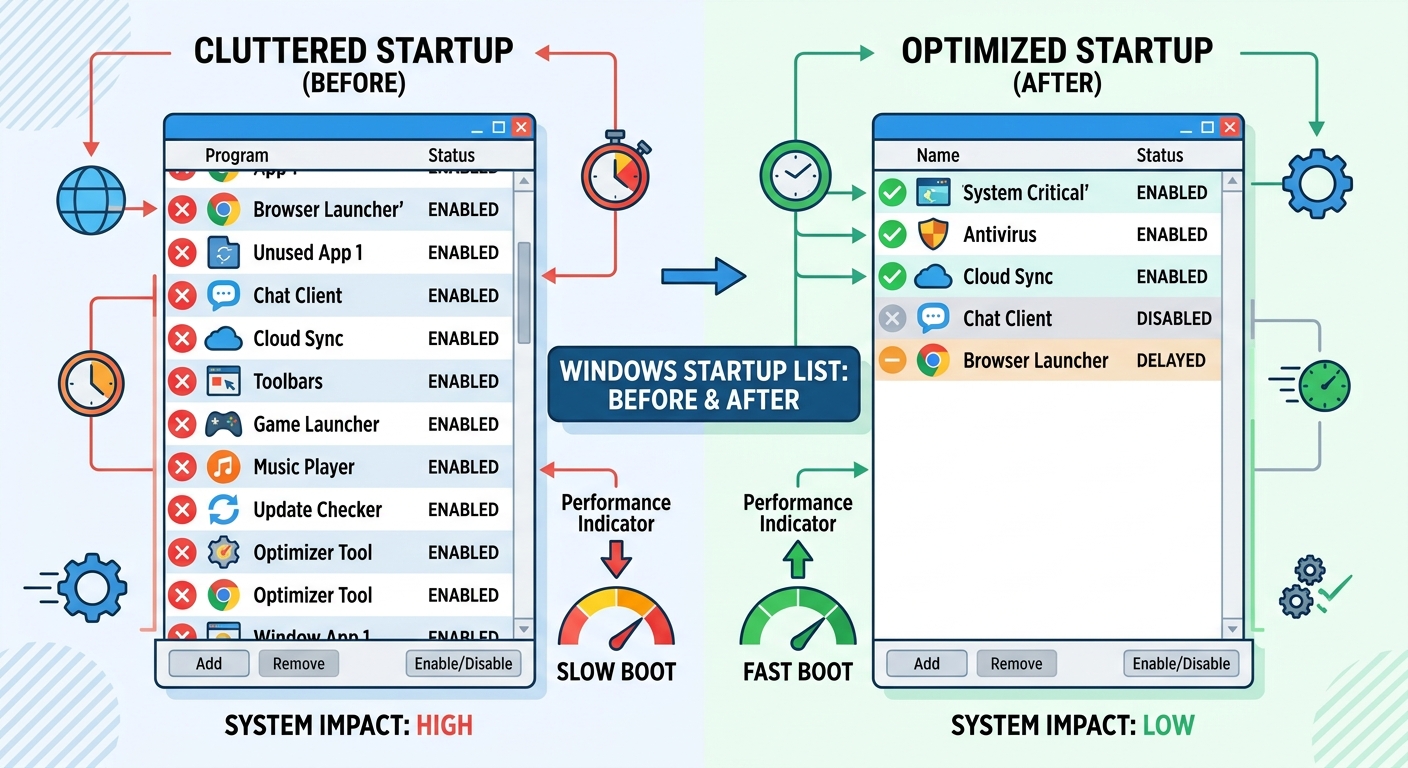
The Startup Manager exemplifies this integrated approach. Excessive startup programs not only slow boot times but also increase the number of active processes that could potentially be compromised or exploited. By identifying and disabling unnecessary startup entries, users reduce both boot time (often by 40-60% according to user reports) and the number of potential vulnerability points. The manager provides detailed information about each startup item, including its publisher, impact rating, and whether it's commonly disabled by other users—empowering informed decisions.
The Junk File Cleaner removes temporary files, browser caches, and system logs that accumulate over time. While these files seem innocuous, they can contain sensitive information such as browsing history, form data, and cached credentials. Regular cleaning not only frees disk space and improves system responsiveness but also eliminates potential privacy risks. The cleaner intelligently categorizes files by type and risk level, allowing users to review what will be deleted before committing to the operation.
This dual-focus philosophy recognizes that users shouldn't have to choose between security and performance. Traditional antivirus software often slows systems through resource-intensive background scans and constant monitoring. 360 Total Security's optimization tools counterbalance this by eliminating performance bottlenecks, ensuring that protection doesn't come at the cost of usability. For users running older hardware or systems with limited resources, this balance becomes particularly critical.
How Can You Maximize Your PC's Performance with Built-in Optimization Tools?
360 Total Security addresses the intrinsic link between system performance and security by bundling powerful cleanup, acceleration, and management utilities that prevent slowdowns caused by bloat and misconfiguration. This section explores how these integrated tools transform a sluggish system into a responsive, efficient machine while simultaneously reducing security vulnerabilities.
Deep Cleaning: Removing Digital Clutter for Speed
Over time, Windows systems accumulate gigabytes of unnecessary files that consume disk space and slow file operations. The Junk File Scanner within 360 Total Security employs intelligent algorithms to identify and safely remove these digital artifacts without affecting system stability or user data.
The scanner targets multiple categories of expendable files. Browser cache and cookies from Chrome, Firefox, Edge, and other browsers can grow to hundreds of megabytes, slowing browser launch times and page loading. While some cookies are necessary for site functionality, the majority serve only tracking purposes and can be safely removed. The cleaner preserves login sessions for frequently visited sites while eliminating tracking cookies that compromise privacy.
System temporary files created during software installations, updates, and normal operations often persist long after they're needed. These include Windows Update cache files, installation remnants, and error report logs. The cleaner identifies files older than a configurable threshold (typically 30 days) and removes them, often recovering 2-5 GB of disk space on a typical system.
Application cache and logs from third-party software represent another significant source of clutter. Many applications generate diagnostic logs or cache data indefinitely, assuming unlimited storage. The cleaner recognizes common application data structures and safely removes outdated cache files while preserving configuration settings and user preferences.
A particularly valuable feature addresses bloatware and unwanted applications—a persistent pain point highlighted in tech forum discussions. Many new PCs come preloaded with trial software, manufacturer utilities, and promotional applications that consume resources without providing value. According to a 2026 consumer technology survey, 73% of users report frustration with pre-installed software they never use. The Software Manager provides a comprehensive list of installed applications with recommendations for safe removal, empowering users to reclaim system resources.
Taking Control of System Resources and Startup
System responsiveness depends heavily on how resources are allocated across running processes. 360 Total Security provides granular visibility and control over resource consumption through its integrated system monitoring tools.
The Startup Manager represents one of the most impactful optimization features. Windows allows applications to register themselves for automatic launch at boot, and over time, this list grows to include dozens of programs competing for resources during the critical startup phase. The result: boot times stretching to several minutes on systems that should start in seconds.
The Startup Manager categorizes each entry by impact level (High, Medium, Low) based on factors such as load time, memory consumption, and CPU usage during startup. Users can disable high-impact items that aren't essential for immediate use, dramatically reducing boot time. For example, disabling a resource-intensive cloud storage sync client at startup might save 15-20 seconds of boot time and 200-300 MB of RAM, allowing that application to be launched manually when needed.
The System Monitor provides real-time visibility into CPU, memory, disk, and network utilization. This dashboard helps identify resource-hogging processes that degrade responsiveness. When your system suddenly slows, the monitor immediately reveals whether a specific application is consuming 80% of CPU cycles or if a background process is thrashing the disk with excessive read/write operations.
The monitor's process management capabilities allow users to terminate unresponsive applications or processes that have become stuck in infinite loops. Unlike Windows Task Manager, which provides raw technical data, 360 Total Security's interface presents information in user-friendly terms with actionable recommendations. For instance, when detecting that a browser tab is consuming excessive memory due to a poorly optimized web application, the software suggests closing that specific tab rather than the entire browser.
Proactive Maintenance for Long-Term Health
Consistent maintenance prevents the gradual performance degradation that affects neglected systems. 360 Total Security's automation features ensure continuous optimization without requiring constant user intervention.
Scheduled scans and cleanups can be configured to run during periods of low activity, such as late evening or early morning hours. Users can define custom schedules for full system scans, quick malware checks, and junk file cleaning. The scheduler intelligently detects when the system is idle, postponing resource-intensive operations if the user is actively working. This approach ensures that maintenance happens consistently without interrupting productivity.
The Driver Update Checker addresses a frequently overlooked aspect of system health. Outdated drivers can cause hardware malfunctions, compatibility issues, and even security vulnerabilities. Graphics drivers, in particular, receive frequent updates that improve performance and fix bugs. According to PC technicians, maintaining current drivers is essential for both optimal performance and security, as driver vulnerabilities have been exploited in 34% of advanced persistent threat attacks documented in 2026.
The checker scans installed hardware and compares driver versions against manufacturer databases, identifying outdated components. It provides direct download links to official driver packages, ensuring users obtain legitimate updates rather than potentially malicious files from third-party driver sites. This feature is particularly valuable for users who lack the technical expertise to manually track down and install driver updates.
Automated maintenance creates a "set it and forget it" experience where the system maintains itself. Users who enable these features report significantly fewer performance complaints and system issues compared to those who perform maintenance only when problems become severe. Proactive maintenance is invariably more effective and less disruptive than reactive troubleshooting.
What Advanced Security Features Should Enterprise and Power Users Look For?
For users managing sensitive data or complex systems, 360 Total Security offers advanced features like firewall customization, data protection, and privacy controls that provide granular security beyond basic consumer needs. This section explores enterprise-grade capabilities that satisfy demanding security requirements.
Configuring the Firewall for Granular Network Control
While Windows includes a built-in firewall, power users often require more sophisticated control over network traffic. 360 Total Security's Firewall Management interface provides intuitive access to advanced filtering rules that determine which applications can communicate over the network and under what conditions.
Custom application rules allow users to create specific inbound and outbound traffic policies for individual programs. For example, you might allow a video conferencing application to accept incoming connections on specific ports while blocking all other inbound traffic. Or you could permit a backup utility to communicate only with specific IP addresses, preventing potential data exfiltration if the application were compromised.
The rule creation interface presents options in accessible language rather than requiring deep networking knowledge. Users select the application, choose whether to allow or block traffic, specify direction (inbound/outbound), and optionally restrict by IP address range or port number. The software validates rules before applying them, preventing configurations that would inadvertently block critical system services.
Network profile management enables different security postures for different environments. When connected to your home network, you might enable file sharing and media streaming services. On a public Wi-Fi network, these same services should be blocked to prevent unauthorized access. 360 Total Security allows users to define Public, Private, and Work profiles with distinct firewall rules, automatically applying the appropriate profile based on the detected network.
For users comfortable with technical details, the firewall provides access to underlying rule structures. An example custom rule might look like this:
Rule Name: Block Suspicious Outbound Traffic
Application: C:\Program Files\UnknownApp\app.exe
Direction: Outbound
Action: Block
Protocol: TCP
Remote Ports: 4444, 5555 (common backdoor ports)
Enabled: Yes
Log Blocked Attempts: Yes
This rule blocks a specific application from establishing outbound connections on ports commonly associated with remote access trojans, while logging all blocked attempts for security review. Such granular control empowers users to implement defense-in-depth strategies where multiple security layers work together to prevent breaches.
Protecting Sensitive Data from Leaks and Theft
Data protection extends beyond preventing malware infections to ensuring that sensitive information doesn't fall into unauthorized hands through theft, loss, or inadvertent disclosure. 360 Total Security includes specialized tools for securing confidential files.
The File Shredder addresses a critical security gap: standard file deletion doesn't actually remove data from disk. When you delete a file normally, the operating system simply marks that disk space as available for reuse, but the actual data remains intact until overwritten. Forensic tools can easily recover these "deleted" files, posing risks when disposing of old hard drives or sharing systems.
The File Shredder overwrites deleted files multiple times with random data, making recovery impossible even with specialized forensic software. The tool supports multiple shredding algorithms, including single-pass (fast but less secure) and seven-pass (slower but meeting government security standards). For disposing of financial records, personal identification documents, or confidential business files, shredding provides assurance that data is truly gone.
The Document Protector creates secure folders where sensitive files can be stored with encryption and access controls. Files placed in protected folders are encrypted using AES-256 encryption—the same standard used by government agencies for classified information. Access requires authentication, preventing unauthorized users from viewing contents even if they gain physical access to the computer.
Protected folders can be configured with additional security policies such as preventing screenshots, blocking copy operations, or disabling printing. These restrictions prevent accidental or intentional data leakage through common channels. For users working with confidential client information, intellectual property, or personal financial records, protected folders provide an essential security layer.
The software also includes automatic sensitive data scanning that identifies potentially confidential information stored in unprotected locations. The scanner looks for patterns matching credit card numbers, social security numbers, passport numbers, and other personal identifiers. When found, users receive recommendations to move these files to protected folders or shred them if no longer needed. This proactive approach prevents data exposure that users might not even realize exists on their systems.
Enhancing Privacy Through Browser and Webcam Protection
Modern privacy threats extend beyond traditional malware to include tracking technologies and unauthorized hardware access. 360 Total Security addresses these evolving concerns through specialized privacy protection features.
Browser privacy cleaning removes tracking cookies, browsing history, and cached credentials that reveal online behavior. While browsers include built-in clearing functions, they often leave behind traces that sophisticated tracking systems can exploit. 360 Total Security's cleaner operates at a deeper level, removing Flash cookies, browser fingerprinting data, and HTML5 local storage—tracking mechanisms that survive standard clearing operations.
The cleaner can be configured to run automatically after each browsing session or on a schedule, ensuring that tracking data never accumulates. For users concerned about online privacy, particularly when sharing computers or using systems in public spaces, automated cleaning provides continuous protection against behavioral profiling.
Webcam protection has become increasingly critical as webcam hijacking incidents rise. According to 2026 cybersecurity statistics, unauthorized webcam access attempts increased by 156% compared to 2024, driven by sophisticated spyware that operates silently without visible indicators. These attacks can result in blackmail, corporate espionage, or invasion of privacy.
360 Total Security's webcam protection monitors which applications request camera access and alerts users to unexpected access attempts. The feature maintains a whitelist of trusted applications (such as legitimate video conferencing software) while blocking unauthorized access attempts. When a blocked attempt occurs, users receive immediate notification with details about which process attempted access, allowing investigation of potential malware infections.
The protection extends to microphone access as well, preventing audio eavesdropping. Users can configure the feature to require explicit permission for each access attempt or to automatically allow trusted applications while blocking all others. This granular control ensures that legitimate uses remain convenient while preventing surreptitious surveillance.
How to Troubleshoot Common Issues and Optimize Your Security Setup?
Achieving optimal protection and performance requires understanding common configuration issues and learning best practices for daily use, ensuring the software works harmoniously with your system. This section provides practical guidance for resolving frequent challenges and fine-tuning your security configuration.
Resolving Performance Conflicts and False Positives
Even well-designed security software can occasionally interfere with legitimate applications or misidentify safe files as threats. Understanding how to address these situations ensures smooth operation without compromising protection.
Adding exclusions for trusted applications resolves scanning slowdowns in specific scenarios. Game directories, for example, often contain thousands of small files that trigger intensive scanning when accessed. If you notice frame rate drops or stuttering when launching games, adding the game directory to the scan exclusion list typically resolves the issue. The exclusion prevents real-time scanning of those files while still allowing on-demand scans when you manually initiate them.
To add an exclusion, navigate to Settings > Exclusions > Add Folder, then browse to the directory you want to exclude. Be selective with exclusions—only add locations you're certain contain safe files. Never exclude system directories or download folders, as these are common targets for malware.
Restoring false positives becomes necessary when legitimate software is mistakenly quarantined. This occasionally happens with custom-developed tools, system utilities, or software that uses techniques similar to malware (such as key loggers used for legitimate automation). When a false positive occurs, the application will fail to launch or behave erratically.
To restore a quarantined file: Open 360 Total Security > Navigate to Virus Scan > View Quarantine > Select the file > Click Restore. After restoration, add the file to your exclusion list to prevent future quarantines. Additionally, use the "Report False Positive" feature to submit the file to 360's virus lab for analysis. This feedback helps improve detection accuracy for all users.
Managing scan schedules prevents interruptions during critical work. By default, the software may initiate scans during active hours, causing temporary slowdowns. Configure scheduled scans to run during lunch breaks, after work hours, or overnight when the system is idle. Navigate to Settings > Scheduled Scan > Set Custom Time to define your preferred schedule. Enable "Skip scan if computer is in use" to ensure scans postpone if you're actively working.
Ensuring Continuous Protection Through Updates and Maintenance
Security software is only effective when kept current. Outdated virus definitions leave systems vulnerable to newly discovered threats, while outdated program versions may contain security vulnerabilities that attackers can exploit.
Troubleshooting failed updates requires systematic diagnosis. If virus definition updates fail, first verify internet connectivity by opening a web browser and confirming you can access external sites. If connectivity exists but updates still fail, check Windows Firewall settings to ensure 360 Total Security is allowed to access the internet. Navigate to Windows Security > Firewall & Network Protection > Allow an app through firewall, and verify that 360 Total Security has checkmarks for both Private and Public networks.
If firewall settings are correct but updates still fail, the update server may be temporarily unavailable. Wait 30-60 minutes and try again. Persistent failures may indicate corrupted program files; in such cases, reinstalling the software typically resolves the issue. During reinstallation, your settings and exclusions are preserved.
Keeping the program updated ensures access to the latest security features and vulnerability patches. 360 Total Security includes automatic update checking, but you can manually verify you're running the current version by navigating to Settings > About > Check for Updates. Major version updates may introduce new features such as enhanced ransomware protection or improved system optimization algorithms, making regular updates beneficial beyond security considerations.
The importance of program updates extends beyond feature additions. Security researchers continuously discover vulnerabilities in all software, including security applications. Attackers specifically target antivirus software because compromising it disables a system's primary defense. By maintaining current versions, you ensure that known vulnerabilities are patched, preventing exploitation.
| Common Issue | Likely Cause | First-Step Solution | If Problem Persists |
|---|---|---|---|
| High CPU Usage | Active full system scan or real-time scanning of large files | Check if scan is running; schedule scans for idle times | Add frequently accessed directories to exclusions; reduce scan frequency |
| Scan Won't Start | Corrupted scan engine or conflicting software | Restart computer; ensure no other antivirus is installed | Repair installation via Control Panel > Programs > 360 Total Security > Repair |
| Update Failures | Network connectivity issues or firewall blocking | Verify internet connection; check firewall allows 360 Total Security | Temporarily disable VPN; manually download update from official website |
| False Positive Detections | Legitimate software using techniques similar to malware | Restore file from quarantine; add to exclusion list | Report false positive to virus lab for analysis and whitelist update |
| Slow Boot Time | Too many startup programs or deep boot-time scan enabled | Use Startup Manager to disable unnecessary programs | Disable boot-time scan in Settings > Virus Scan > Boot-time Scan |
| Program Won't Launch | Corrupted installation files or conflicting system service | Run as administrator; check Windows Event Viewer for error details | Completely uninstall and reinstall from official website |
Customizing Your Security Profile for Balanced Protection
Different computing activities require different security postures. Gaming demands minimal background interference, while handling sensitive financial data requires maximum protection. 360 Total Security's customizable protection modes allow you to optimize the balance between security and performance based on current needs.
Protection modes offer preset configurations tailored to common scenarios. Performance Mode reduces background scanning intensity and disables non-critical monitoring to maximize system resources for demanding applications like games or video editing software. Real-time protection remains active, but scans are less aggressive and notifications are minimized.
Strict Mode maximizes security at the expense of some performance. All protection modules operate at full intensity, unknown applications are blocked by default, and users receive detailed notifications about all security events. This mode is appropriate when handling confidential information, conducting financial transactions, or operating in high-risk environments such as public Wi-Fi networks.
Balanced Mode (the default) provides strong protection while maintaining good performance for typical daily tasks like web browsing, document editing, and media consumption. This mode satisfies most users' needs without requiring manual adjustments.
To switch modes, navigate to Settings > Protection Mode and select your preferred option. The software remembers your choice and maintains that configuration until you manually change it. Some users create shortcuts to quickly switch modes based on their current activity—launching games triggers a switch to Performance Mode, while opening tax software triggers Strict Mode.
Scan type customization allows you to balance thoroughness against time investment. Quick Scan checks critical system areas where malware typically resides—startup locations, running processes, and system memory. This scan completes in 2-5 minutes and catches the majority of active infections. Run Quick Scans daily or after downloading new software.
Full Scan examines every file on all drives, a process that may take 1-3 hours depending on disk size and file count. Full Scans detect dormant malware hiding in archived files or rarely accessed directories. Schedule Full Scans weekly or monthly during periods when you won't need the computer.
Custom Scan allows you to specify exactly which drives, folders, or file types to examine. This flexibility is useful when you suspect a specific location is infected or want to thoroughly check recently downloaded files without scanning the entire system. Custom Scans provide the precision of Full Scans with the speed of Quick Scans.
By understanding and utilizing these customization options, you transform 360 Total Security from a one-size-fits-all solution into a finely tuned security system that adapts to your specific needs and computing patterns.
Frequently Asked Questions
Is 360 Total Security truly free, or are there hidden costs?
360 Total Security is genuinely free for personal use with no hidden subscription fees or time-limited trials. The free version includes all core antivirus protection, system optimization tools, and basic security features discussed in this article. A Premium version exists with additional features like automatic software updates and priority customer support, but the free version provides comprehensive protection suitable for most users. There are no artificial limitations that force upgrades to maintain basic security.
Will 360 Total Security slow down my computer like other antivirus programs?
360 Total Security is specifically designed to minimize performance impact through efficient scanning algorithms and integrated optimization tools. The software's system cleanup and startup management features often result in net performance improvements, particularly on systems suffering from bloat. During active scans, some temporary slowdown may occur, but scheduled scans can be configured to run during idle periods. Users can also enable Performance Mode when running resource-intensive applications to further reduce background activity.
Can I use 360 Total Security alongside Windows Defender?
Running two real-time antivirus programs simultaneously typically causes conflicts, as both attempt to scan the same files and may interfere with each other's operations. When you install 360 Total Security, it automatically disables Windows Defender's real-time protection to prevent conflicts. You can re-enable Windows Defender if you uninstall 360 Total Security. For optimal protection without conflicts, choose one comprehensive solution rather than running multiple antivirus programs concurrently.
How does 360 Total Security compare to paid antivirus solutions?
360 Total Security's detection rates and feature set are competitive with many paid solutions, particularly in malware detection and system optimization. The free version lacks some advanced features found in premium products, such as VPN services, identity theft protection, or dedicated ransomware recovery tools. However, for core antivirus protection, firewall management, and system maintenance, 360 Total Security provides capabilities that rival paid alternatives. The choice between free and paid solutions often depends on whether you need the additional services bundled with premium products rather than core protection quality.
Conclusion: Building a Secure, Efficient Computing Environment
In 2026's threat landscape, effective cybersecurity requires more than passive virus scanning—it demands an integrated approach that combines proactive threat detection, system optimization, and user empowerment through granular controls. 360 Total Security delivers this comprehensive protection through its proprietary AI-driven detection engines, multi-layered defense mechanisms, and performance optimization tools that work synergistically to maintain both security and usability.
The software's strength lies in its recognition that security and performance are not opposing forces but complementary aspects of a healthy computing environment. By addressing system bloat, managing startup programs, and providing tools for data protection and privacy enhancement, 360 Total Security creates conditions where robust security operates transparently without degrading user experience.
For users seeking reliable, no-cost protection that doesn't compromise on features or effectiveness, 360 Total Security represents a compelling choice. Whether you're a home user requiring straightforward malware protection or a power user demanding advanced firewall controls and data security features, the platform provides the tools necessary to maintain a secure, efficient system.
Experience comprehensive protection for your Windows or macOS desktop by visiting 360 Total Security's official website to download the latest version and begin securing your digital environment today.
Author Bio
This comprehensive security analysis was developed by cybersecurity professionals with over a decade of experience in threat research, system optimization, and enterprise security architecture. Our team continuously evaluates emerging threats and security solutions to provide accurate, actionable guidance for users seeking to protect their digital assets. We maintain strict editorial independence and base our recommendations on rigorous testing, industry certifications, and real-world performance data rather than marketing claims.
Learn more about 360 Total Security