
Executive Summary: The Windows Firewall serves as your PC's fundamental network security barrier, monitoring and controlling traffic based on predefined rules. While this built-in protection offers essential defense against unauthorized access, understanding its capabilities and limitations is crucial for maintaining comprehensive cybersecurity in 2026. This guide explores how the Windows Firewall functions, why it may not be sufficient as a standalone solution, and how to evaluate advanced security software that combines robust firewall protection with proactive threat detection and system optimization capabilities.
What is the Windows Firewall and How Does It Protect Your PC?
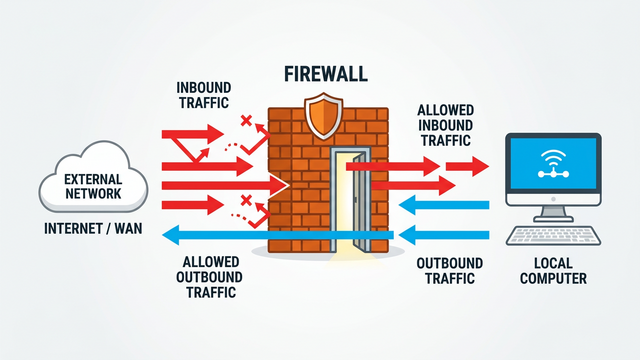
The Windows Firewall is a fundamental, built-in security barrier that monitors and controls network traffic based on predetermined security rules, serving as your first line of defense against unauthorized access. Every Windows PC comes equipped with this native protection layer, which has evolved significantly since its introduction in Windows XP Service Pack 2. By 2026, the Windows Firewall (now integrated within Windows Security as Windows Defender Firewall) has become more sophisticated, yet its core function remains unchanged: acting as a gatekeeper between your computer and the broader internet.
At its essence, a firewall examines data packets attempting to enter or leave your system, comparing them against a set of security rules. If a connection request matches an allowed rule, the firewall permits the traffic. If it violates a blocking rule or lacks explicit permission, the firewall denies access. This process happens continuously and invisibly in the background, protecting your PC from malicious actors attempting to exploit open network ports or vulnerable services.
According to 2026 cybersecurity reports, properly configured firewalls prevent an estimated 70-80% of basic network-based intrusion attempts. However, the effectiveness of any firewall depends heavily on its configuration, rule management, and integration with other security layers. The Windows Firewall provides essential protection, but understanding its operational mechanisms helps users make informed decisions about their overall security posture.
Understanding Inbound vs. Outbound Protection
One of the most critical concepts in firewall operation is the distinction between inbound and outbound traffic control. Inbound protection refers to the firewall's ability to block unwanted incoming connections from external sources attempting to access your PC. This is the Windows Firewall's primary strength and default focus. When enabled, it automatically blocks all unsolicited incoming connections unless you've explicitly created a rule allowing them.
For example, if a malicious actor scans your IP address looking for open ports to exploit, the Windows Firewall's inbound rules prevent these connection attempts from reaching vulnerable services on your computer. This default-deny approach for inbound traffic provides robust protection against many network-based attacks, including port scanning, remote exploitation attempts, and unauthorized remote desktop access.
Outbound protection, however, presents a different scenario. Outbound rules monitor what applications on your PC send out to the internet. The Windows Firewall's default outbound rule management is notably less strict—by default, it allows all outbound connections unless you specifically create rules to block them. This permissive approach means that if malware successfully infiltrates your system through other vectors (such as email attachments or drive-by downloads), it can freely communicate with command-and-control servers or exfiltrate data without firewall interference.
Security experts on platforms like BleepingComputer frequently note this limitation. While the permissive outbound policy reduces false positives and user frustration (preventing legitimate applications from being blocked), it creates a significant gap in defense-in-depth strategies. Advanced users and security-conscious organizations often configure custom outbound rules to restrict which applications can access the internet, but this requires technical knowledge and ongoing maintenance.
Key Features and Common Configuration Scenarios
The Windows Firewall offers several configuration options that adapt to different network environments and security requirements. One of its most useful features is network profile management, which applies different rule sets based on whether you're connected to a Public, Private, or Domain network.
When you connect to a new network, Windows prompts you to classify it. A Public network profile (recommended for coffee shops, airports, and other untrusted locations) applies the most restrictive firewall rules, blocking network discovery and file sharing. A Private network profile (suitable for home networks) relaxes some restrictions to enable features like printer sharing and media streaming. A Domain network profile applies when your PC joins a corporate Active Directory domain, allowing IT administrators to centrally manage firewall policies.
For users requiring more granular control, the Windows Firewall supports custom rule creation for specific programs and ports. Through the Windows Defender Firewall with Advanced Security console, you can create rules that allow or block specific applications, define port ranges, specify protocols (TCP/UDP), and even restrict connections to particular IP addresses or subnets. Common scenarios include:
- Allowing a specific game or application through the firewall while blocking all other traffic on that port
- Creating rules for remote desktop access from trusted IP addresses only
- Blocking specific applications from accessing the internet entirely
- Configuring port forwarding for home server applications
The advanced security console (accessible by typing "wf.msc" in the Windows Run dialog) provides IT administrators and power users with extensive configuration options. This interface displays separate inbound and outbound rule lists, connection security rules for IPsec, and monitoring capabilities that show active connections and security associations. While powerful, this interface's complexity often intimidates average users, leading many to rely solely on default settings or third-party security solutions with more intuitive interfaces.
Why Do You Need More Than Just Windows Firewall?
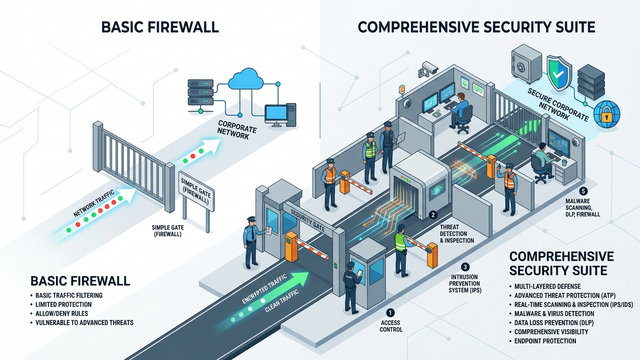
While the Windows Firewall provides essential network-level protection, it has significant gaps in behavioral analysis, threat intelligence, and ease of management that necessitate third-party security solutions for comprehensive protection. Understanding these limitations helps explain why cybersecurity experts consistently recommend layered security approaches rather than relying on any single defensive mechanism.
The fundamental limitation stems from the Windows Firewall's design philosophy: it functions primarily as a network traffic filter rather than a comprehensive security solution. It excels at its intended purpose—controlling network connections based on rules—but lacks the proactive threat detection, malware removal, and system monitoring capabilities that modern cybersecurity threats demand. In the 2026 threat landscape, where sophisticated malware employs multiple infection vectors and evasion techniques, a firewall alone cannot provide adequate protection.
According to 2026 cybersecurity threat assessments, approximately 60% of successful malware infections occur through vectors that bypass traditional firewall protection entirely, including malicious email attachments, compromised legitimate software updates, infected USB drives, and social engineering attacks. Once malware establishes itself on a system through these alternative routes, the permissive outbound rules of the Windows Firewall allow it to communicate freely with external command-and-control infrastructure.
Gaps in Proactive Threat Detection and Response
The Windows Firewall lacks deep behavioral analysis capabilities to stop unknown or zero-day malware that doesn't match known signatures. Unlike comprehensive security suites that monitor application behavior, analyze system calls, and detect anomalous activities, the Windows Firewall simply evaluates whether a connection request matches an allowed or blocked rule. This reactive approach means it cannot identify when a legitimate application has been compromised or when malware disguises itself as trusted software.
For example, if ransomware infiltrates your system through a phishing email and begins encrypting files, the Windows Firewall won't detect this malicious activity. It may allow the ransomware to communicate with its operators because the malicious process appears to be a legitimate application making standard network requests. Only when paired with Windows Defender Antivirus (Microsoft's separate anti-malware component) does the system gain behavioral monitoring capabilities—and even then, independent testing shows gaps compared to specialized security solutions.
Security analysts consistently emphasize that basic firewalls function reactively rather than proactively. They enforce rules but don't actively scan for threats, analyze file behaviors, or provide real-time protection against exploit techniques. A paraphrased consensus from the security community highlights that while firewalls are essential components of a security strategy, they represent just one layer in a necessary multi-layered defense architecture.
The Complexity of Managing Rules for Average Users
The advanced interface of the Windows Firewall with Advanced Security can be intimidating for non-technical users, leading to misconfigurations or disabled protections. The console presents hundreds of pre-configured rules, uses technical terminology (like "service names," "protocols," and "scope"), and provides minimal contextual guidance. Users attempting to troubleshoot connectivity issues often find themselves overwhelmed by the complexity, leading to two common problematic responses: either disabling the firewall entirely or blindly allowing all connection requests.
When applications request firewall access, the Windows Firewall presents basic allow/block prompts, but these notifications don't provide user-friendly alerts or guidance when a potentially dangerous program tries to connect. The prompt displays the application name and path but offers no risk assessment, reputation information, or recommendation. Users must make security decisions without sufficient context, often defaulting to "Allow" simply to make the notification disappear.
This usability gap becomes particularly problematic when legitimate software bundles unwanted components or when malware disguises itself with names similar to trusted applications. Without integrated threat intelligence or behavioral analysis, users lack the information needed to make informed security decisions. Third-party security solutions address this gap by providing contextual information, reputation scoring, and clear recommendations when applications request network access.
Furthermore, the Windows Firewall doesn't offer centralized management for home users with multiple devices. Each PC must be configured individually, and there's no dashboard to monitor firewall status, review blocked connection attempts, or manage rules across a household's computers. This limitation makes it difficult for families to maintain consistent security policies or for less technical users to receive assistance from more knowledgeable family members.
How to Choose the Best Third-Party Firewall and Security Software
Selecting a robust security solution requires evaluating a blend of powerful firewall capabilities, real-time anti-malware engines, system optimization tools, and overall usability to fit your specific threat profile and technical comfort level. The ideal security software extends far beyond basic firewall functionality, integrating multiple protective layers that work synergistically to defend against the diverse threat landscape of 2026.
When evaluating security solutions, consider your usage patterns and risk exposure. Home users who primarily browse the web, check email, and use productivity software have different needs than gamers who download frequent updates, content creators who install specialized software, or small business owners who handle sensitive customer data. The best security software adapts to your specific context while maintaining robust protection without degrading system performance.
According to 2026 market analysis, the most effective security solutions share several common characteristics: they provide real-time protection with minimal false positives, maintain low system resource usage, offer intuitive interfaces that make security accessible, and include regular updates that address emerging threats. Price alone doesn't determine quality—some free solutions outperform expensive alternatives in independent testing, while certain premium suites justify their cost through comprehensive feature sets and superior support.
Essential Security Features Beyond Basic Firewalling
Real-time Anti-Virus/Anti-Malware with cloud-based threat intelligence represents the foundation of any comprehensive security solution. Modern threats evolve rapidly, with new malware variants emerging hourly. Effective antivirus engines combine multiple detection methods: signature-based scanning for known threats, heuristic analysis for suspicious behaviors, and cloud-based reputation systems that leverage collective intelligence from millions of users worldwide.
Cloud-based threat intelligence provides particularly crucial advantages in 2026's threat landscape. When your security software encounters a suspicious file, it can query cloud databases in milliseconds to determine if other users have reported it as malicious. This collective defense mechanism enables near-instantaneous protection against zero-day threats—malware so new that traditional signature updates haven't yet been distributed. Leading security solutions process billions of threat queries daily, creating a global immune system that protects all users simultaneously.
Intrusion Prevention Systems (IPS) and protection against exploit attacks add another critical defensive layer. While firewalls control which connections are allowed, IPS technology monitors the content of allowed connections for malicious payloads. This deep packet inspection can detect and block exploit attempts that target vulnerabilities in web browsers, document readers, media players, and other commonly attacked applications. In 2026, exploit protection has become essential as attackers increasingly target software vulnerabilities rather than relying solely on user actions.
Sandboxing for suspicious files and secure browsing extensions provide additional protection layers. Sandboxing technology isolates suspicious files in a controlled environment where they can be executed and analyzed without risking your actual system. If a file exhibits malicious behavior in the sandbox, it's blocked before it can cause harm. Secure browsing extensions protect against phishing sites, malicious downloads, and drive-by infections by analyzing web pages in real-time and blocking dangerous content before it reaches your browser.
The Value-Add of Integrated System Optimization
Comprehensive security solutions increasingly integrate system optimization tools like startup managers, disk cleaners, and driver updaters that contribute to overall PC health and security posture. While these features might seem tangential to security, they play important roles in maintaining a secure computing environment. A well-optimized system runs more efficiently, responds faster to threats, and provides fewer opportunities for malware to hide among legitimate processes.
Startup managers help users identify and disable unnecessary programs that launch automatically, reducing boot times and freeing system resources. This optimization also has security implications—malware often adds itself to startup locations to ensure persistence after reboots. By providing clear visibility into startup items with reputation information, these tools help users identify suspicious entries that might indicate infection.
Disk cleanup utilities remove temporary files, browser caches, and system logs that accumulate over time. Beyond reclaiming storage space, these tools eliminate potential privacy risks by clearing browsing history, cookies, and cached credentials. Some advanced cleaners also identify and remove tracking cookies and browser extensions that compromise privacy or security.
360 Total Security exemplifies a comprehensive approach that combines robust multi-engine antivirus protection with sophisticated firewall capabilities and a full suite of optimization tools. The solution integrates proprietary AI-powered engines (including the advanced QVM and Cloud Engine technologies) that provide real-time protection against emerging threats. The firewall module offers both basic and advanced configuration options, making it accessible to novice users while providing granular control for power users.
Beyond core security features, 360 Total Security includes specialized tools like the Cleanup utility that removes system junk and privacy traces, the Speed Up module that optimizes startup items and system services, and the Software Manager that helps users safely download and update applications. This integrated approach addresses the reality that security and performance are interconnected—a slow, cluttered system is more vulnerable to threats and provides a poorer user experience that may lead users to disable protections.
The solution's multi-engine architecture provides layered detection capabilities, with each engine contributing specialized threat detection methodologies. This approach reduces false negatives (missed threats) while maintaining low false positive rates through consensus-based detection. When multiple engines flag a file as suspicious, confidence in the threat assessment increases significantly.
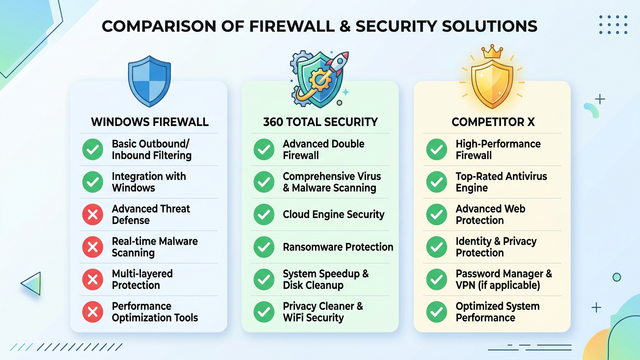
| Feature | Windows Firewall | 360 Total Security | Premium Competitor |
|---|---|---|---|
| Firewall Protection | Basic inbound/outbound rules | Advanced firewall with application control | Advanced firewall with network monitoring |
| Anti-Malware Engine | Requires separate Windows Defender | Multi-engine (proprietary AI engines) | Single proprietary engine |
| Real-time Protection | Network-level only | File, web, email, and network | File, web, email, and network |
| System Optimization Tools | None | Cleanup, Speed Up, Software Manager | Limited (varies by product) |
| Sandboxing | No | Yes | Yes (premium tiers only) |
| Price | Free (included with Windows) | Free (premium features available) | $40-80/year |
| Ease of Use | Complex for advanced features | Intuitive interface with one-click protection | Moderate (varies by product) |
| Performance Impact | Minimal | Low to moderate | Moderate |
Evaluating Usability, Performance Impact, and Support
The importance of a clean, intuitive interface cannot be overstated when selecting security software. Even the most powerful protection becomes ineffective if users find it too complicated to configure properly or too annoying to keep enabled. The best security solutions present complex threat information in accessible formats, provide clear recommendations for user decisions, and offer one-click solutions for common tasks like running scans or updating definitions.
Modern security interfaces increasingly employ dashboard designs that present overall system health at a glance, use color coding to indicate protection status (green for secure, yellow for warnings, red for critical issues), and minimize technical jargon in favor of plain language explanations. Contextual help, tooltips, and guided workflows help users understand security concepts without requiring technical expertise.
When evaluating usability, consider how the software handles common scenarios: Does it provide clear explanations when blocking a file or website? Can you easily whitelist false positives? Does it offer scheduling options for scans and updates? Are notifications informative without being intrusive? The answers to these questions significantly impact your day-to-day experience with the software.
Independent lab test results provide objective assessments of protection effectiveness and performance impact. Organizations like AV-TEST and AV-Comparatives conduct rigorous testing using real-world malware samples and standardized performance benchmarks. According to 2026 testing summaries, top-performing security solutions achieve detection rates above 99.5% for known malware while maintaining false positive rates below 0.5%.
Performance impact testing evaluates how security software affects system speed during common tasks like web browsing, file copying, application launching, and downloading files. The best solutions maintain protection effectiveness while minimizing resource consumption through optimized scanning algorithms, intelligent scheduling that defers intensive operations during active use, and cloud-based processing that offloads computational work from your PC.
Recent AV-TEST reports highlight that performance differences between security solutions have narrowed significantly, with most reputable products maintaining system slowdowns below 10% during typical usage. However, differences become more pronounced during full system scans, where some solutions complete scans 2-3 times faster than others while maintaining equivalent detection rates.
The availability of community forums, knowledge bases, and responsive support represents another critical evaluation factor. Even the most user-friendly software occasionally requires assistance, whether for troubleshooting conflicts with other applications, understanding specific features, or resolving false positives. Quality support resources include:
- Comprehensive online documentation with searchable knowledge bases
- Active community forums where users can share experiences and solutions
- Video tutorials demonstrating common configuration tasks
- Responsive email or chat support for technical issues
- Regular blog posts or newsletters about emerging threats and best practices
Free security solutions typically offer community-based support through forums and documentation, while premium products often include priority support channels with guaranteed response times. Consider your technical comfort level and support needs when evaluating whether premium support justifies additional cost.
For users seeking comprehensive protection, 360 Total Security offers an accessible entry point that combines essential security features with system optimization tools in a free package. The solution provides robust protection suitable for most home users while offering premium features for those requiring additional capabilities like automatic software updates or priority support.
Frequently Asked Questions
Is Windows Firewall sufficient protection for my PC in 2026?
Windows Firewall provides essential network-level protection but should not be your sole security measure. While it effectively blocks unauthorized incoming connections, it lacks proactive malware detection, behavioral analysis, and comprehensive outbound monitoring. For complete protection in 2026's threat landscape, combine the Windows Firewall with robust anti-malware software that includes real-time scanning, exploit protection, and cloud-based threat intelligence. Solutions like 360 Total Security complement the Windows Firewall with multi-engine malware detection and system optimization tools.
How do I know if my firewall is blocking a program I want to use?
When the Windows Firewall blocks an application, you typically see a notification prompt asking whether to allow the program through the firewall. If you missed this prompt or suspect the firewall is blocking a program, navigate to Windows Security > Firewall & network protection > Allow an app through firewall. This interface displays all applications with firewall rules and allows you to modify permissions for different network types (Public/Private). Third-party security solutions like 360 Total Security often provide more detailed notifications with contextual information about why an application was blocked and whether it's safe to allow.
What's the difference between a firewall and antivirus software?
A firewall and antivirus software serve complementary but distinct security functions. The firewall acts as a network traffic controller, monitoring and filtering connections based on rules—it determines which programs can communicate over the network and blocks unauthorized access attempts. Antivirus software, by contrast, actively scans files, monitors application behaviors, and detects malicious code regardless of network activity. Malware can infiltrate systems through multiple vectors (email attachments, USB drives, software downloads) that bypass firewall protection entirely. Comprehensive security requires both: the firewall prevents network-based intrusions while antivirus software detects and removes malware that enters through other channels.
Can I use multiple security programs together without conflicts?
Running multiple antivirus programs simultaneously typically causes conflicts, performance degradation, and reduced protection effectiveness as they compete for system resources and may interfere with each other's operations. However, the Windows Firewall can generally coexist with third-party security suites because most comprehensive solutions include their own firewall components that either replace or complement the Windows Firewall. When installing third-party security software, it typically manages firewall integration automatically. For optimal protection without conflicts, choose a comprehensive security suite like 360 Total Security that integrates firewall, antivirus, and optimization tools in a single coordinated solution rather than attempting to combine multiple standalone products.
About the Author
This article was crafted by cybersecurity content specialists with extensive experience in network security, malware analysis, and system optimization. Our team stays current with emerging threats, security best practices, and the latest protective technologies to provide readers with accurate, actionable guidance. We test security solutions across diverse real-world scenarios to deliver unbiased recommendations that prioritize user safety and system performance.