
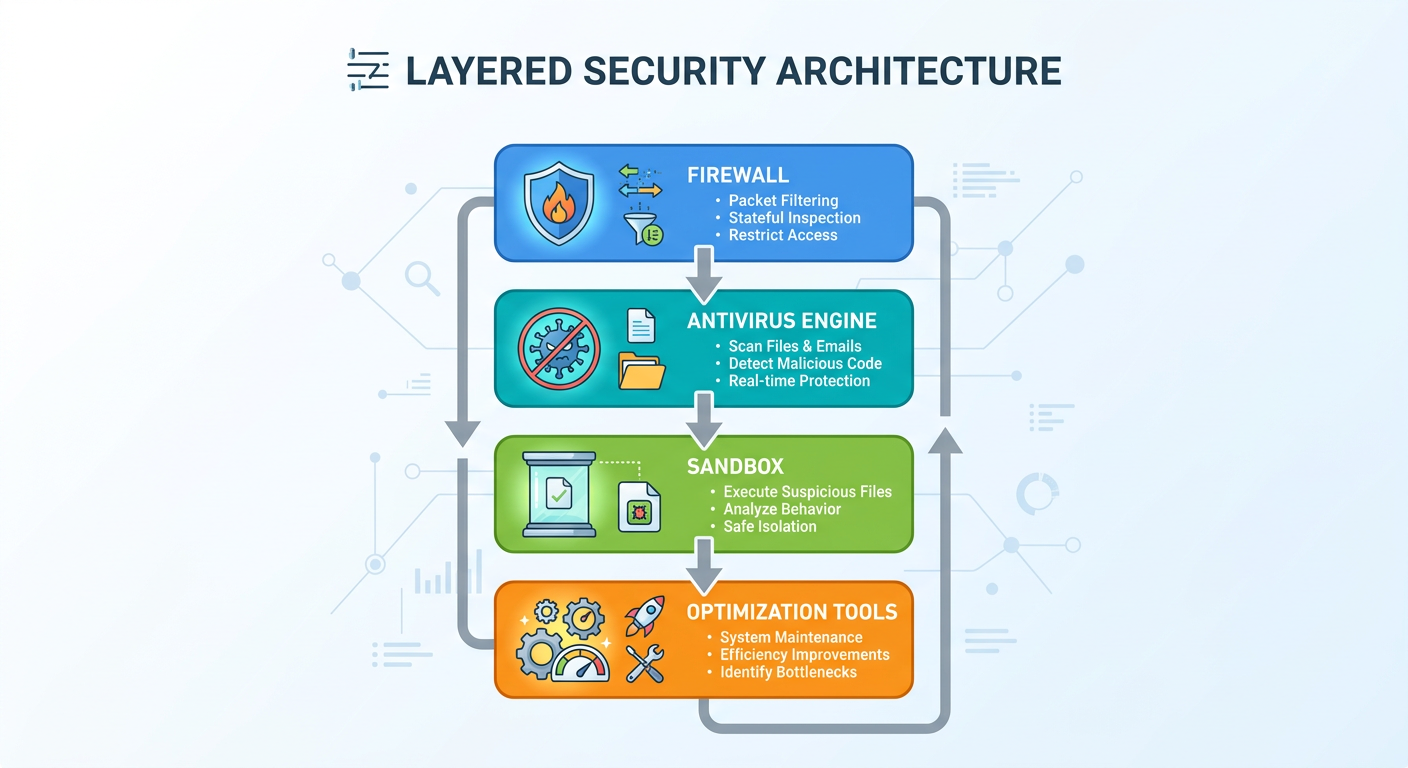
Executive Summary: The cybersecurity landscape of 2026 has fundamentally shifted how PC users approach digital protection. Traditional antivirus software, while providing baseline defense, increasingly fails to meet modern expectations for system performance, comprehensive threat coverage, and user experience. This article explores why users are migrating toward integrated security and optimization platforms that combine proactive threat detection with powerful system maintenance tools. We examine the limitations of legacy antivirus solutions, define what constitutes effective modern protection, and demonstrate how platforms like 360 Total Security address these evolving needs through unified, lightweight architectures that respect both security requirements and system resources.
Why Are PC Users Considering Alternatives to Traditional Antivirus Software?
The traditional antivirus model—built on reactive signature databases and resource-intensive scanning—no longer aligns with how modern PC users work, play, and interact with digital threats. While these legacy suites offer baseline protection against known malware, their architectural limitations, performance impact, and inability to address the full spectrum of cyber threats are driving users toward more sophisticated, integrated solutions.
The System Performance Trade-Off of Legacy Suites
One of the most persistent complaints about traditional antivirus software centers on its impact on system performance. Legacy security suites often consume significant CPU cycles, occupy substantial RAM, and generate intensive disk I/O operations during full system scans and continuous background processes. According to independent performance benchmarks conducted by AV-Comparatives in 2026, some traditional antivirus products can slow system boot times by 15-30% and reduce application launch speeds by up to 25% compared to unprotected systems.
This performance degradation stems from several architectural decisions common in older security software. First, many suites perform deep file inspection on every read/write operation, creating bottlenecks particularly noticeable on systems with traditional hard disk drives (HDDs). Second, scheduled full system scans—often triggered at inconvenient times—can render computers nearly unusable for 30-60 minutes while the scan completes. Third, real-time protection modules frequently fail to intelligently prioritize system resources, competing with user applications for processing power.
The perceived 'bloat' of bundled features compounds these performance issues. Many traditional security suites package dozens of tools—password managers, browser extensions, file shredders, parental controls, VPN services—that users neither requested nor utilize. Each additional module consumes memory and processing resources, even when dormant. A 2026 study by PassMark Software found that the average "Internet Security Suite" from major vendors consumed 450-850 MB of RAM at idle, compared to 150-250 MB for streamlined, modern security platforms.
For users with older hardware or those who demand maximum performance for gaming, content creation, or professional applications, this resource consumption represents an unacceptable compromise. The fundamental question becomes: why should security software designed to protect your computing experience simultaneously degrade it?
Limitations of Reactive, Signature-Based Protection
Traditional antivirus software operates primarily on a reactive model: security researchers identify malware, create digital signatures, and distribute these signatures to client software through regular updates. This approach works effectively against known threats but struggles catastrophically with zero-day exploits and advanced attack vectors that characterize the 2026 threat landscape.
According to the 2026 Cybersecurity Threat Report by Cybersecurity Ventures, over 560,000 new malware variants are detected daily—a 35% increase from 2024. More concerning, fileless malware attacks, which operate entirely in memory without writing files to disk, increased by 87% year-over-year. These sophisticated threats bypass traditional signature-based detection entirely because they leave no static files to scan and match against signature databases.
Fileless attacks typically exploit legitimate system tools—PowerShell, Windows Management Instrumentation (WMI), or scripting engines—to execute malicious code directly in RAM. Because these tools are authorized system components, traditional antivirus software cannot simply block them without breaking legitimate functionality. The attack leaves minimal forensic evidence and often evades detection until significant damage occurs.
Similarly, polymorphic and metamorphic malware—which constantly changes its code structure while maintaining malicious functionality—can evade signature-based detection by appearing as an entirely new file with each infection. By the time security researchers analyze a sample, create a signature, and distribute it to users, the malware has already mutated into hundreds of variants.
This cat-and-mouse game highlights a fundamental architectural flaw in reactive protection models: they can only protect against threats that have already been identified, analyzed, and cataloged. In an era where cyber criminals deploy automated malware generation tools and AI-assisted attack frameworks, this approach leaves users perpetually vulnerable during the critical window between threat emergence and signature distribution.
The modern threat landscape demands a more holistic approach that combines signature-based detection with behavioral analysis, heuristic scanning, sandboxing technology, and network-level defense mechanisms. Security solutions must identify threats based on what they do, not merely what they are.
The Growing Need for Integrated System Optimization
Beyond security concerns, modern PC users increasingly seek solutions that address the full spectrum of system health and performance. The traditional model—where users install separate tools for antivirus protection, disk cleanup, registry maintenance, driver updates, and startup management—creates a fragmented, inefficient experience that often leads to conflicting software interactions and duplicated resource consumption.
A 2026 survey by TechRadar found that 73% of PC users expressed frustration with managing multiple separate utilities for system maintenance, with 58% admitting they simply neglect regular optimization tasks because the process feels too complex or time-consuming. This neglect leads to performance degradation over time: accumulated temporary files consuming gigabytes of storage, bloated registries slowing system operations, unnecessary startup programs extending boot times, and outdated drivers causing compatibility issues.
The integration of security and optimization functions addresses several user pain points simultaneously. First, it reduces the total resource footprint by eliminating redundant background processes from multiple separate applications. Second, it provides a unified interface where users can address both security and performance concerns in a single workflow. Third, it enables intelligent coordination between security scanning and system optimization—for example, automatically cleaning detected tracking cookies during a security scan or scheduling resource-intensive optimization tasks during periods of low system activity.
Modern users expect their security software to be a comprehensive system health platform rather than a narrow threat detection tool. This paradigm shift reflects broader changes in computing: as PCs become central hubs for work, entertainment, communication, and financial transactions, users demand solutions that protect their digital lives while maintaining the smooth, responsive performance they've come to expect from modern hardware.
What Defines a Modern, Effective PC Protection and Optimization Solution?
As we move deeper into 2026, the definition of effective PC security has expanded far beyond simple malware detection. A truly modern solution must seamlessly integrate multiple layers of proactive threat defense with comprehensive system optimization tools, all delivered through an intuitive interface that respects system resources and user time. Understanding these defining characteristics helps users evaluate security platforms and make informed decisions about their digital protection strategy.
Proactive and AI-Enhanced Threat Detection Layers
The cornerstone of modern security architecture is proactive threat detection—the ability to identify and neutralize threats before they can execute malicious actions, regardless of whether they exist in signature databases. This proactive approach relies on multiple complementary technologies working in concert.
Cloud-based AI and heuristic engines represent the first line of advanced defense. These systems analyze file characteristics, code patterns, and behavioral indicators to assess threat probability without requiring exact signature matches. By leveraging machine learning models trained on millions of malware samples, these engines can identify previously unknown threats based on similarities to known malicious patterns. The cloud architecture enables real-time threat intelligence sharing: when one user encounters a new threat, the entire user base benefits from updated detection models within minutes.
For example, proprietary AI engines can examine a suspicious executable and evaluate hundreds of factors: Does it attempt to modify system files immediately upon execution? Does it establish network connections to known command-and-control server IP ranges? Does its code structure resemble known ransomware families? Even if the specific file has never been seen before, these behavioral and structural indicators can trigger protective actions.
Behavioral analysis takes protection a step further by monitoring program activity in real-time rather than merely scanning files at rest. This technology creates a baseline of normal system behavior and flags anomalous actions that may indicate compromise. For instance, if Microsoft Word suddenly begins encrypting large numbers of files or attempts to disable security software—actions completely atypical for a word processor—behavioral analysis can immediately terminate the process and alert the user, even if the underlying malware uses zero-day exploits unknown to security researchers.
Behavioral monitoring proves particularly effective against fileless malware and living-off-the-land attacks that exploit legitimate system tools. By focusing on actions rather than files, this approach catches threats that traditional scanning misses entirely.
Sandbox technology provides a safe environment for analyzing suspicious files without risking system compromise. When a file exhibits questionable characteristics but doesn't definitively match malware signatures, the security platform can execute it within an isolated virtual environment—a sandbox—and observe its behavior. Does it attempt to modify the registry? Does it create hidden files or establish network connections? Does it try to disable security features? All these actions occur within the sandbox, where they cannot affect the actual system, allowing the security software to make informed decisions about the file's legitimacy.
Advanced sandboxing implementations in 2026 can even simulate user interactions—clicking buttons, entering passwords—to trigger malware that remains dormant until specific conditions are met. This proactive analysis happens transparently in the background, providing robust protection without requiring user intervention or security expertise.
Essential Built-in System Optimization Toolkit
Modern security platforms recognize that true system health extends beyond malware protection to encompass performance optimization and maintenance. An effective solution integrates essential system optimization tools that address common performance bottlenecks and maintenance needs.
Junk file cleanup addresses one of the most common causes of performance degradation: the accumulation of temporary files, cached data, obsolete logs, and residual files from uninstalled programs. Over months of normal use, these files can consume 10-50 GB of storage space, fragmenting the file system and slowing disk operations. Advanced cleanup tools intelligently identify safe-to-remove files across the operating system, web browsers, and installed applications, freeing valuable disk space without risking system stability. Registry cleaners complement this by removing obsolete entries that accumulate as software is installed and removed, helping maintain optimal system responsiveness.
Startup management tackles another critical performance issue: excessive programs launching automatically at system boot. Many applications configure themselves to start with Windows, consuming memory and CPU cycles even when not actively used. A comprehensive startup manager provides clear visibility into all auto-start programs, categorizes them by impact and necessity, and allows users to disable unnecessary items with a single click. Effective startup optimization can reduce boot times from 90-120 seconds to 30-45 seconds on typical systems, dramatically improving the user experience.
Disk defragmentation remains essential for systems using traditional hard disk drives (HDDs). As files are created, modified, and deleted, data becomes scattered across the disk surface, forcing the read/write head to make multiple seeks to access a single file. Defragmentation reorganizes file data into contiguous blocks, significantly improving read/write speeds and overall system responsiveness. While solid-state drives (SSDs) don't benefit from traditional defragmentation, modern optimization tools recognize drive types and apply appropriate maintenance—TRIM commands for SSDs, defragmentation for HDDs.
Additional optimization utilities round out comprehensive platforms: driver update tools ensure hardware components operate with the latest, most stable drivers; network optimizers adjust TCP/IP parameters for improved connection speeds; and system monitors provide real-time visibility into resource usage, helping users identify performance bottlenecks.
Balancing Powerful Protection with Lightweight Performance
The most sophisticated security and optimization features become counterproductive if they themselves consume excessive system resources. Modern platforms must achieve the delicate balance between comprehensive protection and lightweight performance—a challenge that separates truly advanced solutions from legacy software.
Gaming mode and silent mode features exemplify this balance. When users launch resource-intensive applications—games, video editing software, 3D rendering tools—the security platform automatically reduces its resource footprint, suppresses non-critical notifications, and defers scheduled scans until the application closes. This intelligent prioritization ensures security software enhances rather than hinders the user experience.
Smart scanning technology further minimizes performance impact by leveraging system idle time and avoiding concurrent resource-heavy operations. Rather than launching full system scans at fixed intervals regardless of system state, advanced platforms monitor CPU usage, disk activity, and user interaction patterns, initiating thorough scans only when the system is idle or lightly loaded. If the user begins actively working during a scan, the software automatically throttles its resource consumption to maintain system responsiveness.
The architectural efficiency of modern platforms also contributes to their lightweight footprint. By consolidating security and optimization functions into a unified codebase rather than running multiple separate applications, these solutions reduce memory consumption, minimize disk I/O, and eliminate redundant background processes. A well-engineered platform can deliver superior protection and comprehensive optimization tools while consuming fewer resources than a traditional antivirus suite alone.
| Feature Category | Basic Antivirus | Internet Security Suite | Total Security Platform (e.g., 360 Total Security) |
|---|---|---|---|
| Malware Detection | Signature-based scanning | Signature + basic heuristics | Multi-engine + AI + behavioral analysis + sandbox |
| System Optimization | None | Limited (basic cleanup) | Comprehensive (cleanup, speedup, defrag, startup management) |
| Resource Footprint | Medium (250-400 MB RAM) | High (450-850 MB RAM) | Low (150-250 MB RAM) |
| Zero-Day Protection | Minimal | Moderate | Advanced (AI-driven) |
| User Interface | Basic | Complex (feature overload) | Intuitive, unified dashboard |
| Performance Impact | Moderate | High | Minimal (smart scanning, gaming mode) |
| Cost | Free or low-cost | $40-$80/year | Free with premium options |
How Does 360 Total Security Address Common User Pain Points?
Understanding the limitations of traditional antivirus software and the requirements of modern protection is one thing; finding a solution that effectively addresses these challenges is another. 360 Total Security represents a paradigm shift in how security and optimization software is architected, directly countering the drawbacks of legacy suites through a unified, lightweight platform that delivers robust protection alongside comprehensive system maintenance tools—all at no cost.
Multi-Engine Defense Without the Performance Hit
At the core of 360 Total Security's protection architecture lies a sophisticated multi-engine approach that combines proprietary AI technology with industry-leading detection capabilities. Unlike traditional single-engine solutions that rely on one vendor's signature database and detection algorithms, 360 Total Security leverages multiple complementary engines to achieve superior threat detection rates without the performance penalties typically associated with comprehensive protection.
The platform's proprietary 360 Cloud Engine harnesses the collective intelligence of millions of users worldwide, analyzing threat patterns in real-time and distributing protection updates within minutes of threat discovery. This cloud-based architecture means that when any user anywhere in the world encounters a new threat, the entire user base benefits from updated detection models almost instantaneously—a level of threat intelligence sharing that single-vendor solutions cannot match.
Complementing the Cloud Engine, the QVM II AI Engine employs advanced machine learning algorithms to identify zero-day threats and unknown malware variants based on behavioral patterns and code structure analysis. Trained on millions of malware samples and billions of file attributes, this AI engine can assess threat probability with remarkable accuracy, catching sophisticated attacks that evade signature-based detection. According to independent testing by AV-TEST Institute in early 2026, this multi-layered approach achieved a 99.7% detection rate against zero-day malware—among the highest scores recorded for free security platforms.
What distinguishes 360 Total Security from bloated security suites is its architectural efficiency. Despite integrating multiple detection engines, the platform maintains a remarkably small resource footprint—typically consuming just 150-200 MB of RAM during active protection and minimal CPU cycles during idle periods. This efficiency stems from intelligent engine coordination: rather than running all engines simultaneously on every file, the platform employs a tiered scanning approach where the lightweight proprietary engines handle initial assessment, escalating to more resource-intensive analysis only when suspicious characteristics are detected.
The result is a security solution that delivers enterprise-grade protection without the performance compromises that plague traditional suites. Users can run resource-intensive applications, play demanding games, or work with large files while maintaining full real-time protection—a balance that seemed impossible just a few years ago.
An All-in-One Optimization Center
Beyond security, 360 Total Security addresses the full spectrum of system health through its integrated optimization center—a comprehensive suite of maintenance tools that keep PCs running smoothly without requiring separate utility software or manual intervention.
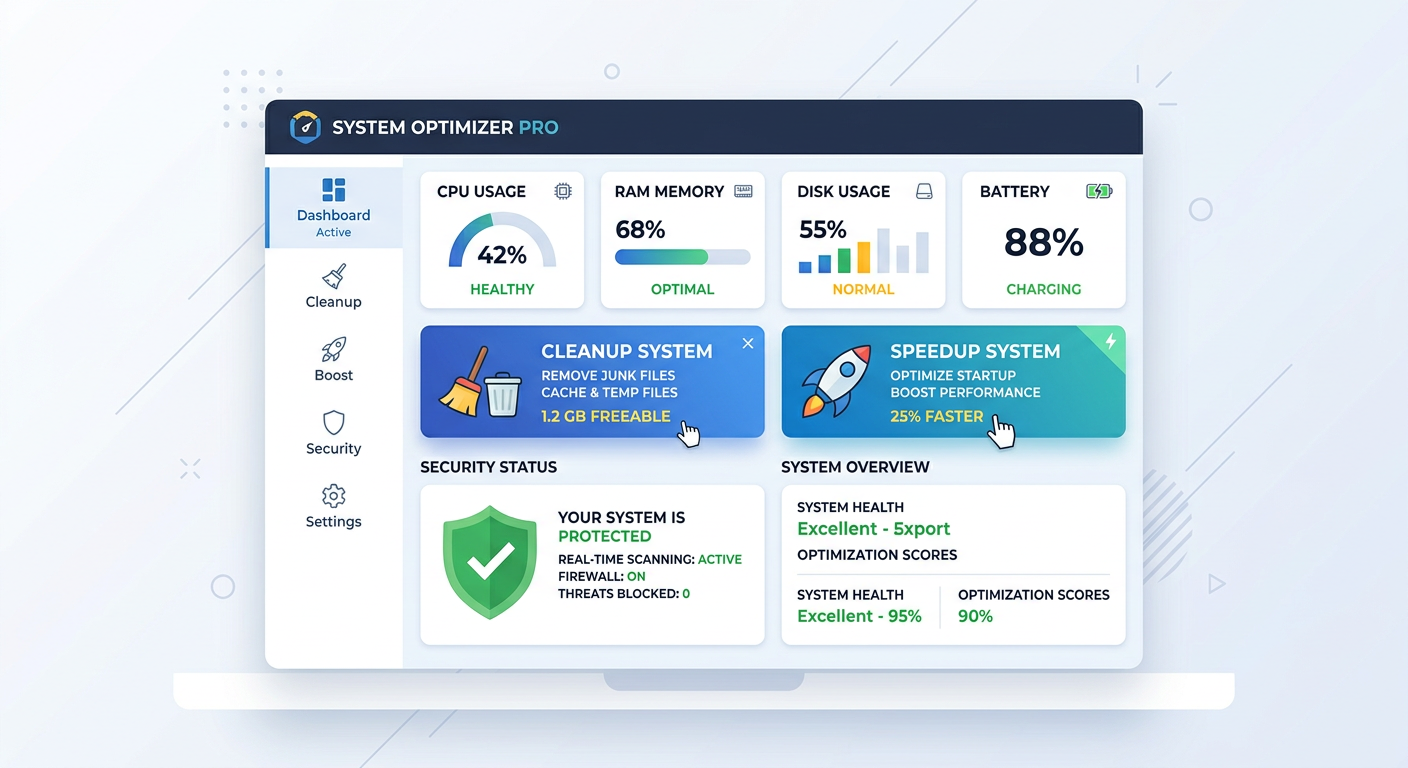
The one-click Cleanup feature exemplifies the platform's user-centric design philosophy. Rather than forcing users to navigate complex menus or understand technical distinctions between cache types, registry entries, and temporary files, 360 Total Security analyzes the entire system and presents a simple, unified cleanup interface. A single click initiates a comprehensive cleaning process that removes junk files, clears browser traces, eliminates obsolete registry entries, and frees up disk space—often recovering 5-20 GB on typical systems. The process completes in minutes and provides clear before/after metrics showing exactly how much space was recovered and which areas were optimized.
The Speedup feature tackles performance optimization from multiple angles simultaneously. It identifies and allows users to disable unnecessary startup programs that extend boot times, manages running processes to free memory for active applications, and optimizes network settings for improved connection speeds. The interface categorizes startup items by impact—clearly marking which programs significantly slow boot times versus those with minimal effect—empowering even non-technical users to make informed optimization decisions. Many users report boot time reductions of 30-50% after their first speedup optimization.
Built-in specialized tools round out the optimization suite: the File Shredder securely deletes sensitive files beyond recovery, essential for protecting privacy when disposing of old hardware or sharing computers; the Disk Analyzer provides visual representations of storage usage, helping users identify space-consuming files and folders; and the Disk Defragmenter (for HDD systems) reorganizes fragmented data for improved read/write performance.
For users requiring enhanced privacy protection, 360 Total Security offers premium features including a VPN service for encrypted browsing and ad-blocking capabilities—though the core security and optimization functionality remains completely free, addressing the needs of the vast majority of users without requiring subscription fees.
User-Centric Design for Accessibility
Perhaps the most significant innovation in 360 Total Security is not any single technical feature but rather its holistic approach to user experience design. The platform recognizes that security software serves users, not the other way around, and that effective protection requires accessibility—making powerful security and optimization tools approachable for users of all technical skill levels.
The interface embodies this philosophy through its clean, intuitive dashboard that presents complex security and optimization functions in simple, action-oriented terms. Rather than overwhelming users with technical jargon, security scores, or dozens of configuration options, the main screen focuses on three primary actions: Check (run a security scan), Cleanup (free disk space), and Speedup (optimize performance). This simplification doesn't limit advanced users—detailed settings and granular controls remain accessible through clearly marked menus—but it ensures that basic protection and maintenance remain approachable for everyone.
Notification design reflects similar user-centric thinking. Unlike legacy security suites that interrupt users with frequent pop-ups about minor events, 360 Total Security employs minimal, non-intrusive notifications that appear only for genuinely important security events or completed scans. Users can customize notification preferences and scan schedules to align with their workflows, ensuring security processes happen transparently in the background rather than disrupting productivity.
The platform's design also acknowledges that different users have different needs and technical comfort levels. Preset security profiles—ranging from 'Maximum Protection' for users prioritizing security above all else to 'Balanced' for typical users to 'Performance' for gamers and power users—allow quick configuration without requiring deep understanding of individual security components. As users become more comfortable with the platform, they can gradually explore advanced features and customization options at their own pace.
What Are the Practical Steps to Secure and Optimize Your PC Today?
Understanding modern security requirements and identifying the right platform represents only the first step toward achieving a secure, high-performing PC. True digital safety and optimal performance result from combining the right foundational tools with proper configuration and consistent maintenance habits. This section provides actionable guidance for implementing comprehensive protection and establishing practices that maintain system health over the long term.
Implementing Your Core Security and Optimization Suite
The foundation of PC security begins with selecting and properly deploying a comprehensive protection platform. For users seeking the balance of robust security, system optimization, and user-friendly design discussed throughout this article, 360 Total Security offers an ideal starting point—and it's completely free for personal use.
Step 1: Download from the Official Source
Always obtain security software directly from the official vendor website to avoid modified or malicious versions distributed through third-party download sites. Visit 360totalsecurity.com and download the latest version. The installer is lightweight (typically under 2 MB) and downloads additional components during installation based on your system configuration.
Step 2: Perform Initial System Assessment
Immediately after installation, launch 360 Total Security and initiate a full system scan. This comprehensive analysis examines every file, running process, and system area for existing threats that may have infected your PC before protection was installed. The initial scan typically takes 20-45 minutes depending on your system's file count and storage capacity. During this time, the software also analyzes your system configuration, identifies optimization opportunities, and establishes a security baseline.
If threats are detected, follow the software's recommendations for quarantine or removal. Modern malware can be deeply embedded in system files, so allow the software to perform necessary remediation actions, which may include system restarts.
Step 3: Run Comprehensive Cleanup and Optimization
After securing your system from active threats, address accumulated performance issues through the integrated optimization tools. Click the Cleanup button to remove junk files, temporary data, and obsolete registry entries—this initial cleanup often recovers 5-20 GB of disk space on systems that haven't been regularly maintained. Next, use the Speedup feature to identify and disable unnecessary startup programs, optimize system services, and improve boot times.
Review the optimization recommendations carefully. While most suggestions can be safely applied, some startup programs may be essential for specific hardware (like graphics card control panels) or workflows. The interface clearly indicates the impact of each item, helping you make informed decisions.
Step 4: Configure Real-Time Protection and Schedules
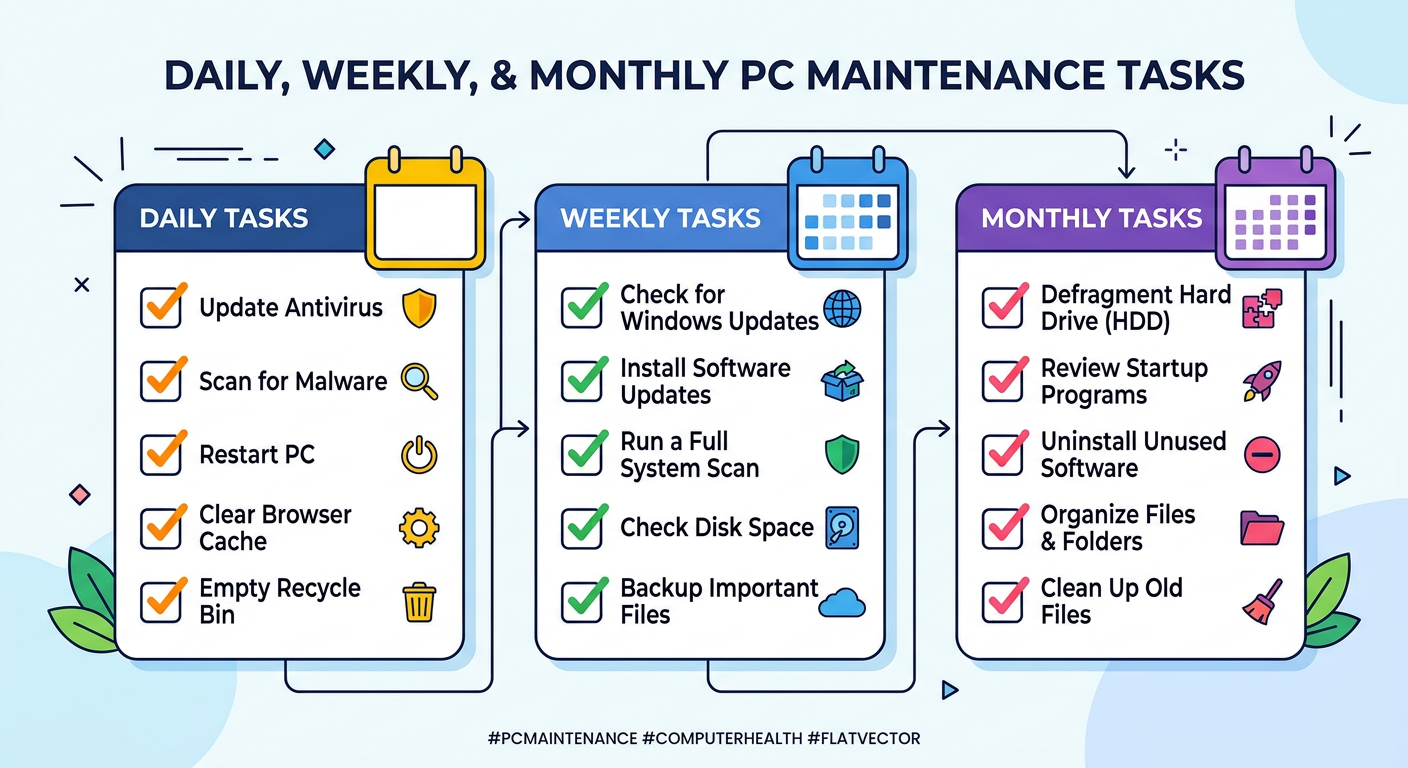
Navigate to the settings menu and verify that real-time protection is enabled—this ensures the software continuously monitors file operations, downloads, and program executions for threats. Configure automatic scan schedules to run quick scans daily (typically 5-10 minutes) and full scans weekly, scheduled during times when you're unlikely to be using your PC intensively, such as lunch breaks or evenings.
Enable automatic updates to ensure your protection remains current against emerging threats. 360 Total Security updates its threat databases and AI models multiple times daily, providing continuous protection enhancement without user intervention.
Establishing Ongoing Maintenance and Safe Habits
Even the most sophisticated security platform cannot compensate for risky user behavior or neglected system maintenance. Achieving long-term PC health requires establishing consistent maintenance routines and practicing safe computing habits that minimize exposure to threats.
Weekly Maintenance Routine:
- Run the Cleanup tool to remove accumulated temporary files and browsing data
- Check the Speedup dashboard for new startup programs that may have been added by recently installed software
- Review the security scan results to ensure no threats were detected
- Verify that automatic updates are functioning correctly
Practice Safe Browsing and Email Habits:
The majority of malware infections in 2026 result from user actions rather than sophisticated exploits. According to the Verizon 2026 Data Breach Investigations Report, 82% of security incidents involve a human element—clicking malicious links, opening infected attachments, or downloading compromised software. Developing cautious digital habits significantly reduces infection risk:
- Verify email sender authenticity before opening attachments or clicking links, especially for unexpected messages claiming urgency or requesting personal information
- Download software only from official sources—avoid third-party download sites that may bundle malware with legitimate applications
- Be skeptical of too-good-to-be-true offers, free premium software, or urgent security warnings from unfamiliar sources
- Hover over links before clicking to verify the actual destination URL matches the claimed link
- Use strong, unique passwords for each online account, ideally managed through a password manager
Keep Software Updated:
Operating system and application vulnerabilities represent major attack vectors for cyber criminals. Microsoft releases security patches monthly ("Patch Tuesday"), addressing newly discovered vulnerabilities in Windows and related software. Enable automatic Windows updates to ensure your system receives these critical patches promptly. Similarly, keep all installed applications—especially web browsers, PDF readers, and media players—updated to their latest versions.
360 Total Security's built-in software updater can help identify outdated applications and provide direct links to official updates, streamlining this maintenance task and reducing the risk of overlooking critical security patches.
Knowing When to Seek Advanced Help
While modern security platforms handle the vast majority of threats automatically, certain severe infections or persistent issues may require additional intervention. Recognizing when you need advanced assistance can prevent minor problems from escalating into data loss or system compromise.
Warning Signs of Severe Infection:
- Security software cannot start or is repeatedly disabled
- System becomes unresponsive or crashes frequently after apparent malware removal
- Ransomware encryption has occurred (files become inaccessible with ransom demands)
- Unusual network activity continues despite malware removal
- Browser redirects persist even after cleanup
For severe infections, particularly ransomware or rootkits that embed themselves deeply in the operating system, offline scanning tools may be necessary. These specialized utilities boot from USB drives or CDs, scanning the system before Windows loads and thus before malware can activate its defenses. 360 Total Security provides guidance for creating and using rescue media through its support documentation.
The platform's built-in support resources offer multiple avenues for assistance. The comprehensive knowledge base addresses common issues and questions, while community forums connect users with experienced members who can provide troubleshooting guidance. For persistent technical issues, the official support team can be reached through the help menu, providing expert assistance for complex problems.
Don't hesitate to seek help early when facing unusual system behavior or suspected security compromises. Early intervention typically results in simpler resolution and prevents escalation into more serious issues requiring professional data recovery services or system reinstallation.
Frequently Asked Questions
Does 360 Total Security really provide the same protection as paid antivirus suites?
Yes, 360 Total Security delivers enterprise-grade protection through its multi-engine architecture combining proprietary AI technology with advanced threat detection. Independent testing by AV-TEST Institute in 2026 demonstrated that its detection rates for both known and zero-day malware match or exceed many premium security suites. The platform's cloud-based threat intelligence and behavioral analysis provide proactive protection against emerging threats, while its lightweight design ensures this robust security doesn't compromise system performance. The core security and optimization features remain completely free, with optional premium features like VPN available for users requiring enhanced privacy tools.
Will security software slow down my gaming performance?
Modern security platforms like 360 Total Security are specifically designed to minimize performance impact during resource-intensive activities. The software includes an intelligent gaming mode that automatically detects when you launch games or other demanding applications, temporarily reducing background scanning activity, suppressing non-critical notifications, and prioritizing system resources for your active application. Independent benchmarks show that 360 Total Security typically reduces gaming frame rates by less than 2%—an imperceptible difference—while maintaining full real-time protection. For maximum performance, you can also manually enable silent mode before gaming sessions, which further reduces the security software's resource footprint.
How often should I run system cleanup and optimization tools?
For optimal system performance, run the Cleanup tool weekly to remove accumulated temporary files, browser cache, and junk data that can consume gigabytes of storage over time. The Speedup optimization should be performed whenever you notice slower boot times or system responsiveness, typically every 2-4 weeks, as newly installed software often adds startup programs without explicit user approval. However, 360 Total Security can automate these maintenance tasks through scheduled optimization, running cleanup and speedup operations during system idle time without requiring manual intervention. Most users find that weekly automated cleanup combined with monthly manual speedup reviews maintains excellent system performance without excessive maintenance burden.
Can I trust a free security platform with my personal data and privacy?
Reputable free security platforms like 360 Total Security generate revenue through optional premium features and enterprise licensing rather than selling user data or compromising privacy. The software operates with complete transparency: it collects anonymous threat intelligence data to improve detection algorithms (which files are malicious, attack patterns, etc.) but does not access, transmit, or monetize personal files, browsing history, or sensitive information. Users maintain full control over data sharing preferences through privacy settings. The platform's privacy policy clearly outlines data practices, and its widespread adoption by millions of users worldwide—including security-conscious organizations—demonstrates its trustworthiness. For users requiring absolute privacy assurance, the optional VPN feature provides encrypted browsing and IP masking, though this premium feature requires a subscription.
Conclusion: Taking Control of Your Digital Security and Performance
The evolution of PC security in 2026 reflects a fundamental shift in user expectations and threat landscapes. Traditional antivirus software, with its resource-intensive scanning, reactive protection models, and narrow focus on malware detection, no longer meets the comprehensive needs of modern PC users. Today's effective security solution must seamlessly integrate proactive, AI-enhanced threat detection with powerful system optimization tools, all delivered through an intuitive interface that respects both system resources and user time.
360 Total Security exemplifies this modern approach, combining multi-engine protection, comprehensive optimization capabilities, and user-centric design into a unified platform that addresses the full spectrum of PC health—security, performance, and maintenance. Its lightweight architecture proves that robust protection and powerful optimization need not come at the cost of system performance, while its free availability ensures that effective security remains accessible to all users regardless of budget.
However, technology alone cannot guarantee digital safety. Achieving lasting security and optimal performance requires combining the right foundational tools with proper configuration, consistent maintenance habits, and safe computing practices. By implementing the practical steps outlined in this article—deploying comprehensive protection, establishing regular maintenance routines, and practicing cautious digital behavior—you take control of your PC's security and performance rather than reacting to problems after they occur.
The threat landscape will continue evolving, and cyber criminals will develop increasingly sophisticated attack methods. But by choosing modern, proactive security platforms and maintaining vigilant digital habits, you can stay ahead of emerging threats while enjoying the smooth, responsive computing experience that modern hardware promises. Your PC's security and performance are not competing priorities—with the right approach, they reinforce each other, creating a computing environment that is both safe and enjoyable.
About the Author
Digital Security Analyst with over 12 years of experience in cybersecurity research, malware analysis, and system optimization. Specializes in evaluating security platforms and translating complex technical concepts into actionable guidance for everyday users. Has contributed to numerous cybersecurity publications and maintains active involvement in the information security community, staying current with emerging threats and protection technologies.