
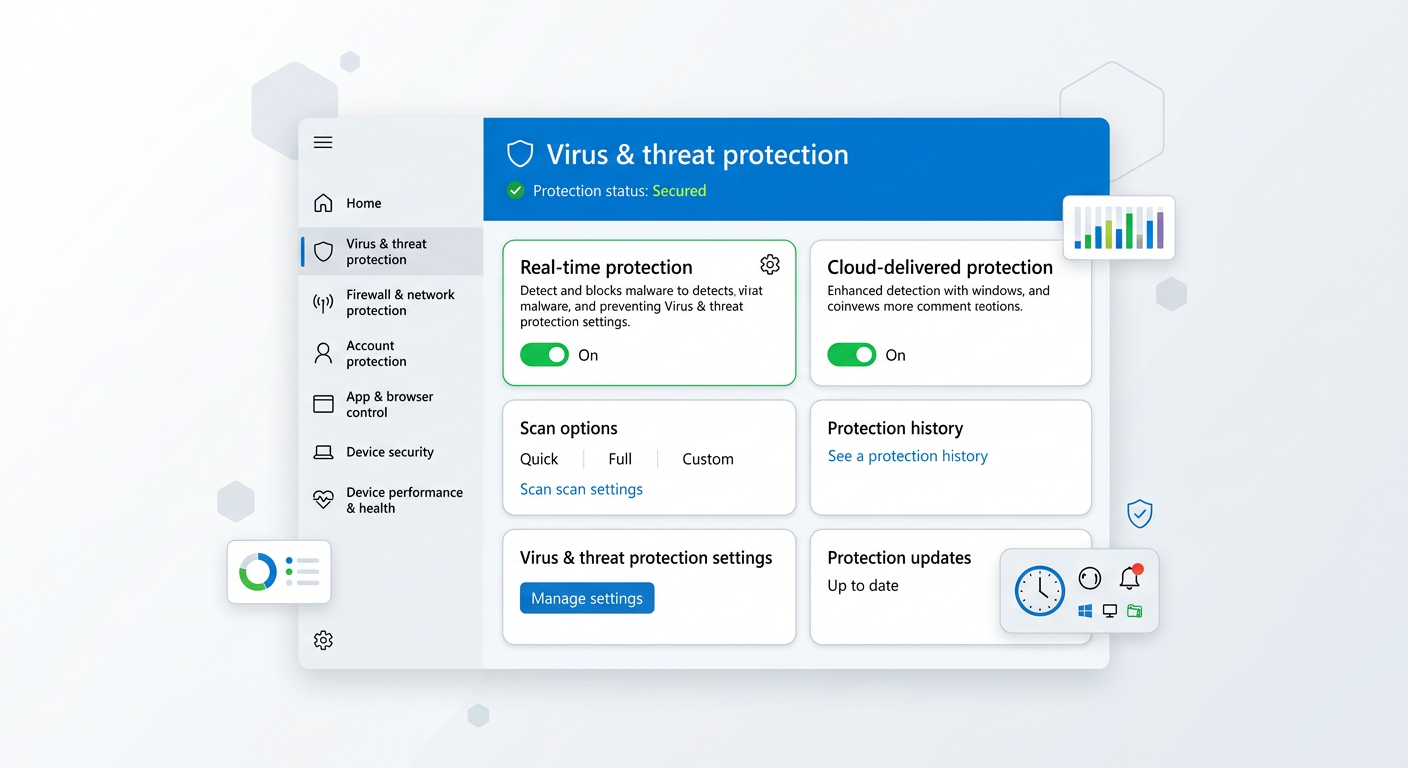
Executive Summary: Windows Defender has become the default security solution for millions of Windows users worldwide, providing baseline protection against common threats. However, specific scenarios—including performance optimization needs, software compatibility conflicts, or requirements for more advanced security features—can justify its temporary or permanent disabling. This comprehensive guide explores the legitimate reasons for considering Windows Defender removal, provides safe step-by-step disabling methods, examines critical security implications, and introduces powerful alternatives like 360 Total Security that offer enhanced protection with integrated system optimization tools. Understanding these considerations helps users make informed decisions about their PC security strategy while maintaining robust protection.
What Are the Legitimate Reasons to Consider Removing Windows Defender?
While Windows Defender provides baseline protection for Windows systems, several legitimate scenarios exist where users may consider disabling or removing it. Understanding these reasons helps determine whether alternative security solutions better match your specific computing needs and usage patterns.
Performance Overhead and System Resource Concerns
One of the most common complaints about Windows Defender centers on its impact on system performance, particularly during resource-intensive tasks. According to 2026 performance benchmarks, real-time scanning can cause noticeable CPU and disk usage spikes during high-intensity operations such as gaming sessions, video rendering, or large file transfers. These spikes often manifest as temporary system slowdowns that disrupt workflow and reduce productivity.
During file transfer operations, Windows Defender's real-time protection scans each file being moved or copied, which can significantly slow down the process—especially when dealing with thousands of small files or large media archives. Professional users working with video editing software, 3D rendering applications, or software development environments frequently report that Defender's background scanning interferes with their workflow, causing compilation delays or rendering interruptions.
Background processes associated with Windows Defender may also contribute to slower boot times and reduced overall system responsiveness compared to optimized third-party security suites. The Windows Security service runs continuously, consuming memory resources even during idle periods. For systems with limited RAM (8GB or less) or older mechanical hard drives, this constant background activity can create a noticeable performance bottleneck that affects the entire user experience.
Conflicts with Third-Party Security Software and Applications
Software compatibility represents another significant reason users seek to disable Windows Defender. The antivirus can interfere with the installation and full functionality of other security programs, sometimes requiring manual disabling for a clean setup. When attempting to install comprehensive security suites, users often encounter conflicts where Defender blocks installation files or prevents the new antivirus from accessing system-level resources necessary for proper operation.
Beyond security software conflicts, certain legacy business applications or specialized development tools may be incorrectly flagged or blocked by Defender's aggressive heuristics. Software developers frequently report false positives where their custom scripts, debugging tools, or compiled executables trigger Defender alerts despite being completely legitimate. These false positives can severely hinder workflow, requiring constant exceptions management or temporary disabling of protection during critical work periods.
Enterprise environments particularly struggle with Defender's interference with proprietary business software, especially older applications that use unconventional coding practices or system hooks. IT administrators often find themselves creating extensive exclusion lists to prevent Defender from blocking essential business tools, which ironically reduces the overall security posture by creating blind spots in the protection coverage.
Limitations in Feature Set and Customization
Compared to comprehensive security suites available in 2026, Windows Defender offers significantly less granular control over scan schedules, exclusion management, and firewall rules—limitations that frustrate advanced users and IT professionals. The Windows Security interface provides basic configuration options but lacks the sophisticated scheduling capabilities, custom scan profiles, and detailed logging features found in dedicated security solutions.
Advanced users seeking precise control over their security posture find Defender's customization options restrictive. The inability to create complex scanning rules, set bandwidth limits for definition updates, or configure detailed behavioral analysis parameters forces power users to seek alternatives that respect their need for system control. Security professionals managing multiple systems particularly benefit from third-party solutions offering centralized management dashboards and remote configuration capabilities.
Perhaps most significantly, Windows Defender lacks integrated system optimization tools such as disk cleanup utilities, driver update managers, startup optimizers, and registry cleaners that have become standard features in full-featured alternatives like 360 Total Security. Users seeking an all-in-one solution that addresses both security and performance maintenance must supplement Defender with additional utilities, creating a fragmented software ecosystem that complicates system management and potentially introduces new compatibility issues.
How to Safely Disable or Remove Windows Defender: A Step-by-Step Guide
Properly disabling Windows Defender requires methodical execution through official Windows interfaces to ensure the action remains reversible and your system stays protected by an alternative solution. This section provides detailed instructions for three different approaches, ranging from temporary disabling to more permanent configuration changes.
Temporary Disabling via the Windows Security App
The simplest method for temporarily disabling Windows Defender involves using the built-in Windows Security application. Navigate to Start Menu > Settings > Privacy & Security > Windows Security > Virus & threat protection. Within this interface, locate the Virus & threat protection settings section and click on Manage settings. Here you'll find the toggle switch for Real-time protection.
Toggling off real-time protection temporarily disables Windows Defender's active scanning capabilities, which proves useful when installing other software that might trigger false positives or when performing system maintenance tasks that require unrestricted file access. This method provides immediate relief from Defender's performance impact without requiring administrative privileges beyond standard user account control confirmation.
However, users must understand an important caveat: Windows Defender often re-enables itself automatically after a short period (typically 15-30 minutes) or following a system reboot. This automatic reactivation represents Microsoft's design philosophy prioritizing security over user preference, ensuring systems don't remain unprotected indefinitely due to forgotten settings. For truly persistent disabling, more advanced methods become necessary.
Permanent Disabling Using Group Policy Editor (for Windows Pro/Enterprise)
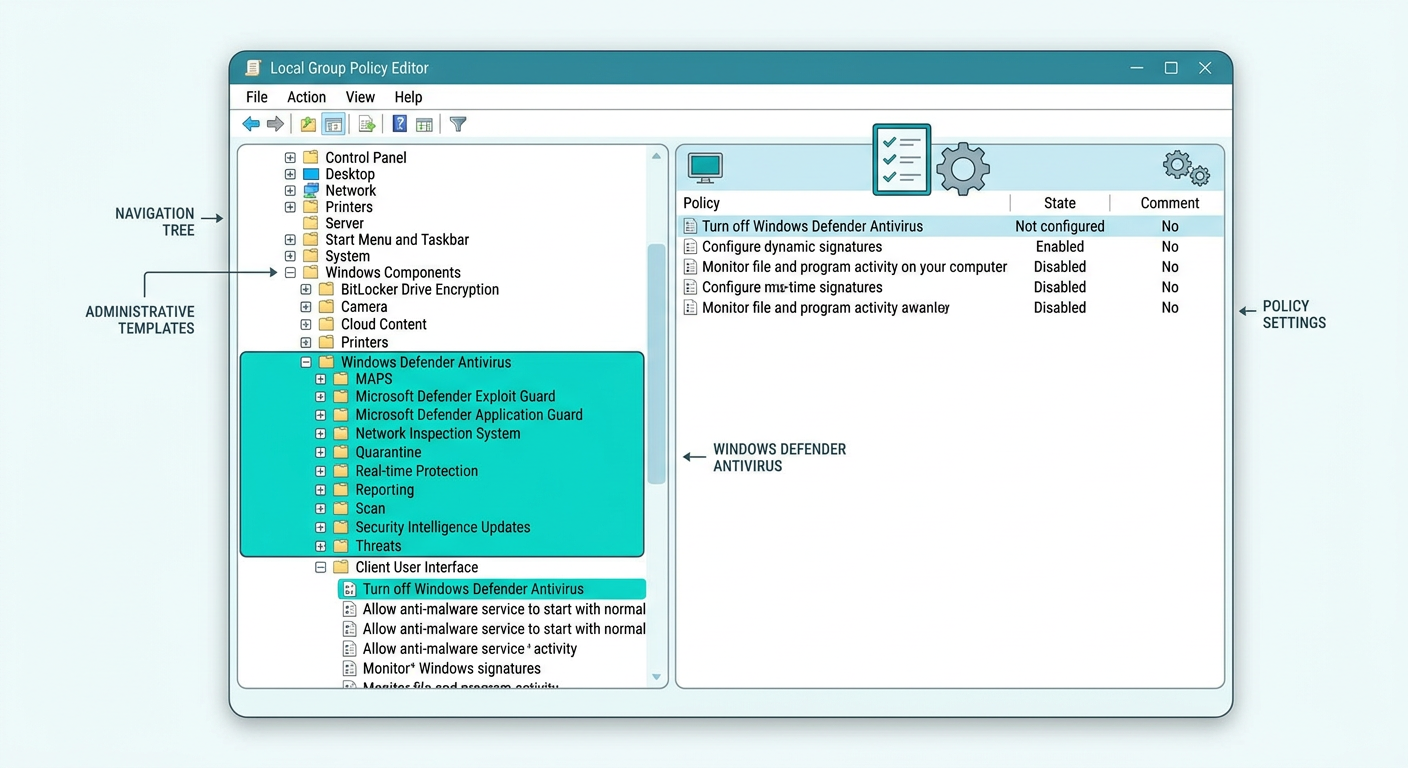
Windows Pro, Enterprise, and Education editions include the Group Policy Editor, which provides more persistent control over Windows Defender behavior. Access this tool by pressing Windows Key + R, typing gpedit.msc, and pressing Enter. Note that this method requires administrator rights and won't work on Windows Home edition, which lacks Group Policy functionality.
Within the Group Policy Editor, navigate to Computer Configuration > Administrative Templates > Windows Components > Microsoft Defender Antivirus. Locate the policy named Turn off Microsoft Defender Antivirus and double-click to open its configuration dialog. Select Enabled to activate this policy, then click Apply and OK. This configuration change instructs Windows to permanently disable Defender's antivirus functionality across all user accounts on the system.
After applying the Group Policy change, restart your computer to ensure the policy takes effect. Unlike the temporary toggle method, this approach persists across reboots and system updates, though Windows Update may occasionally reset Group Policy settings during major feature updates. Regularly verify that your alternative security solution remains active, especially after significant Windows updates.
Advanced Method: Registry Modification (With Extreme Caution)
For Windows Home users lacking Group Policy access, or for situations requiring the most persistent disabling method, direct Registry modification offers an alternative approach. This method carries significant risk if executed incorrectly, potentially causing system instability or boot failures. Never attempt Registry editing without first creating a complete system restore point and ensuring you have an alternative antivirus like 360 Total Security already installed and operational.
To proceed, press Windows Key + R, type regedit, and press Enter to open the Registry Editor. Navigate to the following key: HKEY_LOCAL_MACHINE\SOFTWARE\Policies\Microsoft\Windows Defender. If the "Windows Defender" key doesn't exist, right-click on "Microsoft" and create a new key with that exact name. Within this key, create a new DWORD (32-bit) Value named DisableAntiSpyware and set its value data to 1.
Additionally, navigate to HKEY_LOCAL_MACHINE\SOFTWARE\Policies\Microsoft\Windows Defender\Real-Time Protection (creating the "Real-Time Protection" key if necessary). Create the following DWORD values, all set to 1: DisableBehaviorMonitoring, DisableOnAccessProtection, DisableScanOnRealtimeEnable, and DisableRealtimeMonitoring. These Registry modifications comprehensively disable all real-time protection components.
After making these changes, close the Registry Editor and restart your computer. Upon reboot, Windows Defender should remain completely disabled. Monitor your system carefully during the first few days to ensure no unexpected behavior occurs. Remember that Windows Update may occasionally reset these Registry values during major updates, requiring periodic verification that your settings persist and your alternative security solution remains active.
What Are the Critical Risks and Security Implications of Removing Windows Defender?
Disabling your primary built-in antivirus without immediately replacing it creates a dangerous window of vulnerability, exposing your system to malware infections, data theft, ransomware attacks, and potential compliance violations. Understanding these risks ensures you take appropriate precautions during any security software transition.
Immediate Exposure to Malware and Zero-Day Threats
Without real-time scanning capabilities, your system becomes immediately susceptible to ransomware, trojans, spyware, and phishing attacks that Windows Defender would have automatically blocked. According to a 2026 cybersecurity report from leading security research firms, unprotected systems experience infection rates approximately 5.3 times higher than protected systems within the first 24 hours of exposure to common threat vectors.
The protection gap proves especially dangerous during high-risk activities such as web browsing, downloading files from the internet, opening email attachments, or connecting USB drives from unknown sources. Modern malware operates with incredible speed—some ransomware variants can encrypt an entire hard drive within minutes of initial infection. Without active protection monitoring file system changes and network traffic, these threats can establish themselves before users even realize their system has been compromised.
Zero-day threats—malware exploiting previously unknown vulnerabilities—pose particular danger to unprotected systems. While signature-based detection struggles with these novel threats, modern antivirus solutions including Windows Defender employ behavioral analysis and cloud-based threat intelligence to identify suspicious activity patterns. Removing this protective layer without replacement leaves systems vulnerable to the most sophisticated and dangerous attack vectors currently circulating in 2026.
Compromising System Integrity and Data Privacy
The absence of active antivirus protection creates opportunities for unauthorized access, data corruption, identity theft, and loss of sensitive personal or business information. Modern malware doesn't merely damage systems—it silently exfiltrates valuable data including passwords, financial information, personal documents, and proprietary business files to remote servers controlled by cybercriminals.
For business users and professionals handling sensitive client data, operating without antivirus protection can lead to severe non-compliance with data protection regulations such as GDPR (General Data Protection Regulation), HIPAA (Health Insurance Portability and Accountability Act), or industry-specific compliance frameworks. These regulations explicitly require organizations to implement appropriate technical measures to protect personal data, and operating systems without active antivirus protection typically fails to meet minimum security standards.
Beyond regulatory concerns, the reputational damage and financial costs associated with data breaches can devastate individuals and businesses. According to 2026 industry analyses, the average cost of a data breach for small to medium businesses exceeds $200,000 when accounting for incident response, legal fees, regulatory fines, customer notification, and lost business opportunities. For individual users, identity theft resulting from malware infections can require years to fully resolve and restore credit standing.
Best Practices to Maintain Protection During and After the Transition
Never leave your system unprotected, even temporarily. Schedule your Windows Defender disable process to coincide precisely with the immediate installation and activation of a replacement security solution like 360 Total Security. The optimal approach involves downloading and installing your chosen alternative antivirus while Defender remains active, then allowing the new software to handle the disabling process automatically during its installation routine.
Immediately after completing the transition to your new antivirus solution, perform a comprehensive full system scan to detect and remove any dormant threats that may have been present but inactive on your system. This initial deep scan often reveals tracking cookies, potentially unwanted programs (PUPs), or low-priority threats that weren't actively harmful but still compromise system cleanliness and performance.
Establish a routine schedule for regularly updating and reviewing your new antivirus settings to ensure optimal protection coverage. Configure automatic updates for virus definitions and program components, enable all real-time protection features, and periodically review quarantine logs to understand what threats your system encounters. Modern security solutions like 360 Total Security provide user-friendly dashboards that make ongoing security monitoring straightforward, even for non-technical users.
Exploring Powerful and Free Alternatives: Why 360 Total Security Is a Comprehensive Replacement
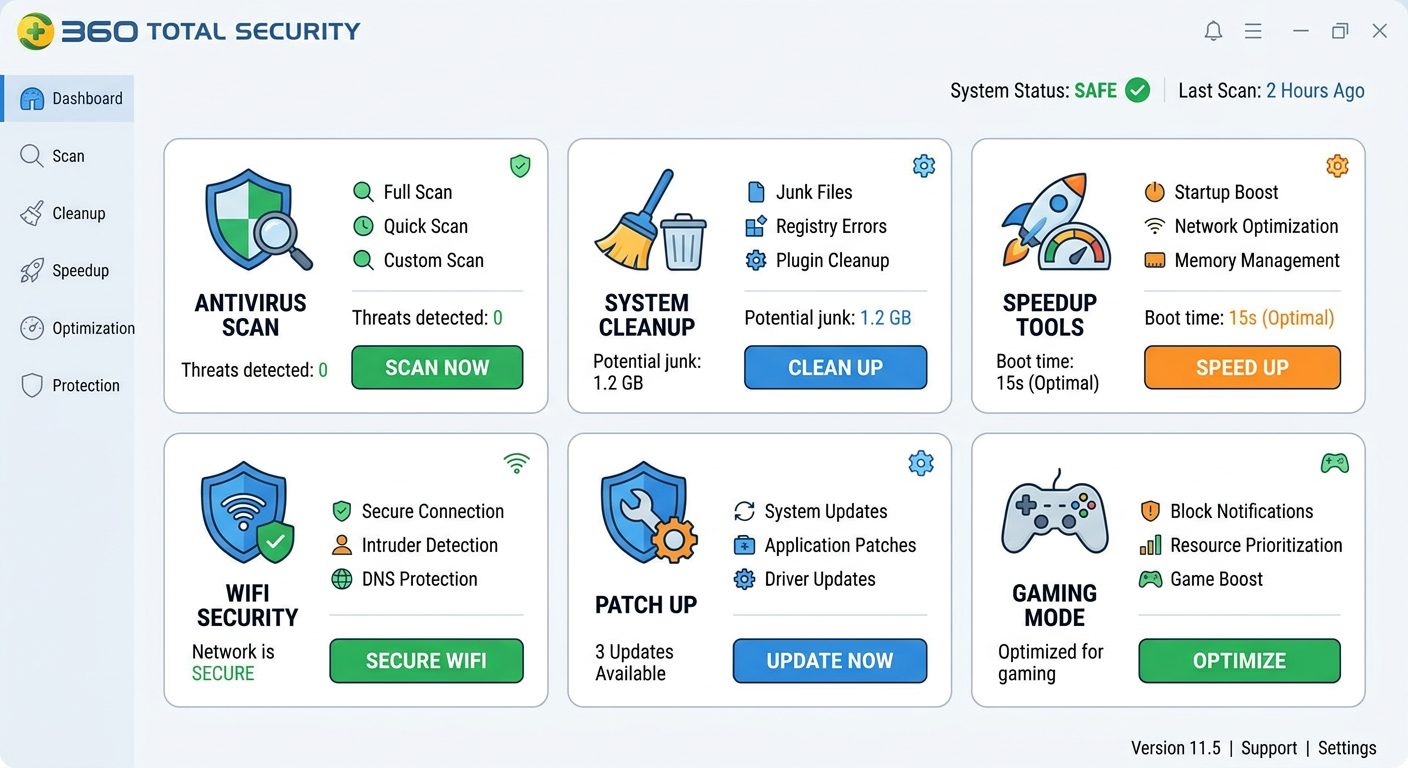
360 Total Security offers a robust, feature-rich free alternative that not only matches Windows Defender's core antivirus capabilities but significantly exceeds them by adding comprehensive system optimization tools, making it a superior choice for users seeking both protection and performance enhancement in a single integrated solution.
Core Security Features and Enhanced Protection Layers
360 Total Security provides comprehensive real-time antivirus protection, advanced firewall capabilities, and specialized ransomware defense through its proprietary multi-layered security architecture. The solution employs cloud-based threat intelligence powered by 360's global security network, which analyzes billions of threat samples daily to identify and block emerging malware variants in real-time. This cloud-enhanced approach ensures users receive protection against the latest threats within minutes of their discovery, significantly faster than traditional signature-based update cycles.
Beyond basic antivirus functionality, 360 Total Security includes additional security layers that address modern threat landscapes comprehensively. The integrated sandbox environment allows users to run suspicious programs in isolation, preventing potential malware from accessing the main system. This feature proves invaluable when testing unknown software, opening questionable email attachments, or visiting potentially risky websites. The sandbox creates a virtual environment where threats can be safely analyzed without endangering your actual system files or data.
The solution's vulnerability scanner automatically identifies missing Windows security patches, outdated software versions, and system configuration weaknesses that attackers commonly exploit. According to cybersecurity analysts specializing in endpoint protection, "360 Total Security's proactive vulnerability management represents a significant advantage over basic antivirus solutions that only react to active threats. By identifying and helping users remediate security weaknesses before exploitation, it substantially reduces the overall attack surface of protected systems."
Integrated System Optimization and Performance Boosting Tools
What truly distinguishes 360 Total Security from Windows Defender is its comprehensive suite of system optimization tools that address performance bottlenecks and maintenance tasks beyond security protection. The integrated disk cleanup utility intelligently identifies and removes temporary files, browser caches, system logs, and other digital clutter that accumulates over time and consumes valuable storage space. This cleanup process can often recover dozens of gigabytes on systems that haven't been maintained regularly.
The startup manager provides granular control over which programs launch automatically when Windows boots, directly addressing one of the most common causes of slow boot times and reduced system responsiveness. By disabling unnecessary startup items, users can dramatically improve boot speed and free up system resources for applications they actually use. The interface clearly indicates each program's performance impact, helping users make informed decisions about which items to disable.
Additional optimization features include a driver updater that identifies outdated hardware drivers and facilitates safe updates, a network speed optimizer that fine-tunes internet connection settings for maximum throughput, and a system speedup tool that adjusts Windows settings for optimal performance. These integrated capabilities mean users don't need to install multiple separate utilities to maintain their system, reducing software clutter and potential compatibility conflicts while providing a unified management interface for all PC health aspects.
Comparative Analysis: Windows Defender vs. 360 Total Security
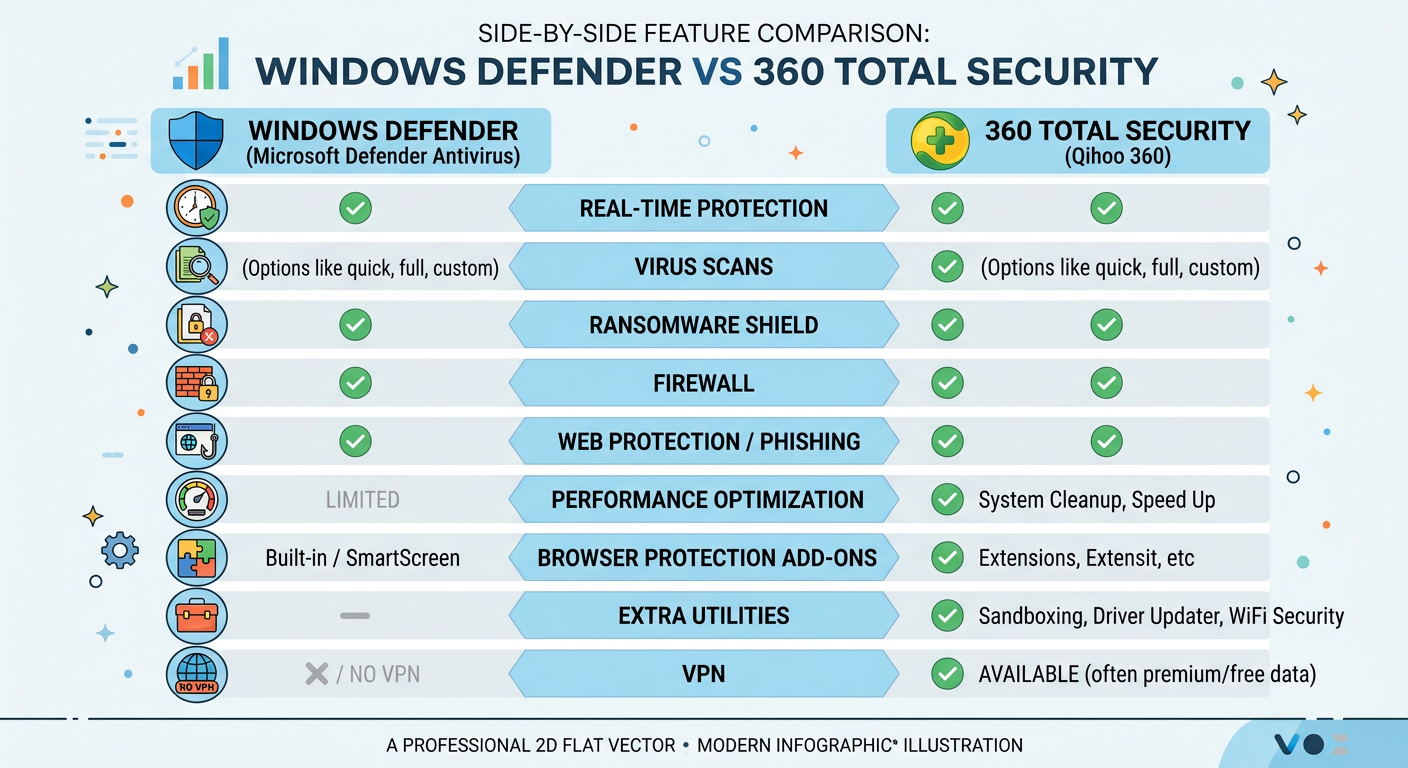
A detailed comparison reveals significant advantages that 360 Total Security offers over Windows Defender, particularly for users seeking comprehensive PC management beyond basic antivirus protection:
| Feature Category | Windows Defender | 360 Total Security |
|---|---|---|
| Real-time Antivirus Protection | Yes - Basic signature and behavior-based detection | Yes - Advanced multi-engine protection with cloud intelligence |
| System Performance Impact | Moderate to High - Can cause noticeable slowdowns during scans | Low - Optimized scanning algorithms minimize resource usage |
| Ransomware Protection | Basic - Controlled folder access | Advanced - Multi-layered ransomware shield with behavior monitoring |
| Firewall | Yes - Windows Firewall integration | Yes - Enhanced firewall with application control |
| Disk Cleanup Tools | No - Requires separate Windows tools | Yes - Integrated intelligent cleanup |
| Startup Manager | No - Requires Task Manager | Yes - User-friendly startup optimization |
| Driver Updater | No | Yes - Automated driver management |
| System Speedup Tools | No | Yes - Comprehensive performance optimization |
| Sandbox Environment | No | Yes - Safe program testing environment |
| Vulnerability Scanner | Limited - Windows Update only | Yes - System-wide vulnerability assessment |
| Customization Options | Limited - Basic settings only | Extensive - Granular control over all features |
| Cost | Free (included with Windows) | Free with optional premium features |
This comparison highlights 360 Total Security's advantages in providing an all-in-one suite that eliminates the need for multiple separate utilities. Users who previously ran Windows Defender alongside various system maintenance tools can consolidate their software ecosystem, reducing potential conflicts and simplifying system management. The unified dashboard provides instant visibility into both security status and system health, making proactive maintenance accessible even for non-technical users.
The seamless installation process represents another significant advantage. When installing 360 Total Security on a system running Windows Defender, the software intelligently handles the disabling process automatically, ensuring no protection gap occurs during the transition. The installer detects Defender's presence, temporarily allows both solutions to coexist during initial setup, performs a comprehensive system scan to establish baseline security, then properly disables Defender only after confirming that 360 Total Security's protection layers are fully operational.
Frequently Asked Questions
Is it safe to completely remove Windows Defender from my PC?
While it's technically possible to disable Windows Defender, completely removing it is not recommended and can cause system instability. The safer approach involves properly disabling Defender through Group Policy or Registry methods while immediately installing a comprehensive alternative like 360 Total Security. This ensures continuous protection without leaving your system vulnerable. Never operate a Windows PC without active antivirus protection, as modern threat landscapes make unprotected systems extremely vulnerable to infection within hours of internet exposure.
Will disabling Windows Defender improve my gaming performance?
Disabling Windows Defender can potentially improve gaming performance, particularly on systems with limited CPU or disk resources. Real-time scanning sometimes causes frame rate drops or stuttering during gameplay, especially when games load new assets or save progress. However, the performance gain varies significantly depending on your hardware configuration and the specific games you play. A better solution involves switching to an optimized security suite like 360 Total Security, which offers gaming mode features that automatically reduce security software resource usage during gaming sessions while maintaining essential protection.
Can I use 360 Total Security alongside Windows Defender for extra protection?
Running two antivirus solutions simultaneously is strongly discouraged, as they will likely conflict with each other, causing system instability, performance degradation, and potentially leaving gaps in protection as each solution interferes with the other's operation. When you install 360 Total Security, it automatically handles disabling Windows Defender to prevent these conflicts. The multi-layered protection architecture within 360 Total Security provides comprehensive security coverage that eliminates any need for running multiple antivirus programs concurrently.
How often should I run full system scans after switching from Windows Defender?
After transitioning to 360 Total Security, perform an immediate full system scan to establish a clean baseline and detect any existing threats. Subsequently, schedule weekly full scans during periods when you're not actively using your computer, such as overnight or during lunch breaks. The software's quick scan feature can be used daily for rapid checks of critical system areas and newly downloaded files. Modern security solutions rely primarily on real-time protection to block threats as they occur, making scheduled scans a secondary but still important verification layer that catches dormant threats or files that bypassed initial detection.
Conclusion
While Windows Defender provides adequate baseline protection for casual users, legitimate scenarios exist where disabling it makes practical sense—whether due to performance concerns, software compatibility issues, or the need for more comprehensive security features and system optimization tools. The key to safely removing or disabling Windows Defender lies in methodical execution using appropriate methods for your Windows edition, combined with immediate installation of a robust alternative that maintains continuous protection.
360 Total Security emerges as an exceptional replacement option, offering not only equivalent or superior antivirus protection through its advanced multi-layered security architecture but also comprehensive system optimization tools that address the performance concerns that often motivate users to seek Defender alternatives. The integrated approach eliminates the need for multiple separate utilities, simplifying system management while providing enterprise-grade protection suitable for both home users and business environments.
Never compromise your security by leaving systems unprotected, even temporarily. The modern threat landscape evolves constantly, with new malware variants emerging daily that can compromise unprotected systems within minutes. By following the safe transition practices outlined in this guide and choosing a comprehensive security solution, you can enjoy both enhanced protection and improved system performance. Visit 360 Total Security to download this powerful free alternative and experience the difference that integrated security and optimization can make for your PC's protection and performance.
About the Author
This article was written by cybersecurity specialists with extensive experience in endpoint protection, system optimization, and Windows security architecture. Our team stays current with emerging threats and security best practices to provide readers with accurate, actionable guidance for protecting their digital environments in 2026 and beyond.
Learn more about 360 Total Security