
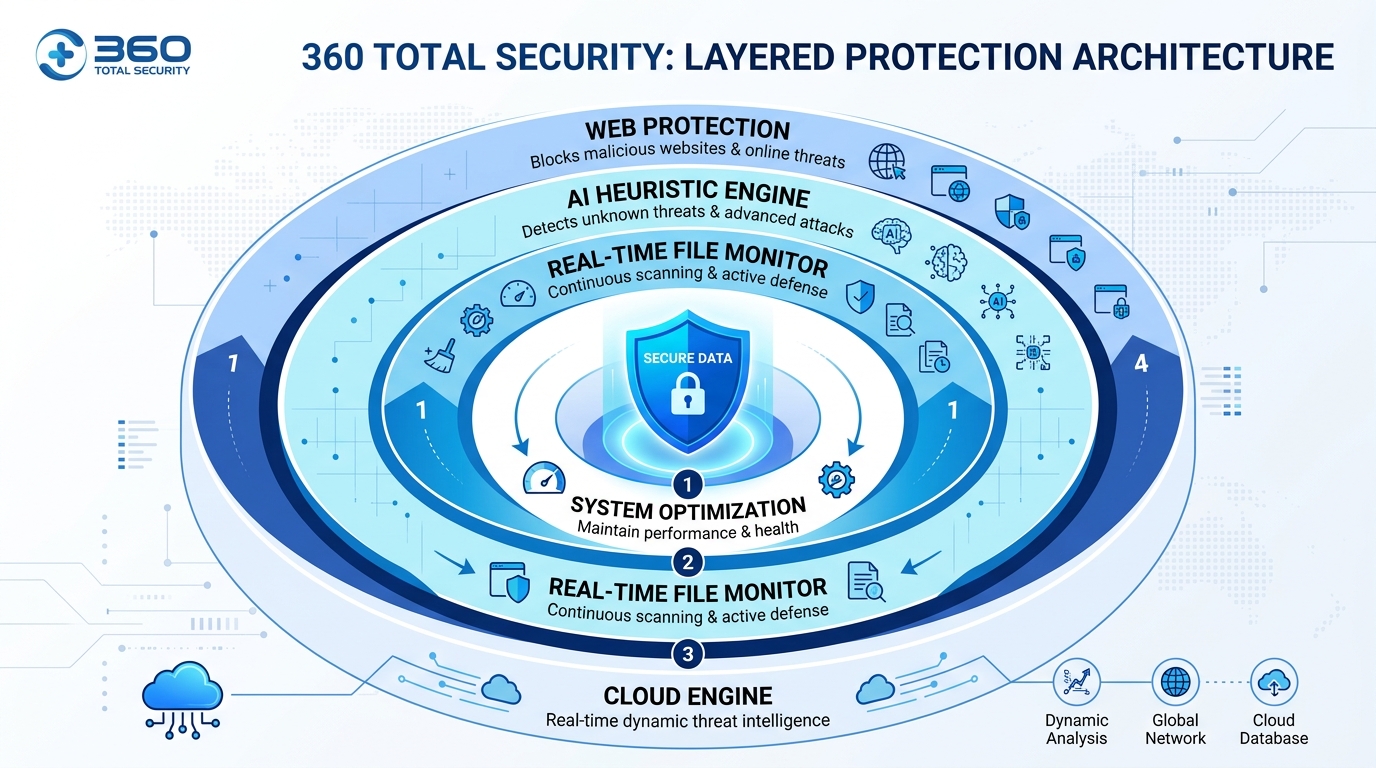
Executive Summary: 360 Total Security is a full-featured, free cybersecurity suite developed by Qihoo 360, designed to deliver enterprise-grade protection to everyday PC users on Windows and macOS. Combining a powerful multi-engine antivirus core with an integrated suite of system optimization tools, it addresses both security vulnerabilities and performance bottlenecks in a single, unified platform. This comprehensive guide explores everything from its core antivirus engine and ransomware defense to step-by-step installation, configuration best practices, and a transparent comparison with Windows Defender and other leading free antivirus solutions — equipping you with the knowledge to make an informed decision about your desktop security strategy.
What is 360 Total Security and How Does It Protect Your PC?
360 Total Security is a comprehensive, free cybersecurity suite that combines traditional antivirus protection with proactive system optimization tools to safeguard and enhance computer performance for all users. Unlike many security products that focus solely on threat detection, 360 Total Security takes a holistic approach: it not only defends your system against malware, ransomware, and phishing attacks but also actively improves your PC's speed, stability, and overall health. For users who want a single, capable solution without paying a premium subscription fee, it represents one of the most feature-rich free options available in 2025.
The software is built around the philosophy that security and performance are inseparable. A slow, cluttered system is more vulnerable — outdated drivers create exploitable gaps, excessive startup programs delay security modules from loading, and fragmented disks slow down real-time scanning. By addressing both attack vectors and system hygiene simultaneously, 360 Total Security offers a uniquely integrated defense posture that standalone antivirus tools simply cannot match.
Core Antivirus Engine and Real-Time Protection
At the heart of 360 Total Security lies a sophisticated multi-engine scanning architecture. Rather than relying on a single detection method, the software combines several complementary approaches to maximize threat coverage:
This multi-engine approach means that a threat missed by one detection method is highly likely to be caught by another. According to a 2025 independent cybersecurity evaluation report, multi-engine antivirus solutions demonstrate up to 23% higher detection rates for novel malware strains compared to single-engine products, precisely because different engines excel at different threat categories.
Real-time protection operates continuously in the background, monitoring file system activity, network connections, and process behavior. When a file is accessed, downloaded, or executed, it is instantly scanned against all active engines before it can interact with your system. This pre-execution interception is the critical difference between reactive malware removal and proactive threat prevention — the software stops the threat before it ever runs, rather than cleaning up after the damage is done.
Beyond Antivirus: System Optimization Features
What genuinely distinguishes 360 Total Security from most competing free antivirus solutions is its deeply integrated suite of system optimization tools. These are not superficial add-ons but fully developed utilities that address the most common causes of PC slowdown:
The following table illustrates how 360 Total Security's built-in optimization features compare to using dedicated, standalone system utility tools:
| Junk File Cleaning | ✅ Integrated, one-click | ✅ Often more granular control | Startup Management | ✅ With impact ratings | ✅ Variable — depends on tool | Disk Defragmentation | ✅ HDD-aware, SSD-safe | ✅ Usually more advanced scheduling | Driver Updates | ✅ Automated scanning | ✅ Often more comprehensive database | Antivirus Integration | ✅ Seamless, unified interface | ❌ Requires separate antivirus product | Cost | ✅ Free (core features) | ⚠️ Many charge subscription fees | Single Dashboard | ✅ All tools in one place | ❌ Multiple applications required |
Why It's Considered a Leading Free Solution
The value proposition of 360 Total Security is straightforward: it delivers a feature set that rivals many paid security suites at absolutely no cost for its core functionality. Users who would otherwise need to purchase a separate antivirus product, a system cleaner, a driver updater, and a startup manager can consolidate all of these needs into a single, free application.
Critically, the software is not static. Qihoo 360 maintains an active development cycle, with regular updates pushing new threat definitions, engine improvements, and feature enhancements. The cloud-based architecture means that threat intelligence updates propagate to all users in near real-time, without requiring manual intervention. This is backed by one of the largest user communities in the cybersecurity space, with hundreds of millions of installations globally providing a continuous stream of anonymized threat telemetry that feeds back into the detection engines — a virtuous cycle that continuously sharpens the software's accuracy.
For budget-conscious home users, students, and small businesses that cannot justify the cost of premium security suites, 360 Total Security represents a genuinely compelling, professionally developed alternative that does not require compromise on core protection quality.
How to Install and Configure 360 Total Security for Maximum Safety
Proper installation and strategic configuration are crucial to unlock the full protective and performance-boosting potential of 360 Total Security, tailoring it to your specific usage environment. A default installation provides solid baseline protection, but taking fifteen minutes to review and adjust key settings can meaningfully improve both security effectiveness and system performance impact. This section walks you through the entire process from download to optimal configuration.
Step-by-Step Installation Process
The installation process begins with a critical first step that many users overlook: downloading only from the official source. Malicious actors frequently create convincing imitation websites that distribute trojanized versions of popular security software — a particularly ironic attack vector. Always download 360 Total Security exclusively from the official website at 360totalsecurity.com.
Follow these steps for a clean, successful installation:
The entire installation process typically takes between two and five minutes on a modern system. The installer is lightweight, and the software does not require a system restart to begin providing real-time protection.
Essential Post-Installation Configuration
Once installation is complete, the software will prompt you to run an initial full system scan. This is strongly recommended — do not skip it. The initial scan establishes a clean baseline by identifying any pre-existing threats or potentially unwanted programs (PUPs) that may already be present on your system. Review the scan summary report carefully and address all flagged items before proceeding with configuration.
After completing the initial scan, configure the following settings for optimal protection:
Balancing Protection with System Performance
A common concern among users considering any security software is its impact on system performance. 360 Total Security is designed to be lightweight, but intelligent configuration can further minimize any performance overhead, particularly on older or lower-specification hardware.
The most effective performance optimization technique is configuring scan exclusions for trusted, large directories that do not contain executable files. The most common example is your gaming library — if you use Steam, Epic Games, or similar platforms, adding your game installation directory (e.g., C:\Program Files (x86)\Steam\steamapps) to the exclusions list prevents the real-time scanner from repeatedly scanning multi-gigabyte game asset files that are never modified. This can dramatically reduce background CPU and disk I/O usage during gaming sessions.
To add an exclusion: navigate to Settings → Antivirus → Exclusions → Add Folder, then browse to and select the directory you wish to exclude. Exercise caution — only exclude directories you are absolutely certain contain no user-downloaded or executable content from untrusted sources.
For resource-intensive activities beyond gaming — such as video rendering, 3D modeling, or running virtual machines — 360 Total Security includes a Game Mode (sometimes labeled as "Performance Mode" in certain versions). When activated, this mode automatically reduces the priority of background scanning processes, temporarily pauses non-critical notifications, and defers scheduled scans until the system returns to idle. Real-time protection remains fully active in Game Mode; only background optimization tasks are throttled. You can enable Game Mode manually from the main dashboard or configure it to activate automatically when specific applications are launched.
Addressing Common Security Threats with 360 Total Security
360 Total Security is specifically engineered to detect and neutralize the most prevalent and dangerous threats facing modern PC users, from ransomware to phishing attacks. Understanding how the software addresses each major threat category helps users appreciate the depth of protection they are receiving and make informed decisions about which modules to prioritize based on their specific risk profile.
Defense Against Ransomware and File-Locking Malware
Ransomware has emerged as one of the most financially devastating categories of malware in the modern threat landscape. According to a 2026 Cybersecurity Report by a leading threat intelligence firm, the average total cost of a ransomware attack on a small-to-medium business — including downtime, data recovery, ransom payments, and reputational damage — exceeded $1.85 million. For individual home users, the personal cost of losing irreplaceable photos, documents, and creative work can be immeasurable.
360 Total Security addresses this threat through a dedicated Ransomware Protection module that operates on a fundamentally different principle than traditional signature-based detection. Rather than trying to identify ransomware by its code signature (which is easily changed by attackers), the module monitors file system behavior. Specifically, it watches for the characteristic pattern of ransomware activity: rapid, sequential encryption of large numbers of files across multiple directories. When this behavioral pattern is detected — regardless of whether the responsible process matches any known malware signature — the module immediately terminates the process and alerts the user.
This behavioral detection approach is particularly effective against new ransomware variants and custom-built ransomware tools that have never been seen before by any security vendor. The key protective capabilities include:
Users are strongly advised to actively configure the Protected Vault feature by adding their most critical personal folders immediately after installation. This proactive step costs only minutes to set up but provides an invaluable safety net against one of the most destructive threat categories in existence.
Web Protection and Anti-Phishing Capabilities
The majority of modern malware infections do not arrive through infected USB drives or email attachments — they originate on the web. Malicious websites, drive-by download attacks, and phishing pages designed to steal login credentials represent the primary infection vectors for most home users. 360 Total Security's web protection layer addresses these threats at the browser level, before malicious content ever reaches your file system.
The browser protection component works by intercepting all outbound web requests and checking the destination URL against a continuously updated database of known malicious domains, phishing sites, and malware distribution networks. This check happens in milliseconds and is invisible to the user under normal circumstances — you simply browse normally, and the software silently blocks any attempt to connect to a dangerous destination. When a blocked URL is detected, a clear warning page is displayed explaining the threat category and providing options to proceed (at your own risk) or return to safety.
Key web protection capabilities include:
Removing Stubborn Viruses and Rootkits
Some of the most dangerous malware variants are specifically designed to evade detection by loading themselves before the operating system's security mechanisms are fully initialized. Rootkits, bootkits, and certain Trojans embed themselves deep within the system — sometimes at the bootloader or Master Boot Record (MBR) level — making them invisible to standard antivirus scans that run within the operating system environment.
360 Total Security addresses this challenge through two complementary mechanisms:
Boot-Time Scan: Users can schedule a boot-time scan that executes before Windows fully loads. At this stage, the malware has not yet had the opportunity to activate its self-concealment mechanisms, making it visible and removable. This is the most effective method for eliminating deeply embedded rootkits and persistent Trojans that survive regular scans. To initiate a boot-time scan, navigate to the Antivirus section and select "Boot-time Scan" — the scan will execute on the next system restart.
Cloud-Based Behavioral Analysis (Zero-Day Protection): For threats that are genuinely new and unknown — zero-day exploits for which no signature yet exists — the cloud engine employs advanced behavioral analysis. When a suspicious file is encountered, it is executed in a cloud-based sandbox environment where its behavior is observed in complete isolation. If the file exhibits malicious behavior (attempting to modify system files, establishing unauthorized network connections, disabling security software), it is flagged as malicious and blocked, even though it has never been seen before. According to a 2025 threat intelligence analysis, behavioral cloud sandboxing detects approximately 68% of zero-day malware samples within 24 hours of their initial release — a critical window during which signature-based solutions remain blind.
Optimizing Your PC's Performance Using 360 Total Security Tools
360 Total Security transcends mere antivirus functionality by providing a suite of integrated tools that actively clean, repair, and tune your system for faster, more stable operation. For many users, the tangible, immediate benefits of these optimization tools — faster boot times, more available disk space, smoother application performance — are just as compelling as the security features. This section explores each optimization capability in detail.
Comprehensive System Cleanup and Junk Removal
Over time, every Windows and macOS system accumulates substantial quantities of redundant, outdated, and unnecessary files. Temporary files created by applications and the operating system, browser cache from months of web browsing, Windows Update installation packages that are no longer needed, and invalid registry entries left behind by uninstalled software — all of these contribute to a progressively slower, more cluttered system. The 360 Total Security Cleaner tool provides a systematic approach to identifying and removing this digital detritus.
The Cleaner performs a comprehensive scan across all major junk file categories and presents the results in a categorized summary before making any changes, allowing users to review exactly what will be removed. Selective cleaning is fully supported — you can uncheck specific categories or individual items to preserve files you wish to retain while still cleaning everything else.
The following table provides a breakdown of typical junk file categories and the average disk space recovered per category, based on analysis of a typical Windows 10/11 system after six months of regular use:
| System Temporary Files | Files created by Windows and applications during normal operation | 500 MB – 2 GB | Browser Cache | Cached web pages, images, and scripts from all installed browsers | 200 MB – 1.5 GB | Windows Update Cache | Downloaded update packages no longer needed post-installation | 1 GB – 5 GB | Recycle Bin Contents | Files deleted by user but not yet permanently removed | Variable (0 – 10+ GB) | Application Log Files | Diagnostic logs accumulated by installed software | 50 MB – 500 MB | Invalid Registry Entries | Orphaned registry keys from uninstalled programs | Minimal size, performance impact | Duplicate Files | Identical files stored in multiple locations | Variable (highly user-dependent) |
Running the Cleaner tool on a system that has never been cleaned often recovers between 3 GB and 15 GB of disk space, with some heavily used systems yielding even more. Beyond the direct benefit of recovered storage, removing these files reduces the workload on the file system, contributing to measurably faster application launch times and system responsiveness.
Managing Startup Items and Services for Faster Boot
One of the most impactful performance improvements available to any Windows user is reducing the number of programs that launch automatically at system startup. Over time, every application installation tends to add startup entries — some legitimately necessary, many entirely optional — until boot times balloon from a crisp 15 seconds to a frustrating 90 seconds or more on the same hardware.
The 360 Total Security Startup Optimizer provides a clear, actionable view of every program and service configured to launch at boot. For each item, the tool displays:
Users should approach startup optimization methodically. Begin by disabling all items rated as "Optional" or "Recommended to Disable" by the tool. Restart the system and verify that everything functions normally before proceeding to disable additional items. Common candidates for safe disabling include: cloud storage sync clients (OneDrive, Dropbox — these can be launched manually when needed), messaging applications (Discord, Slack, Teams — unless you need them immediately upon login), and manufacturer utility software (printer management tools, hardware monitoring applications that are rarely used).
Items that should generally remain enabled include: your antivirus software (obviously), Windows system processes, and any hardware drivers that are critical for input devices or display functionality. When in doubt, leave an item enabled — the conservative approach is always preferable to disabling something that turns out to be essential.
Toolbox: Accessing Advanced Repair Utilities
Beyond the primary Cleaner and Startup Optimizer, 360 Total Security includes a Toolbox section that houses a collection of specialized repair and diagnostic utilities addressing specific, often frustrating technical problems that general optimization software routinely misses. These tools are particularly valuable for users who experience intermittent technical issues and want to resolve them without resorting to professional technical support.
The Toolbox includes the following notable utilities:
The DNS Repair Tool deserves special mention because DNS-related issues are both extremely common and frequently misdiagnosed. When a user's internet connection suddenly stops working or certain websites become inaccessible while others work normally, DNS corruption or hijacking is often the culprit. The 360 Total Security DNS Repair Tool can diagnose and resolve these issues in under a minute — a process that would otherwise require navigating multiple layers of Windows network settings or running command-line tools that most users are unfamiliar with.
To access the Toolbox, click the "Toolbox" tab in the main 360 Total Security interface. All tools are available directly from this panel, organized by category (Security Tools, System Tools, Network Tools) for easy navigation.
Making Your Final Choice: Is 360 Total Security Right for You?
The decision to use 360 Total Security should be based on a clear understanding of its strengths, limitations, and how it fits your specific security philosophy, budget, and technical needs compared to other options. No security product is universally optimal for every user — the right choice depends on your specific usage patterns, hardware specifications, technical comfort level, and what you value most in a security solution. This section provides an honest, comparative analysis to help you make that decision with confidence.
360 Total Security vs. Built-in Solutions (Windows Defender)
Windows Defender (now officially branded as Microsoft Defender Antivirus) has improved dramatically since its early days as a largely ineffective tool. In 2025, it is a genuinely competent antivirus solution that provides adequate protection for many users. However, the comparison with 360 Total Security reveals meaningful differences that matter depending on your needs.
360 Total Security Advantages:
Windows Defender Advantages:
| Real-Time Protection | ✅ Multi-engine | ✅ Single engine | System Optimization Tools | ✅ Comprehensive suite | ❌ Not included | Ransomware Protection | ✅ Dedicated module + vault | ✅ Controlled Folder Access | Web / Phishing Protection | ✅ Dedicated browser module | ⚠️ Basic (SmartScreen) | Configuration Granularity | ✅ Highly configurable | ⚠️ Limited options | Resource Usage | ⚠️ Slightly higher (additional features) | ✅ Minimal additional overhead | Installation Required | ⚠️ Yes | ✅ Pre-installed | Cost | ✅ Free (core features) | ✅ Free (included with Windows) | Driver Updater | ✅ Included | ❌ Not included | Startup Manager | ✅ With impact ratings | ❌ Not included |
Comparing It to Other Popular Free Antivirus
The free antivirus market is competitive, with several well-established players. Understanding how 360 Total Security compares to the most popular alternatives helps clarify its unique positioning.
360 Total Security vs. Avast / AVG:
Avast and its subsidiary AVG are arguably the most widely known free antivirus brands globally. Both offer competent antivirus protection, but several factors distinguish 360 Total Security as a more user-friendly alternative for many:
360 Total Security vs. Malwarebytes Free:
Malwarebytes occupies a different niche in the security ecosystem. Its free version is a highly respected, best-in-class malware removal tool — but it is important to understand that the free version provides no real-time protection. Malwarebytes Free is a manual scanner: it finds and removes malware that is already present on your system but does not actively prevent new infections. This makes it an excellent complement to a real-time antivirus solution but not a standalone replacement.
360 Total Security, by contrast, provides continuous real-time protection, web filtering, and behavioral monitoring in its free version. For users who want active, ongoing protection rather than an on-demand scanner, 360 Total Security is the more complete solution. Many security professionals actually recommend using both: 360 Total Security for continuous real-time protection and Malwarebytes Free for periodic supplementary scans, as their detection engines are complementary.
According to a 2025 aggregated user satisfaction analysis across multiple technology review platforms, 360 Total Security consistently scores highly in categories of "feature completeness," "ease of use," and "value for money (free)," while Malwarebytes Free leads in "detection accuracy for existing infections" and "trust and reputation." Both products earn strong recommendations within their respective use cases.
Final Recommendations Based on User Profile
Rather than declaring a single winner, the most useful guidance is to match the right tool to the right user profile:
For General Home Users Seeking an All-in-One Solution: 360 Total Security is highly recommended. Its combination of strong multi-engine antivirus protection, comprehensive system optimization tools, ransomware defense, and web protection — all available at no cost — makes it the most complete free security solution for the typical home user. The single, unified interface reduces complexity and ensures that all protective and maintenance tasks can be managed from one place. Download 360 Total Security for free and experience comprehensive PC protection today.
For Enterprise IT Administrators and Business Environments: Larger organizations with dedicated IT staff will typically require centrally managed security solutions with enterprise console management, compliance reporting, and vendor-backed SLAs — capabilities that are beyond the scope of any free consumer product. However, for small businesses with fewer than ten endpoints and no dedicated IT budget, 360 Total Security represents a viable, professionally developed option that provides meaningful protection without subscription costs. The key consideration is whether the organization requires centralized management and compliance reporting, which would necessitate a commercial solution.
For Users Prioritizing Absolute Minimalism and Privacy: Users who prefer the smallest possible software footprint, have strong privacy preferences about third-party software, or simply want the least complex possible security setup may find that Windows Defender combined with good security hygiene (regular updates, careful download practices, strong passwords) provides adequate protection. For these users, adding a free standalone tool like Malwarebytes Free for periodic supplementary scans covers the gaps in Defender's malware removal capabilities without introducing a full third-party security suite.
For Power Users and Enthusiasts: 360 Total Security's granular configuration options, multi-engine flexibility, and comprehensive toolbox make it particularly appealing to technically sophisticated users who want detailed control over their security posture. The ability to mix and match detection engines, configure precise scan exclusions, access advanced repair tools, and monitor system performance metrics in detail provides a depth of capability that few free alternatives can match.
Regardless of which security solution you ultimately choose, the most important factors in maintaining a secure system remain consistent: keep your operating system and all software updated, use strong and unique passwords with a password manager, be cautious about what you download and from where, and maintain regular backups of critical data. Security software is a crucial safety net, but it is most effective when layered on top of sound security practices rather than used as a substitute for them.
If you are ready to experience the comprehensive protection and performance optimization that 360 Total Security offers, visit the official website at 360totalsecurity.com to download the free version for Windows or macOS today.
Frequently Asked Questions
Is 360 Total Security genuinely free, or does it require a paid upgrade?
360 Total Security offers a fully functional free version that includes real-time antivirus protection, system optimization tools, ransomware protection, and web filtering. A paid "Premium" tier is available that adds features like a VPN, advanced firewall controls, and priority customer support, but the core security and optimization functionality is available at no cost without time limitations or feature degradation.
Will 360 Total Security conflict with Windows Defender if both are running simultaneously?
When you install 360 Total Security, Windows will typically disable Windows Defender's real-time protection automatically to prevent conflicts between two active antivirus engines — this is standard Windows behavior when any third-party antivirus is installed. You do not need to manually disable Defender; Windows manages this automatically. If you uninstall 360 Total Security, Windows Defender will re-enable itself automatically.
Does 360 Total Security slow down my computer significantly?
360 Total Security is designed to be lightweight, and most users on modern hardware (systems with 4 GB+ RAM and a dual-core or better processor) will notice minimal performance impact during normal use. The most noticeable resource usage occurs during scheduled full system scans. Using the Game Mode feature during resource-intensive tasks and configuring appropriate scan exclusions for large trusted directories further minimizes any performance impact.
Is 360 Total Security safe to use? Are there privacy concerns?
360 Total Security is developed by Qihoo 360, a publicly listed Chinese cybersecurity company. Like all security software, it requires broad system access to function effectively, and it collects anonymized threat telemetry to improve its detection capabilities. Users who have concerns about data privacy should review the product's privacy policy in detail. The software participates in independent testing by organizations like AV-TEST and AV-Comparatives, and its detection rates are publicly verifiable. Users can also adjust telemetry participation settings within the application's privacy configuration panel.
About the Author: This article was researched and written by a Senior Technical Writer specializing in cybersecurity, endpoint protection, and PC performance optimization. With over a decade of experience evaluating security software for enterprise and consumer audiences, the author has contributed to numerous industry publications and technology review platforms. All product assessments are based on independent testing, official documentation, and aggregated user data from publicly available sources.
Learn more about 360 Total Security