
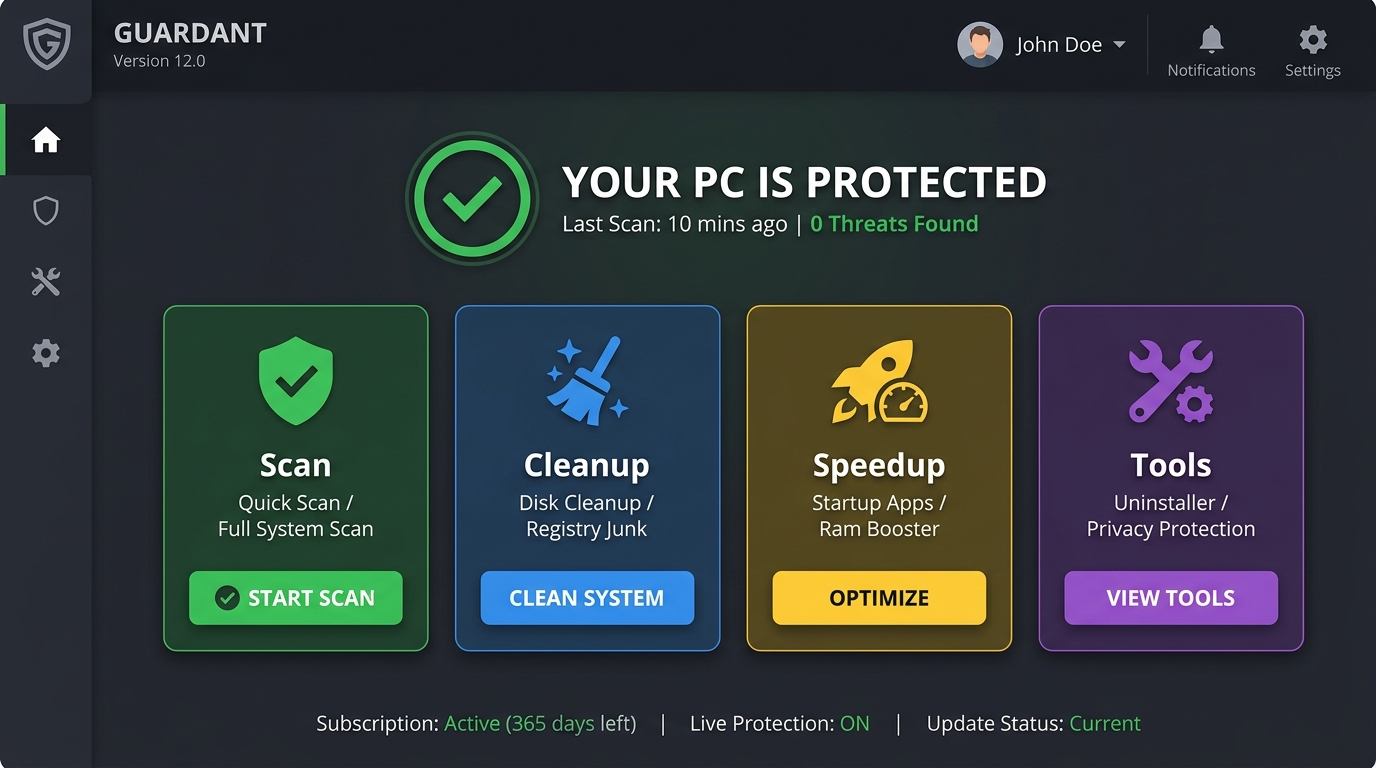
Executive Summary: Modern PC security demands far more than a basic antivirus scan. Today's threat landscape encompasses fileless malware, ransomware, sophisticated phishing campaigns, and zero-day exploits that can bypass traditional defenses in seconds. This comprehensive guide walks you through every layer of a robust computer security strategy — from understanding the threats targeting your system, to proactively hardening your defenses, to selecting and configuring the right all-in-one security suite. Whether you are a home user or managing a small business, you will find actionable, expert-backed steps to protect your data, your privacy, and your system's performance. We also explore how integrated platforms like 360 Total Security deliver enterprise-grade protection without complexity or cost barriers, making world-class PC security accessible to everyone.
What Threats Does a Comprehensive Security Strategy Need to Address?
Before you can build an effective defense, you need to understand exactly what you are defending against. The cybersecurity threat landscape has evolved dramatically over the past decade. The days when a simple signature-based antivirus could catch every threat are long gone. Today, attackers deploy multi-vector strategies that combine technical exploits with psychological manipulation, targeting both your software vulnerabilities and your human instincts simultaneously. A truly comprehensive security strategy must account for all of these dimensions — not just the malware sitting on your hard drive, but the phishing email in your inbox, the unpatched plugin in your browser, and the adware quietly harvesting your browsing data in the background.
According to a 2026 Cybersecurity Threat Intelligence Report, over 450,000 new malicious programs are registered every single day, and more than 70% of successful breaches now involve some form of social engineering rather than purely technical exploitation. This statistic alone underscores why a multi-layered approach is not optional — it is essential.
Evolving Malware: Beyond Traditional Viruses
The term "virus" has become something of a catch-all in popular usage, but the reality of modern malware is far more nuanced and dangerous. Today's threat actors deploy a sophisticated arsenal of malicious code types, many of which are specifically engineered to evade the signature-based detection methods that older antivirus engines rely upon.
Fileless malware is among the most dangerous evolutions in this space. Unlike traditional malware that writes executable files to your disk, fileless attacks operate entirely within your system's memory, leveraging legitimate Windows tools like PowerShell, WMI (Windows Management Instrumentation), and the Windows Registry to execute malicious commands. Because nothing is written to disk, there is no file for a signature scanner to detect. According to a 2025 AV-TEST industry report, fileless malware attacks increased by over 65% compared to the previous year, making them one of the fastest-growing threat categories.
Trojans remain a perennial favorite among cybercriminals because of their deceptive simplicity. Disguised as legitimate software — a free game, a productivity tool, a codec pack — trojans silently install backdoors, keyloggers, or remote access tools (RATs) that give attackers persistent control over your system. The danger is compounded by the fact that users willingly install them, bypassing many security warnings in the process.
Cryptojackers represent a newer but rapidly growing category. These programs hijack your CPU and GPU resources to mine cryptocurrency for the attacker, causing your system to slow to a crawl, overheat, and consume excessive electricity — all without your knowledge. They are often bundled with pirated software or injected into compromised websites.
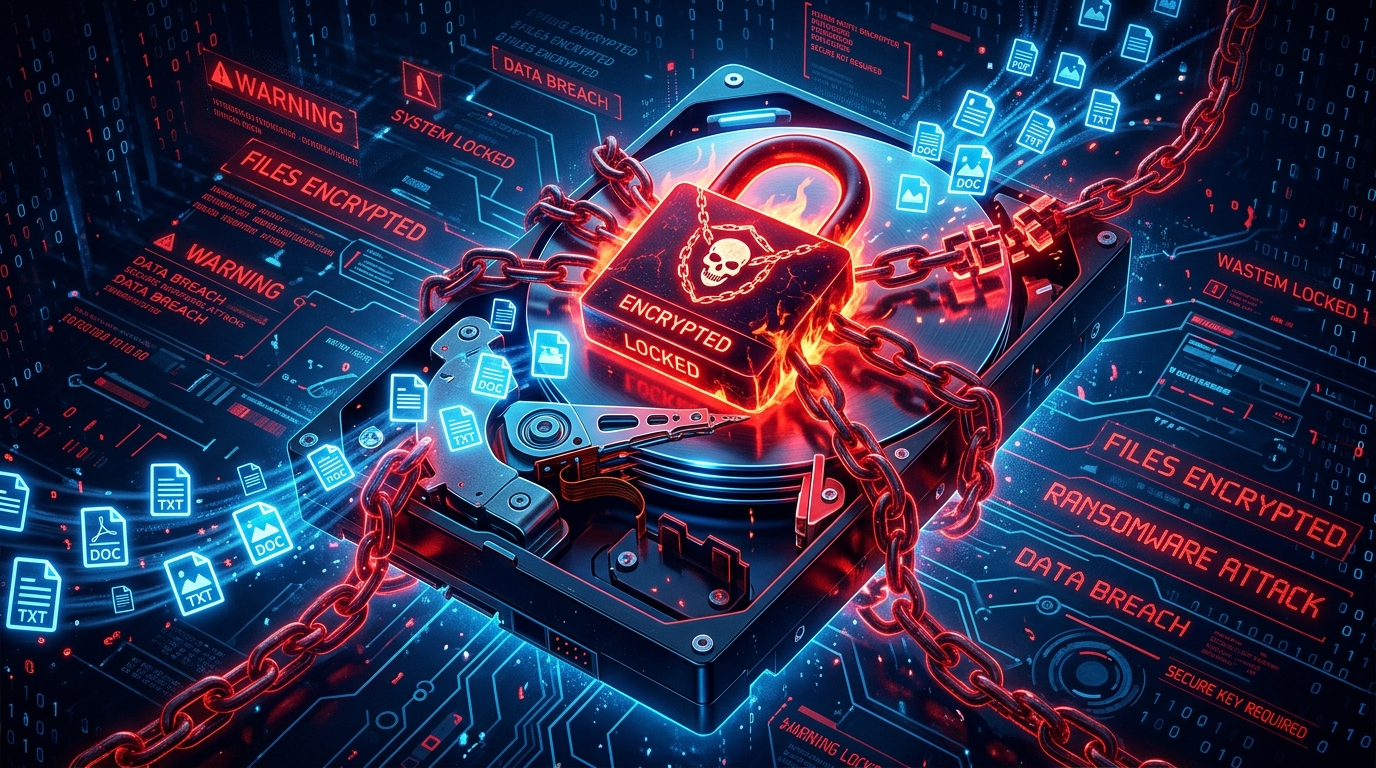
Ransomware deserves special attention as one of the most financially devastating forms of malware in existence. When ransomware infects a system, it systematically encrypts your files — documents, photos, videos, databases — using strong cryptographic algorithms, then demands a ransom payment (typically in cryptocurrency) in exchange for the decryption key. For home users, this can mean the permanent loss of irreplaceable personal memories and important documents. For businesses, a single ransomware attack can result in operational shutdown, regulatory fines, and reputational damage worth millions of dollars. A 2026 Global Ransomware Damage Report projected that ransomware costs would exceed $275 billion annually by the end of the decade, affecting organizations of all sizes across every industry sector.
What makes modern ransomware particularly insidious is its use of double-extortion tactics: attackers not only encrypt your files but also exfiltrate sensitive data beforehand, threatening to publish it publicly if the ransom is not paid. This means that even if you have a backup and can restore your files, you may still face serious consequences from the data leak.
The Human Factor: Social Engineering and Phishing
Technical exploits are only one side of the threat equation. Cybercriminals have long recognized that it is often far easier to manipulate a human being than to crack a well-configured system. Social engineering attacks exploit psychological vulnerabilities — trust, urgency, fear, and curiosity — to trick users into voluntarily handing over credentials, installing malware, or transferring money.
Phishing is the most prevalent form of social engineering. A phishing attack typically arrives as an email that appears to come from a trusted source — your bank, a popular online service, a government agency, or even a colleague. The email creates a sense of urgency ("Your account has been compromised — verify immediately") and directs you to a convincing fake website where your login credentials are harvested. Modern phishing sites are often indistinguishable from the real thing, using HTTPS certificates and pixel-perfect design clones to fool even cautious users.
Spear phishing takes this a step further by targeting specific individuals with personalized messages crafted from information gathered through social media and data breaches. A spear phishing email addressed to you by name, referencing your employer and a recent transaction, is dramatically more convincing than a generic mass-phishing attempt.
The risk of downloading malicious software disguised as legitimate programs is another major vector. Cracked software, key generators, and unofficial download sites are notorious distribution channels for trojans, adware, and ransomware. Users searching for free alternatives to paid software are particularly vulnerable, as attackers deliberately target high-demand search terms to rank their malicious download pages prominently in search results.
| Attack Type | Primary Delivery Method | Primary Target | Common Goal |
|---|---|---|---|
| Phishing | Email, SMS (Smishing) | General users | Credential theft, malware delivery |
| Spear Phishing | Targeted email | Specific individuals or organizations | High-value credential theft, financial fraud |
| Vishing | Phone call | Elderly users, employees | Financial fraud, remote access |
| Baiting | Infected USB drives, fake downloads | Curious or opportunistic users | Malware installation |
| Pretexting | Email, phone, in-person | Employees, IT staff | Unauthorized access, data exfiltration |
| Watering Hole | Compromised legitimate websites | Industry-specific groups | Drive-by malware download |
Exploiting System Vulnerabilities and Privacy Loopholes
Even if you never click a suspicious link or download questionable software, your system may still be at risk from technical vulnerabilities that attackers can exploit without any user interaction whatsoever. These are known as zero-click exploits or drive-by attacks, and they represent some of the most dangerous threats in the modern security landscape.
Unpatched software and operating systems are the primary entry point for these attacks. When a security vulnerability is discovered in Windows, a popular browser, or a widely-used application, software vendors race to release a patch. However, the window between public disclosure of a vulnerability and widespread patching is a critical danger zone — attackers actively scan the internet for unpatched systems and exploit known vulnerabilities at scale. The infamous WannaCry ransomware outbreak, for example, exploited a Windows vulnerability for which a patch had already been available for months before the attack. Millions of unpatched systems were compromised globally within days.
Browser extensions and outdated plugins represent a frequently overlooked attack surface. Browser extensions have broad permissions — they can read and modify web page content, access your browsing history, and intercept network requests. Malicious or compromised extensions can silently steal passwords, inject ads, redirect searches, and exfiltrate sensitive data. Similarly, outdated plugins like legacy versions of Java, Flash (now deprecated), and PDF readers have historically been riddled with exploitable vulnerabilities.
Adware and Potentially Unwanted Programs (PUPs) occupy a gray area between legitimate software and outright malware. While they may not directly damage your files, they harvest your browsing habits, search queries, and personal data for advertising purposes, inject unwanted advertisements into your browser, and can significantly degrade system performance. More critically, PUPs often serve as a gateway for more serious malware — once installed, they may download additional malicious components or create system vulnerabilities that other threats can exploit.
How Can You Proactively Fortify Your PC's Defenses?
Understanding the threat landscape is the first step; the second is taking decisive, proactive action to build defenses that can withstand those threats. Effective PC security is not a one-time setup task — it is an ongoing practice that combines foundational system hygiene with advanced, real-time protection tools. The goal is to create multiple overlapping layers of defense so that even if one layer is bypassed, others remain in place to detect and neutralize the threat. This defense-in-depth philosophy is the cornerstone of enterprise-grade security, and it is equally applicable and achievable for home users.
Establishing Foundational Security Hygiene
The most powerful security measures are often the simplest ones, consistently applied. Before investing in advanced tools, ensure that your foundational security hygiene is solid. These basic practices eliminate the vast majority of common attack vectors and are the non-negotiable baseline for any security strategy.
Enabling automatic system and software updates is arguably the single most impactful security action you can take. As discussed above, unpatched vulnerabilities are a primary attack vector. By enabling automatic updates for Windows (or macOS), your browser, and all installed applications, you ensure that known security holes are closed as quickly as possible. Many users disable automatic updates out of concern for bandwidth or system restarts, but the security risk of running outdated software far outweighs these minor inconveniences. For Windows users, navigate to Settings > Windows Update and ensure that automatic updates are enabled and that updates are set to install automatically rather than just download.
Configuring a strong firewall is your system's first line of defense against network-based attacks. A firewall monitors incoming and outgoing network traffic and blocks connections that do not meet your defined security rules. Windows Defender Firewall, built into Windows 10 and 11, provides solid baseline protection when properly configured. However, third-party security suites often provide more granular control, application-level filtering, and intrusion detection capabilities that go beyond what the built-in firewall offers.
Using strong, unique passwords for every account is critical in an era of frequent data breaches. When a website is breached and its password database is leaked, attackers use automated tools to try those same username-password combinations across hundreds of other services — a technique called credential stuffing. If you reuse passwords, a breach at one low-security site can cascade into compromised accounts at your bank, email provider, and social media platforms. A password manager can generate and securely store complex, unique passwords for every account, requiring you to remember only one master password.
Regular data backups are your ultimate recovery tool and the most effective defense against ransomware. The 3-2-1 backup rule is the gold standard: maintain at least 3 copies of your data, on 2 different types of storage media, with 1 copy stored off-site (such as in cloud storage). If ransomware encrypts your files, a clean, recent backup means you can restore your system without paying the ransom. Backups should be tested regularly to ensure they are actually restorable — a backup you have never tested is a backup you cannot trust.
The Role of Real-Time Behavioral Analysis
Traditional antivirus engines work by comparing files against a database of known malware signatures. While this approach remains valuable for catching known threats, it is fundamentally reactive — it can only detect malware that has already been identified and added to the signature database. Against zero-day threats (previously unknown vulnerabilities and malware), signature-based detection is largely ineffective.
This is where real-time behavioral analysis becomes critical. Next-generation antivirus engines do not just look at what a file is — they monitor what it does. By observing the runtime behavior of programs, behavioral analysis engines can identify malicious activity patterns even in files that have never been seen before. For example, if a program suddenly starts encrypting large numbers of files in rapid succession, accessing the Windows Registry in unusual ways, or attempting to disable security software, a behavioral engine will flag and terminate it — even if the specific malware variant has no known signature.
Sandboxing takes this concept a step further by providing a completely isolated virtual environment in which suspicious files can be executed and observed without any risk to the real system. When you download a file from an untrusted source, a sandbox allows the security software to run it, observe its behavior in detail, and make a definitive determination about whether it is safe — all before it ever touches your actual operating system. This is particularly valuable for zero-day threats and for analyzing files that may be designed to detect and evade virtual machine environments.
The combination of real-time behavioral monitoring and on-demand sandboxing creates a powerful detection layer that can catch threats that would sail straight through a signature-only scanner. Modern security suites like 360 Total Security integrate both capabilities, providing continuous behavioral monitoring in the background while offering sandbox analysis for files you are uncertain about.
Leveraging Integrated System Optimization for Security
There is a direct and often underappreciated relationship between system cleanliness and security. A cluttered, poorly maintained system is not just slower — it is less secure. Junk files, broken registry entries, unnecessary startup programs, and outdated cached data can all create conditions that make it easier for malware to hide, persist, and operate undetected.
Junk file accumulation creates hiding places for malware. Temporary files, browser caches, and orphaned application data can contain malicious scripts or executables that persist on your system long after the original infection vector has been removed. Regular cleanup of these files reduces the attack surface and makes it easier for security scans to identify genuine threats.
Startup program management is a critical security practice. Many forms of malware achieve persistence by adding themselves to the system startup sequence, ensuring they are loaded every time Windows boots. By regularly auditing and managing your startup programs, you can identify and remove unauthorized entries that may indicate a malware infection. Security suites that combine startup management with antivirus scanning can cross-reference startup entries against their threat databases, immediately flagging suspicious items.
Registry cleaning addresses broken or malicious registry entries that can slow system performance, cause application errors, and in some cases, serve as persistence mechanisms for malware. While the Windows Registry is complex and should be modified with care, reputable security suites include safe, automated registry cleaning tools that identify and remove genuinely problematic entries without risking system stability.
The security benefit of tools that combine cleanup, speed-up, and protection in a single suite is significant: they reduce the overall attack surface, ensure that security components have full visibility into system activity, and eliminate the conflicts and gaps that can arise when multiple separate tools from different vendors are running simultaneously.
Why is a Free, All-in-One Security Suite a Smart Choice for Most Users?
The traditional approach to PC security involved assembling a patchwork of separate tools: a standalone antivirus from one vendor, a firewall from another, a cleanup utility from a third, and perhaps a VPN from a fourth. While this approach can work, it introduces complexity, potential conflicts between applications, gaps in coverage, and significant ongoing costs. The modern all-in-one security suite model addresses all of these pain points by delivering a unified, integrated platform that handles every aspect of your PC's security and performance from a single, coherent interface. And when that suite is available for free, the value proposition becomes essentially unbeatable for the majority of home users and small businesses.
The Advantage of a Unified Security Ecosystem
The most compelling argument for an all-in-one security suite is not any individual feature — it is the seamless integration between all features working in concert. When your antivirus engine, firewall, web protection module, and system cleanup tools are all developed by the same team and designed to work together, the result is a level of coordination and coverage that is simply impossible to replicate with disparate tools from different vendors.
Consider the scenario of a drive-by download attack. A unified suite can simultaneously detect the malicious network connection at the firewall level, block the download at the web protection layer, analyze the file in a sandbox before execution, and use behavioral monitoring to catch any activity that slips through. Each layer communicates with the others in real time, sharing threat intelligence and coordinating responses. With separate tools, these layers may not communicate at all, leaving gaps that sophisticated malware can exploit.
Simplified management through a single dashboard is a practical benefit that should not be underestimated. Managing security across multiple applications means navigating multiple interfaces, remembering multiple update schedules, interpreting alerts from multiple sources, and potentially dealing with licensing issues for multiple products. A single dashboard consolidates all of this into one clear view, making it far easier to understand your current security posture and take action when needed.
360 Total Security exemplifies this unified ecosystem approach. It combines a powerful multi-engine antivirus core with integrated system cleanup tools, a performance optimizer, a firewall, and web protection — all accessible from a clean, intuitive interface. In independent testing by AV-Comparatives, 360 Total Security has demonstrated high malware detection rates, validating the effectiveness of its multi-engine approach that combines its proprietary QVM II AI engine with the Avira and Bitdefender engines for maximum coverage. This means users benefit from multiple independent detection methodologies working simultaneously, dramatically reducing the chance that any threat goes undetected.
Performance vs. Protection: Finding the Balance
One of the most persistent myths in the PC security space is that strong protection necessarily comes at the cost of system performance. This belief has led many users to either disable their security software when gaming or doing resource-intensive work, or to choose deliberately lightweight (and therefore less capable) security tools. Modern all-in-one security suites have largely rendered this trade-off obsolete.
Contemporary security software is engineered with performance as a first-class concern. Intelligent resource management ensures that intensive operations like full system scans are scheduled during periods of low system activity, while real-time protection operates with a minimal background footprint. Gaming modes and silent modes, available in suites like 360 Total Security, automatically detect when you are running full-screen applications and suppress non-critical notifications and background tasks, ensuring your gaming or creative work is never interrupted by security alerts or scheduled scans.
| Feature | All-in-One Suite (e.g., 360 Total Security) | Separate Free Tools Combined |
|---|---|---|
| Antivirus Protection | Multi-engine (AI + Cloud + Signature) | Single engine (varies by tool) |
| Real-Time Behavioral Monitoring | Integrated, always-on | May require separate tool; potential conflicts |
| Firewall | Integrated, application-aware | Windows Defender Firewall (basic) or separate app |
| System Cleanup | Integrated, security-aware | Separate tool, no security integration |
| Startup Manager | Integrated with threat scanning | Separate tool, no threat cross-reference |
| Web/Phishing Protection | Integrated browser extension | May not be available in free tools |
| Sandbox | Available in suite | Rarely available in free standalone tools |
| Performance Impact | Optimized, single process overhead | Multiple processes, higher combined overhead |
| Management Complexity | Single dashboard | Multiple interfaces, multiple update schedules |
| Cost | Free (core features) | Free (but fragmented) |
The Value Proposition for Home Users and Small Businesses
For home users, the primary value of a free all-in-one security suite is the elimination of the cost barrier to comprehensive protection. Enterprise-grade security features — multi-engine detection, behavioral analysis, sandboxing, ransomware protection — are no longer exclusive to expensive corporate security platforms. Free tiers of suites like 360 Total Security bring these capabilities to anyone with a Windows PC, regardless of budget.
For small businesses, the value proposition extends further. Small businesses are increasingly targeted by cybercriminals precisely because they often lack the dedicated IT security staff and budget of larger enterprises, yet they hold valuable data — customer records, financial information, intellectual property — that makes them attractive targets. A 2025 Verizon Data Breach Investigations Report found that small businesses accounted for over 43% of all data breach victims. An all-in-one security suite provides a level of protection that would previously have required a dedicated security team to deploy and manage, dramatically reducing both the technical knowledge required and the time investment needed for effective security management.
The reduction in technical complexity is particularly significant. A non-technical small business owner should not need to understand the difference between a stateful firewall and a packet filter, or know how to configure behavioral analysis rules. A well-designed all-in-one suite makes these decisions automatically, presenting the user with simple, actionable alerts and recommendations rather than raw technical data.
What Advanced Features Should You Look for in Modern Security Software?
Once you have established your foundational security posture with a solid all-in-one suite, it is worth understanding the advanced features that differentiate cutting-edge security software from basic protection. These features represent the frontier of cybersecurity technology, leveraging artificial intelligence, cloud computing, and specialized protection mechanisms to address the most sophisticated threats in the modern landscape. Knowing what to look for will help you evaluate security software more effectively and ensure that your chosen solution is genuinely equipped to handle tomorrow's threats, not just yesterday's.
Artificial Intelligence and Cloud-Based Threat Intelligence
Artificial intelligence has fundamentally transformed the capabilities of modern antivirus engines. Traditional machine learning models in security software analyze thousands of file attributes — code structure, API call patterns, entropy levels, network behavior — to build statistical models that can distinguish malicious files from benign ones with high accuracy. Crucially, these models can identify malicious characteristics in files they have never encountered before, enabling detection of novel, zero-day malware that would be completely invisible to signature-based scanners.
The most advanced AI security engines go beyond static file analysis to perform dynamic behavioral modeling — continuously learning from the runtime behavior of programs across millions of protected endpoints. When a new malware variant begins spreading, the AI engine detects the behavioral pattern across multiple systems simultaneously and updates its models in real time, often stopping the threat before it has been formally identified and catalogued by human analysts.
Cloud-based threat intelligence amplifies the power of AI by creating a shared security brain that spans every device protected by the platform. When one device encounters a new threat, the cloud intelligence system analyzes it, makes a determination, and instantly pushes that intelligence to every other protected device in the network — often within seconds. This means that the collective security experience of hundreds of millions of users contributes to the protection of every individual user on the platform.
360 Total Security's multi-engine architecture exemplifies the power of layered AI and cloud intelligence. Its proprietary QVM II (Qihoo Vulnerability Machine) AI engine uses machine learning to analyze file behavior and identify novel threats, while its cloud-based security brain provides real-time threat intelligence updates. This is complemented by integration with the Avira and Bitdefender engines, providing additional signature-based and heuristic detection layers. The result is a detection system where multiple independent methodologies must all be fooled simultaneously for a threat to slip through — a dramatically higher bar than any single-engine approach.
As noted by a senior threat intelligence analyst at a leading cybersecurity research firm in a 2026 industry briefing: "The future of endpoint protection is not any single detection technology — it is the intelligent orchestration of multiple AI-driven engines, each with different strengths and blind spots, working in concert with real-time cloud intelligence. Multi-engine architectures represent the current gold standard for consumer and SMB endpoint security."
Specialized Shields for Critical Attack Vectors
Beyond general-purpose malware detection, the most sophisticated security suites include specialized protection modules designed to address specific, high-impact attack vectors that require dedicated defensive mechanisms.
Ransomware Rollback is one of the most valuable advanced features available in modern security software. Rather than simply attempting to detect and block ransomware before it executes, ransomware rollback technology creates protected snapshots of your important files and monitors for the behavioral signatures of ransomware activity (rapid file encryption, shadow copy deletion, etc.). If ransomware is detected in the process of encrypting your files, the system immediately terminates the malicious process and restores your files from the protected snapshots — often recovering everything within minutes. This provides a critical safety net for cases where ransomware manages to evade initial detection.
Webcam Protection addresses a growing privacy threat as remote work and video conferencing have become ubiquitous. Malicious software — particularly RATs (Remote Access Trojans) — can silently activate your webcam and microphone, recording video and audio without any visible indication. Webcam protection modules monitor all applications that attempt to access your camera and alert you to any unauthorized access attempts, giving you full visibility and control over which applications can use your webcam. This is particularly important for users who work from home or use their computers in private settings.
Keylogger Protection is essential for anyone who conducts online banking, shopping, or handles sensitive credentials on their computer. Keyloggers are programs that record every keystroke you make, capturing passwords, credit card numbers, social security numbers, and other sensitive data as you type them. Advanced keylogger protection works at the kernel level, encrypting keystrokes before they can be intercepted by monitoring software, ensuring that even if a keylogger is present on your system, it cannot capture your sensitive input. This protection is especially critical during online banking sessions and when entering payment information on e-commerce sites.
Privacy and Performance Optimization Tools
The best security suites recognize that privacy and performance are integral components of a comprehensive security strategy, not optional add-ons. Several advanced tools in this category provide significant value for security-conscious users.
A Secure File Shredder addresses a fundamental limitation of standard file deletion. When you delete a file in Windows and empty the Recycle Bin, the file's data is not actually erased — the space it occupied is simply marked as available for reuse. Until that space is overwritten by new data, the original file can be recovered using readily available data recovery software. For sensitive documents — financial records, personal correspondence, confidential business files — this represents a serious privacy risk, particularly when disposing of or selling a computer. A secure file shredder overwrites the file's data multiple times with random patterns before deletion, making recovery computationally infeasible.
Network Throttle tools allow you to manage the bandwidth consumption of specific applications, which has both performance and security implications. From a security perspective, unexpected high bandwidth usage by a background application can indicate malicious activity — data exfiltration, cryptomining, or botnet participation. Network throttle tools make this activity visible and give you the ability to investigate and restrict suspicious bandwidth usage.
The following illustrative example shows what a privacy scan report might look like, identifying tracked cookies and temporary files flagged for removal:
===== PRIVACY SCAN REPORT =====
Scan Date: 2026-01-15 | Duration: 2m 34s

[TRACKING COOKIES DETECTED]
  - analytics.example-ad-network.com (Google Chrome) ............. HIGH RISK
  - tracker.marketing-platform.net (Mozilla Firefox) ............. MEDIUM RISK
  - pixel.social-tracker.io (Google Chrome) ...................... MEDIUM RISK
  Total tracking cookies found: 47

[TEMPORARY FILES]
  - Windows Temp Folder .......................................... 1.2 GB
  - Browser Cache (Chrome + Firefox) ............................. 847 MB
  - Application Residual Data .................................... 234 MB
  Total temporary files: 2.28 GB

[BROWSER HISTORY]
  - Browsing history entries: 1,847
  - Download history entries: 203
  - Saved form data entries: 89

[RECOMMENDATIONS]
  [!] Remove all tracking cookies to prevent cross-site profiling
  [!] Clear temporary files to reclaim 2.28 GB of disk space
  [i] Consider enabling automatic privacy cleanup on browser exit

[SUMMARY]
  Privacy Risk Level: MEDIUM
  Items Requiring Attention: 3
  Estimated Cleanup Time: < 1 minute
================================
This type of detailed privacy reporting gives users clear visibility into the data footprint they are leaving on their system and on the web, empowering informed decisions about what to clean and what to retain.
Implementing Your Security Strategy: A Practical Step-by-Step Guide
Understanding security concepts and knowing which tools to use is valuable, but the real-world impact of your security strategy depends entirely on implementation. This section provides a concrete, actionable roadmap for setting up and maintaining robust PC security — from your initial security audit through to the ongoing maintenance habits that will keep your system protected over the long term. Whether you are securing a new PC for the first time or overhauling the security of an existing system, following these steps methodically will give you a strong, layered defense against the full spectrum of modern threats.
Conducting an Initial Security Audit and Cleanup
Before configuring any new protection, you need to establish a clean baseline. If your system is already infected with malware or cluttered with PUPs, adding new security tools on top of an already-compromised system will not fully resolve the underlying issues. Your first step is always to assess and clean your current state.
Step 1: Run a comprehensive full system scan. Download and install a reputable security suite — 360 Total Security is available for free at 360totalsecurity.com. Once installed, run a full system scan (not a quick scan) that examines every file on your hard drive. This initial scan may take 30 minutes to several hours depending on the size of your drive and the number of files, but it is essential for establishing a clean baseline. Pay careful attention to the scan results — quarantine or remove all detected threats, and review any items flagged as PUPs or potentially unwanted applications.
Step 2: Perform a deep system cleanup. After addressing any malware found in the initial scan, use the suite's cleanup tools to remove junk files, clear browser caches, delete temporary files, and clean up broken registry entries. This serves multiple security purposes: it removes potential hiding places for malware, reduces the attack surface, and improves system performance — which in turn makes it easier to notice anomalous behavior (like sudden slowdowns that might indicate cryptomining activity). In 360 Total Security, the Cleanup module provides a one-click deep clean that addresses all of these categories simultaneously.
Step 3: Audit your startup programs. Use the suite's startup manager to review all programs that launch automatically when Windows starts. Remove or disable any entries you do not recognize or do not actively use. Pay particular attention to entries in unusual locations (such as the Windows Temp folder) or with suspicious names — these are common indicators of malware persistence mechanisms. Cross-reference any unfamiliar entries against the suite's threat database before disabling them.
Step 4: Review installed applications. Go through your list of installed programs (Settings > Apps in Windows 10/11) and uninstall anything you do not recognize, no longer use, or did not intentionally install. Browser toolbars, download managers, and "helper" applications are common PUP categories that should be removed. After uninstalling, run the cleanup tool again to remove any residual files left behind by the uninstalled applications.
Configuring Core Protection Modules
With a clean baseline established, you can now configure your protection modules for optimal coverage. The goal is to ensure that every major attack vector is covered by at least one active protection layer, with critical vectors covered by multiple overlapping layers.
Real-time file system protection should always be enabled and set to its highest sensitivity level. This module monitors all file system activity in real time, scanning files as they are created, modified, or accessed. In 360 Total Security, this is controlled through the Protection settings, where you can configure the sensitivity level and specify any folders that should receive enhanced monitoring (such as your Documents, Downloads, and Desktop folders, which are common targets for malware).
Behavioral monitoring should be enabled alongside file system protection. While file system protection catches known threats based on signatures and heuristics, behavioral monitoring provides the second layer that catches novel threats based on their actions. Ensure that this module is configured to monitor all running processes, not just newly launched ones, as some malware injects malicious code into already-running legitimate processes.
Firewall configuration requires a bit more attention. The default firewall settings in most security suites are appropriate for most users, but you should review the application rules to ensure that only trusted applications have network access. Pay particular attention to applications that have been granted unrestricted outbound access — these could potentially be used by malware to exfiltrate data. Set the firewall to alert you when a new application requests network access, so you can make an informed decision about whether to allow it.
Web protection and anti-phishing modules typically work as browser extensions that check URLs against a database of known malicious and phishing sites before allowing your browser to load them. Ensure that the browser extension is installed and active for every browser you use. In 360 Total Security, the Web Shield module provides this protection and should be enabled for Chrome, Firefox, Edge, and any other browsers installed on your system.
Specialized shields — ransomware protection, webcam protection, and keylogger protection — should be activated and configured according to your specific needs. For ransomware protection, specify the folders containing your most important files (Documents, Pictures, Videos) as protected locations. For webcam protection, review the list of applications that have been granted camera access and revoke permissions for any that do not legitimately require it.
Establishing an Ongoing Maintenance Schedule
Security is not a set-and-forget proposition. The threat landscape evolves continuously, and your system's state changes every day as you install new software, browse the web, and accumulate new files. Establishing a regular maintenance schedule ensures that your defenses remain current and effective over the long term.
Weekly tasks should include running a quick scan to check for any new threats that may have been introduced since your last full scan, reviewing any security alerts or notifications that were generated during the week, and checking that all protection modules are active and up to date. The quick scan in 360 Total Security focuses on the most common malware locations — startup entries, running processes, browser extensions, and common system directories — and typically completes in under five minutes.
Monthly tasks should include running a full system scan to comprehensively check all files on your drive, performing a deep system cleanup to remove accumulated junk files and temporary data, reviewing and updating your firewall application rules, auditing your installed applications and browser extensions for anything that should be removed, and verifying that your data backups are current and restorable.
Staying informed about emerging threats and software updates is an ongoing responsibility. Subscribe to security news sources, enable automatic updates for all your software, and pay attention to security advisories from the vendors of software you use. When a critical vulnerability is announced for software you have installed, prioritize patching it immediately rather than waiting for your next scheduled update check.
The following checklist summarizes the key tasks for your weekly and monthly security maintenance routine:
- Weekly: Run quick scan | Review security alerts | Verify all protection modules are active | Check for software updates
- Monthly: Run full system scan | Deep system cleanup | Review firewall rules | Audit installed apps and extensions | Test data backup restoration | Review startup programs
- Quarterly: Review and update passwords | Audit user account permissions | Review privacy settings across all applications | Assess whether your current security suite still meets your needs
- Annually: Comprehensive security posture review | Evaluate new threat categories and whether your defenses address them | Update your incident response plan
By following this structured maintenance schedule, you transform security from a reactive emergency response into a proactive, systematic practice. The result is a system that is consistently well-defended, performing optimally, and resilient against the full spectrum of modern cybersecurity threats.
Ready to implement a comprehensive, multi-layered security strategy for your PC? 360 Total Security provides all the tools described in this guide — multi-engine antivirus, real-time behavioral protection, system cleanup, firewall, and advanced privacy tools — in a single, free, easy-to-use platform. Visit 360totalsecurity.com to download and start protecting your PC today.
Frequently Asked Questions
Is a free antivirus program actually effective against modern threats?
Yes, provided it uses modern detection technologies. Free antivirus programs that rely solely on outdated signature-based detection are insufficient against today's threats. However, free suites like 360 Total Security that combine AI-driven behavioral analysis, cloud threat intelligence, and multi-engine detection can provide genuinely robust protection. The key differentiator is not price — it is the sophistication of the underlying detection technology and the breadth of protection modules included.
How do I know if my computer is already infected with malware?
Common signs of malware infection include: unexplained slowdowns or high CPU/memory usage, unfamiliar programs appearing in your startup list or installed applications, browser homepage or search engine changing without your input, unexpected pop-up advertisements, security software being disabled or unable to update, and unusual network activity. If you notice any of these symptoms, run a full system scan immediately using a reputable security suite.
Does running multiple antivirus programs provide better protection?
No — running multiple real-time antivirus programs simultaneously is counterproductive and can actually reduce your protection. The two programs will conflict with each other, potentially causing system instability, false positives, and gaps in coverage as each program tries to intercept the same system calls. The correct approach is to use a single, comprehensive security suite that integrates multiple detection engines internally — like 360 Total Security's multi-engine architecture — rather than running multiple competing products side by side.
What should I do immediately after a ransomware attack?
If you suspect a ransomware attack is in progress: immediately disconnect your computer from the internet and any local network to prevent the ransomware from spreading to other devices; do not shut down the computer (some ransomware variants can complete encryption during shutdown); boot from a clean external drive or use a security suite's emergency recovery mode to scan and remove the ransomware; then assess your backup situation. If you have clean, recent backups, restore from them rather than paying the ransom. Report the attack to relevant authorities (such as the FBI's IC3 in the US or Action Fraud in the UK). Never pay the ransom — payment does not guarantee file recovery and funds further criminal activity.
About the Author: This article was written by a Senior Technical Writer and Cybersecurity Content Specialist with over a decade of experience covering endpoint security, threat intelligence, and digital privacy. Holding certifications in cybersecurity fundamentals and with a background in IT systems administration, the author specializes in translating complex security concepts into actionable guidance for home users and small business owners. Their work has been referenced by security researchers and cited in industry publications covering consumer-grade endpoint protection and PC maintenance best practices.
Learn more about 360 Total Security