
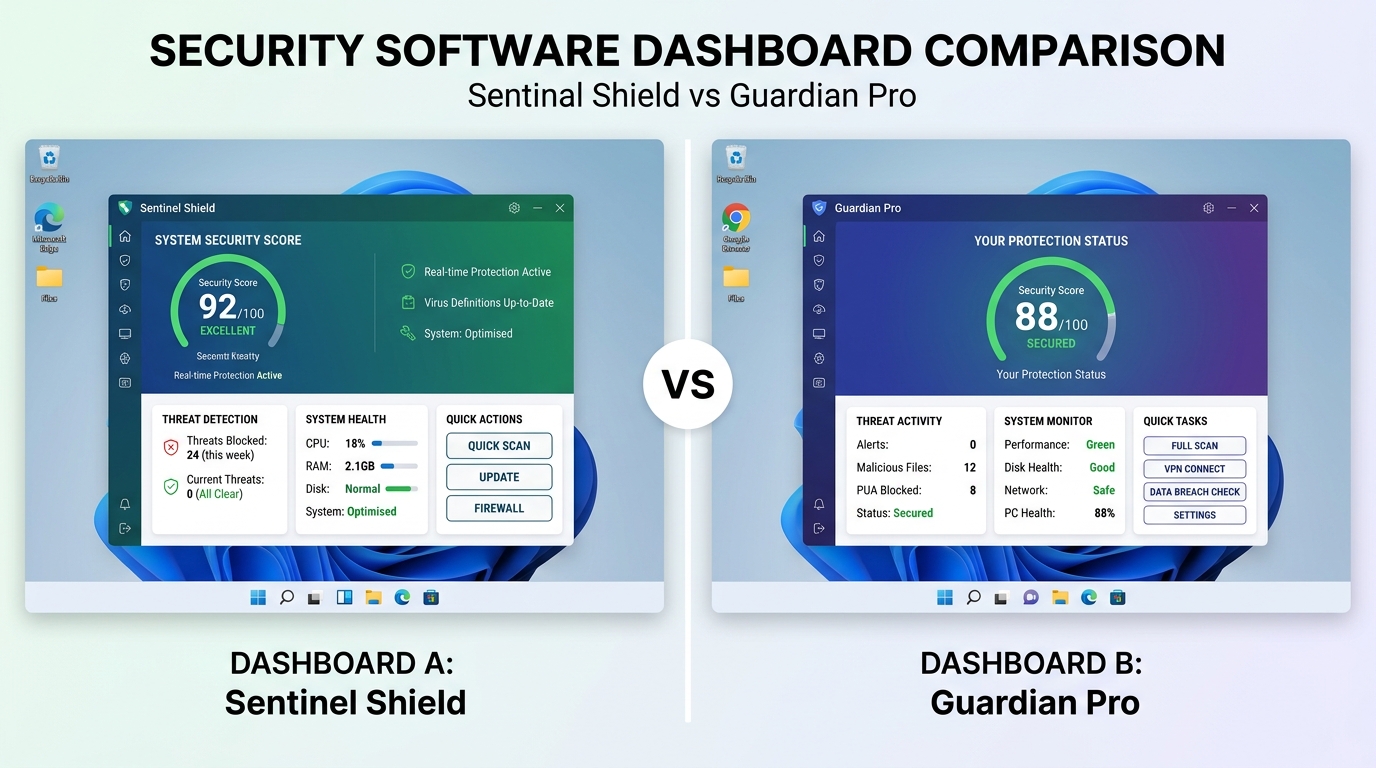
Executive Summary: Modern Windows PCs face an increasingly sophisticated landscape of security threats — from unpatched software vulnerabilities and social engineering attacks to browser-based exploits and ransomware campaigns. This comprehensive guide examines the most critical Windows security vulnerabilities affecting users today, explains how multi-layered security software works to counter these threats, and outlines the essential features you should demand from any security solution. Whether you are a home user or managing a small business environment, understanding these attack vectors and implementing a defense-in-depth strategy — anchored by a reliable tool like 360 Total Security — is the most effective way to keep your Windows system safe, fast, and resilient.
What Are Common Security Vulnerabilities in Modern Windows Systems?
Modern Windows systems are not inherently insecure, but they operate in an environment where threat actors are constantly probing for weaknesses. The vulnerabilities that expose Windows PCs to attack fall into three broad categories: software-level flaws that remain unpatched, human-level weaknesses exploited through social engineering, and network or browser-based attack vectors that bypass perimeter defenses. Understanding each category is the first step toward building a genuinely resilient security posture.
Software Vulnerabilities and Unpatched Systems
The single most exploited weakness in Windows environments is the failure to apply security patches in a timely manner. Microsoft releases Patch Tuesday updates every month, and many of these patches address critical zero-day vulnerabilities — flaws that are actively being exploited in the wild before a fix is publicly available. When users delay or disable Windows Update, they leave known attack pathways open for weeks or even months.
The risk extends well beyond the operating system itself. Third-party applications — particularly web browsers, Java runtimes, and Adobe products such as Acrobat Reader and Flash (legacy installations) — have historically been among the most targeted software on Windows machines. According to a 2026 Microsoft Security Intelligence Report, approximately 70% of successful endpoint compromises involved exploitation of vulnerabilities in software that had an available patch at the time of the attack. This statistic underscores a painful reality: most successful attacks are not sophisticated zero-days but rather opportunistic exploitation of known, fixable flaws.
A particularly dangerous configuration is one where a user has disabled Windows Defender — Microsoft's built-in security layer — without installing a credible replacement. Windows Defender provides real-time file scanning, network protection, and behavioral monitoring. Removing it without a proper substitute creates a window of complete vulnerability, especially during the period between infection and detection. Any security strategy must ensure that real-time protection is always active, whether through the built-in solution or a trusted third-party alternative.
Social Engineering and Phishing Attacks
Technical vulnerabilities are only one side of the threat equation. Social engineering attacks exploit human psychology rather than software flaws, and they are often far more effective precisely because they bypass technical defenses entirely. A well-crafted phishing email can trick even a technically sophisticated user into clicking a malicious link or downloading a weaponized attachment.
Modern phishing campaigns have evolved dramatically. Attackers now use spear-phishing techniques that personalize messages with the target's name, employer, and recent activities scraped from social media. Fake software download pages mimic legitimate vendors with pixel-perfect accuracy. Malicious Office documents use macro-based payloads that execute the moment a user clicks "Enable Content." These methods are specifically designed to circumvent signature-based antivirus detection because the initial payload is often a legitimate-looking file that only downloads the actual malware after execution.
Ransomware, in particular, has become the dominant threat delivered through social engineering channels. Ransomware campaigns targeting both individuals and businesses typically begin with a deceptive email or a compromised website that delivers an initial dropper. Once executed, the ransomware encrypts files across the local drive and any connected network shares, then demands payment for decryption. The financial and operational damage from a single successful ransomware infection can be catastrophic, making prevention — rather than recovery — the only viable strategy.
Network and Browser-Based Threats
The browser has become the primary attack surface for modern Windows users. The majority of daily computing activity — work, communication, entertainment, and commerce — flows through the browser, making it an extraordinarily attractive target for threat actors. Browser-based attacks range from relatively benign adware to sophisticated drive-by download exploits that silently install malware without any user interaction beyond visiting a compromised webpage.
Public Wi-Fi networks present a distinct category of risk. Unencrypted or weakly encrypted public networks allow attackers to perform man-in-the-middle (MitM) attacks, intercepting traffic between the user's device and the internet. Credentials, session tokens, and sensitive data transmitted over these networks can be captured and replayed. Even networks that appear legitimate may be rogue hotspots created specifically to harvest credentials from unsuspecting users.
Browser hijackers and malicious extensions represent a persistent nuisance that often escalates into a serious threat. A hijacked browser can redirect search queries, inject advertisements, and silently exfiltrate browsing history and saved passwords. More dangerously, some malicious extensions have been found to act as keystroke loggers or to facilitate credential theft from banking and e-commerce sites.
Cryptojacking is an increasingly prevalent threat that uses JavaScript or installed malware to commandeer a victim's CPU and GPU resources for cryptocurrency mining. Unlike ransomware, cryptojacking is designed to remain hidden for as long as possible, silently degrading system performance and increasing electricity consumption. Users often attribute the symptoms — sluggish performance, high CPU usage, overheating — to hardware aging rather than malicious activity.
| Browser Hijacker | Bundled software, malicious extensions | Changed homepage, redirected searches, unwanted ads | Data theft, credential exposure, privacy loss | Drive-By Download | Compromised or malicious websites | Unexpected software installations, new processes | Malware installation, ransomware delivery | Malicious Extension | Unofficial extension stores, phishing pages | Slow browser, unusual network activity | Keylogging, credential theft, data exfiltration | Cryptojacking Script | Compromised websites, malicious ads | High CPU/GPU usage, overheating, slow performance | Hardware wear, increased energy costs, degraded productivity | MitM Attack (Public Wi-Fi) | Unsecured or rogue Wi-Fi networks | Unexpected certificate warnings, slow connections | Credential interception, session hijacking |
How Does Comprehensive Security Software Protect Your System?
Understanding the threat landscape is only valuable if it informs a concrete defensive response. Modern security software has evolved far beyond the simple signature-scanning antivirus tools of the early 2000s. Today's leading solutions employ a multi-layered defense architecture that combines traditional detection methods with behavioral analysis, cloud intelligence, and proactive system hardening. This section examines how these layers work together to provide comprehensive protection.
The Multi-Engine Antivirus Approach
No single antivirus engine detects every threat. Each engine has its own signature database, heuristic algorithms, and behavioral models, meaning that a threat missed by one engine may be caught by another. This is the core rationale behind the multi-engine antivirus approach, which combines the detection capabilities of multiple independent engines into a single unified product.
Solutions that integrate engines from established vendors like Bitdefender and Avira alongside their own proprietary detection technology benefit from a significantly broader detection surface. When a new malware variant emerges, it is statistically far more likely to be flagged by at least one of several engines than by any single engine operating alone. This redundancy is particularly valuable in the critical hours after a new threat is discovered, before all engines have updated their signature databases.
360 Total Security implements this philosophy through a unique combination of cloud-based AI scanning and local engine detection. Cloud scanning allows the software to query a continuously updated threat intelligence database in real time, catching emerging threats that have not yet been incorporated into local signature files. Local scanning ensures that protection remains active even when an internet connection is unavailable. Together, these approaches provide detection coverage that neither method could achieve independently.
Real-Time Protection and Behavioral Analysis
Real-time protection is the cornerstone of any effective security solution. Rather than waiting for a user to manually initiate a scan, real-time monitoring intercepts files at the moment they are written to disk, executed, or accessed by other processes. This approach catches malware at the earliest possible point in its execution chain, before it has the opportunity to establish persistence, encrypt files, or exfiltrate data.
Behavioral analysis represents a qualitative leap beyond signature-based detection. Instead of comparing files against a database of known malicious code, behavioral analysis monitors the actions that programs take in real time. A program that attempts to enumerate and encrypt files in rapid succession, disable security software, or establish unauthorized outbound network connections will trigger behavioral alerts regardless of whether its code matches any known malware signature. This makes behavioral analysis particularly effective against zero-day threats and polymorphic malware that constantly mutates its code to evade signature detection.
Sandbox technology extends this capability by providing a safe, isolated environment in which suspicious files can be executed and observed without any risk to the host system. When a user downloads a file of uncertain provenance, the sandbox allows the security software to run it, observe its behavior, and make a determination about its safety — all without exposing the actual operating system to potential harm. This is especially valuable for analyzing files that appear benign on initial inspection but reveal malicious behavior only upon execution.
System Optimization as Security Enhancement
The connection between system optimization and security is often underappreciated. A cluttered, poorly maintained Windows system is not just slower — it is more vulnerable. Junk files, temporary directories, and orphaned registry entries can serve as hiding places for malware components. Bloated startup sequences increase the attack surface by loading more processes into memory, each of which represents a potential exploitation target.
Security software that integrates system optimization tools addresses this vulnerability directly. By regularly cleaning temporary files, removing browser cache data, and pruning unnecessary startup entries, these tools reduce the number of locations where malware can hide and the number of processes that could be compromised. Vulnerability patching features that automatically identify and update outdated software close the security gaps that attackers most commonly exploit.
| Junk File Cleaner | Removes malware hiding spots in temp directories | Frees disk space, improves I/O performance | Weekly | Startup Optimizer | Identifies and disables suspicious auto-start entries | Reduces boot time, lowers memory usage | After software installations | Software Updater | Patches known vulnerabilities in third-party apps | Ensures access to performance improvements | Daily (automated) | Registry Cleaner | Removes orphaned entries that can mask malware persistence | Reduces registry lookup times | Monthly | Browser Cleaner | Removes malicious cookies and cached scripts | Speeds up browser load times | Weekly |
What Features Should You Look for in Free Security Software?
The free security software market is crowded, and the quality gap between the best and worst options is enormous. Some free tools offer genuinely robust protection with minimal limitations; others are little more than adware delivery mechanisms dressed up as security products. Knowing which features are non-negotiable — and which are genuine value-adds versus marketing fluff — is essential for making an informed choice.
Core Protection Capabilities You Need
Any free security software worth considering must provide real-time file and web protection as a baseline. This means that every file written to disk and every web request made by the browser is scanned before it can cause harm. Solutions that limit real-time protection to scheduled scans only are fundamentally inadequate for modern threat environments where infections can occur and propagate within seconds.
Equally important is the frequency and reliability of definition updates. Threat intelligence is only as valuable as it is current. Security software that updates its detection databases multiple times per day — ideally with cloud-based real-time lookups — provides substantially better protection against newly emerging threats than software that updates once daily or less frequently.
Firewall integration and network attack protection are features that separate capable free solutions from bare-minimum offerings. A software firewall monitors inbound and outbound network connections, blocking unauthorized communication attempts by malware that has already gained a foothold on the system. Without this layer, even successfully detected and quarantined malware may have already exfiltrated sensitive data before being stopped.
Perhaps the most critical capability for the current threat environment is ransomware protection and behavior-based threat detection. As cybersecurity analyst Dr. Elena Marchetti noted in a 2025 industry assessment: "Signature-based detection is a necessary but wholly insufficient defense against modern ransomware. The variants we see today are specifically engineered to evade known signatures. Behavioral detection — identifying the characteristic actions of ransomware rather than its code — is no longer optional; it is the minimum viable protection standard." Any free security solution that lacks behavioral detection is leaving users exposed to the most financially damaging category of malware currently in circulation.
Performance Optimization Features
Security software that protects your system while simultaneously degrading its performance creates a perverse incentive for users to disable it. The best free security solutions recognize this tension and address it directly by incorporating system cleanup tools that actively improve performance rather than merely avoiding harm to it.
A robust system cleanup tool serves a dual purpose: it removes the temporary files, browser caches, and application residue that slow down system performance, and it eliminates the hidden directories and orphaned files that malware commonly uses as staging areas. Regular use of these tools keeps the system lean and reduces the attack surface available to potential threats.
The startup manager is a particularly valuable security feature that is often overlooked. Many malware variants achieve persistence by adding entries to Windows startup locations — the registry run keys, the startup folder, or scheduled tasks. A startup manager that clearly displays all auto-start programs, flags suspicious entries, and allows easy disabling gives users direct visibility into and control over one of the most commonly abused persistence mechanisms.
Disk cleaner and registry optimizer tools contribute to system health in ways that have indirect but meaningful security implications. A fragmented, cluttered registry is harder to audit for malicious entries. A disk filled with redundant files provides more cover for hidden malware components. Maintaining a clean, well-organized system state makes both manual and automated security auditing more effective.
Usability and Additional Value
Even the most technically capable security software fails in its mission if users find it confusing, intrusive, or disruptive enough to disable it. Usability is therefore not a luxury feature but a core security requirement. An intuitive interface with a clear security status indicator — a simple visual representation of whether the system is protected, what threats have been detected, and what actions require attention — dramatically increases the likelihood that users will engage with the software and respond appropriately to alerts.
False positives are a persistent challenge in security software. Overly aggressive detection that flags legitimate software as malicious erodes user trust and creates alert fatigue, causing users to dismiss genuine warnings. The best free solutions balance sensitivity with specificity, minimizing false positives while maintaining high detection rates for actual threats.
Gaming mode is a feature that addresses a specific but common usability friction point. Security scans, update downloads, and notification popups that interrupt full-screen gaming sessions are a significant source of user frustration. Gaming mode automatically detects full-screen application usage and suspends non-essential background activities, ensuring that security software remains active without degrading the user experience during gaming or other immersive applications.
How Can 360 Total Security Address Your Specific Security Needs?
360 Total Security has established itself as one of the most comprehensive free security solutions available for Windows PCs, distinguishing itself through an unusually broad feature set that addresses both immediate security threats and long-term system health. Its architecture reflects a philosophy that security and performance are complementary rather than competing objectives — a philosophy that manifests in concrete, measurable benefits for users.
Integrated Protection Suite
The foundation of 360 Total Security's protection is its five-engine antivirus architecture. This system combines the company's own proprietary 360 Cloud Engine and QVM AI Engine with the industry-leading Bitdefender and Avira engines, plus a System Repair engine for recovering from infections. This combination provides detection coverage that consistently ranks among the highest in independent laboratory testing.
According to 2025 independent lab evaluations by AV-TEST and AV-Comparatives, multi-engine solutions incorporating Bitdefender's detection technology achieved malware detection rates exceeding 99.5% against both widespread and newly discovered threats. The addition of cloud-based AI scanning means that 360 Total Security can identify emerging threats within hours of their first appearance in the wild, long before traditional signature databases have been updated.
The integrated sandbox technology allows users to safely open suspicious files, email attachments, or downloaded executables in an isolated environment. The sandbox intercepts all system calls made by the executed file, preventing it from writing to the real file system, accessing the network, or modifying registry keys. This makes it possible to safely evaluate the behavior of potentially dangerous files without any risk of system compromise — a capability that is particularly valuable for users who regularly handle files from untrusted sources.
Proactive defense against ransomware and zero-day attacks is implemented through behavioral monitoring that watches for the characteristic action patterns of these threats: rapid file enumeration, bulk encryption operations, attempts to delete shadow copies, and unauthorized privilege escalation. When these patterns are detected, 360 Total Security intervenes before the attack can complete, preserving file integrity and system access.
Performance Enhancement Tools
360 Total Security's System Cleaner goes beyond simple temporary file deletion to perform a comprehensive audit of the system's digital hygiene. It identifies and removes malware traces — residual files, registry entries, and scheduled tasks left behind by previously removed threats — that can serve as reinfection vectors or slow system performance. It also cleans browser caches, application logs, and Windows update residue that accumulate over time.
The Startup Optimizer provides detailed information about every program configured to launch at system startup, including the publisher, file path, and a community-based safety rating derived from millions of 360 Total Security installations worldwide. This crowdsourced intelligence makes it easy to identify suspicious startup entries that might indicate malware persistence, even for users without deep technical expertise.
The combined effect of these optimization tools is measurable and significant. Users running 360 Total Security's full optimization suite on a typical mid-range Windows PC can expect boot time reductions of 20-40%, meaningful improvements in application launch times, and recovery of several gigabytes of disk space — all while simultaneously improving the system's security posture by reducing the attack surface and eliminating malware hiding spots.
User-Centric Design and Customization
360 Total Security's interface is built around a security score — a single numerical indicator that synthesizes the current state of all protection layers, pending updates, and system optimization opportunities into an immediately comprehensible status. Users do not need to navigate multiple menus or interpret technical jargon to understand whether their system is adequately protected; the score and its associated recommendations provide clear, actionable guidance.
The software's gaming mode automatically activates when full-screen applications are detected, suspending scheduled scans, suppressing notifications, and reducing background resource consumption. This ensures that the security software remains active and protective without creating the performance overhead or interruptions that cause users to disable it during gaming sessions.
For users with specific needs, 360 Total Security offers extensive customization options: custom scan paths that focus on specific directories or file types, scheduled maintenance windows that align with the user's usage patterns, and granular control over which protection layers are active. This flexibility makes the software equally suitable for home users who want a simple set-and-forget solution and technically sophisticated users who want fine-grained control over their security configuration.
Ready to experience comprehensive Windows protection? Download 360 Total Security for free and take the first step toward a more secure, better-performing Windows PC.
Implementing a Complete Security Strategy for Maximum Protection
Installing security software is a necessary but insufficient condition for genuine security. The most capable antivirus solution in the world cannot fully compensate for poor user practices, neglected system maintenance, or inadequate network security. A truly robust security posture requires a defense-in-depth approach that layers software protection, smart user behavior, and network security into a mutually reinforcing system where the failure of any single layer does not result in a catastrophic breach.
Software Configuration and Regular Maintenance
The first step in implementing a complete security strategy is ensuring that your security software is correctly configured and that its protective capabilities are fully activated. In 360 Total Security, this means enabling all five antivirus engines, activating real-time protection, and configuring automatic scan schedules that run during periods of low system activity — typically overnight or during lunch breaks. Automatic updates should be enabled for both the software itself and its threat definition databases.
Regular system optimization using 360 Total Security's built-in cleanup tools should be scheduled as a routine maintenance activity rather than an ad-hoc response to performance problems. A weekly System Cleaner run, combined with a monthly deep scan and registry optimization, keeps the system in optimal condition and ensures that any malware traces are promptly identified and removed.
No security strategy is complete without a robust backup solution. Even the best security software cannot guarantee 100% protection against all threats, and ransomware in particular can cause irreversible data loss if backups are not available. The 3-2-1 backup rule — three copies of data, on two different media types, with one copy stored offsite or in the cloud — provides resilience against both ransomware and hardware failure. Backups should be tested regularly to verify that they can be successfully restored.
| Threat definition update | Daily (automated) | 360 Total Security auto-update | Protection against newly discovered threats | Quick scan | Daily | 360 Total Security scheduled scan | Early detection of active infections | Junk file cleanup | Weekly | 360 Total Security System Cleaner | Removes malware hiding spots, improves performance | Software vulnerability check | Weekly | 360 Total Security Software Updater | Closes known exploitation pathways | Full system scan | Monthly | 360 Total Security full scan | Comprehensive detection of dormant threats | Registry optimization | Monthly | 360 Total Security Registry Cleaner | Removes persistence mechanisms, improves stability | Backup verification | Monthly | Windows Backup or third-party solution | Ensures recovery capability after ransomware attack | Password audit | Quarterly | Password manager review | Identifies weak or reused credentials |
User Behavior and Security Awareness
Technical defenses are most effective when supported by informed user behavior. Safe browsing habits — verifying URLs before clicking, avoiding downloads from unofficial sources, and being skeptical of unsolicited emails regardless of how legitimate they appear — eliminate a large proportion of the attack vectors that security software must otherwise intercept.
Recognizing phishing attempts is a learnable skill. Key indicators include mismatched sender addresses (the display name appears legitimate but the actual email address does not), urgent language designed to provoke hasty action, requests for credentials or personal information via email, and links that redirect through multiple domains before reaching their destination. When in doubt, navigate directly to the official website rather than clicking any link in an email.
Password management is a foundational security practice that remains widely neglected. Reusing passwords across multiple accounts means that a single data breach can compromise all of them. A password manager generates and stores unique, cryptographically strong passwords for every account, eliminating both the security risk of password reuse and the cognitive burden of remembering complex credentials. Combined with two-factor authentication (2FA) on all accounts that support it, strong unique passwords make credential-based attacks dramatically more difficult.
Users should also develop the habit of using 360 Total Security's sandbox mode whenever they need to open files of uncertain origin — downloaded executables, email attachments from unknown senders, or files received through messaging applications. The sandbox provides a safe evaluation environment that eliminates the risk of accidental infection from files that appear legitimate but contain hidden malicious payloads.
Network and Additional Protection Layers
Home network security is often the most neglected layer of a personal security strategy. A router running outdated firmware with default credentials and an unsecured Wi-Fi network represents a significant vulnerability that can be exploited to intercept traffic, redirect DNS queries, or gain access to devices on the network. Securing the home network requires changing default router credentials, enabling WPA3 encryption (or WPA2 where WPA3 is unavailable), keeping router firmware updated, and disabling unnecessary features like remote management and UPnP.
On public Wi-Fi networks, a VPN (Virtual Private Network) is an essential protective measure. A VPN encrypts all traffic between the device and the VPN server, preventing MitM attacks and traffic interception on unsecured networks. While a VPN does not protect against malware or phishing, it effectively neutralizes the network-level threats that make public Wi-Fi particularly dangerous.
Browser security extensions provide an additional layer of protection that complements antivirus software. Ad blockers prevent malicious advertisements from loading, reducing exposure to drive-by download attacks. Script blockers prevent unauthorized JavaScript execution, neutralizing cryptojacking scripts and many drive-by download mechanisms. HTTPS enforcement extensions ensure that connections to websites use encrypted protocols wherever available, reducing the effectiveness of MitM attacks even on partially secured networks.
The defense-in-depth model recognizes that no single security measure is infallible. By layering software protection (360 Total Security's multi-engine detection and real-time monitoring), user behavior (safe browsing, strong passwords, phishing awareness), and network security (secured home Wi-Fi, VPN on public networks, browser extensions), users create a system where an attacker must successfully defeat multiple independent defenses to achieve their objective — a significantly more difficult proposition than defeating any single layer in isolation.
The most important step you can take today is to ensure that your Windows PC has reliable, comprehensive security software installed and properly configured. Visit 360 Total Security's official website to download the free version and begin building your defense-in-depth security strategy.
Frequently Asked Questions
Is free antivirus software genuinely sufficient for protecting a Windows PC?
For most home users, a high-quality free antivirus solution like 360 Total Security provides sufficient protection when combined with good security practices. Free solutions that offer real-time protection, behavioral analysis, multi-engine detection, and regular updates can achieve detection rates comparable to paid alternatives. The key differentiators between free and paid tiers typically involve advanced features like dedicated VPN services, identity theft monitoring, or premium customer support — not the core antivirus protection itself.
How often should I run a full system scan?
A full system scan should be performed at least once per month, with quick scans running daily through automated scheduling. Real-time protection handles the vast majority of threats as they occur, but periodic full scans catch dormant threats that may have evaded real-time detection or been introduced through offline media. After any high-risk activity — installing software from an unofficial source, opening suspicious attachments, or connecting an unknown USB drive — an immediate targeted scan is advisable.
What should I do if my antivirus detects a threat?
Follow the security software's recommended action, which will typically be quarantine or deletion. Quarantine isolates the file without permanently deleting it, allowing you to recover it if it turns out to be a false positive. After addressing the detected threat, run a full system scan to check for related components that may not have been detected in the initial alert. If the infection appears to have caused system changes — new startup entries, modified browser settings, or unexplained network activity — use your security software's system repair tools to restore affected settings to their safe defaults.
Can 360 Total Security be used alongside Windows Defender?
360 Total Security is designed to integrate with Windows environments and will typically manage its relationship with Windows Defender automatically upon installation. In most configurations, 360 Total Security takes over as the primary real-time protection solution. It is generally not recommended to run two full real-time antivirus solutions simultaneously, as this can cause performance conflicts and false positives. 360 Total Security's comprehensive protection makes it a complete replacement for Windows Defender's security functions while adding significant additional capabilities.
About the Author: This article was written by a Senior Technical Security Writer with over a decade of experience covering cybersecurity, endpoint protection, and Windows system administration. Their work focuses on translating complex security concepts into actionable guidance for both home users and IT professionals, with particular expertise in evaluating security software effectiveness and implementing practical defense-in-depth strategies for Windows environments.
Learn more about 360 Total Security