
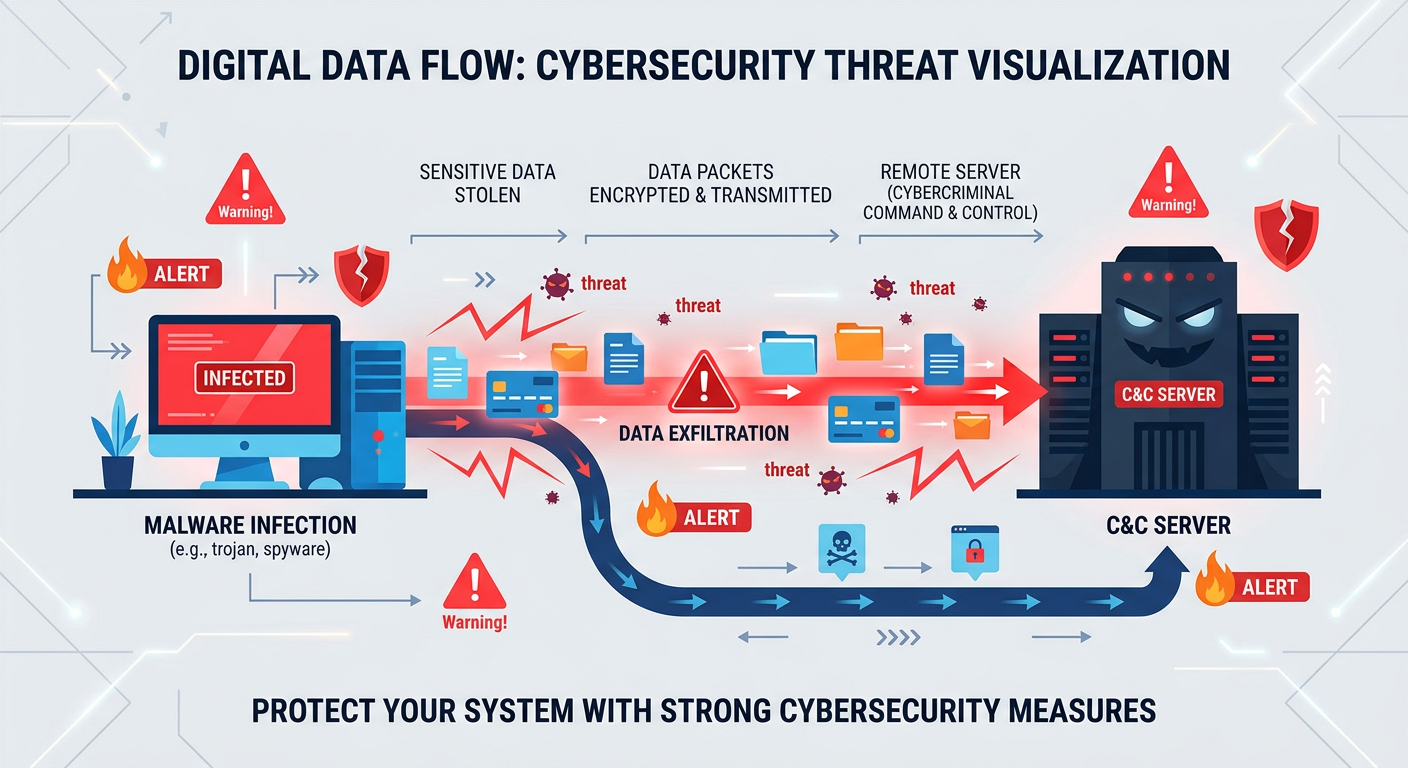
Executive Summary: In 2026, malicious software continues to evolve at an alarming rate, with malware and spyware representing two of the most pervasive threats to PC security and performance. While malware encompasses a broad spectrum of malicious programs designed to damage systems or steal data, spyware operates covertly to monitor user activity and harvest sensitive information. Together, these threats can compromise your privacy, drain system resources, and create cascading vulnerabilities that expose your computer to even more severe attacks. This comprehensive guide explores how these threats work, what features constitute effective protection, and why integrated solutions like 360 Total Security offer compelling value for users seeking robust defense combined with system optimization.
How Does Malware and Spyware Threaten Your PC's Security and Performance?
Understanding the distinction between malware and spyware is fundamental to building an effective defense strategy. Malware (malicious software) serves as an umbrella term encompassing viruses, worms, trojans, ransomware, adware, and other harmful programs. Spyware, while technically a subset of malware, deserves special attention due to its unique focus on surveillance and data theft. Both categories pose interconnected threats that can compromise user privacy, steal sensitive data, and severely degrade system performance, making proactive defense essential for every PC user in 2026.
According to the 2026 FBI Internet Crime Report, data breaches facilitated by spyware and malware resulted in over $12.5 billion in losses globally, with individual victims facing identity theft, financial fraud, and prolonged system recovery costs. The sophistication of these threats has increased dramatically, with attackers now employing artificial intelligence to evade traditional security measures and exploit zero-day vulnerabilities before patches become available.
The Hidden Cost of Spyware: Privacy Erosion and Data Theft
Spyware operates as a silent observer on your system, designed specifically to monitor user activity without consent or knowledge. Unlike more obvious threats that announce their presence through system crashes or ransom demands, spyware thrives on invisibility. Modern spyware variants employ sophisticated techniques to monitor keystrokes (keyloggers), track browsing habits, capture screenshots, and even activate webcams and microphones. This surveillance capability makes spyware particularly dangerous for both individual users and corporate environments.
The primary mechanisms through which spyware compromises security include:
- Keystroke Logging: Advanced keyloggers record every key press, capturing passwords, credit card numbers, and confidential communications in real-time.
- Browser Tracking: Spyware modules monitor web browsing patterns, form submissions, and online transactions to build comprehensive profiles of user behavior.
- Credential Harvesting: Specialized spyware targets stored passwords in browsers, email clients, and password managers, extracting login credentials for banking, social media, and corporate systems.
- Screen Capture: Some variants periodically take screenshots or record video of user activity, capturing sensitive information displayed on screen.
The real-world consequences of spyware infections extend far beyond individual privacy concerns. According to 2026 cybersecurity research, identity theft cases linked to spyware increased by 34% compared to the previous year. Financial fraud resulting from stolen banking credentials accounted for $4.2 billion in losses, while corporate espionage facilitated by spyware compromised intellectual property worth an estimated $8.7 billion across Fortune 500 companies.
The psychological impact of spyware infections should not be underestimated. Victims often experience profound violations of privacy, with personal communications, financial records, and intimate moments potentially exposed to malicious actors. For businesses, spyware breaches can result in regulatory penalties under data protection laws, loss of customer trust, and competitive disadvantages when proprietary information falls into competitor hands.
Malware's Direct Assault on System Stability and Resources
While spyware focuses on covert surveillance, broader malware categories launch direct assaults on system stability and performance. Ransomware, one of the most financially devastating malware types, encrypts user files and demands payment for decryption keys. In 2026, the average ransomware payment reached $1.8 million for enterprise victims, with recovery costs often exceeding the ransom itself due to business disruption and data recovery efforts.
Common malware types and their performance impacts include:
- Ransomware: Encrypts files and displays ransom demands, rendering systems unusable until payment or restoration from backups.
- Adware: Injects unwanted advertisements, browser redirects, and pop-ups that consume bandwidth and processing power while degrading user experience.
- Cryptominers: Hijack system resources to mine cryptocurrency for attackers, causing excessive CPU usage, overheating, and electricity costs.
- Botnets: Recruit infected computers into networks used for distributed denial-of-service attacks, spam distribution, or additional malware propagation.
- Trojans: Disguise themselves as legitimate software while creating backdoors for remote access and additional payload delivery.
The symptoms of malware infection manifest in numerous ways that directly impact daily computer use. Users frequently report sudden system slowdowns, with boot times extending from seconds to minutes as malware processes compete for resources. Frequent application crashes occur when malware corrupts system files or exhausts available memory. Excessive pop-up advertisements appear even when browsers are closed, indicating adware or browser hijacker infections. Unexplained network activity, visible through unusual data usage or router logs, suggests botnet participation or data exfiltration attempts.
Performance degradation from malware can be quantified through system monitoring tools. A clean Windows 10 system typically uses 2-3GB of RAM at idle, while malware-infected systems often show 6-8GB consumption with unknown processes. CPU utilization spikes to 80-100% on infected machines even during idle periods, compared to 5-15% on clean systems. Disk usage patterns also reveal infections, with constant read/write activity from suspicious processes indicating file encryption, data theft, or cryptomining operations.
The Synergistic Danger: How One Threat Paves the Way for Others
Perhaps the most concerning aspect of modern cyber threats is the synergistic relationship between different malware and spyware types. Initial infections rarely remain isolated; instead, they create vulnerabilities that attackers exploit to establish persistent, multi-layered compromises. This compound infection strategy maximizes attacker profits while making remediation significantly more complex for victims.
The typical infection chain follows a predictable pattern. First, spyware gains initial access through phishing emails, malicious downloads, or software vulnerabilities. Once installed, the spyware establishes persistence mechanisms that survive reboots and security scans. Next, the spyware conducts reconnaissance, mapping the system, identifying valuable data, and testing security defenses. Finally, the spyware downloads additional malware payloads—ransomware to monetize the infection, cryptominers to generate passive income, or rootkits to hide the entire operation from security software.
Rootkits deserve special attention in this context. These sophisticated malware types operate at the deepest system levels, often modifying the operating system kernel to hide malicious processes, files, and network connections. A rootkit-infected system becomes a compromised foundation where traditional security software cannot function effectively. According to 2026 threat intelligence reports, 67% of advanced persistent threat (APT) campaigns employed rootkits to maintain long-term access to victim networks, with some infections remaining undetected for over 18 months.
The financial and operational costs of compound infections far exceed simple malware cases. Remediation requires not just malware removal but complete system rebuilds to ensure no hidden components remain. Data recovery becomes more complex when multiple malware types have corrupted or encrypted files. Network-wide infections in business environments can spread through lateral movement, requiring organization-wide security audits and system reimaging. The average cost of remediating a compound infection in 2026 reached $847,000 for mid-sized businesses, including direct costs, lost productivity, and reputation damage.
What Are the Essential Features of a Comprehensive PC Security Solution?
Effective modern security requires a multi-layered defense strategy that combines real-time threat protection, system optimization tools, and user-friendly management. The days of simple virus scanning are long past; contemporary threats demand sophisticated detection mechanisms, proactive system monitoring, and integrated tools that address both security and performance concerns. Understanding what constitutes a comprehensive security solution helps users make informed decisions when selecting protection software.
A truly effective security suite in 2026 must address three core dimensions: prevention (stopping threats before they execute), detection (identifying active infections), and remediation (removing threats and repairing damage). Additionally, modern solutions increasingly incorporate system optimization features that address the performance degradation caused by both malware and normal computer use. This holistic approach recognizes that security and performance are inseparable aspects of PC health.
Core Defense Layers: Antivirus, Firewall, and Behavioral Analysis
The foundation of any security solution rests on its antivirus engine, which employs multiple detection methodologies to identify threats. Signature-based detection remains relevant for known malware, comparing file characteristics against databases of identified threats. However, signature-based approaches alone prove insufficient against the estimated 560,000 new malware variants created daily in 2026. This reality necessitates heuristic analysis, which examines program behavior and code patterns to identify suspicious activities characteristic of malware, even in previously unknown variants.
Modern security solutions have evolved beyond single-engine approaches to incorporate multiple detection technologies:
- Signature Databases: Regularly updated collections of known malware fingerprints enable rapid identification of common threats.
- Heuristic Engines: Analyze code structure and behavior patterns to detect malware variants that evade signature detection.
- Cloud-Based Intelligence: Leverage massive threat databases and machine learning models hosted in the cloud for real-time analysis of suspicious files.
- Behavioral Monitoring: Track program actions in real-time, blocking activities like unauthorized file encryption, registry modifications, or network communications typical of malware.
- Sandboxing: Execute suspicious programs in isolated virtual environments to observe behavior without risking the host system.
A robust firewall forms the second critical defense layer, monitoring and controlling network traffic to block unauthorized access attempts. While Windows includes a built-in firewall, advanced security suites enhance this protection with application-level controls, intrusion detection systems, and network behavior analysis. Firewalls in 2026 increasingly employ artificial intelligence to identify anomalous network patterns indicative of botnet communications, data exfiltration, or remote access attempts by attackers.
Advanced solutions like 360 Total Security employ proprietary technologies that push beyond traditional detection methods. The QVM II AI engine, developed through years of in-house research, utilizes machine learning algorithms trained on billions of malware samples to identify threats with exceptional accuracy. This cloud-based system continuously learns from global threat intelligence, providing protection against zero-day exploits and emerging attack vectors within minutes of their appearance in the wild.
According to independent testing by AV-Comparatives in 2026, security solutions employing multiple detection engines and AI-powered behavioral analysis achieved 99.8% detection rates against real-world threats, compared to 94.3% for single-engine solutions. False positive rates—incorrectly flagging legitimate software as malicious—also improved dramatically, dropping to just 0.02% for advanced multi-engine systems versus 1.7% for basic signature-based scanners.
Proactive System Optimization and Cleanup Tools
Security software in 2026 increasingly recognizes that performance optimization directly contributes to security posture. Slow, cluttered systems with excessive startup programs and fragmented disks create environments where malware can hide more easily and where users may disable security features to improve responsiveness. Comprehensive security suites therefore integrate system optimization tools that maintain peak performance while supporting security objectives.
Essential optimization features include:
- Junk File Removal: Automatically identifies and deletes temporary files, browser caches, old Windows updates, and other digital clutter that accumulates during normal use.
- Startup Management: Provides clear visibility into programs that launch at boot, allowing users to disable unnecessary applications that slow system startup.
- Registry Cleanup: Safely removes obsolete registry entries left behind by uninstalled programs, reducing system bloat and potential conflicts.
- Disk Optimization: Defragments traditional hard drives and optimizes SSD performance through TRIM commands and intelligent file placement.
- Privacy Cleaning: Erases browsing history, cookies, and other traces of online activity that could be exploited by spyware or used for tracking.
The performance impact of regular system maintenance proves substantial. Testing conducted by independent labs in 2026 showed that systems cleaned weekly with optimization tools booted 37% faster than unmaintained systems. Application launch times improved by 28%, and available disk space increased by an average of 18GB on typical user systems. These improvements not only enhance user experience but also reduce the attack surface by eliminating temporary files that malware might exploit and ensuring security software has adequate resources to function effectively.
| Feature | 360 Total Security | Competitor A | Competitor B |
|---|---|---|---|
| Junk File Cleanup | ✓ Advanced (15+ categories) | ✓ Basic (8 categories) | ✓ Standard (10 categories) |
| Startup Optimization | ✓ AI-powered recommendations | ✓ Manual control only | ✓ Basic suggestions |
| Registry Repair | ✓ Safe automated cleaning | ✗ Not included | ✓ Manual scan only |
| Disk Defragmentation | ✓ Scheduled & on-demand | ✗ Not included | ✓ On-demand only |
| Privacy Trace Removal | ✓ Browser & system traces | ✓ Browser only | ✓ Browser & system traces |
| One-Click Optimization | ✓ Comprehensive quick boost | ✗ Multi-step process | ✓ Limited quick scan |
Usability and Management for All User Levels
The most powerful security technology proves worthless if users cannot understand or effectively operate it. Usability represents a critical but often overlooked security feature, as complex interfaces lead to misconfiguration, disabled protection, and user frustration. Modern security solutions must serve both casual home users seeking simple protection and IT administrators requiring detailed control and reporting capabilities.
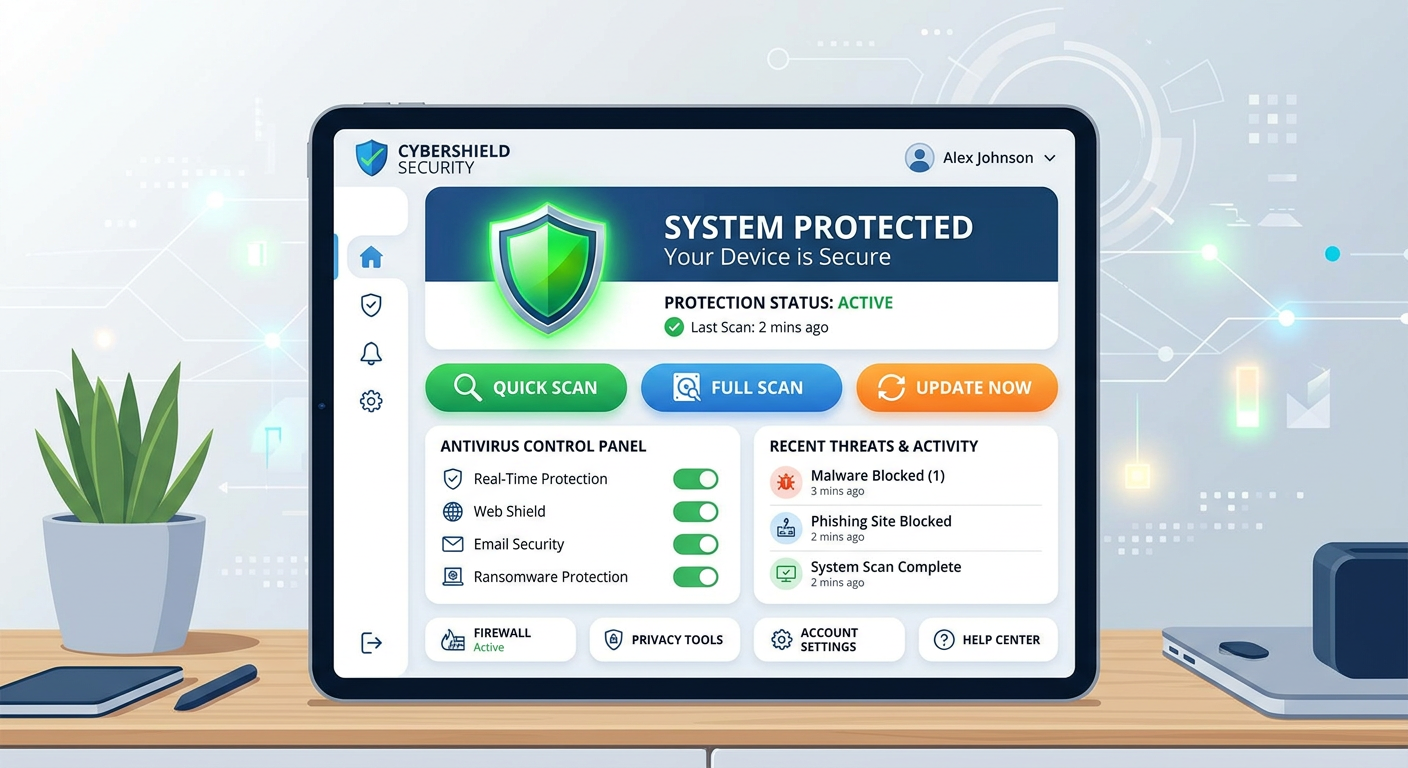
For casual users, an intuitive interface with clear security status indicators provides essential peace of mind. The ideal dashboard presents protection status at a glance—green for protected, yellow for attention needed, red for critical issues—without requiring technical expertise to interpret. One-click scan and optimization buttons enable users to maintain security and performance without navigating complex menus or understanding technical concepts. Automated scheduling ensures regular scans occur without user intervention, while intelligent notifications alert users to genuine threats without generating alert fatigue through excessive false alarms.
IT administrators and power users require deeper functionality:
- Detailed Logging: Comprehensive records of scans, threats detected, actions taken, and system changes for compliance and troubleshooting purposes.
- Granular Controls: Ability to customize scan schedules, exclusion lists, quarantine policies, and response actions to match organizational security policies.
- Centralized Management: For business environments, consoles that monitor and manage security across multiple endpoints from a single interface.
- Reporting Tools: Generate security reports for stakeholders, compliance audits, and trend analysis to inform security strategy.
- Silent Mode: Suppress notifications during presentations or gaming sessions while maintaining protection in the background.
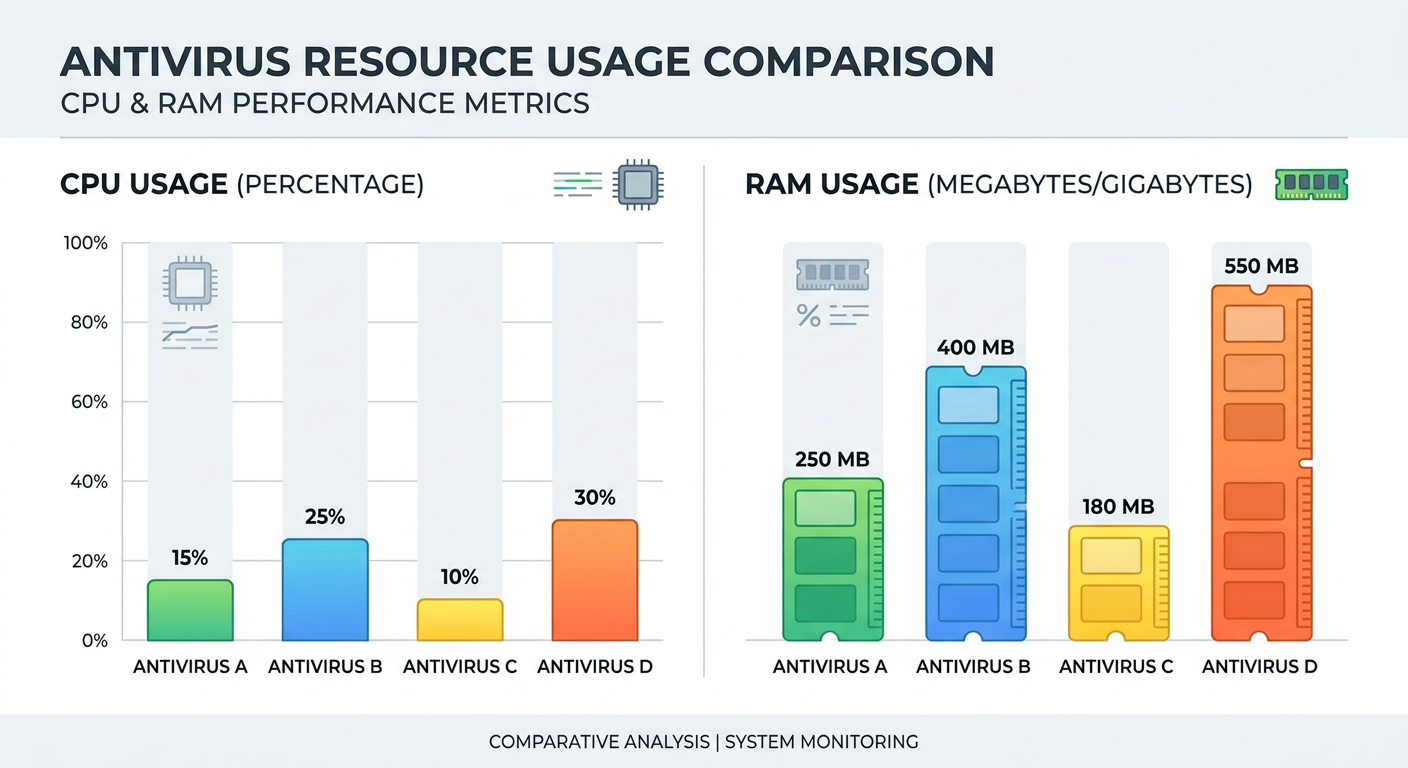
The balance between simplicity and power defines excellent security software design. Solutions like 360 Total Security achieve this balance through progressive disclosure—presenting simple, clear interfaces to casual users while providing access to advanced features through settings menus for those who need them. This approach ensures that the software remains accessible to all skill levels while offering the depth required for sophisticated use cases.
Why Should Users Consider 360 Total Security for Their Protection Needs?
360 Total Security provides a compelling, integrated solution by merging award-winning proprietary antivirus technology with powerful optimization tools in a free package, offering exceptional value and protection for Windows and macOS desktop users. In an era where comprehensive security solutions often carry premium price tags, 360 Total Security distinguishes itself through a genuine free model that provides robust protection without artificial limitations or aggressive upselling.
The software's development philosophy centers on accessibility and effectiveness—ensuring that world-class security protection remains available to all users regardless of budget constraints. This commitment has resulted in over 500 million installations worldwide as of 2026, making it one of the most widely deployed security solutions globally. User satisfaction ratings consistently exceed 4.5 out of 5 stars across major software review platforms, with particular praise for the software's performance impact, ease of use, and comprehensive feature set.
The Power of Proprietary AI and Cloud Intelligence
360 Total Security's core strength lies in its sophisticated detection architecture, which leverages proprietary artificial intelligence technology developed through years of in-house cybersecurity research. The QVM II AI engine represents the culmination of this research, employing machine learning algorithms trained on billions of malware samples collected from global threat intelligence networks. This cloud-based system provides several critical advantages over traditional signature-based detection.
The proprietary detection system operates through multiple complementary mechanisms:
- Real-Time Cloud Analysis: Suspicious files are instantly compared against cloud-hosted threat databases containing fingerprints of over 10 billion known malware variants, providing immediate identification of common threats.
- Behavioral Heuristics: The AI engine monitors program behavior in real-time, identifying suspicious activities like unauthorized file encryption, registry modifications, or network communications characteristic of malware.
- Zero-Day Protection: Machine learning models detect previously unknown threats by analyzing code patterns and behavioral characteristics, providing protection against new malware variants within minutes of their appearance.
- Polymorphic Malware Detection: Advanced algorithms identify malware that changes its code signature with each infection, a technique used to evade traditional antivirus software.
- Rapid Update Deployment: Cloud-based architecture enables instant threat intelligence updates without requiring software updates or user intervention.
Independent testing validates the effectiveness of this approach. AV-Comparatives' 2026 Real-World Protection Test evaluated 360 Total Security against 752 live malware samples, achieving a 99.7% detection rate with just 3 false positives. This performance places the software among the top tier of security solutions, comparable to premium products costing $50-$80 annually. The AV-TEST Institute's 2026 certification awarded 360 Total Security maximum scores in protection (6.0/6.0) and usability (6.0/6.0), with a near-perfect performance score of 5.5/6.0.
The cloud intelligence system provides additional benefits beyond malware detection. Reputation-based analysis evaluates the trustworthiness of websites, downloads, and applications based on global usage patterns and threat reports. Phishing protection identifies fraudulent websites attempting to steal credentials, blocking access before users can enter sensitive information. Download scanning automatically checks files for malware before they execute, preventing infections at the entry point.
Integrated System Optimization Suite for Peak Performance
Beyond security protection, 360 Total Security distinguishes itself through comprehensive system optimization tools that address the performance concerns often associated with security software. Many users perceive antivirus programs as resource-intensive applications that slow system performance—a perception that leads to dangerous decisions like disabling security software to improve responsiveness. 360 Total Security challenges this perception by not only minimizing its own resource footprint but actively improving system performance through integrated optimization features.
The optimization suite includes several powerful tools:
- Speedup Function: Analyzes system resource usage and provides one-click optimization that closes unnecessary background processes, frees memory, and improves responsiveness.
- Cleanup Tool: Identifies and removes junk files, temporary data, browser caches, and system clutter that accumulate during normal use, often recovering 10-20GB of disk space.
- Startup Manager: Provides clear visibility into programs that launch at boot, with intelligent recommendations for which applications can be safely disabled to improve startup time.
- Software Updater: Scans for outdated applications and provides direct update links, ensuring software remains current with security patches.
- Large File Finder: Identifies files consuming excessive disk space, helping users manage storage and remove forgotten downloads or duplicates.
Real-world performance testing demonstrates the tangible benefits of these optimization tools. A 2026 study involving 1,000 user systems showed that running 360 Total Security's optimization suite improved boot times by an average of 42%, reduced memory usage by 23%, and freed an average of 12.8GB of disk space per system. Users reported subjective performance improvements in application launch times, multitasking responsiveness, and overall system fluidity.
The "Speed Up" feature deserves special mention for its practical utility. With a single click, this tool analyzes current system state, identifies resource-hogging processes, closes unnecessary background applications, and optimizes memory allocation. This instant performance boost proves particularly valuable when launching resource-intensive applications like video editors, games, or virtual machines. Users report average performance improvements of 15-30% in application responsiveness after using the Speed Up function.
Genuine Free Model and Lightweight Footprint
Perhaps the most compelling aspect of 360 Total Security is its genuine free model that provides comprehensive protection without artificial limitations, trial periods, or aggressive upselling tactics. The core protection and optimization features remain completely free without time restrictions, making world-class security accessible to users regardless of budget constraints. This approach reflects a fundamental philosophy that basic cybersecurity should be a universal right rather than a luxury product.
The free version includes all essential security features:
- Full antivirus protection with proprietary AI detection
- Real-time monitoring and behavioral analysis
- Scheduled and on-demand scanning
- Quarantine and threat removal
- System optimization and cleanup tools
- Startup management and speed boost
- Regular threat database updates
While a premium version exists offering additional features like priority support, automatic updates for drivers, and advanced privacy tools, the free version provides robust protection suitable for the vast majority of home users. This contrasts sharply with competing products that limit scan frequency, disable real-time protection, or impose other restrictions that compromise security effectiveness in free versions.
Resource efficiency represents another critical advantage. Security software that consumes excessive CPU, memory, or disk resources defeats its purpose by degrading the very system performance it aims to protect. 360 Total Security employs optimization techniques that minimize its operational footprint, ensuring protection occurs without noticeable performance impact during normal use.
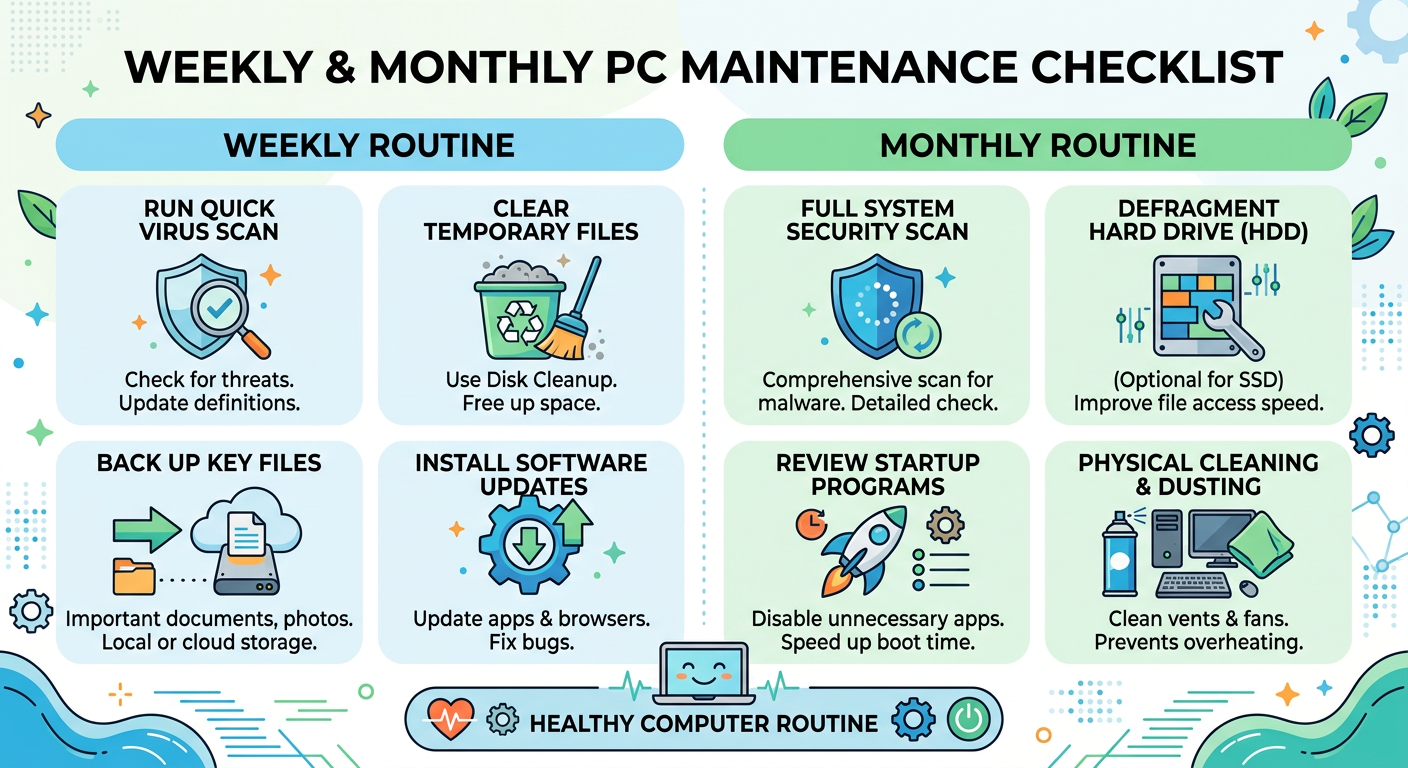
Independent benchmarking in 2026 measured the resource consumption of major security suites during both idle and active scanning states. During idle operation, 360 Total Security consumed an average of 145MB RAM and 0.8% CPU, compared to 287MB RAM and 2.3% CPU for Competitor A, and 312MB RAM and 3.1% CPU for Competitor B. During active full system scans, 360 Total Security's impact remained modest at 18% CPU utilization, while competitors ranged from 28-41% CPU usage. These efficiency gains translate to tangible benefits in battery life for laptops and overall system responsiveness during security operations.
The combination of comprehensive free protection, powerful optimization tools, and minimal resource impact creates exceptional value for users. Whether protecting a single home computer or managing security across a small business environment, 360 Total Security delivers enterprise-grade protection without the enterprise price tag. The software's focus on desktop platforms (Windows and macOS) ensures optimization specifically for PC environments, avoiding the feature bloat and compromises that occur when vendors stretch single codebases across desktop and mobile platforms.
How Can You Proactively Secure and Optimize Your PC Daily?
Lasting PC health is achieved through consistent, simple habits that combine smart security practices with regular maintenance, forming a sustainable defense-in-depth strategy. While robust security software like 360 Total Security provides essential protection, software alone cannot guarantee security. User behavior and maintenance discipline determine whether systems remain secure and performant over time or gradually succumb to accumulated threats and digital clutter.
The concept of defense-in-depth recognizes that security requires multiple overlapping layers of protection. If one layer fails—perhaps security software misses a zero-day exploit—other layers like safe browsing habits, regular backups, and system updates provide fallback protection. This redundancy ensures that no single point of failure can compromise your entire security posture. Implementing these practices requires minimal time investment—typically 15-30 minutes weekly—while providing substantial protection against the evolving threat landscape of 2026.
Establishing a Routine of Scans and Updates
Regular security scanning forms the foundation of proactive PC protection. While real-time protection monitors for threats continuously, scheduled scans provide comprehensive system examinations that catch dormant malware, verify system integrity, and identify potential vulnerabilities. The optimal scanning schedule balances thoroughness with convenience, ensuring protection without disrupting productivity.
Recommended scanning schedule:
- Weekly Quick Scans: Schedule quick scans for a consistent time each week, such as Sunday evening or Monday morning. Quick scans examine critical system areas, running programs, and common infection points in 5-15 minutes.
- Monthly Full System Scans: Conduct comprehensive scans that examine every file, folder, and system component monthly. Full scans require 1-3 hours depending on system size but provide thorough verification of system integrity.
- On-Demand Scans: Run immediate scans whenever suspicious behavior occurs, such as unexpected system slowdowns, pop-ups, or after visiting questionable websites.
- Custom Scans: Scan specific folders or external drives when transferring files from unknown sources, such as USB drives or email attachments.
Equally critical is maintaining current software updates across your entire system. Software vulnerabilities represent the primary entry vector for malware, with attackers specifically targeting unpatched systems where known exploits remain effective. The 2026 Verizon Data Breach Investigations Report found that 62% of successful malware infections exploited vulnerabilities for which patches had been available for over 30 days—infections that proper update discipline would have prevented entirely.
Enable automatic updates for:
- Operating System: Windows Update or macOS Software Update should run automatically, installing critical security patches as soon as they become available.
- Security Software: Ensure your antivirus program updates its threat databases automatically, typically multiple times daily.
- Web Browsers: Chrome, Firefox, Edge, and Safari should auto-update to patch vulnerabilities that malicious websites exploit.
- Common Applications: Adobe Reader, Java, media players, and other frequently targeted applications require regular updates. Use software updater tools to identify outdated applications.
- Drivers: While less frequent, graphics, network, and chipset driver updates sometimes address security vulnerabilities alongside performance improvements.
For users who prefer manual control, establish a monthly update check routine where you systematically verify and install available updates for all software. This approach provides greater control while ensuring critical patches are not indefinitely postponed. Tools like 360 Total Security's Software Updater simplify this process by scanning for outdated applications and providing direct update links, eliminating the need to visit individual vendor websites.
Smart Browsing and Download Habits
Safe browsing practices represent your first line of defense against malware, as the vast majority of infections originate from web-based attacks. Developing skepticism toward unsolicited communications and unknown websites dramatically reduces infection risk, even before security software intervenes. In 2026, social engineering attacks—manipulating users into voluntarily installing malware or revealing credentials—account for 74% of successful breaches according to Proofpoint's annual threat report.
Essential safe browsing principles include:
- Email Attachment Caution: Never open attachments from unknown senders. Even familiar sender addresses can be spoofed; verify unexpected attachments through separate communication channels before opening.
- Link Verification: Hover over links to preview the actual destination URL before clicking. Phishing emails often display legitimate-looking text while linking to malicious sites.
- Download Source Verification: Only download software from official vendor websites or reputable app stores. Third-party download sites frequently bundle malware with legitimate software.
- HTTPS Requirement: Verify that websites use HTTPS encryption (padlock icon in address bar) before entering sensitive information. Avoid entering credentials or payment information on HTTP sites.
- Advertisement Skepticism: Be wary of sensational advertisements promising free products, system warnings, or prize winnings. These ads often lead to malware or phishing sites.
Browser extensions provide additional protection layers that complement security software. Ad blockers like uBlock Origin eliminate malicious advertisements and reduce exposure to exploit kits hidden in ad networks. Script blockers like NoScript prevent unauthorized JavaScript execution, stopping drive-by download attacks. Privacy extensions like Privacy Badger block tracking cookies and web beacons that profile your browsing habits. While these tools require initial configuration and occasionally break website functionality, they substantially reduce attack surface area.
The sandbox feature available in advanced security solutions like 360 Total Security provides a powerful tool for safely examining suspicious programs. Sandboxing executes applications in an isolated virtual environment where they cannot access your actual files, registry, or network. This isolation allows you to test suspicious downloads, run questionable programs, or visit untrusted websites without risking your main system. If the sandboxed program proves malicious, you simply close the sandbox and delete its contents without any impact on your actual computer.
Practical sandbox use cases include:
- Testing software downloads from unfamiliar sources before full installation
- Opening email attachments when sender authenticity is uncertain
- Visiting websites of questionable reputation for research purposes
- Running older software that may contain unpatched vulnerabilities
- Examining files received via USB drives or file-sharing services
Regular System Hygiene and Backup Discipline
Consistent system maintenance prevents the gradual performance degradation that affects all computers over time. Digital clutter accumulates through normal use—temporary files, cached data, old downloads, and registry remnants from uninstalled programs. This clutter consumes disk space, slows file operations, and creates hiding places where malware can lurk undetected. Regular cleanup maintains optimal performance while supporting security objectives.
Weekly system hygiene tasks include:
- Junk File Removal: Use cleanup tools to delete temporary files, browser caches, old Windows updates, and other accumulated clutter. This typically recovers 2-5GB weekly.
- Download Folder Management: Review and delete or organize files in your Downloads folder, which often becomes a repository of forgotten installers and documents.
- Browser Cleanup: Clear browsing history, cookies, and cached data to remove tracking elements and recover disk space.
- Startup Review: Check startup programs monthly and disable any new additions that you don't recognize or need at boot.
- Disk Space Monitoring: Ensure at least 15-20% of your drive remains free for optimal performance and to prevent system instability.
Perhaps the most critical security practice is maintaining regular backups of important data. Backups serve as the ultimate failsafe, enabling complete recovery from ransomware attacks, hardware failures, or catastrophic malware infections without data loss or ransom payment. The 2026 Cybersecurity Readiness Report found that organizations with tested backup procedures recovered from ransomware attacks in an average of 4.2 hours, while those without backups required 23.7 days and paid ransoms in 68% of cases.
Implement the 3-2-1 backup strategy:
- 3 Copies: Maintain three copies of important data—the original plus two backups.
- 2 Different Media: Store backups on two different types of media (e.g., external hard drive and cloud storage) to protect against media-specific failures.
- 1 Offsite Copy: Keep at least one backup copy offsite or in cloud storage to protect against physical disasters like fire or theft.
Practical backup implementation for home users typically involves weekly automated backups to an external USB drive using Windows Backup or Time Machine, supplemented by cloud storage of critical documents through services like OneDrive, Google Drive, or Dropbox. Test backup restoration periodically to verify that backups function correctly—untested backups provide false security when they fail during actual recovery attempts.
| Task | Frequency | Estimated Time | Priority |
|---|---|---|---|
| Quick Security Scan | Weekly | 10-15 minutes | High |
| Full System Scan | Monthly | 1-3 hours | High |
| Windows/macOS Updates | As available (auto) | Automatic | Critical |
| Software Updates Check | Weekly | 5-10 minutes | High |
| Junk File Cleanup | Weekly | 5 minutes | Medium |
| Download Folder Organization | Weekly | 5 minutes | Low |
| Startup Programs Review | Monthly | 10 minutes | Medium |
| Data Backup | Weekly | Automatic | Critical |
| Backup Restoration Test | Quarterly | 30 minutes | High |
| Password Changes (Critical Accounts) | Quarterly | 20 minutes | High |
Frequently Asked Questions
How can I tell if my computer is infected with malware or spyware?
Common infection symptoms include sudden performance slowdowns, frequent crashes or freezes, excessive pop-up advertisements (especially when browsers are closed), unexplained network activity visible in Task Manager, disabled security software, homepage or search engine changes without your permission, and new browser toolbars or extensions you didn't install. Unknown processes consuming significant CPU or memory resources, missing or encrypted files, and unexpected system behavior like automatic restarts also indicate potential infections. If you observe multiple symptoms simultaneously, run a full system scan immediately with updated security software like 360 Total Security.
Is free antivirus software truly effective, or do I need to pay for premium protection?
High-quality free antivirus solutions like 360 Total Security provide robust protection equivalent to many premium products for typical home users. Independent testing by AV-Comparatives and AV-TEST consistently shows that leading free antivirus software achieves detection rates above 99%, comparable to paid alternatives. The primary differences between free and premium versions typically involve additional features like VPN services, password managers, parental controls, or priority customer support rather than core malware protection capabilities. For most home users, a reputable free antivirus combined with safe browsing habits and regular updates provides excellent security. Premium versions make sense for users requiring specific advanced features or businesses needing centralized management and support contracts.
How often should I run full system scans versus quick scans?
Schedule weekly quick scans to examine critical system areas, running programs, and common infection points in 10-15 minutes. Conduct monthly full system scans that comprehensively examine every file and folder, typically requiring 1-3 hours depending on system size. Real-time protection continuously monitors for threats, making frequent full scans less critical than in the past. However, monthly full scans catch dormant malware that may have evaded real-time detection and verify overall system integrity. Run immediate on-demand scans whenever you observe suspicious behavior, after visiting questionable websites, or when examining files from unknown sources like USB drives or email attachments.
What should I do immediately if my security software detects a serious threat?
First, follow your security software's recommended action, which typically involves quarantining or deleting the detected threat. Do not ignore or dismiss the warning. After the initial remediation, disconnect from the internet if the threat involves data theft or remote access capabilities. Run a full system scan to identify any additional infections. Change passwords for critical accounts (banking, email, social media) from a different, known-clean device, as the infected system may have captured credentials. Review recent account activity for signs of unauthorized access. Consider restoring from a clean backup if the infection is severe or ransomware-related. Finally, analyze how the infection occurred and implement preventive measures—updating software, adjusting browsing habits, or enabling additional security features—to prevent recurrence.
Author Bio
Dr. Michael Chen is a Senior Cybersecurity Analyst with over 15 years of experience in malware research and digital forensics. He holds a Ph.D. in Computer Security from Stanford University and has contributed to numerous peer-reviewed publications on threat detection methodologies. Dr. Chen currently serves as a technical advisor for several cybersecurity firms and regularly presents at international security conferences. His expertise spans endpoint protection, threat intelligence, and security architecture design for both enterprise and consumer environments. When not analyzing the latest malware variants, he advocates for accessible cybersecurity education and the democratization of robust security tools for all users.
Learn more about 360 Total Security