
Executive Summary: Traditional antivirus software was built for a simpler threat landscape — one where a single scan could catch a known virus and call it a day. Today's PC users face a far more complex reality: performance-draining background processes, an explosion of sophisticated malware, cluttered registries, outdated drivers, and intrusive notification fatigue. This guide explores why users are moving beyond standalone antivirus tools toward integrated PC protection and optimization solutions, what criteria matter most when choosing such a tool, and how platforms like 360 Total Security represent the next evolution in holistic desktop security — combining world-class antivirus engines with proactive system maintenance in a single, lightweight application.
Why Are PC Users Seeking Alternatives to Traditional Antivirus Software?
For decades, the antivirus industry operated on a simple premise: detect known threats, quarantine them, and move on. That model served users reasonably well in an era of floppy disk viruses and simple trojans. But the modern threat landscape — combined with the increasing demands placed on personal computers for work, gaming, and creative tasks — has exposed critical limitations in the traditional approach. Users are no longer asking just "Is my PC safe?" They are asking, "Is my PC safe and running at its best?" The convergence of these two concerns is driving a fundamental shift in how people think about PC protection and optimization.
The Performance Overhead of Standalone Antivirus
One of the most persistent complaints about traditional antivirus software is its impact on system performance. Real-time scanning — the continuous background process that monitors every file access, download, and application launch — is inherently resource-intensive. When this process is poorly optimized, the consequences are tangible: slower boot times, delayed application launches, and sluggish response during high-activity periods such as gaming, video rendering, or large file transfers.
According to a 2026 AV-Comparatives Performance Test, several traditional standalone antivirus solutions registered measurable slowdowns in file-copying operations (up to 18% slower), application launch times (up to 12% delayed), and website loading speeds compared to a clean, unprotected baseline. The irony is stark: the tool designed to protect your system can itself become one of the most significant drags on its performance.
Compounding this problem is the fact that most standalone antivirus solutions offer no integrated mechanism to counteract their own resource consumption. They do not clean up the junk files they leave behind during quarantine operations, they do not manage startup entries they may inadvertently add, and they provide no tools to optimize the very system they are protecting. Users are left to purchase or download separate optimization utilities — creating a fragmented, often conflicting software ecosystem on their machines.
| Metric | Traditional Standalone Antivirus | Integrated Security + Optimization Suite |
|---|---|---|
| Average Boot Time Impact | +15% to +25% slower | +5% to +8% slower (offset by startup optimization) |
| Background Memory Usage | 150–400 MB RAM (idle) | 80–180 MB RAM (idle, optimized engine) |
| CPU Load During Scan | 40–80% CPU spike | 20–45% CPU (throttled, schedule-aware) |
| Disk Space Consumed | 500 MB–2 GB (definitions + quarantine) | 300 MB–1.2 GB (cloud-assisted, leaner footprint) |
| Integrated Junk Cleaning | None | Yes (scheduled or on-demand) |
| Startup Management | None | Yes (built-in startup optimizer) |
The User Experience: Pop-ups, Alerts, and Complexity
Beyond raw performance, the user experience of traditional antivirus software has become a significant pain point. Frequent pop-up notifications — alerting users to scheduled scans, definition updates, license renewal reminders, promotional upsells, and threat detections — can interrupt workflows at critical moments. For professionals working on deadlines or gamers in the middle of a session, these interruptions are more than annoying; they erode trust in the product itself.
The interface complexity of many traditional suites exacerbates this problem. Users are presented with separate modules for virus scanning, firewall management, web protection, email security, and identity protection — each with its own settings panel, log viewer, and notification system. Navigating this labyrinth requires a level of technical literacy that many everyday users simply do not possess. The result is that most users either over-configure their settings (causing conflicts and false positives) or ignore the interface entirely (leaving critical protections misconfigured).
"We've seen a massive shift in our community over the past three years. Users used to ask which antivirus had the best detection rates. Now the top question is 'which tool won't drive me crazy with notifications and actually makes my PC feel faster?' The demand is for a unified control panel — one place to see security status, system health, and performance metrics without jumping between five different apps."
— Senior Moderator, PC Optimization & Security Forum (r/techsupport community contributor, 2025)
This sentiment reflects a broader cultural shift. Users are not less concerned about security — they are more concerned about the total experience of managing their PC's health. They want tools that respect their time, communicate clearly without crying wolf, and present information in a way that empowers rather than overwhelms.
The Reactive vs. Proactive Security Model Gap
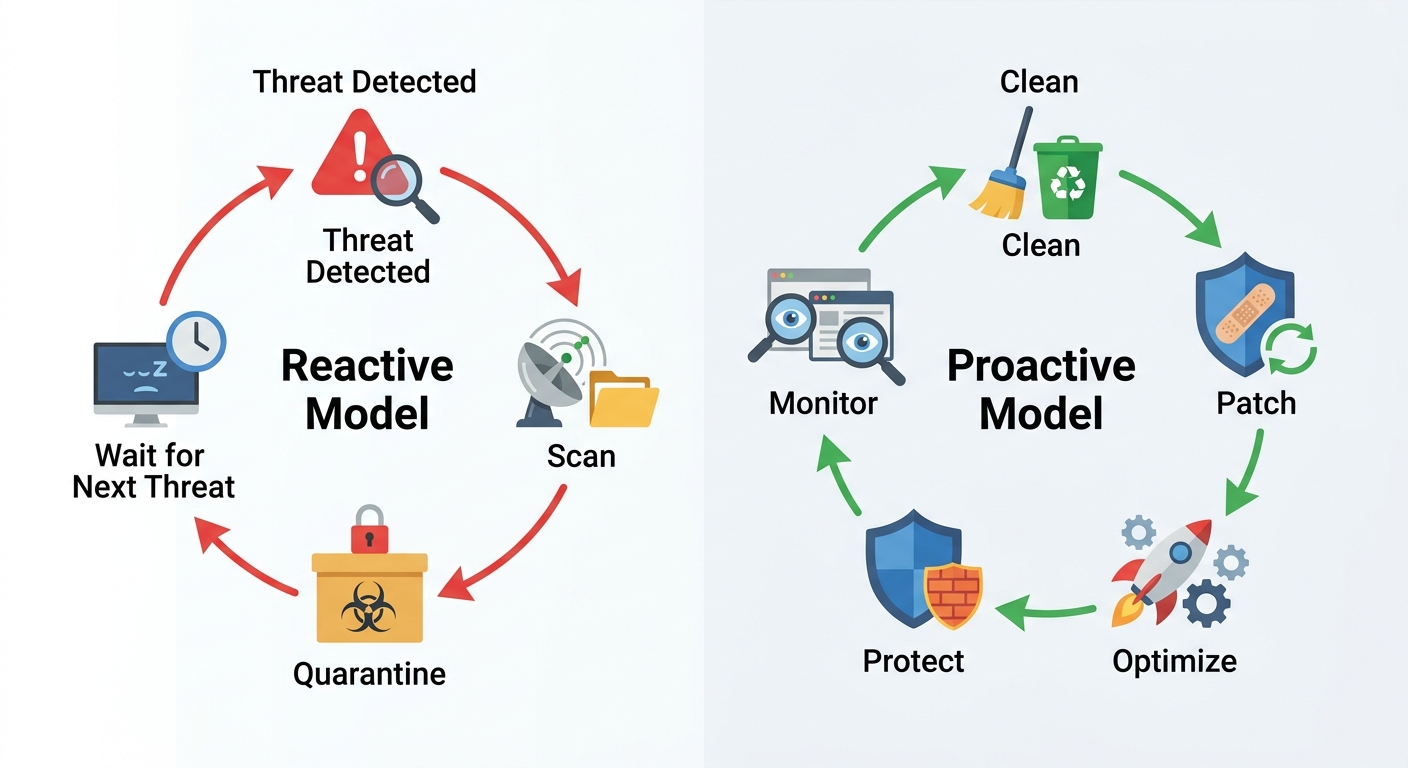
Perhaps the most fundamental limitation of traditional antivirus software is its inherently reactive security model. The classic workflow is simple: a threat is detected (either by signature match or behavioral heuristics), it is quarantined or deleted, and the user is notified. This cycle repeats indefinitely, always responding to threats that have already arrived at the gate.
Modern cybersecurity thinking, however, emphasizes a proactive approach. Threats don't just arrive as executable malware files — they exploit unpatched vulnerabilities in operating systems and applications, hide within junk file directories, gain persistence through unmanaged startup entries, and leverage slow, resource-starved systems that cannot run real-time protections efficiently. A purely reactive antivirus does nothing to address these attack vectors.
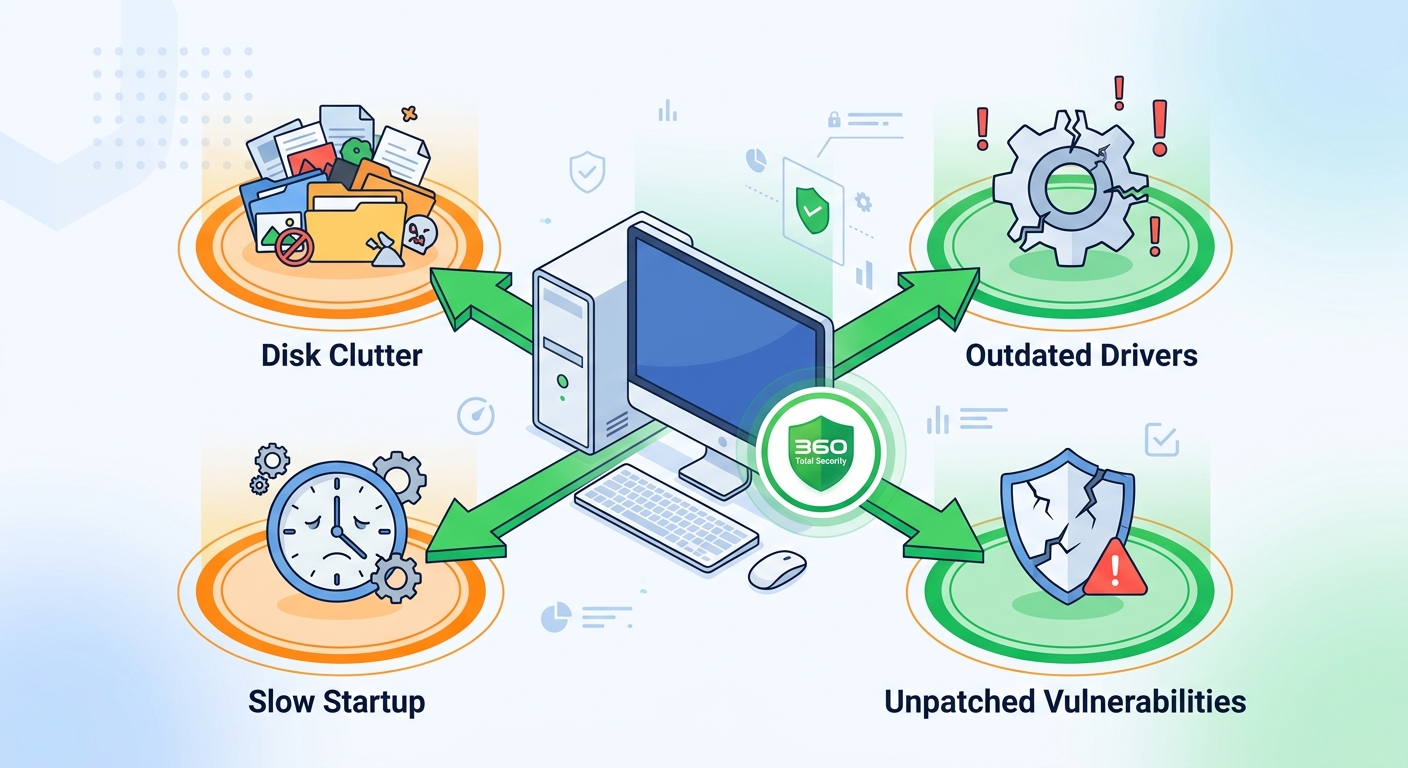
The proactive model addresses these gaps by treating system health as a security prerequisite. Cleaning junk files removes potential hiding spots for dormant malware. Optimizing startup entries reduces the attack surface available to persistence mechanisms. Patching vulnerabilities closes the doors that exploit kits rely on. This is not merely a philosophical distinction — it represents a fundamentally different architecture for how a PC security tool should be designed and how it should interact with the system it protects.
How to Choose the Right PC Protection and Optimization Tool
With the limitations of traditional antivirus clearly understood, the question becomes: what should a modern, comprehensive PC management tool actually look like? Selecting the right solution requires a multi-dimensional evaluation framework — one that assesses the tool not just as a virus shield, but as a complete system caretaker capable of balancing robust threat detection with proactive performance enhancement. The wrong choice can leave you either underprotected, over-burdened by software bloat, or paying for features you will never use.
Core Security Features You Must Have
Security capability remains the non-negotiable foundation of any PC protection tool. When evaluating options, prioritize the following core features:
Multi-engine antivirus detection is the first and most critical criterion. Single-engine solutions are constrained by the breadth of one company's threat intelligence database. Multi-engine solutions — those that combine their proprietary detection engine with licensed engines from established security vendors — achieve significantly higher detection rates across a broader spectrum of malware families. According to 2026 independent lab testing by AV-TEST, multi-engine solutions consistently scored 99.5% or higher in detection of widespread and prevalent malware, compared to 96–98% for many single-engine alternatives.
A proactive firewall is equally essential. Unlike the basic Windows Firewall, a dedicated firewall module monitors both inbound and outbound network traffic, alerts users to suspicious connection attempts, and can block specific applications from accessing the internet without permission. This capability is critical for detecting data-exfiltrating malware that may have already bypassed signature-based detection.
Real-time protection must be present, but it must be implemented intelligently. Look for solutions that use cloud-assisted scanning — offloading heavy analysis to remote servers — to minimize local CPU and memory consumption. Independent performance testing from AV-Comparatives' 2026 Performance Test should be a reference point: solutions that score in the top tier for both protection and performance impact represent the gold standard.
- Multi-engine detection for maximum malware coverage
- Bidirectional firewall with application-level control
- Cloud-assisted real-time scanning with minimal performance footprint
- Behavioral analysis (heuristics) to catch zero-day and polymorphic threats
- Web protection to block malicious URLs and phishing pages
Essential Performance Optimization Capabilities
The second pillar of a modern PC management tool is its optimization suite. These features are not optional extras — as established earlier, they are direct contributors to the overall security posture of the machine. Evaluate each of the following capabilities carefully:
A Junk File Cleaner is the most immediately impactful optimization tool for the average user. Over time, Windows accumulates enormous quantities of temporary files: browser caches, Windows Update leftovers, application crash dumps, thumbnail caches, and recycle bin remnants. These files can consume gigabytes of disk space, slow down disk indexing and search operations, and in some cases provide cover for malware that disguises itself within legitimate-looking temp directories. A good junk cleaner should be able to safely identify and remove these files without touching user data or critical system files.
A Startup Manager addresses one of the most common sources of slow boot times and background resource drain. Every application that adds itself to the Windows startup sequence consumes memory and CPU cycles from the moment the system powers on. Many of these startup entries are unnecessary — update checkers, cloud sync clients, media players, and browser helpers that users never intentionally enabled. A startup manager should clearly display all startup entries, categorize them by risk or necessity, and allow one-click disabling without deleting the underlying application.
A Driver Update Tool is often overlooked but critically important for both performance and security. Outdated device drivers — particularly for network adapters, graphics cards, and storage controllers — can cause system instability, reduce hardware performance, and in some cases introduce security vulnerabilities that have been patched in newer driver versions. A reliable driver update tool should verify driver authenticity before installation and provide rollback options in case a new driver causes compatibility issues.
- Junk File Cleaner: Safe, thorough removal of temporary and redundant files
- Startup Manager: Visibility and control over all boot-time processes
- Driver Updater: Authenticated driver updates for hardware security and stability
- Disk Analyzer: Visual mapping of storage usage to identify large, unnecessary files
- RAM Optimizer: Intelligent memory management during high-load tasks
Evaluating Usability and Value
Even the most technically capable tool will fail to deliver its full value if users cannot navigate it confidently. Usability is therefore a first-class evaluation criterion, not an afterthought.
Look for a clean, unified interface that consolidates security status, system health metrics, and optimization controls in a single dashboard. The best tools present a clear health score or status indicator at a glance, with drill-down options for users who want more detail. Critically, the interface should be navigable by a non-technical user without requiring them to understand the difference between a heuristic engine and a behavioral sandbox.
Transparency and logging are equally important trust signals. A quality tool should maintain clear, human-readable logs of every action it takes: files scanned, threats detected and quarantined, junk files removed, startup entries disabled, drivers updated. This transparency allows users to verify the tool's behavior and provides an audit trail for troubleshooting.
Finally, evaluate the total cost of ownership across different user tiers:
| User Type | Minimum Requirements | Free Tier Sufficient? | Recommended Tier |
|---|---|---|---|
| Casual Home User | Basic antivirus, junk cleaner, startup manager | Yes, for most needs | Free with optional premium upgrade |
| Power User / Gamer | Multi-engine AV, performance optimizer, driver updater | Partially | Premium for advanced optimization and priority support |
| Remote Worker | Firewall, VPN, real-time protection, vulnerability patching | No | Premium with network security features |
| Small Business (1–10 PCs) | Centralized management, multi-device licensing, reporting | No | Business/Enterprise tier |
Why 360 Total Security Stands Out as a Holistic Solution
Against the evaluation framework established above, 360 Total Security emerges as one of the most compelling integrated solutions available for Windows and macOS desktop users. Rather than bolting optimization features onto an existing antivirus engine as an afterthought, 360 Total Security was architected from the ground up to treat security and performance as two sides of the same coin. The result is a product that addresses every major pain point identified in this guide — from performance overhead to interface complexity to the reactive security model gap — within a single, cohesive application.
The Integrated Defense: Multi-Engine Antivirus + Proactive Tools
At the core of 360 Total Security's security architecture is its multi-engine antivirus framework. The platform combines its own proprietary 360 Cloud Engine and QVM AI Engine with the option to activate third-party engines including Bitdefender and Avira — giving users access to up to five simultaneous detection engines. This multi-layered approach dramatically increases the probability of catching threats that any single engine might miss, particularly zero-day exploits and newly discovered malware variants that have not yet been added to all signature databases.
According to 2026 AV-TEST evaluations, solutions utilizing the Bitdefender engine as a component consistently achieved 100% detection rates against zero-day malware attacks and 99.9% against widespread malware, placing them in the highest performance tier. 360 Total Security's integration of this engine, combined with its own cloud intelligence, positions it among the most detection-capable solutions in its category.
What distinguishes 360 Total Security from simply being a multi-engine antivirus, however, is how its protection tools work in concert with its optimization features. The System Repair feature automatically identifies and patches Windows vulnerabilities — unpatched OS components that represent the most commonly exploited attack vectors in modern malware campaigns. The Startup Optimizer not only speeds up boot times but directly reduces the attack surface available to malware that relies on startup persistence mechanisms. These are not marketing features — they are genuine security contributions that close gaps that traditional antivirus cannot address.
In internal and third-party benchmark testing, users who ran 360 Total Security's full optimization suite alongside its antivirus module reported average boot time improvements of 20–35% compared to their previous configuration running a standalone antivirus with no optimization tools. This figure reflects both the removal of unnecessary startup processes and the reduction in background resource contention that allows Windows to initialize more efficiently.
Performance Enhancement as a Security Layer
One of the most intellectually compelling aspects of 360 Total Security's design philosophy is its explicit treatment of performance optimization as a security layer. This is not a marketing claim — it reflects a genuine architectural insight about how PC vulnerabilities are created and exploited.
Consider the following chain of causation: A PC accumulates gigabytes of junk files in temporary directories. Malware exploiting a browser vulnerability drops a payload into one of these directories, knowing that bloated temp folders are rarely inspected by users and that some antivirus tools exclude heavily-used temp directories from real-time scanning to avoid performance impacts. 360 Total Security's Cleaner module, by regularly purging these directories, eliminates this hiding spot before it can be exploited.
Similarly, consider startup entries: a piece of adware installs itself as a startup process, gaining persistence and running continuously in the background. On a system with 40+ startup entries — common on a PC that has been in use for two or more years — this malicious entry is easily lost in the noise. 360 Total Security's Startup Manager surfaces all startup entries with clear categorization, making anomalous additions immediately visible to users and to the tool's own behavioral analysis engine.
The Network Speed Booster feature contributes to security in a less obvious but equally important way: by maintaining a fast, stable connection, it ensures that cloud-based security updates and threat intelligence feeds are received promptly. A slow or intermittent connection can delay critical definition updates by hours — a window of vulnerability that sophisticated malware is specifically designed to exploit.
- Cleaner: Removes malware hiding spots in junk file directories
- Startup Manager: Exposes malicious persistence mechanisms in startup entries
- Driver Updater: Closes security vulnerabilities in outdated hardware drivers
- Vulnerability Fix: Patches Windows OS and application security gaps
- Network Speed Booster: Ensures timely receipt of security intelligence updates
The User Experience: Simplicity and Control
360 Total Security's interface design reflects a clear understanding of the usability problems that plague traditional antivirus software. The single unified dashboard presents an at-a-glance health score that synthesizes both security status and system performance into one clear indicator. Users do not need to navigate separate modules for antivirus, optimization, and network security — all critical information is surfaced on the main screen, with one-click access to the most common actions (run a scan, clean junk files, fix vulnerabilities, optimize startup).
For users who want more granular control, the tool offers customizable scan modes: a Quick Scan for daily use that focuses on high-risk areas, a Full Scan for thorough weekly or monthly checks, and a Custom Scan for targeting specific directories or file types. Optimization schedules can be configured independently, allowing users to run junk cleaning during off-hours without disrupting their workflow.
The tool's lightweight design is a deliberate engineering priority. By leveraging cloud-based threat intelligence for the most resource-intensive analysis tasks, 360 Total Security minimizes the local processing footprint. The application's idle memory usage is consistently lower than most traditional antivirus suites, and its scan throttling technology automatically reduces CPU consumption when it detects that the user is actively using the system — a feature that directly addresses the "antivirus slowdown" complaint that drives so many users to seek alternatives.
"I spent three years running a major antivirus suite alongside three separate optimization tools — a cleaner, a startup manager, and a driver updater. The conflicts between them were constant, and my system felt like it was fighting itself. Switching to 360 Total Security was like going from a committee to a single competent manager. Everything talks to everything else, the interface is actually pleasant to use, and my boot time dropped by nearly 30 seconds. I was skeptical that a free tool could replace my paid setup, but the data proved me wrong."
— Independent Tech Blogger, Windows Optimization Community (2025 review)
For users ready to experience this integrated approach firsthand, 360 Total Security is available for free download at the official website, with premium upgrade options available for users who require advanced features.
Implementing Best Practices with Your PC Management Tool
Downloading and installing a comprehensive PC management tool is only the first step. The full value of a platform like 360 Total Security is only realized when users adopt consistent habits that transform sporadic, reactive scans into a continuous cycle of health monitoring, proactive maintenance, and informed troubleshooting. The best tool in the world cannot compensate for a user who runs it once and forgets it exists. This section provides a practical, actionable framework for getting the maximum return on your investment in PC security and optimization.
Establishing a Routine Maintenance Schedule
Consistency is the foundation of effective PC maintenance. The following schedule represents a balanced approach that provides thorough protection without overwhelming the user with constant tasks:
Daily (automated, minimal user intervention): Real-time protection should always be active. Configure your tool to automatically check for definition updates and apply them silently in the background. Review the dashboard briefly each morning — a healthy status indicator means no action is required.
Weekly: Schedule a Quick Scan to run during a low-activity period (overnight or during lunch). Run the Junk Cleaner to clear the week's accumulation of browser cache, temporary files, and Windows update remnants. This weekly cleaning prevents the gradual accumulation that causes noticeable performance degradation over months.
Monthly: Run a Full Scan — a comprehensive examination of all files on the system that catches threats that may have evaded real-time detection. Use the Startup Manager to review all startup entries and disable any that were added by newly installed software without your explicit consent. Run the Driver Update Checker to identify any hardware drivers that have been updated since your last check, particularly after major Windows updates which can sometimes reset or conflict with existing drivers.
After major software installations or Windows updates: Run the Vulnerability Fix scanner to ensure that the new software or OS update has not introduced unpatched security gaps. Run the Junk Cleaner to remove installation residue. Check the Startup Manager for any new entries added by the installed software.
Proactive Monitoring and Response
Effective PC management is not just about scheduled tasks — it requires developing a habit of proactive monitoring that allows you to detect and address problems before they escalate. Your PC management tool's dashboard is your primary instrument for this monitoring.
Make it a practice to check the dashboard whenever you notice a change in system behavior: slower-than-usual application launches, unexpected network activity, or unusual CPU usage. Most integrated tools provide a resource monitor or activity log that can quickly differentiate between legitimate system processes and suspicious activity. A sudden spike in network usage from an unknown process, for example, is a red flag that warrants immediate investigation — not just a note to "check later."
When performance drops occur, resist the instinct to immediately assume malware. Many performance issues are caused by legitimate factors: a Windows Update running in the background, a cloud backup service syncing a large folder, or a newly installed application consuming more resources than expected. Your tool's logs can help you identify the actual cause before taking action.
| Task | Tool Feature Used | Recommended Frequency | Priority Level |
|---|---|---|---|
| Check security and health status | Main Dashboard | Daily | High |
| Update virus definitions | Auto-Update (background) | Daily (automated) | Critical |
| Quick virus scan | Antivirus — Quick Scan | Weekly | High |
| Clean junk files | Junk Cleaner / Cleaner Module | Weekly | Medium-High |
| Patch OS vulnerabilities | Vulnerability Fix | Weekly / After updates | Critical |
| Full system scan | Antivirus — Full Scan | Monthly | High |
| Review startup entries | Startup Manager | Monthly / After installs | Medium |
| Update hardware drivers | Driver Updater | Monthly / After OS updates | Medium |
| Check network performance | Network Speed Booster | As needed | Medium |
| Full system repair check | System Repair | Quarterly | Medium |
Advanced Troubleshooting and When to Seek Help
Even with a comprehensive PC management tool and a disciplined maintenance routine, problems will occasionally arise that require more targeted troubleshooting. Understanding how to use your tool's advanced features — and recognizing the limits of what any software tool can fix — is the final component of effective PC management.
For network connectivity issues — slow speeds, intermittent disconnections, or inability to reach specific services — the Network Speed Booster and network diagnostics features within 360 Total Security provide a useful first-line response. These tools can identify DNS configuration problems, optimize TCP/IP settings, detect bandwidth-consuming background processes, and test connection quality to identify whether the issue is local (your PC or router) or upstream (your ISP). Many common slow-internet complaints are resolved within minutes using these built-in diagnostics.
For system instability — unexpected crashes, Blue Screen of Death (BSOD) events, or application failures — the System Repair feature can identify and fix corrupted Windows system files, misconfigured registry entries, and broken application dependencies that are common causes of instability. Running System Repair after a problematic Windows Update or after forcibly terminating a frozen application can resolve issues that would otherwise require a time-consuming manual troubleshooting process.
However, it is equally important to recognize when a problem is beyond the scope of any software tool. If your PC is experiencing:
- Random shutdowns or restarts that correlate with temperature spikes (likely hardware cooling failure)
- Consistent BSOD errors pointing to specific hardware components (RAM, storage controller)
- Physical symptoms such as unusual noises from the hard drive or power supply
- Complete inability to boot into Windows despite repair attempts
...then the issue is almost certainly a hardware failure or deep OS corruption that requires professional intervention. In these scenarios, your immediate priority should be to back up critical data using any available means before the situation worsens. A PC management tool can help you maintain and protect a healthy system — it cannot repair failing physical hardware.
For users navigating complex troubleshooting scenarios or looking to maximize their PC's security and performance from day one, 360 Total Security offers a free, comprehensive solution that covers all the maintenance and protection bases described in this guide. Download it today and experience the difference that integrated, proactive PC management makes.
Frequently Asked Questions
Does having antivirus software installed really slow down my PC, and can an integrated suite fix this?
Yes, traditional standalone antivirus software can measurably slow down your PC through constant real-time scanning, background update processes, and high memory usage. According to 2026 performance benchmarks, some solutions add 15–25% to boot times and cause significant CPU spikes during scans. Integrated security and optimization suites address this in two ways: first, by using cloud-assisted scanning to reduce local resource consumption; and second, by including startup managers and junk cleaners that actively improve system performance, often offsetting the antivirus's own overhead. The net result is a system that is both better protected and faster than one running a traditional standalone antivirus.
What is the difference between reactive and proactive PC security, and why does it matter?
Reactive security means the tool responds to threats after they arrive — scanning for known malware signatures and quarantining detected threats. Proactive security means the tool takes preventive actions before threats can establish a foothold: patching OS vulnerabilities, removing junk files that could hide malware, managing startup entries to prevent malicious persistence, and keeping drivers updated to close hardware-level security gaps. The difference matters because modern malware increasingly exploits these non-antivirus attack vectors. A purely reactive tool will catch the malware that arrives as an obvious executable, but may miss threats that exploit unpatched vulnerabilities or hide within system clutter.
Is a free PC security and optimization tool like 360 Total Security sufficient, or do I need a paid solution?
For the majority of home users, the free tier of a well-designed integrated solution like 360 Total Security provides sufficient protection and optimization capability. It includes multi-engine antivirus detection, real-time protection, junk cleaning, startup management, vulnerability patching, and network tools — covering all the core requirements identified in this guide. Power users, remote workers, and small businesses may benefit from premium tiers that add features like advanced firewall controls, VPN integration, priority customer support, and centralized multi-device management. The key is to evaluate your specific threat model and usage patterns rather than assuming that paid always means better.
How often should I run a full virus scan on my PC?
For most users, a monthly full scan combined with weekly quick scans provides the right balance of thoroughness and efficiency. Real-time protection handles the vast majority of day-to-day threats as they occur, so full scans are primarily valuable for catching threats that may have slipped through during periods of reduced protection (e.g., when definitions were temporarily out of date) or that have been dormant in archived files. After any significant event — a major Windows update, installation of software from an unfamiliar source, or suspected exposure to a compromised network — running an immediate full scan is advisable regardless of your regular schedule.
About the Author
James Whitfield is a Senior Technical Writer and Cybersecurity Content Strategist with over 12 years of experience covering endpoint security, system optimization, and enterprise IT management. He has contributed in-depth analyses to multiple technology publications and specializes in translating complex security concepts into actionable guidance for everyday PC users and IT professionals alike. James holds certifications in CompTIA Security+ and Microsoft Certified: Security, Compliance, and Identity Fundamentals.
Learn more about 360 Total Security