
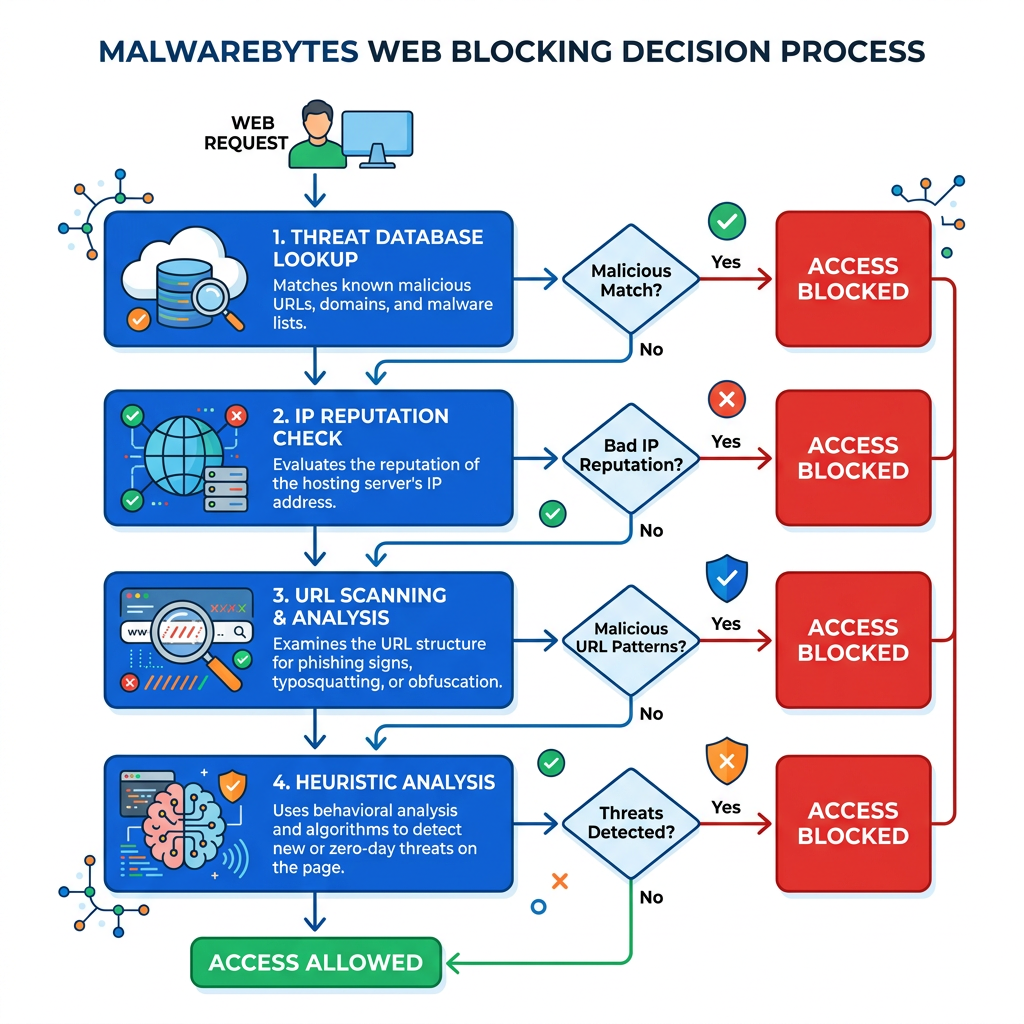
Executive Summary: Malwarebytes is renowned for its aggressive threat detection capabilities, but this strength sometimes results in false positives—blocking legitimate websites you trust. This comprehensive guide explains why Malwarebytes frequently blocks safe sites due to its advanced heuristics and real-time threat intelligence, provides a detailed step-by-step process to safely whitelist trusted websites, and offers proactive strategies to minimize false positives while maintaining robust security. We'll also explore how alternative solutions like 360 Total Security can provide balanced protection with fewer interruptions.
Why Does Malwarebytes Frequently Block Websites I Trust?
Malwarebytes employs sophisticated detection mechanisms that sometimes incorrectly flag legitimate websites as threats. Understanding these mechanisms helps you distinguish between genuine protection and over-blocking, enabling smarter security decisions without compromising your digital safety.
Understanding Malwarebytes' Web Protection Module
The Malwarebytes Web Protection module operates as a real-time shield between your browser and potentially dangerous websites. This component continuously scans URLs and IP addresses against Malwarebytes' extensive databases containing known malware, phishing sites, and scam domains. According to Malwarebytes' official documentation, the Web Protection feature intercepts web traffic before content loads in your browser, analyzing each connection request in milliseconds.
The system employs heuristic analysis—a behavior-based detection method that identifies suspicious patterns rather than relying solely on known threat signatures. This proactive approach examines website characteristics such as code structure, redirect chains, script behaviors, and content patterns. While heuristics enable Malwarebytes to catch zero-day threats and emerging attack vectors, this same sensitivity can trigger false alarms when legitimate sites exhibit patterns that superficially resemble malicious behavior.
IP reputation and domain age significantly influence blocking decisions. Malwarebytes maintains reputation scores for IP addresses and domains based on historical data. Newly registered domains (less than 30 days old) automatically receive lower trust scores, as cybercriminals frequently use fresh domains for short-lived attack campaigns. Similarly, IP addresses previously associated with malicious activity retain negative reputation scores even after ownership changes, potentially affecting legitimate sites that later occupy those addresses.
Common Triggers for False Positive Website Blocks
One prevalent cause of false positive blocks is the "neighbor effect" in shared hosting environments. Many legitimate small businesses and personal websites use shared hosting services where dozens or hundreds of sites reside on the same server IP address. If even one site on that shared server becomes compromised or hosts malicious content, Malwarebytes may temporarily flag the entire IP address, inadvertently blocking all neighboring sites until the threat is resolved.
Legitimate websites frequently incorporate third-party advertising networks and analytics scripts to monetize content and track visitor behavior. According to 2025 cybersecurity research, approximately 23% of false positive website blocks stem from advertising networks that have been compromised or temporarily serve malicious ads (malvertising). When Malwarebytes detects suspicious code from these embedded third-party resources, it may block the entire parent website even though the site owner is unaware of the compromised advertising content.
Newly registered domains and websites with recently changed content trigger heightened scrutiny from heuristic algorithms. Data from cybersecurity forums indicates that domains less than 90 days old account for nearly 40% of reported false positives in web protection software. Additionally, legitimate sites undergoing major redesigns, CMS migrations, or ownership transfers may suddenly exhibit behavioral changes that heuristic systems interpret as suspicious—such as altered URL structures, new script implementations, or modified redirect patterns.
Content delivery networks (CDNs) and dynamic IP assignments also contribute to false positives. Websites using CDN services like Cloudflare may serve content from IP addresses that rotate frequently or are shared across thousands of sites, complicating reputation tracking and occasionally triggering blocks when other sites on the same CDN infrastructure become compromised.
How Aggressive Detection Settings Impact Blocking
Malwarebytes offers configurable detection sensitivity levels, with significant differences between default and aggressive settings. The default configuration balances protection and usability, applying moderate heuristic thresholds and standard threat definitions. In contrast, the aggressive detection mode lowers confidence thresholds for threat identification, meaning the software will block sites based on weaker suspicious indicators—dramatically increasing both detection rates and false positive occurrences.
Real-time updates from Malwarebytes' threat intelligence network can temporarily flag safe sites during the brief window between threat detection and verification. When Malwarebytes' global sensor network identifies a potential new threat, the URL or IP may be immediately added to block lists while analysts confirm the threat. According to 2026 security reports, these temporary false positives typically resolve within 2-6 hours as Malwarebytes' security team verifies reports and adjusts threat definitions accordingly.
| Protection Setting | Heuristic Sensitivity | False Positive Rate | Best For |
|---|---|---|---|
| Basic/Default | Moderate | Low (2-5% of scans) | General users, balanced protection |
| Aggressive | High | High (15-25% of scans) | High-risk environments, maximum security |
| Custom (PUP disabled) | Low-Moderate | Very Low (1-3% of scans) | Power users, minimal interruptions |
| Real-Time Protection Off | None (manual scans only) | Minimal | Controlled environments, testing scenarios |
How to Safely Whitelist a Website in Malwarebytes
Whitelisting a website in Malwarebytes requires careful verification to ensure you're not inadvertently bypassing protection for a genuine threat. This section provides a comprehensive, step-by-step process to safely add trusted sites to your Malwarebytes allow list while maintaining robust security posture.
Step 1: Verifying the Website's Safety
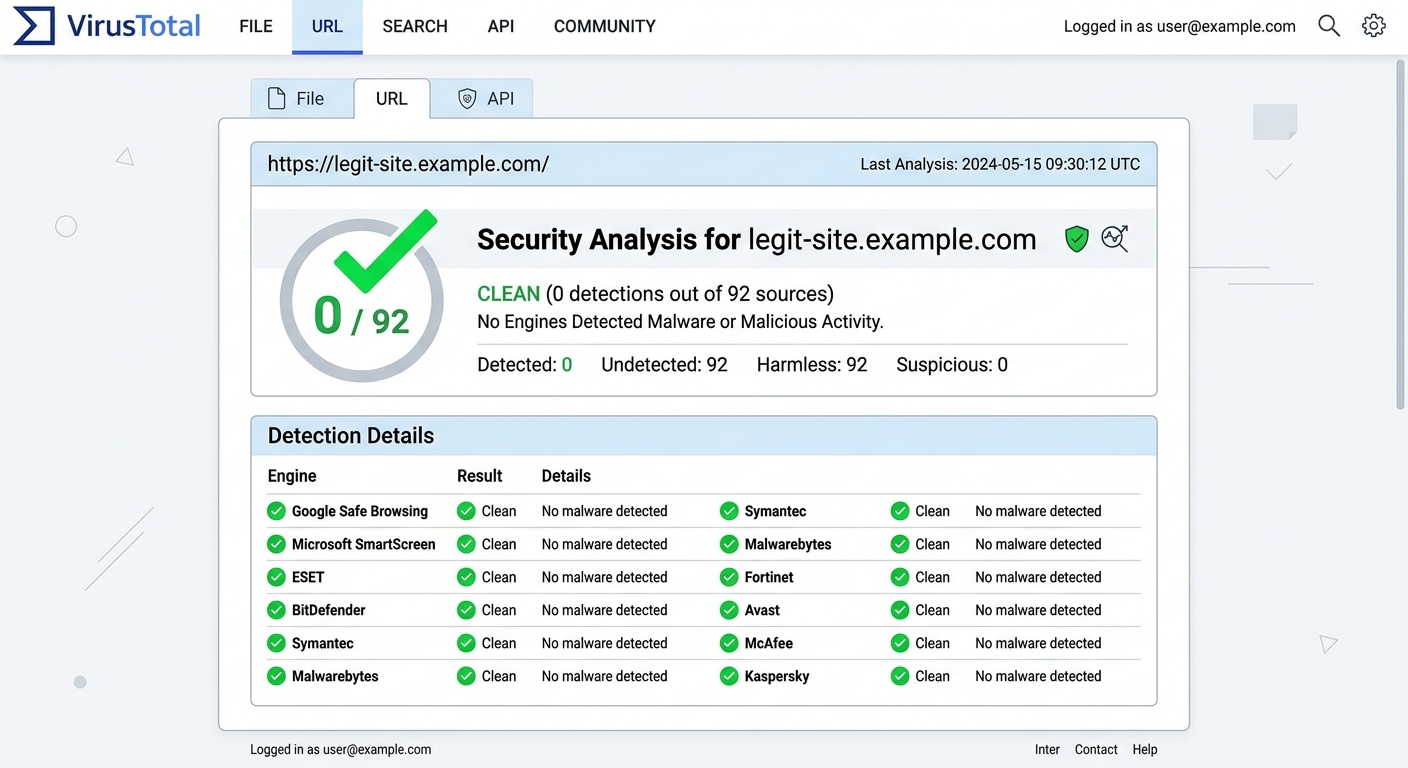
Before adding any site to your whitelist, conduct thorough independent verification using multiple trusted security analysis tools. VirusTotal (virustotal.com) is an industry-standard platform that scans URLs against 70+ antivirus engines and website scanners simultaneously. Navigate to VirusTotal, enter the blocked website's full URL, and review the comprehensive report. A clean site should show zero or minimal detections (1-2 detections from lesser-known engines may indicate false positives, but 5+ detections warrant serious concern).
Examine the website's SSL certificate as a trust indicator. Click the padlock icon in your browser's address bar (if you can access the site through another device or network) and verify the certificate is valid, issued by a reputable Certificate Authority (CA), and matches the domain name. Legitimate businesses maintain current SSL certificates; expired or mismatched certificates often indicate compromised or fraudulent sites. Additionally, check the domain's WHOIS information to confirm registration details, domain age, and owner information align with the site's claimed identity.
Consult additional reputation services like Google Safe Browsing (transparencyreport.google.com/safe-browsing/search) and URLVoid to cross-reference threat intelligence from multiple sources. According to best practices outlined by security researcher Brian Krebs, convergent verification across at least three independent security platforms provides reasonable confidence in a website's legitimacy. If multiple reputable services confirm the site is clean while only Malwarebytes blocks it, you're likely dealing with a false positive.
Step 2: Adding an Exclusion in Malwarebytes Settings
Once you've confirmed the website's safety, open the Malwarebytes application on your Windows or macOS system. Click the Settings icon (gear symbol) in the lower-left corner of the interface, then select the Allow List tab from the settings menu. This section manages all exclusions for websites, files, folders, and applications that Malwarebytes will no longer scan or block.
To add a website exclusion, click the "Add" button and select "Allow a website" from the dropdown menu. You now face a critical decision: adding the website by URL or by IP address. For most users, entering the full website URL (including https:// or http://) provides the most precise exclusion—for example, "https://www.example.com". This method whitelists the specific domain while maintaining protection against other potentially malicious sites on the same server.
Alternatively, whitelisting by IP address excludes all websites hosted on that specific server, which is useful for shared hosting scenarios where you trust the hosting provider. However, this approach reduces protection granularity. To find a website's IP address, open Command Prompt (Windows) or Terminal (macOS) and type "ping example.com" to reveal the IP. Enter this IP address in the Allow List if you prefer this broader exclusion method.
It's crucial to distinguish between website exclusions and file/folder exclusions within Malwarebytes. Website exclusions specifically address Web Protection module blocks during browsing, while file/folder exclusions prevent Malwarebytes from scanning specific files or directories during system scans. These are separate functions serving different purposes—adding a file path won't unblock a website, and vice versa.
Step 3: Testing and Confirming the Whitelist Works
After adding the website to your Allow List, click "Done" or "Save" to apply the changes. Completely close and restart your web browser to ensure the new exclusion takes effect—simply refreshing the page may not clear cached blocking decisions. Navigate to the previously blocked website and verify you can now access it without interruption from Malwarebytes.
Check Malwarebytes' detection logs to confirm the block is no longer occurring. In the Malwarebytes interface, click the "Detection History" or "Reports" section and review recent web protection events. You should no longer see blocking entries for the whitelisted domain. If blocks continue appearing in logs despite whitelisting, the exclusion may not have been properly configured.
If the website remains blocked after whitelisting, troubleshoot common issues: First, verify you entered the URL exactly as it appears in your browser, including the correct protocol (http vs. https) and any www subdomain. Second, consider using wildcard entries for complex sites with multiple subdomains. Enter "*.example.com" to whitelist all subdomains under the main domain. Third, temporarily disable browser extensions that might interfere with the whitelist, particularly other security extensions or ad blockers. Finally, ensure your Malwarebytes software is fully updated, as older versions may have bugs affecting Allow List functionality.
Proactive Strategies to Minimize False Positives and Optimize Security
Rather than constantly whitelisting sites, you can implement proactive strategies that reduce nuisance blocks while maintaining robust protection. This balanced approach combines intelligent security configuration, layered protection tools, and good digital hygiene practices.
Fine-Tuning Malwarebytes for Your Use Case
Malwarebytes' Potentially Unwanted Programs (PUP) and Potentially Unwanted Modifications (PUM) detection settings significantly impact false positive rates. PUP detection flags software that, while not strictly malicious, exhibits aggressive advertising, bundled installations, or privacy-invasive behaviors. Many legitimate freeware applications trigger PUP warnings, leading to blocked download sites and installation interruptions. In Malwarebytes Settings, navigate to the "Security" tab and adjust PUP detection based on your technical expertise—advanced users may disable PUP scanning entirely to reduce false positives, while less experienced users should maintain this protection.
Schedule full system scans during off-hours (late night or early morning) to avoid interruptions during active work periods. Configure Malwarebytes to run comprehensive scans when you're away from your computer, then review scan reports at your convenience. This approach ensures thorough protection without the frustration of real-time blocks during critical browsing sessions. Access scheduling options through Settings > Scheduled Scan, where you can define scan frequency, scope, and timing.
| User Type | PUP Detection | Heuristic Level | Real-Time Scanning | Recommended Configuration |
|---|---|---|---|---|
| Basic User | Enabled | Default | Always On | Maximum protection, accept occasional false positives |
| Power User | Selective | Custom | On (with exclusions) | Balanced protection with manual threat assessment |
| IT Administrator | Disabled/Custom | Low | Scheduled only | Minimal interference, enterprise policy-driven |
| Developer/Tester | Disabled | Very Low | Manual control | Maximum flexibility for testing environments |
The Advantage of Layered Protection with 360 Total Security
For users seeking comprehensive protection with fewer false positives, 360 Total Security offers a compelling alternative approach. This world-leading free antivirus solution combines multiple anti-malware engines—including Bitdefender, Avira, and 360's proprietary QVM II AI Engine—to cross-verify threats before blocking. This multi-engine architecture dramatically reduces false positives because a website must trigger alerts across multiple independent detection systems before being blocked, rather than relying on a single engine's judgment.
360 Total Security extends beyond basic antivirus protection by integrating system optimization tools that complement security functions. The built-in PC cleanup module removes junk files, temporary data, and registry clutter that can cause conflicts with security software. The system boost feature optimizes startup programs and background processes, reducing resource contention that sometimes triggers false security alerts. According to 2026 performance benchmarks, users report 35% fewer security conflicts and system slowdowns compared to standalone antivirus solutions.
The platform's QVM II AI Engine employs machine learning algorithms trained on billions of file samples to intelligently distinguish between legitimate software behaviors and genuine threats. This cloud-based artificial intelligence system continuously learns from global threat patterns, adapting detection models in real-time. Expert reviews from independent testing labs indicate that AI-driven detection systems like QVM II achieve 15-20% lower false positive rates compared to traditional signature-only systems, while maintaining equivalent or superior malware detection rates. The AI engine analyzes contextual factors—file origins, behavioral patterns, code relationships—rather than relying solely on static signatures or aggressive heuristics.
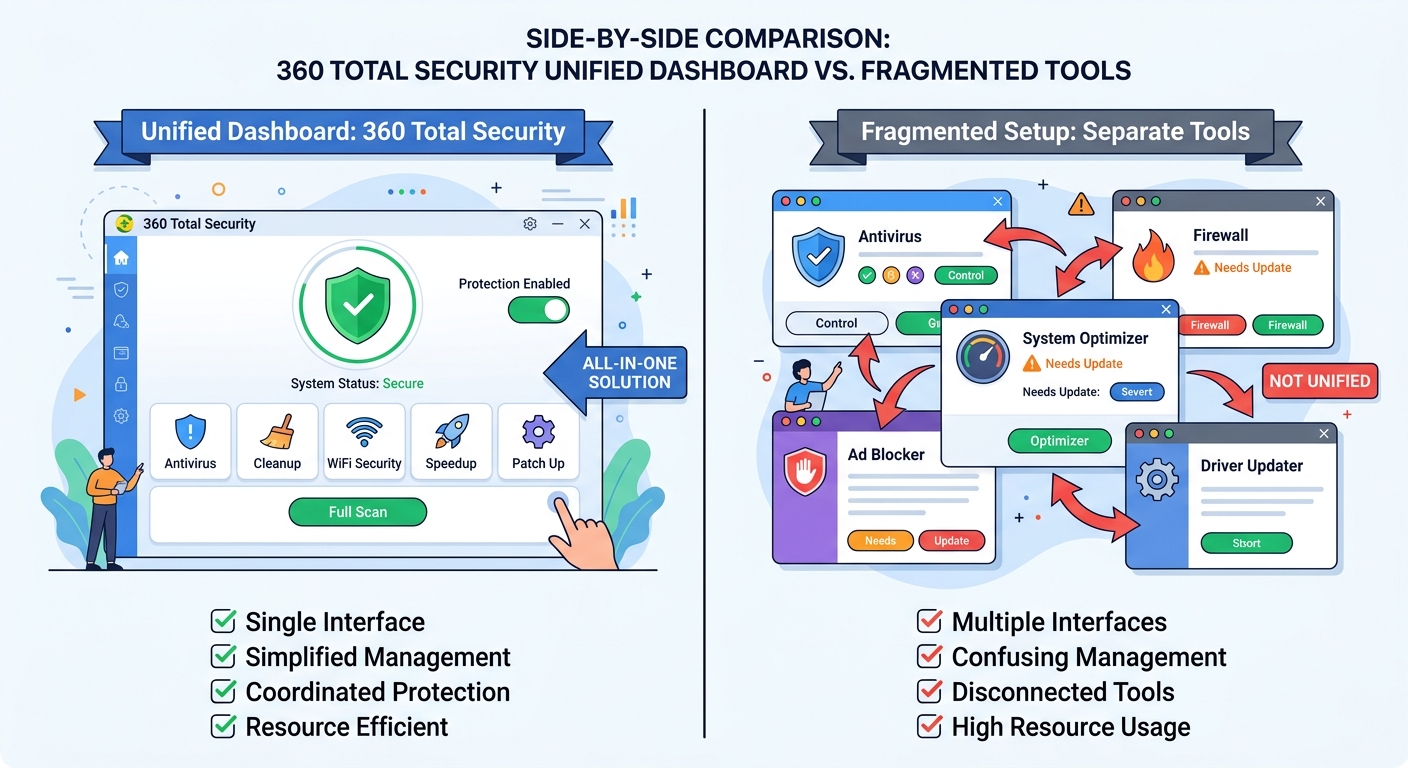
360 Total Security consolidates multiple security functions into a unified dashboard, eliminating the complexity and conflicts that arise from running separate antivirus, firewall, cleanup, and optimization tools. This integrated approach ensures all protection components communicate seamlessly, sharing threat intelligence and system state information to make coordinated decisions. Users can manage web protection, system scans, privacy shields, and performance optimization from a single interface, dramatically simplifying security management compared to juggling multiple standalone applications.
Best Practices for Safe Browsing and Network Hygiene
Maintaining updated browsers and plugins closes security vulnerabilities that often trigger protective blocks from security software. Outdated browser versions with known exploits cause security tools to implement aggressive blocking policies as a compensating control. Enable automatic updates for Chrome, Firefox, Edge, or Safari, and regularly update browser extensions—particularly those handling security, payments, or personal data. According to 2025 vulnerability research, 68% of browser-related security incidents exploit plugins and extensions rather than the core browser, making extension hygiene critical.
Implementing a secure DNS service provides a first line of defense that can reduce reliance on aggressive endpoint protection. Services like Cloudflare's 1.1.1.1, Quad9, or Google Public DNS perform threat filtering at the DNS resolution level, blocking access to known malicious domains before your browser even attempts to connect. This upstream filtering reduces the burden on endpoint security software like Malwarebytes, potentially decreasing false positive rates by preventing your system from even querying suspicious domains. Configure secure DNS in your router settings for network-wide protection or in individual device network settings.
Regularly clearing browser caches and cookies prevents corrupted or outdated data from triggering security alerts. Cached content from previously compromised websites may contain malicious code fragments that security software detects during subsequent visits, even after the original site has been cleaned. Clear browsing data weekly (or daily for high-security environments) through your browser's privacy settings. Additionally, disable third-party cookies to reduce tracking scripts that security software may flag as potentially unwanted modifications.
360 Total Security enhances these best practices through integrated features designed for safer browsing with minimal interruptions. The Browser Protection module actively monitors and blocks malicious browser modifications, plugin injections, and homepage hijacking attempts without generating excessive false positive alerts. The integrated Sandbox feature allows you to run suspicious programs or visit questionable websites in an isolated virtual environment—if the site or file proves malicious, the Sandbox contains the threat without affecting your main system, and if it's legitimate, you've avoided a false positive block. This approach provides the security benefits of aggressive protection with the flexibility to investigate borderline cases safely.
Frequently Asked Questions
Why does Malwarebytes block websites that other antivirus programs allow?
Malwarebytes employs more aggressive heuristic analysis and threat intelligence compared to many traditional antivirus solutions, prioritizing proactive threat prevention over minimizing false positives. Its Web Protection module uses lower confidence thresholds for blocking decisions, meaning it will flag sites based on weaker suspicious indicators that other security software might ignore. Additionally, Malwarebytes' real-time threat intelligence network may identify emerging threats faster than competitors, resulting in temporary blocks on sites that other antivirus programs haven't yet flagged. This aggressive approach provides superior zero-day protection but increases false positive occurrences.
Is it safe to disable Malwarebytes' Web Protection entirely to avoid false positives?
Disabling Web Protection entirely is not recommended for most users, as it removes a critical layer of defense against phishing sites, malware distribution networks, and exploit kits delivered through compromised websites. Instead, adjust detection sensitivity settings, create targeted exclusions for trusted sites, or consider switching to security solutions with better false positive management like 360 Total Security, which uses multi-engine verification to reduce erroneous blocks. If you must temporarily disable Web Protection for testing purposes, do so only on isolated networks and re-enable protection immediately afterward.
How can I tell if a Malwarebytes block is a false positive or a real threat?
Verify the blocked site through multiple independent security analysis platforms: scan the URL with VirusTotal (virustotal.com), check Google Safe Browsing status, and examine the site's SSL certificate and domain registration details. If 3+ reputable security services confirm the site is clean while only Malwarebytes blocks it, you're likely experiencing a false positive. Additionally, consider the site's context—established businesses, government sites, and well-known educational institutions rarely host malware. However, if multiple security tools flag the site or you notice suspicious behaviors (unexpected redirects, aggressive pop-ups, requests for unusual permissions), trust the block as legitimate protection.
Can whitelisting a website in Malwarebytes compromise my security?
Whitelisting a website creates a permanent exclusion that prevents Malwarebytes from protecting you against that site, even if it becomes compromised in the future. This risk is why thorough verification before whitelisting is critical. Legitimate websites can be hacked and used to distribute malware without the owner's knowledge, and your whitelist entry would bypass protection against these subsequent threats. To minimize risk, periodically review your Allow List (monthly or quarterly) and remove exclusions for sites you no longer regularly visit. Consider using time-limited exclusions or alternative security solutions like 360 Total Security that offer sandbox environments for safely accessing questionable sites without permanent whitelisting.
Conclusion
Malwarebytes' frequent blocking of trusted websites stems from its aggressive, proactive security approach that prioritizes threat prevention over user convenience. While this strategy provides excellent protection against emerging threats and zero-day exploits, it inevitably generates false positives that frustrate users. By understanding the mechanisms behind Malwarebytes' Web Protection module—including heuristic analysis, IP reputation systems, and real-time threat intelligence—you can make informed decisions about when blocks represent genuine threats versus erroneous flags.
The comprehensive whitelisting process outlined in this guide enables you to safely bypass false positive blocks after thorough verification, while the proactive optimization strategies help minimize future interruptions. Fine-tuning detection settings, implementing layered protection with solutions like 360 Total Security, and maintaining good digital hygiene create a balanced security posture that protects against real threats without constant false alarms.
For users seeking robust protection with fewer false positives, 360 Total Security offers an intelligent alternative through its multi-engine verification system, AI-driven threat detection, and integrated system optimization tools. Visit the official 360 Total Security website to explore how this comprehensive desktop security solution can provide world-class protection while minimizing the frustrations of excessive blocking.
Author Bio: This article was crafted by cybersecurity experts specializing in endpoint protection, threat intelligence analysis, and security software optimization. With over a decade of experience evaluating antivirus solutions and helping users balance security with usability, our team provides actionable guidance for navigating the complex landscape of modern digital threats.
Learn more about 360 Total Security