
What Exactly Are PUPs, and Why Do They Trigger Security Alarms?
Executive Summary: Potentially Unwanted Programs (PUPs) represent a challenging gray area in cybersecurity, sitting uncomfortably between legitimate software and outright malware. These programs trigger security alerts not because they contain malicious code in the traditional sense, but because they exhibit intrusive, deceptive, or resource-consuming behaviors that compromise user experience and system integrity. Understanding what PUPs are, why antivirus software flags them, and how to distinguish between legitimate false positives and actual threats is essential for maintaining both system security and operational efficiency. According to a 2025 Cybersecurity Threat Analysis, PUPs account for approximately 35% of all security alerts on consumer Windows systems, yet fewer than 40% of users understand what these warnings actually mean. This comprehensive guide will equip you with the knowledge to navigate PUP detections confidently, make informed removal decisions, and configure your security software appropriately.
Defining Potentially Unwanted Programs
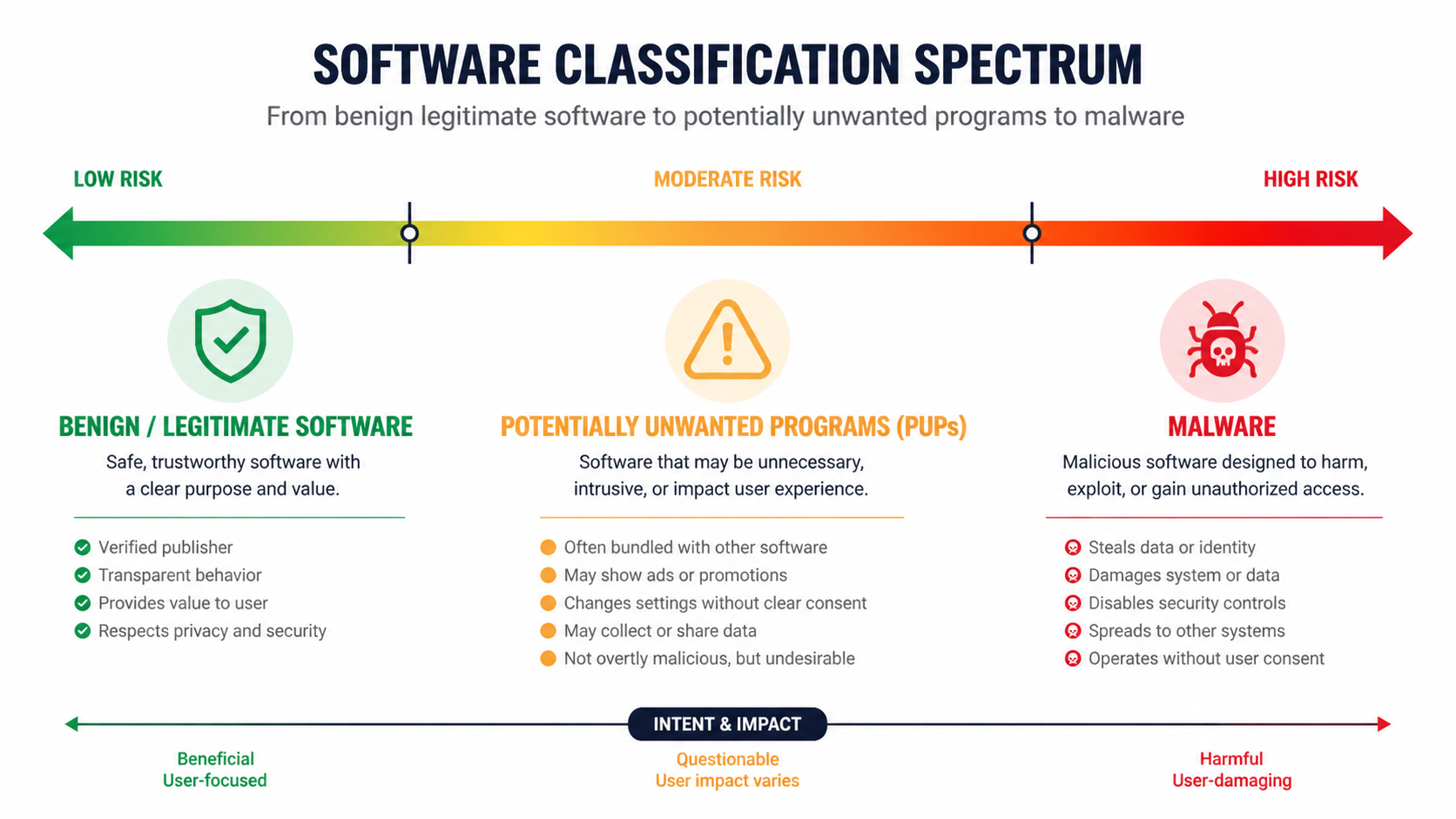
Potentially Unwanted Programs (PUPs) are software applications that, while not technically classified as malware, engage in behaviors that most users would find objectionable if they fully understood what the program was doing. Unlike viruses, trojans, or ransomware that have clearly malicious intent, PUPs operate in a legal gray zone where their functionality may be technically legitimate, but their methods of installation, operation, or revenue generation cross ethical boundaries.
The defining characteristics of PUPs include:
- Deceptive installation practices: PUPs frequently arrive bundled with legitimate software downloads, hidden in "custom installation" options that users skip through without reading. The installation process may use confusing language, pre-checked boxes, or misleading button placements to trick users into accepting additional software they never intended to install.
- Intrusive behavior: Once installed, PUPs often modify system settings without explicit permission, change browser homepages and search engines, inject advertisements into web pages, track browsing behavior, or display persistent pop-up notifications.
- Resource consumption: Many PUPs consume disproportionate system resources relative to their stated functionality, running background processes that slow down computers, drain battery life, or generate excessive network traffic.
- Difficult removal: PUPs typically resist standard uninstallation procedures, leaving behind registry entries, scheduled tasks, browser extensions, and residual files that can reinstall the program or continue unwanted behaviors even after the main application is removed.
Common examples of PUPs include bundled adware that displays intrusive advertisements, aggressive browser toolbar installers that hijack search functionality, system optimization tools that exaggerate problems to sell premium versions, and browser extensions that track user behavior for advertising purposes. A 2026 industry report identified that approximately 60% of free software downloads from third-party hosting sites include at least one bundled PUP in their installation package.
The Gray Area: Why Antivirus Software Flags PUPs
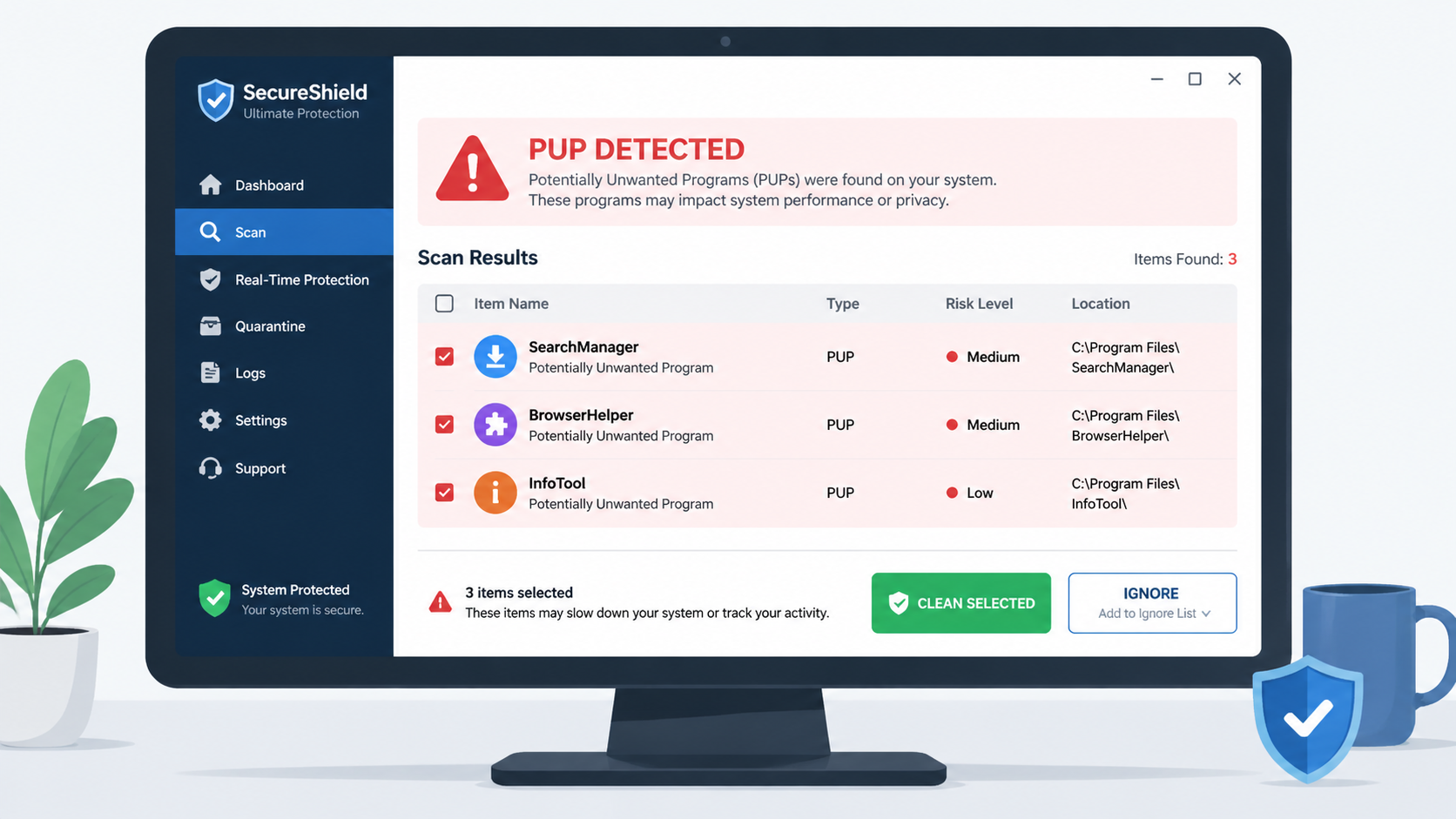
Antivirus and security software flag PUPs based on behavioral analysis rather than signature-based malware detection. Traditional malware detection relies on identifying known malicious code patterns, but PUPs often contain no technically malicious code. Instead, security software evaluates programs based on their actions and characteristics:
Behavioral detection criteria that trigger PUP alerts include:
- Modifying browser settings (homepage, default search engine, new tab page) without clear user consent
- Installing browser extensions or add-ons silently or through deceptive prompts
- Injecting advertisements into web pages or search results
- Collecting and transmitting user data without transparent disclosure
- Creating persistent background processes that survive standard termination attempts
- Displaying fake system warnings or exaggerated security threats to promote paid products
- Bundling with known problematic software or using distribution networks associated with adware
The principle behind flagging PUPs is proactive protection. Security vendors recognize that while a PUP may not steal your banking credentials or encrypt your files for ransom, it can still compromise your privacy, degrade system performance, expose you to additional security risks, and create a frustrating user experience. By alerting users to PUPs before they become entrenched in the system, security software prevents problems rather than merely reacting to damage.
According to a 2025 security whitepaper from a leading antivirus vendor, their PUP detection policy is based on three core principles: user consent transparency, functional necessity, and reversibility. If software fails any of these tests—installing without clear consent, performing actions unnecessary for its stated purpose, or resisting standard removal procedures—it qualifies for PUP classification regardless of its legal status or the developer's intentions.
This proactive approach does create challenges. The line between legitimate software with aggressive marketing and a PUP can be subjective. Some system optimization tools, for example, may legitimately identify performance issues but use alarmist language that security software interprets as scare tactics. This is why understanding the context of a PUP detection is crucial for making informed decisions.
Legitimate vs. Malicious: The PUP Spectrum
Not all programs flagged as PUPs represent the same level of risk or concern. The PUP category encompasses a wide spectrum of software, from mildly annoying but ultimately harmless applications to sophisticated threats that masquerade as legitimate tools while engaging in data theft or system exploitation.
The user intent and consent model provides a useful framework for evaluating PUPs:
Low-risk PUPs (closer to legitimate software):
- Software you intentionally downloaded from a known source
- Programs that clearly disclosed their functionality during installation
- Applications that provide genuine utility despite some intrusive behaviors
- Tools from established companies with transparent privacy policies
- Software that can be easily uninstalled through standard Windows procedures
High-risk PUPs (closer to malware):
- Programs that arrived through deceptive bundling without your knowledge
- Software from unknown publishers with no verifiable online presence
- Applications that make system changes far beyond their stated purpose
- Tools that resist removal or reinstall themselves after deletion
- Programs that exhibit data collection behaviors inconsistent with their functionality
Case study comparison: Consider two system cleaning tools. Tool A is a well-known optimization utility from a established software company. It offers a free version with basic cleaning capabilities and clearly markets a premium version with advanced features. During installation, it explicitly asks permission to change your browser homepage and offers an opt-out checkbox. While it may be flagged as a PUP due to the homepage modification behavior, it represents the legitimate end of the spectrum—the user knowingly installed it, its functions are transparent, and it can be easily removed.
Tool B, by contrast, arrives bundled with a free video converter you downloaded. It installs silently without appearing in the installer's component list, immediately changes multiple browser settings, displays persistent pop-up warnings about "critical system errors," and collects detailed browsing history that it transmits to unknown servers. When you attempt to uninstall it, the program remains partially functional through hidden services and registry entries. This represents a high-risk PUP that shares characteristics with malware despite not containing traditional malicious code.
Understanding where a detected PUP falls on this spectrum is essential for determining the appropriate response. A low-risk PUP from a known source might simply need to be configured differently or added to your security software's exclusion list if you find it useful. A high-risk PUP should be removed immediately and thoroughly, with additional scanning to ensure complete elimination.
Is Your PUP Alert a False Alarm or Actual Malware? How to Tell
When your antivirus software flags a program as a Potentially Unwanted Program, you face a critical decision: Is this a legitimate warning about problematic software, or is it a false positive incorrectly identifying a safe application? Making the wrong choice can either leave your system vulnerable or prevent you from using software you need. This section provides a systematic methodology for investigating PUP detections and making informed decisions.
Investigating the Source and Installation Context
The first and most important step in evaluating a PUP detection is tracing its installation origin. How software arrived on your system provides crucial context for assessing its legitimacy:
Questions to ask yourself:
- Did you intentionally download this software? If you can clearly remember visiting the official website of a known company and downloading a specific program, that's a strong indicator of legitimacy. If the program appeared without your knowledge or arrived bundled with something else, that's a red flag.
- What was the download source? Software obtained directly from a developer's official website or through trusted platforms like the Microsoft Store carries much lower risk than programs downloaded from third-party software hosting sites, torrent networks, or suspicious download portals.
- Was the installation process transparent? Legitimate software presents clear installation screens with readable terms of service, explicit permission requests for system changes, and straightforward "next" and "cancel" buttons. PUPs often use confusing installation wizards with misleading button labels, hidden checkboxes, or screens designed to trick users into accepting additional software.
- What else was installed at the same time? If multiple unfamiliar programs appeared on your system simultaneously, they likely came from a bundled installer—a common PUP distribution method.
To investigate the installation source, check your browser's download history, review recent entries in Windows Event Viewer under Application logs, and examine the program's installation directory. Legitimate software typically installs to standard locations like C:\Program Files\ or C:\Program Files (x86)\ with a folder name matching the company or product. PUPs often install to unusual locations like C:\Users\[Username]\AppData\Local\ or use generic folder names designed to avoid detection.
Publisher verification is equally critical. Right-click the program's executable file, select "Properties," and examine the "Digital Signatures" tab. Legitimate software from established companies will have a valid digital signature from a recognized certificate authority. Research the publisher name online—a legitimate company will have an official website, social media presence, user reviews, and a verifiable business history. Shell entities created solely to distribute PUPs typically have minimal online presence, generic websites with stock photos, and no verifiable contact information beyond a web form.
As IT security administrator Marcus Chen notes: "When evaluating potentially unwanted software, provenance is everything. I always tell users to ask themselves: 'Can I trace this program back to a specific, intentional decision I made to install it?' If the answer is no, or if the installation source is unclear, that's sufficient reason to remove it regardless of what the program claims to do. Legitimate software companies are transparent about their products and distribution methods."
Analyzing Software Behavior for Malicious Indicators
Beyond installation context, a program's runtime behavior provides critical evidence for distinguishing between a false positive and a genuine threat. Even if a program came from a questionable source, analyzing what it actually does on your system can confirm or refute suspicions.
Network activity monitoring: Use Windows Resource Monitor (accessible by typing "resmon" in the Start menu) or third-party tools to observe the program's network connections. Legitimate software makes predictable network requests—checking for updates from the developer's domain, downloading necessary resources, or communicating with documented cloud services. Suspicious indicators include:
- Connections to IP addresses rather than domain names (suggesting efforts to avoid DNS-based filtering)
- Communication with servers in jurisdictions known for hosting malicious infrastructure
- Excessive data transmission inconsistent with the program's stated functionality
- Connections to advertising networks or data brokers when the program doesn't disclose ad-supported functionality
- Encrypted traffic to unknown destinations without explanation in the privacy policy
System modification analysis: PUPs and malware often make changes to your system that extend far beyond what their stated functionality requires. Use Windows Registry Editor (regedit) to check for modifications in critical areas:
HKEY_LOCAL_MACHINE\SOFTWARE\Microsoft\Windows\CurrentVersion\Run(programs that start automatically)HKEY_CURRENT_USER\Software\Microsoft\Windows\CurrentVersion\Run(user-specific startup programs)- Browser extension directories and settings files
- Windows Task Scheduler for hidden scheduled tasks
- Windows Services (services.msc) for background services
Legitimate programs create registry entries and system modifications that are clearly related to their function and properly named. A video editing tool, for example, might create file associations for video formats and add itself to the context menu for supported files. A PUP might create multiple registry entries with cryptic names, modify browser proxy settings, disable Windows security features, or install browser extensions unrelated to its stated purpose.
According to 2025 threat intelligence data, approximately 78% of PUPs classified as "high risk" exhibit at least three of the following behaviors: modifying browser settings, creating multiple persistence mechanisms, collecting browsing history, displaying advertisements outside the program's interface, or communicating with more than five distinct external servers within the first hour of operation.
| Behavior Category | Common PUP Behavior | Red Flags Indicating Malware |
|---|---|---|
| Network Activity | Connects to developer's update server; occasional advertising network requests | Constant connections to suspicious IPs; data exfiltration to unknown servers; communication with known malware C&C infrastructure |
| System Modifications | Changes browser homepage; adds one startup entry; installs related browser extension | Disables Windows Defender; modifies security policies; creates hidden services; injects code into system processes |
| File Operations | Writes to own installation directory; creates temporary files in standard locations | Modifies system files; encrypts user documents; creates executable files in multiple locations; drops additional payloads |
| User Interface | Displays advertisements within own interface; shows upgrade prompts | Injects ads into all applications; displays fake system warnings; creates fake security alerts; overlays login screens |
| Persistence | Single startup entry; uninstalls through Control Panel (may leave residual files) | Multiple persistence mechanisms; reinstalls after removal; modifies boot process; creates rootkit components |
Leveraging Community and Security Tool Insights
Individual analysis has limitations—you may not recognize all suspicious behaviors, and sophisticated threats can hide their activities from casual observation. Community intelligence and multi-engine scanning provide valuable additional perspectives.
Community research strategies:
- Search for the exact detection name: When your security software flags a program, note the exact detection name (e.g., "PUP.Optional.BrowserAssistant"). Search for this exact string along with terms like "false positive," "safe," or "remove." Legitimate false positives will have multiple forum discussions where users and security experts confirm the software's safety and explain why it triggers detection.
- Consult trusted security forums: Communities like r/techsupport, r/antivirus, Wilders Security Forums, and Malwarebytes Forums have experienced users who can provide context on specific detections. Be specific in your questions—include the detection name, the program's stated purpose, and how it arrived on your system.
- Check the developer's reputation: Search for the software company name along with terms like "scam," "malware," "unwanted," or "complaints." Legitimate companies will have a mix of reviews including some negative feedback about specific features or customer service, but a pattern of complaints about deceptive practices, unwanted installations, or difficulty removing the software indicates a problematic PUP.
- Review independent software reviews: Trusted technology websites and software review platforms provide professional assessments of popular programs, including warnings about bundled software or intrusive behaviors.
Multi-engine scanning for consensus: Different security vendors use different detection algorithms and criteria for classifying PUPs. Scanning with multiple security tools can provide a consensus view. If five different security products all flag the same program as unwanted, that's strong evidence of problematic behavior. If only one product flags it while others consider it clean, that suggests a possible false positive.
For comprehensive analysis, consider using 360 Total Security, which employs a dual-engine detection system combining multiple threat intelligence sources. The software provides detailed threat explanations for each detection, including the specific behaviors that triggered the alert, the program's risk level, and recommended actions. This transparency helps users make informed decisions rather than simply seeing a generic "threat detected" message.
When using 360 Total Security for PUP verification, pay attention to the threat details panel, which categorizes detections by severity and provides context about why the program was flagged. The software distinguishes between high-confidence malware detections (which should be removed immediately) and lower-confidence PUP detections (which may warrant further investigation based on your specific circumstances).
The key to accurate PUP assessment is combining multiple information sources: installation context, behavioral analysis, community intelligence, and multi-engine scanning. No single factor is definitive, but together they provide a comprehensive picture that enables confident decision-making.
How to Safely Remove PUPs and Fix False Positive Detections
Once you've determined that a detected program is indeed an unwanted PUP rather than a false positive, complete removal requires more than simply clicking "uninstall." PUPs are specifically designed to resist removal and often leave behind components that continue unwanted behaviors or facilitate reinstallation. Conversely, if you've verified that a detection is a false positive, you need to configure your security software to stop flagging the legitimate program. This section provides systematic procedures for both scenarios.
Step-by-Step Manual Removal and Verification
Manual removal gives you complete control over the process and ensures you understand exactly what's being removed from your system. This approach is particularly important for PUPs because they often install components in multiple locations that automated tools might miss.
Phase 1: Standard Uninstallation
Begin with Windows' built-in uninstallation feature, but approach it strategically:
- Open Windows Settings > Apps > Installed apps (Windows 11) or Control Panel > Programs > Uninstall a program (Windows 10)
- Sort programs by installation date to identify recently added software you don't recognize
- Look for the specific program flagged by your security software, but also note any other unfamiliar programs installed around the same time (they may be bundled components)
- Select the unwanted program and click "Uninstall"
- Critical: During the uninstallation process, read every screen carefully. Some PUPs present "survey" or "feedback" screens that are actually disguised attempts to install additional software or change settings. Decline all offers, uncheck all boxes, and select the most complete removal option available
- If the uninstaller offers to "keep settings" or "preserve data," decline these options—you want complete removal
According to 2026 removal statistics, approximately 45% of PUPs leave functional residual components after standard uninstallation, either through intentional design or incomplete uninstaller programming. This makes post-uninstall cleanup essential.
Phase 2: Manual Residual Cleanup
After the standard uninstall completes, manually check for leftover components:
Program Files directories:
- Navigate to
C:\Program Files\andC:\Program Files (x86)\ - Look for folders with names matching the removed program or its publisher
- Delete any remaining folders (you may need to take ownership of the folder if permission errors occur)
AppData directories:
- Press Windows + R, type
%appdata%, and press Enter - Look for folders related to the removed program and delete them
- Navigate up one level to
AppData, then check theLocalandLocalLowfolders for additional residual data
Browser extensions and settings:
- Open each installed browser (Chrome, Edge, Firefox) and navigate to the extensions/add-ons management page
- Remove any extensions you don't recognize or that were installed without your explicit consent
- Check browser settings for modified homepage, search engine, or new tab page settings and restore them to your preferences
- Clear browser cache and cookies to remove any tracking data left by the PUP
Startup entries and scheduled tasks:
- Press Windows + R, type
msconfig, and navigate to the "Startup" tab (or use Task Manager > Startup tab in Windows 10/11) - Disable any startup entries related to the removed program
- Open Task Scheduler (type "Task Scheduler" in Start menu) and review the Task Scheduler Library for any tasks related to the PUP—delete them
Registry cleanup (Advanced users only):
- Press Windows + R, type
regedit, and press Enter - Use Edit > Find to search for the program name or publisher
- Carefully review each result to confirm it's related to the removed program before deleting
- Warning: Incorrect registry modifications can cause system instability. If you're not comfortable editing the registry, use a dedicated security tool instead
Using Dedicated Security Software for Deep Cleaning
While manual removal provides maximum control, dedicated security software offers significant advantages for thorough PUP elimination, especially for users who aren't comfortable with advanced system administration tasks.
Advantages of specialized PUP removal tools:
- Comprehensive detection: Security software can identify PUP components in locations you might not think to check, including browser cache, prefetch files, Windows services, and obscure registry locations
- Safe removal: Professional tools understand which files can be safely deleted and which system files should be left alone, reducing the risk of accidental system damage
- Automated cleanup: Rather than manually checking dozens of potential residual locations, security software performs comprehensive cleanup in a single operation
- Verification scanning: After removal, security tools can perform verification scans to confirm complete elimination
360 Total Security provides particularly effective PUP removal capabilities through its specialized cleanup modules. The software's PUP detection engine identifies not just the main program executable, but associated registry entries, scheduled tasks, browser extensions, and residual files that manual removal often misses.
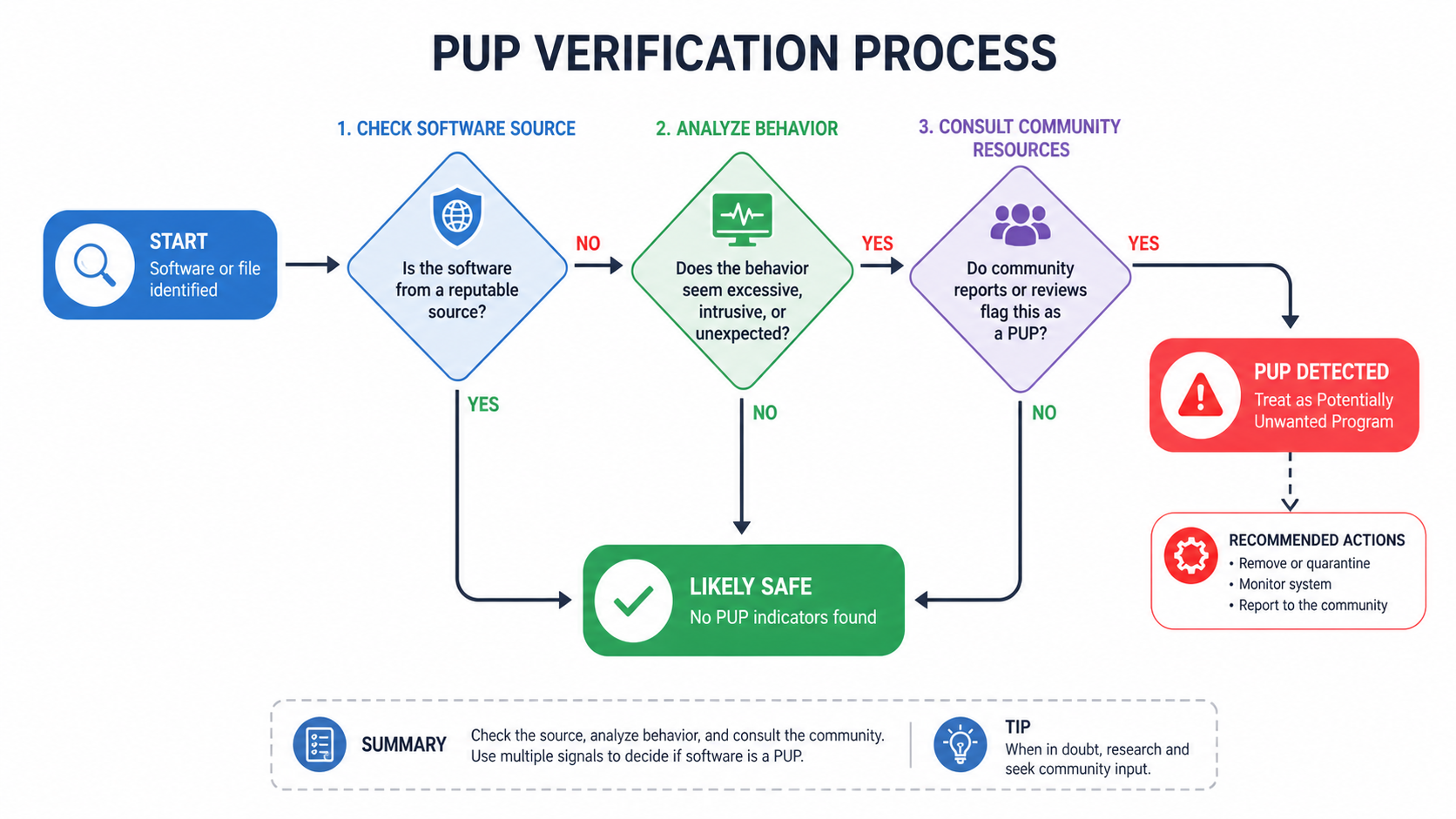
The removal process with 360 Total Security follows this workflow:
- Full System Scan: Initiate a complete system scan that examines all drives, common PUP installation locations, browser directories, and system areas where unwanted software typically embeds itself
- Detailed Threat Analysis: Review the scan results, which categorize detections by type (malware, PUP, privacy risk) and severity. Each detection includes a detailed explanation of what the software does and why it's flagged
- Selective or Bulk Removal: Choose to remove all detected PUPs at once or review each individually. For items you're uncertain about, 360 Total Security provides additional context and allows you to research before deciding
- Deep Cleaning: When you select "Clean," the software removes not just the main program but all associated components, including registry entries, scheduled tasks, startup entries, and browser modifications
- Verification: After removal, perform another quick scan to verify that all components were successfully eliminated and no reinstallation has occurred
The software's interface clearly distinguishes between different action options: "Clean" for confirmed threats, "Ignore" for false positives you want to keep, and "Quarantine" for items you're uncertain about (allowing you to restore them if removal causes unexpected problems). This flexibility is crucial because not every PUP detection requires the same response.
For particularly stubborn PUPs that resist standard removal, 360 Total Security includes a "Stubborn Program Removal" tool specifically designed for software that uses rootkit-like techniques to prevent uninstallation. This tool can force-remove programs that don't appear in the standard Windows uninstall list or that generate errors during normal uninstallation attempts.
Configuring Your Antivirus to Handle False Positives
If you've thoroughly investigated a PUP detection and determined it's a false positive—a legitimate program incorrectly flagged as unwanted—you need to configure your security software to stop generating alerts while maintaining protection against genuine threats.
Creating exclusion rules:
Most security software allows you to create "exclusions," "allow lists," or "exceptions" that tell the program to ignore specific files, folders, or processes. The exact procedure varies by software, but the general approach is:
- Open your security software's settings or preferences
- Navigate to the exclusions, exceptions, or allow list section
- Add the specific file path of the falsely-flagged program (e.g.,
C:\Program Files\LegitimateApp\program.exe) - Some security software allows you to exclude by process name, file hash, or digital signature—using signature-based exclusions is more secure because it prevents a malicious program from masquerading under the same filename
- Save the exclusion and perform a test scan to verify the program is no longer flagged
Critical security considerations:
- Only exclude thoroughly vetted programs: Adding an exclusion creates a security loophole. If you're wrong about the program's legitimacy, you've just given malware permission to operate undetected. Only exclude programs you've researched extensively and are confident are safe
- Use specific exclusions: Exclude the specific executable file rather than entire folders when possible. Excluding
C:\Program Files\would disable scanning for everything in that directory, creating a massive security vulnerability - Document your exclusions: Keep a list of what you've excluded and why. Periodically review this list to ensure the exclusions are still necessary and the programs haven't been compromised in updates
- Monitor excluded programs: Just because a program is legitimate today doesn't mean it will remain so. Software can be sold to new owners, compromised through supply chain attacks, or updated with new unwanted behaviors
Keeping security software updated:
False positive rates improve over time as security vendors refine their detection algorithms and receive feedback from users. A program flagged as a PUP in one software version might be correctly recognized as legitimate in the next update. Before creating permanent exclusions, ensure your security software is fully updated—the latest version may have already resolved the false positive.
Security software updates typically include:
- Refined PUP detection criteria based on user feedback and further analysis
- Updated threat intelligence databases with more accurate categorization
- Improved behavioral analysis algorithms that better distinguish between legitimate and unwanted behaviors
- Corrections for known false positives reported by users and security researchers
According to 2025 security software development data, major antivirus vendors release detection database updates multiple times daily, with false positive corrections often appearing within 24-48 hours of initial reports. Keeping your security software updated ensures you benefit from these continuous improvements.
If you encounter a false positive, consider reporting it to your security software vendor through their official channels. Most vendors have dedicated false positive submission forms that allow you to upload the flagged file for analysis. This helps improve detection accuracy for all users and may result in a correction in the next update.
Frequently Asked Questions
Can PUPs steal my personal information like passwords or banking details?
While PUPs are not classified as traditional malware, many do engage in data collection that can compromise your privacy. Typical PUPs collect browsing history, search queries, and website visit patterns for advertising purposes, but they generally do not target banking credentials or passwords directly. However, high-risk PUPs that sit closer to the malware end of the spectrum may include keylogging capabilities, form-grabbing functions, or credential theft modules. Additionally, PUPs often weaken your system's security posture by disabling security features or creating vulnerabilities that actual malware can exploit. If a PUP is detected on your system, treat it seriously and remove it promptly, even if it doesn't immediately appear to target sensitive financial information.
Why do some legitimate programs get flagged as PUPs by antivirus software?
Legitimate programs can trigger PUP detections for several reasons. First, the software may engage in behaviors that security vendors consider intrusive even if the developer believes they're acceptable—such as changing browser settings, displaying advertisements, or collecting user data. Second, the program may use distribution methods associated with PUPs, like bundling with other software or using affiliate networks known for distributing unwanted programs. Third, the detection may be based on the program's digital signature or publisher, which might be shared with other software that has been problematic. Finally, false positives can occur when security software's behavioral analysis algorithms misinterpret legitimate functionality as suspicious behavior. Established software from reputable companies that is flagged as a PUP is more likely to be a false positive, but it still warrants investigation to understand why the detection occurred.
Is it safe to use the "Ignore" option when my antivirus detects a PUP?
Using the "Ignore" option should only be done after thorough investigation confirms the detection is a false positive. The ignore function tells your security software to stop alerting you about that specific program, effectively creating an exception. If you ignore a genuine PUP, it will continue operating on your system with all its unwanted behaviors—changing settings, collecting data, displaying advertisements, or consuming resources. Before clicking ignore, verify the program's legitimacy by checking its installation source, researching the publisher, analyzing its behavior, and consulting community resources. If you're uncertain, quarantine the program instead of ignoring it—quarantine isolates the program without deleting it, allowing you to restore it if you later determine it was safe. Only use the ignore option for programs you've positively identified as legitimate and necessary for your work or personal use.
How can I prevent PUPs from being installed on my computer in the future?
Preventing PUP installations requires vigilant habits and proactive security measures. First, only download software from official developer websites or trusted platforms like the Microsoft Store—avoid third-party software hosting sites that bundle additional programs with downloads. Second, always choose "Custom" or "Advanced" installation options rather than "Express" or "Recommended" installations, and carefully read each screen to decline bundled software. Third, keep your operating system and security software updated to benefit from the latest protection mechanisms. Fourth, use a comprehensive security solution like 360 Total Security that includes real-time protection against PUP installations, blocking unwanted software before it can embed itself in your system. Fifth, enable Windows SmartScreen and browser security features that warn about potentially dangerous downloads. Finally, maintain skepticism about software that makes exaggerated claims about system optimization, security threats, or performance improvements—if it sounds too good to be true, it probably is.
Author Bio
Dr. Sarah Mitchell is a cybersecurity researcher and technical writer with over 12 years of experience in threat analysis and digital security education. She holds a Ph.D. in Computer Science with a specialization in malware behavior analysis and has published extensively on the evolving landscape of potentially unwanted programs and their impact on consumer security. Dr. Mitchell has worked with leading antivirus vendors to improve PUP detection algorithms and has trained thousands of IT professionals on effective threat response procedures. Her research focuses on the intersection of user experience and security, particularly how deceptive software practices exploit cognitive biases to gain system access. When not analyzing the latest security threats, she contributes to open-source security tools and advocates for stronger consumer protection regulations in software distribution.
Learn more about 360 Total Security