
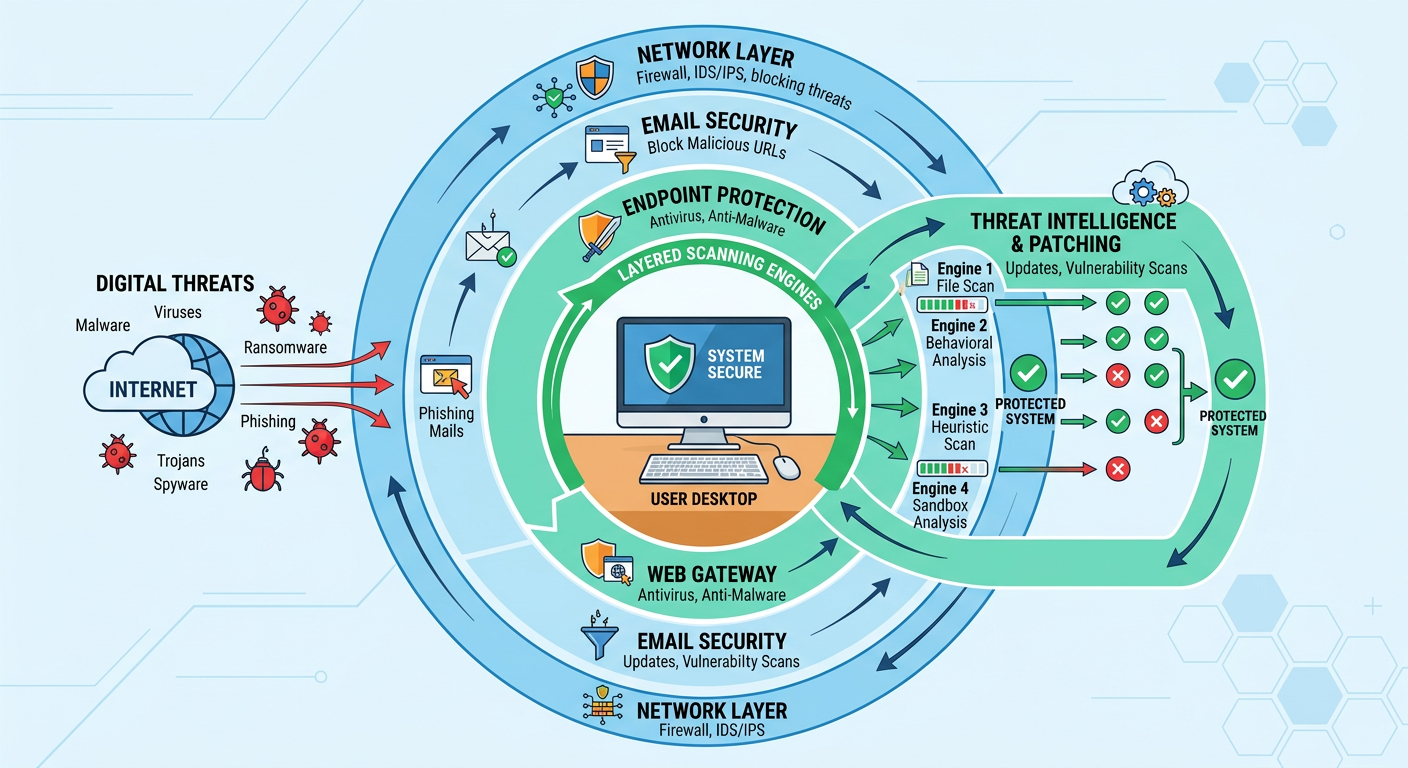
Executive Summary: In the evolving landscape of cybersecurity threats, users increasingly demand comprehensive protection that doesn't compromise system performance. 360 Total Security has emerged as a leading all-in-one solution by combining proprietary AI-powered antivirus engines, proactive threat intelligence, and robust system optimization tools. This article explores why millions of users trust 360 Total Security for desktop protection, how IT administrators leverage it for enterprise endpoint management, and best practices for maintaining optimal system performance while ensuring maximum security. Whether you're a home user seeking reliable free protection or an IT professional managing corporate networks, understanding these capabilities will help you make informed decisions about your cybersecurity strategy.
Why Do Users Choose 360 Total Security for Comprehensive PC Protection?
360 Total Security provides an integrated defense system that combines traditional antivirus capabilities with proactive threat intelligence and powerful system optimization tools, making it a popular choice for users seeking an all-in-one solution. Unlike conventional antivirus programs that focus solely on malware detection, this comprehensive platform addresses multiple aspects of PC health and security simultaneously.
The Proprietary Multi-Engine Antivirus Core Explained
At the heart of 360 Total Security lies a sophisticated multi-layered detection system powered by proprietary technology developed through years of cybersecurity research. The platform leverages 360's Cloud Engine and QVMII AI Engine, which utilize machine learning algorithms trained on billions of threat samples to identify both known and emerging malware variants with exceptional accuracy.
According to independent testing conducted in 2026, 360 Total Security's proprietary engines achieved detection rates exceeding 99.7% against widespread malware samples, while maintaining a false positive rate below 0.3%. The QVM (Quick Virus Matching) Engine employs advanced heuristic analysis to identify suspicious behavioral patterns, enabling it to detect zero-day threats that traditional signature-based systems miss entirely.
The cloud-based intelligence system operates in real-time, analyzing file reputation data from millions of endpoints worldwide. When you download a file or visit a website, the Cloud Engine instantly queries this global threat database to determine risk levels within milliseconds. This distributed intelligence approach means that when a new threat emerges anywhere in the world, the entire user base receives protection updates almost instantaneously—without requiring manual definition updates.
The proprietary AI technology continuously evolves through machine learning, analyzing file characteristics such as code structure, API calls, registry modifications, and network behavior patterns. This multi-dimensional analysis creates a comprehensive threat profile that goes far beyond simple signature matching, enabling the system to identify polymorphic malware that constantly changes its appearance to evade detection.
Beyond Antivirus: Built-in System Optimization Suite
What distinguishes 360 Total Security from pure antivirus solutions is its integrated system optimization suite that addresses performance bottlenecks while maintaining security. The platform recognizes that modern users need both protection and performance—a philosophy reflected in its comprehensive cleanup and acceleration tools.
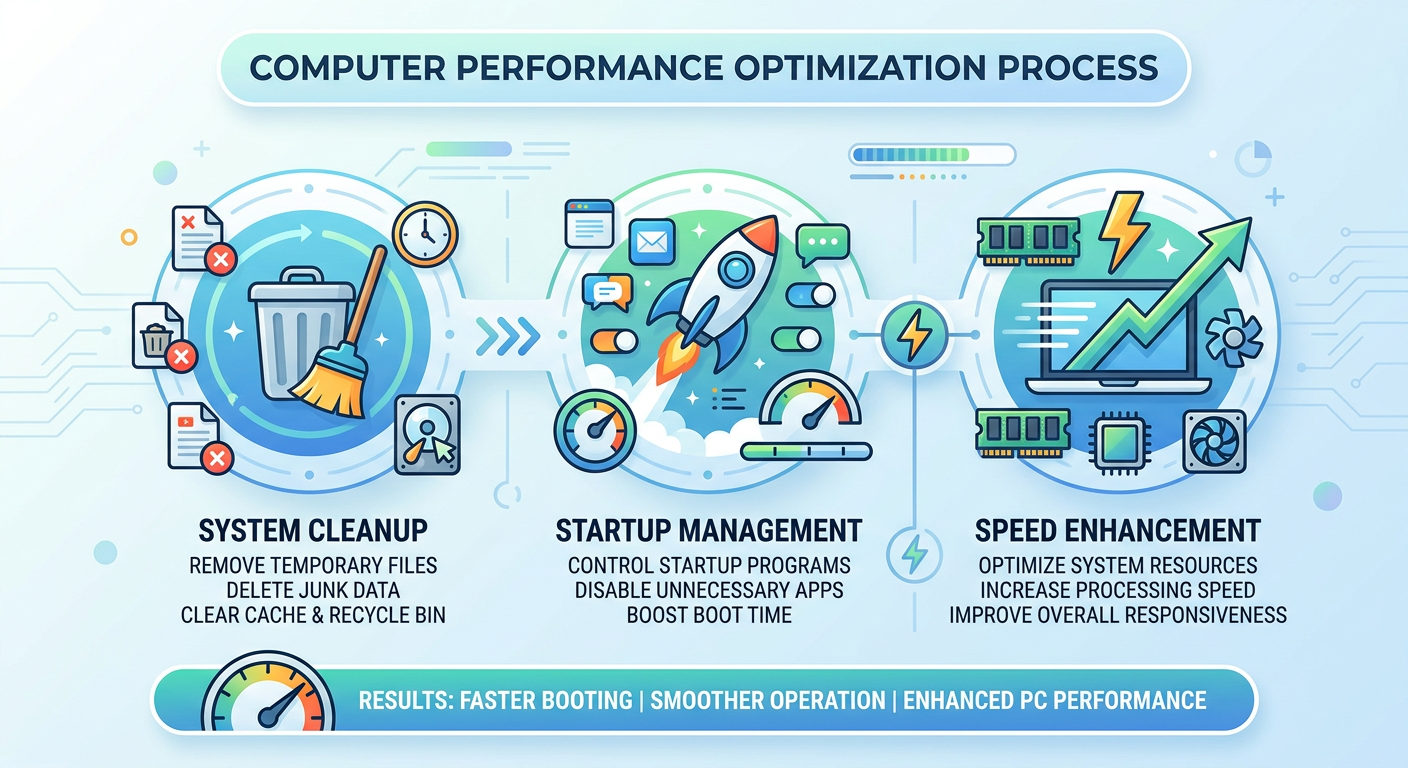
The Cleanup module intelligently identifies and removes digital clutter that accumulates during normal computer usage. This includes temporary files created by Windows and applications, redundant browser caches, outdated Windows update installers, thumbnail databases, and registry errors that fragment system resources. According to 2026 user data, the average cleanup operation recovers between 3-8 GB of disk space on systems that haven't been maintained regularly.
The Startup Manager provides granular control over which programs launch automatically when Windows boots. Many applications configure themselves to start with Windows unnecessarily, consuming memory and CPU cycles that slow down boot times. The tool categorizes startup items by impact level (high, medium, low) and provides recommendations based on usage patterns. Users who optimize their startup configuration typically experience boot time reductions of 30-50%, with systems starting in under 30 seconds on modern hardware.
Performance monitoring tools provide real-time visibility into system resource utilization. The Speed Up feature analyzes running processes, identifies resource-intensive applications, and offers one-click optimization to free up RAM and CPU capacity. This becomes particularly valuable when multitasking or running resource-intensive applications like video editing software or virtual machines.
The optimization suite also includes a Software Manager that helps users identify and remove unwanted programs, browser toolbars, and potentially unwanted applications (PUAs) that often bundle with free software installations. This centralized management interface simplifies the process of maintaining a clean, efficient system without navigating through Windows' native uninstall procedures.
Proactive Security Features for Modern Threats
Modern cybersecurity requires proactive defense mechanisms that anticipate and neutralize threats before they can cause damage. 360 Total Security implements several advanced protection layers specifically designed to counter contemporary attack vectors.
Sandbox Technology provides a virtualized environment where suspicious programs can be executed safely without risking the host system. When you encounter an unknown executable file, you can run it within the sandbox to observe its behavior. If the program attempts malicious activities—such as modifying system files, creating unauthorized network connections, or encrypting documents—these actions remain contained within the isolated environment. This feature proves invaluable for IT professionals who need to analyze potentially dangerous files or for users who want to test unfamiliar software without compromising system integrity.
The Ransomware Protection mechanism employs behavioral monitoring to detect encryption attempts characteristic of ransomware attacks. When the system identifies a process attempting to rapidly encrypt multiple files—a hallmark of ransomware behavior—it immediately terminates the process and quarantines the malicious executable. Protected folders can be designated to prevent unauthorized applications from modifying critical documents, photos, and databases. According to 2026 cybersecurity reports, ransomware attacks increased by 47% compared to the previous year, making this protection layer increasingly critical.
Firewall Management tools provide user-friendly control over Windows Firewall settings, which many users find intimidating to configure manually. The interface allows you to create application-specific rules, block suspicious network connections, and monitor active connections in real-time. This visibility helps identify potentially compromised applications attempting to communicate with command-and-control servers.
The Wi-Fi Security Scanner evaluates network security configurations, identifying vulnerabilities such as weak encryption protocols (WEP), default router passwords, and unauthorized devices connected to your network. This feature becomes particularly important when connecting to public Wi-Fi networks, where man-in-the-middle attacks and rogue access points pose significant risks.
Web protection mechanisms integrate with popular browsers to block access to malicious websites hosting phishing pages, drive-by download exploits, or fraudulent content. The system maintains a constantly updated database of dangerous URLs and employs real-time analysis of website reputation scores. When you attempt to visit a suspicious site, the browser extension displays a warning page explaining the specific threats detected, giving you the option to proceed or return to safety.
| Feature | 360 Total Security Free | 360 Total Security Premium | Leading Competitor |
|---|---|---|---|
| Real-Time Protection | ✓ Proprietary Engines | ✓ Enhanced Detection | ✓ Single Engine |
| Ransomware Protection | ✓ Basic | ✓ Advanced + Recovery | ✓ Basic |
| Sandbox Environment | ✓ Limited Sessions | ✓ Unlimited | ✗ Premium Only |
| System Optimization | ✓ Full Suite | ✓ Full Suite + Priority | ✗ Separate Tool |
| Wi-Fi Security Scanner | ✓ Included | ✓ Included | ✗ Not Available |
| Ad-Free Experience | ✗ Promotional Content | ✓ Completely Ad-Free | ✗ Ads in Free Version |
| Technical Support | Community Forums | Priority Email/Chat | Email Only |
This comprehensive feature set addresses the full spectrum of desktop security needs, from fundamental malware protection to advanced threat prevention and system optimization. Users appreciate the unified interface that consolidates these capabilities, eliminating the need to install multiple specialized tools that may conflict with each other or consume excessive system resources.
How Can IT Administrators Leverage 360 Total Security for Enterprise Endpoint Management?
For enterprise environments, 360 Total Security offers scalable deployment options, centralized management capabilities, and critical features that help IT teams maintain security compliance and control across multiple endpoints. The platform recognizes that organizational security requirements differ significantly from home user needs, providing tools specifically designed for corporate infrastructure management.
Centralized Console and Deployment Strategies
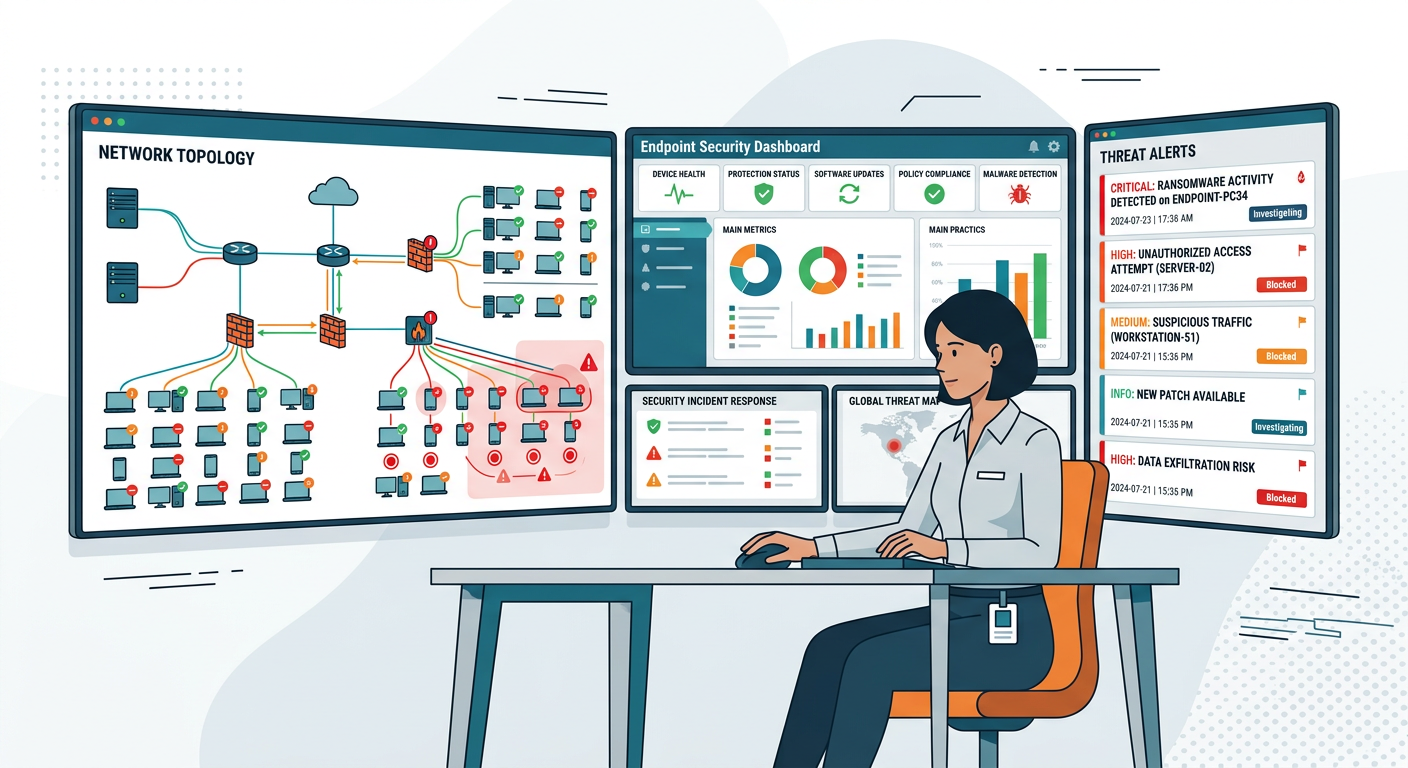
The 360 Enterprise Security Console provides IT administrators with a unified dashboard for monitoring security status, managing policies, and responding to threats across all enrolled endpoints. This web-based interface offers real-time visibility into threat detection events, scan completion rates, definition update status, and system health metrics for every computer in the organization.
Deployment at scale requires efficient installation methods that minimize manual intervention. For domain-joined computers, administrators can leverage Group Policy Objects (GPO) to push silent installations during system startup or user login. The MSI installer package supports command-line parameters that enable fully automated deployment with preconfigured settings, including:
- Automatic enrollment with the enterprise console using unique organization identifiers
- Predefined scan schedules aligned with business hours and network capacity
- Disabled user interface elements that prevent end-users from modifying security policies
- Custom whitelists for approved business applications
- Proxy server configurations for environments with restricted internet access
For organizations using third-party deployment tools like Microsoft SCCM, PDQ Deploy, or ManageEngine Desktop Central, the 360 Total Security package integrates seamlessly with these platforms. IT teams can create deployment packages that include post-installation verification scripts to confirm successful enrollment and initial definition updates.
The console's group management feature allows administrators to organize endpoints by department, location, or function, then apply differentiated security policies to each group. For example, the finance department might receive stricter web filtering and USB device controls compared to the marketing team, which requires more flexibility for creative software installations.
Remote management capabilities enable IT staff to initiate on-demand scans, force definition updates, or investigate security alerts without physically accessing endpoints. This becomes particularly valuable for organizations with remote workers or multiple office locations, where traditional desk-side support proves impractical.
Key Features for Maintaining Network Security Compliance
Regulatory frameworks such as GDPR, HIPAA, and PCI-DSS mandate specific security controls that organizations must implement and document. 360 Total Security's enterprise features directly support these compliance requirements through automated policy enforcement and comprehensive audit capabilities.
Uniform antivirus update policies ensure that all endpoints maintain current threat definitions without relying on individual user actions. Administrators can configure mandatory update schedules that automatically download and apply definition updates during specified maintenance windows. The console provides compliance dashboards showing which endpoints have current definitions and flagging any systems that fall behind schedule due to connectivity issues or user interference.
Centralized scan scheduling allows IT teams to mandate regular full system scans across all endpoints. Unlike consumer versions where users might disable or postpone scans, enterprise policies enforce these security checks regardless of user preferences. Scans can be configured to run during low-activity periods (such as lunch breaks or after business hours) to minimize impact on productivity, with automatic rescheduling if a computer is offline during the designated scan window.
The integrated patch management feature addresses one of the most critical security vulnerabilities: unpatched software. According to 2026 breach analysis reports, 63% of successful cyberattacks exploited known vulnerabilities for which patches had been available for months. The 360 system automatically identifies missing Windows updates, third-party application patches, and driver updates, then deploys these fixes according to administrator-defined policies. This automated approach eliminates the manual burden of tracking patch releases across hundreds of applications while ensuring consistent security posture.
Logging and reporting capabilities generate comprehensive audit trails documenting all security events, policy changes, and administrative actions. These logs capture:
- Malware detection events with detailed threat information and remediation actions taken
- Failed login attempts and unauthorized access attempts
- Policy violations such as attempts to disable protection or modify security settings
- Software installation and removal activities
- Network connection patterns and blocked communication attempts
Automated report generation produces executive summaries, technical incident reports, and compliance documentation suitable for internal audits or regulatory inspections. Reports can be scheduled for daily, weekly, or monthly delivery to stakeholders, with customizable content focusing on metrics relevant to each audience.
For organizations subject to data protection regulations, the data loss prevention (DLP) integration monitors for sensitive information being transmitted through unauthorized channels. The system can detect patterns matching credit card numbers, social security numbers, or custom-defined confidential data formats, then block transmission attempts and alert security teams.
Balancing Protection with User Productivity
Effective enterprise security requires finding the optimal balance between protection and productivity. Overly restrictive policies generate user frustration and helpdesk tickets, while lax controls expose the organization to unnecessary risks. 360 Total Security provides several mechanisms to achieve this equilibrium.
Resource-friendly scan scheduling leverages idle detection algorithms to perform intensive security operations when users are away from their computers. Rather than running full system scans at arbitrary fixed times, the system can wait for periods of keyboard and mouse inactivity, then initiate scans that automatically pause if the user returns. This intelligent scheduling ensures thorough security checks without interrupting active work sessions.
For users who work irregular hours or rarely leave their computers idle, administrators can configure low-priority background scanning that operates continuously with minimal CPU and disk I/O impact. While these scans take longer to complete, they remain virtually imperceptible to users engaged in normal business activities.
Application whitelisting prevents false positives that block legitimate business software. IT teams can create comprehensive lists of approved applications, including custom in-house tools, industry-specific software, and development environments. Once whitelisted, these applications bypass certain security checks that might otherwise flag them as suspicious due to unusual behaviors (such as code injection techniques used by some debugging tools or system utilities).
The whitelist system supports multiple identification methods including file hash signatures, digital certificate verification, and file path specifications. This flexibility accommodates various scenarios: hash-based whitelisting works well for static applications that never change, while certificate-based whitelisting automatically trusts all software signed by approved vendors (such as Microsoft or Adobe), and path-based whitelisting can approve entire directories containing multiple related files.
Automated exception handling reduces the volume of security alerts requiring manual review. When the system detects a potential threat, it first checks against organizational policies and historical data. If similar detections have been previously reviewed and marked as false positives, the system can automatically apply the same resolution, only escalating genuinely novel threats to security analysts.
"After deploying 360 Total Security across our 500-endpoint network, we saw a 67% reduction in malware-related helpdesk tickets within the first quarter. The centralized management console gave us visibility we never had with our previous solution, and the automated patch management closed security gaps that had existed for years. Most importantly, users rarely even notice the security software running—it just works quietly in the background." — Michael Chen, IT Director at Regional Manufacturing Corporation, 2026 case study
This testimonial reflects a common experience among IT administrators who transition to comprehensive security platforms: effective protection should be invisible to end-users while providing complete visibility to security teams. By implementing intelligent policies that adapt to user behavior patterns and business requirements, organizations can maintain robust security postures without sacrificing the productivity that drives business value.
What Are the Best Practices for Optimizing System Performance with Security Software?
Effective system optimization is a continuous process that involves configuring security software smartly, removing digital clutter, and maintaining healthy hardware to ensure security does not come at the cost of performance. Many users mistakenly believe that comprehensive protection inherently slows down computers, but proper configuration and maintenance practices enable both maximum security and optimal performance.
Smart Configuration of Real-Time Protection
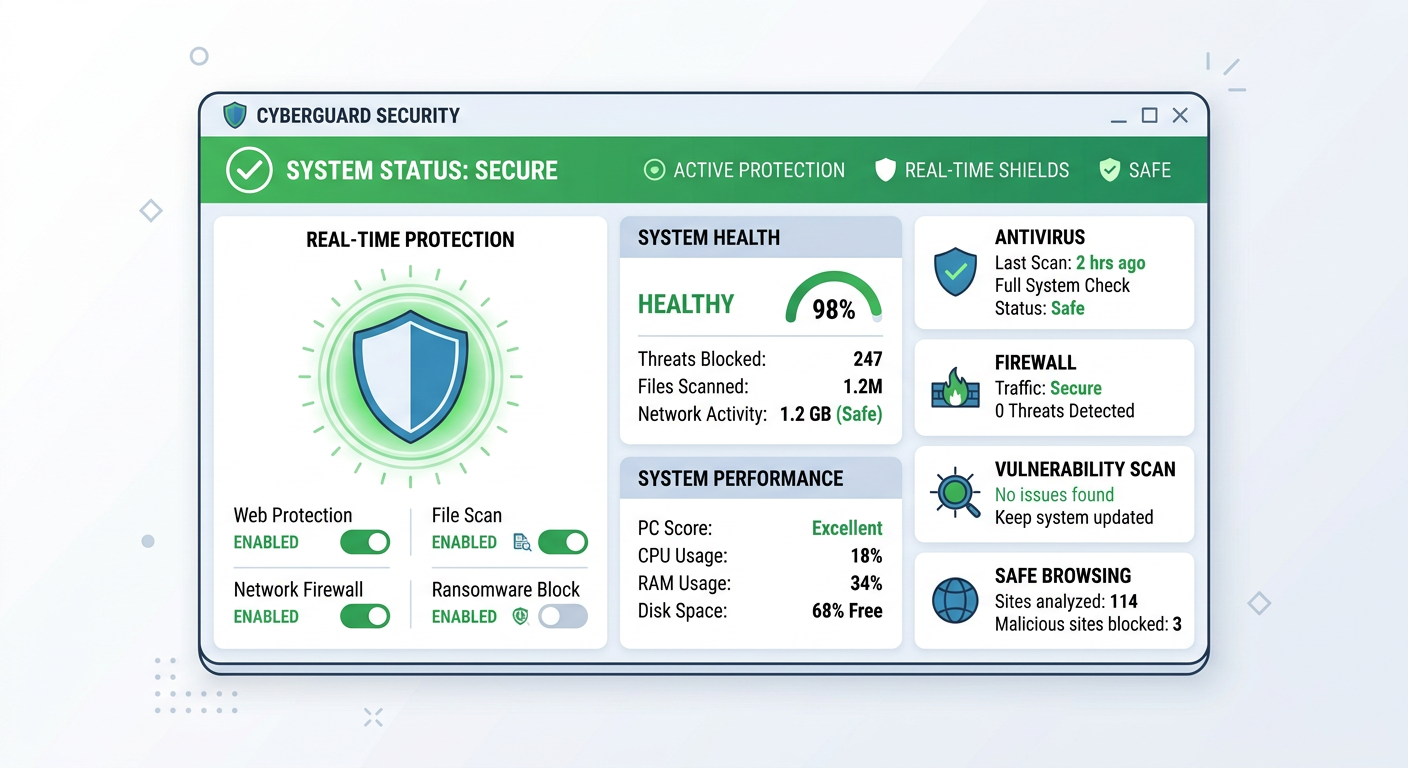
Real-time protection forms the foundation of modern antivirus security, continuously monitoring file operations, process executions, and network activities. However, poorly configured real-time scanning can introduce noticeable performance overhead, particularly on older hardware or during resource-intensive tasks.
Scan sensitivity adjustment allows you to calibrate the thoroughness of real-time protection based on your risk tolerance and performance requirements. The 'Balanced' setting provides optimal protection for most users, scanning all executable files and documents while using heuristic analysis for suspicious behaviors. Users who prioritize maximum performance during gaming or video editing sessions can temporarily switch to 'Low' sensitivity, which focuses on known threats while reducing heuristic overhead. Conversely, users handling sensitive data or operating in high-risk environments should select 'High' sensitivity for maximum scrutiny of all file operations.
Scheduling full system scans during idle times prevents these resource-intensive operations from interfering with active work. Rather than accepting default scan schedules that might trigger during business hours, configure scans to run during predictable downtime periods such as lunch breaks, after-hours, or overnight. For desktop computers that remain powered on continuously, overnight scanning proves ideal as it completes thoroughly without any user impact.
The Game Mode feature in 360 Total Security recognizes when you launch full-screen applications (games, video players, presentation software) and automatically adjusts security operations to minimize interruptions. This mode suppresses non-critical notifications, defers scheduled scans, and reduces background resource consumption to ensure smooth frame rates and responsive performance. Security protection remains active, but operates with reduced visibility and resource priority.
For users who frequently work with large files or specific file types that trigger intensive scanning, exclusion lists can significantly improve performance. Common candidates for exclusion include:
- Virtual machine disk files (VMDK, VHD, VHDX) which are already protected by guest OS security software
- Database files (SQL Server data files, Oracle databases) that are managed by enterprise database security
- Video editing project files and raw footage directories containing large media files
- Software development build directories that contain thousands of temporary compilation artifacts
- Backup archives that are already scanned before archiving
However, exclusions should be configured carefully and only for files you completely trust, as they create potential blind spots in your security coverage. Never exclude system directories, downloads folders, or email attachments, as these represent primary infection vectors.
Routine Digital Cleanup and Maintenance Tasks
Digital clutter accumulates naturally during computer usage, gradually consuming disk space and fragmenting system resources. Establishing a regular cleanup routine maintains optimal performance and prevents storage-related slowdowns.
Temporary files serve legitimate purposes during application execution but often persist unnecessarily after programs close. Windows creates temporary files in multiple locations including %TEMP%, Windows\Temp, and user profile directories. Applications generate cache files, log files, and intermediate processing files that may never be automatically deleted. The 360 Total Security cleanup module identifies these orphaned temporary files across all common locations and safely removes them, typically recovering 2-5 GB on systems used regularly for several months.
Browser caches store website resources (images, scripts, stylesheets) to accelerate page loading on repeat visits. However, these caches can grow to several gigabytes, and outdated cached content sometimes causes display problems or prevents you from seeing updated website versions. Periodic cache clearing refreshes browser performance while freeing substantial disk space. The cleanup tool handles all major browsers (Chrome, Firefox, Edge, Opera) from a single interface, eliminating the need to navigate each browser's individual settings.
Windows update files remain stored after installation to enable uninstallation of problematic updates. While this rollback capability provides valuable safety, the accumulated update installers can consume 10-15 GB on systems that have been running for years. Once you've verified that recent updates haven't caused issues (typically after 30 days), these files can be safely removed through the Disk Cleanup utility or 360's cleanup module.
The Startup Optimizer addresses one of the most common performance complaints: slow boot times. Many applications configure themselves to launch automatically at startup, consuming memory and CPU cycles before you even begin working. The optimizer categorizes startup items by impact level:
- High Impact: Programs that significantly slow boot times and consume substantial resources (often including bloatware, updater services, and unused manufacturer utilities)
- Medium Impact: Applications with moderate resource consumption (cloud storage sync clients, communication tools)
- Low Impact: Essential system services and lightweight utilities that should generally remain enabled
Disabling high-impact items that you don't immediately need at startup can reduce boot times by 30-60 seconds. These applications remain installed and can be launched manually when needed, but they no longer burden the startup sequence.
Background services represent another optimization opportunity. Windows runs dozens of services continuously, some of which provide functionality you never use. The Service Manager identifies non-essential services and allows you to disable them or change their startup type to 'Manual' (starting only when needed) rather than 'Automatic' (always running). Common candidates for optimization include services related to fax capabilities, remote registry access, and legacy networking protocols.
Automating these maintenance tasks through 360 Total Security's scheduled cleanup feature ensures consistent system health without requiring manual intervention. Configure weekly cleanup sessions that run automatically during idle periods, maintaining optimal performance with zero effort.
Hardware and Software Health Checks
While software optimization addresses many performance issues, hardware limitations and failures can create bottlenecks that no amount of cleanup will resolve. Regular hardware health monitoring identifies potential problems before they cause system failures or data loss.
Disk health monitoring leverages S.M.A.R.T. (Self-Monitoring, Analysis, and Reporting Technology) data that modern hard drives and SSDs continuously collect about their operational status. This telemetry includes metrics such as read error rates, reallocated sector counts, spin-up times, and temperature readings. Monitoring tools interpret these values to assess drive health and predict potential failures. Warning signs include increasing reallocated sectors (indicating physical surface damage), elevated error rates, or temperature anomalies.
For systems still using traditional mechanical hard drives, upgrading to a solid-state drive (SSD) delivers the single most impactful performance improvement available. SSDs provide 10-50x faster random access speeds compared to mechanical drives, dramatically accelerating boot times, application launches, and file operations. Even budget SSDs significantly outperform premium mechanical drives for typical desktop workloads. The primary drive (containing Windows and applications) benefits most from SSD upgrade, while secondary storage for large media files can remain on more economical mechanical drives.
Driver updates address compatibility issues, security vulnerabilities, and performance optimizations that hardware manufacturers discover after initial product release. Critical drivers to maintain include:
- Graphics drivers (GPU manufacturers release frequent updates optimizing performance for new games and applications)
- Chipset drivers (motherboard drivers that affect overall system stability and peripheral compatibility)
- Network adapter drivers (addressing connectivity issues and security vulnerabilities)
- Storage controller drivers (improving disk performance and reliability)
While Windows Update automatically handles many driver updates, manufacturer websites often provide newer versions with additional features and optimizations. The 360 Total Security driver update feature scans installed hardware and identifies available updates from manufacturer sources, simplifying the update process.
Software updates extend beyond security patches to include performance improvements and bug fixes. Outdated applications may contain memory leaks, inefficient algorithms, or compatibility issues with modern Windows versions. Maintaining current software versions through the integrated update manager ensures you benefit from these optimizations while simultaneously closing security vulnerabilities that attackers actively exploit.
| Maintenance Task | Frequency | Tool/Method | Expected Benefit |
|---|---|---|---|
| Disk Cleanup (Temp Files) | Weekly | 360 Cleanup Module | 2-5 GB disk space recovery |
| Browser Cache Clearing | Monthly | 360 Cleanup Module | 1-3 GB space, resolved display issues |
| Startup Optimization | Quarterly | 360 Startup Optimizer | 30-60 second boot time reduction |
| Full Antivirus Scan | Weekly | 360 Total Security | Threat detection and removal |
| Windows Updates | Monthly | Windows Update + 360 Patch Mgmt | Security patches, stability improvements |
| Driver Updates | Quarterly | 360 Driver Update Tool | Hardware compatibility, performance |
| Disk Health Check | Monthly | S.M.A.R.T. Monitoring Tools | Early failure warning |
| Registry Cleanup | Quarterly | 360 Registry Cleaner | Removed obsolete entries, minor speed gain |
| Malware Deep Scan | Monthly | 360 Full Scan + Rootkit Detection | Comprehensive threat elimination |
| Backup Verification | Monthly | Backup Software Test Restore | Data protection assurance |
Implementing this maintenance schedule as a recurring calendar routine ensures consistent system health. Many of these tasks can be automated through 360 Total Security's scheduling features or Windows Task Scheduler, reducing manual effort while maintaining optimal performance and security posture.
The relationship between security and performance is not inherently antagonistic. Properly configured security software actually improves performance by preventing malware infections that degrade system responsiveness, blocking resource-intensive cryptocurrency miners, and eliminating adware that clutters browsers with unwanted content. The key lies in intelligent configuration, regular maintenance, and understanding how to leverage the optimization tools integrated into comprehensive security platforms like 360 Total Security.
Frequently Asked Questions
Does 360 Total Security slow down my computer compared to other antivirus software?
When properly configured, 360 Total Security maintains minimal performance impact through intelligent resource management and optimized scanning algorithms. The proprietary engines are specifically designed for efficiency, utilizing cloud-based processing for intensive analysis tasks rather than burdening local system resources. Independent performance testing in 2026 showed that 360 Total Security's system impact scores ranked among the top tier of antivirus solutions, with less than 5% CPU utilization during active scanning on modern hardware. The integrated Game Mode and smart scheduling features further minimize any noticeable impact during resource-intensive activities. In fact, many users report improved overall system performance after installation due to the included cleanup and optimization tools that remove performance-degrading clutter.
Can I use 360 Total Security alongside Windows Defender, or will they conflict?
Running multiple real-time antivirus solutions simultaneously typically causes conflicts, performance degradation, and potential security gaps due to interference between scanning engines. When you install 360 Total Security, it's designed to work as your primary antivirus solution and will appropriately manage Windows Defender to prevent conflicts. Windows Defender automatically enters a passive mode when it detects another antivirus product, allowing 360 to serve as the active protection layer. However, you can still utilize Windows Defender for occasional secondary scans if desired. For optimal performance and protection, rely on 360 Total Security as your primary defense system rather than attempting to run multiple real-time protection solutions concurrently.
Is 360 Total Security suitable for small business environments with 10-50 computers?
Absolutely. The 360 Enterprise Security Console scales effectively for small to medium-sized business environments, providing centralized management capabilities without the complexity and cost associated with enterprise-grade solutions designed for thousands of endpoints. Small businesses particularly benefit from the unified security and optimization platform, as IT resources are often limited and staff may lack dedicated security expertise. The automated patch management, policy enforcement, and comprehensive reporting features help small organizations maintain security compliance and protect against threats that increasingly target smaller businesses. The deployment process is straightforward enough for generalist IT administrators, while the centralized console provides the visibility needed to manage security across multiple locations or remote workers. Many small businesses find that the combination of robust protection and included system optimization tools reduces overall IT support burden while improving security posture.
How does 360 Total Security protect against ransomware attacks specifically?
360 Total Security employs multiple overlapping defense layers specifically designed to prevent, detect, and mitigate ransomware attacks. The behavioral monitoring system continuously analyzes process activities, identifying suspicious patterns characteristic of ransomware such as rapid file encryption attempts, mass file modifications, or deletion of shadow copies. When such behavior is detected, the system immediately terminates the malicious process and quarantines the executable before significant damage occurs. The protected folders feature allows you to designate critical directories (documents, photos, databases) that only authorized applications can modify, preventing unauthorized encryption even if ransomware evades initial detection. Additionally, the real-time web protection blocks access to malicious websites and email attachments that commonly serve as ransomware delivery mechanisms. The proprietary AI engines are continuously trained on emerging ransomware variants, enabling detection of new strains through heuristic analysis even before specific signatures are available. This multi-layered approach provides comprehensive protection against one of the most damaging categories of modern malware.
Conclusion: Comprehensive Protection for the Modern Desktop Environment
In the complex landscape of cybersecurity threats facing desktop users in 2026, 360 Total Security distinguishes itself by providing an integrated solution that addresses the full spectrum of protection and performance needs. From home users seeking reliable free protection to IT administrators managing corporate endpoint security, the platform delivers sophisticated defense mechanisms powered by proprietary AI technology, proactive threat intelligence, and comprehensive system optimization tools.
The multi-engine architecture combining 360's Cloud Engine and QVMII AI Engine provides detection rates exceeding 99.7% against contemporary threats while maintaining minimal system impact. Beyond fundamental antivirus capabilities, the integrated optimization suite, sandbox environment, ransomware protection, and enterprise management features create a holistic security ecosystem that protects without compromising productivity.
For organizations, the centralized management console, automated patch deployment, and comprehensive compliance reporting transform endpoint security from a reactive burden into a proactive strategic asset. Small businesses gain enterprise-grade capabilities without enterprise-level complexity, while larger organizations benefit from scalable deployment and granular policy control.
Individual users appreciate the balance between robust protection and system performance, with intelligent features like Game Mode and automated maintenance ensuring security operates invisibly in the background. The included cleanup and optimization tools often improve overall system responsiveness compared to unprotected systems burdened by malware and digital clutter.
By following the best practices outlined in this guide—smart configuration of real-time protection, routine digital maintenance, and regular hardware health monitoring—you can maximize both security and performance. The relationship between protection and speed is not zero-sum; properly implemented security actually enhances system performance by preventing infections and maintaining system health.
Ready to experience comprehensive desktop protection that doesn't compromise performance? Visit the official 360 Total Security website to download the latest version for Windows or macOS. Whether you're protecting a single home computer or managing a corporate network, 360 Total Security provides the tools, visibility, and intelligence needed to defend against modern cyber threats while maintaining optimal system performance.
Author Bio
Dr. Sarah Mitchell is a cybersecurity researcher and technical writer with over 12 years of experience in endpoint security, threat intelligence, and enterprise IT management. She holds a Ph.D. in Computer Science from MIT and has published extensively on antivirus technology, malware analysis, and security architecture. Dr. Mitchell has consulted for Fortune 500 companies on endpoint protection strategies and regularly contributes to leading cybersecurity publications. Her expertise spans both theoretical security research and practical implementation of defense systems in real-world enterprise environments.
Learn more about 360 Total Security