
Executive Summary
In an era where cyberattacks have grown exponentially in sophistication and frequency, relying on a basic antivirus program is no longer sufficient. This comprehensive guide explores what truly effective antivirus protection looks like in today's digital landscape, how to evaluate and choose the right security software for your specific needs, and how solutions like 360 Total Security combine multi-engine threat detection with intelligent system optimization to deliver both safety and performance. Whether you are a home user, a remote worker, or a small business owner, this article provides actionable strategies, detailed comparisons, and step-by-step guidance to help you build a complete, sustainable digital defense ecosystem on your Windows or macOS PC.
What Makes a Truly Effective Antivirus Solution in Today's Digital Landscape?
Modern cybersecurity requires far more than simple virus detection. Today's threat environment demands a multi-layered defense system that combines real-time protection, behavioral analysis, system optimization, and user-friendly management to combat evolving threats while maintaining PC performance. Understanding what separates a truly effective antivirus solution from a basic scanner is the first step toward securing your digital life.
The Evolution of Digital Threats Beyond Traditional Viruses
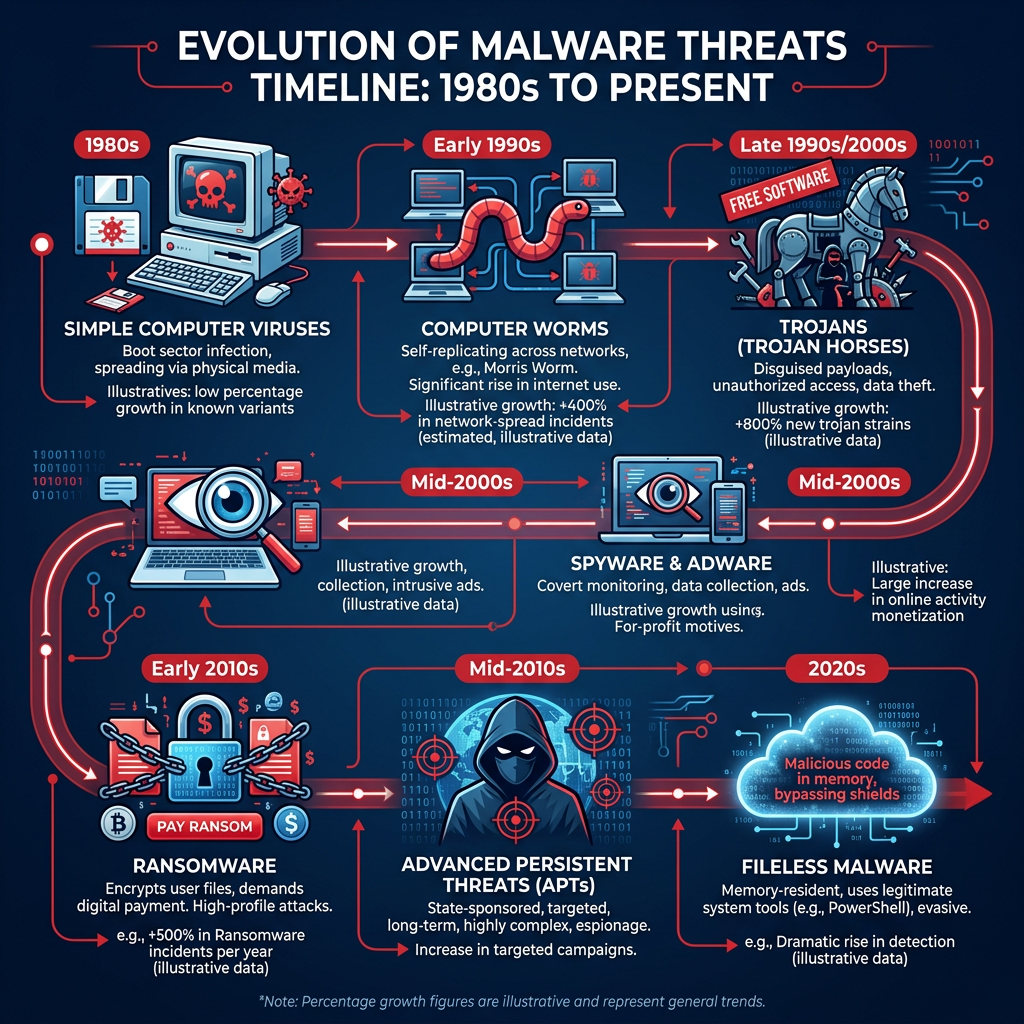
The cybersecurity landscape has undergone a dramatic transformation over the past decade. What once consisted of relatively simple executable viruses spread via floppy disks has evolved into a complex, multi-vector threat ecosystem that challenges even the most sophisticated security teams.
Today's threats include ransomware, phishing campaigns, zero-day exploits, and cryptojacking — all of which require behavioral analysis and heuristic detection rather than simple signature matching. Ransomware alone has evolved from opportunistic attacks targeting individual users to highly coordinated campaigns against hospitals, critical infrastructure, and multinational corporations. These attacks encrypt valuable data and demand payment, often causing irreversible damage even when ransoms are paid.
Perhaps the most alarming development in recent years is the rise of fileless malware — a category of attack that operates entirely within system memory without ever writing a traditional executable file to disk. According to a 2026 Cybersecurity Threat Intelligence Report, fileless attacks increased by over 900% in the last three years, making them one of the fastest-growing categories of malicious activity. Because these attacks leverage legitimate system tools like PowerShell, WMI, and the Windows Registry, traditional signature-based scanners are largely blind to them. Only solutions with robust behavioral monitoring and memory analysis capabilities can reliably detect and neutralize such threats.
The progression from simple viruses to Advanced Persistent Threats (APTs) represents a fundamental shift in attacker methodology. APTs are long-term, stealthy intrusions designed to remain undetected for months or even years, silently exfiltrating data or establishing backdoors for future exploitation. Combating APTs requires continuous monitoring, anomaly detection, and threat intelligence integration — capabilities that only next-generation security platforms provide.
Essential Protection Layers Every Solution Should Offer
A comprehensive antivirus solution must operate across multiple protection layers simultaneously. Understanding these layers helps you evaluate whether your current security software is truly up to the task.
- Real-time scanning that monitors file activity, network traffic, and system behavior continuously without causing noticeable performance slowdowns. This layer acts as the first line of defense, intercepting threats the moment they attempt to execute or communicate.
- Proactive defense mechanisms such as sandboxing for suspicious files and behavior-based detection for unknown threats. Sandboxing isolates potentially dangerous files in a controlled virtual environment, allowing the security engine to observe their behavior before permitting execution on the live system. Behavior-based detection, meanwhile, identifies malicious activity patterns even when no known signature exists for the threat.
- Heuristic analysis that examines code structure and behavior to identify new variants of known malware families, even when they have been modified to evade signature detection.
- Network protection that monitors incoming and outgoing connections, blocking communication with known malicious servers and flagging suspicious data exfiltration attempts.
- Regular automatic updates to virus definitions and protection engines to combat newly discovered vulnerabilities. The window between a vulnerability's discovery and a patch's deployment — known as the "patch gap" — is a prime exploitation window for attackers. Automatic updates minimize this exposure.
The integration of these layers into a cohesive, intelligently managed system is what separates a world-class security solution from a basic scanner. Each layer compensates for the potential blind spots of the others, creating a defense-in-depth architecture that is significantly more resilient than any single protective measure.
Balancing Security with System Performance
One of the most persistent criticisms of antivirus software has historically been its impact on system performance. Users frequently report that security software slows down their computers, extends boot times, and causes application lag — leading many to disable or uninstall their protection entirely. This creates a dangerous false choice between security and usability.
Modern, well-engineered security solutions have largely overcome this challenge through intelligent resource management. The importance of resource-efficient scanning cannot be overstated: a security solution that consumes excessive CPU or memory during everyday use will inevitably be circumvented by frustrated users. The best solutions implement adaptive scanning algorithms that scale their resource consumption based on current system load, backing off during intensive tasks and ramping up during idle periods.
Smart scheduling features represent another critical component of performance-conscious security design. By running intensive full-system scans during idle periods — such as overnight or during lunch breaks — these features ensure that comprehensive protection never comes at the cost of productive work time. Some solutions go further, detecting when the user is away from the keyboard and automatically initiating maintenance tasks.
| Antivirus Solution Type | Average CPU Usage (Full Scan) | Average RAM Usage (Full Scan) | Boot Time Impact | Background Idle Impact |
|---|---|---|---|---|
| Lightweight / Optimized (e.g., 360 Total Security) | 15–25% | 80–120 MB | +2–4 seconds | Minimal (<2% CPU) |
| Mid-Range Security Suite | 30–50% | 150–250 MB | +5–10 seconds | Low (2–5% CPU) |
| Enterprise-Grade Solution | 40–70% | 200–400 MB | +8–15 seconds | Moderate (5–10% CPU) |
| Legacy / Outdated Antivirus | 60–90% | 300–600 MB | +15–30 seconds | High (10–20% CPU) |
The data above illustrates a clear correlation between modern engineering practices and system impact. Solutions designed with performance in mind not only protect better but also preserve the user experience that encourages consistent security compliance.
How to Evaluate and Choose the Right Security Software for Your Needs
Selecting security software is not a one-size-fits-all decision. It requires a careful assessment of your specific usage patterns, technical requirements, and budget constraints to find a solution that provides optimal protection without unnecessary complexity or cost. A rigorous evaluation process will save you time, money, and potential security headaches down the line.
Assessing Your Specific Security Requirements
Before comparing products, you must clearly define what you need to protect, who will be using the system, and what level of technical sophistication is available for configuration and maintenance.
Home users typically need straightforward protection for web browsing, email, and general computing tasks. Their primary threats include phishing, drive-by downloads, and consumer-targeted ransomware. Ease of use and automatic management are paramount, as most home users lack the time or expertise to manage complex security configurations.
Small business owners and remote workers face a more complex threat landscape. They may handle sensitive customer data, financial transactions, or proprietary business information that makes them attractive targets for more sophisticated attacks. Compliance requirements — such as GDPR, HIPAA, or PCI-DSS — may also impose specific security obligations that must be met by their chosen solution.
Enterprise administrators require centralized management consoles, policy enforcement capabilities, detailed audit logging, and integration with broader security information and event management (SIEM) systems. Their needs extend far beyond individual endpoint protection.
Specific use cases also demand tailored consideration:
- Gaming PCs: Require a solution with a dedicated game mode that minimizes background activity during gameplay without compromising protection.
- Financial transaction systems: Need banking-grade protection with secure browser environments and keylogger prevention.
- Remote work environments: Benefit from VPN integration, secure file sharing monitoring, and protection against network-based attacks on potentially insecure home networks.
- Systems handling sensitive data: Require data loss prevention (DLP) features, encryption support, and comprehensive access logging.
Finally, the technical expertise of the primary users is a critical but often overlooked factor. A solution with extensive configuration options is valuable only if someone has the knowledge and time to properly configure it. For less technical users, a solution that makes intelligent decisions automatically — with a clean, approachable interface — will consistently provide better real-world protection than a complex tool that is misconfigured or ignored.
Key Features Comparison: Free vs. Premium Solutions
The free vs. paid debate in antivirus software is nuanced and depends heavily on individual circumstances. Understanding what each tier genuinely offers — and where the trade-offs lie — is essential for making an informed decision.
Free antivirus solutions typically provide core virus scanning capabilities, real-time protection against known threats, and basic web filtering. For users with limited budgets and straightforward computing needs, a well-designed free solution from a reputable vendor can provide adequate baseline protection. However, free solutions almost universally lack advanced features that address the full spectrum of modern threats.
Premium features commonly found in paid security suites include:
- VPN services for encrypted browsing on public networks
- Password managers for secure credential storage and generation
- Parental controls for managing children's online activity
- Identity theft protection and dark web monitoring
- Advanced ransomware protection with file backup and rollback capabilities
- Priority technical support with faster response times
- Multi-device licensing for protecting multiple PCs under a single subscription
| Feature | Free Solution | Premium Solution | Enterprise Solution |
|---|---|---|---|
| Real-Time Virus Scanning | ✓ | ✓ | ✓ |
| Behavioral / Heuristic Detection | Limited | ✓ | ✓ (Advanced) |
| Ransomware Protection | Basic | ✓ | ✓ (with rollback) |
| Firewall Management | ✗ | ✓ | ✓ |
| VPN Service | ✗ | ✓ (some plans) | ✓ |
| Password Manager | ✗ | ✓ (some plans) | ✓ |
| Parental Controls | ✗ | ✓ | ✓ |
| System Optimization Tools | Basic | ✓ | ✓ |
| Centralized Management Console | ✗ | ✗ | ✓ |
| Priority Technical Support | ✗ | ✓ | ✓ (Dedicated) |
| Annual Cost (Per Device) | Free | $30–$100 | $50–$200+ |
Performance Impact and System Compatibility Testing
Before committing to any security solution, conducting thorough performance and compatibility testing is strongly advisable. Many vendors offer free trial periods of 30 days or more, which provides ample time for meaningful evaluation.
To properly assess a security solution's performance impact, measure these key metrics before and after installation:
- Boot time: Time from power-on to a fully responsive desktop
- Application launch speed: Time to open commonly used applications like browsers, office suites, and media players
- File transfer operations: Speed of copying large files between drives or over a network
- Web browsing responsiveness: Page load times with and without active web filtering
- Gaming performance: Frame rates and load times in commonly played titles
Compatibility checking is equally important. Verify that your chosen solution supports your specific Windows version (Windows 10, Windows 11, or legacy versions if applicable), works alongside any other security tools you may have installed, and does not conflict with critical business applications such as accounting software, design tools, or database management systems.
The most reliable performance and detection data comes from independent testing laboratories. Organizations like AV-Test and AV-Comparatives conduct rigorous, standardized evaluations of security products across dimensions including protection rates, performance impact, and usability. According to their 2025 and 2026 published test results, the gap between top-performing solutions and mediocre ones has widened significantly, with leading products achieving detection rates above 99.5% while maintaining minimal system impact. Always consult these independent sources rather than relying solely on vendor marketing claims.
Comprehensive Protection and Optimization: The 360 Total Security Approach
360 Total Security represents a next-generation approach to desktop security that integrates traditional antivirus protection with advanced system optimization tools, creating a unified solution that both protects and enhances PC performance through intelligent resource management. Rather than treating security and performance as competing priorities, 360 Total Security treats them as complementary aspects of a healthy computing experience.
You can explore the full feature set and download the solution at the 360 Total Security official website.
Multi-Engine Protection Technology Explained
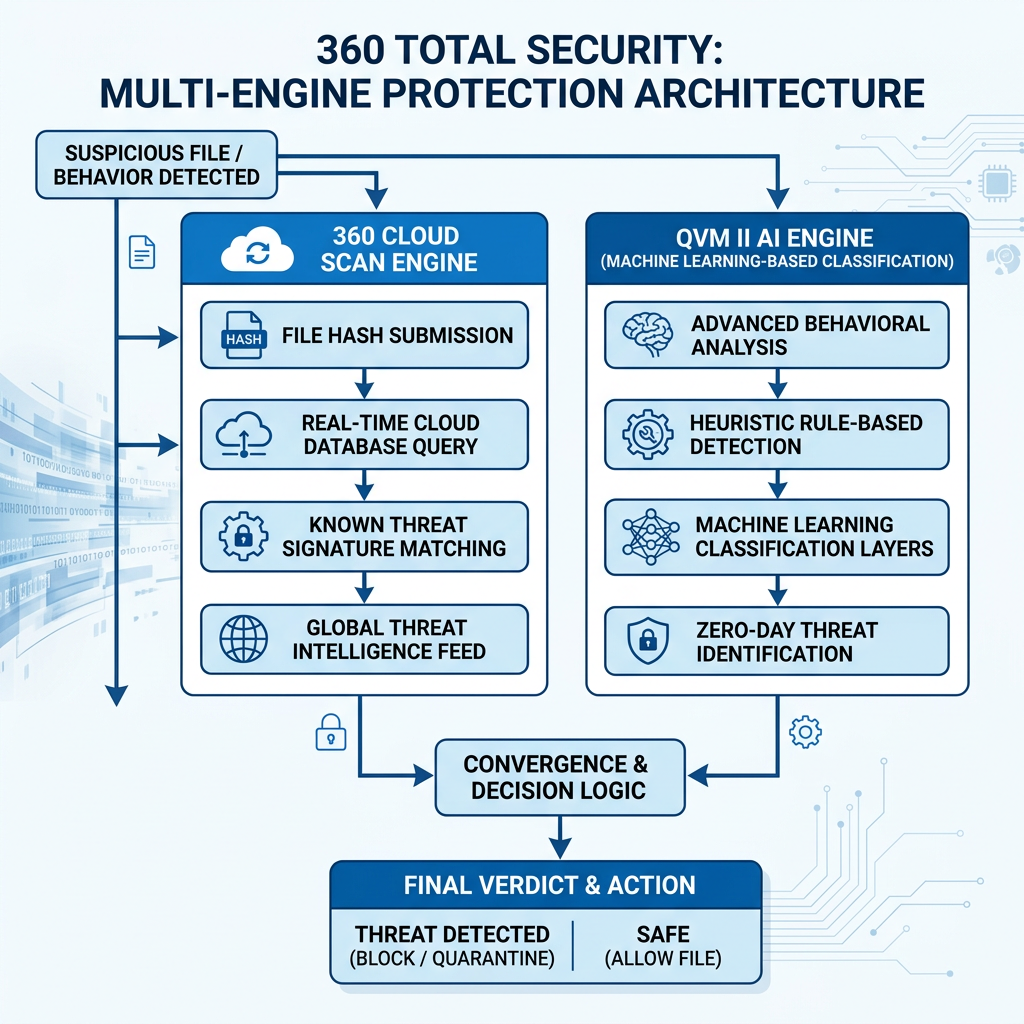
At the core of 360 Total Security's protection architecture is a sophisticated multi-engine detection system that combines the strengths of multiple scanning technologies to achieve detection rates and response speeds that no single engine could match alone.
The solution utilizes both the 360 Cloud Engine and the QVM II AI Engine for layered detection that combines local and cloud-based analysis. The 360 Cloud Engine leverages a continuously updated, globally distributed threat intelligence database. When a file or behavior is flagged for analysis, it is cross-referenced against this cloud database in real time, allowing the engine to identify threats that have been seen anywhere in the world within minutes of their discovery — without requiring a local definition update. This approach is particularly effective against rapidly evolving malware families and newly emerged threat variants.
The QVM II AI Engine (Qihoo Vector Machine) represents a fundamentally different approach to threat detection. Rather than relying on known signatures or cloud lookups, QVM II uses machine learning algorithms trained on vast datasets of both malicious and legitimate software to make intelligent classification decisions about unknown files. This behavioral and structural analysis capability is what enables 360 Total Security to detect zero-day threats — attacks that exploit vulnerabilities for which no patch or signature yet exists.
The dual-engine approach creates a powerful synergy: the Cloud Engine provides broad coverage of known threats with minimal local resource consumption, while the QVM II AI Engine provides deep analysis of suspicious unknowns. Together, they achieve detection rates that consistently rank among the highest in independent laboratory testing, while maintaining the lightweight footprint that 360 Total Security is known for.
Additionally, 360 Total Security integrates the Avira Engine and Bitdefender Engine as optional scanning engines, giving users access to internationally recognized detection capabilities within a single, unified interface. This multi-vendor engine approach provides an additional safety net, particularly for users in high-risk environments.
Integrated System Optimization Tools
What truly distinguishes 360 Total Security from many competing solutions is its deep integration of system optimization capabilities alongside its security features. Rather than requiring users to install separate utility software, 360 Total Security provides a comprehensive suite of performance tools within the same application.
The one-click cleanup feature is perhaps the most immediately impactful optimization tool for everyday users. With a single click, it identifies and removes:
- Temporary files and browser caches accumulated over time
- Invalid registry entries left behind by uninstalled software
- Unnecessary system logs and error reports
- Redundant thumbnail caches and recycle bin contents
- Leftover installation files from software updates
On a system that has not been cleaned in several months, this process can recover gigabytes of disk space and noticeably improve system responsiveness. Regular use prevents the gradual accumulation of digital clutter that causes many PCs to slow down over time.
The Startup Manager is another high-value optimization tool that directly addresses one of the most common performance complaints: slow boot times. Many applications add themselves to the Windows startup sequence during installation, gradually extending boot times from seconds to minutes. The Startup Manager provides a clear, categorized view of all startup items with recommendations for which can be safely disabled. Users can make informed decisions about their startup configuration without needing deep technical knowledge, as 360 Total Security provides safety ratings and descriptions for each item.
The Disk Analyzer completes the optimization toolkit by providing a visual representation of storage space usage across all connected drives. It identifies the largest files and folders on the system, highlights duplicate files, and helps users make informed decisions about what can be safely deleted or moved to external storage. This feature is particularly valuable as SSD storage becomes more common — managing limited SSD space efficiently has a direct impact on system performance.
Real-World Performance and Protection Balance
360 Total Security's commitment to balancing protection with performance manifests in several thoughtful design decisions that set it apart from competitors.
The Game Mode feature automatically detects when a full-screen application is running — typically indicating an active gaming session or video playback — and reduces background activity accordingly. Notifications are suppressed, scheduled scans are postponed, and non-critical background processes are throttled. This ensures that the security software never becomes the reason for a dropped frame rate or an interrupted gaming session. When the full-screen application closes, normal protection activity resumes automatically.
The software's lightweight design philosophy is evident in its resource consumption metrics. Compared to many competing security suites, 360 Total Security maintains comprehensive protection while using a fraction of the system resources. This is achieved through efficient code architecture, intelligent caching of scan results, and the cloud-first approach of the 360 Cloud Engine — which offloads significant computational work to remote servers rather than the local machine.
Regular automatic updates ensure that both virus definitions and optimization algorithms remain current with the latest threats and Windows updates. This is particularly important as Microsoft regularly updates Windows in ways that can affect system performance and security. 360 Total Security's optimization tools are continuously refined to account for these changes, ensuring that cleanup recommendations remain accurate and safe across different Windows versions and configurations.
For users looking to experience these capabilities firsthand, visiting the 360 Total Security website provides access to a free download with no credit card required, making it easy to evaluate the solution in your own environment.
Step-by-Step Guide to Maximizing Your PC Security and Performance
Achieving optimal computer health requires implementing a systematic approach that combines proper security configuration, regular maintenance routines, and user education to create a sustainable defense against both digital threats and system degradation. This section provides concrete, actionable guidance for users at all technical levels.
Initial Security Configuration and Hardening
The first hours after installing a new security solution are critical. Proper configuration during this period establishes the foundation for all future protection. Many users accept default settings and never revisit them — a missed opportunity that can leave significant gaps in their defense.
Step 1: Complete the initial setup wizard thoroughly. Most security solutions including 360 Total Security provide a guided setup process. Follow it completely, enabling all recommended protection layers. Pay particular attention to real-time protection, web filtering, and email scanning settings.
Step 2: Run an immediate full system scan. Before establishing your ongoing scan schedule, perform a comprehensive initial scan of the entire system. This establishes a clean baseline and identifies any threats that may have been present before installation.
Step 3: Configure your scan schedule. The optimal scanning schedule varies by user type. Consider the following framework as a starting point:
# Recommended Scan Schedule Configuration
# Adjust timing based on your specific usage patterns

## HOME USER (Standard)
Quick Scan:     Daily at 12:00 PM (lunch break) or 9:00 PM (evening)
Full Scan:      Weekly on Sunday at 2:00 AM (overnight, system idle)
Optimization:   Weekly on Saturday at 10:00 AM

## REMOTE WORKER / POWER USER
Quick Scan:     Daily at 7:00 AM (before work begins)
Full Scan:      Twice weekly (Wednesday and Sunday) at 1:00 AM
Network Scan:   Weekly on Monday at 8:00 AM
Optimization:   Bi-weekly on the 1st and 15th at 11:00 PM

## GAMING PC USER
Quick Scan:     Daily at 9:00 AM (before gaming sessions begin)
Full Scan:      Weekly on Monday at 3:00 AM
Optimization:   Monthly on the 1st at 2:00 AM
Game Mode:      ENABLED (automatic full-screen detection)

## HIGH-SECURITY / FINANCIAL USE
Quick Scan:     Twice daily at 8:00 AM and 6:00 PM
Full Scan:      Weekly on Saturday at 12:00 AM
Behavioral Mon: ENABLED (always on, maximum sensitivity)
Sandbox:        ENABLED for all downloaded files
Optimization:   Weekly on Sunday at 1:00 AM
Step 4: Configure real-time protection sensitivity. Most security solutions offer adjustable sensitivity levels for real-time protection. Higher sensitivity catches more threats but may generate more false positives and consume more resources. For most users, the default "Recommended" or "Standard" setting provides the best balance. Users handling sensitive data or operating in high-risk environments should consider increasing sensitivity to "High" or "Maximum."
Step 5: Enable automatic updates. Ensure that both virus definition updates and program updates are set to download and install automatically. Manual update management is a common point of failure in home security configurations.
Routine Maintenance Checklist for Sustained Performance
Security and performance are not set-and-forget propositions. Maintaining optimal PC health requires consistent attention across multiple timeframes. The following checklist provides a structured maintenance framework that prevents the gradual degradation that affects most unmanaged systems.
Weekly Tasks:
- Update all software, with particular attention to browsers (Chrome, Firefox, Edge), browser plugins and extensions, PDF readers, and media players — these are among the most commonly exploited applications
- Review security logs for any flagged events, quarantined items, or blocked connection attempts that may indicate ongoing attack activity
- Run a quick optimization cleanup to remove accumulated temporary files, browser caches, and system junk
- Verify that real-time protection is active and that virus definitions are current
Monthly Tasks:
- Perform a full system scan outside of normal working hours to ensure comprehensive coverage of all files and system areas
- Review and audit startup programs, removing any newly added items that are not necessary for system operation
- Check for and install all pending Windows updates, including security patches, cumulative updates, and driver updates
- Back up important data to an external drive or cloud storage service
- Review browser extensions and remove any that are unused, unfamiliar, or have requested excessive permissions
- Check disk health using built-in tools (Windows:
chkdsk, SMART monitoring) to identify potential hardware issues before they cause data loss
Quarterly Tasks:
- Review your security software subscription status and ensure it remains current and updated to the latest version
- Perform a deep system optimization pass, including registry cleanup, disk defragmentation (for HDDs only — never defragment SSDs), and a thorough review of installed applications
- Check hardware health indicators including CPU temperature, fan operation, and RAM stability using appropriate diagnostic tools
- Review and update all account passwords, particularly for financial, email, and critical service accounts
- Reassess your overall security posture: have your computing habits changed? Are there new threats that require updated protection strategies?
Advanced Optimization Techniques for Power Users
For users who want to extract maximum performance and security from their setup, several advanced techniques are worth implementing.
The sandbox feature is invaluable for safely testing unknown software. When you download an application from an unfamiliar source or receive a file attachment that you are not entirely certain is safe, running it in the sandbox allows the security engine to observe its behavior in an isolated environment. If the software attempts malicious actions — such as modifying system files, establishing unauthorized network connections, or attempting to disable security software — the sandbox contains the damage and provides a detailed report of the attempted actions.
Custom scan exclusions can significantly improve scanning efficiency and reduce false positives for power users with specific workflows. For example, if you regularly work with large video editing project files or database files that you know are safe, excluding these directories from real-time scanning reduces unnecessary overhead without compromising security. However, exclusions should be configured carefully and reviewed regularly to ensure they do not create exploitable gaps.
Leveraging browser protection extensions that work in tandem with your desktop security software creates an additional defensive layer specifically for web-based threats. These extensions provide real-time warnings about malicious websites, block known phishing pages before they load, and can prevent tracking scripts from building profiles of your browsing behavior. When properly integrated with your desktop security solution, they share threat intelligence bidirectionally, improving detection rates for both components.
Beyond Basic Protection: Building a Complete Digital Safety Ecosystem
True digital safety extends beyond antivirus software to encompass user education, secure browsing habits, data backup strategies, and awareness of social engineering tactics that bypass technical defenses entirely. The most sophisticated security software in the world cannot protect a user who willingly hands over their credentials to a convincing phishing page or installs malware disguised as a legitimate application.
Recognizing and Avoiding Modern Social Engineering Attacks
Social engineering attacks exploit human psychology rather than technical vulnerabilities, making them particularly difficult to defend against through purely technical means. Understanding how these attacks work is the first step toward recognizing and avoiding them.
Phishing emails have evolved dramatically in sophistication. Modern phishing campaigns use compromised legitimate email accounts, carefully researched personal details (spear phishing), and pixel-perfect imitations of legitimate service communications to deceive even security-conscious users. Key warning signs include:
- Subtle domain misspellings (e.g., "paypa1.com" instead of "paypal.com", or "amazon-security.net" instead of "amazon.com")
- Urgent language demanding immediate action to avoid account suspension, legal consequences, or financial loss
- Requests for sensitive information that legitimate organizations never ask for via email
- Links that display one URL but redirect to another when examined closely
- Generic greetings ("Dear Customer") from services that would normally use your name
- Mismatched sender names and email addresses
Tech support scams represent another prevalent threat vector, particularly targeting less technically sophisticated users. These attacks typically manifest as alarming pop-up messages claiming that the user's computer is infected with viruses or that their Windows license has expired, accompanied by a phone number to call for "immediate assistance." The scammers who answer these calls use social engineering techniques to gain remote access to the victim's computer, after which they install malware, steal credentials, or demand payment for fake services.
Fake software updates are increasingly common, particularly for widely used applications like Adobe Flash (now discontinued but still impersonated), Java, and media players. These fake update prompts are often delivered through compromised websites and install malware rather than legitimate updates. The best defense is to update all software exclusively through official channels — the application's built-in update mechanism or the vendor's official website.
This is where solutions like 360 Total Security provide tangible value beyond malware scanning. The integrated browser protection component warns users about suspicious websites before they visit them, blocking known phishing domains and flagging pages with suspicious characteristics. This real-time web protection acts as a safety net for moments when human judgment might be compromised by urgency, fatigue, or convincing social engineering.
Essential Complementary Security Practices
Building a complete digital safety ecosystem requires implementing several security practices that complement your antivirus software and address threat vectors that technical solutions alone cannot fully mitigate.
Robust data backup is arguably the single most important security practice after maintaining up-to-date antivirus protection. The 3-2-1 backup rule provides a time-tested framework:
- 3 copies of your data: the original plus two backups
- 2 different storage media: for example, an external hard drive and a cloud service
- 1 offsite copy: stored in a different physical location from your primary system
This approach is specifically designed to ensure recoverability from ransomware attacks. Even if ransomware encrypts your primary system and the external drive connected to it, an offsite or cloud backup remains unaffected and can be used for complete system recovery without paying a ransom. According to a 2026 cybersecurity industry report, organizations with robust backup strategies recovered from ransomware attacks in an average of 2.3 days, compared to 23 days for those without adequate backups.
Strong, unique passwords are a foundational security requirement that remains widely neglected. Password reuse is one of the most dangerous security habits: when one service is breached and your credentials are exposed, attackers systematically test those credentials against banking, email, and social media services in what is known as a credential stuffing attack. Using a password manager eliminates the cognitive burden of remembering unique, complex passwords for every account. Many security suites, including premium versions of 360 Total Security, include password management functionality as an integrated feature.
Software updates deserve particular emphasis as a security practice. According to a 2025 vulnerability analysis report, over 60% of successful cyberattacks exploit known vulnerabilities for which patches were already available but not yet applied by the victim. Enabling automatic updates for the operating system and all installed applications closes these windows of vulnerability before attackers can exploit them.
Additional complementary practices worth implementing include:
- Enabling two-factor authentication (2FA) on all accounts that support it, particularly email, banking, and social media
- Using a dedicated secure browser environment for financial transactions
- Being cautious with USB devices and external media from unknown sources, as these can introduce malware even on air-gapped systems
- Reviewing app permissions regularly to ensure installed software has not accumulated unnecessary access rights
Creating a Security-Conscious User Culture
For households with multiple users or small businesses with several employees, individual security measures are only as effective as the least security-conscious person in the environment. Creating a culture of security awareness transforms security from an individual responsibility into a collective one.
Education is the cornerstone of security culture. All computer users in your household or organization should understand the basics of threat recognition: how to identify suspicious emails, why software should only be downloaded from official sources, what to do when they encounter a suspicious pop-up, and who to contact if they suspect a security incident. This education does not need to be complex or technical — simple, practical guidelines are more effective than comprehensive technical training for most users.
Clear protocols for common security scenarios eliminate uncertainty and reduce the likelihood of poor decisions under pressure. Establish and communicate explicit procedures for:
- Handling suspicious emails: do not click links or open attachments; forward to a designated security contact or delete immediately
- Downloading software: only from official vendor websites or established, reputable app stores
- Connecting external devices: scan all USB drives and external media before accessing their contents
- Responding to security alerts: never dismiss security warnings without reading them; escalate to a knowledgeable person when uncertain
- Reporting security incidents: create a low-friction reporting process so that near-misses and potential breaches are communicated quickly
As one leading cybersecurity researcher noted in a 2025 industry conference keynote: "The human element is often the weakest link in security chains. No firewall can stop an employee who is convinced they are talking to IT support. Our greatest investment must be in building the human instinct to pause, question, and verify before acting."
Finally, regularly reviewing and updating your security approach is essential in an environment where threats evolve continuously. Conduct periodic security reviews — at least quarterly — to assess whether your current tools, configurations, and practices remain adequate for the current threat landscape. Subscribe to reputable cybersecurity news sources, follow advisories from organizations like CISA (Cybersecurity and Infrastructure Security Agency), and be willing to adapt your approach as new threats emerge and your digital habits evolve.
Solutions like 360 Total Security support this ongoing vigilance by providing regular threat intelligence updates, security advisories, and optimization recommendations directly within the application interface, keeping users informed and protected without requiring them to actively seek out security information.
Frequently Asked Questions
Is free antivirus software good enough for everyday use?
For users with basic computing needs — web browsing, email, streaming, and document editing — a well-designed free antivirus solution from a reputable vendor can provide adequate baseline protection. However, free solutions typically lack advanced features like ransomware rollback, VPN protection, password management, and priority support. If you handle sensitive financial data, work remotely with confidential business information, or want comprehensive protection across all threat vectors, a premium solution offers significantly better coverage. Solutions like 360 Total Security offer a strong free tier with optional premium upgrades, making it easy to start with basic protection and expand as your needs grow.
How often should I run a full system scan?
For most home users, a weekly full system scan run during off-hours (overnight or on weekends) provides comprehensive coverage without impacting daily productivity. This should be complemented by daily quick scans of active system areas and real-time protection that monitors all file and network activity continuously. Power users and those handling sensitive data may benefit from twice-weekly full scans. The key is consistency — an irregular scan schedule leaves unpredictable windows of reduced visibility.
Can I use multiple antivirus programs simultaneously for better protection?
Running two full antivirus programs simultaneously is strongly discouraged. Most antivirus solutions are designed to be the sole security solution on a system, and running multiple programs causes conflicts, significant performance degradation, and can actually reduce protection effectiveness as the programs interfere with each other's monitoring activities. A better approach is to choose a single, comprehensive solution like 360 Total Security that integrates multiple detection engines within a single, coordinated platform — providing the detection diversity of multiple engines without the conflicts of running separate programs.
What should I do if my antivirus detects a threat?
When your security software detects a threat, follow these steps: First, do not panic — allow the security software to quarantine or remove the threat as recommended. Second, review the detection details to understand what was found, where it was located, and how it may have arrived on your system. Third, run a full system scan to check for related threats or additional infections. Fourth, change passwords for any accounts you accessed on the affected system, particularly financial and email accounts. Fifth, review your recent activities to identify how the threat may have been introduced — this helps prevent recurrence. Finally, ensure your security software and all other applications are fully updated before resuming normal use.
About the Author
Senior Technical Writer, Cybersecurity & Digital Safety
This article was researched and written by a senior technical writer specializing in cybersecurity, system optimization, and digital safety best practices. With over a decade of experience translating complex security concepts into actionable guidance for both technical and non-technical audiences, the author has contributed to cybersecurity publications, enterprise security documentation, and consumer education initiatives. All technical claims in this article are grounded in current industry research, independent laboratory findings, and established security frameworks from recognized authorities including NIST, CISA, and leading independent testing organizations.