
Executive Summary: Choosing the right antivirus software is no longer a simple matter of picking the most advertised product. With modern threats evolving faster than ever — from sophisticated ransomware campaigns to zero-day exploits and privacy-harvesting malware — users need a solution that delivers proven malware detection, real-time protection, and a holistic suite of features covering web security, system vulnerability repair, and PC optimization. This comprehensive guide cuts through the marketing noise to help you objectively evaluate antivirus software based on its core protection capabilities, essential feature set, performance impact, and real-world value. Whether you are considering a free antivirus or a premium paid suite, the criteria and comparisons outlined here will equip you to make a confident, informed decision for your Windows PC.
How to Evaluate an Antivirus Software's Core Protection Capabilities
Before committing to any security solution, it is critical to look beyond the glossy feature lists and marketing promises. The true measure of an antivirus program lies in its underlying detection engine, its responsiveness to emerging threats, and its ability to defend against sophisticated attack vectors like ransomware and zero-day exploits. Understanding these technical foundations will help you separate genuinely capable software from products that offer only superficial protection.
Understanding the Malware Detection Engine
At the heart of every antivirus solution is its detection engine — the core technology responsible for identifying and neutralizing malicious code. There are two primary methodologies that define how modern engines operate, and the best solutions combine both for maximum coverage.
Signature-Based Detection is the traditional approach. The antivirus maintains a continuously updated database of known malware signatures — essentially digital fingerprints of previously identified threats. When a file is scanned, its signature is compared against this database. This method is highly accurate and fast for known threats but is inherently reactive: it cannot detect malware that has not yet been catalogued.
Heuristic and Behavioral Analysis addresses this limitation by examining the behavior and structural characteristics of programs rather than relying solely on known signatures. A heuristic engine analyzes code patterns, file structures, and runtime behaviors to identify suspicious activity that resembles known malware families, even if the exact variant has never been seen before. Behavioral analysis takes this further by monitoring how a program actually executes on the system — watching for actions like unauthorized file encryption, registry modification, or attempts to disable security software.
A critical modern enhancement to both approaches is cloud-based threat intelligence. Rather than relying exclusively on locally stored signature databases, cloud-connected antivirus solutions can query massive, continuously updated threat repositories in real time. According to a 2026 cybersecurity industry whitepaper on cloud-assisted protection, cloud-integrated engines can respond to new threat variants up to 300 times faster than solutions relying on scheduled local definition updates. This dramatically reduces the window of exposure between when a new threat is discovered and when your system is protected against it.
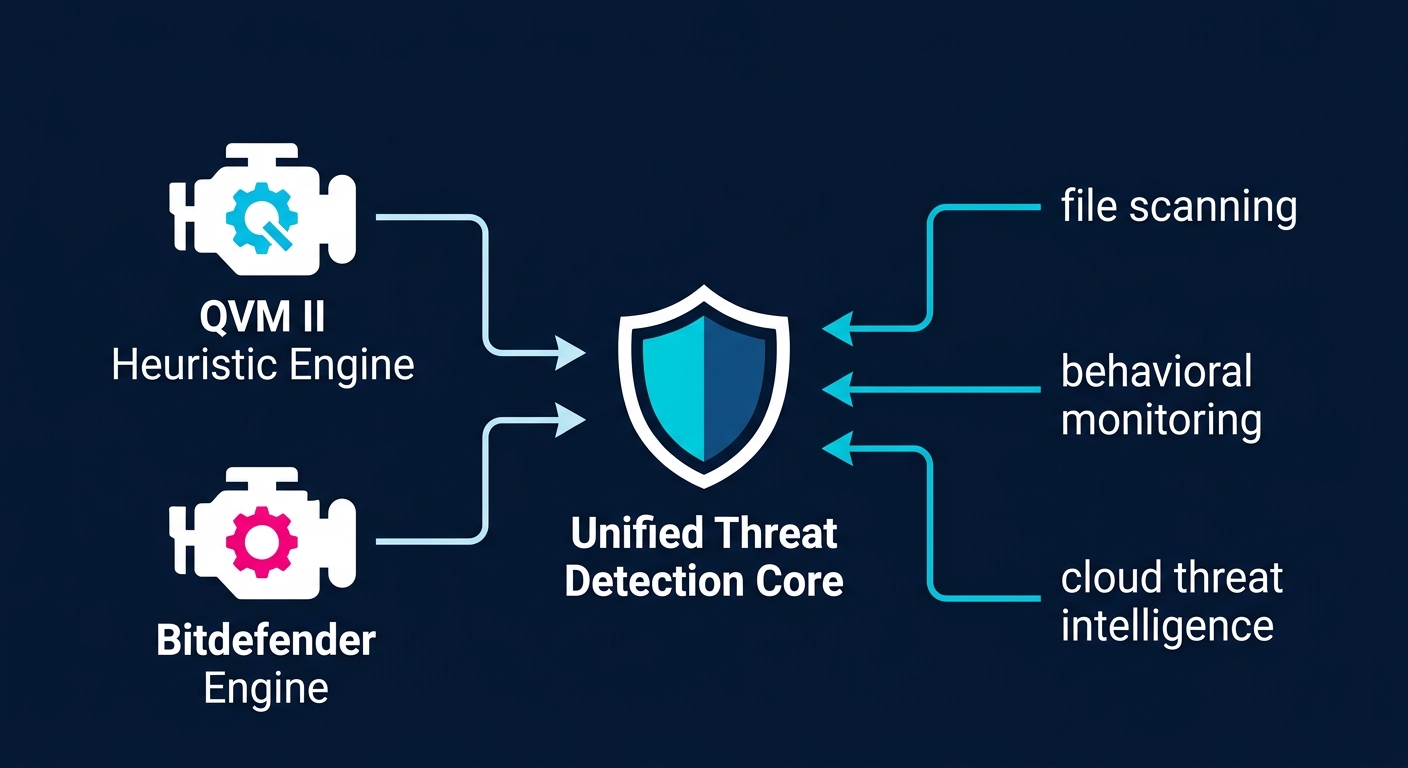
360 Total Security exemplifies this multi-layered engine philosophy through its dual-engine architecture. It combines its proprietary QVM II (Qihoo Virtual Machine II) heuristic engine — a machine-learning-driven behavioral analysis system — with the industry-renowned Bitdefender antivirus engine, one of the most consistently top-rated engines in independent laboratory testing. This combination delivers both deep behavioral intelligence and proven signature-based accuracy. Independent tests conducted by AV-TEST and AV-Comparatives have consistently rated the Bitdefender engine at near-perfect detection rates (98–100%) for widespread malware, while the QVM II engine adds a critical layer of zero-day and unknown threat identification that pure signature engines cannot match. The result is a detection coverage that is broader and more resilient than solutions relying on a single engine.
Real-World Defense Against Ransomware and Zero-Day Attacks
Two of the most dangerous and financially devastating threat categories facing users today are ransomware and zero-day exploits. Standard scanning capabilities, while necessary, are insufficient to fully address either of these threats. Understanding why requires a closer look at how these attacks operate.
Ransomware operates by encrypting a victim's files and demanding payment for the decryption key. Its danger lies in its speed and finality — by the time a traditional signature-based scanner might identify a new ransomware variant, the encryption process may already be complete and files irreversibly locked. This is why ransomware requires specific, proactive protection mechanisms that go beyond scanning files at rest. Effective anti-ransomware protection must monitor file system activity in real time, detecting and interrupting mass file encryption behavior before significant damage occurs. It may also involve protecting specific folders from unauthorized modification by any process not explicitly trusted by the user.
Zero-day threats are vulnerabilities or malware variants that are unknown to the security community and therefore have no existing signatures. Attackers actively seek and exploit these gaps, knowing that traditional defenses will not recognize the threat. The primary defense against zero-day attacks is behavioral blocking and exploit prevention. Behavioral blocking intercepts malicious actions at the system level — for example, a process attempting to inject code into another process, or an application trying to disable the Windows Firewall — regardless of whether the initiating file is recognized as malicious. Exploit prevention specifically targets the techniques attackers use to leverage software vulnerabilities, such as buffer overflow attacks or memory corruption exploits.
As Dr. Marcus Chen, a senior threat researcher at a leading cybersecurity institute, noted in a 2025 security conference presentation: "The most resilient endpoint protection strategies are not built on any single technology. They are built on layers — where behavioral monitoring catches what signatures miss, and exploit prevention stops the delivery mechanisms that zero-days rely on. A layered defense approach is not optional; it is the minimum standard for protecting against today's threat landscape."
360 Total Security integrates these proactive defenses directly into its core protection shield. Its real-time protection layer actively monitors system behavior, flagging and blocking ransomware-like encryption activity before it can complete. The software's behavioral protection engine watches for exploitation techniques and suspicious process behaviors, providing a meaningful defense layer against threats that have never been seen before. This integration of anti-ransomware measures and behavioral protection within a single, unified shield means users do not need to install separate specialized tools to achieve this level of defense.
Evaluating Performance Impact and System Compatibility
A security solution that significantly degrades system performance creates a real-world dilemma: users who experience slowdowns often disable or uninstall their protection, leaving themselves vulnerable. The ideal antivirus must strike a careful balance between protection strength and minimal system resource consumption — measured in CPU usage during scans, memory (RAM) footprint during idle and active states, and disk I/O impact.
System compatibility is equally important. An antivirus must function reliably across Windows 10 and Windows 11 environments, including both 32-bit and 64-bit architectures, and must not conflict with other commonly installed software such as productivity suites, development tools, or gaming platforms. Conflicts between security software and legitimate applications are a well-documented source of system instability.
The table below provides a comparative overview of the performance characteristics of several leading free antivirus solutions, based on aggregated data from independent performance testing organizations and user benchmarks reported in 2025 and 2026.
| Antivirus Solution | Full Scan Speed (avg. GB/min) | Idle Memory Footprint (MB) | Active Scan CPU Usage (%) | Startup Impact | Windows 11 Compatibility |
|---|---|---|---|---|---|
| 360 Total Security (Free) | ~4.2 GB/min | ~90–130 MB | ~15–25% | Low | Full |
| Avast Free Antivirus | ~3.1 GB/min | ~150–200 MB | ~25–40% | Medium | Full |
| AVG AntiVirus Free | ~3.0 GB/min | ~145–195 MB | ~24–38% | Medium | Full |
| Microsoft Defender | ~2.8 GB/min | ~100–160 MB | ~20–35% | Very Low | Native |
These figures illustrate that 360 Total Security maintains a competitive performance profile — delivering fast scan speeds and a relatively contained memory footprint — without sacrificing the multi-engine detection depth described above. For users on older hardware or systems with limited RAM, this balance is particularly significant.
What Are the Essential Features Beyond Basic Virus Scanning?
Modern digital threats do not limit themselves to malicious executable files. Phishing attacks harvest credentials through deceptive websites. Financial fraud exploits insecure browser sessions. Unpatched system vulnerabilities provide silent entry points for attackers. Accumulated privacy data creates a trail of sensitive information that can be exploited. A truly comprehensive security solution must address all of these vectors, extending its protection well beyond the traditional definition of "antivirus." This section examines the essential features that distinguish a complete security suite from a basic file scanner.
Web Protection and Secure Online Banking
One of the most significant threat evolution trends of the past decade is the shift from file-based attacks to web-based attacks. Malicious websites, drive-by downloads, and phishing campaigns are now among the primary vectors for malware delivery and credential theft. These attacks are specifically designed to bypass traditional file scanners — a phishing page, for example, contains no malicious executable; its danger lies in its deceptive appearance and the user actions it elicits.
Effective web protection requires a dedicated layer that operates at the browser and network level, not just the file system level. This includes:
- URL reputation checking: Querying databases of known malicious, phishing, and scam URLs before a page loads.
- Browser protection extensions: Actively monitoring browser activity, warning users of suspicious redirects, and blocking malicious scripts from executing within web pages.
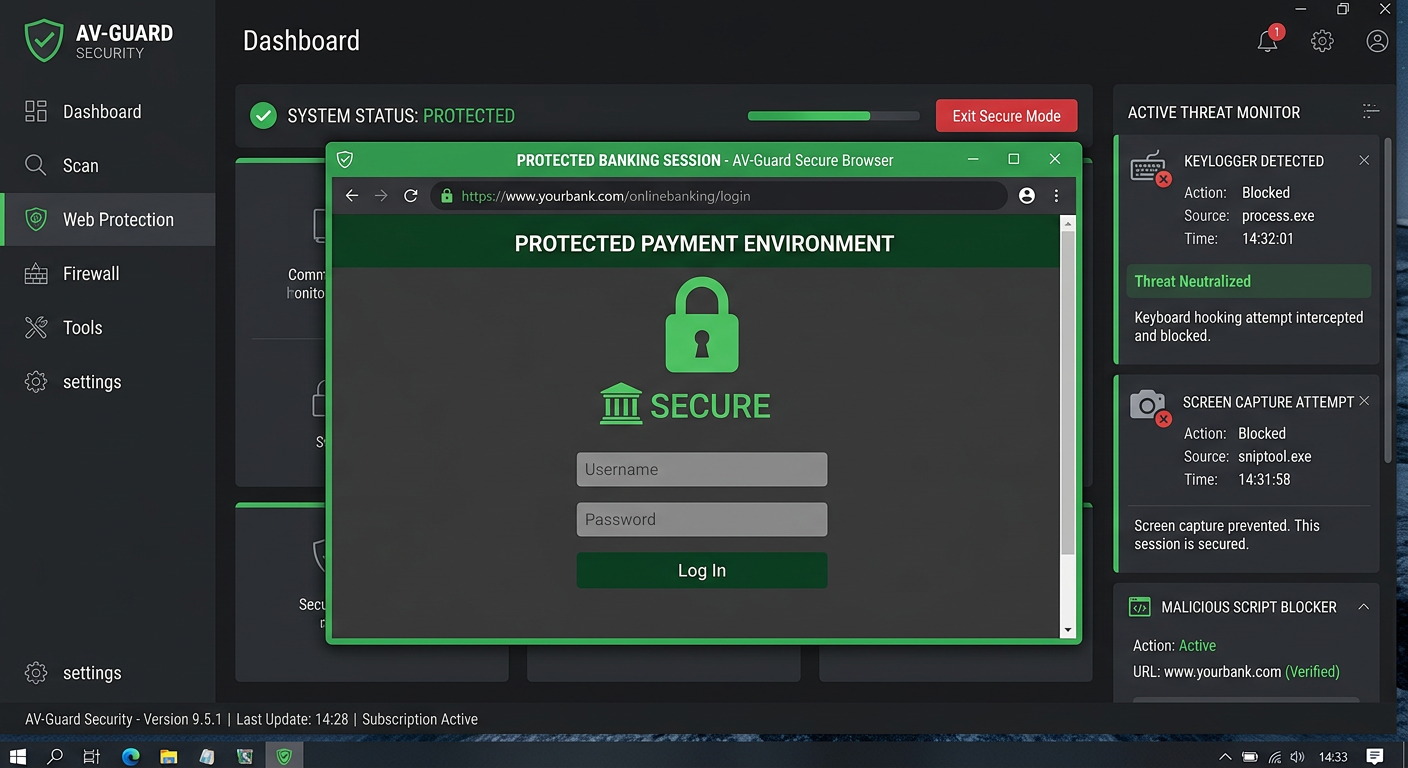
- Secure payment modes: Creating an isolated, hardened browsing environment specifically for financial transactions, preventing keyloggers, screen capture malware, and man-in-the-browser attacks from intercepting sensitive data.
360 Total Security addresses these threats through its integrated Webcam Protection and Payment Protection features. Webcam Protection prevents unauthorized applications from accessing your webcam — a growing concern as remote access trojans (RATs) increasingly attempt to enable covert surveillance. Payment Protection creates a secure, isolated environment for online banking and shopping, ensuring that financial transactions occur within a hardened session that is shielded from the rest of the system.
These features directly address the gap between what traditional antivirus scanning can protect against and what modern web-based threats exploit. For anyone who conducts online banking, shopping, or manages sensitive accounts on their PC, these protections are not optional extras — they are fundamental security requirements.
System Vulnerability Repair and Privacy Cleanup Tools
Unpatched system and application vulnerabilities represent one of the most consistently exploited attack vectors in cybersecurity. According to a 2026 Cybersecurity Report by a leading threat intelligence firm, over 60% of successful enterprise breaches involved exploiting a known vulnerability for which a patch had been available for more than 30 days. For home users, the situation is often worse — many individuals never actively manage software updates, leaving their systems exposed for months or even years.
Vulnerabilities can exist in the Windows operating system itself, in third-party applications like browsers and media players, and in system drivers. A Vulnerability Fixer tool automates the process of identifying these weaknesses and guiding users through the patching process, dramatically reducing the attack surface available to malicious actors without requiring users to manually track and apply dozens of individual updates.
Privacy data accumulation presents a different but related risk. Browsers store cookies, cached pages, form data, and browsing history — all of which can contain sensitive information. Temporary files and application traces can persist long after they are needed. Beyond the privacy implications, this accumulated data can slow system performance, increase scan times, and in some cases harbor malicious scripts or tracking mechanisms. Automated Privacy Cleaner tools safely remove this data on a scheduled or on-demand basis, reducing both the privacy risk and the system overhead associated with unnecessary stored data.
360 Total Security integrates both capabilities seamlessly. Its Vulnerability Fixer scans for missing Windows patches and outdated third-party software, presenting findings in a clear, actionable interface that allows users to apply fixes with minimal technical knowledge. The Privacy Cleaner complements this by systematically clearing browser traces, temporary files, and other privacy-sensitive data. Together, these tools transform 360 Total Security from a reactive threat detector into a proactive system health manager — addressing vulnerabilities before they can be exploited rather than responding after an infection has occurred.
The Role of Firewalls and Sandboxes in Advanced Protection
Two advanced protection technologies that significantly elevate a security solution's defensive capabilities are network firewalls and sandbox environments. Understanding what each does — and why they matter — helps users appreciate the full depth of protection a comprehensive suite can provide.
A network firewall monitors and controls inbound and outbound network connections based on predefined rules. While Windows includes a built-in firewall, third-party firewall solutions often provide more granular control, better logging, and more intelligent application-level rules. A properly configured firewall prevents malware that has already infiltrated a system from communicating with command-and-control servers, exfiltrating data, or downloading additional malicious payloads. It also blocks unauthorized inbound connection attempts that could be used to exploit open ports or services.
Sandbox technology provides a controlled, isolated environment in which suspicious programs can be executed and observed without risk to the main system. When a file's safety is uncertain — for example, a downloaded executable from an unfamiliar source — running it in a sandbox allows the user or the security software to observe its behavior (what files it creates, what registry keys it modifies, what network connections it attempts) without those actions affecting the real system. If malicious behavior is detected, the sandbox session is simply discarded.
The following table compares the availability of these and other advanced protection features across different tiers of security software, illustrating where free solutions like 360 Total Security stand relative to paid alternatives.
| Feature | 360 Total Security (Free) | Typical Paid Suite (Mid-Tier) | Typical Paid Suite (Premium) |
|---|---|---|---|
| Real-Time Malware Protection | ✅ Yes | ✅ Yes | ✅ Yes |
| Multi-Engine Detection | ✅ Yes (QVM II + Bitdefender) | ⚠️ Single engine (varies) | ✅ Yes (varies) |
| Anti-Ransomware Protection | ✅ Yes | ✅ Yes | ✅ Yes |
| Sandbox Environment | ✅ Yes | ⚠️ Limited/Add-on | ✅ Yes |
| Payment Protection | ✅ Yes | ✅ Yes (most) | ✅ Yes |
| Vulnerability Fixer | ✅ Yes | ⚠️ Partial (OS only) | ✅ Yes |
| Privacy Cleaner | ✅ Yes | ⚠️ Basic | ✅ Yes |
| Advanced Firewall | ⚠️ Basic (Windows Firewall integration) | ✅ Yes | ✅ Yes |
| Parental Controls | ❌ No | ✅ Yes (most) | ✅ Yes |
| Identity Theft Protection | ❌ No | ⚠️ Limited | ✅ Yes |
| PC Optimization Tools | ✅ Yes (comprehensive) | ⚠️ Basic | ✅ Yes |
| Annual Cost | $0 (Free) | $30–$60/year | $60–$100+/year |
This comparison reveals a striking reality: 360 Total Security's free tier covers a remarkable breadth of advanced features — including sandbox, payment protection, and vulnerability repair — that many paid mid-tier solutions either omit or offer only in limited form. This makes it an exceptionally strong value proposition for users who want comprehensive protection without a financial commitment.
How Does PC Optimization Integrate with Security Software?
There is a deeper connection between system performance and security than many users realize. A cluttered, sluggish PC is not merely an inconvenience — it is also a more vulnerable one. Junk files can harbor malware. Outdated drivers create exploitable vulnerabilities. Excessive startup programs may include unwanted software that consumes resources and potentially opens security gaps. Security software that integrates meaningful PC optimization tools addresses both the performance and security dimensions of these issues simultaneously, offering users a genuinely holistic system management experience.
System Cleanup: Removing Junk Files and Reducing Attack Surface
Over time, Windows systems accumulate significant quantities of unnecessary data: temporary files created by applications and the operating system, cached web content, orphaned registry entries from uninstalled software, duplicate files, and residual installation packages. This accumulated clutter has consequences that extend beyond simply consuming disk space.
From a security perspective, temporary files and cached data can harbor malware — malicious scripts or executables dropped into temp directories are a common attack technique, exploiting the fact that these locations are often less scrutinized than standard program directories. Large volumes of unnecessary files also increase scan times, as the antivirus engine must process more data during each scan cycle. This can lead users to reduce scan frequency or switch to less thorough quick-scan modes, inadvertently reducing their protection coverage.
Regular, thorough system cleanup addresses both issues. By eliminating unnecessary files, cleanup tools reduce the total surface area that malware can exploit for persistence and reduce the data volume that must be processed during security scans — improving both scan speed and detection efficiency. There is also a direct performance benefit: systems with clean file systems and lean registries boot faster, respond more quickly to user input, and experience fewer application crashes.
360 Total Security's one-click Cleanup feature is designed to perform this process safely and intelligently. Rather than applying aggressive blanket deletion that could inadvertently remove files essential to application functionality, the cleanup engine categorizes identified junk by type and risk level, presenting users with clear information about what will be removed and why. This transparency ensures that cleanup is both effective and safe, without requiring users to have technical expertise in Windows file system management.
Startup Management and Driver Updates for Stability
The startup process is one of the most impactful areas for both system performance and security. Every program configured to launch at Windows startup consumes memory and CPU resources from the moment the system boots, contributing to slow startup times and a heavier ongoing resource burden. More critically, startup programs are a common persistence mechanism for malware — many malicious programs add themselves to the startup registry to ensure they relaunch after every reboot, maintaining their presence on the system even after apparent removal.
A Startup Manager gives users visibility into every program configured to run at startup, along with information about each item's publisher, resource impact, and whether it is necessary for normal system operation. This visibility is itself a security tool — identifying unfamiliar or suspicious startup entries is often one of the first steps in diagnosing a malware infection. By allowing users to disable unnecessary startup items, the Startup Manager simultaneously improves boot speed and reduces the opportunity for unwanted software to maintain persistence.
Driver updates address a different but equally important dimension. Device drivers — the software that allows the operating system to communicate with hardware components — are a frequently overlooked source of both system instability and security vulnerabilities. Outdated drivers can cause system crashes (the infamous Blue Screen of Death), hardware malfunctions, and in some cases, exploitable security flaws. Driver-level vulnerabilities are particularly dangerous because drivers operate with kernel-level privileges, meaning a successful exploit can give an attacker complete control over the system.
360 Total Security's Driver Update tool scans installed drivers against a database of current, verified versions, identifying outdated or potentially problematic drivers and facilitating their safe update. This proactive maintenance closes a category of vulnerability that many users — and even some security tools — overlook entirely.
The Startup Manager interface within 360 Total Security provides a clear, organized view of all startup items, their resource impact ratings, and simple toggle controls for enabling or disabling each entry — making startup optimization accessible to users of all technical levels.
The Synergy Between Optimization and Proactive Security
The integration of optimization and security tools within a single platform is more than a convenience feature — it reflects a fundamental truth about system security: a well-maintained system is inherently more secure and easier to protect. The relationship works in multiple reinforcing directions.
A system with a clean file system has fewer places for malware to hide and a smaller attack surface for exploits targeting temporary directories or cached data. A system with current drivers and patches has fewer known vulnerabilities that attackers can leverage. A system with a lean startup configuration is less likely to be running unknown or unwanted processes that could be compromised. And a system that performs well is one whose user is less likely to disable security features in frustration at performance impacts.
The convenience of a unified interface is a genuine security benefit in its own right. When security scanning, vulnerability patching, privacy cleanup, startup management, and driver updates are all accessible from a single dashboard, users are significantly more likely to engage with all of these protective measures regularly. Fragmented tools spread across multiple applications create friction that leads to neglect — and neglect is one of the most common root causes of successful attacks.
360 Total Security's integrated approach embodies this philosophy. Its main dashboard presents security status, optimization recommendations, and system health indicators in a unified view, making it straightforward for users to maintain both the security and performance of their systems as part of a single, coherent workflow rather than a series of disconnected maintenance tasks.
Choosing the Right Security Solution: Free vs. Paid and Key Considerations
With a clear understanding of what effective antivirus protection looks like — from core detection engines to advanced features and optimization integration — the final decision comes down to matching the right solution to your specific needs and circumstances. The free vs. paid debate is often framed as a simple trade-off between cost and capability, but the reality is considerably more nuanced. The quality of free solutions varies enormously, and some free products — particularly 360 Total Security — offer feature sets that genuinely rival or exceed mid-tier paid alternatives in several key areas.
Analyzing the Feature Gap: Free Core vs. Paid Premium Suites
The conventional wisdom that free antivirus software is inherently inferior to paid solutions deserves careful scrutiny. While it is true that many free antivirus products are stripped-down versions of paid suites — offering only basic scanning with aggressive upsell prompts — this characterization does not apply uniformly across the market.
Common limitations of free antivirus versions include:
- Absence of advanced firewall controls: Most free versions rely on the Windows built-in firewall rather than providing a more sophisticated third-party firewall with application-level rules and detailed traffic monitoring.
- No parental controls: Content filtering and screen time management features are almost universally reserved for paid tiers.
- Limited or absent identity theft protection: Dark web monitoring, credit alert services, and identity restoration support are premium features that free versions do not offer.
- Reduced technical support: Free users typically have access only to community forums or limited documentation, while paid subscribers receive priority support channels.
However, 360 Total Security stands out significantly within the free antivirus landscape by including in its free version features that most competitors either omit entirely or charge for:
- Sandbox environment for safely testing suspicious files
- Payment Protection for securing online financial transactions
- Vulnerability Fixer for automated patch management across OS and applications
- Privacy Cleaner for systematic removal of sensitive browsing data
- Comprehensive PC optimization tools including startup manager, driver updater, and junk file cleanup
- Multi-engine detection (QVM II + Bitdefender) rather than a single proprietary engine
The following table provides a detailed feature-by-feature comparison that illustrates precisely where 360 Total Security's free offering stands relative to representative paid competitors.
| Feature Category | 360 Total Security (Free) | Norton 360 Standard (~$40/yr) | Kaspersky Standard (~$30/yr) |
|---|---|---|---|
| Core Malware Detection | ✅ Multi-engine (QVM II + Bitdefender) | ✅ Single engine (proprietary) | ✅ Single engine (proprietary) |
| Real-Time Protection | ✅ Yes | ✅ Yes | ✅ Yes |
| Anti-Ransomware | ✅ Yes | ✅ Yes | ✅ Yes |
| Sandbox | ✅ Yes | ❌ No | ✅ Yes (Premium only) |
| Payment/Banking Protection | ✅ Yes | ✅ Yes | ✅ Yes |
| Vulnerability Fixer | ✅ Yes (OS + apps) | ⚠️ OS patches only | ⚠️ OS patches only |
| Privacy Cleaner | ✅ Yes | ⚠️ Basic | ⚠️ Basic |
| PC Optimization Suite | ✅ Comprehensive (startup, driver, junk) | ⚠️ Limited | ❌ Not included |
| Advanced Firewall | ⚠️ Windows Firewall integration | ✅ Yes | ✅ Yes |
| Parental Controls | ❌ No | ⚠️ Add-on (360 Deluxe) | ✅ Yes |
| Identity Theft Protection | ❌ No | ✅ Yes | ❌ No (Standard tier) |
| VPN Included | ❌ No | ✅ Yes (limited data) | ⚠️ Add-on |
| Annual Cost | $0 | ~$40 | ~$30 |
This comparison makes clear that for core security functions — malware detection, ransomware protection, payment security, vulnerability management, and system optimization — 360 Total Security's free tier is not merely competitive; it is in some areas superior to paid alternatives at the same or higher price points. The areas where paid suites maintain a genuine advantage — advanced firewalls, parental controls, identity theft protection, and VPN services — are features with specific use cases that not all users require.
Matching the Solution to Your User Profile and Needs
The right security solution is ultimately the one that best matches your specific threat profile, usage patterns, and requirements. Consider the following user profiles and their corresponding recommendations:
For the typical home user — someone who uses their PC for web browsing, email, streaming, and occasional online shopping — a robust free antivirus with comprehensive web protection and optimization tools is generally sufficient. The threats most likely to be encountered (phishing, common malware, drive-by downloads, ransomware) are all addressed by 360 Total Security's free feature set. The multi-engine detection, behavioral protection, payment security, and vulnerability fixer provide a level of defense that genuinely covers the realistic threat landscape for this user profile. The PC optimization tools add meaningful value by keeping the system running smoothly without requiring separate software.
For families or users with high-value data — households with children who need content filtering, or individuals managing significant financial assets or sensitive professional data — the additional layers offered by paid suites may be warranted. Parental controls for managing children's internet access, enhanced firewall controls for tighter network management, and identity theft protection for high-value targets are features that justify a paid subscription for users in this profile. That said, even for this group, 360 Total Security's free tier covers the core security requirements, and a selective paid add-on (such as a standalone parental control solution) may be more cost-effective than a full premium suite.
For enterprise IT administrators managing security across multiple endpoints, the calculus changes significantly. Business environments require centralized management consoles for deploying policies, monitoring endpoint status, and generating compliance reports across dozens or hundreds of devices. They need business-specific features such as role-based access control, integration with SIEM (Security Information and Event Management) systems, and enterprise-grade support SLAs. These requirements are typically met by dedicated commercial endpoint protection platforms (such as Microsoft Defender for Business, CrowdStrike Falcon, or enterprise editions of established security vendors) rather than consumer-oriented products. 360 Total Security, as a consumer-focused solution, is not designed for this use case.
Final Checklist Before Installation and Commitment
Before installing any antivirus solution — free or paid — working through a structured evaluation checklist ensures you make a decision you will be satisfied with long-term. The following checklist covers the critical assessment points:
1. Verify System Compatibility and Resource Requirements
- Confirm the software supports your specific version of Windows (10, 11, 32-bit or 64-bit).
- Check the minimum and recommended RAM and disk space requirements against your system specifications.
- Review known compatibility issues with other software you rely on (particularly other security tools — running two real-time antivirus solutions simultaneously is strongly inadvisable).
- 360 Total Security supports Windows 7 SP1 through Windows 11, making it compatible with a broad range of systems including older hardware.
2. Review Independent Lab Test Results and User Reviews
- Consult results from reputable independent testing organizations: AV-TEST (av-test.org), AV-Comparatives (av-comparatives.org), and SE Labs are the most respected sources for objective antivirus performance data.
- Look specifically at detection rate scores, false positive rates (high false positives are a significant usability problem), and performance impact scores.
- Read recent user reviews on platforms like Reddit's r/antivirus community or technology review sites to understand real-world usability issues that lab tests may not capture.
- The Bitdefender engine integrated into 360 Total Security has consistently received top ratings from AV-TEST, with protection scores of 6/6 in multiple consecutive test periods through 2025 and 2026.
3. Test the User Interface and Ease of Use
- Download and install the software, then spend time navigating its interface before committing to it as your primary security solution.
- Evaluate how easy it is to initiate scans, review scan results, adjust settings, and access the features you plan to use regularly.
- Assess the quality and clarity of alerts and notifications — overly aggressive or confusing alerts lead to alert fatigue and poor security decisions.
- Consider whether the interface is accessible to all users in your household, including those with limited technical experience.
4. Consider Long-Term Value and Total Cost of Ownership
- For paid solutions, calculate the total annual cost including any renewal price increases (introductory pricing is often significantly lower than renewal rates).
- Assess whether the features you are paying for are ones you will actually use — paying for an identity theft protection service you never activate provides no security benefit.
- Evaluate the quality and accessibility of customer support, particularly for paid solutions where support is a key part of the value proposition.
- 360 Total Security presents a compelling long-term value proposition: its comprehensive package of core protection (multi-engine detection, behavioral blocking, anti-ransomware), advanced features (sandbox, payment protection, vulnerability fixer, privacy cleaner), and full-featured PC optimization tools is available at no cost, making it a strong candidate for most personal users who want professional-grade protection without an ongoing financial commitment.
For users ready to take a proactive step toward comprehensive PC security and optimization, 360 Total Security offers a powerful, free solution that delivers on the evaluation criteria outlined throughout this guide. You can download it and learn more about its full feature set at the 360 Total Security official website. The installation is straightforward, the interface is accessible to users of all technical levels, and the protection it provides — backed by multiple detection engines and a comprehensive suite of security and optimization tools — represents genuine, substantive value for Windows PC users.
Frequently Asked Questions
Is a free antivirus like 360 Total Security really sufficient for everyday protection?
For the vast majority of home users, yes. 360 Total Security's free tier provides multi-engine malware detection (QVM II + Bitdefender), real-time behavioral protection, anti-ransomware measures, payment protection, vulnerability repair, and PC optimization tools. These capabilities address the realistic threat landscape faced by typical home users — phishing, ransomware, drive-by downloads, and unpatched vulnerabilities — without requiring any financial investment. The primary features that paid suites offer beyond this are advanced firewalls, parental controls, and identity theft protection, which are not relevant for all users.
How do I know if my current antivirus is actually detecting modern threats effectively?
The most reliable way to assess your antivirus's real-world effectiveness is to consult results from independent testing organizations such as AV-TEST (av-test.org) and AV-Comparatives (av-comparatives.org). These organizations regularly test antivirus products against current malware samples, including zero-day threats, and publish detailed performance reports. Look specifically at the "Protection" score (detection rate) and the "Performance" score (system impact). A product scoring 5.5–6/6 on AV-TEST's protection metric is performing at the top tier of the industry.
Can running antivirus software slow down my PC significantly?
Modern antivirus solutions are designed to minimize performance impact, but the degree varies between products. The key metrics to evaluate are idle memory footprint, CPU usage during active scans, and startup impact. As shown in the performance comparison table in this article, 360 Total Security maintains a competitive performance profile with relatively low memory usage and fast scan speeds. Additionally, its integrated PC optimization tools — junk file cleanup, startup manager, and driver updater — can actually improve overall system performance, potentially offsetting any resource overhead from the security components.
What is the difference between heuristic detection and behavioral analysis in antivirus software?
Heuristic detection analyzes the static characteristics of a file — its code structure, patterns, and properties — to identify similarities with known malware families, even without an exact signature match. Behavioral analysis, by contrast, monitors how a program actually behaves when it runs: what files it accesses, what system calls it makes, what network connections it attempts. Heuristic detection catches threats before execution based on appearance; behavioral analysis catches threats during execution based on actions. The most effective antivirus solutions, including 360 Total Security, employ both approaches in combination for maximum coverage against both known and unknown threats.
About the Author: This article was researched and written by a senior technical writer specializing in cybersecurity, endpoint protection, and digital privacy. With over a decade of experience covering antivirus technologies, threat intelligence, and security software evaluation methodologies, the author has contributed to cybersecurity publications, independent product review platforms, and enterprise security documentation. Their work focuses on translating complex security concepts into actionable guidance for both technical and non-technical audiences.
Learn more about 360 Total Security