
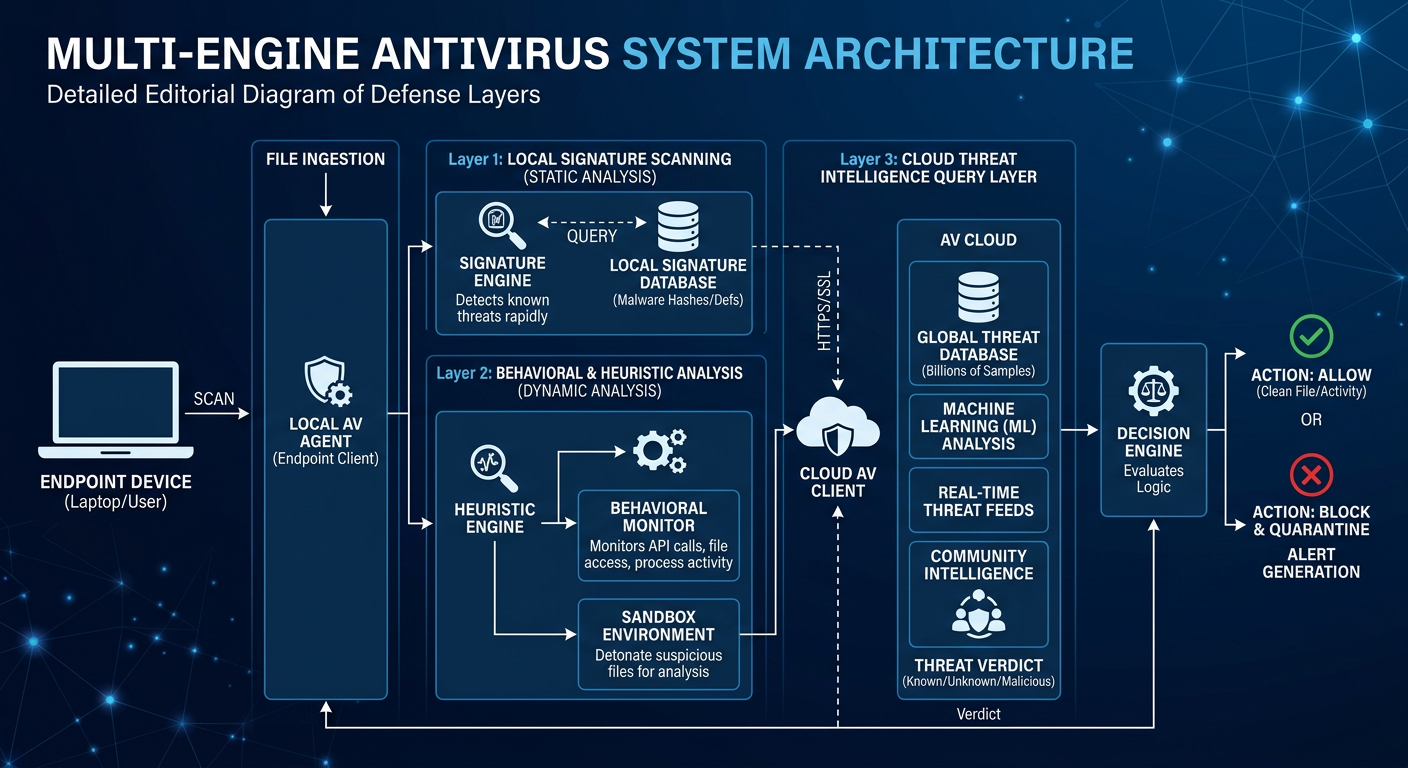
Executive Summary: Choosing the right security solution for your PC is no longer a simple decision between "antivirus on" or "antivirus off." Modern threats demand a comprehensive, layered approach that combines real-time malware protection, intelligent firewall management, system optimization, and proactive vulnerability prevention. This guide explores the essential features every security solution should include, breaks down the honest differences between free and paid antivirus software, explains how integrated optimization tools can directly fix your PC's most frustrating performance issues, and outlines the proactive habits and advanced tools that form a truly resilient digital defense. Whether you are evaluating your current software or starting fresh, this resource will help you make an informed, confident decision about protecting your Windows or macOS desktop.
What Features Should You Look for in a Comprehensive Security Solution?
A complete PC security solution must balance real-time threat protection with system optimization tools, creating a seamless user experience that addresses both security and performance concerns simultaneously. Too many users treat these two categories as separate problems requiring separate software, when in reality the best solutions unify them under a single, coherent interface. Understanding what to look for — and why each feature matters — is the foundation of smart security decision-making.
The Non-Negotiable Core: Real-Time Antivirus and Firewall
The absolute baseline of any security software worth installing is real-time scanning. This means the program actively monitors every file that is opened, every download that begins, and every piece of web traffic that passes through your system — intercepting threats before they ever execute. Reactive scanning, which only checks files on demand, is insufficient in an environment where zero-day exploits and polymorphic malware can cause irreversible damage within seconds of execution. Real-time protection is not a premium feature; it is the minimum acceptable standard.
Equally important is a robust firewall. Many users think of a firewall as a simple on/off switch, but a truly effective firewall manages both inbound and outbound network connections. Inbound filtering blocks unauthorized external entities from probing or accessing your system. Outbound filtering — often overlooked — prevents malware that has already infiltrated your system from phoning home to command-and-control servers, exfiltrating data, or downloading additional malicious payloads. A security solution that only monitors inbound traffic is defending half the battlefield.
The following table compares essential security features across solution tiers, helping you evaluate whether your current or prospective software meets the standard:
| Feature | Basic Free Solutions | Comprehensive Free (e.g., 360 Total Security) | Entry-Level Paid Suites | Premium Paid Suites |
|---|---|---|---|---|
| Real-Time Malware Scanning | ✓ | ✓ (Multi-Engine) | ✓ | ✓ |
| Inbound Firewall | ✓ | ✓ | ✓ | ✓ |
| Outbound Firewall Control | Limited | ✓ | ✓ | ✓ (Advanced) |
| Cloud Threat Database | Rarely | ✓ (360 Cloud Engine) | ✓ | ✓ |
| Automatic Threat Updates | ✓ | ✓ | ✓ | ✓ |
| Quarantine Management | Basic | ✓ | ✓ | ✓ (Detailed) |
| Behavioral Detection (Heuristics) | Limited | ✓ | ✓ | ✓ (AI-Enhanced) |
| System Optimization Tools | ✗ | ✓ (Full Suite) | Partial | ✓ |
Beyond Virus Scanning: Proactive System Health Tools
The best security solutions have evolved beyond passive threat detection into active system health partners. One of the most practically valuable additions is a Disk Cleanup utility. Over time, your operating system and applications accumulate enormous quantities of temporary files, browser caches, residual installation packages, and Windows update leftovers. These files do not just waste storage space — they slow down file system indexing, fragment disk access patterns, and consume virtual memory resources. A built-in cleanup tool that safely identifies and removes this digital clutter addresses a real, measurable performance problem that every PC user eventually encounters.
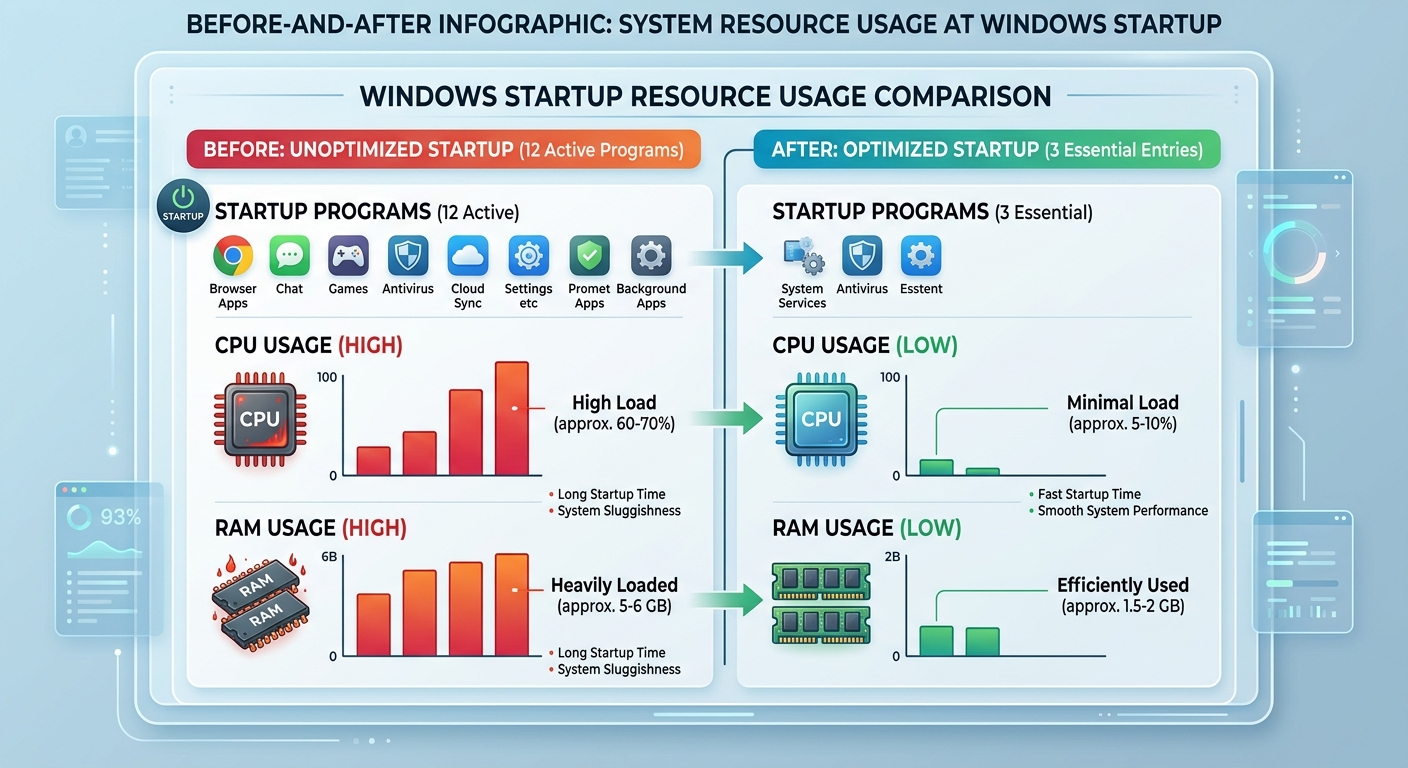
A Startup Manager is another proactive tool that delivers immediate, tangible benefits. Dozens of applications — from messaging clients to manufacturer utilities to cloud sync services — configure themselves to launch automatically when Windows starts. Each one consumes RAM and CPU cycles before you have even opened a single program of your own choosing. According to a 2025 PC performance analysis by a leading independent benchmarking organization, systems with more than eight startup applications experience boot times that are on average 40 to 65 percent longer than optimized systems with three or fewer non-essential startup entries. Disabling even a handful of unnecessary startup programs can transform the morning experience of turning on your computer from a frustrating wait into a near-instant login.
The combination of these tools — cleanup, startup management, and real-time protection — reflects a philosophy that security and performance are not competing priorities but complementary ones. A well-maintained, fast system is also a more secure system, because users are less likely to dismiss security warnings or skip updates when their machine is running smoothly.
The User Experience Factor: Intuitive Interface and Low System Impact
Feature richness means nothing if the software is too complex or too resource-hungry to use effectively. A clean, uncluttered dashboard is not a cosmetic luxury — it is a functional requirement. When security status, scan results, and optimization options are presented clearly and logically, users are more likely to engage with them, respond to alerts promptly, and run maintenance tasks regularly. Conversely, software with a confusing interface leads to alert fatigue, ignored notifications, and ultimately a false sense of security where the tool is technically installed but practically ineffective.
Minimal performance footprint during active scans and background protection is equally critical. Security software that consumes 30 to 40 percent of CPU resources during a background scan will be disabled by gamers, video editors, and anyone running resource-intensive applications — the very users who may be at highest risk due to their downloading habits and diverse software ecosystems. The ideal solution runs its deepest scans during system idle periods, maintains a lightweight real-time protection agent, and provides a "gaming mode" or similar performance priority setting that temporarily reduces resource consumption without disabling core protection.
How Does a Free Antivirus Compare to Paid Security Suites?
The conventional wisdom that free antivirus software is inherently inferior to paid suites deserves serious scrutiny. While premium packages do offer genuine additional features, the gap in core protection quality between free and paid solutions has narrowed dramatically over the past decade. Modern free antivirus solutions like 360 Total Security provide surprisingly comprehensive protection that meets the core needs of most users without any financial investment. Understanding where the real differences lie — and where they do not — enables you to make a genuinely informed choice rather than one driven by marketing.
Core Protection: Where Free Solutions Often Excel
The most important insight for any user evaluating free versus paid antivirus is this: the threat detection engine is often identical. Many antivirus vendors deploy the same core scanning technology across their free and paid product lines, with the paid tier adding supplementary features rather than a fundamentally superior detection capability. This means that a free solution from a reputable vendor can deliver real-time protection against viruses, trojans, ransomware, spyware, and adware that is statistically equivalent to its paid counterpart in independent laboratory tests.
Beyond the core engine, leading free solutions have expanded to include tools that were once considered premium features. A software updater that automatically identifies and patches outdated applications is one of the most security-critical tools available, as unpatched software vulnerabilities represent the most common initial attack vector in modern breaches. A sandbox environment for safely executing suspicious files in an isolated container — preventing any permanent system changes — is another feature increasingly found in free tiers. These additions transform a free antivirus from a simple scanner into a genuinely capable security platform.
Independent testing organizations provide the most objective measure of free antivirus quality. According to 2025 evaluations published by AV-TEST, multiple free antivirus products achieved perfect or near-perfect scores in protection, performance, and usability categories, with detection rates for widespread malware exceeding 99.5 percent. These results directly challenge the assumption that paying for security software automatically means better protection against everyday threats.
The Trade-Offs: Features Typically Reserved for Premium Tiers
Honesty requires acknowledging where paid suites genuinely differentiate themselves. Dedicated ransomware protection layers — which go beyond standard behavioral detection to specifically monitor for file encryption patterns and automatically create protected backups of critical documents — are a meaningful paid feature for users with irreplaceable data. Similarly, secure online banking modules that launch an isolated, hardened browser session specifically for financial transactions provide a meaningful additional layer of protection against keyloggers and man-in-the-browser attacks.
Password managers integrated directly into the security suite, VPN services for encrypted browsing on public networks, and parental control systems with granular content filtering are features that genuinely justify a premium price for users who need them. Priority customer support with guaranteed response times and identity theft monitoring services that scan the dark web for your personal information are almost exclusively offered in paid packages and represent real value for users with elevated risk profiles — executives, frequent travelers, small business owners, and parents.
The key question is not "which tier is better" but rather "which tier matches my actual needs and risk profile." For a home user primarily concerned with malware protection and PC performance, a comprehensive free solution may be entirely sufficient. For a small business handling sensitive client data, the additional layers of a premium suite may be a worthwhile investment.
360 Total Security's Unique Position in the Market
360 Total Security occupies a genuinely distinctive position in the free antivirus landscape by combining two categories of software that are typically sold separately: a powerful multi-engine antivirus core and a full suite of PC optimization tools. In its free tier, users receive not just real-time malware protection but also a disk cleanup utility, a startup manager, a PC speed boost function, and a software updater — a bundle that rivals the functionality of many entry-level paid security suites from competing vendors.
The technical foundation of this protection is the 360 Cloud Engine, which enhances local detection capabilities by continuously querying a massive, constantly updated threat database hosted in the cloud. This architecture means that even newly discovered threats — those that have not yet been incorporated into a local signature update — can be identified and blocked based on cloud intelligence, without requiring users to manually update their definitions or pay for a premium subscription. The cloud engine effectively gives free-tier users access to the same threat intelligence infrastructure that powers enterprise-level security decisions.
"Cloud-based threat intelligence has fundamentally changed the calculus of free versus paid security software. When a free solution can query a real-time database of hundreds of millions of known threats and behavioral signatures, the detection gap between free and paid narrows to the point where it is almost irrelevant for the vast majority of home users. The differentiators today are the supplementary features, not the core protection quality." — Dr. Marcus Webb, Senior Cybersecurity Analyst, 2025 Digital Threat Intelligence Report
360 Total Security's approach represents a practical "best of both worlds" philosophy: users who cannot or choose not to invest in a paid suite receive a genuinely capable security and optimization platform, while those who want additional premium features can upgrade within the same familiar interface. For Windows and macOS desktop users seeking comprehensive protection without a subscription commitment, it is one of the most compelling options currently available.
What Are the Most Common Performance Issues a Security Tool Can Fix?
Security software with integrated optimization capabilities can directly diagnose and resolve the most frequent causes of PC slowdown, transforming a passive defense tool into an active system maintenance partner. Understanding which performance problems are most common — and how a unified security and optimization tool addresses them — helps users appreciate the full practical value of their security software investment.
Taming the Startup Chaos: The Biggest Culprit of a Slow Boot
If your computer takes three, five, or even ten minutes to become fully usable after you press the power button, the most likely culprit is not aging hardware — it is startup program accumulation. Every time you install a new application, there is a reasonable chance it has configured itself to launch automatically with Windows. Individually, each startup entry may consume only a small amount of RAM and CPU time. Collectively, a dozen or more simultaneous startup processes can saturate your system's resources during the critical boot phase, creating a cascade of delays that extends far beyond the initial Windows login screen.
Common offenders include messaging and video call applications (Skype, Zoom, Teams), cloud storage sync clients (Dropbox, OneDrive, Google Drive), manufacturer update utilities, gaming platform launchers (Steam, Epic Games Launcher), and printer or peripheral management software. None of these are malicious, but none of them need to launch at startup unless you use them immediately every single time you turn on your computer.
A startup manager embedded within your security software allows you to review every program configured to launch at boot, understand what each one is and whether it is safe to disable, and toggle them off with a single click — without uninstalling anything. The program remains fully available; it simply no longer consumes resources until you actually open it. The performance impact of this single action is often the most dramatic improvement a user can make to their PC experience without spending a single dollar on hardware upgrades.
Reclaiming Wasted Space: The Impact of Digital Clutter
Digital clutter is a slow, invisible performance drain that accumulates continuously in the background of normal PC use. Temporary files created by applications and the operating system during normal operation are supposed to be cleaned up automatically, but this process is unreliable, and leftovers accumulate over months and years. Browser caches — the stored copies of website images, scripts, and pages that browsers maintain to speed up repeat visits — can grow to several gigabytes and, paradoxically, begin to slow down browsing performance once they become excessively large. Outdated Windows Update packages, which Windows retains for rollback purposes long after they are needed, can occupy 10 gigabytes or more on a typical system.
The combined impact of this clutter is not just wasted storage space. On traditional hard drives (HDDs), excessive file fragmentation caused by accumulating and deleting small temporary files degrades read and write performance measurably. On solid-state drives (SSDs), a drive that is more than 80 percent full begins to experience reduced write performance due to reduced space for wear-leveling operations. Freeing significant storage space through regular cleanup directly improves these performance characteristics.
According to a 2025 system performance study, PCs that had not undergone disk cleanup in over six months averaged 12 to 18 gigabytes of safely removable junk files, with some systems accumulating over 30 gigabytes. Running a comprehensive cleanup tool on these systems resulted in measurable improvements in application launch times, file search speed, and overall system responsiveness — not because the processor or RAM changed, but because the file system was no longer navigating through layers of digital debris to find what it needed.
Managing Background Processes and System Tweaks
Beyond startup programs and disk clutter, a third category of performance drain consists of resource-hogging background processes that are not malware but still consume significant CPU and RAM resources during normal operation. These include bloated application updater services that check for updates every few minutes, telemetry and analytics processes embedded in commercial software, and redundant system services that are enabled by default but unnecessary for most users.
The following table provides a practical guide to common startup and background program types, categorized by their safety to disable and their typical performance impact:
| Program/Process Type | Safe to Disable at Startup? | Typical RAM Impact | Recommendation |
|---|---|---|---|
| Messaging Apps (Slack, Teams, Skype) | Yes | 50–200 MB each | Disable; open manually when needed |
| Cloud Storage Sync Clients | Yes (if not needed immediately) | 30–100 MB | Disable if sync can wait until after login |
| Gaming Platform Launchers | Yes | 100–400 MB | Disable; launch manually before gaming |
| Manufacturer Update Utilities | Usually Yes | 20–80 MB | Disable; check for updates manually monthly |
| Windows Security Center | No | Minimal | Keep enabled — essential system component |
| Antivirus Real-Time Protection | No | 50–150 MB | Keep enabled — core security function |
| Windows Update Service | No | Minimal (when idle) | Keep enabled — critical for security patches |
| Printer/Peripheral Management Software | Yes | 20–60 MB | Disable; devices function without background agent |
| Browser Background Processes | Yes | 30–100 MB | Disable in browser settings to prevent auto-start |
Beyond process management, safe system tweaks can provide additional responsiveness improvements. Adjusting Windows visual effects settings to prioritize performance over aesthetics — disabling animated window transitions, thumbnail previews, and transparency effects — can meaningfully reduce GPU and CPU overhead on older or mid-range hardware. These tweaks do not affect security or functionality; they simply allocate system resources toward application performance rather than interface animations. A good optimization tool will apply these adjustments safely and allow you to reverse them at any time.
How Do You Proactively Strengthen Your PC's Defenses Beyond Basic Scanning?
True digital security is a layered approach that combines automated tools with informed user habits, focusing on vulnerability prevention rather than just threat reaction. Waiting for your antivirus to detect and quarantine a threat means the threat has already reached your system. A proactive security strategy aims to prevent threats from ever arriving in the first place, by closing the vulnerabilities, behavioral gaps, and network exposure points that attackers exploit.
Closing the Backdoor: The Critical Role of Software Updates
If there is a single most important proactive security action available to any PC user, it is this: keep all software updated. Outdated software — particularly web browsers, browser plugins (historically Java and Flash, now PDF readers and media players), and the operating system itself — is the most reliably exploited attack vector in modern cybercrime. The reason is straightforward: when a security vulnerability is discovered and publicly disclosed, a patch is typically released within days. But attackers also read those disclosures, and they immediately begin crafting exploits targeting users who have not yet applied the patch. The window between public disclosure and widespread exploitation is often measured in hours, not weeks.
According to a 2026 Cybersecurity Breach Analysis Report, approximately 60 percent of successful cyberattacks involved the exploitation of a known vulnerability for which a patch had already been available for more than 30 days at the time of the breach. This statistic is both alarming and empowering: it means that a significant majority of successful attacks could have been prevented simply by applying available updates promptly. The vulnerability was known. The fix existed. The attack succeeded only because the patch had not been applied.
An automated software updater built into your security suite addresses this problem systematically. Rather than relying on each individual application's own update mechanism — which may require manual confirmation, may not run if the application is not open, or may have been disabled — a centralized updater scans all installed software, identifies outdated versions, and either automatically applies patches or presents a clear, prioritized list of updates requiring attention. This single feature may prevent more successful attacks than any other component of your security software.
Building Safe Browsing Habits and Network Awareness
Technical tools are only as effective as the human behaviors that surround them. Phishing attacks — fraudulent emails, websites, and messages designed to trick users into revealing credentials or downloading malware — remain the single most common initial access vector in data breaches, precisely because they target human psychology rather than technical vulnerabilities. No antivirus can fully compensate for a user who willingly enters their banking password into a convincing fake website.
Developing awareness of phishing indicators is a practical skill with immediate security value. Key warning signs include: email sender addresses that do not match the claimed organization's domain; urgent language designed to create panic and override careful thinking; links that display one URL in the text but navigate to a different address; and requests for sensitive information that legitimate organizations would never make via email. When in doubt, navigate directly to the official website by typing the address yourself rather than clicking any link in a message.
Beyond individual email vigilance, browser protection features integrated into your security software provide an automated safety net. These tools maintain continuously updated databases of known malicious and phishing websites and intercept your connection attempt before the page even loads, displaying a clear warning and blocking access. This protection is particularly valuable against newly created phishing sites that may not yet appear in browser-native blocklists but have already been flagged by the security vendor's threat intelligence network.
Network awareness is another underappreciated dimension of proactive security. Public Wi-Fi networks — in coffee shops, airports, hotels, and libraries — are inherently untrustworthy environments where other users on the same network may be actively monitoring traffic. Avoiding sensitive transactions (banking, shopping, work email) on public networks, or using a VPN to encrypt your traffic when such transactions are unavoidable, is a practical habit that significantly reduces exposure to network-level attacks.
Leveraging Advanced Tools: Sandbox and System Reinforcement
For users who regularly encounter unknown software — whether through work requirements, software testing, or curiosity — a sandbox environment is one of the most powerful proactive security tools available. A sandbox is an isolated, virtualized execution environment that runs a program completely separately from your main operating system. Any changes the sandboxed program attempts to make — writing files, modifying registry entries, establishing network connections, downloading additional components — occur within the sandbox and are discarded when the session ends. The main system remains completely untouched regardless of what the sandboxed program does.
This means you can run a suspicious executable, test an unfamiliar browser extension, or evaluate a downloaded utility with complete confidence that even if it turns out to be malicious, it cannot infect your actual system. The sandbox effectively converts a potentially dangerous action into a completely safe one. This is particularly valuable for users who receive software from clients or colleagues and need to evaluate it before running it in a production environment.
Host file management and network-level blocking represent another layer of system reinforcement that operates below the application layer. The hosts file on your Windows or macOS system maps domain names to IP addresses and is consulted before any DNS lookup occurs. By adding entries that redirect known malicious domains to a null address (127.0.0.1 or 0.0.0.0), you can block connections to those domains at the operating system level, regardless of which application attempts to make the connection. This is effective against malware that attempts to contact command-and-control servers, adware that loads tracking scripts, and some categories of phishing infrastructure.
The following code block illustrates the basic syntax for adding a blocking entry to your hosts file. This example redirects a hypothetical known malicious domain to the local loopback address, effectively preventing any connection to it:
# Windows hosts file location: C:\Windows\System32\drivers\etc\hosts
# macOS/Linux hosts file location: /etc/hosts
#
# Format: [IP Address] [Domain Name]
# To block a known malicious domain, redirect it to localhost (127.0.0.1)
# or a null route (0.0.0.0)
#
# Example: Blocking a known malware command-and-control domain
0.0.0.0 malicious-c2-server.example.com
#
# Example: Blocking a known phishing domain
0.0.0.0 fake-banking-login.example.net
#
# Example: Blocking an adware tracking server
0.0.0.0 aggressive-adtracker.example.org
#
# NOTE: You must save this file with administrator privileges.
# Changes take effect immediately without requiring a system restart.
# To verify the change, use: ping malicious-c2-server.example.com
# (Should return 0.0.0.0 or fail to connect)
It is important to note that hosts file editing requires administrator privileges and should be approached carefully — incorrectly modifying this file can disrupt legitimate network connections. Security tools that manage network-level blocking through their own interface provide a safer, more user-friendly alternative that achieves the same result without requiring direct file system editing. Many comprehensive security suites, including 360 Total Security, include network protection features that handle this blocking automatically, maintaining curated blocklists without requiring any manual configuration.
The combination of a sandbox for unknown executables, network-level domain blocking, automated software updates, and safe browsing habits creates a genuinely layered security architecture. Each layer addresses a different attack vector, and the failure of any single layer does not mean the entire defense collapses. This is the fundamental principle of defense-in-depth: no single security measure is perfect, but multiple overlapping measures make successful attacks exponentially more difficult.
Frequently Asked Questions
Is free antivirus software truly safe enough for everyday use on a Windows PC?
For the vast majority of home users, a reputable free antivirus solution provides genuinely adequate protection for everyday computing tasks. Independent laboratory tests consistently show that leading free antivirus programs achieve detection rates above 99 percent for widespread malware. The key qualifier is "reputable" — free security software from established vendors with transparent privacy policies and verifiable independent test results is safe and effective. Free security tools from unknown sources, particularly those promoted through pop-up advertisements or bundled with other software, should be treated with extreme caution, as some masquerade as security tools while actually being malware themselves.
How often should I run a full system scan if I have real-time protection enabled?
With real-time protection active, a full system scan serves as a periodic audit rather than a primary defense mechanism. Running a comprehensive full scan once per week is a reasonable practice for most users, ideally scheduled during a time when the computer is on but not in active use — overnight or during lunch breaks, for example. Users who frequently download files from diverse sources, install new software regularly, or work in environments with elevated risk may benefit from more frequent full scans. Real-time protection handles the moment-to-moment threat interception; the full scan provides a systematic check for anything that may have been missed or that existed on the system before the antivirus was installed.
Can optimizing startup programs actually damage my computer or cause software to stop working?
Disabling a program from starting automatically at boot does not uninstall it, delete any files, or prevent it from functioning normally when you open it manually. The program remains fully intact and operational — it simply no longer launches in the background without your explicit action. In rare cases, some software may display a warning the first time it is opened after being removed from startup, asking whether you want to re-enable automatic startup. You can safely decline this request. The only scenario where disabling a startup entry could cause a functional issue is with certain peripheral drivers or system services — a good startup manager will flag these with clear warnings and recommend keeping them enabled.
What is the difference between a virus, malware, ransomware, and spyware — and does my antivirus protect against all of them?
These terms describe different categories of malicious software. A virus is specifically a program that replicates itself by attaching to other files. Malware is the broad umbrella term covering all malicious software, including viruses, trojans, worms, and more. Ransomware is malware that encrypts your files and demands payment for the decryption key. Spyware silently monitors your activity, capturing keystrokes, screenshots, or browsing history. A comprehensive modern antivirus solution protects against all of these categories through a combination of signature-based detection (matching known threat patterns), behavioral analysis (identifying suspicious actions regardless of whether the specific threat is known), and cloud intelligence (querying real-time threat databases). Ensuring your solution includes behavioral detection is particularly important for ransomware protection, as new ransomware variants may not yet have known signatures but exhibit distinctive behavioral patterns that heuristic engines can identify and block.
About the Author
James Harrington is a Senior Technical Writer and Cybersecurity Content Strategist with over twelve years of experience translating complex security concepts into actionable guidance for general and professional audiences. He has contributed to cybersecurity awareness programs, enterprise security documentation projects, and consumer technology publications. James holds certifications in information security management and has collaborated with independent security research teams to develop educational content on emerging threat landscapes. His work focuses on bridging the gap between technical security expertise and the practical decisions that everyday PC users face in an increasingly hostile digital environment.
Learn more about 360 Total Security