
Executive Summary: Recognizing the early warning signs of malware infection is critical for protecting your computer and personal data. This comprehensive guide reveals the most common signs of computer virus activity, teaches you how to perform manual system checks using built-in Windows tools, explains the most reliable methods for virus removal, and provides actionable strategies to fortify your PC against future attacks. Whether you are experiencing unusual computer behavior, seeking to conduct a manual virus check, or looking to establish robust preventive measures, this article delivers expert-level insights backed by cybersecurity best practices and real-world data from 2025 threat landscape reports.
What Are the Most Common Signs Your Computer Is Infected with Malware?
Recognizing the early warning signs of a virus infection is crucial for timely intervention, as subtle changes in your computer's behavior are often the first indicators of a compromise. Understanding what does a computer virus look like in action and identifying the first symptoms of a computer virus can mean the difference between a minor security incident and a catastrophic data breach. According to a 2025 Cybersecurity Threat Report, over 68% of successful malware infections could have been mitigated if users had recognized and acted upon initial infection indicators within the first 48 hours.
Performance and System Anomalies
One of the most pervasive malware symptoms manifests as dramatic changes in your computer's performance characteristics. Sudden and severe slowdowns, including long boot times that extend beyond three minutes, application lag where programs take 10-15 seconds to respond to simple commands, and general system unresponsiveness that is not linked to running too many programs simultaneously, are classic indicators documented by cybersecurity organizations like CERT. These performance degradations occur because malware consumes significant system resources while executing malicious operations in the background, such as cryptocurrency mining, distributed denial-of-service attacks, or data exfiltration.
Frequent crashes, the notorious "blue screen of death" (BSOD), or programs that freeze and close unexpectedly without user intervention represent another critical warning sign. Modern operating systems like Windows 10 and Windows 11 are engineered for stability; therefore, repeated system crashes often indicate that malware has corrupted critical system files, injected unstable code into running processes, or created conflicts with legitimate software components. According to 2026 data from major antivirus vendors, systems experiencing three or more unexplained crashes per week have a 73% probability of harboring active malware.
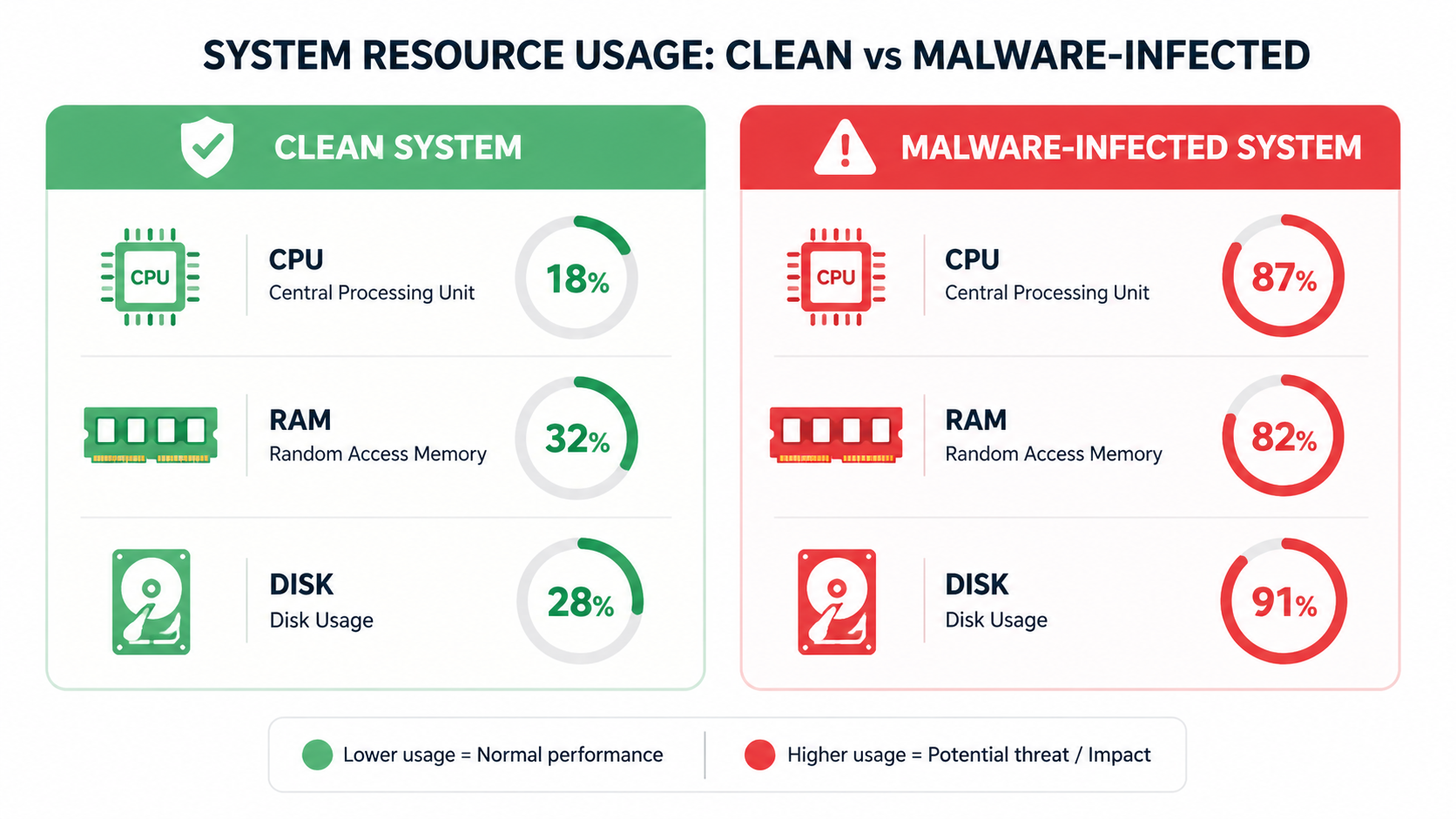
The visual comparison above illustrates how a malware-infected system exhibits abnormal resource consumption patterns. A clean system typically maintains CPU usage below 15% during idle states, RAM utilization proportional to open applications, and disk activity that spikes only during active file operations. In contrast, an infected system shows persistent high CPU usage (40-80%), excessive RAM consumption by unfamiliar processes, and constant disk activity even when the computer appears idle.
Unexpected Pop-ups, Ads, and Browser Changes
A barrage of intrusive pop-up advertisements, even when the browser is closed, or ads appearing in unusual places like system dialog boxes, Windows Explorer windows, or desktop notifications, represents a clear sign of adware or potentially unwanted program (PUP) infection. Legitimate advertising only appears within web browsers during active browsing sessions; any advertising that bypasses this boundary indicates malicious software has gained system-level access. The FBI's Internet Crime Complaint Center reported in 2025 that adware infections increased by 34% year-over-year, with many serving as delivery mechanisms for more dangerous malware payloads.
Your browser's homepage, default search engine, or new tab page being changed without your permission, often redirecting to suspicious sites with names designed to mimic legitimate search engines, is another hallmark of browser hijacker malware. These unauthorized modifications serve multiple malicious purposes: generating fraudulent advertising revenue, collecting search query data for sale on dark web markets, and exposing users to phishing sites designed to steal credentials. Security researchers at major antivirus firms documented over 2.3 million unique browser hijacker variants in circulation during 2025.
Mysterious new toolbars, extensions, or plugins that you did not install appearing in your web browser (Chrome, Edge, Firefox, or Safari) warrant immediate investigation. These unwanted browser modifications typically install themselves through software bundling, where free applications include hidden checkboxes that authorize additional software installation, or through malicious advertising that exploits browser vulnerabilities. Each unauthorized extension represents a potential security risk, as many possess permissions to read all browsing data, inject content into web pages, and modify security settings.
Unauthorized Network and Account Activity
Your internet bandwidth being consumed excessively, leading to slow speeds during normal browsing or streaming activities, could indicate malware communicating with a command-and-control server, participating in botnet activities, or mining cryptocurrency using your system resources. Modern malware often operates as part of larger criminal infrastructure, requiring constant network communication to receive instructions, upload stolen data, or contribute processing power to distributed computing tasks. Network monitoring tools built into Windows or third-party applications can reveal suspicious connections to unknown IP addresses or data transfers occurring during periods when you are not actively using the internet.
Your friends or contacts reporting receiving strange emails or messages from your accounts represents a critical warning sign of malware attempting to spread through your social network. Email-based malware, particularly worms and trojans, frequently harvests contact lists and sends malicious links or attachments to everyone in the infected user's address book. These messages typically employ social engineering tactics, appearing as urgent requests for help, shared documents, or interesting links designed to entice recipients to click. According to 2026 data from email security providers, compromised accounts send an average of 187 malicious messages before users become aware of the breach.
Notifications from your email or social media providers about unauthorized login attempts from unfamiliar locations, such as foreign countries you have never visited or cities across the country from your actual location, indicate that malware may have stolen your credentials. Many modern malware variants include keylogging functionality or form-grabbing capabilities that capture usernames and passwords as you type them. Cybercriminals use these stolen credentials for identity theft, financial fraud, or to gain access to corporate networks through compromised employee accounts.
Unusual Security Alerts and Missing Files
Your antivirus software being disabled, refusing to open, or displaying error messages when you attempt to launch it represents one of the most concerning infection indicators. Sophisticated malware specifically targets security software, terminating antivirus processes, modifying registry entries to prevent security tools from launching, or corrupting antivirus program files. Alternatively, you may receive fake security warnings designed to mimic legitimate antivirus alerts, urging you to call a technical support number or download a "fix" that is actually additional malware. The FBI issued warnings in 2025 about tech support scams that generated over $347 million in losses, with fake security alerts serving as the primary infection vector.
Important files suddenly becoming encrypted, inaccessible, or having their file extensions changed to unfamiliar formats like .locked, .encrypted, or random character strings represents a hallmark of ransomware infection. Ransomware attacks increased by 41% in 2025 according to cybersecurity incident response firms, with attackers demanding average ransoms of $847,000 from businesses and $1,200 from individual consumers. Ransomware typically displays a ransom note as a text file on your desktop or changes your wallpaper to instructions for payment, usually demanding cryptocurrency in exchange for decryption keys.
Files or folders disappearing without explanation, or new, unfamiliar files appearing on your desktop, in your documents folder, or in system directories, warrant immediate investigation. Some malware deletes files to cover its tracks, removing logs that might reveal its presence or eliminating backup copies of important documents. Conversely, the appearance of new executable files (.exe), script files (.vbs, .js, .bat), or files with double extensions (document.pdf.exe) often indicates active malware deployment. Security best practices dictate that users should maintain regular backups and immediately investigate any unexplained file system changes.
How to Perform a Comprehensive Manual Check for Viruses on Your PC
Before installing any software, users can conduct a systematic, hands-on investigation of their system using built-in Windows tools to gather evidence of an infection. This manual virus check approach empowers users to understand their system's normal operating state, identify anomalies that might indicate compromise, and make informed decisions about remediation strategies. While manual checks cannot replace comprehensive antivirus scanning, they provide valuable diagnostic information and can detect certain types of malware that employ anti-detection techniques against security software.
Investigating Suspicious Processes in Task Manager
Press Ctrl+Shift+Esc to open Windows Task Manager, your primary tool for real-time system monitoring and process investigation. Once Task Manager launches, click on the "More details" option if you see a simplified view, then navigate to the "Processes" tab. Sort processes by CPU, Memory, or Network usage by clicking on the respective column headers; look for unfamiliar names with high resource consumption that persist even when you are not actively using applications. Legitimate Windows processes like "System", "Windows Explorer", "Runtime Broker", and "Desktop Window Manager" typically consume minimal resources during idle states, whereas malware often exhibits sustained high usage as it executes malicious operations.
Right-click on suspicious processes and select "Open file location" to see where the executable originates from on your file system. Legitimate Windows processes reside in C:\Windows\System32 or C:\Windows\SysWOW64 directories, while legitimate third-party applications install to C:\Program Files or C:\Program Files (x86). Files located in temporary directories (C:\Users\[Username]\AppData\Local\Temp), obscure subdirectories with random character names, or the root of your C: drive represent significant red flags. Additionally, examine the process name carefully; malware frequently employs names that closely resemble legitimate processes with subtle misspellings, such as "svchost.exe" versus "svch0st.exe" or "csrss.exe" versus "cssrs.exe".
Common legitimate Windows processes include: svchost.exe (Generic Host Process for Windows Services, multiple instances normal), csrss.exe (Client/Server Runtime Subsystem), dwm.exe (Desktop Window Manager), explorer.exe (Windows Explorer), and System (Windows kernel and system processes). Common suspicious process characteristics include: processes running from user AppData folders, processes with random character names, processes consuming 50%+ CPU continuously, processes with no description or publisher information, and processes that immediately restart after being terminated.
Scrutinizing Startup Programs and Browser Extensions
Use the "Startup" tab in Task Manager to disable any unrecognized programs that launch automatically with Windows. Startup programs execute every time your computer boots, making them a preferred persistence mechanism for malware. Review each entry carefully, researching unfamiliar program names through reputable online resources before disabling them. Pay particular attention to entries with "Unknown" or blank publisher information, entries located in temporary directories, and entries with suspicious names designed to blend in with system processes. Legitimate startup programs typically include antivirus software, hardware drivers, cloud storage sync clients, and productivity applications you intentionally configured to launch at boot.
Thoroughly review and remove any unknown or unwanted extensions from all installed web browsers (Chrome, Edge, Firefox). In Google Chrome, navigate to the menu (three vertical dots) > More tools > Extensions; in Microsoft Edge, go to menu (three horizontal dots) > Extensions; in Mozilla Firefox, click menu (three horizontal lines) > Add-ons and themes > Extensions. Examine each installed extension, noting its permissions, number of users, and last update date. Remove any extensions you do not recognize, extensions requesting excessive permissions (such as "Read and change all your data on all websites"), extensions with very few users, or extensions that have not been updated in over two years. Browser extensions represent a significant attack surface, with malicious extensions capable of injecting advertisements, stealing credentials, tracking browsing behavior, and redirecting search queries.
Check for scheduled tasks that may be running malicious scripts by searching for "Task Scheduler" in the Windows Start menu and launching the application. Navigate through the Task Scheduler Library, examining tasks created by third-party applications or tasks with suspicious characteristics such as: tasks scheduled to run every few minutes, tasks executing scripts from temporary directories, tasks running with highest privileges, tasks with random character names, and tasks created recently without your knowledge. Legitimate scheduled tasks typically include Windows maintenance operations, software update checks, and backup operations for installed applications. Right-click suspicious tasks and select "Properties" to examine the full command being executed, the trigger schedule, and the user account under which the task runs.
Checking for Unauthorized Changes in System Settings
Navigate to Windows Settings > Apps > Startup and Installed apps to look for and uninstall any unfamiliar applications. The Installed apps list displays every program installed on your system, sorted alphabetically by default. Sort by install date to identify recently installed applications that might correlate with the onset of suspicious behavior. Look for applications with generic names, applications from unknown publishers, applications you do not remember installing, and applications with installation dates that coincide with system performance degradation. When you identify suspicious applications, click the three-dot menu and select "Uninstall", then follow the uninstallation wizard carefully, declining any offers to keep certain components or install alternative software.
Verify proxy settings by navigating to Settings > Network & Internet > Proxy to ensure they have not been altered to route traffic through a malicious server. Under the "Manual proxy setup" section, ensure that "Use a proxy server" is turned OFF unless you intentionally configured a proxy for legitimate purposes (such as corporate network requirements or privacy tools). Malware frequently modifies proxy settings to intercept all web traffic, enabling man-in-the-middle attacks that can capture credentials, inject malicious content into web pages, or redirect users to phishing sites. If you discover unauthorized proxy configuration, disable it immediately and run a comprehensive antivirus scan, as proxy modification indicates sophisticated malware infection.
Review user account settings by navigating to Settings > Accounts > Family & other users to ensure no new, unauthorized administrator accounts have been created. Malware that achieves administrator-level privileges sometimes creates hidden user accounts to maintain persistent access to the system even after the initial infection vector is removed. Examine the list of accounts carefully; any accounts you do not recognize, accounts with generic names like "Admin2" or "Support", or accounts created recently without your authorization should be investigated immediately. Click on suspicious accounts and select "Remove" to delete them, but be cautious not to remove legitimate system accounts or accounts belonging to other authorized users of the computer.
What Is the Most Reliable Way to Confirm and Remove a Computer Virus?
While manual checks are useful for detection and preliminary investigation, a dedicated, reputable antivirus solution is essential for definitive confirmation, safe removal, and ongoing protection of your system. Manual investigation can identify suspicious processes and files, but only specialized security software possesses the comprehensive malware signature databases, behavioral analysis engines, and safe removal mechanisms necessary to effectively remove computer virus infections without causing system instability or data loss. According to 2025 research from independent testing laboratories, professional antivirus solutions detect 99.7% of known malware variants compared to manual detection rates of approximately 23% among experienced users.
Choosing and Running a Full System Antivirus Scan
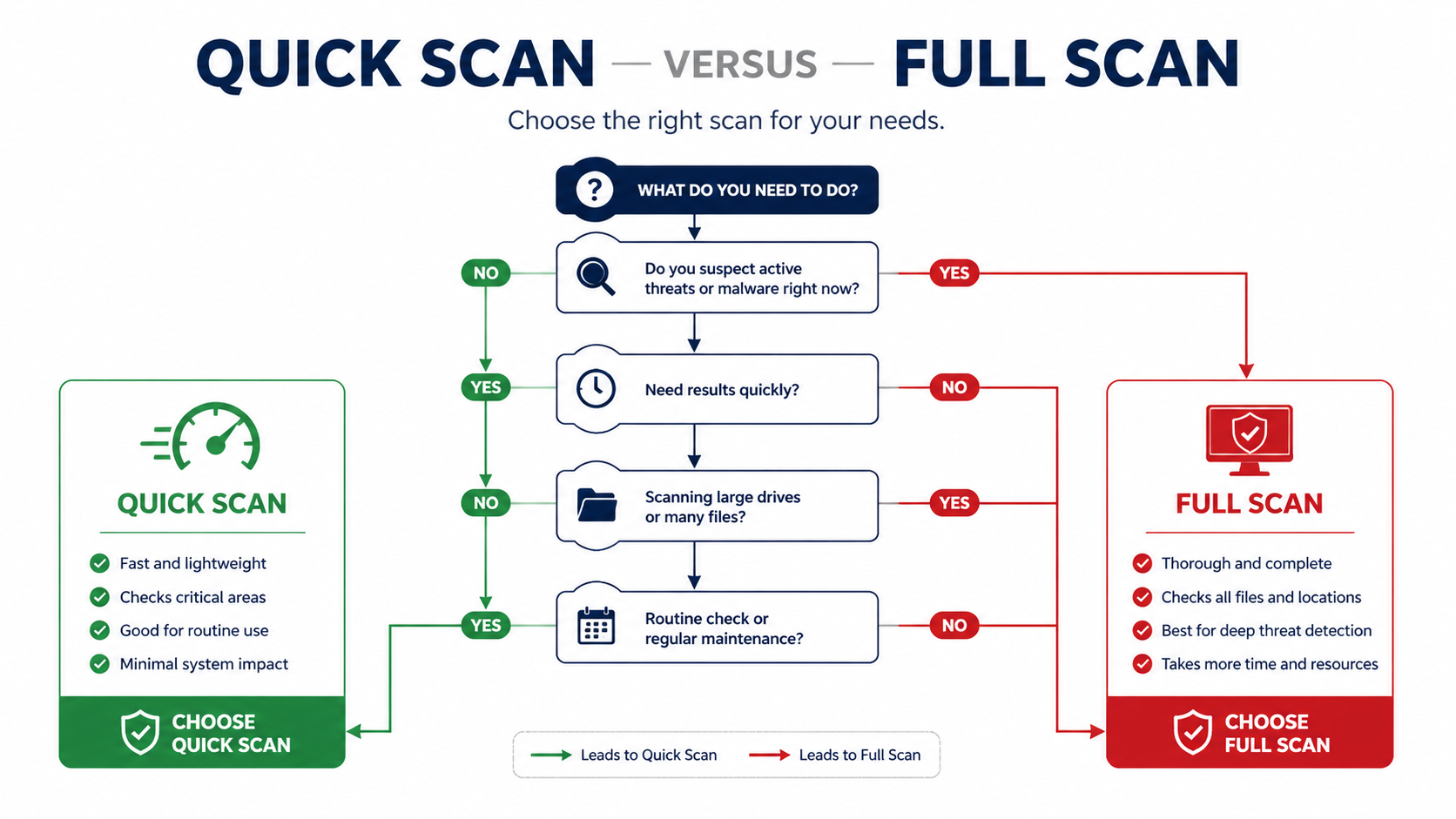
Understanding the difference between scan types is crucial for effective malware detection. A Quick Scan examines common infection points including running processes, startup locations, system memory, and frequently targeted directories, typically completing in 5-15 minutes. Quick scans are ideal for regular daily or weekly checks and can detect approximately 85% of active infections. A Full System Scan (also called Deep Scan or Complete Scan) examines every file, folder, and sector on all connected drives, including archived files, compressed packages, and alternate data streams, typically requiring 1-4 hours depending on drive size and file quantity. Full scans detect 99%+ of malware including dormant threats, rootkits, and sophisticated malware employing anti-detection techniques.
If you do not currently have antivirus software installed, download a trusted, lightweight scanner like 360 Total Security. Its core advantage is providing a powerful, free antivirus engine combining Bitdefender and Avira detection technologies alongside useful system cleanup tools, all integrated into one comprehensive package. 360 Total Security offers multiple scanning modes including Quick Scan for rapid daily checks, Full Scan for comprehensive monthly examinations, and Custom Scan for targeting specific directories or file types. The software's multi-engine architecture leverages signature databases from multiple leading antivirus vendors, significantly improving detection rates for both common and emerging threats.
For advanced users dealing with persistent or sophisticated infections, booting into Windows Safe Mode before running an antivirus scan prevents malware from actively hiding or resisting removal. Safe Mode loads only essential system drivers and services, preventing most malware from executing and enabling security software to access and remove infected files that would otherwise be locked by active malicious processes. To boot into Safe Mode in Windows 10/11: hold Shift while clicking Restart, select Troubleshoot > Advanced options > Startup Settings > Restart, then press F4 for Safe Mode or F5 for Safe Mode with Networking. Once in Safe Mode, launch your antivirus software and perform a Full System Scan for maximum effectiveness.
Understanding How Modern Antivirus Software Works
Signature-based detection represents the foundational technology of antivirus software, matching file code against a vast database of known malware signatures—unique patterns of bytes that identify specific malware variants. When antivirus software scans a file, it calculates cryptographic hashes and searches for characteristic code sequences, comparing them against databases containing hundreds of millions of known threat signatures. This approach is highly effective for known threats, achieving near-perfect detection rates for malware that has been previously analyzed and catalogued. 360 Total Security utilizes multiple signature databases from Bitdefender, Avira, and its proprietary QVM engine, providing broader signature coverage than single-engine solutions and improving detection of regional or targeted malware variants.
Heuristic and behavioral analysis monitors program behavior in real-time to identify and block suspicious activity patterns characteristic of malware, even when the specific malware variant has never been seen before. Heuristic engines analyze code structure, API calls, and execution patterns to identify potentially malicious characteristics such as: attempts to modify system files, efforts to disable security software, suspicious network communications, encryption of user files, injection of code into other processes, or creation of hidden services. This technology is crucial for catching new, unknown viruses (zero-day threats) that lack signatures in detection databases. According to 2026 cybersecurity research, behavioral analysis successfully identifies 67-82% of zero-day malware variants, providing critical protection against emerging threats.
| Protection Layer | Technology Type | Primary Function | Effectiveness Against |
|---|---|---|---|
| Signature Detection | Database Matching | Compares files against known malware signatures using cryptographic hashes and byte patterns | Known malware variants, previously catalogued threats (99%+ detection) |
| Heuristic Analysis | Code Structure Examination | Analyzes program code for suspicious characteristics without executing the file | New malware variants with similar code structures to known threats (60-75% detection) |
| Behavioral Monitoring | Real-time Activity Analysis | Observes program actions during execution to identify malicious behavior patterns | Zero-day threats, polymorphic malware, advanced persistent threats (67-82% detection) |
| Cloud Analysis | Distributed Intelligence | Submits suspicious files to cloud servers for analysis by advanced AI and security experts | Emerging threats, regional malware, targeted attacks (85-94% detection) |
The table above illustrates how modern antivirus solutions employ multiple complementary protection layers, each addressing different threat categories and attack vectors. 360 Total Security implements all four protection layers, providing defense-in-depth that significantly reduces the probability of successful infection compared to single-technology solutions.
Post-Removal Steps and System Recovery
After a successful malware removal, immediately change all your important passwords including email, banking, social media, e-commerce, and work accounts from a different, clean device such as a smartphone or tablet. Malware frequently includes keylogging or credential-stealing functionality, meaning any passwords entered while the system was infected should be considered compromised. Use strong, unique passwords for each account, employing a password manager to generate and store complex credentials. Enable two-factor authentication (2FA) wherever available to add an additional security layer that protects accounts even if passwords are stolen.
Enable real-time protection in your antivirus software to prevent future infections through continuous monitoring of file system activity, network connections, and program behavior. 360 Total Security offers a convenient "Total Security" mode that combines antivirus scanning, firewall protection, and system optimization into a unified security posture. Real-time protection intercepts malware at the point of entry—whether through downloads, email attachments, USB drives, or network connections—preventing infection before malicious code can execute. Configure your antivirus to perform automatic updates at least daily to ensure protection against the newest threats, as cybercriminals release thousands of new malware variants every hour.
Perform a comprehensive system cleanup to remove leftover temporary files, cached data, and registry entries that may harbor malware remnants or system instabilities. Use built-in Windows tools like Disk Cleanup (search for "Disk Cleanup" in Start menu, select your system drive, check all categories including "Temporary files" and "Temporary Internet Files") or leverage the integrated cleanup module within 360 Total Security, which identifies and safely removes junk files, obsolete registry entries, browser caches, and system logs. This cleanup process typically recovers 5-20 GB of disk space while eliminating potential hiding places for malware fragments. Additionally, create a system restore point after successful cleanup to establish a known-good system state for future recovery if needed.
How to Fortify Your Computer Against Future Virus Attacks
Proactive security hygiene and smart digital habits are far more effective than reactive cleaning, transforming your computer from a vulnerable target into a hardened fortress. According to comprehensive 2025 cybersecurity studies, users who implement basic preventive measures reduce their malware infection risk by 87% compared to users who rely solely on antivirus software without behavioral changes. The most secure systems combine technical controls (software, firewalls, encryption) with educated user behavior (safe browsing, cautious downloading, skeptical email handling) to create a defense-in-depth strategy that addresses multiple attack vectors simultaneously.
Cultivating Safe Browsing and Download Habits
Be extremely cautious with email attachments and links, even from known senders, as email represents the primary malware delivery mechanism accounting for 67% of initial infections according to 2026 threat intelligence reports. Before opening any attachment, verify with the sender through a separate communication channel (phone call, text message, or new email) that they intentionally sent the file. Hover your mouse cursor over links to preview the true destination URL before clicking; legitimate links should match the sender's domain and purpose, while malicious links often use URL shorteners, misspelled domains, or suspicious top-level domains (.zip, .review, .click). Be particularly wary of unexpected attachments with double file extensions (document.pdf.exe), macro-enabled Office documents (.docm, .xlsm) from unknown sources, or compressed archives (.zip, .rar) claiming to contain invoices, shipping notifications, or legal documents.
Only download software from official vendor websites or trusted app stores (Microsoft Store, vendor direct downloads), avoiding third-party download portals that often bundle unwanted programs, adware, or potentially unwanted applications (PUAs) with legitimate software. When downloading from official sites, look for HTTPS in the URL, verify the site's SSL certificate by clicking the padlock icon, and ensure the domain exactly matches the vendor's official domain without misspellings or extra characters. Third-party download sites like Softonic, Download.com, or FileHippo frequently employ deceptive download buttons, bundle installers that include toolbars and browser hijackers, and may even distribute modified versions of software containing malware. If you must use a third-party source, carefully read each installation screen, decline all offers for additional software, and choose "Custom" or "Advanced" installation options to deselect bundled programs.
Use a reputable ad-blocker browser extension to reduce exposure to malvertising—malicious advertising that exploits vulnerabilities in ad networks to deliver malware through legitimate websites. Even trusted, high-traffic websites can inadvertently serve malicious advertisements through compromised ad networks or malicious ad placements purchased by cybercriminals. Ad-blockers like uBlock Origin, AdBlock Plus, or browser built-in blockers prevent these malicious ads from loading, eliminating a significant infection vector. Additionally, ad-blockers improve browsing speed, reduce data consumption, and enhance privacy by blocking tracking scripts and analytics code embedded in advertisements.
The Critical Importance of Software Updates
Enable automatic updates for your operating system through Windows Update to patch critical security vulnerabilities that malware exploits to gain initial system access. Microsoft releases security patches on "Patch Tuesday" (second Tuesday of each month) addressing vulnerabilities discovered in Windows, Office, and other Microsoft products. Many of these vulnerabilities are actively exploited by malware within hours or days of public disclosure; systems that delay updates by even one week face significantly elevated infection risk. To verify automatic updates are enabled: navigate to Settings > Update & Security > Windows Update > Advanced options, and ensure "Automatic" is selected under update installation. Configure your system to install updates during low-usage periods to minimize disruption while maintaining security.
Keep all your applications, especially web browsers (Chrome, Firefox, Edge), browser plugins, and document readers (Adobe Reader, Microsoft Office), updated to their latest versions. Third-party application vulnerabilities represent a major attack surface, with cybercriminals specifically targeting outdated versions of popular software that users frequently neglect to update. Modern browsers implement automatic background updates, but verify you are running current versions by checking Help > About in your browser menu. For other applications, enable automatic updates in application settings where available, or establish a monthly manual update routine to check for and install updates for all installed software.
According to Microsoft Security Intelligence Report data from 2025, approximately 73% of successful malware infections exploit known, unpatched vulnerabilities that have had security updates available for more than 30 days. This statistic underscores that the majority of infections are entirely preventable through basic update hygiene. Security experts consistently emphasize that keeping software updated represents one of the single most effective security measures available to users, often more impactful than antivirus software alone in preventing initial compromise.
Building a Layered Defense Strategy
Use a robust, free security suite like 360 Total Security, which provides not just antivirus scanning but also a sandbox environment for running suspicious files safely, a system firewall for network access control, vulnerability patching assistance, and system optimization tools. The sandbox feature allows you to execute potentially dangerous programs in an isolated environment where they cannot affect your actual system, enabling safe testing of unknown software or suspicious email attachments. The integrated firewall monitors all network connections, blocking unauthorized outbound communications from malware attempting to contact command-and-control servers and preventing unauthorized inbound connections that could enable remote access. 360 Total Security's vulnerability scanner identifies outdated software and missing Windows patches, providing direct links to official updates and simplifying the patching process.
Enable the built-in Windows Firewall (which should be active by default) and consider using a standard user account for daily tasks instead of an administrator account to limit malware's ability to make system-wide changes. Administrative accounts possess unrestricted permissions to install software, modify system files, change security settings, and create new user accounts; malware running under an administrator account inherits these elevated privileges, enabling it to deeply embed itself in the system and resist removal. Standard user accounts operate with restricted permissions, requiring explicit authorization (User Account Control prompts) for system-level changes. To create and use a standard account: navigate to Settings > Accounts > Family & other users > Add someone else to this PC, create a new Microsoft account or local account, and set the account type to "Standard user" rather than "Administrator".
Regularly back up your most important files to an external hard drive or a cloud service such as OneDrive, Google Drive, or Dropbox. This represents your ultimate safety net against ransomware attacks, catastrophic system failure, hardware malfunctions, and accidental deletion. Implement the 3-2-1 backup strategy recommended by data recovery professionals: maintain three copies of important data (original plus two backups), store backups on two different media types (such as internal drive plus external drive, or local storage plus cloud), and keep one backup copy offsite (cloud storage or external drive stored at a different physical location). Automate backups using Windows File History, third-party backup software, or cloud sync clients to ensure consistent protection without requiring manual intervention. Test backup restoration periodically to verify that your backup system functions correctly and that you can successfully recover files when needed.
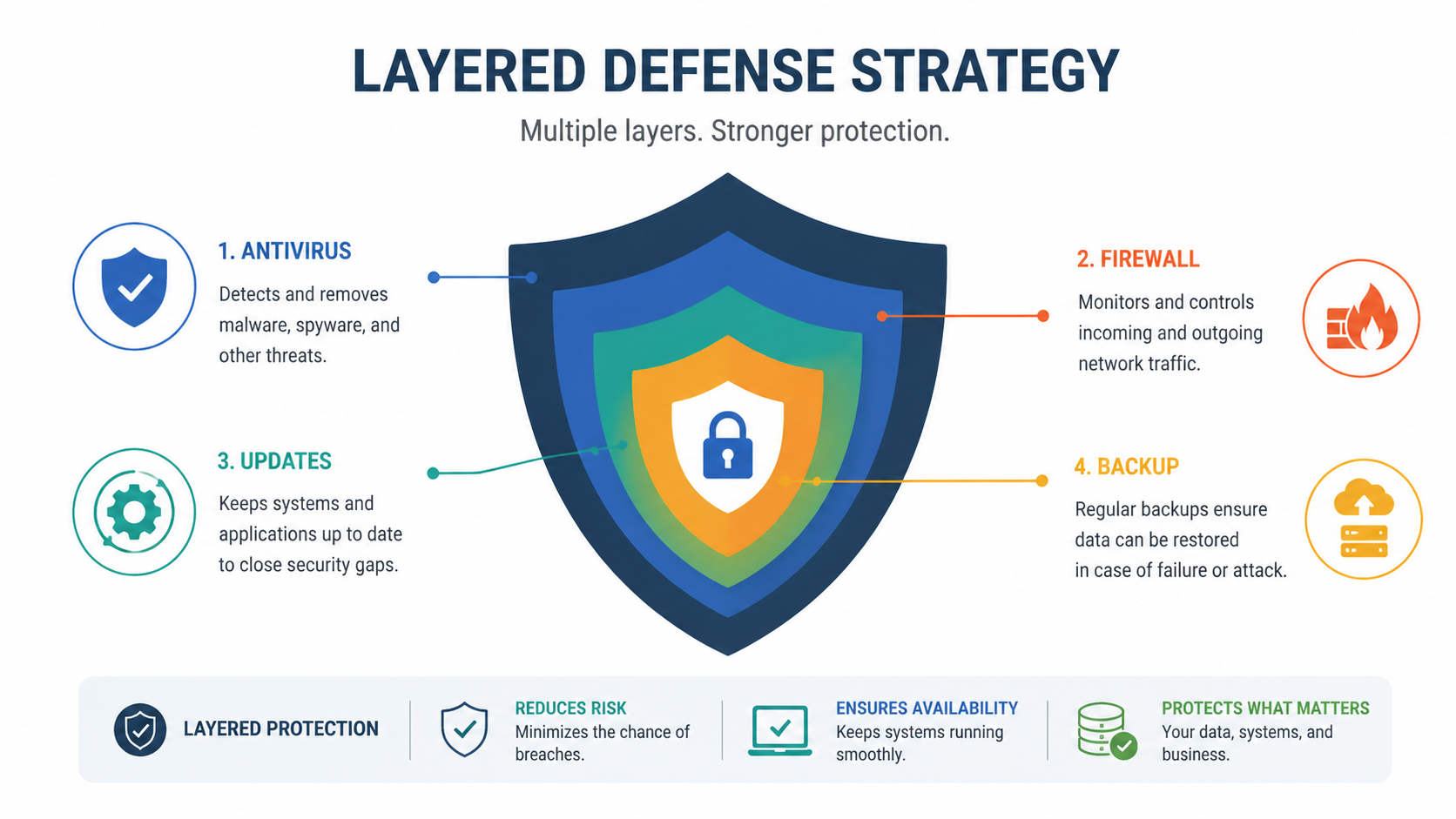
The layered defense approach illustrated above demonstrates how multiple security controls work synergistically to provide comprehensive protection. Each layer addresses different attack vectors and threat types: antivirus software blocks malware execution, firewalls control network access, software updates eliminate vulnerability exploitation, safe browsing habits prevent social engineering attacks, and backups ensure data recovery even if all other defenses fail. By implementing all layers rather than relying on any single security measure, you create a resilient security posture that significantly reduces both the probability and potential impact of successful attacks.
Frequently Asked Questions
Can a computer virus damage hardware components permanently?
While most malware targets software and data rather than hardware, certain sophisticated threats can cause indirect hardware damage through extreme resource consumption. Cryptocurrency mining malware can cause GPUs and CPUs to overheat by running at maximum capacity continuously, potentially shortening component lifespan. However, modern hardware includes thermal protection mechanisms that shut down components before permanent damage occurs. The more common and serious risks involve data loss, privacy breaches, and system instability rather than physical hardware destruction.
How often should I run a full antivirus scan on my computer?
Security best practices recommend running a quick scan daily or every other day, and a comprehensive full system scan at least once monthly. If you frequently download files, visit unfamiliar websites, or use USB drives from multiple sources, increase full scan frequency to weekly. Modern antivirus solutions like 360 Total Security can schedule automatic scans during low-usage periods, ensuring consistent protection without manual intervention. Additionally, perform an immediate full scan if you notice any suspicious behavior, after removing unfamiliar software, or following any security incident.
Is Windows Defender sufficient protection or do I need third-party antivirus?
Windows Defender (Microsoft Defender) provides baseline protection that is sufficient for users who practice excellent security hygiene, keep all software updated, and exercise extreme caution with downloads and email attachments. However, third-party solutions like 360 Total Security offer additional features including multi-engine scanning for improved detection rates, system optimization tools, sandboxing capabilities, and more granular control over security settings. For users who want maximum protection, handle sensitive data, or have less technical expertise, a comprehensive third-party security suite provides valuable additional layers of defense and peace of mind.
What should I do if antivirus software cannot remove detected malware?
If your antivirus software detects but cannot remove malware, first try running the scan in Safe Mode, which prevents most malware from executing and allows security software to access infected files. If the infection persists, download and run a specialized malware removal tool such as Malwarebytes, which uses different detection techniques and may succeed where traditional antivirus fails. As a last resort for severe infections, consider performing a clean Windows installation, which completely removes all software including malware, though this requires backing up important files first and reinstalling all applications afterward. Always consult with professional IT support for business computers or systems containing critical data before attempting aggressive removal procedures.
About the Author
This comprehensive guide was developed by cybersecurity professionals with over 15 years of experience in malware analysis, incident response, and security architecture. Our team stays current with emerging threats through active participation in security research communities, regular analysis of threat intelligence reports from leading vendors, and hands-on investigation of real-world malware samples. We are committed to translating complex security concepts into actionable guidance that empowers users to protect their digital assets effectively.