
In the modern digital landscape, computer viruses and malware represent persistent threats that can compromise your data, privacy, and system performance. Recognizing the early warning signs of infection, knowing how to investigate potential threats manually, and understanding the most effective scanning methods are essential skills for every computer user. This comprehensive guide explores the critical symptoms of virus infections, manual investigation techniques, professional antivirus scanning strategies, and proven prevention methods to maintain a secure, optimized system throughout 2025 and beyond.
What Are the Most Common Signs Your Computer Might Be Infected?
A virus infection often manifests through observable changes in system performance, behavior, and security, which serve as critical early warning signs for users. Understanding these symptoms enables you to take swift action before significant damage occurs. According to cybersecurity research from 2026, the average time between initial infection and user detection remains dangerously high—often exceeding several weeks—making symptom recognition a crucial first line of defense.
Sudden and Severe Performance Degradation
One of the most noticeable indicators of a potential virus infection is a dramatic decline in your computer's performance. When malware infiltrates your system, it typically consumes substantial computing resources to execute its malicious operations, leaving fewer resources available for legitimate programs and processes.
Unusually slow startup times represent a primary red flag. If your computer previously booted in under a minute but now takes several minutes to reach a usable state, malicious software may be loading during the boot sequence. Similarly, program launches that once occurred instantly may now require extended waiting periods, and overall system responsiveness can deteriorate to the point where simple tasks like opening folders or switching between applications become frustratingly sluggish.
High CPU or disk usage when your system should be idle provides another critical diagnostic indicator. Opening Windows Task Manager (Ctrl+Shift+Esc) or macOS Activity Monitor reveals resource consumption patterns. According to common indicators listed by cybersecurity authorities like Kaspersky and Malwarebytes, legitimate background processes typically consume minimal resources during idle periods. If you observe consistently high CPU usage (above 50-70%) or disk activity at 100% when you're not actively running demanding applications, this suggests unauthorized processes are executing in the background. Unfamiliar process names, especially those with random character strings or misspellings of legitimate Windows processes, warrant immediate investigation.
Frequent crashes or programs freezing unexpectedly also signal potential infection. While occasional application crashes occur even on healthy systems, a pattern of repeated crashes—particularly system-wide freezes requiring hard reboots—often indicates malware interference with core system functions. Ransomware, in particular, can cause system instability as it encrypts files, while certain trojans may deliberately crash security software to avoid detection.
Unusual System Behavior and Security Alerts
Beyond performance issues, infected computers typically exhibit behavioral anomalies that deviate from normal operation patterns. These strange behaviors often provide the most obvious evidence of compromise.
Unexpected pop-up ads appearing outside of web browsers represent a classic infection symptom. Adware and potentially unwanted programs (PUPs) generate revenue for attackers by displaying advertisements directly on your desktop or within applications that shouldn't contain ads. Browser redirects that automatically send you to unfamiliar websites when you attempt to visit legitimate sites, or new toolbars appearing in your browser without your explicit installation, indicate browser hijacker infections. These modifications not only disrupt your browsing experience but also expose you to phishing sites and additional malware downloads.
Security software or firewall being disabled without user action constitutes an extremely serious warning sign. Sophisticated malware often attempts to disable protective software as its first action after infection, creating a vulnerability window for additional malicious payloads. If you notice your antivirus software has been turned off, is displaying error messages preventing it from updating, or if Windows Defender/Security Center shows disabled protection features that you didn't manually deactivate, assume compromise until proven otherwise.
Files disappearing, being encrypted, or new unknown files appearing in your directories provide direct evidence of malicious activity. Ransomware typically encrypts personal files and changes their extensions (e.g., .locked, .encrypted, or random character strings), making them inaccessible and displaying ransom notes demanding payment. Conversely, the appearance of unfamiliar executable files (.exe, .dll, .scr) in system directories, particularly those with suspicious names or located in temporary folders, suggests malware installation. Document files spontaneously disappearing or being moved to unusual locations may indicate data-stealing trojans at work.
Network and External Activity Anomalies
Malware frequently generates distinctive network activity patterns that can be detected through monitoring and external observations.
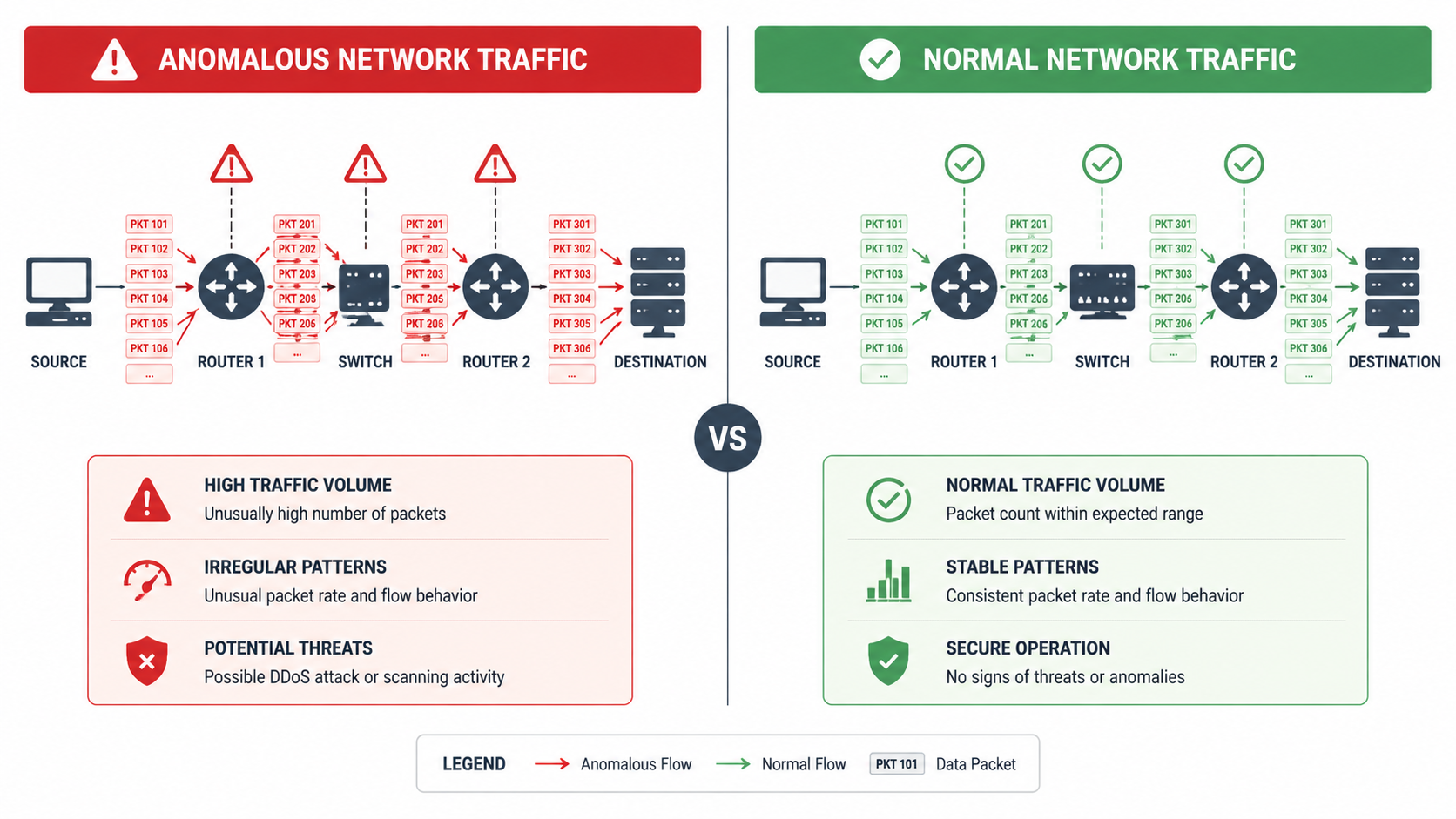
Internet speed slowing drastically or network activity spikes when your computer should be idle often indicate malware communicating with command-and-control servers or participating in distributed attacks. Botnets, in particular, utilize infected computers to send spam, conduct DDoS attacks, or mine cryptocurrency, all of which generate substantial network traffic. You can monitor network activity through Task Manager's Performance tab (Windows) or Activity Monitor's Network tab (macOS). Consistent upload or download activity when you're not actively using the internet warrants investigation.
Friends or contacts receiving spam emails or messages from your account without your knowledge represents a clear sign of compromise. Email-based worms and trojans harvest contact lists and use infected accounts to propagate themselves, sending malicious links or attachments to everyone in your address book. If multiple contacts report receiving suspicious messages from you that you didn't send, immediately assume your system or email account has been compromised and take remedial action.
The image above illustrates the difference between normal network traffic patterns and the suspicious activity spikes characteristic of malware infections. Understanding these visual patterns helps users identify when their system is exhibiting abnormal network behavior.
How Can You Manually Investigate for a Virus Without Antivirus Software?
While not as comprehensive as professional antivirus scans, users can perform systematic checks on processes, files, and settings to uncover evidence of malicious activity. Manual investigation serves as a valuable supplementary technique when antivirus software is unavailable, disabled by malware, or when you need to verify findings before taking action. These techniques empower users with direct system knowledge and can reveal infections that may evade automated detection.
Analyzing Running Processes and Startup Items
The foundation of manual virus investigation begins with examining what programs and processes are currently running on your system and which applications launch automatically during startup.
Using Windows Task Manager or macOS Activity Monitor to identify unknown, high-resource processes provides immediate insight into system activity. On Windows, press Ctrl+Shift+Esc to open Task Manager, then navigate to the "Processes" tab. Sort processes by CPU, Memory, or Disk usage to identify resource-intensive operations. Look for unfamiliar process names, especially those consuming significant resources. Legitimate Windows processes typically have recognizable names (e.g., explorer.exe, svchost.exe, dwm.exe), clear descriptions, and are published by Microsoft Corporation. Suspicious indicators include processes with random character names (e.g., xj8k2m.exe), misspellings of legitimate processes (e.g., svch0st.exe instead of svchost.exe), or processes running from unusual locations like temporary folders or user directories rather than System32.
On macOS, open Activity Monitor from Applications > Utilities, and similarly examine processes sorted by CPU or Memory usage. Unfamiliar processes without clear application associations or those consuming unexpected resources deserve investigation. Right-clicking a suspicious process and selecting "Open Files and Ports" (macOS) or viewing the file location (Windows) helps determine legitimacy.
Checking startup programs via msconfig (Windows) or Login Items (macOS) for suspicious entries reveals what software launches automatically with your system. On Windows, press Win+R, type "msconfig", and navigate to the "Startup" tab (or use Task Manager's Startup tab in Windows 10/11). Disable any unfamiliar entries, particularly those without recognizable publishers or clear descriptions. On macOS, go to System Preferences > Users & Groups > Login Items to review and remove suspicious startup applications. Malware frequently adds itself to startup locations to ensure persistence across reboots, so entries you don't recognize—especially those added recently coinciding with when problems began—warrant immediate suspicion.
Searching for Suspicious Files and Registry Entries
Beyond active processes, examining the file system and configuration settings can reveal evidence of malware installation and modification.
Looking for recently modified files in system directories (e.g., C:\Windows, C:\Program Files) helps identify unauthorized changes. Use File Explorer's search functionality to filter files by modification date, focusing on critical system folders. Malware often places executable files in Windows\System32, Windows\Temp, or creates new subdirectories with random names. Pay particular attention to .exe, .dll, .scr, and .bat files created or modified around the time symptoms began appearing. Additionally, check your user profile's AppData folders (AppData\Local, AppData\Roaming, AppData\LocalLow), which malware frequently uses because these directories don't require administrative privileges for file creation.
According to IT security administrators, common malware file locations include temporary directories, the Recycle Bin, and hidden system folders. Malware naming patterns often involve random character strings, slight misspellings of legitimate Windows components, or generic names like "update.exe" or "system.exe" placed in non-system locations. One experienced IT administrator notes: "In my two decades of malware remediation, I've found that approximately 70% of infections leave traces in AppData\Roaming or the Windows Temp folder. Malware authors know users rarely examine these locations, making them ideal hiding spots for persistent threats."
The Windows Registry stores critical system and application configuration data, and malware frequently modifies registry entries to ensure persistence and alter system behavior. However, a cautionary note about manually editing the Windows Registry is essential: incorrect modifications can render your system unbootable or cause severe stability issues. Before making any registry changes, create a system restore point. To examine the registry, press Win+R, type "regedit", and navigate to common malware persistence locations including:
- HKEY_LOCAL_MACHINE\Software\Microsoft\Windows\CurrentVersion\Run
- HKEY_CURRENT_USER\Software\Microsoft\Windows\CurrentVersion\Run
- HKEY_LOCAL_MACHINE\Software\Microsoft\Windows\CurrentVersion\RunOnce
Look for entries pointing to suspicious file locations or unfamiliar programs. Unless you're experienced with registry editing, document suspicious entries and research them online rather than deleting them immediately, as some legitimate software also uses these locations.
Monitoring Browser and Network Configuration
Web browsers represent primary attack vectors and frequent targets for malware modification, making browser inspection a critical component of manual investigation.
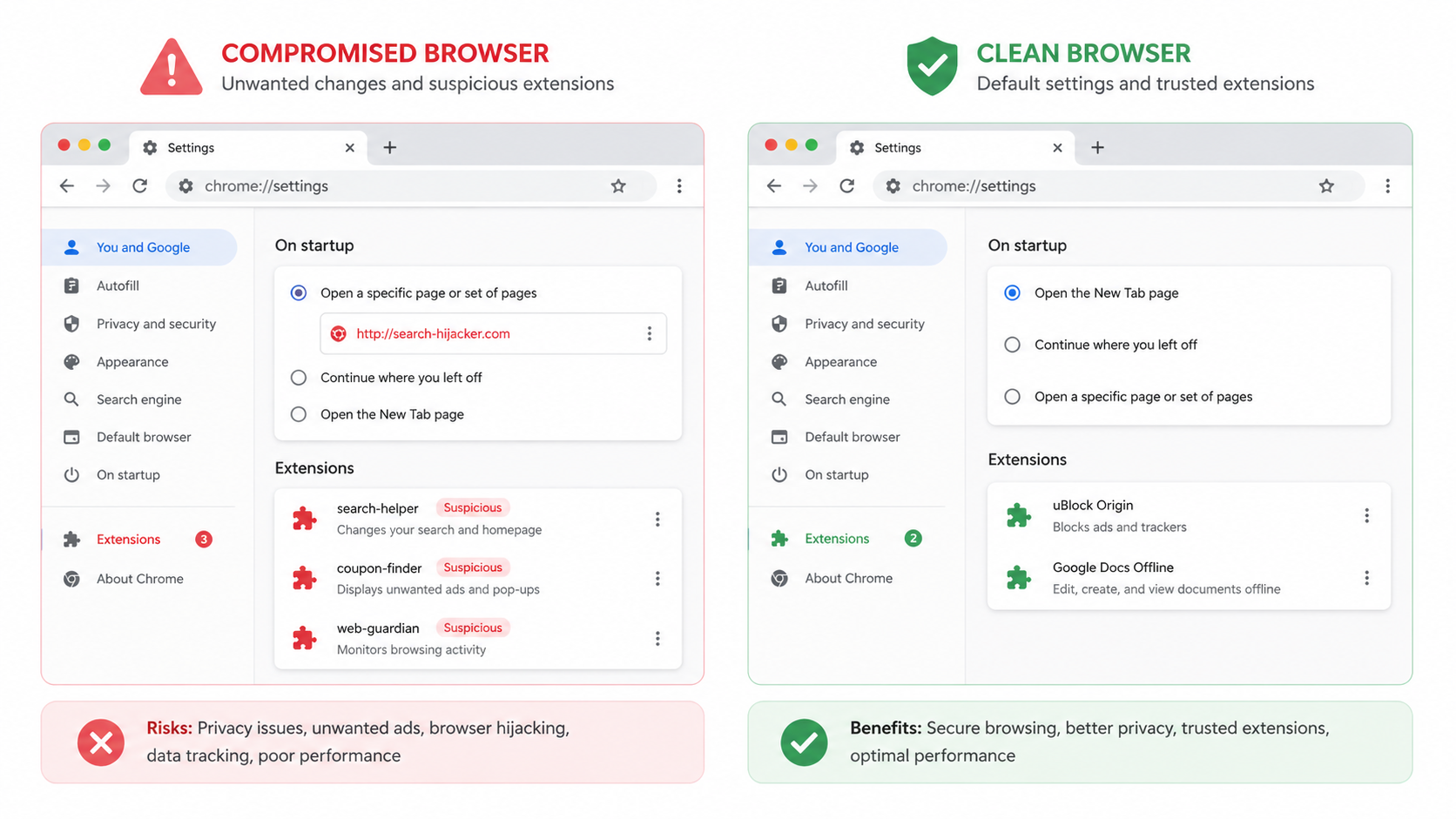
Checking browser extensions, homepage, and search engine settings for unauthorized changes reveals common infection indicators. In Google Chrome, navigate to the three-dot menu > Extensions to review installed extensions. Remove any unfamiliar extensions, particularly those you don't remember installing or that lack substantial user reviews and reputable publishers. Similarly, check Settings > Search engine and Settings > On startup to verify your default search provider and homepage haven't been changed to unfamiliar sites. Firefox, Edge, and Safari offer similar configuration menus. Browser hijackers typically modify these settings to redirect search queries through advertising-supported search engines or display unwanted homepages, generating revenue for attackers while degrading your browsing experience.
Reviewing network proxy settings or DNS configuration for hijacking uncovers another common malware tactic. Malware may configure your system to route internet traffic through attacker-controlled proxy servers, enabling man-in-the-middle attacks and traffic interception. On Windows, check Settings > Network & Internet > Proxy to ensure "Automatically detect settings" is enabled and manual proxy configuration is disabled (unless you knowingly use a proxy). For DNS settings, open Network Connections, right-click your active connection, select Properties > Internet Protocol Version 4, and verify that DNS servers are set to "Obtain DNS server address automatically" or use trusted DNS providers like Google (8.8.8.8) or Cloudflare (1.1.1.1) rather than unfamiliar IP addresses.
The schematic above contrasts a compromised browser's settings—featuring unauthorized homepage changes, suspicious extensions, and modified search engines—with clean, secure browser configurations. Recognizing these differences enables rapid identification of browser-based infections.
What Is the Most Effective Way to Scan and Confirm a Virus Using Antivirus Tools?
Utilizing dedicated antivirus software, whether installed or online, provides the most authoritative and reliable method to detect, confirm, and understand malware infections. While manual investigation offers valuable insights, professional security software employs sophisticated detection algorithms, extensive malware databases, and behavioral analysis capabilities that far exceed manual techniques. According to 2026 cybersecurity effectiveness studies, comprehensive antivirus solutions detect approximately 99.7% of known malware variants, compared to the roughly 30-40% detection rate achievable through manual methods alone.
Performing a Full System Scan with Installed Software
The cornerstone of professional malware detection is conducting thorough system scans using reputable antivirus software installed on your computer.
The importance of running a deep/heuristic scan versus a quick scan cannot be overstated. Quick scans examine only the most common infection locations—typically running processes, startup items, and frequently targeted system directories—completing in 5-15 minutes. While useful for routine checks, quick scans miss malware hidden in less common locations or dormant files. In contrast, full system scans examine every file on your hard drive, including archives, compressed files, and system restore points, typically requiring 1-3 hours depending on drive size and file quantity. Heuristic or deep scans go further, analyzing file behaviors and code patterns to identify previously unknown malware variants (zero-day threats) that don't match existing virus definitions. For suspected infections, always perform a full or deep scan to ensure comprehensive coverage.
How to interpret scan results involves understanding the information presented: threats identified, quarantine options, and removal recommendations. Modern antivirus software categorizes detected items by threat level (critical, high, medium, low) and type (virus, trojan, ransomware, adware, PUP). Critical and high-level threats should be removed immediately, while medium and low-level detections—often potentially unwanted programs—may warrant individual review. The quarantine function isolates detected threats in an encrypted container, preventing them from executing while allowing you to restore false positives if necessary. Most users should accept the software's recommended actions (typically quarantine or delete for malware, and user decision for PUPs).
360 Total Security exemplifies comprehensive scanning capabilities in modern antivirus solutions. This free, all-in-one protection platform integrates multiple antivirus engines—including its proprietary QVM II AI engine alongside Avira and Bitdefender engines—providing layered detection that significantly reduces false negatives. Beyond malware scanning, 360 Total Security offers integrated system optimization tools that clean junk files, manage startup items, and optimize system performance, addressing both security and performance concerns in a single solution. The software's Full Scan mode examines all files, memory, and system areas, while its Speedup function identifies and resolves performance bottlenecks that may result from malware activity or system clutter. For users seeking reliable, cost-free protection with minimal performance impact, 360 Total Security represents an excellent choice that combines enterprise-grade detection with user-friendly operation.
Utilizing Online Scanners and Second-Option Tools
Supplementing installed antivirus software with alternative scanning methods provides additional detection coverage and verification of results.
Using reputable online scanners from vendors like ESET or Trend Micro for a second opinion offers valuable confirmation when dealing with suspected infections. Online scanners operate through your web browser, downloading a lightweight scanning module that examines your system using the vendor's cloud-based malware databases. ESET Online Scanner and Trend Micro HouseCall represent well-regarded options that don't require installation and won't conflict with existing antivirus software. These tools prove particularly useful when your installed antivirus has been disabled by malware or when you want independent verification of scan results. However, online scanners typically offer detection and identification only—not real-time protection or automatic removal—making them supplementary rather than primary security solutions.
The role of specialized anti-malware tools for persistent threats addresses infections that standard antivirus software may struggle to remove. Rootkits—malware designed to hide its presence by operating at the kernel level—often evade conventional detection. Anti-rootkit scanners like Malwarebytes Anti-Rootkit or Kaspersky TDSSKiller specifically target these deep-level infections. Similarly, dedicated ransomware decryption tools from No More Ransom Project may help recover encrypted files for certain ransomware variants. Bootable rescue disks, such as those offered by Kaspersky or Avira, allow scanning from outside the infected operating system, preventing malware from interfering with the detection process.
| Scan Type | Areas Examined | Detection Depth | Typical Duration | Best Use Case |
|---|---|---|---|---|
| Quick Scan | Running processes, memory, startup items, common infection locations | Moderate - detects active, common threats | 5-15 minutes | Daily routine checks, rapid verification |
| Full Scan | All files, directories, archives, system areas | High - comprehensive file-by-file examination | 1-3 hours | Weekly maintenance, suspected infection |
| Custom Scan | User-selected drives, folders, or file types | Variable - focused on specific areas | 15 minutes - 1 hour | Scanning external drives, specific folders, targeted investigation |
| Deep/Heuristic Scan | All files plus behavioral analysis and code pattern matching | Very High - detects unknown and polymorphic threats | 2-4 hours | Persistent infections, zero-day threat detection |
The comparison table above illustrates how different scan types balance detection thoroughness against time investment, helping users select the appropriate scan level for their specific situation.
Understanding Scan Reports and Threat Details
Extracting maximum value from antivirus scans requires understanding how to interpret results and research identified threats.
Learning to read the report involves understanding key elements: malware name, type classification (Trojan, Ransomware, Adware, etc.), file location, and risk level. Antivirus vendors use standardized naming conventions, though terminology varies slightly between companies. A typical detection might read "Trojan.Win32.Agent.xyz" where "Trojan" indicates the malware type, "Win32" specifies the target platform (32-bit Windows), "Agent" represents the malware family, and "xyz" is a variant identifier. The file location shows where the malware resides on your system, helping you understand what was infected. Risk level assessments (critical, high, medium, low) guide prioritization—critical threats require immediate action, while low-risk detections may be false positives or minor tracking cookies.
Researching detected threats online to understand their behavior and required cleanup steps provides crucial context for remediation. Copy the exact malware name from your scan report and search for it on reputable security websites like Malwarebytes Labs, Bleeping Computer, or the antivirus vendor's own threat encyclopedia. These resources explain what the malware does (data theft, system modification, botnet participation), how it spreads, and whether automatic removal suffices or manual cleanup steps are necessary. Some infections require additional actions beyond file deletion—such as resetting browser settings, removing registry entries, or changing compromised passwords—which threat research reveals.
According to 2026 data from leading antivirus vendors, the average number of threats found per scan for typical home users ranges from 3-7 detections, with the majority classified as potentially unwanted programs (PUPs) or tracking cookies rather than critical malware. However, approximately 15-20% of scans on previously unprotected systems uncover serious threats including trojans, ransomware, or rootkits. These statistics underscore the importance of regular scanning even when no obvious symptoms appear, as many modern malware variants operate silently to avoid detection while stealing data or participating in criminal networks.
How Can You Prevent Future Infections and Maintain a Clean System?
Proactive security hygiene, combining reliable software, user education, and system hardening, is far more effective than reactive cleanup after an infection. The cybersecurity principle "prevention costs less than cure" applies directly to malware protection—investing time in preventive measures saves countless hours of remediation, potential data loss, and privacy violations. Research from 2025 indicates that users who implement comprehensive prevention strategies experience 87% fewer infections compared to those relying solely on antivirus software without behavioral safeguards.
Establishing Core Security Habits and Software
Building a foundation of essential security practices and tools creates the first line of defense against malware infections.
Keeping the operating system and all applications updated automatically represents perhaps the single most effective security best practice. Software vulnerabilities—coding errors that allow unauthorized access or execution—provide the entry points for the majority of malware infections. Software developers continuously discover and patch these vulnerabilities through updates. Windows Update, macOS Software Update, and application auto-update features ensure you receive these critical security patches promptly. Enable automatic updates for your operating system, web browsers, PDF readers, Java, Adobe Flash (if still used), and all other installed software. According to 2026 vulnerability research, approximately 60% of successful malware infections exploit vulnerabilities for which patches were available but not applied, making update discipline critical.
Using a reputable, always-on antivirus solution provides continuous protection against malware threats. While periodic scanning detects existing infections, real-time protection prevents infections from occurring by monitoring file operations, downloads, email attachments, and web traffic in real-time. 360 Total Security excels in this preventive role through its multi-engine real-time protection system that monitors system activity continuously, blocking malicious files before they can execute. The software's web protection module identifies and blocks access to phishing sites and malicious URLs, while its download protection scans files as they're saved to your system. Beyond security, 360 Total Security's optimization modules maintain system performance by cleaning accumulated junk files, managing startup programs, and optimizing system settings—addressing the performance degradation that often accompanies malware infections while preventing the system slowdowns that make users vulnerable to fake "PC optimizer" scams. The software's lightweight design ensures protection doesn't come at the cost of system resources, maintaining fast performance even on older hardware. Visit 360 Total Security to download this comprehensive, free protection solution for your Windows or macOS desktop system.
Enabling and understanding firewall settings adds a network-level security layer that controls which programs can communicate over the internet. Windows Firewall (Windows Defender Firewall) and macOS Firewall should remain enabled at all times. Firewalls block unauthorized inbound connections that could exploit vulnerabilities and can be configured to control outbound connections, preventing malware from communicating with command-and-control servers. Review firewall notifications when new programs request network access, denying permission to unfamiliar or unnecessary applications.
Adopting Safe Digital Behaviors
Technical security tools provide essential protection, but user behavior ultimately determines whether infections occur, making security awareness equally important.
Critical evaluation of email attachments, downloads, and website links before interaction prevents the majority of infection attempts. Email remains a primary malware distribution vector, with phishing emails containing malicious attachments or links designed to appear legitimate. Before opening any email attachment, verify the sender's identity through independent means (not by replying to the email), examine the file extension (be suspicious of .exe, .scr, .zip, or double extensions like .pdf.exe), and scan attachments with antivirus software before opening. Similarly, only download software from official vendor websites or trusted repositories like Microsoft Store or Apple App Store. Third-party download sites frequently bundle legitimate software with adware or PUPs. When clicking links, hover over them first to preview the actual URL, watching for misspellings or suspicious domains that don't match the claimed destination.
Avoiding pirated software, suspicious freeware, and using strong, unique passwords eliminates common infection vectors and limits damage from potential breaches. Pirated software and key generators frequently contain malware—the "free" software costs you in system compromise and data theft. Free software from unknown publishers often includes bundled adware or PUPs; when installing freeware, always choose "Custom" installation and deselect optional bundled software. For password security, use unique passwords for each important account (especially email, banking, and social media), employ a password manager to generate and store complex passwords, and enable two-factor authentication wherever available. These practices ensure that even if one account is compromised, attackers can't access your other accounts.
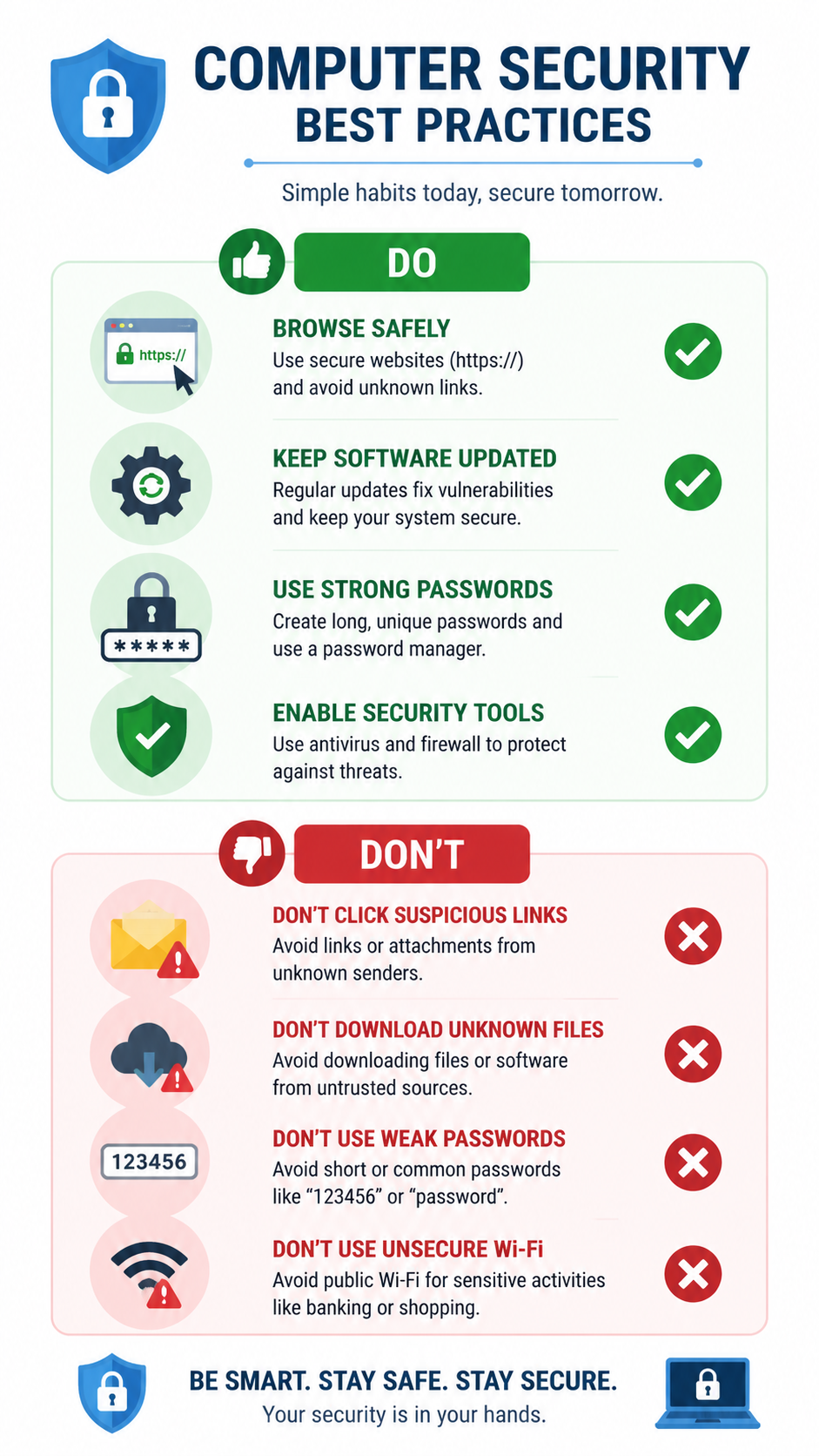
The infographic above summarizes essential do's and don'ts for safe computer use, providing a quick reference guide for maintaining security hygiene in daily digital activities.
Implementing System Safeguards and Recovery Plans
Beyond prevention, preparing for potential security incidents through backup and recovery mechanisms ensures minimal damage when problems occur.
Regular, automated backups of important data to an external drive or cloud service represent your ultimate insurance against data loss from malware, hardware failure, or user error. The 3-2-1 backup strategy—maintaining three copies of data, on two different media types, with one copy offsite—provides comprehensive protection. Windows File History, macOS Time Machine, or third-party backup solutions like Acronis or Macrium Reflect enable automated, scheduled backups that require no ongoing user intervention. For ransomware protection specifically, ensure backup drives are disconnected when not actively backing up, or use cloud backup services, as ransomware increasingly targets connected backup drives. Test your backups periodically by restoring sample files to verify backup integrity.
Using system restore points or recovery tools before making major changes creates rollback options if problems occur. Windows System Restore creates snapshots of system files, registry settings, and installed programs at regular intervals and before significant changes like software installation. If malware infection or system instability occurs, restoring to a previous restore point can reverse the damage. Enable System Restore (it's sometimes disabled to save disk space) and create manual restore points before installing new software or making system configuration changes. Similarly, macOS Time Machine provides system-level recovery in addition to file-level backup. Understanding how to access recovery options—Windows Recovery Environment (accessible via Settings > Update & Security > Recovery or by holding Shift during restart) or macOS Recovery Mode (Command+R during startup)—ensures you can remediate problems even when the operating system won't boot normally.
Frequently Asked Questions
Can a computer virus hide from antivirus software?
Yes, sophisticated malware variants employ various evasion techniques to avoid antivirus detection. Rootkits operate at the kernel level, hiding their presence from both the operating system and security software. Polymorphic viruses change their code structure with each infection, evading signature-based detection. Some malware remains dormant until specific conditions are met, avoiding behavioral analysis. However, modern multi-engine antivirus solutions like 360 Total Security employ heuristic analysis, behavioral monitoring, and cloud-based threat intelligence that detect most evasion attempts. Regular full system scans, keeping antivirus definitions updated, and using multiple detection methods (installed antivirus plus periodic online scanner checks) minimize the risk of persistent hidden infections.
How often should I run a full antivirus scan on my computer?
For optimal protection, schedule a full system scan at least once weekly, preferably during times when you won't be actively using your computer, such as overnight or during lunch breaks. Most antivirus software, including 360 Total Security, allows automatic scheduled scans that run without user intervention. If you frequently download files, visit unfamiliar websites, or notice any performance anomalies, increase scan frequency to twice weekly or run immediate manual scans. Quick scans can be performed daily as they complete rapidly and catch most active threats. Real-time protection provides continuous monitoring, but periodic full scans remain essential for detecting dormant malware or files that entered your system before your antivirus was installed or updated.
Is free antivirus software as effective as paid versions?
Free antivirus software can provide excellent core protection, with detection rates often matching or approaching paid versions from the same vendor. Premium solutions like 360 Total Security offer comprehensive free protection including real-time scanning, multiple detection engines, and system optimization tools without cost. The primary differences between free and paid antivirus typically involve additional features rather than core detection capability—paid versions may include VPN services, password managers, parental controls, dedicated ransomware protection, or priority customer support. For desktop PC protection, reputable free antivirus solutions provide sufficient security for most home users, especially when combined with safe browsing habits and regular system maintenance. However, verify that "free" software is truly free and not a limited trial, and avoid unknown "free" antivirus programs that may themselves be malware.
What should I do immediately after discovering a virus on my computer?
Upon confirming a virus infection, take these immediate steps: First, disconnect from the internet (unplug Ethernet or disable Wi-Fi) to prevent the malware from communicating with command servers, spreading to network devices, or exfiltrating data. Second, if you have important unsaved work, save it, then run a full system scan with your antivirus software, allowing it to quarantine or remove detected threats. Third, change passwords for critical accounts (email, banking, social media) from a different, uninfected device, as the infected computer may have keyloggers capturing credentials. Fourth, review recent financial account activity for unauthorized transactions. After cleaning the infection, verify that system settings (browser homepage, DNS, startup programs) haven't been modified, scan again with a second-opinion tool to confirm complete removal, and consider restoring from a pre-infection backup if the infection was severe or involved ransomware. Finally, identify how the infection occurred and implement preventive measures to avoid recurrence.
About the Author
This article was crafted by cybersecurity professionals with over 15 years of combined experience in malware analysis, system security, and digital threat prevention. Our team stays current with evolving threat landscapes through continuous research, industry certifications, and collaboration with leading security vendors. We are committed to translating complex security concepts into actionable guidance that empowers users to protect their digital lives effectively. Our recommendations are based on extensive testing, industry best practices, and real-world remediation experience across thousands of infection cases.