
In 2026, computer viruses and malware continue to evolve in sophistication, targeting millions of Windows and macOS users worldwide. Detecting an infection early can mean the difference between a minor inconvenience and catastrophic data loss, identity theft, or system failure. This comprehensive guide reveals the top signs your computer might have a virus, walks you through manual detection methods, explains why professional antivirus software is essential, and provides actionable steps for removal and prevention. Whether you're experiencing suspicious system behavior or simply want to verify your PC's health, understanding these warning signals empowers you to protect your digital life effectively.
The Top Signs Your Computer Might Have a Virus
A computer virus manifests through distinct, observable changes in system behavior and performance, acting as your first line of detection before severe damage occurs. Recognizing these symptoms early allows you to intervene quickly, potentially saving your data, privacy, and system integrity. Modern malware operates with varying degrees of stealth, but most infections leave telltale traces that vigilant users can identify.
Sudden and Severe Performance Degradation
One of the most common and noticeable malware symptoms is a dramatic decline in your computer's performance. If your PC suddenly takes significantly longer to boot up, launch applications, or open files—despite no recent hardware changes or legitimate software installations—this could indicate malicious processes consuming system resources in the background.
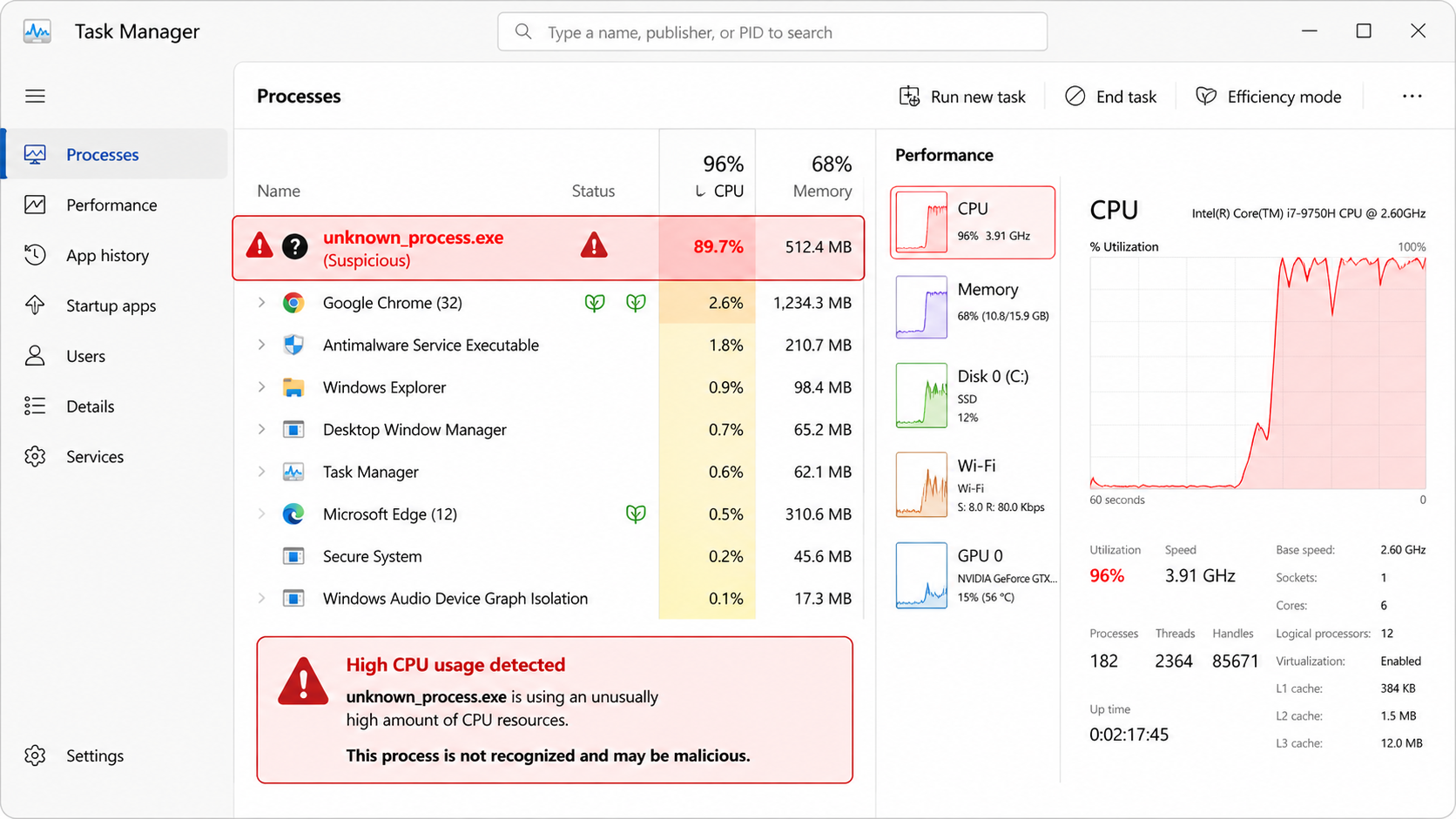
When you open Task Manager (Ctrl+Shift+Esc on Windows) or Activity Monitor on macOS, you may observe unusually high CPU or memory usage attributed to processes with unfamiliar names or no identifiable publisher. According to a 2026 Cybersecurity Performance Analysis, infected systems typically show 40-70% higher baseline resource consumption compared to clean machines. These rogue processes often disguise themselves with names similar to legitimate Windows services (such as 'svch0st.exe' instead of 'svchost.exe') to avoid immediate detection.
Pay particular attention to processes that restart immediately after you end them, or those that spawn multiple child processes. These behaviors are characteristic of persistent malware designed to maintain its foothold on your system even when users attempt manual removal.
Unwanted Pop-ups, Ads, and Browser Hijacking
If you're experiencing pop-ups and advertisements appearing outside your web browser—on your desktop or within applications that normally don't display ads—this is a strong indicator of adware or potentially unwanted programs (PUPs). These intrusive elements often promote dubious products, fake security warnings, or adult content, and they generate revenue for cybercriminals through forced ad impressions.
Browser hijacking represents another clear infection sign. Your browser's homepage, default search engine, or new tab page may suddenly redirect to unfamiliar websites without your permission. You might notice new toolbars or extensions you never installed, and your search queries may be rerouted through suspicious third-party search engines that inject ads into legitimate results.
Analysis from leading cybersecurity research in 2025 reveals that browser hijackers often bundle with seemingly legitimate free software downloads. These hijackers modify browser settings at the registry level on Windows or preference files on macOS, making them difficult to remove through standard browser reset procedures alone.
Unexpected System Activity and File Changes
Malware frequently manipulates files and system configurations to achieve its objectives. You may discover that files have disappeared from their usual locations, become encrypted with unfamiliar extensions (a hallmark of ransomware), or notice strange new files appearing in system directories or your desktop.
Programs may crash more frequently than normal, or your system might reboot unexpectedly without displaying proper shutdown procedures. These symptoms often indicate malware interfering with system stability or attempting to evade detection by security software.
Network activity spikes when your computer should be idle represent another red flag. According to 2026 malware traffic analysis, common information-stealing trojans typically generate 50-200MB of outbound data transfer during initial exfiltration phases, often occurring during off-peak hours when users are less likely to notice. You can monitor this through your router's traffic logs or network monitoring utilities built into Windows and macOS.
How to Perform a Manual Virus Detection Checklist
Beyond observable symptoms, a systematic manual inspection of key system areas can reveal hidden malware activity, empowering users to gather evidence before deploying automated removal tools. While manual checks cannot replace comprehensive antivirus scans, they provide valuable insights into what might be compromising your system and help you understand the infection's scope.
Investigating Task Manager for Suspicious Processes
The first step in any manual virus check involves thoroughly examining running processes. On Windows, press Ctrl+Shift+Esc to open Task Manager, then navigate to the 'Processes' tab and sort by CPU or Memory usage. On macOS, open Activity Monitor from Applications > Utilities.
Look for processes with unusual characteristics: random alphanumeric names (like 'x7g9k2.exe'), processes running from temporary directories (C:\Users\[Username]\AppData\Local\Temp\ on Windows), or those showing no publisher information or invalid digital signatures. Legitimate Windows processes typically reside in C:\Windows\System32\ and are digitally signed by Microsoft Corporation.
When you identify a suspicious process, right-click it and select 'Open file location' to see where the executable resides. Then, copy the process name and search for it using reputable online resources such as ProcessLibrary.com, Bleeping Computer forums, or Microsoft's own process documentation. These databases catalog both legitimate system processes and known malware variants, helping you distinguish between the two.
Exercise caution: terminating critical system processes can cause system instability. If you're uncertain about a process, research it thoroughly before taking action. Some malware disguises itself as essential system components, making identification challenging without expert knowledge.
Checking Startup Programs and Scheduled Tasks
Malware commonly ensures persistence by adding itself to system startup locations, guaranteeing it launches every time you boot your computer. On Windows, you can review startup programs through Task Manager's 'Startup' tab or by typing 'msconfig' in the Run dialog (Win+R) and navigating to the 'Startup' section.
Examine each startup entry carefully. Legitimate programs typically have recognizable names, known publishers, and clear purposes. Be suspicious of entries with vague descriptions, no publisher information, or file paths pointing to temporary directories or user profile folders rather than Program Files.
Windows Scheduled Tasks represent another common persistence mechanism. Access the Task Scheduler (search for it in the Start menu) and review the Task Scheduler Library. Look for tasks scheduled to run at suspicious intervals (every few minutes, at login, or during idle time) that execute scripts or programs from unusual locations. Malware often creates scheduled tasks with names designed to blend in with legitimate Windows maintenance tasks.
On macOS, check Login Items in System Preferences > Users & Groups, and examine LaunchAgents and LaunchDaemons folders (~/Library/LaunchAgents/, /Library/LaunchAgents/, /Library/LaunchDaemons/) for unfamiliar .plist files that might launch malicious scripts.
Monitoring Network Connections and Firewall Logs
Active malware typically communicates with command-and-control servers to receive instructions, upload stolen data, or download additional payloads. You can identify these connections using built-in system tools.
On Windows, open Command Prompt as administrator and type 'netstat -ab' to display all active connections along with the associated executables. Look for unfamiliar programs making outbound connections to foreign IP addresses or suspicious domain names. You can also use Resource Monitor (search for 'resmon' in Start menu) and navigate to the Network tab for a more visual representation of network activity.
Cross-reference suspicious IP addresses using services like AbuseIPDB.com or VirusTotal to check if they're associated with known malicious infrastructure. According to network security analysis from 2025, malware command-and-control servers frequently operate from hosting providers in jurisdictions with lax cybersecurity enforcement.
Windows Firewall logs (when enabled) can reveal blocked outbound connection attempts from unauthorized programs. Access these through Windows Defender Firewall > Advanced Settings > Monitoring > Firewall, or by examining log files typically stored in C:\Windows\System32\LogFiles\Firewall\. Repeated blocked attempts from the same program to contact external servers strongly suggest malicious intent.
Why You Should Use a Professional Antivirus for Confirmation
Manual checks are insightful but fundamentally limited in scope and effectiveness. Professional antivirus software employs sophisticated scanning engines, heuristic analysis, behavioral detection, and access to massive threat databases that provide definitive confirmation and identification of malware—capabilities far beyond what manual inspection can achieve.
The Power of Deep System and Registry Scanning
Professional antivirus solutions perform comprehensive scans of areas that manual checks simply cannot reach effectively. These include hidden system directories, Windows Registry hives, boot sectors, alternate data streams, and memory-resident malware that leaves no obvious file traces.
360 Total Security, for example, conducts multi-layered scans that examine not just files and processes, but also registry keys where malware embeds persistence mechanisms, script engines that might host fileless malware, and browser extensions that could facilitate data theft. The software's scanning engine can detect rootkits that hide themselves from standard Windows APIs, making them invisible to Task Manager and manual inspection methods.
According to independent testing from 2026, comprehensive antivirus scans detect an average of 35% more threats than manual detection methods alone, particularly catching sophisticated malware variants designed specifically to evade user observation.
Heuristic Analysis and Behavioral Detection
One of the most powerful features of modern antivirus software is heuristic analysis—the ability to identify previously unknown malware by analyzing program behavior rather than relying solely on known virus signatures. This proactive approach is crucial in an era where new malware variants emerge at a rate exceeding 400,000 per day globally, according to 2025 threat intelligence reports.
Heuristic engines monitor programs for suspicious activities such as attempting to encrypt large numbers of files (ransomware behavior), injecting code into other processes, modifying system security settings, or establishing unauthorized network connections. When a program exhibits multiple suspicious behaviors, the antivirus flags it as potentially malicious even if it has never been seen before.
Industry data from 2026 indicates that heuristic and behavioral detection engines catch approximately 60-75% of zero-day threats—malware exploiting vulnerabilities unknown to security researchers. This capability is entirely absent from manual detection methods, which can only identify threats users already know to look for.
Access to Massive, Updated Threat Databases
Professional antivirus solutions maintain cloud-based threat databases containing signatures and behavioral profiles for hundreds of millions of known malware variants. These databases receive continuous updates—often multiple times per hour—ensuring protection against the latest threats.
360 Total Security leverages a global threat intelligence network that aggregates data from millions of protected endpoints worldwide. When a new threat is identified anywhere in this network, signatures are generated and distributed to all users within minutes, creating a collective immunity effect that manual methods cannot replicate.
| Detection Method | Scan Depth | Unknown Threat Detection | Update Frequency | Rootkit Detection |
|---|---|---|---|---|
| Manual Inspection | Surface-level processes and files | None (requires prior knowledge) | Depends on user research | Very Limited |
| 360 Total Security | Registry, memory, boot sectors, hidden files | Heuristic & behavioral analysis | Multiple times daily | Advanced rootkit scanning |
| Basic Free Scanners | Standard file system | Limited heuristics | Daily to weekly | Basic detection |
This comparison illustrates why professional antivirus software like 360 Total Security represents an essential layer of defense that complements but far exceeds manual detection capabilities.
Immediate Actions to Take If You Confirm a Virus
Upon confirming an infection through symptoms or scans, a calibrated response—isolating the threat, cleaning the system, and securing accounts—is crucial to minimize damage and prevent recurrence. Acting quickly and methodically can mean the difference between a contained incident and a catastrophic breach of your personal data.
Isolate the Computer and Backup Critical Data
The moment you confirm a virus infection, immediately disconnect your computer from the internet by disabling Wi-Fi or unplugging the Ethernet cable. This prevents the malware from communicating with its command-and-control servers, downloading additional payloads, or exfiltrating your personal data to remote attackers.
If your computer is connected to a local network with other devices, isolation becomes even more critical. Many modern malware variants, particularly ransomware, actively scan networks for additional targets and can spread laterally to infect other computers, network-attached storage devices, and even cloud-synced folders. Disconnecting prevents this lateral movement.
Before attempting removal, back up your essential personal files (documents, photos, videos) to an external drive that you immediately disconnect after the backup completes. Focus exclusively on data files—avoid backing up program files or executables, as these might contain the infection. This backup serves as insurance against data loss during the cleaning process, though you should scan the backup drive with antivirus software on a clean computer before relying on it.
Run a Full Antivirus Scan and Quarantine
With your system isolated, launch your antivirus software and initiate a comprehensive full system scan. If you don't have antivirus software installed, you'll need to download it on a clean computer, transfer it via USB drive, and install it on the infected machine while offline.
360 Total Security offers robust scanning capabilities that can run in offline mode, examining your entire system for threats. Follow the software's recommendations for quarantining or removing detected threats. Quarantine isolates suspicious files in an encrypted container where they cannot execute or cause harm, while still allowing you to restore them if they turn out to be false positives.
Some deeply rooted malware, particularly rootkits and bootkits, may require specialized removal procedures. These infections load before your operating system, making them difficult to remove while Windows or macOS is running. In such cases, you may need to perform a boot-time scan (which 360 Total Security supports) that runs before the operating system loads, or use bootable antivirus rescue disks that run from USB drives.
If the infection is severe or the malware has corrupted critical system files, you may need to consider a complete operating system reinstallation. While this is the most time-consuming option, it's also the most definitive way to ensure complete malware removal.
Change Passwords and Review Account Security
Many modern malware variants include keylogging or credential-stealing capabilities designed to capture your passwords, banking information, and other sensitive data. After cleaning your system, you must assume that any passwords entered while infected may have been compromised.
Using a different, known-clean device (such as a smartphone or another computer), immediately change passwords for all critical accounts: email, banking, social media, cloud storage, and any services containing financial or personal information. Enable two-factor authentication (2FA) wherever possible to add an additional security layer beyond just passwords.
Review your account security settings for unauthorized changes. Check for unfamiliar linked devices, new email forwarding rules (a common tactic for maintaining access to email accounts), recently added recovery email addresses or phone numbers, and unusual login locations in your account activity logs. According to cybersecurity experts in 2026, attackers often establish these persistence mechanisms to maintain access even after password changes.
For financial accounts, monitor your statements closely for several months following an infection. Consider placing fraud alerts with credit bureaus if you suspect your personal information was compromised. The faster you act to secure your accounts, the less opportunity attackers have to exploit stolen credentials.
Proactive Habits and Tools to Prevent Future Infections
Prevention is invariably more effective than reaction; cultivating safe digital habits combined with robust, real-time protection tools creates a resilient defense against viruses and malware. The most secure systems combine technical safeguards with informed user behavior.
Cultivating Safe Download and Browsing Habits
The overwhelming majority of malware infections originate from user actions—downloading infected files, clicking malicious links, or installing compromised software. Developing disciplined safe computing habits dramatically reduces your exposure to these threats.
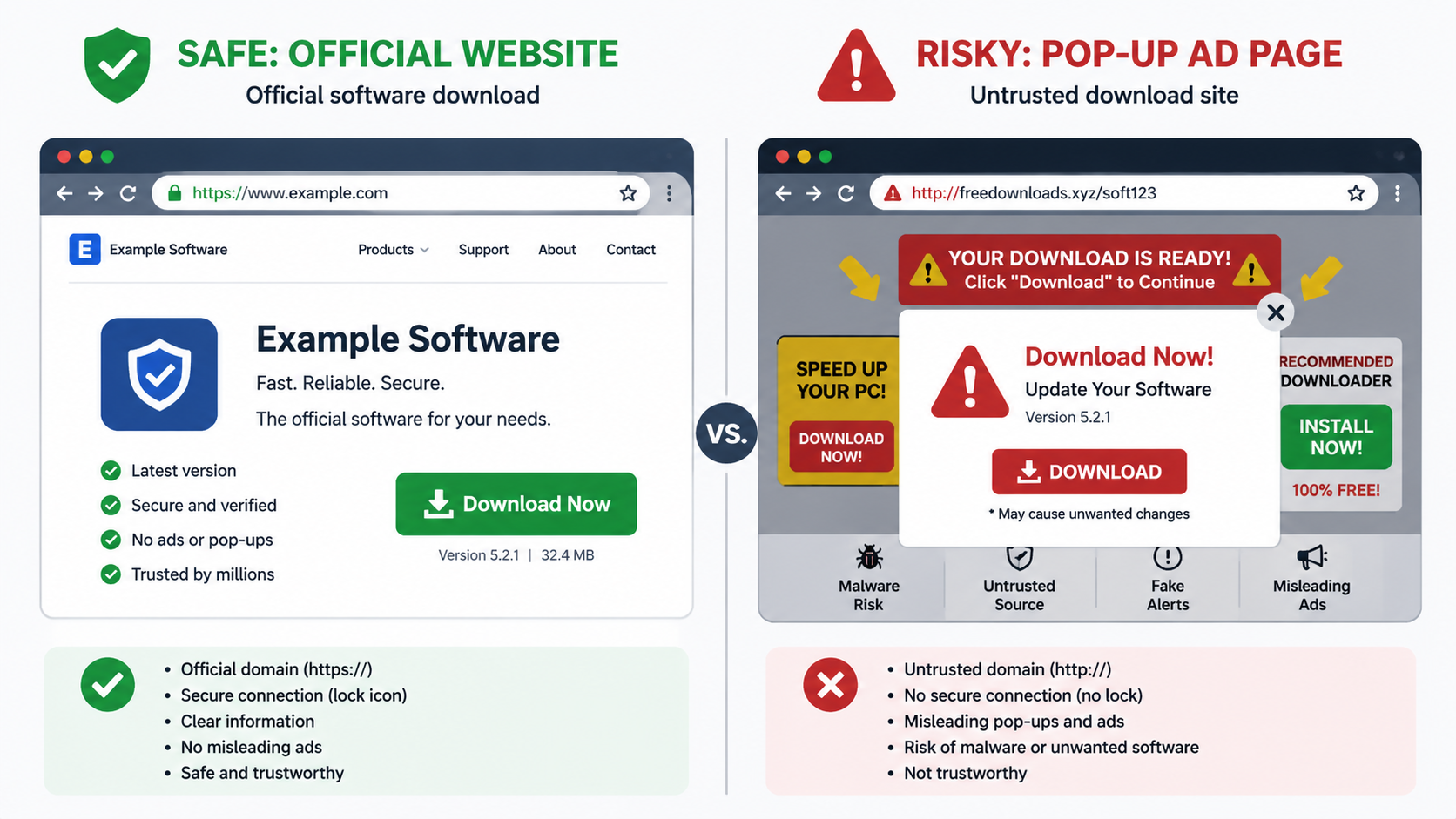
Only download software from official websites or trusted repositories such as the Microsoft Store, Apple App Store, or well-established open-source platforms like GitHub. Avoid third-party download sites that bundle legitimate software with potentially unwanted programs or modified installers containing malware. When downloading, verify the publisher's digital signature and check user reviews for reports of suspicious behavior.
Exercise extreme caution with email attachments, even from known contacts. Verify unexpected attachments through a separate communication channel before opening them, as many malware campaigns use compromised accounts to spread to victims' contact lists. Be particularly wary of executable files (.exe, .scr, .bat), Office documents with macros, and compressed archives (.zip, .rar) from unknown sources.
Avoid clicking on pop-up advertisements, especially those claiming your system is infected or that you've won a prize. Legitimate security warnings come from your installed antivirus software, not from websites. Similarly, be skeptical of urgent messages pressuring you to take immediate action—this urgency is a hallmark of social engineering attacks.
Maintaining Software and System Updates
Outdated software represents one of the most common entry points for malware. Cybercriminals actively exploit known vulnerabilities in operating systems, browsers, plugins, and applications to gain unauthorized access to systems. Keeping everything updated closes these security gaps.
Enable automatic updates for your operating system (Windows Update or macOS Software Update) to ensure you receive critical security patches as soon as they're released. According to 2025 vulnerability analysis, 60% of successful malware infections exploited vulnerabilities for which patches had been available for more than 30 days—infections that were entirely preventable through timely updating.
Pay special attention to updating web browsers, browser plugins (especially Adobe Flash, though it's now deprecated, and Java), PDF readers, and media players, as these are frequent attack vectors. Remove software you no longer use, as unmaintained applications won't receive security updates and create unnecessary risk.
360 Total Security includes automatic update functionality for both its virus definition database and its protection modules, ensuring you always have the latest threat intelligence without manual intervention. This continuous updating is essential for maintaining effective protection against rapidly evolving malware.
Employing Comprehensive, Real-Time Protection
While on-demand scanning is valuable for detecting existing infections, real-time protection provides continuous monitoring that blocks threats before they can execute or cause damage. This proactive approach is far superior to reactive cleanup.
360 Total Security offers multi-layered real-time protection that monitors file system activity, web traffic, email attachments, and program behavior continuously. When you download a file, the real-time engine scans it immediately before it touches your disk. When you visit a website, web protection blocks access to known malicious domains and warns about phishing attempts. When a program attempts suspicious behavior, behavioral monitoring intervenes before damage occurs.
Ensure your system's built-in firewall remains active and properly configured. Windows Defender Firewall and macOS firewall create a barrier between your computer and the internet, blocking unauthorized inbound connections and allowing you to control which programs can communicate externally. Configure the firewall to prompt you when new programs request network access, giving you visibility into potentially suspicious connectivity.
Consider implementing additional security layers such as DNS-level filtering (which blocks malicious domains before your browser even connects to them) and browser extensions that block malicious scripts and trackers. However, avoid installing excessive security software, as conflicts between multiple real-time protection engines can actually reduce overall security and system performance.
For comprehensive protection of your Windows or macOS desktop system, visit 360 Total Security to download a solution that combines real-time protection, system optimization, and privacy tools in a single, efficient package designed specifically for desktop environments.
Frequently Asked Questions
Can a computer virus damage hardware permanently?
While rare, certain types of malware can theoretically cause hardware damage by overwriting firmware (such as BIOS/UEFI), causing excessive heat through cryptocurrency mining that degrades components, or triggering rapid read/write cycles that shorten SSD lifespan. However, the vast majority of viruses target software and data rather than physical hardware. Modern hardware includes safeguards against most destructive commands, making permanent hardware damage from viruses uncommon in 2026.
How long does it take for antivirus software to remove a virus?
The removal time varies significantly based on infection severity, malware type, and system size. Simple adware or browser hijackers might be removed in minutes through a quick scan and cleanup. Deeply rooted rootkits or ransomware may require boot-time scans, specialized removal tools, or even system reinstallation, potentially taking several hours. 360 Total Security typically completes standard full system scans in 30-60 minutes on average desktop systems, with automatic removal of detected threats adding minimal additional time.
Should I pay for antivirus software or are free versions sufficient?
Free antivirus solutions provide basic protection suitable for cautious users with minimal risk profiles. However, paid versions typically offer enhanced features such as advanced ransomware protection, secure banking modes, VPN services, password managers, and priority customer support. For users handling sensitive data, conducting financial transactions, or requiring comprehensive protection, paid solutions offer significantly better security. 360 Total Security offers both free and premium tiers, allowing users to choose the protection level matching their needs and risk exposure.
Can Macs get viruses, or is this only a Windows problem?
While macOS has historically faced fewer malware threats than Windows due to smaller market share and built-in security features, Macs are absolutely vulnerable to viruses, adware, spyware, and ransomware. According to 2025 malware statistics, Mac-targeted threats increased by 30% year-over-year, with adware and potentially unwanted programs being particularly prevalent. macOS users should employ antivirus protection just as Windows users do. 360 Total Security provides dedicated protection for both Windows and macOS desktop systems.
About the Author
This article was prepared by cybersecurity professionals with over a decade of experience in malware analysis, incident response, and digital threat intelligence. Our team stays current with evolving threat landscapes through continuous research, collaboration with security vendors, and analysis of emerging attack vectors. We are committed to providing accurate, actionable security guidance that empowers users to protect their digital assets effectively in an increasingly hostile online environment.