
Executive Summary: Millions of PC users install antivirus software expecting both security and performance, only to discover their system still crawls after a malware removal or runs sluggishly under the weight of constant background scans. The reality is that traditional antivirus tools address only one dimension of PC health — threat detection — while leaving behind residual file clutter, unpatched vulnerabilities, and resource-hungry processes that keep your machine underperforming. This guide explores the hidden causes of post-antivirus slowdowns, defines what a modern security solution must deliver beyond basic virus scanning, and presents a practical, sustainable routine to keep your PC fast, clean, and protected. Solutions like 360 Total Security exemplify this integrated approach by combining multi-engine antivirus protection with system optimization, privacy tools, and intelligent performance management in a single lightweight application.
Why Does Your PC Still Run Slow Even with Antivirus Software?
One of the most frustrating experiences for any PC user is removing a virus or installing antivirus software, only to find that the computer is still sluggish — sometimes even slower than before. This disconnect exists because traditional antivirus solutions are engineered around a reactive, threat-detection model. They are designed to find and neutralize malware, but they rarely address the broader ecosystem of performance degradation that security incidents and the software itself can cause. Understanding the root causes of this problem is the first step toward solving it permanently.
The Hidden Cost of Reactive Security Scanning
At the heart of most antivirus engines is a scanning process that works by reading, analyzing, and cross-referencing every file it examines against a database of known threat signatures or behavioral patterns. While this is essential for catching malware, the computational cost is significant and often underestimated by users.
CPU and Memory Consumption During Scans: A full-system scan requires the antivirus engine to open, read, and analyze potentially hundreds of thousands of files. This process is inherently CPU-intensive and demands substantial memory allocation. On systems with older processors or limited RAM — common in budget laptops and aging desktops — this can push resource utilization to 80–100%, leaving almost nothing available for the applications a user is actively trying to run. The result is a system that feels frozen or extremely slow precisely when the user expects it to be protected.
The "Scan Lag" Phenomenon: Beyond the obvious slowdown during active scanning, many users report a phenomenon that can be described as "scan lag" — a period of degraded performance that persists even after a scan completes. This occurs because intensive I/O operations during scanning can disrupt the operating system's file caching mechanisms, temporarily reducing the efficiency with which the system retrieves frequently used data. Technical support forums and community boards consistently rank antivirus-related slowdowns among the top five most reported PC performance complaints, with users describing symptoms ranging from delayed application launches to unresponsive browser tabs occurring in the minutes following a completed scan cycle. This is not a bug in the antivirus software per se — it is a structural limitation of the reactive scanning model that prioritizes thoroughness over efficiency.
Residual Registry and File System Clutter
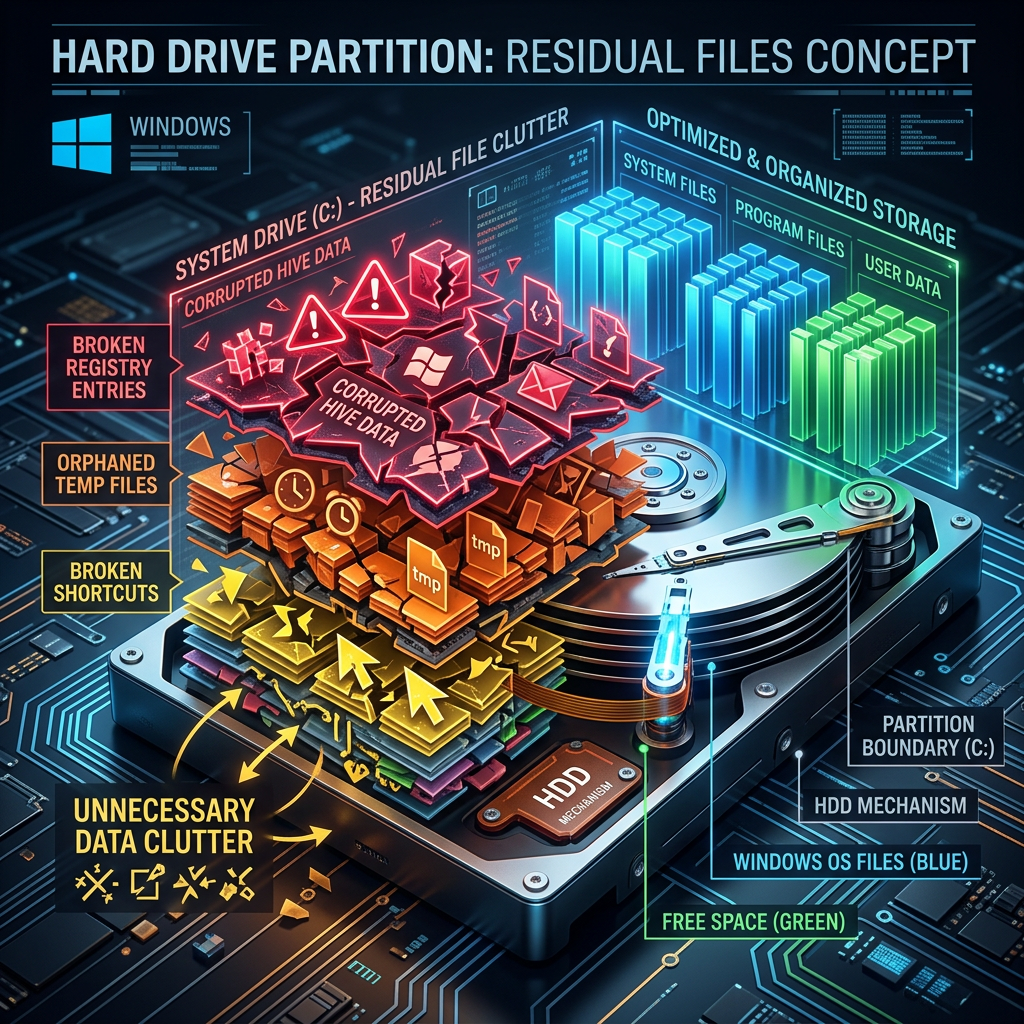
When malware infects a system, it rarely operates cleanly. It writes registry keys to ensure persistence across reboots, creates temporary files to store stolen data or download additional payloads, generates broken shortcuts that point to files that no longer exist, and modifies system configuration entries. When a basic antivirus tool removes the malware itself, it typically deletes the executable files and quarantines the core threat — but it often leaves behind this entire support structure of digital debris.
Registry Pollution: The Windows Registry is a hierarchical database that the operating system and applications use to store configuration settings. Malware frequently adds dozens or even hundreds of registry entries during an infection. When the malware is removed without cleaning these entries, the registry becomes polluted with orphaned keys. Every time Windows boots or an application launches, the system must process a larger, more cluttered registry, which incrementally increases load times. Over months and years of accumulated infections and removals, this effect becomes highly noticeable.
Temporary Files and Broken Shortcuts: Malware and Potentially Unwanted Programs (PUPs) are notorious for depositing temporary files in system directories like %TEMP%, AppData\Local\Temp, and browser cache folders. These files persist after removal and consume disk space, which on solid-state drives can reduce write performance as the drive approaches capacity. Broken shortcuts — icons that point to deleted files — clutter the desktop and Start Menu, and the system wastes processing time attempting to resolve these dead references during startup.
The Cumulative Performance Tax: The individual impact of a single orphaned registry key or a 2MB temporary file is negligible. But the cumulative effect of hundreds of such remnants, accumulated across multiple infections, software installations, and uninstallations over the lifetime of a PC, is a measurable and significant performance tax. Boot times that once measured 15 seconds can stretch to 45 seconds or more. Applications that launched instantly may take 3–5 seconds to respond. This gradual degradation is often misattributed to hardware aging when the true cause is digital clutter that can be cleaned.
Outdated Drivers and Unpatched System Vulnerabilities
A dimension of PC performance and security that most traditional antivirus tools completely ignore is the state of the system's hardware drivers and software patch level. These two factors have a profound and often counterintuitive impact on both speed and security.
The Driver Update Gap: Hardware drivers are the software bridges between the operating system and physical components like storage controllers, network adapters, graphics cards, and USB hubs. Manufacturers regularly release driver updates that not only fix security vulnerabilities but also improve performance through optimized data transfer protocols, better power management, and bug fixes. An outdated storage driver, for example, can cause a high-performance NVMe SSD to operate at a fraction of its rated speed. An outdated network driver can introduce latency and packet loss that makes even a fast internet connection feel sluggish. Security software that doesn't proactively manage driver health leaves these performance-critical components in a suboptimal state.
The Security-Performance Tradeoff of Unpatched Vulnerabilities: This is perhaps the most technically nuanced cause of post-antivirus slowdowns. When critical processor vulnerabilities like Spectre and Meltdown were disclosed, Microsoft and processor manufacturers released patches that mitigated the security risk by forcing the CPU to operate in a more cautious, sandboxed manner. According to guidelines published by the Microsoft Security Response Center regarding the performance impact of certain security mitigations, some of these patches introduced measurable performance reductions — particularly for I/O-intensive workloads — as the price of closing dangerous security holes. A system running without these patches may feel faster but is exposed to serious exploitation risks. Conversely, a system with all patches applied but without performance tuning may feel slower than necessary. The ideal solution manages both dimensions simultaneously, applying security patches while optimizing other system parameters to compensate for any performance overhead they introduce.
What Should a Modern Security Solution Do Beyond Virus Scanning?
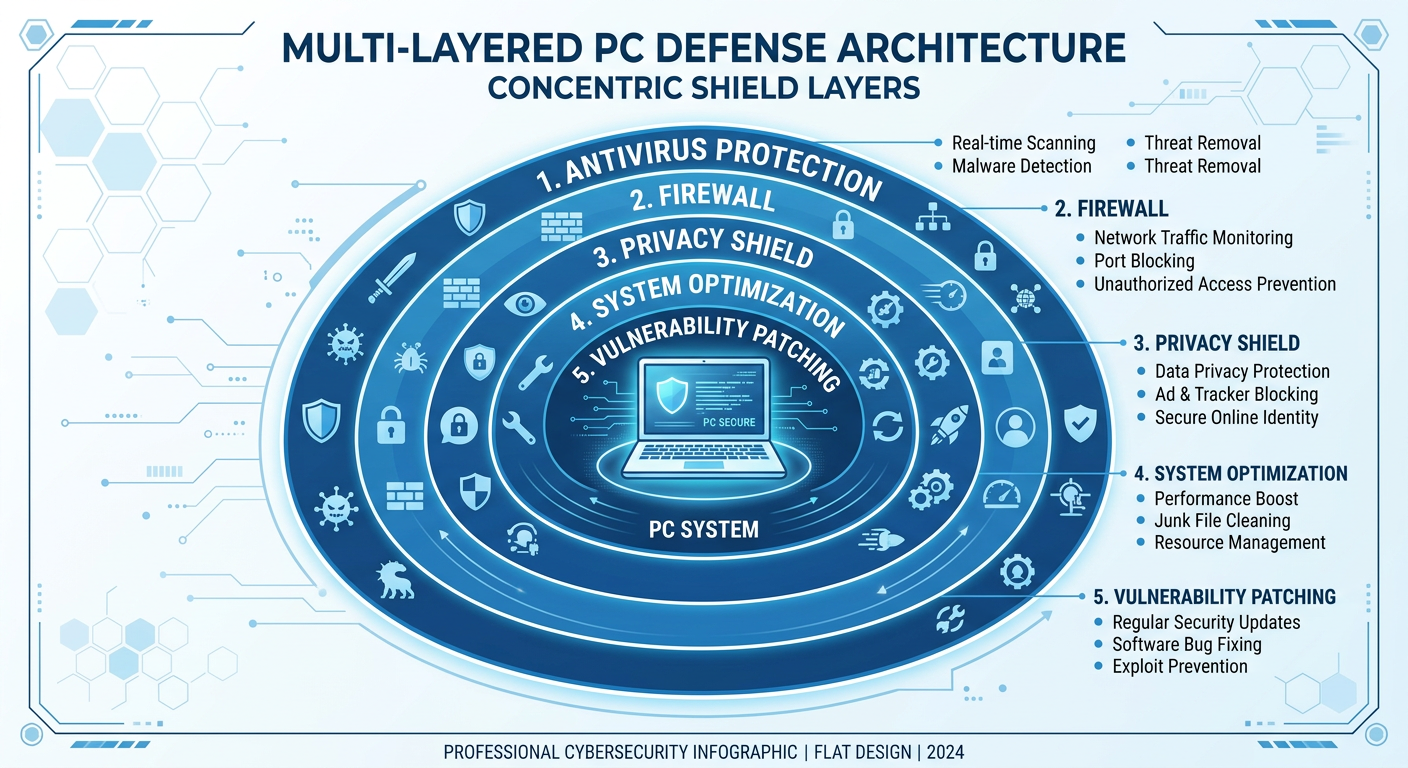
The limitations of traditional antivirus software have created a clear market demand for a new category of security tool — one that thinks about PC health holistically rather than in isolation. A truly effective modern security platform must treat virus scanning as one component of a much larger system that integrates proactive optimization, vulnerability management, and privacy protection. This section defines what that comprehensive solution looks like in practice.
Integrated System Cleanup and Optimization
The most immediate and tangible improvement a modern security suite can deliver beyond malware protection is automated system cleanup. Rather than waiting for a user to manually search for and delete junk files — a process most users never perform — an integrated solution continuously identifies and removes performance-degrading clutter as part of its normal operation.
Automated Junk File Removal: This includes temporary files created by Windows Update, application installation packages that are no longer needed, browser cache files that accumulate across Chrome, Firefox, Edge, and other browsers, thumbnail cache databases, and Windows error reporting logs. On a typical PC that has been in use for 12 months without cleanup, this category of junk can easily consume 5–15GB of disk space. Reclaiming this space not only frees storage but also improves file system performance, particularly on SSDs where free space directly impacts write speed and longevity.
Registry Repair and Broken Entry Removal: Beyond the malware-specific registry pollution discussed earlier, normal software installation and uninstallation cycles leave behind thousands of orphaned registry entries over time. An integrated security suite should include a safe, intelligent registry cleaner that identifies and removes these entries without touching critical system keys — a distinction that separates professional-grade tools from dangerous amateur registry cleaners that can destabilize the OS.
Startup Program Management: One of the highest-impact optimizations available to any PC user is controlling which programs launch automatically at startup. Over time, every software installation adds its own startup entry — update checkers, cloud sync clients, communication apps, media players, and hardware utilities all compete to load before the user has even logged in. An integrated security suite should provide a visual startup manager that shows the performance impact of each startup item and allows users to disable non-essential ones with a single click, directly reducing boot times and background resource consumption.
The following table illustrates the fundamental difference in capability between a traditional antivirus product and a modern integrated security suite:
| Feature Category | Traditional Antivirus | Modern Integrated Security Suite |
|---|---|---|
| Malware Protection | Signature-based detection, basic heuristics | Multi-engine detection, AI behavioral analysis, cloud verification, sandbox testing |
| System Cleanup | Not included or very basic | Automated junk file removal, registry repair, browser cache cleanup, duplicate file finder |
| Startup Optimization | Not included | Visual startup manager with impact ratings and one-click disable |
| Driver Updates | Not included | Automated scanning for outdated drivers with verified, safe update downloads |
| Vulnerability Patching | Not included | Continuous monitoring for missing Windows updates and software vulnerabilities |
| Privacy Protection | Limited or not included | Webcam protection, secure file shredder, privacy trace cleaner |
| Performance During Use | Can significantly impact performance during scans | Game Mode and intelligent scheduling minimize impact during active use |
Proactive Vulnerability Detection and Patching
The shift from reactive to proactive security is perhaps the most important philosophical evolution in modern endpoint protection. Rather than waiting for malware to appear and then attempting to remove it, a proactive system continuously audits the attack surface of the PC and closes vulnerabilities before they can be exploited.
Continuous Software Vulnerability Scanning: Attackers routinely target outdated versions of common software — web browsers, PDF readers, media players, Java runtimes, and productivity suites — because these applications often have known, publicly documented vulnerabilities that unpatched systems are still exposed to. A modern security suite should maintain a continuously updated database of software vulnerabilities and cross-reference it against the applications installed on the user's system, generating alerts when dangerous outdated versions are detected.
Windows Update Compliance Monitoring: Microsoft releases security patches on a regular schedule, but many users dismiss or indefinitely postpone these updates due to concerns about reboot requirements or update-related instability. A security suite that monitors Windows Update compliance and clearly communicates the risk level of missing patches — particularly critical and high-severity updates — helps users make informed decisions and reduces the window of exposure to known exploits.
Weak System Configuration Detection: Beyond software patches, many systems are exposed to risk through weak configurations — disabled firewalls, overly permissive user account settings, unencrypted sensitive folders, or default passwords on network services. Proactive vulnerability detection should extend to these configuration-level issues, providing users with specific, actionable guidance on how to harden their system against common attack vectors.
One-Click Patching for Non-Technical Users: The most sophisticated vulnerability detection is useless if the remediation process is too complex for average users to follow. The gold standard for modern security tools is one-click patching — a workflow where the software identifies the vulnerability, downloads the verified patch or update, applies it safely, and confirms resolution, all with minimal user interaction. This democratizes security hardening, making it accessible to users without technical expertise.
Essential Privacy and Network Protection Tools
In 2025 and 2026, privacy protection has become as critical as malware protection for most users. The threat landscape has expanded beyond viruses and ransomware to include data harvesting applications, unauthorized surveillance tools, and network-level interception attacks. A complete security solution must address these threats with dedicated tools.
Application Firewall Management: A well-configured firewall is one of the most effective tools for preventing data exfiltration. Modern security suites should include an application-level firewall that monitors which programs are attempting to communicate over the network, flags unusual outbound connections, and allows users to create rules that block specific applications from accessing the internet. This is particularly valuable for catching spyware and adware that has evaded initial detection and is attempting to phone home with harvested data.
Webcam and Microphone Protection: The unauthorized activation of webcams and microphones by malware or stalkerware is a serious and growing privacy threat, particularly for remote workers and students. Dedicated webcam protection modules monitor for any application attempting to access the camera or microphone, display a prominent alert when such access is detected, and allow users to block unauthorized access with a single click. This provides a critical safety net that operates independently of malware detection.
Secure File Shredder: Standard file deletion in Windows does not actually erase data — it simply marks the storage space as available for reuse, leaving the actual data recoverable by forensic tools or malicious recovery software. A secure file shredder overwrites deleted files multiple times with random data, ensuring that sensitive documents, financial records, and personal photographs are permanently and irrecoverably destroyed when the user chooses to delete them.
How Can You Maximize Protection While Minimizing Performance Impact?
The perception that strong security necessarily means poor performance is a myth that modern security engineering has worked hard to dispel. Achieving optimal protection without sacrificing system speed is entirely possible — but it requires intelligent resource management, strategic scheduling, and the smart use of cloud-based infrastructure to offload processing burden from the local machine. This section provides concrete, actionable strategies for achieving this balance.
Implementing Intelligent Scanning Schedules
The single most impactful configuration change most users can make to improve perceived performance while maintaining security is to move intensive scanning operations out of active working hours and into periods of natural system idleness.
Scheduling Full Scans for Low-Usage Periods: Full system scans — the most resource-intensive scanning operation — should be scheduled to run during times when the computer is powered on but not actively in use. For most users, this means overnight (3:00–5:00 AM is ideal, as it avoids conflicts with late-night usage and early-morning startup routines) or during predictable lunch breaks. Modern security software can be configured to detect system idle states and automatically initiate scheduled scans only when the computer has been inactive for a specified period, ensuring scans never interrupt active work sessions.
Daily Quick Scans for High-Risk Areas: Full scans don't need to run daily. A more efficient approach uses quick scans — targeted examinations of the most vulnerable and frequently modified areas of the system — for daily checks. These high-risk areas include the downloads folder, temporary file directories, browser extension folders, startup locations, and recently modified executable files. A well-designed quick scan can complete in 2–5 minutes while covering the attack vectors most likely to be exploited between full scan cycles.
Game Mode — Performance Protection in Real Time: For users who game on their PC, one of the most valued features in modern security suites is a dedicated Game Mode. 360 Total Security's Game Mode automatically detects when a full-screen application — typically a game — is launched and responds by pausing non-critical background activities, suppressing notifications, reducing scan intensity, and reallocating system resources to the foreground application. This prevents the frame rate drops and input latency spikes that antivirus background processes can cause during gaming sessions, without requiring the user to manually disable protection.
Leveraging Cloud-Based Threat Intelligence
One of the most significant architectural innovations in modern security software is the shift from purely local, definition-file-based detection to a hybrid model that leverages cloud-based threat intelligence databases. This shift has profound implications for both detection capability and system performance.
Reduced Local Resource Footprint: Traditional antivirus software maintains massive local definition files — databases of known malware signatures that the scanner references during every file inspection. These files can consume hundreds of megabytes to gigabytes of storage and must be loaded into memory during active scanning, contributing significantly to RAM usage. Cloud-based security models maintain the bulk of the threat intelligence database on remote servers, allowing the local software to maintain a much smaller footprint. The local client sends a cryptographic hash or behavioral profile of a suspicious file to the cloud service, which performs the heavy lookup and returns a verdict in milliseconds. This dramatically reduces both storage consumption and memory usage on the local machine.
Real-Time Threat Verification and Zero-Day Protection: Cloud databases can be updated in real time as new threats are discovered, without requiring the local software to download and install a definition update. When a new piece of malware is identified anywhere in the global user base, its signature is immediately added to the cloud database and becomes detectable for all users simultaneously. According to a 2026 cybersecurity industry analysis, cloud-assisted scanning approaches demonstrate detection response times measured in minutes for new threat variants, compared to hours or days for traditional definition-file update cycles. This is particularly valuable for zero-day threats — malware that exploits vulnerabilities before a patch is available — where the speed of detection is the primary determinant of whether an infection occurs.
Behavioral Analysis Without Local Processing Overhead: Advanced cloud security platforms can perform complex behavioral analysis — examining sequences of system calls, network connections, and file modifications that individually appear benign but collectively indicate malicious intent — on remote servers with far greater computational resources than any local machine. This allows sophisticated threat detection that would be prohibitively resource-intensive to run locally to be performed transparently in the cloud, with results delivered to the local client with minimal latency.
Customizing Real-Time Protection Levels
A one-size-fits-all approach to real-time protection is inherently inefficient. The appropriate level of monitoring intensity varies dramatically depending on what the user is doing at any given moment — downloading files from the internet carries far greater risk than editing a local Word document, and the protection profile should reflect this reality.
Activity-Aware Protection Intensity: Modern security software should be capable of dynamically adjusting the intensity of file system monitoring based on detected user activity. During high-risk activities — downloading files, installing new software, browsing unfamiliar websites, or opening email attachments — real-time protection should operate at maximum sensitivity, inspecting every file access and network connection. During low-risk activities — playing locally stored media, editing documents in a trusted application, or using well-established software — the monitoring intensity can be reduced without meaningfully increasing risk, freeing up CPU cycles for the foreground task.
Whitelisting for Known-Safe Environments: For power users and professionals who work extensively with large file sets — software developers, video editors, data analysts — the constant scanning of known-safe files and directories can introduce significant latency. The ability to whitelist trusted applications and specific folders (such as a local development environment or a video project directory) prevents unnecessary scanning of files that have been verified as safe, dramatically improving performance for these use cases without creating security gaps.
The following table provides recommended security configuration profiles for different user types, balancing protection strength against performance requirements:
| Setting | Gamer | Office Worker | Power User / Developer |
|---|---|---|---|
| Real-Time Protection | Standard (Game Mode active during sessions) | High (maximum sensitivity for downloads and email) | Standard with custom whitelists for dev environments |
| Full Scan Frequency | Weekly, scheduled overnight | Weekly, scheduled during lunch or after hours | Bi-weekly, with on-demand scans after major software changes |
| Quick Scan Frequency | Daily, on system startup | Daily, automated at login | Daily, with focus on build output and download directories |
| Game Mode | Enabled (auto-detect full-screen apps) | Disabled or manual | Enabled for testing environments and virtual machines |
| Cloud Scanning | Enabled | Enabled | Enabled with local cache for offline development |
| Notifications | Critical alerts only during gaming | All security alerts | All alerts, with detailed technical information |
What Makes 360 Total Security a Comprehensive Solution for Modern Threats?
Having established what a modern, integrated security solution should look like in theory, it is instructive to examine how a leading product in this category delivers on these requirements in practice. 360 Total Security represents the culmination of this integrated security philosophy, combining industry-leading antivirus protection with comprehensive system optimization and privacy tools in a single application that is designed to be both powerful and accessible to non-technical users.
The Five-Engine Antivirus Defense System
At the core of 360 Total Security's security architecture is a multi-engine detection system that combines five distinct scanning technologies to provide overlapping, complementary protection against the full spectrum of modern threats.
Engine Architecture Overview:
- 360 Cloud Scan Engine: Leverages the massive threat intelligence database maintained by 360's global security research network, providing real-time detection of the latest threats as they emerge, with zero delay between discovery and protection.
- QVMII AI Engine: A proprietary machine learning engine that analyzes behavioral patterns and code characteristics to identify novel malware variants that have never been seen before — the critical capability for zero-day threat protection.
- Avira Engine: Integrates the detection capabilities of Avira, a German security company with decades of antivirus research, providing strong coverage of European and globally distributed malware families.
- Bitdefender Engine: Incorporates the detection algorithms of Bitdefender, consistently one of the top-rated antivirus engines in independent laboratory testing, adding another layer of signature-based and heuristic detection.
- System Repair Engine: Uniquely focused on post-infection remediation, this engine specializes in detecting and repairing the system-level damage that malware leaves behind — restoring modified registry entries, repairing corrupted system files, and reversing unauthorized configuration changes.
The Power of Overlapping Detection: The strategic value of combining multiple engines is not simply additive — it is multiplicative. Each engine has different strengths: cloud engines excel at speed and currency, AI engines excel at novelty detection, established signature engines excel at reliability and low false-positive rates, and repair engines excel at remediation. A threat that evades one engine's detection methodology is likely to be caught by another's. According to independent security researchers who have analyzed multi-engine approaches, this architectural redundancy is particularly effective against sophisticated zero-day threats that are specifically designed to evade any single detection technology. A 2026 analysis of endpoint security effectiveness noted that multi-engine platforms demonstrated measurably higher detection rates for previously unseen malware samples compared to single-engine solutions.
Performance-Optimized Engine Coordination: A common concern with multi-engine systems is that running multiple scanners simultaneously would multiply the performance impact. 360 Total Security addresses this through intelligent engine coordination — engines are not run in parallel on every file, but rather deployed strategically based on file type, source, and risk profile. Low-risk files from trusted sources may be checked only against the cloud database, while high-risk files from unknown sources trigger the full multi-engine analysis. This approach maximizes detection capability while minimizing unnecessary resource consumption.
Integrated Performance Optimization Suite
Beyond its antivirus capabilities, 360 Total Security includes a comprehensive suite of performance optimization tools that address the system clutter and configuration issues that traditional security software ignores.
One-Click Cleanup: The flagship optimization feature is a unified one-click cleanup that simultaneously targets multiple categories of performance-degrading content. In a single operation, it removes junk files from Windows system directories, clears browser cache and temporary internet files across all installed browsers, deletes invalid registry entries left by uninstalled software, removes privacy traces including recent file lists and search histories, and cleans up residual files from software uninstallation processes. For users who have never performed a systematic cleanup, this single operation can often recover gigabytes of disk space and produce a noticeable improvement in system responsiveness.
Visual Startup Manager: The startup manager provides a clear, visual interface that displays every program configured to launch at system startup, along with an impact rating indicating how significantly each item delays the boot process. Users can see at a glance which startup items are essential (security software, system utilities), which are convenient but non-essential (cloud sync clients, communication apps), and which are unnecessary or potentially unwanted (software updaters, promotional applications). Disabling high-impact, non-essential startup items is frequently the single most effective action a user can take to improve boot time, and the visual interface makes this accessible to users of all technical levels.
Driver Updater: The integrated driver updater scans the system's hardware components and compares the installed driver versions against a database of current, manufacturer-verified releases. When outdated drivers are detected — particularly for storage controllers, network adapters, and graphics cards — the tool provides direct access to verified update packages. Critically, the driver updater only sources updates from official manufacturer channels and verified repositories, eliminating the risk of installing counterfeit or malware-bundled driver packages that are common on unofficial driver download sites.
Specialized Features for Enhanced User Experience
Several specialized features in 360 Total Security address specific use cases and threat scenarios that generic security tools typically overlook.
Game Mode — Zero-Compromise Gaming Security: Game Mode represents a sophisticated solution to the longstanding tension between gaming performance and security. When 360 Total Security detects the launch of a full-screen application — whether a AAA game, an indie title, or a full-screen video — it automatically activates Game Mode. In this state, non-critical background processes are suspended, scan scheduling is paused, notification popups are suppressed, and system resources are maximized for the foreground application. Security remains active at a reduced monitoring level sufficient to catch active threats, but the computational overhead that would cause frame rate drops or input lag is eliminated. When the full-screen application closes, Game Mode deactivates and normal security operations resume automatically — no user intervention required at any stage.
Sandbox 2.0 — Safe Execution Environment: The Sandbox feature addresses one of the most dangerous scenarios in everyday computing: the need to open a file or run a program whose safety is uncertain. Rather than forcing users to choose between the risk of opening a potentially malicious file and the inconvenience of not opening it, Sandbox 2.0 provides a third option — running the file in a completely isolated virtual environment. Any malicious actions the file attempts — writing to the registry, modifying system files, establishing network connections, downloading additional payloads — are contained within the sandbox and cannot affect the actual system. When the sandbox session ends, all changes are discarded. This is particularly valuable for testing software downloaded from unofficial sources, opening email attachments from unknown senders, or evaluating freeware applications before committing to a full installation.
Wi-Fi Security Check: As remote work and mobile computing have become the norm, the security of the networks users connect to has become a critical concern. The Wi-Fi Security Check feature scans the connected network for common vulnerabilities — weak router passwords, unencrypted network traffic, DNS hijacking configurations, and the presence of other suspicious devices on the same network segment. Users receive clear, actionable alerts when vulnerabilities are detected, along with guidance on how to address them. This feature is particularly valuable when connecting to public Wi-Fi networks in cafes, hotels, and airports, where the risk of network-level attacks is significantly elevated.
How to Implement a Complete PC Security and Optimization Routine
Having the right security tools is necessary but not sufficient for maintaining a fast, secure PC over the long term. Equally important is establishing a consistent maintenance routine that combines automated protections with periodic manual reviews. The good news is that with modern integrated security software, the manual component of this routine is minimal — most of the heavy lifting can be automated. What remains for the user is a small set of high-value habits that dramatically reduce risk and maintain performance.
Daily and Weekly Quick Maintenance Tasks
The most effective maintenance routines are those that are simple enough to be performed consistently without requiring significant time or technical knowledge. The following daily and weekly tasks strike this balance, providing high security value with minimal user effort.
Daily Tasks:
- Quick scan of the downloads folder: The downloads folder is the highest-risk location on any PC — it is where every file from the internet lands before being opened. A targeted quick scan of this folder takes less than a minute and catches the vast majority of threats before they have a chance to execute. With 360 Total Security, this can be configured to run automatically whenever new files are detected in the downloads folder, requiring zero active user involvement.
- Browser cache cleanup: Browser caches accumulate rapidly and can consume hundreds of megabytes of disk space within days of active browsing. A daily automated cache cleanup keeps this under control, improves browser performance, and removes privacy traces of browsing activity. This can be fully automated within the security suite's scheduled cleanup settings.
Weekly Tasks:
- Full system scan: A comprehensive scan of all files and running processes should be performed at least once per week to catch any threats that may have evaded real-time protection. This should be scheduled during a low-usage period as discussed earlier.
- Temporary file cleanup: Beyond browser cache, Windows accumulates temporary files from update processes, application installations, and system operations. A weekly cleanup of these directories prevents the gradual accumulation of gigabytes of unnecessary data.
- Windows Update check: Verify that all critical and important Windows updates have been applied. Critical security patches should never be deferred for more than one week after release, as attackers actively exploit known vulnerabilities in unpatched systems, often within days of a patch being published.
All of these weekly tasks can be configured within 360 Total Security's scheduling system to run automatically at the specified times, transforming what would otherwise be a manual checklist into a fully automated background process that requires no active user involvement.
Monthly Deep Clean and Security Audit
While daily and weekly tasks handle routine maintenance, a more thorough monthly review addresses the slower-accumulating issues that don't require weekly attention but can significantly impact system health over time.
Comprehensive System Cleanup: The monthly cleanup should go beyond routine junk file removal to include registry repair — a deeper analysis of the registry for structural issues and invalid entries that accumulate over a month of software installations and updates. It should also include a duplicate file scan, which identifies multiple copies of identical files (particularly common in document folders and media libraries) that are consuming unnecessary disk space. On a typical PC used for a month, the combination of registry repair and duplicate file removal can recover an additional 1–3GB of disk space beyond what weekly cleanups address.
Installed Program and Browser Extension Review: Once per month, it is worth spending 10–15 minutes reviewing the list of installed programs and browser extensions. The goal is to identify and remove:
- Applications that were installed and never used, or that are no longer needed
- Software that was bundled with other installations without explicit consent (a common vector for PUPs)
- Browser extensions that were added without the user's knowledge or that have excessive permissions
- Trial software that has expired but remains installed, consuming resources and generating nagging notifications
Firewall and Network Permission Audit: The monthly security audit should include a review of firewall rules and network permissions for all installed applications. Over time, legitimate applications can accumulate overly broad network permissions, and new installations may have added firewall exceptions without clear justification. Reviewing and tightening these permissions reduces the attack surface available to any malware that does manage to infiltrate the system.
| Task | Frequency | Estimated Time | Primary Tool |
|---|---|---|---|
| Downloads folder quick scan | Daily (automated) | 1–2 minutes (background) | 360 Total Security real-time protection |
| Browser cache cleanup | Daily (automated) | Under 1 minute (background) | 360 Total Security scheduled cleanup |
| Full system scan | Weekly (scheduled) | 15–45 minutes (overnight) | 360 Total Security full scan |
| Temporary file cleanup | Weekly (automated) | 2–5 minutes (background) | 360 Total Security one-click cleanup |
| Windows Update check | Weekly (manual review) | 5 minutes | Windows Update + 360 vulnerability scanner |
| Registry repair and deep clean | Monthly | 10–20 minutes | 360 Total Security cleanup suite |
| Installed program review | Monthly (manual) | 10–15 minutes | Windows Settings + 360 program manager |
| Firewall and permissions audit | Monthly (manual) | 10–15 minutes | 360 Total Security firewall manager |
| Driver update check | Monthly | 5–10 minutes | 360 Total Security driver updater |
| Data backup verification | Monthly (manual) | 15–30 minutes | External drive or cloud backup service |
Proactive Habits for Ongoing Protection
Beyond scheduled maintenance tasks, a small set of consistent behavioral habits provides a powerful additional layer of protection that no software tool can fully replicate. These habits address the human element of security — the decisions and actions that determine whether a threat ever reaches the point where software protection is needed.
Sandbox Everything Unfamiliar: The single most impactful habit for advanced users is to make sandbox testing the default approach for any file or application whose origin or safety is uncertain. Before opening an email attachment from an unfamiliar sender, before running an installer downloaded from a third-party site, before testing a piece of freeware — open it in the sandbox first. If it behaves maliciously in the sandbox, the real system is completely unaffected. If it behaves normally, the user can proceed with confidence. 360 Total Security's Sandbox 2.0 makes this process straightforward enough to be a realistic daily habit rather than an occasional precaution.
Maintain Current, Verified Backups: Despite the best security software and the most diligent maintenance routine, no system is 100% immune to all threats. Ransomware, in particular, can encrypt files faster than real-time protection can respond in some attack scenarios. The ultimate safety net against ransomware and all other forms of data loss — including hardware failure, accidental deletion, and natural disasters — is a current, verified backup stored separately from the primary system. A practical backup strategy for most users involves a combination of external hard drive backups (performed monthly) and cloud storage synchronization (continuous for critical documents). The backup is only as valuable as its most recent verification — periodically confirm that backed-up files can actually be restored.
Keep Security Software Current: Security software that is not kept up to date is security software that is gradually becoming less effective. Threat databases, AI models, behavioral analysis rules, and optimization algorithms all require regular updates to remain effective against the current threat landscape. Ensure that 360 Total Security is configured to update automatically, and periodically verify that updates are being applied successfully. A security suite that is six months out of date on its threat definitions is providing a false sense of security against threats that emerged in the intervening period.
Practice Layered Skepticism: The most sophisticated malware delivery mechanisms in use today rely on social engineering — convincing users to voluntarily take actions that compromise their own security. Phishing emails that impersonate trusted institutions, fake software update prompts that install malware, and social media links that lead to credential-harvesting sites all succeed because they bypass technical defenses by exploiting human psychology. Developing a habit of healthy skepticism — pausing to verify the legitimacy of unexpected requests for action, checking URLs before clicking, and questioning the urgency of unsolicited prompts — is a security control that no software can replace and that costs nothing to implement.
Frequently Asked Questions
Why is my computer still slow after removing a virus?
Removing a virus eliminates the active threat but typically leaves behind residual damage — orphaned registry entries, temporary files, broken system configurations, and potentially modified system settings. These remnants continue to degrade performance even after the malware itself is gone. A comprehensive cleanup using a tool like 360 Total Security's one-click cleanup and registry repair is needed to fully restore performance after a malware incident.
Can antivirus software itself cause my PC to slow down?
Yes, particularly during active scanning operations. Traditional antivirus software that runs intensive full-system scans during working hours can consume significant CPU and memory resources, causing noticeable slowdowns. The solution is to use security software with intelligent scheduling that runs intensive operations during idle periods, and features like Game Mode that automatically reduce background activity during active use.
How often should I run a full system scan?
For most users, a weekly full system scan scheduled during overnight hours or another low-usage period provides an appropriate balance between thoroughness and performance impact. Daily quick scans targeting high-risk areas like the downloads folder provide continuous coverage between full scans. Users in higher-risk environments — those who frequently download software, open email attachments, or use shared networks — may benefit from more frequent full scans.
Is 360 Total Security suitable for gaming PCs?
Yes. 360 Total Security includes a dedicated Game Mode that automatically detects full-screen applications and temporarily reduces background security activity to prevent frame rate drops and input lag. Security remains active at a level sufficient to catch active threats, but the computational overhead that would impact gaming performance is minimized. When the game closes, full security operations resume automatically without any user intervention required.
About the Author: This article was researched and written by a Senior Technical Writer specializing in cybersecurity, endpoint protection, and PC performance optimization. With over a decade of experience covering the intersection of security software and system performance for enterprise and consumer audiences, the author has contributed to leading technology publications and security research forums. Areas of expertise include antivirus architecture, threat intelligence systems, and practical security implementation for both technical and non-technical users.
Learn more about 360 Total Security