
Executive Summary: Public Wi-Fi networks are a double-edged sword — offering seamless connectivity in airports, cafes, hotels, and libraries while simultaneously exposing users to some of the most prevalent and damaging cyber threats in the digital landscape. This comprehensive guide examines the full spectrum of public Wi-Fi security risks, from man-in-the-middle attacks and session hijacking to malware injection and evil twin hotspots. More critically, it provides actionable, layered defense strategies — covering essential software configuration, behavioral best practices, enterprise-grade policies, and a definitive pre- and post-connection security checklist — to ensure that both individual users and corporate IT teams can navigate unsecured networks without compromising sensitive data, financial credentials, or device integrity.
What Are the Main Security Risks of Public Wi-Fi Networks?
The convenience of public Wi-Fi is undeniable. Connecting to free internet at a coffee shop, airport lounge, or hotel lobby has become as routine as ordering a drink. Yet beneath this convenience lies a deeply unsecured infrastructure that cybercriminals actively exploit. Unlike your home network — protected by a password you control, a router you configure, and encryption protocols you can verify — public Wi-Fi is an open ecosystem where the rules of trust break down entirely. Understanding the specific attack vectors that flourish on these networks is the first and most essential step toward meaningful protection.
Man-in-the-Middle (MitM) Attacks and Data Interception
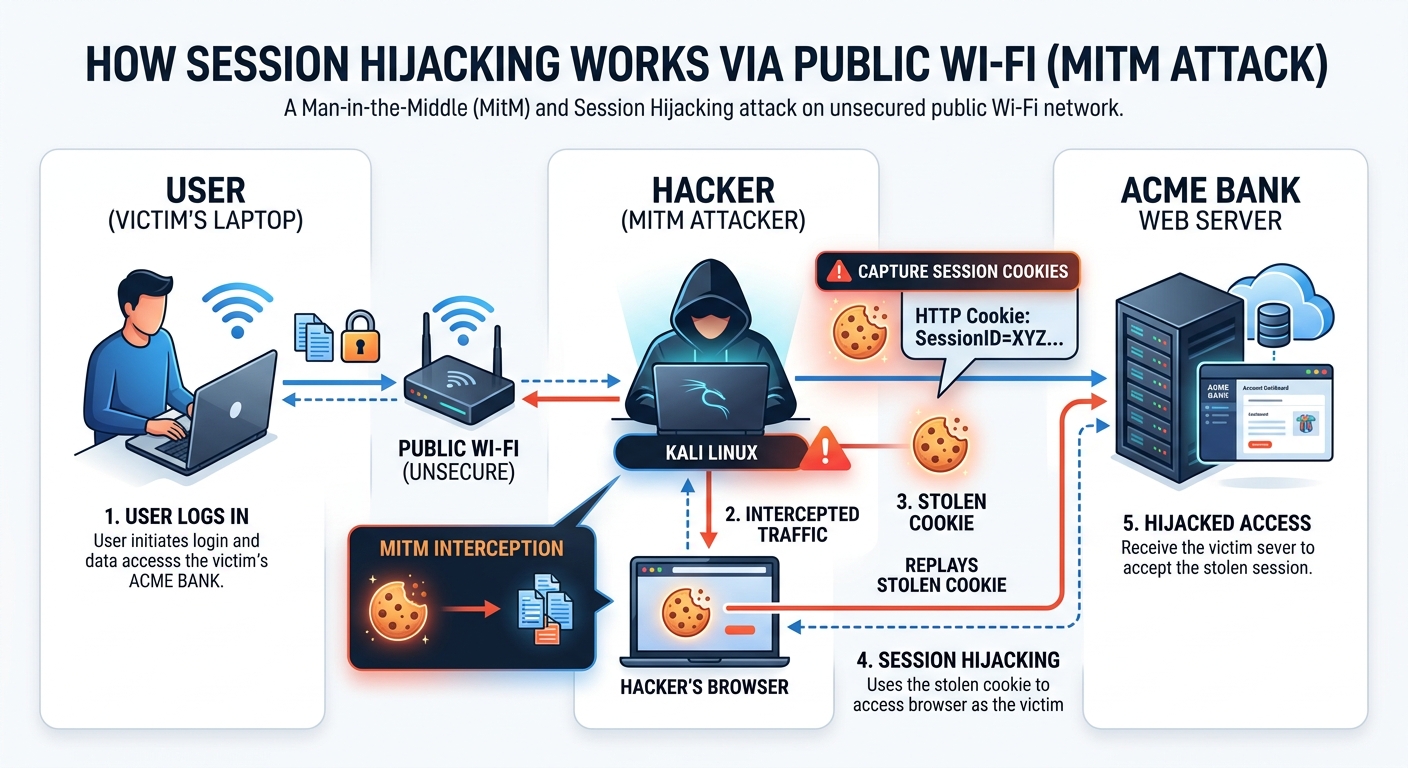
The man-in-the-middle attack is arguably the most dangerous and pervasive threat on public Wi-Fi networks. The concept is deceptively simple: an attacker positions themselves — technically speaking — between your device and the network's access point. Every packet of data you send or receive passes through the attacker's system first. This means login credentials, private messages, financial transaction details, and session tokens can all be silently captured without the victim having any awareness that anything is amiss.
What makes MitM attacks particularly insidious is the sophistication of modern tooling. Freely available software packages allow even relatively low-skilled attackers to execute ARP (Address Resolution Protocol) poisoning, SSL stripping, and DNS spoofing attacks within minutes of connecting to the same network as their target. According to FBI Internet Crime Complaint Center (IC3) reports on public network fraud, public Wi-Fi environments remain a primary vector for credential theft and financial fraud, with thousands of reported incidents annually tied directly to unsecured network exploitation.
A particularly effective variant of the MitM attack is the Evil Twin hotspot. In this scenario, an attacker sets up a rogue wireless access point with a name deliberately designed to mimic a legitimate network. If you are sitting in a coffee shop called "Brewed Awakening," you might see both "BrewedAwakening_WiFi" (the real network) and "Brewed_Awakening_Free" (the attacker's evil twin) in your available networks list. Users who connect to the evil twin route all their traffic directly through the attacker's device. The attacker can then conduct full traffic inspection, inject malicious content into web pages, and harvest credentials in real time. This attack requires no sophisticated hacking skills — just a laptop, a wireless adapter, and widely available software.
The Role of Antivirus Software in Mitigation: It is critical to understand the precise scope of what antivirus software can and cannot do in this context. Antivirus solutions like 360 Total Security provide robust on-device protection — detecting malware that may be injected through a compromised network, alerting users to suspicious processes, and monitoring system behavior for anomalies. However, antivirus software alone cannot encrypt data in transit over a compromised network. That function belongs to a VPN. The most effective defense is a layered approach: 360 Total Security handles on-device threat detection and network behavior monitoring, while a VPN handles traffic encryption. Together, they create a defense architecture that addresses both the network-level and device-level attack surfaces simultaneously.
Malware Distribution Through Unsecured Connections
Public Wi-Fi networks are not merely passive conduits for data theft — they are active distribution channels for malware. Attackers who control a network access point, or who have successfully executed an MitM position, can manipulate the data flowing to connected devices in real time. This enables a class of attacks known as network-based malware injection, where malicious code is inserted into legitimate web pages or software update responses before they reach the victim's browser or operating system.
Consider a scenario where you visit a legitimate news website over an unsecured public Wi-Fi connection. An attacker performing traffic manipulation can intercept the HTTP response from that website and inject a malicious JavaScript snippet before it reaches your browser. This script might silently redirect you to a phishing page, initiate a drive-by download of ransomware, or install a keylogger without any visible sign of compromise. The user sees the legitimate website they intended to visit and has no reason to suspect anything has gone wrong.
Malvertising compounds this risk further. Advertising networks that serve ads over HTTP connections can be exploited to deliver malicious payloads. Cybersecurity firms tracking threat intelligence have reported that malware infection rates in environments with high public Wi-Fi usage are measurably higher than in controlled network environments, with drive-by download attacks accounting for a significant proportion of initial infection vectors in 2025 threat landscape analyses. Attackers can also leverage unpatched vulnerabilities in popular software — browsers, PDF readers, media players — to achieve remote code execution simply by directing a victim to a specially crafted web page.
The implication is clear: connecting to public Wi-Fi without active, real-time malware protection is not a calculated risk — it is an invitation. Software that monitors network traffic patterns and blocks known malicious domains at the point of connection, before any payload reaches your device, is not optional security hygiene; it is a foundational requirement.
Session Hijacking and Sidejacking
Session hijacking, also known as sidejacking, exploits a fundamental mechanism of how web applications maintain user authentication. When you log into a website, the server issues your browser a session cookie — a small token that proves you have already authenticated. Your browser presents this cookie with every subsequent request, allowing the server to recognize you without requiring you to re-enter your password on every page load. This is entirely by design and is how virtually every web application manages user sessions.
The vulnerability emerges when this session cookie is transmitted over an unencrypted connection. On a public Wi-Fi network where traffic is being monitored, an attacker can capture these session cookies using packet sniffing tools. Once in possession of a valid session cookie, the attacker can inject it into their own browser and instantly gain full access to your account — your email inbox, your social media profile, your online shopping account — without ever knowing your password. The server cannot distinguish between you and the attacker because both are presenting the same valid session token.
The attack was famously demonstrated by the Firesheep browser extension in the early 2010s, which made session hijacking trivially easy on public networks. While the widespread adoption of HTTPS has significantly reduced the attack surface for this technique, it has not eliminated it. Websites that use HTTPS for login pages but revert to HTTP for subsequent pages, applications with improperly configured cookie security flags, and environments where SSL stripping attacks are active all remain vulnerable to session hijacking in 2025.
The consequences of successful session hijacking extend far beyond temporary account access. Attackers can change account passwords and recovery email addresses, locking legitimate users out permanently. They can harvest sensitive personal information, initiate fraudulent transactions, or use compromised accounts as launchpads for further attacks against the victim's contacts. The speed with which this can occur — often within seconds of the cookie being captured — means that by the time a victim notices something is wrong, the damage may already be irreversible.
How Can You Protect Your Device on Public Wi-Fi?
Understanding the threat landscape is only half the equation. The other half — and the more empowering half — is knowing precisely what steps to take to neutralize those threats before they materialize. Protection on public Wi-Fi is not a single action but a layered strategy combining the right software tools, correctly configured system settings, and disciplined behavioral habits. Each layer addresses a different attack vector, and together they create a defense posture that makes attacking your device significantly more difficult, expensive, and ultimately not worth the effort for most opportunistic attackers.
Essential Software and Tool Configuration
Mandatory Use of a VPN (Virtual Private Network) is the single most impactful technical countermeasure available to public Wi-Fi users. A VPN works by establishing an encrypted tunnel between your device and a remote server operated by the VPN provider. All of your internet traffic is routed through this tunnel, meaning that anyone monitoring the local network — whether an attacker performing packet sniffing, an evil twin hotspot operator, or even the legitimate network administrator — sees only encrypted, unintelligible data. They cannot determine which websites you are visiting, what credentials you are submitting, or what data you are transmitting.
The encryption standards used by reputable VPN services (AES-256 is the current gold standard) are computationally infeasible to break with current technology. Even if an attacker successfully captures every packet you transmit over a public network, the encrypted data is worthless without the decryption key, which only your device and the VPN server possess. A VPN effectively neutralizes MitM attacks, evil twin hotspots, and packet sniffing in a single stroke. This is why activating your VPN should be the very first action you take upon connecting to any public network — before opening a browser, before checking email, before doing anything else.
Enabling Your Firewall and Keeping All Software Updated addresses the second major attack surface: vulnerabilities in your device's software. A properly configured firewall monitors both incoming and outgoing network connections, blocking unauthorized access attempts and alerting you to suspicious connection requests. Most modern operating systems include a built-in firewall that, when properly enabled, provides meaningful protection against network-based intrusion attempts. Verify that your firewall is active before connecting to any public network.
Software updates are equally non-negotiable. The majority of successful malware infections exploit known vulnerabilities — security flaws that have already been identified, publicly disclosed, and for which patches have been released. The only reason these vulnerabilities remain exploitable is that users have not applied the available patches. Attackers actively scan for devices running outdated software because they represent easy, reliable targets. Keeping your operating system, browser, plugins, and all installed applications fully updated closes these known attack vectors and forces attackers to rely on more sophisticated, less reliable zero-day exploits.
Leveraging Comprehensive Security Software like 360 Total Security provides a multi-layered on-device defense that complements network-level protections. Its real-time protection engine monitors all processes and file system activity, blocking malware injection attempts at the moment they occur. The Sandbox feature is particularly valuable in public network environments — it allows you to run suspicious files or applications in a completely isolated virtual environment, preventing any potentially malicious code from accessing your actual system files, registry, or network connections. If the file is malicious, the damage is contained within the sandbox and your real system remains unaffected.
The Network Protection module within 360 Total Security adds a critical layer of network-aware defense. It analyzes the characteristics of connected networks, identifies suspicious behaviors such as ARP poisoning attempts or DNS hijacking, and alerts users before sensitive data can be compromised. This transforms what would otherwise be a passive security posture into an active, intelligent defense that responds dynamically to the specific threats present on each network you connect to.
Critical Behavioral Changes and Best Practices
Avoiding sensitive transactions on public Wi-Fi is a principle that should be internalized as an absolute rule, not a guideline. Online banking, investment account management, healthcare portal access, and e-commerce purchases involving stored payment methods should never be conducted on a public network, even with a VPN active. The risk-reward calculation simply does not favor it. If you must access financial services while traveling, use your smartphone's mobile data connection — either directly on the phone or by creating a personal hotspot for your laptop — rather than the venue's public Wi-Fi.
Disabling auto-connect features is a simple but frequently overlooked security measure. Most devices are configured by default to automatically connect to previously used networks when they come within range. This creates a significant vulnerability: if an attacker sets up an evil twin hotspot with the same SSID (network name) as a network you have previously connected to — "Airport_Free_WiFi," for example — your device may connect to it automatically without any user interaction. Disabling auto-connect ensures that every network connection is a conscious, deliberate decision.
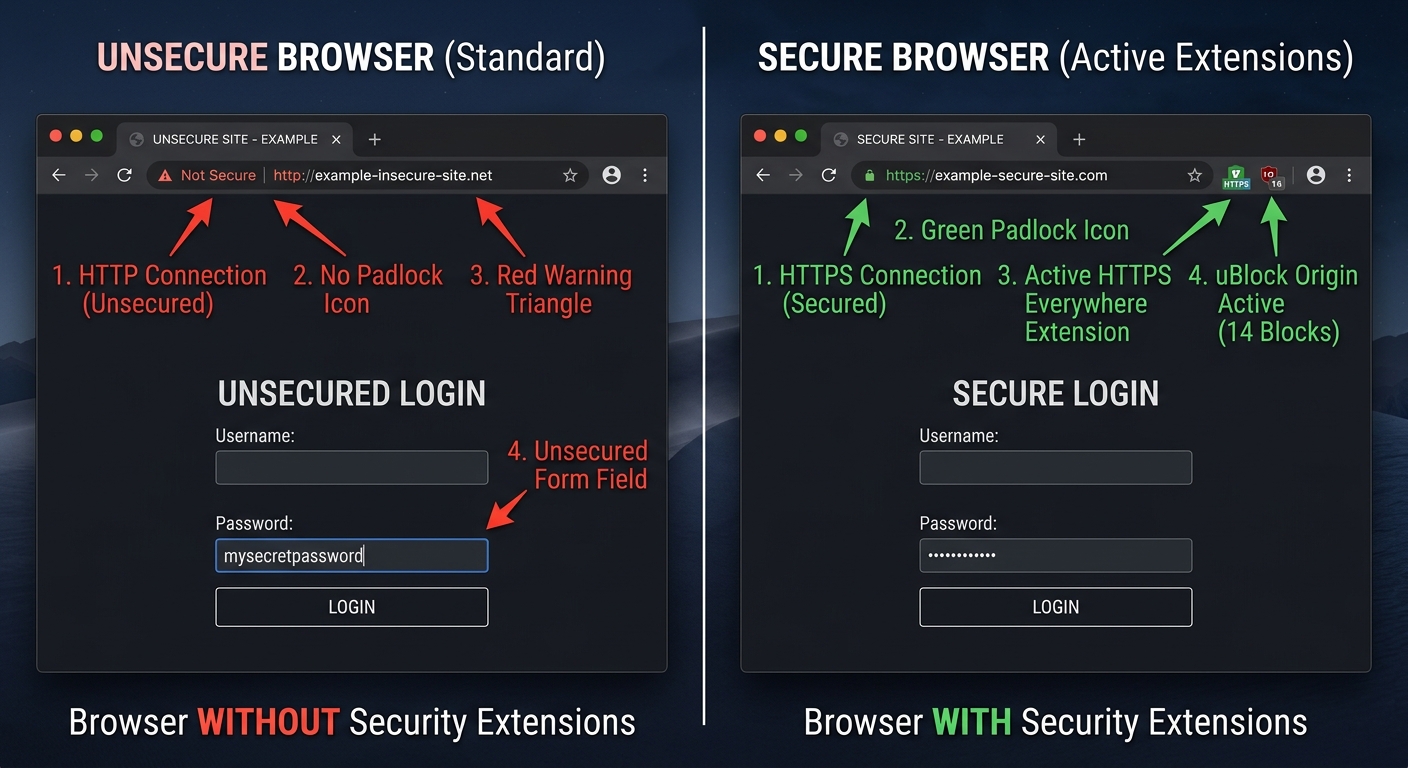
Verifying HTTPS connections before submitting any information to a website is a habit that every internet user should develop. The padlock icon in your browser's address bar indicates that the connection between your browser and the web server is encrypted using TLS (Transport Layer Security). Without this encryption, any data you submit — including form fields, login credentials, and search queries — is transmitted as plaintext and can be read by anyone monitoring the network. If a website you regularly use does not support HTTPS, consider whether you should be accessing it at all on a public network. Never proceed past a browser security certificate warning; these warnings indicate that the connection's authenticity cannot be verified, which is a strong signal that an SSL stripping attack may be in progress.
Using your smartphone as a personal hotspot is often the most pragmatic solution when you need reliable, secure connectivity away from home. Mobile data connections use cellular network infrastructure, which is significantly more difficult to intercept than public Wi-Fi. While not immune to all forms of surveillance, a personal hotspot eliminates the entire category of public Wi-Fi-specific attacks — MitM on shared networks, evil twin hotspots, packet sniffing by co-located attackers — that represent the most common and immediate threats to traveling users.
What Are the Best Security Tools for Public Network Safety?
The security tool landscape for public Wi-Fi protection has matured considerably, offering users a rich ecosystem of solutions spanning VPN services, comprehensive antivirus suites with network-specific capabilities, and browser-based security enhancements. The key insight that should guide your tool selection is that no single tool provides complete protection — the threats are too varied and operate at too many different levels of the technology stack for any one solution to address all of them. A layered approach, where each tool handles the threats it is best positioned to address, is the only architecture that provides genuinely comprehensive coverage.
The Indispensable Role of a VPN Service
A VPN's core function — creating an encrypted tunnel for all outbound and inbound traffic — makes it uniquely effective against the network-level threats that dominate the public Wi-Fi threat landscape. When your traffic is encrypted end-to-end, the physical medium over which it travels becomes largely irrelevant from a security standpoint. An attacker who successfully positions themselves as a man-in-the-middle on a public network, captures every single packet you transmit, and has unlimited time to analyze that data will still find nothing actionable because the content is encrypted with a key they do not possess.
When selecting a VPN service, several criteria are critical to evaluate beyond the marketing claims:
- No-Logs Policy: A reputable VPN provider should maintain a verified no-logs policy, meaning they do not record your browsing activity, connection timestamps, or IP addresses. This policy should ideally be independently audited by a third-party security firm.
- Encryption Standard: AES-256 encryption is the current industry standard for VPN data encryption. Ensure the service you choose uses this standard, not weaker alternatives.
- Protocol Support: Modern, secure VPN protocols include WireGuard, OpenVPN, and IKEv2/IPSec. Avoid services that rely on older, less secure protocols like PPTP.
- Kill Switch: A kill switch automatically disconnects your internet connection if the VPN connection drops unexpectedly, preventing your unencrypted traffic from being exposed even momentarily.
- Jurisdiction: The country in which a VPN provider is legally incorporated affects what data retention laws apply to them. Providers in privacy-friendly jurisdictions are generally preferable.
The following table provides a comparative overview of popular VPN options to help users make an informed selection based on their specific needs and budget:
| VPN Service | Free Tier Available | Data Cap (Free) | Encryption Standard | No-Logs Policy | Kill Switch | Best For |
|---|---|---|---|---|---|---|
| ProtonVPN | Yes | Unlimited (3 servers) | AES-256 | Yes (Audited) | Yes | Privacy-focused users, free tier value |
| Windscribe | Yes | 10 GB/month | AES-256 | Yes | Yes | Moderate data usage, browser extension |
| TunnelBear | Yes | 500 MB/month | AES-256 | Yes (Audited) | Yes | Occasional travelers, ease of use |
| ExpressVPN | No | N/A | AES-256 | Yes (Audited) | Yes | Speed-critical users, streaming |
| NordVPN | No | N/A | AES-256 | Yes (Audited) | Yes | Power users, double VPN feature |
| Mullvad VPN | No | N/A | AES-256 / WireGuard | Yes (Audited) | Yes | Maximum anonymity, no account required |
For users who primarily need protection during occasional public Wi-Fi use, a free tier from a reputable provider like ProtonVPN can provide meaningful protection. For frequent travelers or business users who require consistent, high-speed encrypted connectivity, investing in a paid service is strongly advisable.
Choosing an Antivirus with Advanced Network Protection
The antivirus software category has evolved far beyond its original function of scanning files for known malware signatures. Modern security suites designed for the contemporary threat landscape include network-aware features that are specifically valuable in public Wi-Fi environments. When evaluating antivirus solutions for public network use, look beyond the basic virus detection rate and assess the following capabilities:
- Network Intrusion Detection/Prevention (NIDS/NIPS): Monitors network traffic patterns for signatures of known attack techniques, including ARP poisoning, DNS spoofing, and port scanning.
- Wi-Fi Security Scanner: Actively analyzes the connected network's configuration, identifying weaknesses such as outdated encryption protocols (WEP), open authentication, and potential rogue access points.
- Real-Time Behavior Monitoring: Watches all running processes for suspicious behaviors — unexpected network connections, file system modifications, registry changes — that may indicate a malware infection even if the specific malware signature is not yet in the threat database.
- Safe Browsing / URL Filtering: Checks URLs against databases of known malicious domains and phishing sites before your browser loads them, preventing drive-by downloads and credential harvesting pages from ever being rendered.
360 Total Security stands out as a particularly compelling option in this category, especially given its accessibility. Its multi-engine antivirus core — incorporating the Avira engine, the Bitdefender engine, the QVM AI engine, and the 360 Cloud engine — provides detection coverage that rivals premium-tier competitors. The dedicated Wi-Fi Security Check tool goes beyond simple network connectivity and actively analyzes the security configuration of the connected network, flagging potential threats before they can be exploited. The proactive defense system continuously monitors for suspicious network behavior, providing a real-time early warning system that is particularly valuable in the unpredictable environment of public Wi-Fi. The fact that this comprehensive feature set is available within a free package makes it an exceptional value proposition for security-conscious users who cannot or do not wish to invest in multiple paid security tools.
According to a 2026 Cybersecurity Report by independent testing laboratories, security suites that combine multi-engine detection with network behavior monitoring demonstrate significantly higher rates of blocking network-based attack attempts compared to solutions relying solely on signature-based detection — underscoring the importance of choosing a solution with genuine network-aware capabilities rather than basic virus scanning alone.
Browser-Based Security Enhancements
Your web browser is the primary interface through which most public Wi-Fi attacks are executed or facilitated. Hardening your browser with security-focused extensions and adopting secure browsing configurations adds an important layer of protection that operates independently of your VPN and antivirus software, addressing threats that may slip through or operate at the application layer rather than the network layer.
HTTPS Everywhere (now integrated into browser settings as "HTTPS-Only Mode" in Firefox and Chrome) forces your browser to request the HTTPS version of every website you visit, even if you type the URL without the "https://" prefix. This mitigates SSL stripping attacks by ensuring that your browser insists on encrypted connections rather than silently accepting unencrypted HTTP responses from an attacker's proxy. Enabling HTTPS-Only Mode in your browser settings takes approximately thirty seconds and provides meaningful protection against a class of attacks that remains relevant in 2025.
Ad-blockers like uBlock Origin serve a dual security function on public networks. Primarily, they block the advertising scripts and third-party content that are the primary vectors for malvertising attacks. By preventing ads from loading entirely, they eliminate the possibility of a malicious ad delivering a drive-by download payload. Secondarily, they reduce the overall attack surface of every web page you visit by blocking the dozens of third-party scripts that most websites load, many of which have their own security vulnerabilities.
Regularly clearing cookies and cache after a public Wi-Fi session is a simple but effective post-connection hygiene practice. Session cookies that persist in your browser after you have finished using a public network remain vulnerable to theft if any malicious software was installed during the session. Clearing them immediately after disconnecting from a public network eliminates this residual risk and ensures that any session tokens that may have been compromised during the session are no longer valid.
Additional browser hardening measures worth implementing include disabling WebRTC in your browser settings (WebRTC can leak your real IP address even when using a VPN), using a privacy-respecting DNS resolver, and periodically reviewing and revoking unnecessary browser extension permissions. Each of these measures individually provides modest protection, but collectively they significantly reduce the browser's attack surface in public network environments.
How Do Enterprise IT Teams Secure Corporate Devices on the Go?
For individual users, public Wi-Fi security is primarily a personal responsibility — a matter of choosing the right tools and developing the right habits. For enterprise IT teams, the challenge is categorically different in scale, complexity, and consequence. A single employee connecting an unprotected corporate laptop to a public Wi-Fi network can expose not just their own data but the entire organization's network, intellectual property, customer records, and regulatory compliance posture to risk. The enterprise approach to mobile device security must therefore be systematic, policy-driven, and technically enforced rather than relying on individual employee judgment.
Implementing Centralized Endpoint Protection and MDM
Endpoint Detection and Response (EDR) solutions represent the enterprise evolution of traditional antivirus software. Where consumer antivirus software focuses on detecting and removing threats on individual devices, EDR platforms provide security teams with centralized visibility and control across every managed device in the organization, regardless of where those devices are physically located. An EDR solution continuously collects telemetry data from endpoints — process execution logs, network connection records, file system changes, registry modifications — and analyzes this data in real time using behavioral analytics and machine learning to identify indicators of compromise that signature-based detection would miss.
When an employee's laptop connects to a compromised public Wi-Fi network and a malware payload begins executing, the EDR platform can detect the anomalous behavior, automatically isolate the affected endpoint from the corporate network to prevent lateral movement, alert the security team, and preserve forensic evidence — all within minutes of the initial compromise. This capability is transformative for organizations with distributed workforces, where the traditional network perimeter has effectively dissolved.
Mobile Device Management (MDM) software provides IT administrators with the ability to enforce security policies across all managed devices, ensuring that security configurations are applied consistently regardless of individual user behavior. Key MDM capabilities relevant to public Wi-Fi security include:
- Mandatory Full-Disk Encryption: Ensures that even if a device is lost or stolen after being used on a public network, the data it contains cannot be accessed without the encryption key.
- Remote Wipe: Allows IT administrators to completely erase a lost or compromised device remotely, preventing data exfiltration from devices that cannot be physically recovered.
- Configuration Enforcement: Automatically applies security settings — firewall rules, VPN configurations, Wi-Fi auto-connect restrictions — to devices, preventing users from inadvertently or intentionally disabling security controls.
- Application Whitelisting: Restricts devices to running only approved applications, preventing the installation and execution of unauthorized software that may be malicious or may create security vulnerabilities.
- Compliance Monitoring: Continuously checks that devices meet the organization's security policy requirements and flags or quarantines non-compliant devices before they can access corporate resources.
Mandating Corporate VPNs and Zero Trust Access
The corporate VPN has been a cornerstone of enterprise remote access security for decades. By requiring employees to connect through a corporate VPN before accessing any internal resources, organizations ensure that all traffic between remote devices and corporate systems is encrypted and routed through the company's secure network gateway, where it can be monitored, filtered, and logged. This architecture effectively neutralizes the network-level threats of public Wi-Fi for corporate traffic, as the public network is only used to carry the encrypted VPN tunnel, not the actual business data.
However, the traditional VPN model has significant limitations in the context of modern, distributed workforces. Traditional VPNs operate on an implicit trust model: once a user authenticates to the VPN, they are granted broad access to the internal network. If an attacker compromises a user's VPN credentials — through phishing, credential stuffing, or malware on the user's device — they gain the same broad internal network access as the legitimate user. This is precisely the scenario that Zero Trust Network Access (ZTNA) is designed to address.
The Zero Trust model operates on the principle of "never trust, always verify." Rather than granting network-level access based on a single authentication event, ZTNA evaluates every access request individually, considering factors including:
- User identity and authentication strength (including multi-factor authentication status)
- Device health and compliance status (is the device encrypted? Is the antivirus up to date? Has it been recently scanned?)
- Network context (is the user connecting from a known corporate network or a public Wi-Fi hotspot?)
- Application-level access controls (granting access only to the specific application needed, not the entire network)
- Behavioral analytics (does this access request match the user's typical patterns?)
A ZTNA architecture recognizes that connections originating from public Wi-Fi networks carry inherently higher risk and can apply additional authentication requirements or access restrictions accordingly. An employee connecting from a hotel Wi-Fi network might be required to complete additional multi-factor authentication steps and may be granted access only to the specific applications they need for their current task, rather than the broad network access they would receive from the corporate office. This principle of least-privilege access dramatically limits the potential damage from a compromised device or stolen credentials.
Security Awareness Training and Clear Usage Policies
Technology controls are only as effective as the human behaviors they are designed to compensate for. A comprehensive enterprise security strategy must include robust security awareness training that equips employees with the knowledge to recognize threats, make sound security decisions, and understand the specific risks of public Wi-Fi use in the context of their corporate responsibilities.
Effective security awareness training for public Wi-Fi scenarios should cover:
- How to identify potentially malicious networks (duplicate SSIDs, networks with unusually strong signals in unexpected locations)
- The specific types of data that must never be transmitted over public networks, even with a VPN active
- How to recognize phishing attempts that may be facilitated by network-level attacks
- The correct procedure for reporting a suspected security incident involving a public network
- Practical demonstrations of how quickly and easily attacks can be executed on unprotected public networks
Complementing training with a clearly written and actively enforced Acceptable Use Policy (AUP) provides the organizational framework within which security decisions are made. An AUP for public Wi-Fi use should specify exactly which activities are prohibited on public networks, which security tools are mandatory, and what the consequences of policy violations are. Policies that exist only on paper and are never enforced create a false sense of security while doing nothing to reduce actual risk.
The following code block illustrates a simplified example of how an IT policy rule for public network access might be expressed in a policy enforcement framework:
# IT Security Policy Rule — Public Network Access Control
# Version 2.1 | Effective Date: 2025-01-01

IF network_type == "Public" OR network_trust_level == "Untrusted":
    enforce_VPN == TRUE                    # VPN connection mandatory before any traffic
    disable_file_sharing == TRUE           # Block SMB, AirDrop, and network discovery
    disable_auto_connect == TRUE           # Prevent automatic network reconnection
    require_MFA_step_up == TRUE            # Require additional authentication factor
    restrict_access_to == ["approved_apps_only"]  # Least-privilege application access
    log_all_connections == TRUE            # Full connection logging for audit trail
    alert_security_team == TRUE            # Notify SOC of public network connection event

IF enforce_VPN == TRUE AND vpn_status == "Disconnected":
    block_all_internet_traffic == TRUE     # Kill switch: no traffic without VPN
    display_user_alert == "VPN required. Connect to corporate VPN to continue."

# Compliance check interval: every 300 seconds
# Non-compliant devices: quarantine from corporate network, alert IT helpdesk
This policy-as-code approach, when implemented in an MDM or network access control (NAC) system, ensures that security rules are technically enforced rather than merely advisory — transforming the AUP from a document employees sign during onboarding into a living, actively enforced security control.
Final Security Checklist: Before You Connect to Any Public Wi-Fi
Knowledge without action provides no protection. The sections above have established a thorough understanding of the threats posed by public Wi-Fi networks and the tools and strategies available to counter them. This final section distills all of that knowledge into a practical, step-by-step security checklist that can be followed before, during, and after every public Wi-Fi session. Print it, bookmark it, or memorize it — but most importantly, use it consistently. Security habits, like any habits, become automatic through repetition, and the few minutes invested in following this checklist can prevent hours, days, or even years of dealing with the consequences of a preventable security incident.
Pre-Connection Preparation (Do This First)
1. Verify Network Legitimacy Before Connecting
Before selecting a network from your available connections list, take thirty seconds to verify the correct network name with a staff member or by checking the venue's official signage. Attackers who set up evil twin hotspots rely on users connecting without verification. Ask specifically: "What is the exact name of your Wi-Fi network?" A legitimate venue will always be able to answer this question immediately. If you see multiple networks with similar names, or a network name that seems slightly off from what you expect, treat it as a red flag and seek verification before connecting.
2. Update Your Security Software and Operating System
Before traveling to environments where you will need to use public Wi-Fi, ensure that your antivirus software — including 360 Total Security — has the latest threat definitions and that all pending operating system and application updates have been applied. Outdated software is one of the most reliably exploited attack surfaces on public networks. A quick update check before you leave your secure home or office network takes minutes and closes vulnerabilities that attackers actively scan for.
3. Disable File Sharing, AirDrop, and Network Discovery
These features, while useful on trusted home or office networks, create significant exposure on public networks. Network Discovery makes your device visible to every other device on the same network. File Sharing allows other devices to potentially access your shared folders. AirDrop (on macOS and iOS) can be exploited to send unsolicited files. Disable all of these features before connecting to a public network:
- Windows: Control Panel → Network and Sharing Center → Change advanced sharing settings → Turn off network discovery and file sharing
- macOS: System Preferences → Sharing → Disable all sharing services; Finder → AirDrop → Set "Allow me to be discovered by" to "No One"
4. Confirm Your VPN is Installed and Functional
Verify that your VPN application is installed, your subscription is active, and the application can successfully establish a connection before you need it. Attempting to troubleshoot VPN configuration issues while connected to a potentially compromised public network is not a position you want to be in. Test your VPN connection from your home network before traveling.
Actions During Your Session (Stay Vigilant)
1. Activate Your VPN Immediately Upon Connecting
The moment your device connects to a public network — before your operating system has had a chance to check for updates, before any applications have synced in the background, before you open a single browser tab — activate your VPN. The window between connecting to a network and activating your VPN is a period of exposure during which background processes may transmit data in an unencrypted state. Make VPN activation the first and most automatic step of every public Wi-Fi session, treating it with the same non-negotiable urgency as fastening a seatbelt.
2. Verify HTTPS on Every Website You Visit
Develop the habit of glancing at the address bar before interacting with any website. The padlock icon and "https://" prefix should be present on every site where you enter any information whatsoever — not just login pages, but any form, search box, or interactive element. If a website you regularly use is serving pages over HTTP, consider whether you should be accessing it on a public network at all. If your browser displays a certificate warning — a message indicating that the site's security certificate cannot be verified — do not click through the warning. Close the tab and do not access that site on the current network.
3. Avoid Sensitive Transactions Without Exception
Reinforce the behavioral discipline established in your pre-connection preparation: no banking, no investment account access, no healthcare portal logins, no corporate email access without VPN, no e-commerce transactions involving stored payment methods. If an urgent financial matter arises while you are relying on public Wi-Fi, the correct response is to use your mobile data connection instead, not to make an exception to this rule. One exception, at the wrong moment, is all it takes for a significant security incident to occur.
4. Monitor for Unusual Device Behavior
Stay alert to signs that your device may have been compromised: unexpected slowdowns, unusual network activity indicators, applications opening or closing without user input, unexpected authentication prompts, or browser redirects to unfamiliar pages. These can be indicators of active malware execution or a session hijacking attempt in progress. If you observe any of these behaviors, disconnect from the network immediately, run a security scan with your antivirus software, and change the passwords for any accounts you accessed during the session from a trusted network.
5. Log Out of Every Account When Finished
Closing a browser tab does not terminate your session with a web application. The session cookie remains valid and stored in your browser until it expires or until you explicitly log out. For every account you access during a public Wi-Fi session — email, social media, cloud storage, any web application — actively click the "Log Out" or "Sign Out" button before closing the tab. This invalidates the session token on the server side, meaning that even if the cookie was captured during the session, it is no longer usable for session hijacking.
Post-Connection Cleanup (Don't Forget This)
1. Tell Your Device to Forget the Network
After disconnecting from a public Wi-Fi network, immediately instruct your device to forget it. This prevents your device from automatically reconnecting to the same network (or an evil twin with the same name) in the future without your explicit consent:
- Windows: Settings → Network and Internet → Wi-Fi → Manage known networks → Select the network → Forget
- macOS: System Preferences → Network → Wi-Fi → Advanced → Select the network → Remove (minus button) → OK
2. Run a Post-Session Security Scan
After returning to a trusted network, run a comprehensive security scan using 360 Total Security to check for any threats that may have been introduced during the public Wi-Fi session. While real-time protection should have intercepted active threats during the session, a post-session scan provides an additional verification pass, catching any dormant payloads or configuration changes that may have been made without triggering real-time alerts. This is particularly important if you noticed any unusual device behavior during the session.
3. Clear Browser Data from the Session
Open your browser's settings and clear cookies, cached files, and browsing history for the time period of your public Wi-Fi session. This eliminates any session tokens that may have been captured during the session and removes cached content that may have been tampered with by a network-level attacker. In Chrome: Settings → Privacy and Security → Clear browsing data → Select "Cookies and other site data" and "Cached images and files" → Clear data. In Firefox: Settings → Privacy and Security → Cookies and Site Data → Clear Data.
4. Review Account Activity for Anomalies
For any accounts you accessed during the public Wi-Fi session, review the account's recent activity log (most major platforms provide this) for any actions you did not take. Unexpected logins from unfamiliar locations, sent emails you did not compose, or transactions you did not initiate are all indicators of a successful session hijacking or credential theft. If you identify any suspicious activity, immediately change your password, revoke all active sessions, enable multi-factor authentication if not already active, and contact the platform's security team.
Frequently Asked Questions
Is it safe to use public Wi-Fi for banking if I have a VPN?
Using a VPN significantly reduces the risk of banking on public Wi-Fi by encrypting your traffic and preventing network-level interception. However, it does not eliminate all risk. Malware on your device, phishing sites, or a compromised VPN service could still expose your credentials. The safest approach remains using your mobile data connection for banking transactions. If you must use public Wi-Fi for banking, ensure your VPN is active, verify the bank's website URL carefully, and use multi-factor authentication on your account.
What can hackers actually see when I use public Wi-Fi without protection?
Without a VPN and on unencrypted connections, an attacker on the same public network can potentially see the websites you visit, the content of any data submitted over HTTP connections (including login credentials and form data), your device's hostname and MAC address, DNS queries revealing your browsing interests, and session cookies that can be used to hijack your authenticated sessions. With HTTPS, the content of your communications is encrypted, but metadata — which sites you are visiting, how long you spend on them — may still be visible.
Do I need both a VPN and antivirus software for public Wi-Fi?
Yes — they address fundamentally different threat categories and are not interchangeable. A VPN encrypts your network traffic, protecting against network-level attacks like MitM, packet sniffing, and evil twin hotspots. Antivirus software protects against on-device threats: malware that may be injected through the network, malicious files you may download, and suspicious processes executing on your system. A comprehensive security suite like 360 Total Security adds network-aware features that complement VPN protection, creating a layered defense that addresses both the network and device attack surfaces simultaneously.
How do I know if a public Wi-Fi network is an evil twin hotspot?
Evil twin hotspots can be very difficult to distinguish from legitimate networks by appearance alone. Warning signs include: seeing two networks with very similar names in the same location, a network with an unusually strong signal strength that seems inconsistent with the venue's infrastructure, being asked to create an account or provide personal information to access a "free" Wi-Fi network, or experiencing unexpected certificate warnings after connecting. The most reliable protection is to verify the exact network name with venue staff before connecting and to use a VPN regardless of which network you connect to.
About the Author
Senior Technical Writer, Cybersecurity Division — With over a decade of experience translating complex cybersecurity concepts into actionable guidance for both technical and non-technical audiences, this author specializes in network security, endpoint protection, and practical threat mitigation strategies. Their work has been referenced by enterprise IT teams and individual users alike, covering topics ranging from zero trust architecture to consumer-level device hardening. They maintain active engagement with the cybersecurity research community and regularly review threat intelligence reports to ensure all published guidance reflects the current threat landscape.
Learn more about 360 Total Security