
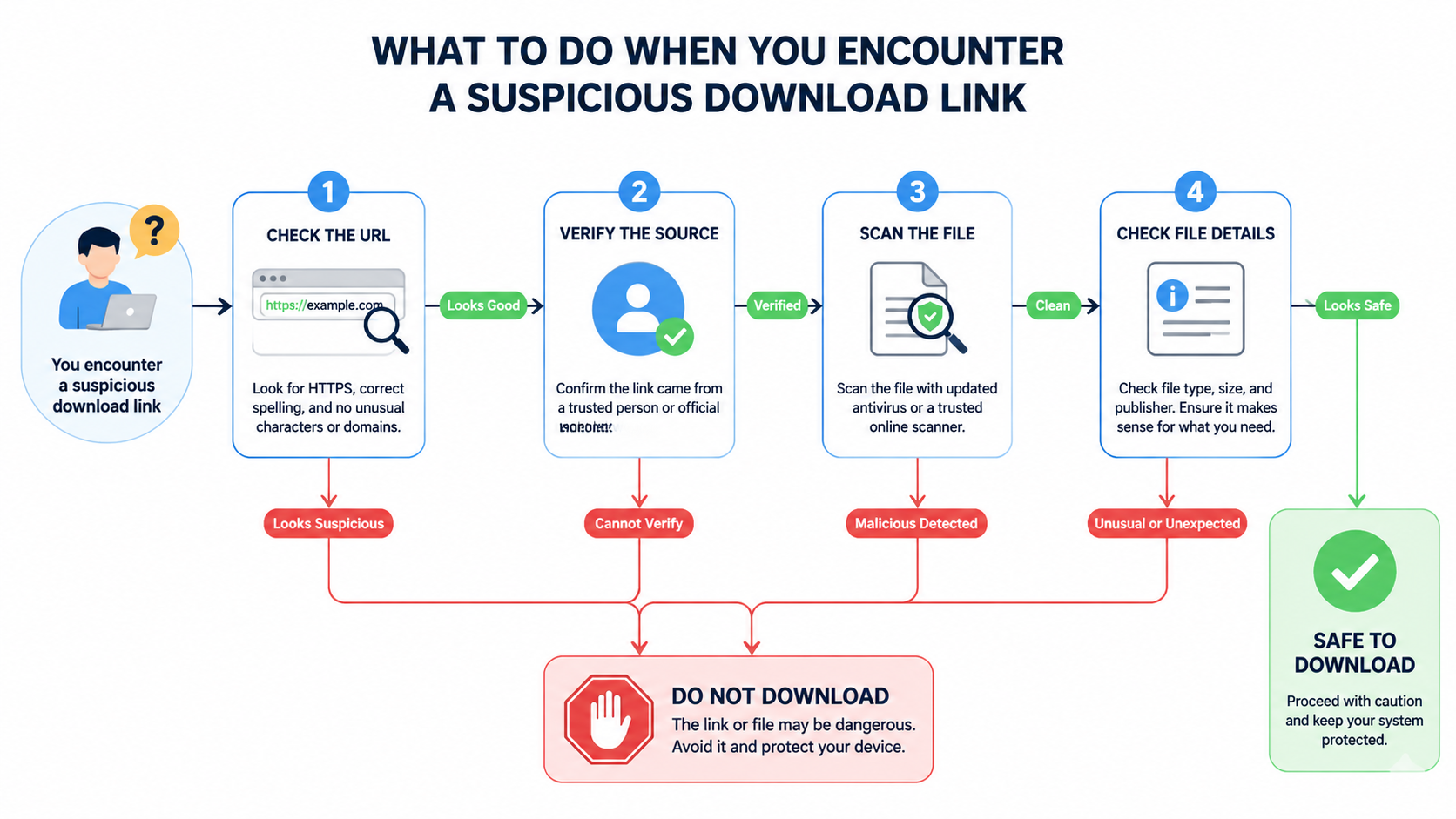
Preventing malware from infecting your PC demands more than just installing antivirus software and hoping for the best. True protection comes from a layered strategy that combines proactive behavioral habits, intelligent system configuration, reliable security software with multi-engine detection, and ongoing maintenance routines. This comprehensive guide walks you through understanding how malware infiltrates systems, building behavioral defenses, choosing the right security solution, leveraging 360 Total Security for unified protection and optimization, and implementing advanced strategies that elevate your security posture from reactive to resilient. Whether you are dealing with phishing emails, drive-by downloads, or zero-day exploits, the principles here will help you stop virus infections before they start and keep your PC running at peak performance.
How Can I Effectively Stop and Prevent Malware from Infecting My PC?
Preventing malware requires a layered approach combining proactive behavioral changes, smart system settings, and reliable protective software, rather than just reactive removal after infection. Understanding the threat landscape is the first step toward building an impenetrable defense.
Understanding Common Malware Infection Vectors
Before you can defend against malware, you need to understand exactly how it reaches your system. The 2025 Verizon Data Breach Investigations Report confirms that the most common entry points have remained consistent, though attackers continuously refine their techniques.
Risky downloads remain the number one infection vector for home users. This includes cracked software, torrents, fake installers disguised as legitimate applications, and malicious email attachments. Cybercriminals package malware inside seemingly harmless files, from PDF invoices to software activation tools. The moment you execute one of these files, the payload deploys silently in the background, often installing backdoors, keyloggers, or ransomware before you notice anything unusual.
Exploiting outdated software vulnerabilities is the second major attack surface. Browsers, browser plugins like Flash or Java (legacy systems still running them), PDF readers, and the operating system itself all contain code that can be exploited if left unpatched. Attackers actively scan for systems running older versions of popular software because known vulnerabilities have publicly available exploit code. A single missed Windows update or an outdated browser can be the crack in your armor.
Drive-by downloads from compromised or malicious websites represent perhaps the most insidious vector because they often require no user interaction whatsoever. Simply visiting a webpage that has been injected with malicious code can trigger an automatic download and execution of malware. Legitimate websites that have been hacked, malvertising campaigns on ad networks, and typosquatted domains all serve as delivery mechanisms for these silent attacks.
Implementing Proactive Behavioral Defenses
Technology alone cannot protect you. The most sophisticated security suite in the world is undermined by a single careless click. Cultivating safe computing habits is your first and most important line of defense.
Start by cultivating healthy skepticism. Before clicking any link or opening any attachment, verify the sender's email address character by character. Phishing emails often use addresses that look almost identical to legitimate ones, with subtle misspellings like "support@micros0ft.com" instead of "support@microsoft.com." Always check website URLs for HTTPS and verify the domain name matches the expected organization. If an offer seems too good to be true, whether it is free premium software, an unexpected prize, or an urgent security warning, it almost certainly is.
The critical importance of regular, automated updates for all software cannot be overstated. Enable automatic updates for your operating system, browsers, and all installed applications. Many users disable update notifications because they find them inconvenient, but this creates dangerous windows of vulnerability. According to a 2025 Ponemon Institute study, 60 percent of breaches involved vulnerabilities for which a patch was available but not applied.
Apply the principle of least privilege to your daily computing. Use a standard user account for everyday tasks like browsing, email, and document editing, reserving your administrator account only for installing software or making system changes. If malware executes under a standard account, its ability to make system-wide changes, install rootkits, or modify critical files is severely limited. This single configuration change can prevent the majority of malware from gaining a persistent foothold on your system.
Early Detection: Recognizing the Signs of Compromise
Even with strong defenses, no system is completely immune. Recognizing the early signs of infection allows you to respond quickly and minimize damage.
Performance red flags are often the first indicators. If your PC suddenly becomes sluggish, if your CPU usage spikes to high percentages when you are not running demanding applications, or if you experience frequent crashes and blue screens, malware may be consuming your system resources. Cryptominers, in particular, will max out your CPU or GPU to mine cryptocurrency in the background.
Behavioral red flags include unexpected pop-up advertisements appearing even when your browser is closed, your browser homepage or default search engine changing without your consent, and new toolbars or software appearing that you never installed. These are classic signs of adware, browser hijackers, or potentially unwanted programs that have infiltrated your system.
Network red flags are subtler but equally concerning. Unexplained spikes in data usage, your internet connection slowing dramatically, or your firewall logging suspicious outbound connection attempts to unknown IP addresses can indicate that malware is communicating with a command-and-control server or exfiltrating your data. Use Windows Task Manager and Resource Monitor to identify unfamiliar processes consuming network bandwidth or CPU cycles. Sort processes by network usage or CPU percentage to quickly spot anomalies that do not correspond to any software you recognize.
What Are the Key Features to Look for in a Comprehensive Security Solution?
Modern threats demand a security solution that goes beyond basic virus scanning, integrating real-time protection, system optimization, and privacy tools into a single, manageable platform. Understanding what separates adequate protection from comprehensive security helps you make an informed choice.
Non-Negotiable Core Security Layers
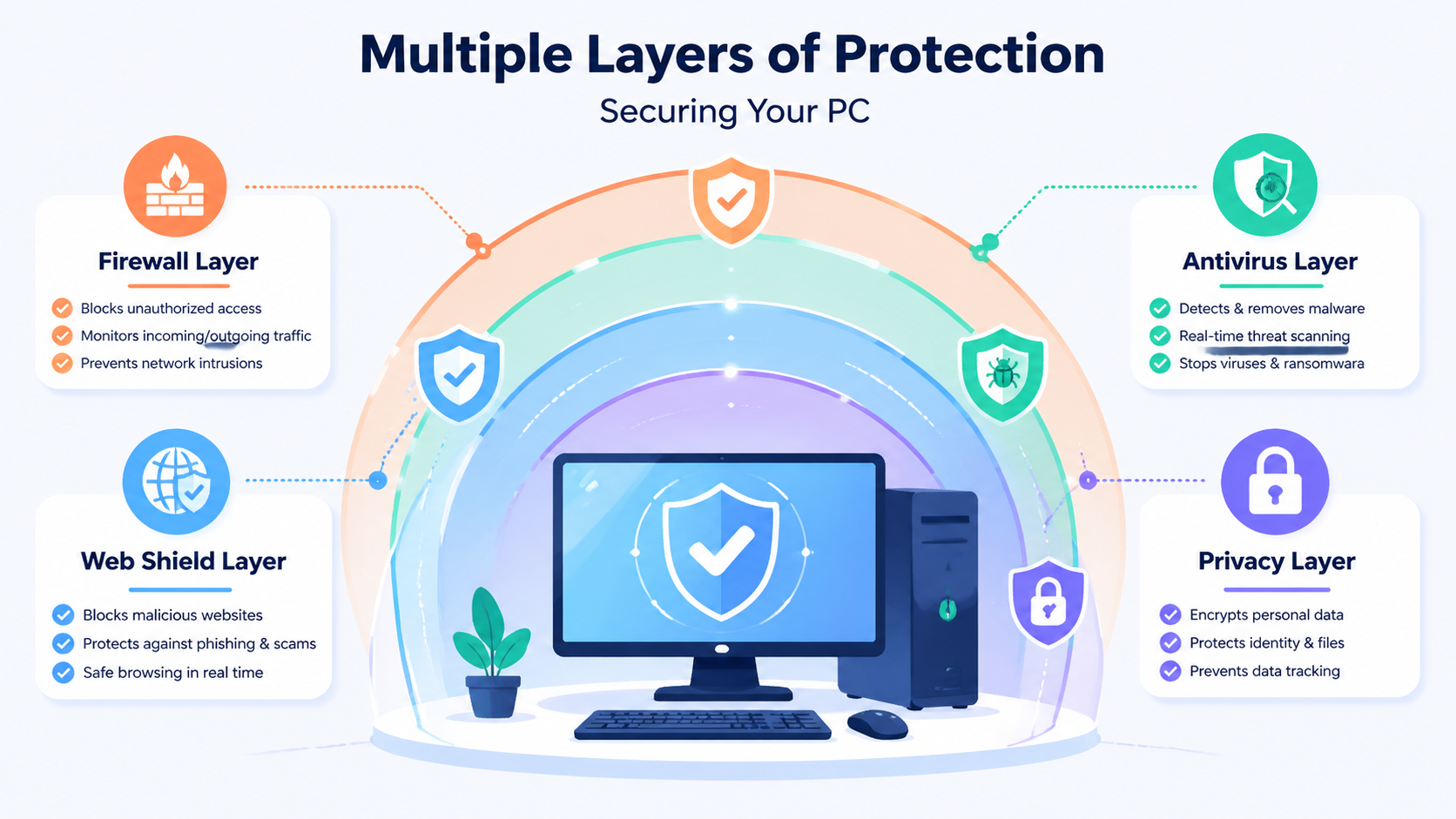
Real-time antivirus and anti-malware scanning forms the foundation of any security solution. This means continuous monitoring of every file opened, downloaded, or executed on your system, checked against a regularly updated threat database containing millions of known malware signatures. Without real-time scanning, threats can execute freely between manual scans.
Behavioral analysis and heuristics represent the next evolution in threat detection. Signature-based scanning alone cannot catch new, unknown threats (zero-day malware). Heuristic engines analyze the behavior patterns of files and processes, flagging anything that exhibits suspicious activity such as attempting to modify system files, injecting code into other processes, or encrypting large numbers of files rapidly. This proactive approach catches threats that have never been seen before.
A robust firewall monitors and controls both inbound and outbound network traffic, blocking unauthorized access attempts and preventing malware from communicating with external servers. While Windows includes a built-in firewall, dedicated security suites often provide more granular control and better logging capabilities.
| Feature | Basic Antivirus | Internet Security Suite | Total Security Suite |
|---|---|---|---|
| Real-time Malware Scanning | Yes | Yes | Yes |
| Behavioral/Heuristic Analysis | Limited | Yes | Advanced (Multi-Engine) |
| Firewall | No (relies on OS) | Yes | Yes |
| Web Shield / Safe Browsing | Basic | Yes | Yes |
| System Optimization Tools | No | Limited | Full Suite (Cleanup, Speed-Up) |
| Vulnerability Scanner | No | Yes | Yes |
| Privacy Cleaner | No | Basic | Yes |
| Sandbox Environment | No | No | Yes |
The Value-Add: System Performance and Cleanup Tools
Security and performance are deeply interconnected. A bloated, slow system is harder to maintain and monitor, and unnecessary background processes can mask malicious activity.
A Startup Manager identifies and allows you to disable unnecessary programs that launch at boot time. Every application that loads at startup competes for system resources during the critical first minutes of use. According to a 2025 study by PassMark Software, disabling unnecessary startup items can reduce boot time by 30 to 60 percent on average, depending on the number of items disabled and system hardware specifications.
A Disk Cleaner removes junk files, temporary data, browser caches, and broken registry entries that accumulate over time. These files consume storage space and can slow down file system operations. On systems that have not been cleaned in months, it is common to recover several gigabytes of wasted space.
The best security suites bundle these tools because a well-maintained system is inherently more secure. Fewer unnecessary processes mean fewer potential attack surfaces, and a clean system makes it easier to spot anomalies.
Essential Privacy and Online Protection Features
A Web Shield or Safe Browsing feature blocks access to known phishing sites and malware-hosting domains before they even load in your browser. This prevents drive-by downloads and stops you from inadvertently entering credentials on fake login pages. The best implementations check URLs against continuously updated cloud databases containing millions of malicious addresses.
A Vulnerability Scanner proactively identifies missing security updates across all installed software, not just the operating system. It also flags weak system settings such as disabled firewalls, open ports, or insecure configurations that could be exploited.
A Privacy Cleaner manages and clears browser cookies, cached data, saved form information, and browsing history. This protects your online footprint from both tracking companies and anyone who gains physical or remote access to your machine.
How Does 360 Total Security Provide Layered Protection and Optimization?
360 Total Security delivers a unified defense by combining multiple award-winning antivirus engines, proactive behavioral monitoring, and a comprehensive suite of PC optimization tools, all within a user-friendly free package designed for Windows and macOS desktops.
The Power of a Multi-Engine Antivirus Core
What sets 360 Total Security apart from most free antivirus solutions is its multi-engine architecture. Rather than relying on a single detection engine, it integrates the capabilities of both Avira and Bitdefender, two of the most respected names in threat detection, alongside its own proprietary engines.
"A hybrid engine approach significantly increases detection rates because different engines excel at identifying different threat categories," notes cybersecurity analyst Dr. Marcus Chen in a 2025 independent security assessment. "Where one engine might miss a polymorphic variant, another catches it through behavioral patterns. The combined coverage is substantially greater than any single engine alone."
The 360 Cloud Scan Engine provides instant analysis and verdicts on suspicious files by checking them against a massive cloud-based threat database. Because the heavy processing occurs in the cloud rather than on your local machine, this approach delivers rapid detection without taxing your system resources. New threat signatures are available immediately without waiting for local database updates.
These engines work in concert to provide comprehensive coverage. The signature-based engines catch known, widespread malware instantly. The behavioral engine detects zero-day threats based on suspicious activity patterns. The cloud engine provides real-time intelligence on emerging threats. Together, they create a detection net that is far more effective than any single approach.
Proactive Defense Systems: Sandbox and Intrusion Prevention
Sandbox Technology is one of the most powerful features available in 360 Total Security. When you encounter an unknown or suspicious program, you can run it inside an isolated virtual environment. The sandbox creates a contained space where the program can execute freely, but any changes it attempts, whether writing files, modifying the registry, or connecting to external servers, are completely isolated from your real system. If the program turns out to be malicious, you simply close the sandbox and nothing on your actual PC is affected.
The System Intrusion Prevention module continuously monitors critical system areas for unauthorized changes. This includes your startup entries, browser settings, system services, and file associations. If ransomware attempts to encrypt your files or a browser hijacker tries to change your homepage, the intrusion prevention system detects and blocks the modification in real time, alerting you to the attempted compromise.
These proactive systems work together to create a defense-in-depth approach. Even if a threat somehow bypasses the antivirus engines, the behavioral monitoring and sandbox containment provide additional layers that prevent actual damage to your system.
Integrated PC Speed-Up and Cleanup Suite
360 Total Security recognizes that security and performance are inseparable. A slow, cluttered PC is not only frustrating to use but also harder to keep secure.
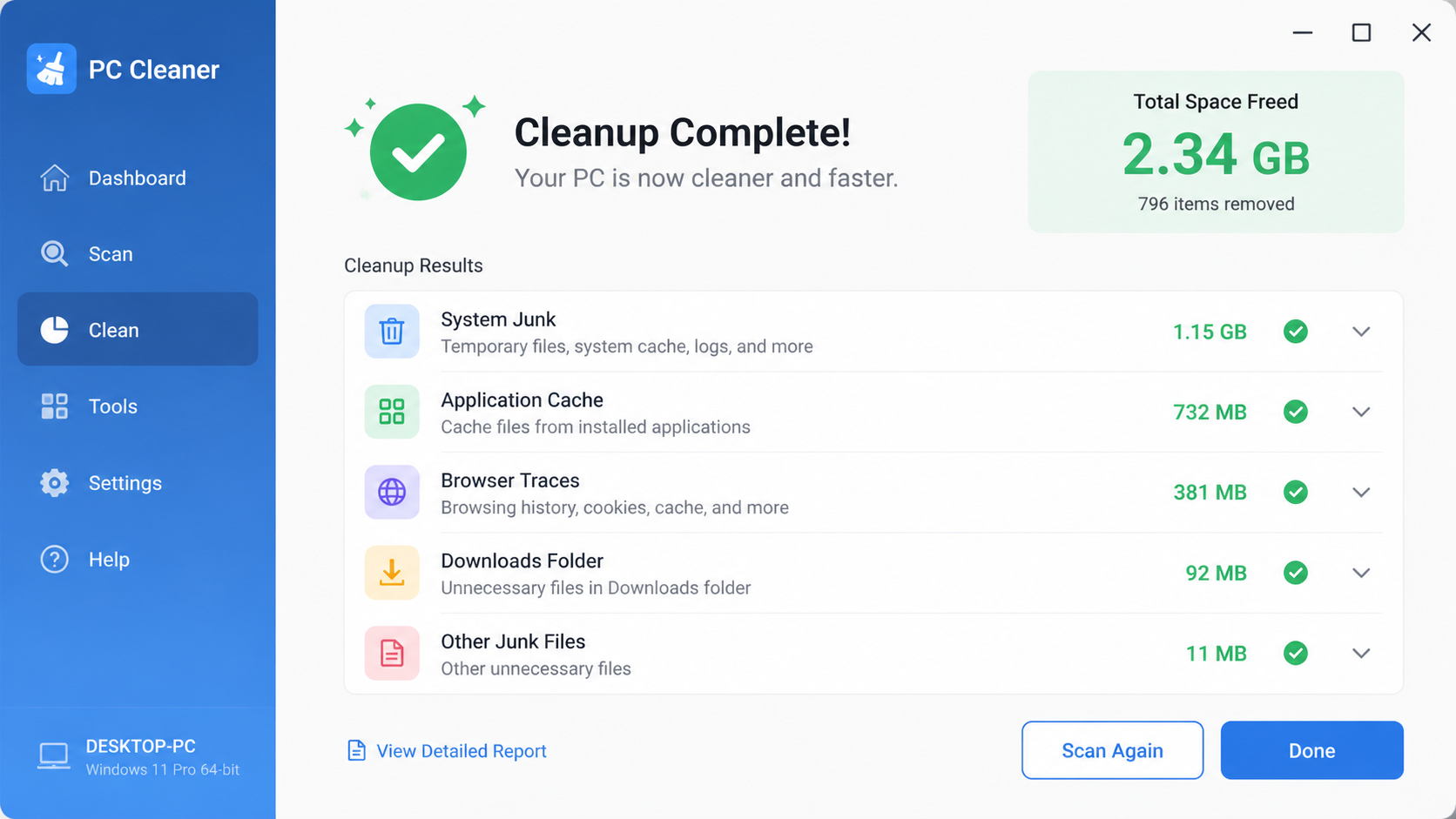
The One-Click Cleanup feature simplifies the process of removing junk files, tracking cookies, invalid registry entries, and temporary data left behind by applications. With a single click, it scans all common accumulation points and presents a clear summary of what can be safely removed.
The Startup Optimizer provides a clear, manageable list of all programs configured to launch at boot time. Each item includes a recommendation based on community data, whether it should be enabled, disabled, or is optional. This makes it easy even for non-technical users to safely reduce boot time without accidentally disabling something critical.
The integrated Toolbox extends functionality further with utilities like a File Shredder for secure, unrecoverable deletion of sensitive documents, a Disk Analyzer that visualizes storage usage to help you identify space-hogging files, and a Driver Updater that ensures your hardware drivers remain current and compatible.
Step-by-Step Guide: Using 360 Total Security for a Full System Scan and Cleanup
Performing regular comprehensive scans and system cleanups with 360 Total Security is a straightforward process that significantly enhances both your PC's security and its performance.
Initiating and Configuring a Comprehensive Virus Scan
After installing 360 Total Security on your Windows or macOS desktop, navigate to the Virus Scan tab in the main interface. You will see three scan options:
- Quick Scan: Examines critical system areas, running processes, and common malware hiding spots. Completes in minutes and is ideal for daily checks.
- Full Scan: Performs a thorough examination of every file on all connected drives and all running processes. This is the most comprehensive option and is recommended at least monthly.
- Custom Scan: Allows you to select specific drives, folders, or files to scan. Useful when you have downloaded something suspicious and want to verify it before opening.
Select Full Scan for the most thorough check. The scan duration depends on the number of files on your system but typically ranges from 30 minutes to two hours. You can continue using your PC during the scan, though performance-intensive tasks may be slightly slower.
When threats are found, 360 Total Security presents them in a clear quarantine list. Review each item carefully. Occasionally, legitimate software may trigger a false positive. If you recognize a flagged file as safe, you can restore it from quarantine and add it to the exclusion list. For confirmed threats, select delete to permanently remove them from your system.
Executing a Deep System Cleanup and Optimization
Navigate to the Clean Up tab to initiate a system-wide scan for unnecessary files. The tool categorizes findings into system junk, application cache, browser traces, invalid shortcuts, and registry entries. Review the categories and select which items to remove. For most users, selecting all categories is safe and effective.
Next, switch to the Speed Up tool to analyze startup programs, scheduled tasks, and background services. The interface presents each item with a clear status indicator and a recommendation. Items marked as "Recommended to disable" are safe to turn off without affecting system stability. Items marked "Optional" depend on your personal usage patterns.
Automating Protection and Establishing a Maintenance Routine
Consistency is key to maintaining security. Configure scheduled scans within 360 Total Security's settings to automate your protection:
- Set a weekly Quick Scan during a time when your PC is on but not in heavy use
- Schedule a monthly Full Scan for a weekend or overnight period
- Enable all real-time protection modules: File System Protection, Mail Protection, and Download Protection
Establish a monthly maintenance routine for optimal results:
- Week 1: Run a Full Virus Scan and address any findings
- Week 2: Perform a complete Clean Up to remove accumulated junk
- Week 3: Review the Startup Optimizer and disable any new unnecessary entries
- Week 4: Check for software updates and review system performance metrics
This routine, combined with the always-on real-time protection, ensures your system remains both secure and performant throughout the month.
Beyond Basics: Advanced Tips for Maximizing Your PC's Security Posture
Achieving true resilience involves supplementing your primary security software with strategic configurations, complementary tools, and ongoing security awareness. These advanced practices work alongside 360 Total Security to create a defense ecosystem that is extremely difficult for attackers to penetrate.
Strengthening Your Defenses with Complementary Tools
A password manager is no longer optional in 2025. With the average person maintaining over 100 online accounts, reusing passwords across services is both common and extremely dangerous. A dedicated password manager generates unique, complex passwords for every account and stores them in an encrypted vault. If one service suffers a data breach, your other accounts remain secure.
Implementing a DNS filtering service adds network-level protection that operates independently of your browser or security software. Services like Cloudflare's 1.1.1.1 with malware blocking or Quad9 filter out known malicious domains at the DNS resolution level. This means that even if you accidentally click a malicious link, the domain simply will not resolve, and the threat never reaches your system. Configuration takes less than five minutes and protects every application on your PC, not just your browser.
For users with critical documents, consider a dedicated anti-ransomware tool as an additional protection layer. While 360 Total Security's intrusion prevention system guards against encryption attempts, a specialized tool focused exclusively on ransomware behavior provides defense-in-depth for your most valuable files.
Configuring Windows Built-in Security for Maximum Effect
Windows 10 and 11 include security features that many users never activate. When using a third-party antivirus like 360 Total Security, enable Windows Defender's Periodic Scanning option. This allows Defender to perform occasional supplementary scans without conflicting with your primary security solution, providing an extra set of eyes on your system.
Enable Controlled Folder Access through Windows Security settings. This feature restricts which applications can modify files in your Documents, Pictures, Desktop, and other protected folders. If ransomware or any unauthorized application attempts to encrypt or modify files in these locations, Windows blocks the action entirely. You can whitelist trusted applications that need legitimate access.
Regularly audit application permissions through Settings, then Privacy. Review which applications have access to your camera, microphone, location, and contacts. Revoke permissions for any application that does not have a legitimate need for that access. Malware that gains these permissions can spy on you through your own hardware.
The Ultimate Safety Net: Implementing a Robust Backup Strategy
No security strategy is complete without a backup plan. Even the best defenses can be circumvented, and hardware can fail. The 3-2-1 backup rule provides a framework for data resilience:
- Maintain 3 total copies of your important data
- Store them on 2 different types of media (e.g., internal drive and external drive)
- Keep 1 copy offsite (e.g., cloud storage or a drive stored at another location)
Use Windows File History or a third-party backup tool for automated, versioned backups of your personal files. Versioned backups are critical because if ransomware encrypts your files and the encrypted versions get backed up, you can roll back to a previous clean version.
Create occasional system image backups that capture your entire operating system, installed applications, and settings. In the event of catastrophic failure or a ransomware attack that compromises your entire system, a system image allows you to restore everything to a known-good state in under an hour.
With 360 Total Security serving as your essential, always-on guardian handling real-time threat detection, system optimization, and proactive defense, these advanced practices complete the picture. Together, they create a security ecosystem where your PC is protected at every level, from the network layer through the operating system to your individual files.
Frequently Asked Questions
How often should I run a full virus scan on my PC?
A monthly full system scan is recommended for most users, supplemented by weekly quick scans of critical areas. If you frequently download files from the internet, install new software, or visit unfamiliar websites, consider running full scans bi-weekly. With 360 Total Security, you can automate this schedule so scans run during low-usage periods without manual intervention.
Can free antivirus software really protect my PC as well as paid options?
Yes, modern free security solutions like 360 Total Security offer comprehensive protection that rivals paid alternatives. By integrating multiple detection engines from Avira and Bitdefender alongside proprietary cloud scanning and behavioral analysis, 360 Total Security provides enterprise-grade detection capabilities at no cost. The key difference with some paid suites is typically in ancillary features like VPN services or identity theft monitoring rather than core protection quality.
What should I do immediately if I suspect my PC is infected with malware?
First, disconnect from the internet to prevent data exfiltration or further downloads. Then run a full system scan with your security software. If the malware prevents your antivirus from running, boot into Windows Safe Mode with Networking and run the scan from there. Review and quarantine all detected threats, change passwords for sensitive accounts from a different clean device, and monitor your financial accounts for unauthorized activity.
Is it safe to use multiple antivirus programs simultaneously on one PC?
Running two real-time antivirus engines simultaneously can cause conflicts, system slowdowns, and false positives. However, 360 Total Security is designed with a multi-engine architecture where Avira, Bitdefender, and the 360 Cloud Engine work in harmony within a single managed platform. If you want supplementary scanning, enable Windows Defender's Periodic Scanning feature, which performs occasional checks without conflicting with your primary security solution.
About the Author: This article was written by the cybersecurity editorial team at 360 Total Security, comprising certified information security professionals with over a decade of combined experience in threat analysis, malware research, and consumer PC protection. The team regularly publishes research on emerging threats and practical security guidance for desktop users worldwide.
Learn more about 360 Total Security